Mar 30, 2026
Claude Code Mobile, Codex Mobile, Gemini CLI Mobile: How to Code From Your Phone in 2026
AI coding agents like Claude Code, OpenAI Codex, and Gemini CLI all run in terminals — which means they run on your phone. But a terminal is not a workspace. Learn how 1DevTool Remote turns your phone into a full development control center.
The biggest shift in software development in 2026 isn't a new language or framework — it's that AI agents now do the coding for you. Claude Code, OpenAI Codex CLI, and Gemini CLI all run in terminals, which means they technically run on your phone too. Developers are already kicking off builds from the couch, approving diffs on the train, and monitoring agents from bed.
But there's a problem. Running a terminal on your phone gives you a keyhole view of one session. When you're managing 3-5 AI agents across multiple projects, a single terminal window isn't enough. That's where 1DevTool Remote comes in — turning your phone into a real development control center connected to your desktop workspace.
The Mobile AI Coding Landscape in 2026
Three major AI coding agents now dominate the terminal-based workflow. All three are CLI-first, which makes them portable — but each has different strengths on mobile.
Claude Code on Mobile
Claude Code is Anthropic's agentic coding CLI. It reads your codebase, writes files, runs commands, manages git, and executes multi-step tasks autonomously. On mobile, you can run it via:
- Termux (Android): Install Node.js, then
npm install -g @anthropic-ai/claude-code - a-Shell / iSH (iOS): Limited Node.js support, but functional for basic prompts
- SSH into a remote server: The most reliable option — run Claude Code on your dev machine, control it from your phone
- Claude Code web app: Anthropic now offers claude.ai/code for browser-based access
Claude Code on mobile is great for quick prompts — "fix the login bug," "add input validation to the signup form." But reviewing the multi-file diffs it produces on a 6-inch screen is a different story.
OpenAI Codex CLI on Mobile
Codex CLI is OpenAI's open-source terminal agent. It uses GPT-4.1 and o3-mini under the hood and runs locally in your terminal. On mobile:
- Termux (Android): Install Node.js 22+, then
npm install -g @openai/codex - SSH: Same remote approach as Claude Code — SSH into your machine and run
codex - iOS: No native option yet. SSH is the only reliable path.
Codex has three operating modes — suggest, auto-edit, and full-auto — which matter on mobile because full-auto mode means less manual approval friction on a small screen. But you still can't see what it's actually doing across your project without flipping between terminal sessions.
Gemini CLI on Mobile
Gemini CLI is Google's AI coding agent powered by Gemini 2.5 Pro. It's the newest entrant and features a generous free tier (60 requests/minute for individual developers). On mobile:
- Termux (Android): Install Node.js 18+, then
npx @anthropic-ai/gemini-clior install globally - SSH: Same remote pattern — Gemini CLI runs on your dev machine
- Google Cloud Shell: Access via browser for a zero-install mobile experience
Gemini CLI supports multi-modal inputs (images, screenshots) which is interesting on mobile — you could snap a photo of a UI bug and send it directly. But the core problem remains: one terminal, one session, one project at a time.
The Real Problem With Mobile AI Coding
Every blog post about "coding from your phone" shows the same thing: a single terminal running one AI agent on one project. It looks cool in a tweet. In practice, it falls apart because modern agentic coding workflows involve:
- Multiple agents running in parallel: Frontend agent, backend agent, test agent — all on different projects or branches
- Approval queues: Agents pause and wait for your approval before making destructive changes
- Diff review: You need to see exactly what changed across multiple files before accepting
- Context from your dev environment: Database state, API logs, git status — not just terminal output
- Coordination: Telling one agent to wait while another finishes, or redirecting priorities on the fly
A terminal app on your phone — whether it's Termux, Happy, or any SSH client — gives you exactly one window into one session. That worked when coding meant typing code yourself. It doesn't work when coding means managing a fleet of AI agents.
This is what multi-agent coding actually looks like on desktop — multiple agents across multiple projects. A single mobile terminal can't show you any of this.
1DevTool Remote: Your Desktop Workspace on Your Phone
1DevTool Remote is a completely different approach to mobile coding. Instead of running a terminal on your phone, it connects your phone to your desktop 1DevTool workspace — giving you visibility and control over everything running on your machine.
How It Works
- Open 1DevTool on your desktop — your projects, terminals, and agents are running as usual
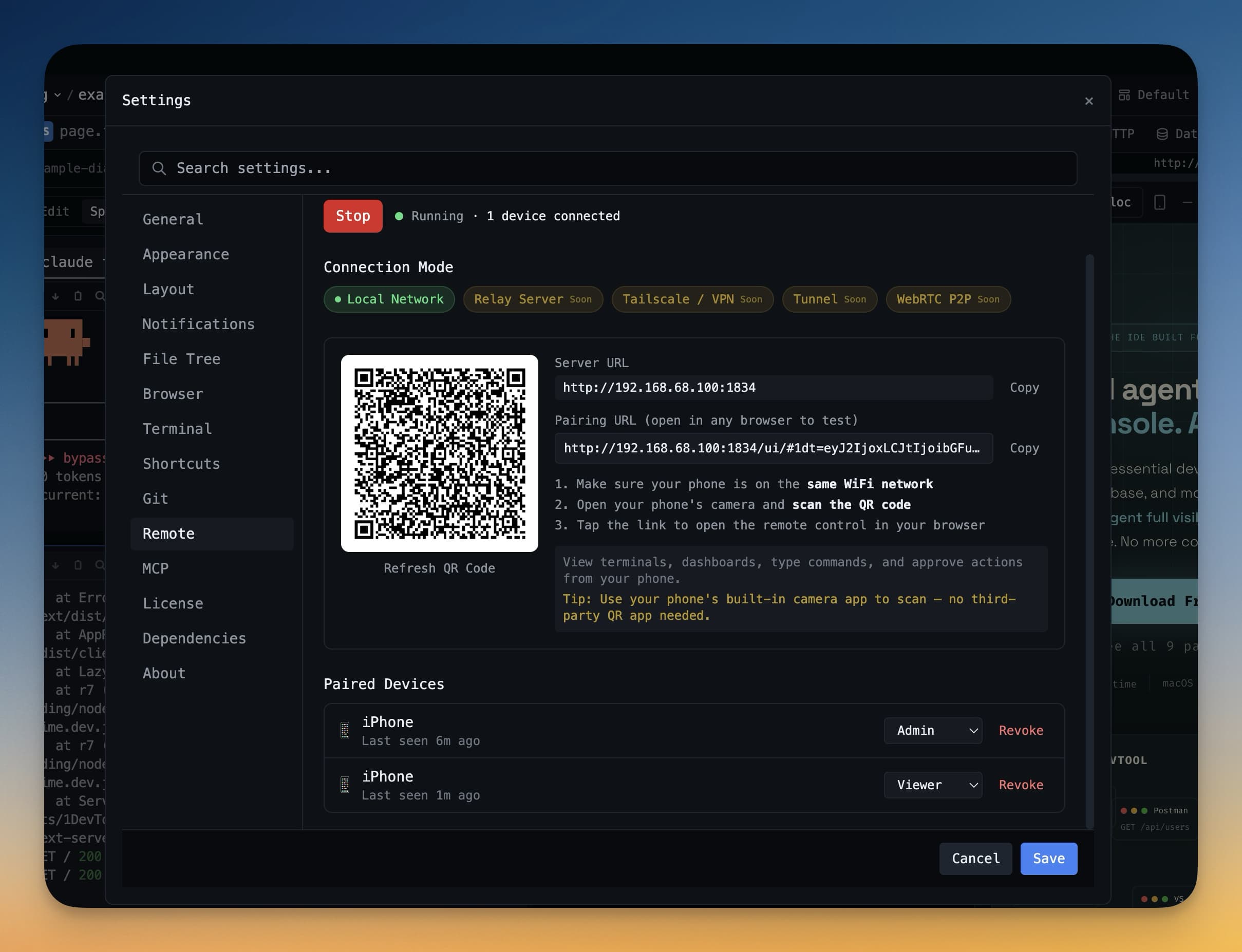
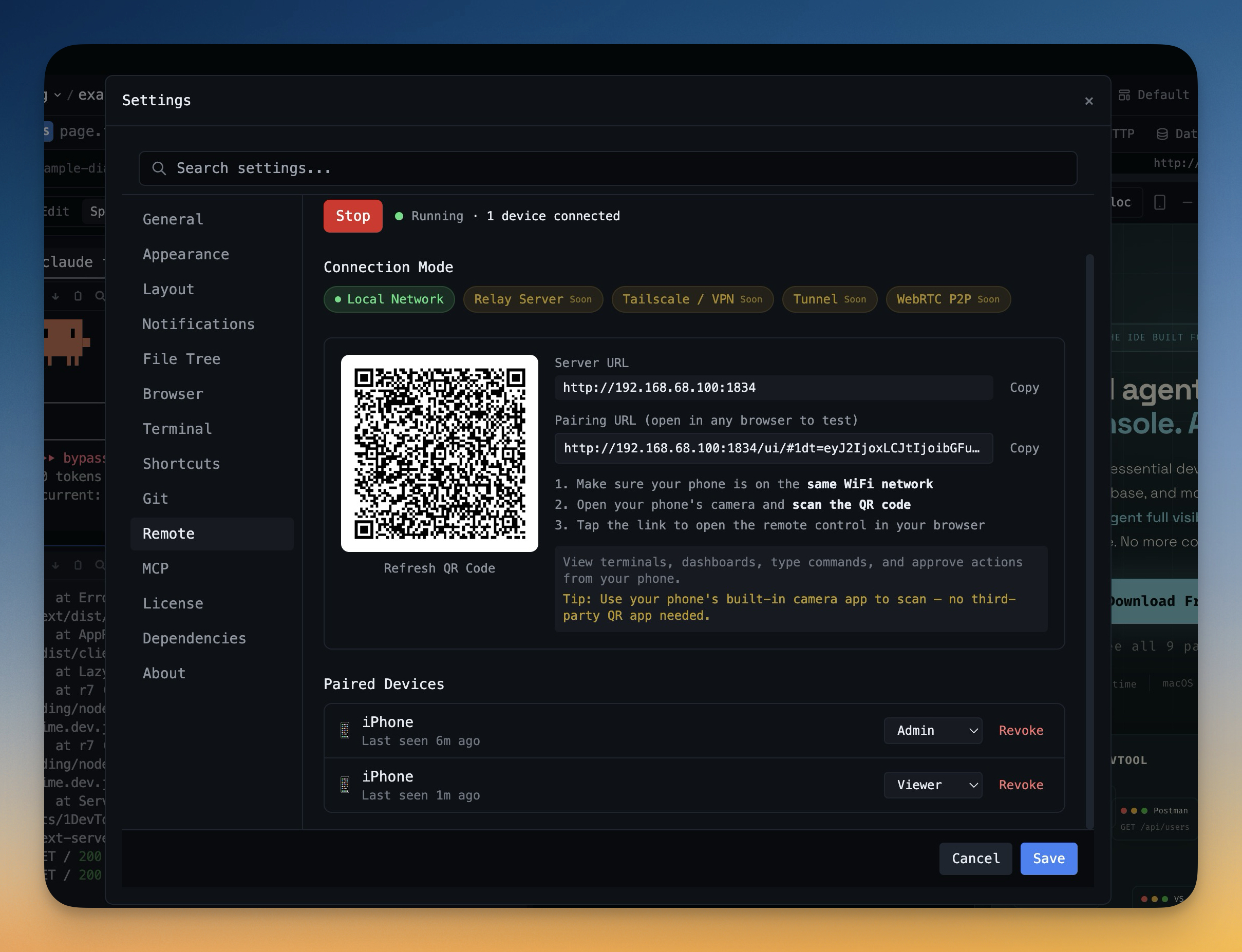
- Enable Remote Access — 1DevTool generates a QR code
- Scan from your phone — a secure, encrypted connection pairs your phone to your desktop
- Your full workspace appears on your phone — every project, every terminal, every agent
No app to install. No SSH keys to configure. No Node.js on your phone. Just scan and go.
Real-Time Project Dashboard
The moment you connect, you see every project on your desktop — not just the one terminal you happened to SSH into. Each project card shows:
- Project name and status indicator — color-coded so you can spot issues instantly
- Git branch and dirty state — see which branches have uncommitted changes
- Terminal count — how many terminals are running (alive vs total)
- AI agent status badges — which agents are running, waiting, or finished
- Active dev server URL — tap to preview your running app
Expand any project to see its individual terminals and jump into any one of them.
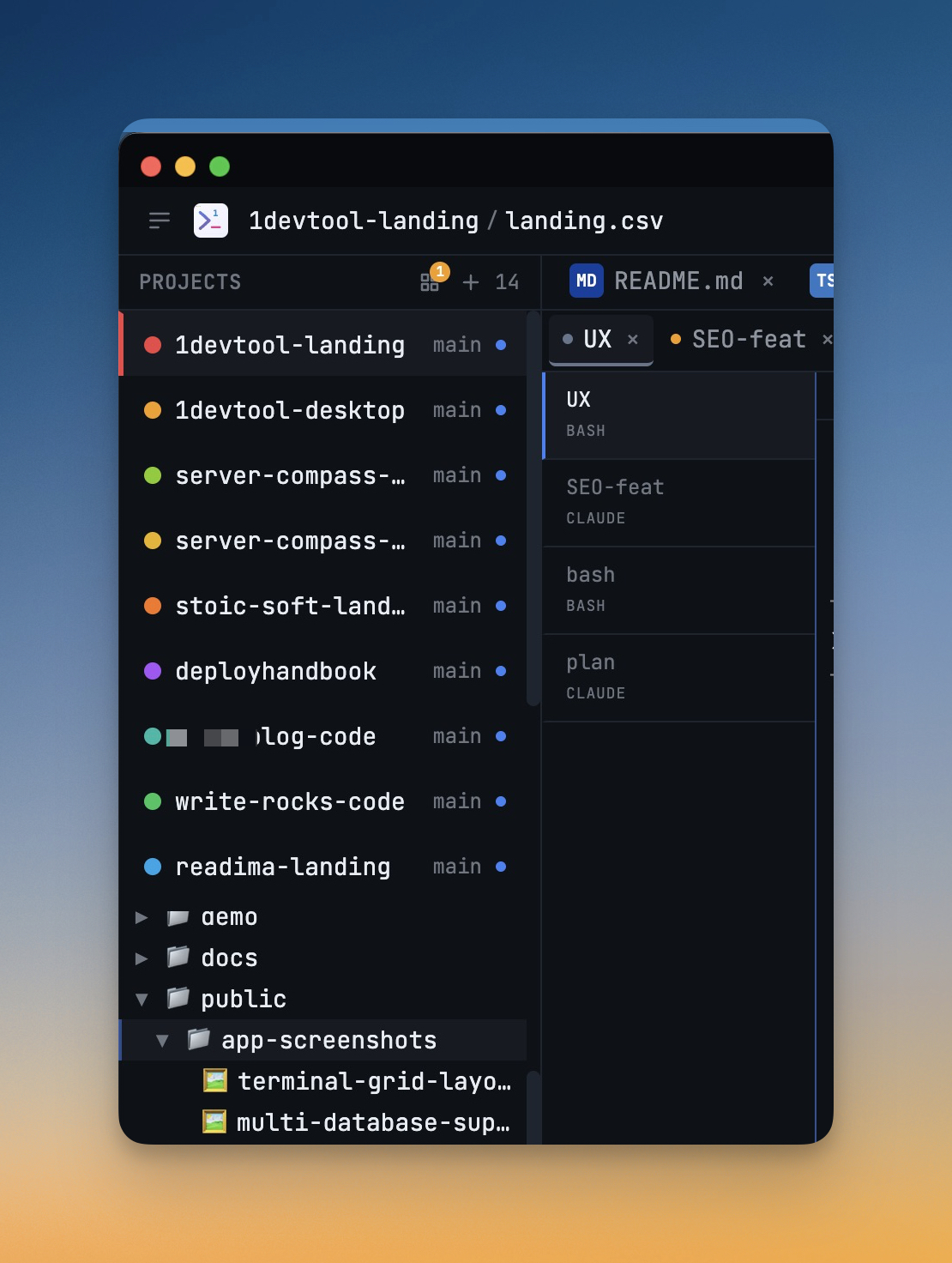
Your desktop workspace — every project, every terminal — now accessible from your phone via Remote.
Full Remote Terminal
When you tap into a terminal, you get a real terminal emulator — not a stripped-down text view. Powered by xterm.js with 10,000 lines of scrollback, it supports:
- Full ANSI color and formatting
- Quick-key buttons for Tab, Escape, Ctrl+C, arrow keys, and more
- Text input with command sending
- Auto-scroll with manual scroll detection
- Real-time streaming — see output as it happens
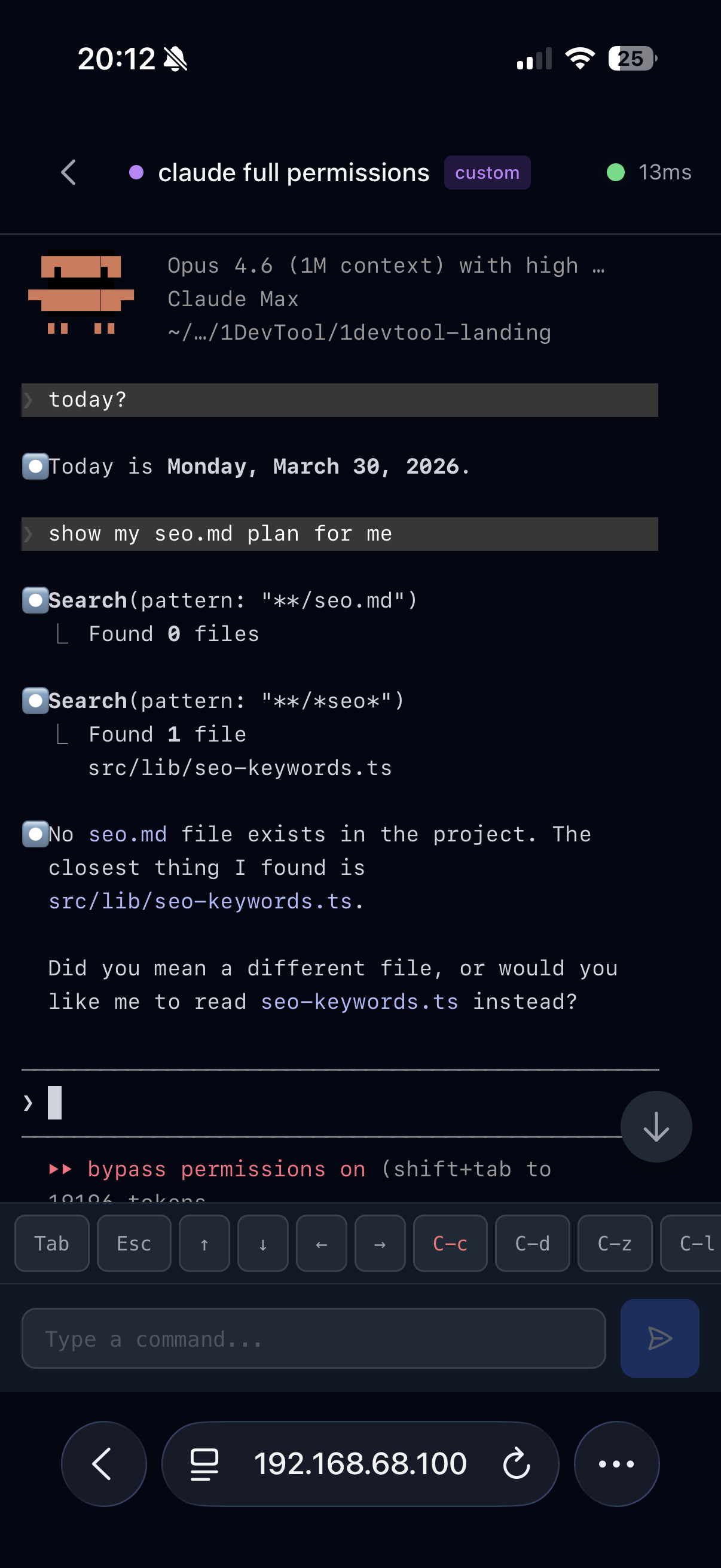
This means you can interact with Claude Code, Codex, or Gemini CLI — whatever agent is running in that terminal — with the same fidelity as sitting at your desk. Approve changes, send follow-up prompts, or Ctrl+C to stop a runaway task.
Browser Proxy: Preview Your App on Mobile
Running a dev server on localhost:3000? 1DevTool Remote proxies it to your phone. You can:
- Browse your running web app directly from your phone
- Take annotated screenshots — draw arrows, circles, and text on the screen
- Send screenshots to your AI agent — "fix this layout issue" with the annotated screenshot as context
This is especially powerful for responsive design. Your AI agent builds a feature on desktop, and you immediately see how it looks on an actual mobile device — then send visual feedback directly to the agent.
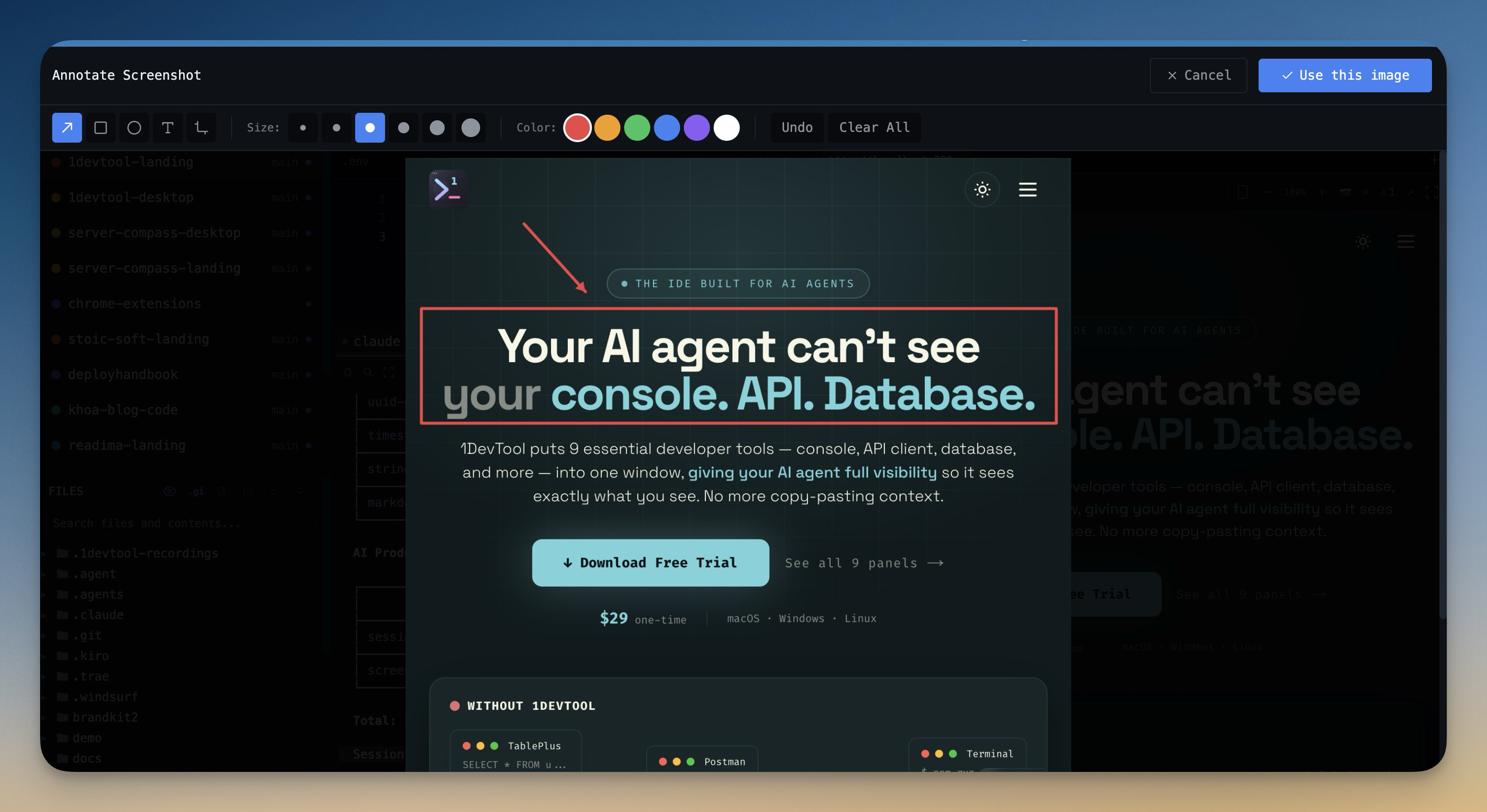
Annotate screenshots with arrows, circles, and text — then send them directly to your AI agent as context.
Enterprise-Grade Security
Remote access to your development environment needs to be secure. 1DevTool Remote uses:
- ECDH elliptic curve key exchange (P-256) for pairing
- AES-256-GCM encryption for all sensitive data
- HMAC-SHA256 challenge-response authentication
- Permission levels: Viewer, Approver, Operator, and Admin — control exactly what your phone can do
- Session expiration — connections expire automatically (7-day default)
- No credentials stored on device — pairing keys are held in memory only
Your code never leaves your machine. The phone is a remote control, not a storage device.
Mobile AI Coding: Terminal App vs 1DevTool Remote
Capability
Terminal App (Termux/SSH/Happy)
1DevTool Remote
Run Claude Code / Codex / Gemini
One session at a time
See all sessions across all projects
Multiple projects
Switch manually between SSH sessions
Dashboard with all projects at once
Agent status
Read terminal output
Status badges and activity indicators
Approve/reject changes
Type in terminal
Dedicated controls per agent
Git status
Run git commands manually
Branch + dirty state visible per project
Preview dev server
Not possible without tunneling
Built-in browser proxy
Screenshot + annotate
Not available
Draw on screenshots, send to AI agent
Security
SSH keys or password
ECDH + AES-256-GCM + permission levels
Setup
Install Node.js, configure SSH, manage keys
Scan a QR code
When to Use What
Use a Terminal App When:
- You're running a single agent on a single project
- You don't have 1DevTool running on your desktop
- You need to SSH into a production server for an emergency fix
- You're experimenting with AI coding agents for the first time
Use 1DevTool Remote When:
- You have multiple projects and agents running in parallel
- You need to approve or reject changes across several agents
- You want to preview your running app on an actual mobile device
- You want to send visual feedback (annotated screenshots) to your AI agents
- You need to monitor what's happening across your entire workload — not just one terminal
- Security matters — you don't want to expose SSH ports or store keys on your phone
Getting Started: Mobile AI Coding Setup Guide
Claude Code
- Install on your desktop:
npm install -g @anthropic-ai/claude-code - Set your API key:
export ANTHROPIC_API_KEY=your-key - Run
claudein your project directory
OpenAI Codex CLI
- Install on your desktop:
npm install -g @openai/codex - Set your API key:
export OPENAI_API_KEY=your-key - Run
codexin your project directory
Gemini CLI
- Install on your desktop:
npm install -g @anthropic-ai/gemini-clior usenpx - Authenticate with Google:
gemini auth - Run
geminiin your project directory
1DevTool Remote
- Download 1DevTool for desktop
- Open your projects and start your AI agents in integrated terminals
- Go to Settings and enable Remote Access
- Scan the QR code from your phone's camera
- Your workspace is now on your phone
What You're Actually Controlling Remotely
1DevTool Remote isn't a standalone mobile app — it's a window into your full desktop workspace. Here's what that workspace looks like on your machine:
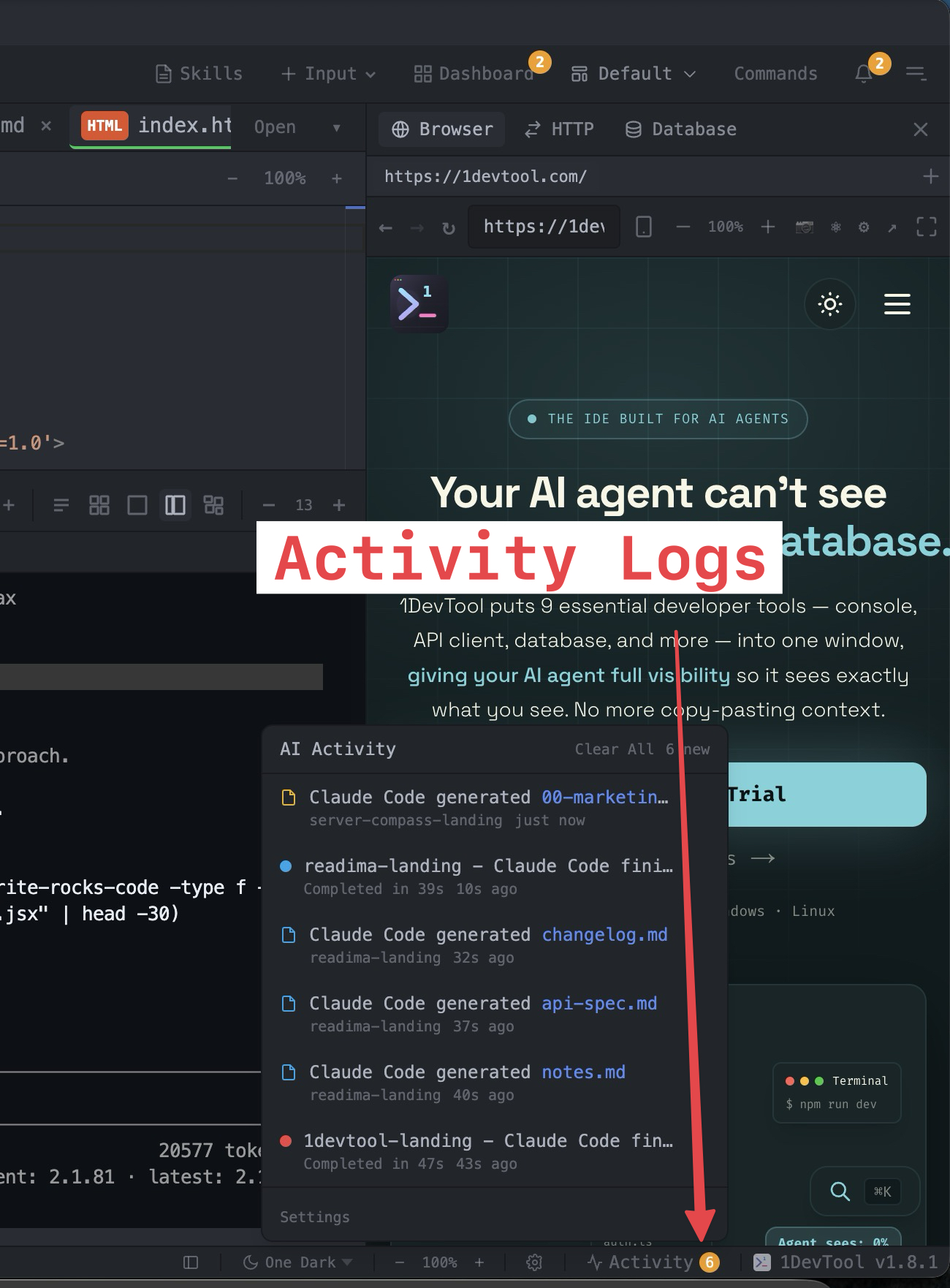
Activity logs track every agent action across all projects — see who finished, who's waiting, and who hit an error.
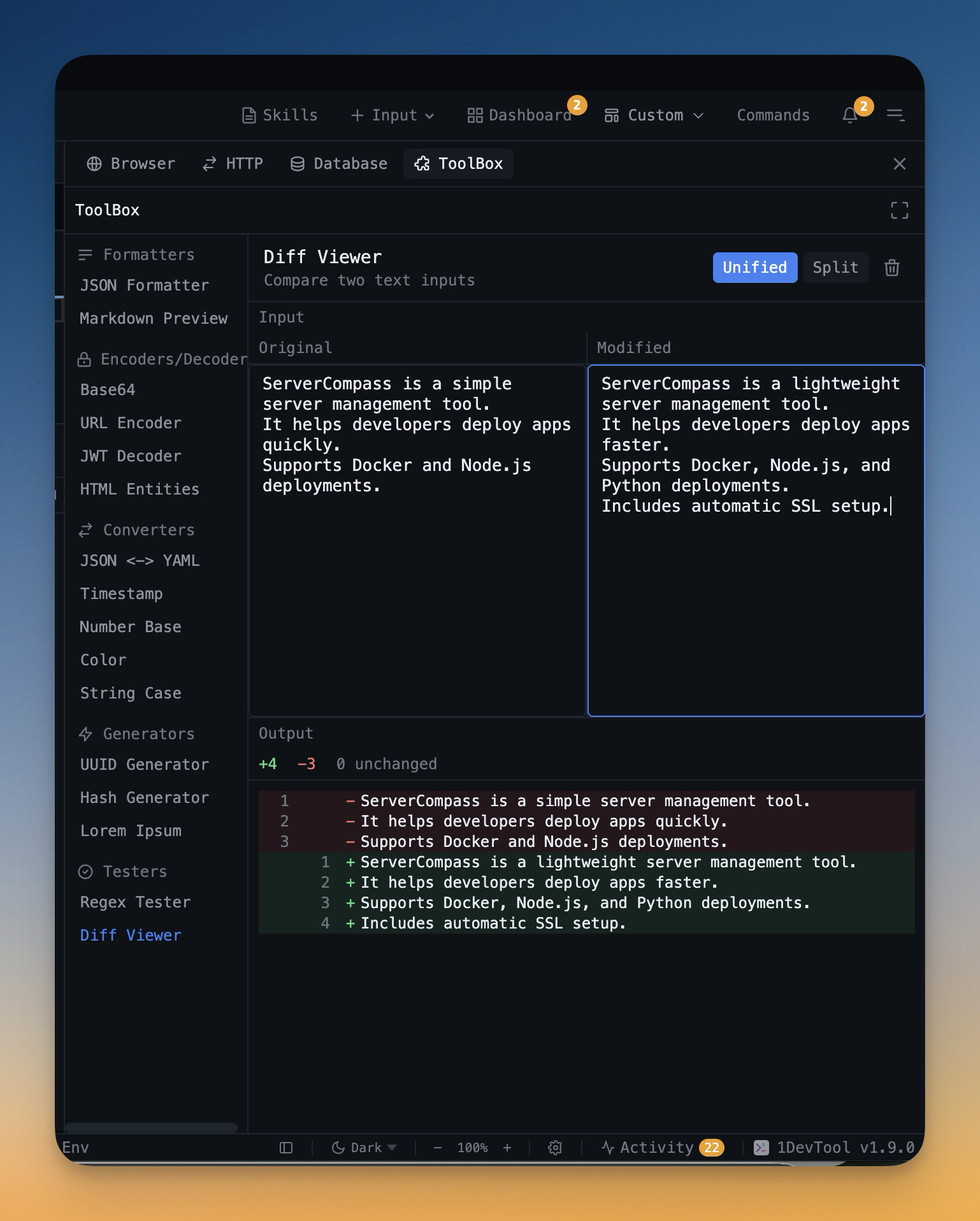
Review exactly what your AI agents changed with a proper diff viewer — not raw terminal output.
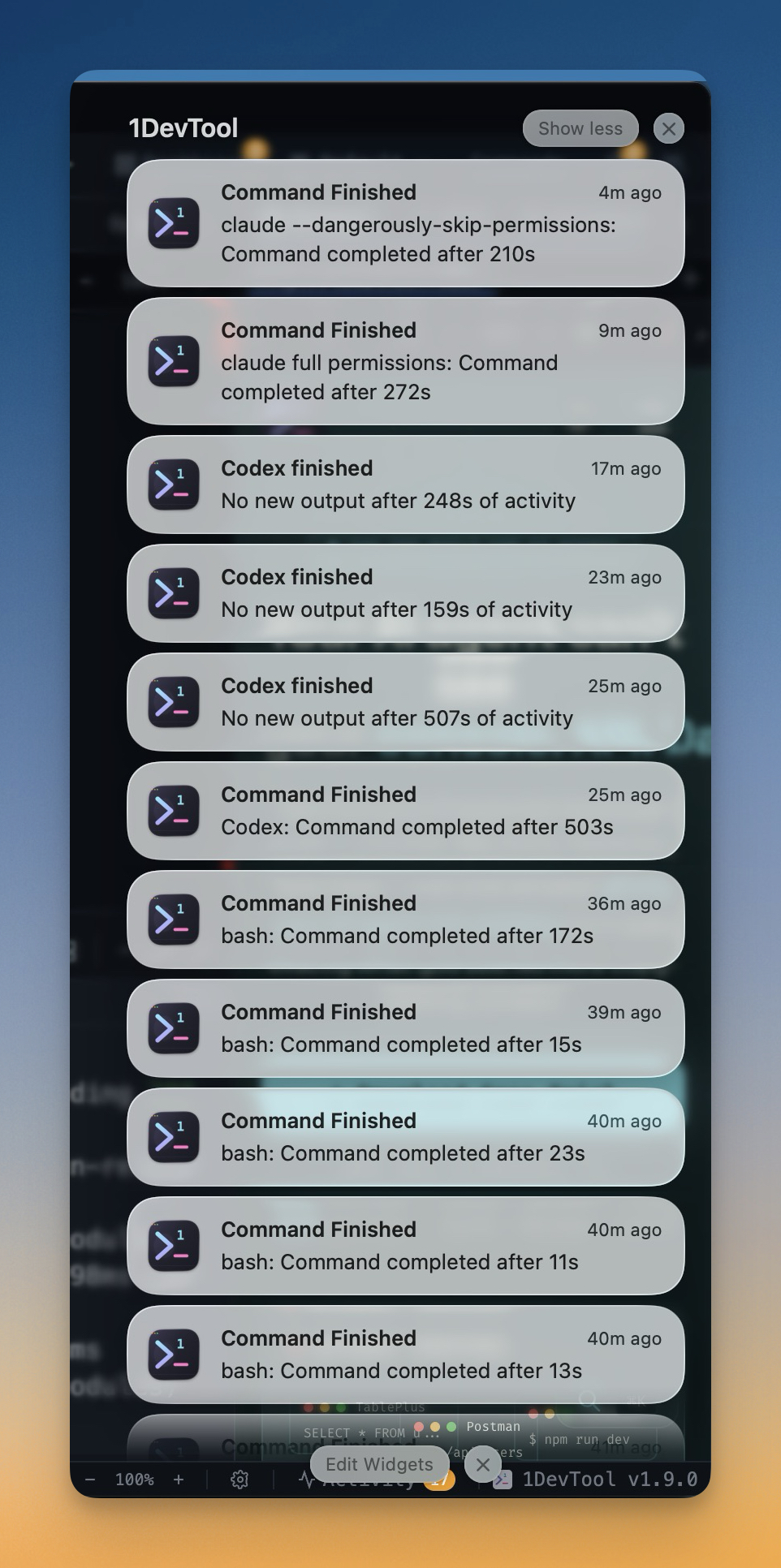
Get notified the moment an agent finishes, errors out, or needs your approval — no more checking terminals manually.
The Future: Agents Don't Sleep, and Neither Should Your Workspace
The shift from "coding on mobile" to "managing agents on mobile" is already happening. When your AI agents are running 24/7 — writing code, running tests, deploying changes — you need more than a terminal window to stay in control.
Claude Code, Codex, and Gemini CLI are all incredible tools. But running them through a mobile terminal app is like monitoring a factory through a single security camera. You can see one thing at a time, and you miss everything else.
1DevTool Remote gives you the full control room. Every project, every agent, every terminal — live on your phone with the security and fidelity you'd expect from a professional development tool.
The Verdict
Terminal apps give you one window into one agent. 1DevTool Remote gives you your entire desktop workspace in your pocket — with real-time dashboards, full terminal emulation, browser previews, screenshot annotation, and enterprise-grade encryption.
The question isn't whether AI coding agents work on mobile. They do. The question is whether a single terminal window is enough to manage what modern agentic development demands. It isn't.
Ready to take your AI coding workflow mobile? Download 1DevTool for desktop and enable Remote Access to turn your phone into a development control center.