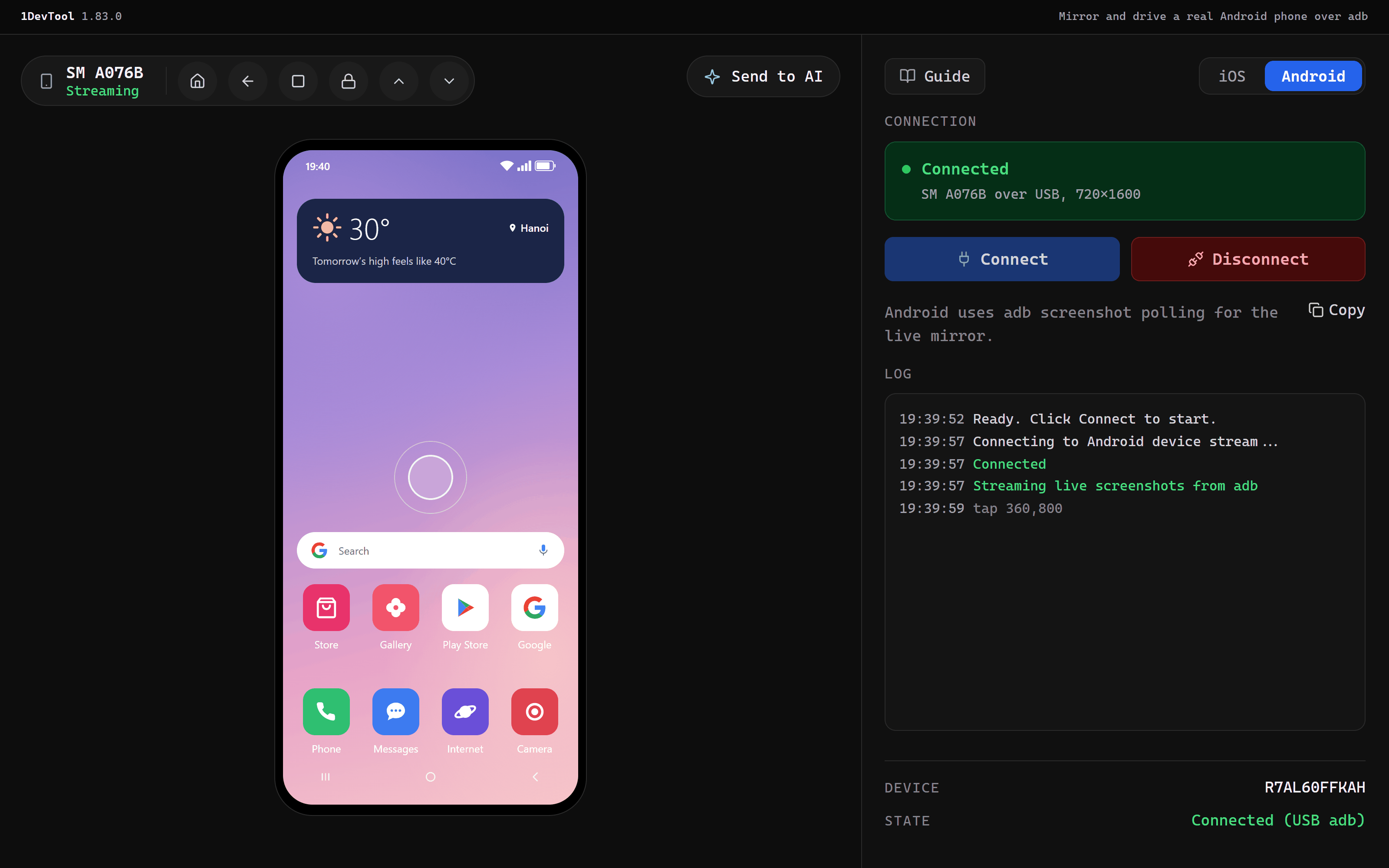
1DevTool Changelog

Weekly releases for 1DevTool — the AI code editor that runs Claude Code, Codex CLI, and Gemini CLI side-by-side. Every new feature, improvement, and fix, in reverse-chronological order.

Currently on v1.60.0Watch Your Agents Work. Download the latest build →

v1.60.0

August 7, 2026

Watch Your Agents Work

Agent Office turns the terminal grid into a small pixel office where every AI terminal is a character at a desk. Switch it on from the office button in the terminal panel header and the room replaces the grid without touching a single running terminal — typing, reading, waiting on you, blocked or finished reads as body language and a speech bubble instead of a wall of scrolling text. Click a desk to open that terminal full size, right-click to send it a prompt, and watch agents walk to the whiteboard, coffee station, canteen and boss room while their work carries on underneath. A Review inbox collects every agent that needs an answer and a Sprint wall counts the runs that finished today and the tasks that actually reached done. Agents earn XP and unlock hats as they work, pets are a free choice, and you can copy a pixel stats card, take a posed team photo, or record a 6-second GIF of the room in motion. Elsewhere: the Vibe Coder layout rearranges the app around one question — what do you want to build — the Draw canvas can generate a real, editable diagram from a description, Tailscale VPN joins Local Network and Cloudflare Tunnel as a Remote connection mode, and the Git client can write your commit message from the diff in Conventional, Plain or Gitmoji style.

The Agent Office pixel room with three desks upstairs, a canteen where two agents are taking a break, and a BOSS — YOU room where an agent reports in, with a Sprint Wall counting runs today, tasks closed and longest streak
The Vibe Coder layout asking “What should we build?” above a full-size composer with project and model chips, and a live browser preview filling the right half of the window

New Features

  • +See every AI terminal as a character in a small pixel office — switch Agent Office on from the office button in the terminal panel header, and the room replaces the grid without touching a single running terminal. Each agent gets a desk; typing, reading, waiting on you, blocked or finished reads as body language and a speech bubble instead of a wall of scrolling text. Click a desk to open that terminal full size, right-click to send it a prompt without leaving the room. Agents get up and walk — whiteboard, coffee station, canteen, boss room — while their work carries on underneath. Sub-agents appear as interns at the same desk, and a team's links draw as lines between desks. Zoom with ⌘/Ctrl + scroll, or reset to fit.
  • +A Review inbox and a Sprint wall keep the room honest — the Review inbox collects every agent that needs an answer, so nothing waits silently in a background tab, and the Sprint wall counts the runs that finished today and the project tasks that actually reached done, alongside your longest streak.
  • +Agents level up as they work — finished runs earn XP, levels unlock hats, and a level-up moment names what was unlocked. Pets — cat, dog, frog, bird, penguin — are a free choice, never something you have to grind for, and per-agent shirt, hair and skin swatches are there for anyone who wants a colour-coded team.
  • +Decorate the office and share what your team got done — name it, pick a floor theme, show or hide the meters and pets, and turn on a names-hidden mode for streaming or screen sharing. Copy a pixel stats card of real numbers, take a posed team photo with everyone's hats and pets, or record a 6-second GIF of the office in motion. Achievements unlock from your real history — first run, centurion, machine, hot streak, full house, busy week, token millionaire, token whale.
  • +A weekly recap — once a week a quiet notification sums the runs and tasks of the last seven days, and clicking it opens the office; a week with no activity stays silent. Optional office sounds are off by default and whisper-quiet when on, plus a reduced-motion setting that calms the whole room.
  • +Vibe Coder — a prompt-first way to build — pick Vibe Coder in the layout picker and the app rearranges around one question: what do you want to build? Vibe Home is a full-size composer, not a stripped-down box — file, terminal, agent and project mentions, skills, slash commands, templates and drag-and-drop images all work exactly as they do everywhere else. Chips under the prompt choose the project, the agent and model, whether it plans first or starts building, and how much it asks before acting. Submit and the prompt becomes a conversation; the terminal underneath is real and one click away. The right panel keeps Preview, Changes and Code side by side, and opening the app with no project still greets you with Vibe Home.
  • +Draw a diagram by describing it — a prompt bar on the Draw canvas hands your description to an installed AI CLI and inserts real, editable shapes, arrows and labels next to whatever you already sketched. Never a flat picture — every box and arrow can be moved, recoloured and edited. The new elements arrive selected, so one undo or one Delete removes the whole diagram. Pick which AI writes it from the gear next to the prompt bar, cancel any generation mid-flight, and a failed generation retries itself once then shows you what the model actually returned.
  • +Remote — reach your desktop over TailscaleTailscale / VPN is now a real connection mode alongside Local Network and Cloudflare Tunnel, so your phone reaches the desktop over your own tailnet. Nothing is exposed to the public internet and there is no tunnel warm-up wait. Full iOS Safari works, so you are no longer pushed into the in-app scanner browser on a home network. The panel tells you plainly whether Tailscale is installed, running and connected, and switches the QR code and pairing URL to the tailnet address.
  • +Choose how long a paired phone stays trusted — a week (default), a month, or never expire. Every connection restarts the window, so a phone you actually use stays paired.
  • +Remote — orchestration on your phone — approve link requests and queued messages from the phone through a new Approvals page and decision cards in the Teams tab, with permission chips so you know what you are granting. Approver devices decide; view-only devices see the request and are told to confirm on the desktop. A team map sized for a phone puts the host on top and members below, each desk lit by the agent's real state, and you can browse recent orchestration runs, open a run's files, and read the app log without walking back to the desk.
  • +Generate a commit message from your changes — a sparkle button in the commit summary asks an installed AI CLI to read the diff and write it. Pin which agent writes it, or let it use the first one you have installed, and choose Conventional, Plain or Gitmoji style. It falls back to the working-tree diff when nothing is staged yet.

Improvements

  • ~Context percentages you can trust — the context chip now reads real numbers for Codex, Gemini and Qwen instead of guessing, and a Claude percentage that went stale after a compact says so rather than quietly lying.
  • ~The light theme is legible again — warning text, modified-file badges, git status marks, SSH notices and the update pill all use readable colours on white, and added-line markers in the editor ruler and minimap darken to match.
  • ~Search inside a Markdown preview or Reader mode — a Search button sits in the toolbar next to the ⌘F/Ctrl+F shortcut, and highlights survive a content refresh.
  • ~Cursor shows up in the Quota Center — a real row with your plan and signed-in account, and an honest note that Cursor doesn't publish usage numbers to the CLI, instead of a dead placeholder.
  • ~The skills picker keeps up with a large pack — the dropdown renders progressively as you scroll or arrow through it, and opening the composer no longer re-walks your whole skills folder every time.
  • ~A stalled delegate tells you which flag it is missing — an agent parked on a permission prompt during an unattended run now names the exact flag to add instead of waiting in silence.
  • ~Delegated Antigravity and Cursor runs no longer stall on their own permission dialogs — both launch with the same unattended posture as every other agent.
  • ~Reader mode on the phone stays smooth while you type — long transcripts no longer re-measure themselves on every keystroke.

Bug Fixes

  • -Fixed multi-line paste being submitted one line at a time — pasting several lines into Claude or Codex sent the first line immediately and then fired the rest as separate prompts, one API call per line. A paste now lands as a single block again, including after a tab hide/reopen, project switch, or layout change.
  • -Fixed an empty strip between the menu bar and the toolbar on Windows — chrome meant for the macOS title bar was rendering as dead space on Windows and Linux.
  • -Fixed Gemini missing from every agent picker — Add Terminal, Change AI and the terminal settings roster now offer the same built-in agents.
  • -Fixed stray ]11;rgb:… text typing itself into a Hermes composer — colour queries are answered at the source now, so a delegation no longer fails readiness because the composer was never empty.
  • -Fixed Hermes accepting a linked prompt while the sender reported delivery unconfirmed — the peer answered normally but the orchestration stopped to ask you about it anyway.
  • -Fixed Grok answering a linked prompt while the sender reported delivery unconfirmed — a narrow pane clipped the message marker, so the acceptance could never be proven.
  • -Fixed Hermes profile terminals never becoming ready — a hermes-<profile> launch paints a different composer, and it was never recognised as Hermes at all.
  • -Fixed a team member failing instantly when it adopted a live terminal — “No safe structured runtime satisfies the requested capabilities” appeared on machines configured to prefer the structured runtime, discarding the terminal you asked it to use.

v1.59.1

August 6, 2026

Every Platform, Every Agent

A cleanup release aimed squarely at the places where 1DevTool behaved differently depending on which OS or which agent you happened to be using. Links gain permission mirroring — open a link in the Team Map or Settings → Live orchestration links and copy what one direction can do onto its counterpart, creating the reply direction if it does not exist yet, with read access still passing through the same consent review. The Browser panel can attach an image to a page and tell you plainly whether the page accepted it, instead of firing a paste shortcut and hoping. On the phone, a long prompt now reads as one collapsible card in Reader mode rather than a dozen consecutive lines. The rest is platform parity: Windows account switching stops reverting, npm-installed agent CLIs launch, macOS alias folders open like the folders they point at, Hermes Agent stops queueing prompts forever, and a delegated prompt that never arrived now says so instead of reporting success.

New Features

  • +Mirror a link's permissions the other way — open a link in the Team Map, or in Settings → Live orchestration links, and copy what one direction can do onto its counterpart. The reply direction is created for you if it does not exist yet, and read access still goes through the same consent review, so mirroring never hands over a transcript silently.
  • +Attach an image to a page and know it landed — an agent can put a picture into a form in the Browser panel and get a straight answer about whether the page accepted it, instead of firing a paste shortcut and hoping. Only real images go through, and the file has to live inside your project unless you allow otherwise.
  • +Long prompts read as one card in Reader mode on the phone — a task that arrives as a dozen consecutive lines now groups into a single collapsible message, so the agent's answers stay the thing you scroll.

Improvements

  • ~Skills and commands stay apart on Codex — the command palette lists /commands and $skills separately, and the picker keeps scrolling when you have a large skill pack.
  • ~Grok's picker shows the rest of your skills — skills found by the scanner now appear alongside the built-in ones.
  • ~A straight answer when a pull read cannot work — asking a linked terminal to read context on Windows or Linux now explains that this transport is macOS-only today, instead of reading like a permission you forgot to grant.
  • ~The Memory panel says what the Vault picker actually does — it exports your agent-editable memories into an Obsidian vault; it does not read a 1AIVault database.

Bug Fixes

  • -Fixed switching accounts on Windows forcing a full browser login again — Codex and Gemini now keep the account you switched to, instead of the system credential store quietly putting the old one back.
  • -Fixed changing the global default under a running terminal killing its session — switching an account while that agent is open is refused with a reason, and a pooled terminal always starts on the credentials it was assigned.
  • -Fixed macOS alias folders being impossible to open — an alias to a folder now expands in the file tree like the folder it points at, an alias to a file opens that file, and ordinary files are never mistaken for aliases.
  • -Fixed prompts to Hermes Agent sitting queued forever — links, @mentions, Agent Teams, and Send-to-AI all reach a Hermes terminal again.
  • -Fixed a delegated prompt reporting success when it never arrived — a delivery that fails now says so, instead of returning OK while the board shows it failed.
  • -Fixed Windows headless runs to Antigravity receiving a placeholder instead of your prompt.
  • -Fixed some agent CLIs refusing to start on Windows — commands installed through npm now launch instead of erroring out.
  • -Fixed nested terminal multiplexers ignoring their own shortcuts — herdr, nested tmux, and zellij receive Ctrl+b and mouse clicks instead of the session around them swallowing both.
  • -Fixed renaming a Cursor terminal not sticking — the name is written to the Cursor chat itself and survives a reload.
  • -Fixed Qwen offering a model that does not exist — the list now matches the Coding Plan catalog, and the vision model is back.
  • -Fixed Vietnamese text showing loose accent marks in Markdown previews, Reader mode, and document outlines.
  • -Fixed the Space key doing nothing after you close Settings — focus returns to whatever you were typing in.

v1.59.0

August 4, 2026

Your Accounts, Your Projects, Your Machines

Three things you own get a control plane in this release. The AI Spend & Quota Center (⌘⇧U) gathers Claude, Codex, Gemini, Qwen, OpenCode, Amp, Antigravity, Grok, Cline and Cursor into one picture of what is left and what it costs — headroom per account with a sparkline and a run-dry estimate, spend broken down by agent over a month or all time and exportable as CSV, and an ⚡ Auto (pool order) launch option that starts a terminal on the healthiest account of the first pool that can take work. A terminal keeps the account it started on for its whole life; rotation happens between launches, never mid-conversation. Workspaces bind several projects into one named product, so a web app, an API and a mobile client stop being a pile of ad-hoc links — mention a sibling repo or the whole workspace from Agent Input, see every task across member projects on the Tasks board, and filter the Team Map to the workspace. Devices pairs your other computers, so the agents on a Mac mini, an office box or a VPS are usable from this window — confirm the same three-word fingerprint on both screens, grant each peer only what it should have, and @mention its AI terminal like any local one. With nothing paired there is no server and no background work at all.

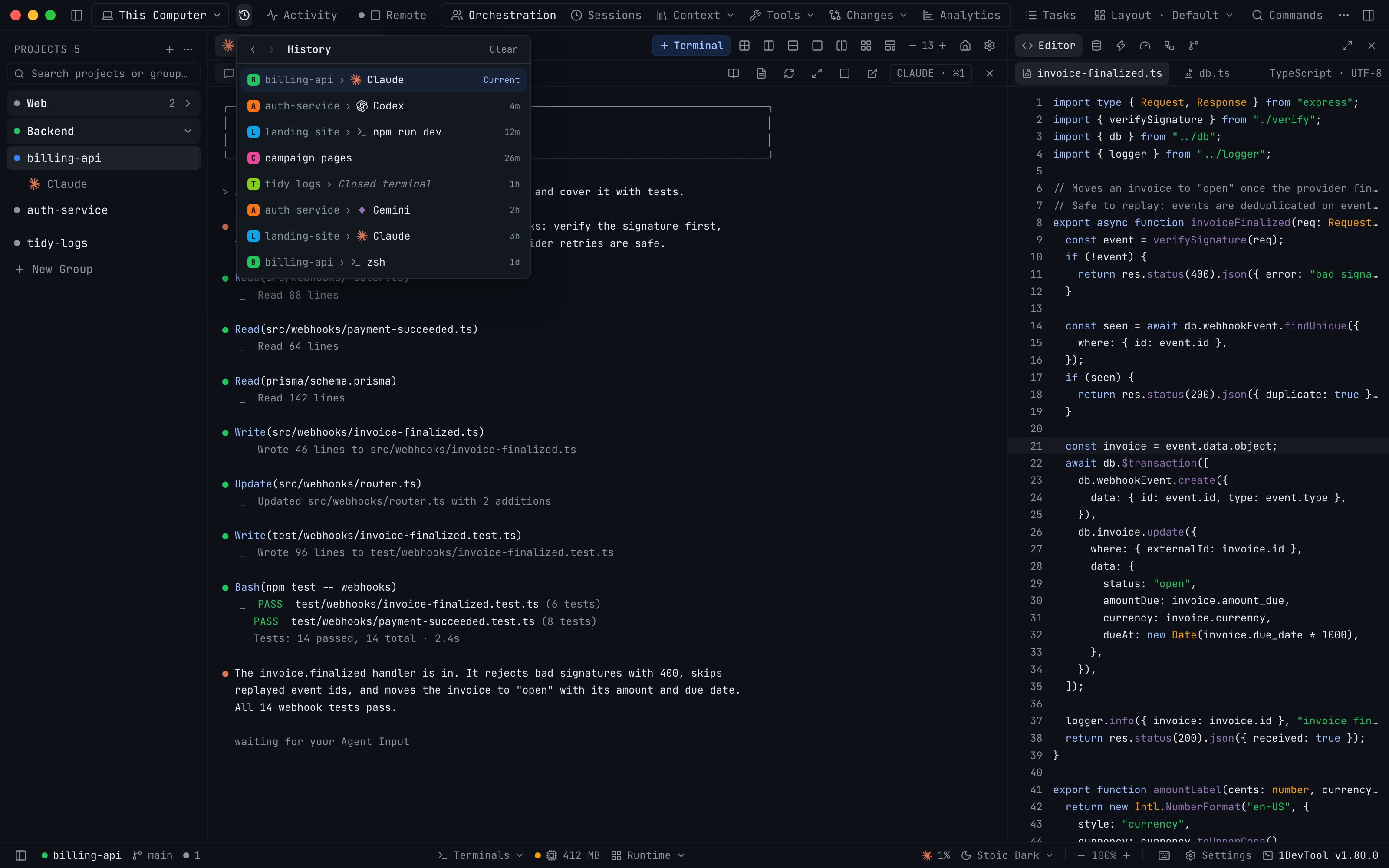
The AI Quota Center Overview tab: a card per provider showing Claude at 33% headroom, Codex at 98% across two accounts, and Gemini, Qwen and OpenCode alongside a quota-only row for Amp, Antigravity, Grok, Cline and Cursor
The Accounts tab listing each saved account with its 5-hour and weekly limit bars, reset times, an In pool toggle, a set plan price button and the global default badge

New Features

  • +One place for every AI account you own — the new AI Quota Center gathers Claude, Codex, Gemini, Qwen, OpenCode, Amp, Antigravity, Grok, Cline and Cursor into a single picture of what is left and what it costs. Open it with ⌘⇧U, from the Navigate menu, the command palette, the quota pill in the header, or the banner in Settings → Accounts — it also opens with no project loaded. Overview shows every account's remaining headroom with a sparkline of the last few hours and, once there is enough signal, an estimate of when it runs dry. Spend breaks token cost down by agent over this month, 7 days, 30 days or all time, and exports the table as CSV. Give an account its monthly plan price and the Center tells you what that month would have cost at API rates.
  • +Let 1DevTool pick which account a terminal uses⚡ Auto (pool order) in the Add Terminal dialog walks your provider chain and starts the terminal on the healthiest account of the first pool that can take work. A terminal keeps the account it started on for its whole life — rotation happens between launches, never mid-conversation, and nothing sits on the network path between the CLI and its provider. An account is never swapped out from under a running terminal; a launch that would conflict is refused with a reason instead of quietly mixing credentials. Bench an account to keep it out of rotation and Unbench it when it recovers; an account that hits its limit cools off on its own and says so on its row. The Policies tab holds the provider chain and the per-pool rules; the Activity tab is a running log of every switch, lease and cooldown, so you can always see why a terminal got the account it got.
  • +Your quota on your phone — the Remote dashboard gains an AI Quota section with headroom per provider and per account.
  • +Bind projects into a named workspace — a product that spans a web app, an API and a mobile client becomes one operational set instead of a pile of ad-hoc links. Create one from Settings → Workspaces, or right-click a sidebar group → Create workspace…. Membership can follow a sidebar group as it changes, or freeze today's members as a snapshot. The sheet shows the projects that actually resolve — with their avatars, colours and emoji — before you save, and tells you in place when a free plan limits you to one project. Mission Control cards carry a workspace badge, and a workspace growing or shrinking says so.
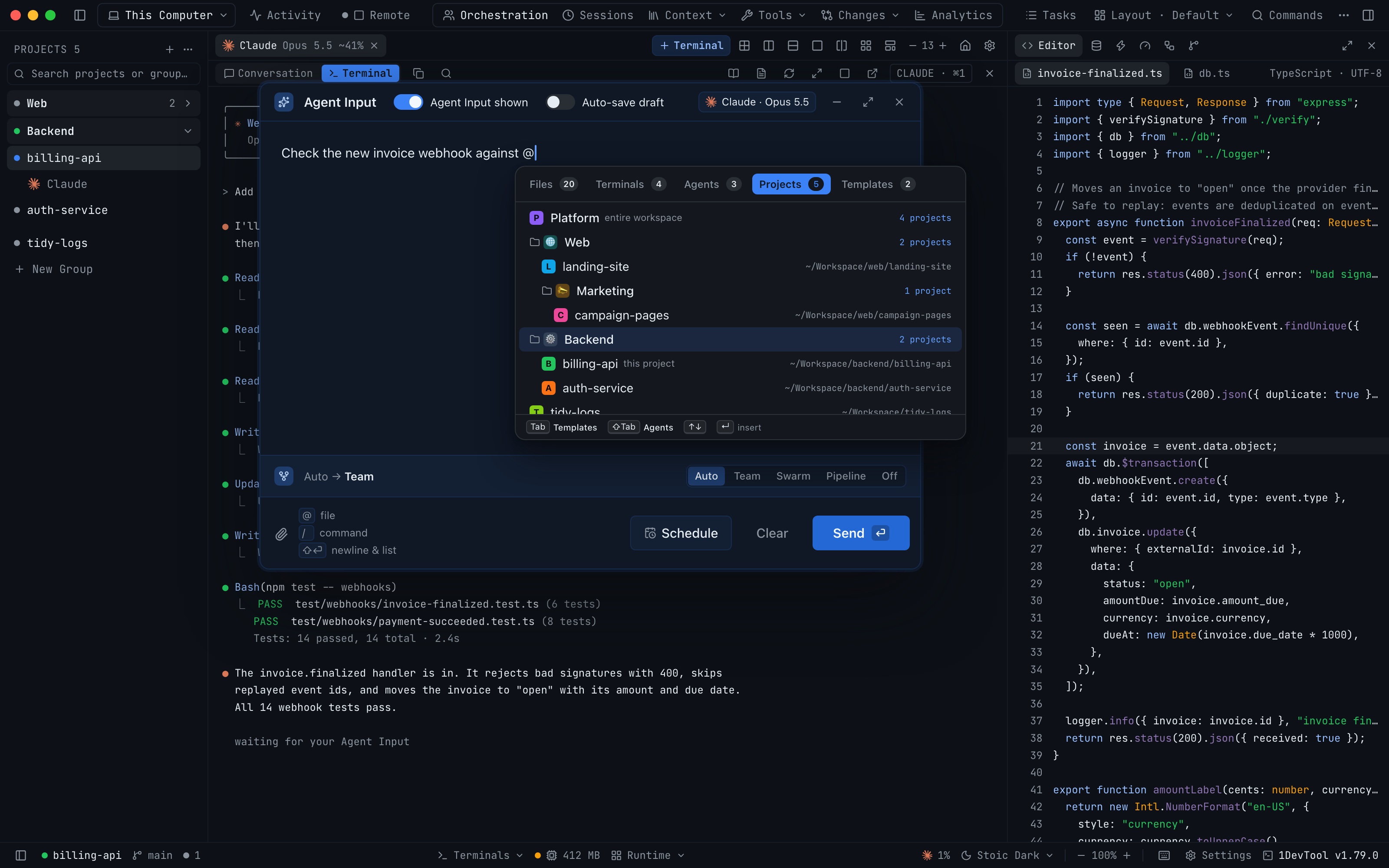
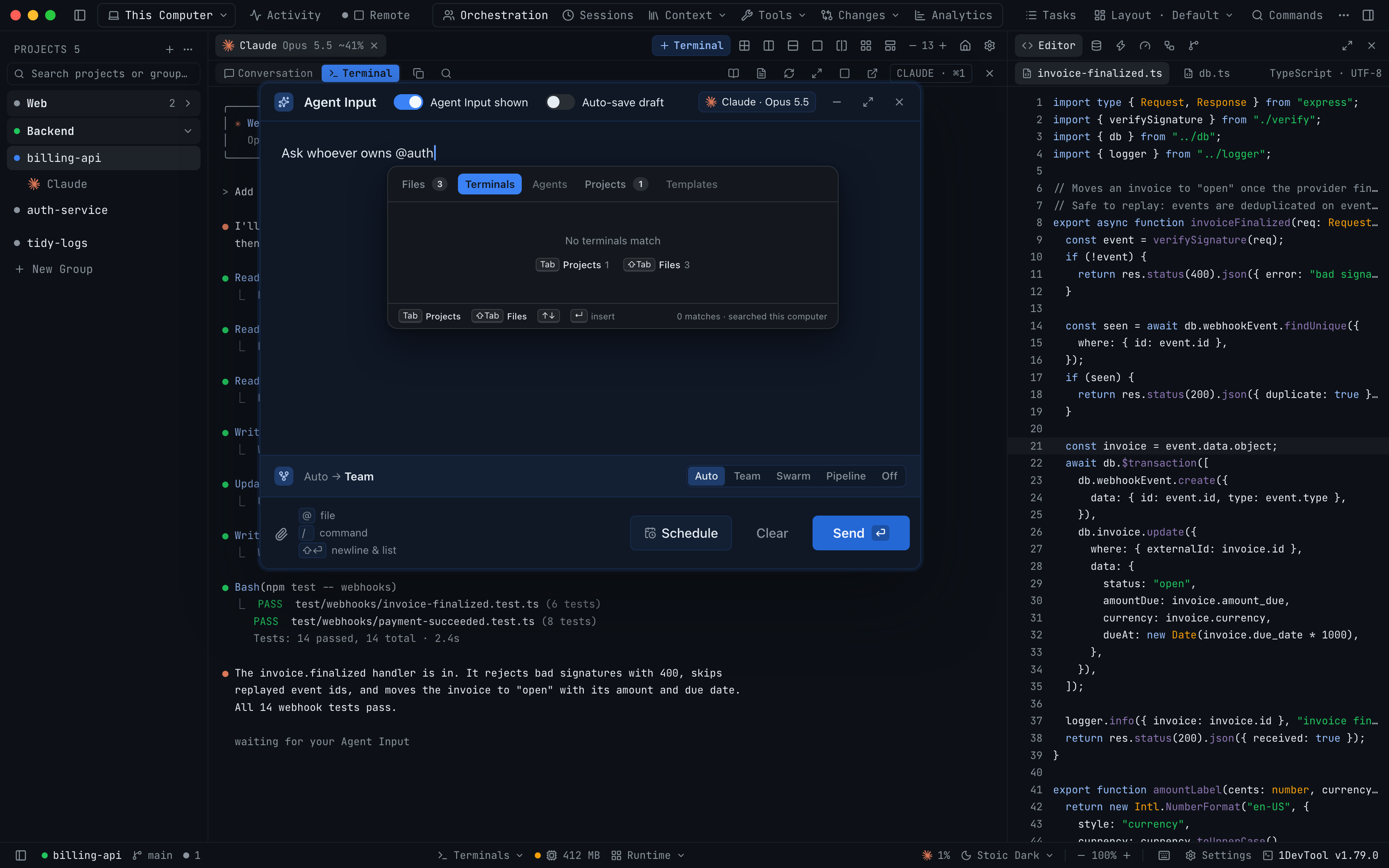
  • +Mention another project from Agent Input — a new Projects tab in the @ picker lets you hand your agent the context of a sibling repo without leaving the terminal you are in. @Backend inserts that project's context; @Acme — the workspace itself — expands to one block per member project at send, with per-project size caps and an honest truncation line. Mentioning a single sibling project retargets file search to that project's root, so @ file mentions reach across the repo boundary. The Terminals tab now puts workspace members first.
  • +Agents can address the whole product — an agent can list the workspace roster, send to a peer in another project, broadcast, and collect replies from several terminals at once, all over links you already granted.
  • +Tasks that span the workspace — the Tasks board gains a Workspace view listing every task across member projects, and the assign dialog offers sibling projects' terminals grouped as project · workspace. The Team Map gains a workspace chip plus a Show outside toggle for everything beyond it.
  • +Your second machine's agents, in this window — Settings → Devices pairs a laptop with a Mac mini, an office box or a VPS running 1DevTool, so the agents on that machine are usable from this one. Show a pairing code on one computer, paste it on the other, and confirm the same three-word fingerprint on both screens — a key exchange nobody read aloud never becomes a paired device. Once paired, that machine's terminals, projects and installed agent CLIs are readable here.
  • +@mention a peer's AI terminal in Agent Input and send it a prompt — peer rows read as codex · Mini so you always know which machine a mention runs on, and only online peers that granted a catalog are offered at all. A prompt to a peer never silently falls back to a local agent, is never staged into a plain shell, and a dead terminal on the other side reports that instead of swallowing the message.
  • +Each paired device gets its own permissions — see terminals, control terminals, orchestration, memories, headless runs — enforced by the machine that owns the resource, not by the machine asking, and revocable at any time. Reachable over LAN, Tailscale or a VPN: candidate addresses are probed and the route that answered is remembered for next time. Pairing needs Pro; managing pairings you already have never does, so an expired licence cannot hold your devices hostage. With no paired device there is no server, no device identity and no background work — the Devices tab is the only trace of the feature in the whole app.
  • +Send a prompt straight from a Canvas card — the Canvas (⌘6) shows every terminal across your projects, and an AI card now opens the full Agent Input composer in place, mentions and attachments included. The pane underneath hands over its draft first, so a message you started in one place is the one you send from the other.

Improvements

  • ~Copy any code block in one click — a copy button appears on fenced code in Markdown previews, Reader mode, chat messages, sticky notes, Tasks and the skill editor.
  • ~Export the logs behind an orchestration run — tick runs in Run & Logs and export them as a single zip, with the orchestration log included, ready to attach to a bug report.
  • ~Adding a folder you already have is caught before you add it — the Add Project dialog warns when the folder is already a project, shows which one, and offers to open it instead of creating a second entry that shares a working directory.
  • ~Inspect a link without leaving the Team Map — click a link to see its ends, unlink it, review what it can read, or create the counterpart link that makes the conversation two-way.
  • ~Faster in the places this release made busier — opening Resume AI Sessions no longer re-reads every Cursor conversation from disk each time, which also stops a long conversation from stuttering the app while an agent is streaming. The Quota Center makes one round of account checks when it opens instead of two. A File Explorer sitting behind a hidden tab in the centre no longer watches your whole repository until you actually look at it. Workspace membership, team startup and Agent Input mention picking stop re-reading the app configuration many times per action.

Bug Fixes

  • -Fixed a popped-out terminal window opening blankPop Out to New Window could show a solid black panel while the terminal kept running in the main window, most often on Windows; popped-out windows now open free of the main window, appear only once they have painted, and repaint immediately for full-screen agents like Codex and Cline.
  • -Fixed running a skill on Codex inserting /name instead of $name — skills started from the Skills dialog, from the Agent Input / picker and from a delegated Team or Swarm prompt now use the invocation each agent actually understands, so Codex stops answering with “Unrecognized command”.
  • -Fixed switching Codex accounts breaking every request with a 400 — the previous account's model stayed pinned in Codex's config, so a Free account inherited a Pro-only model; the pin now follows the account you switch to.
  • -Fixed Cursor going offline and back on its own — with both Cursor and Grok installing a command named agent, a cached scan reported the situation as ambiguous and refused to launch, so Cursor read as not installed until the cache expired.
  • -Fixed the Agent Input mention popup overlapping its own tabs — with five tabs the labels ran into each other (“Projects (20)Agents (10)”) and Terminals clipped off the edge.
  • -Fixed a workspace created from a sidebar group coming out empty — the sheet showed “Resolved projects (0)” under the groups you had ticked and saved a workspace with no members.
  • -Fixed two link labels stacking on top of each other in the Team Map — a pair of links between the same two terminals shared one midpoint, so the newer label hid the older one; paired labels now sit apart and each edge shows its direction.

v1.58.0

August 3, 2026

Two New Layouts, and Deliveries You Can Trust

Two built-in layouts join the picker. Classic puts the File Explorer back on its own beside a dedicated Editor, the way it worked before the File Tree + Editor workspace merged the two — and the Editor drops its embedded tree automatically wherever you place a standalone explorer, so the two can never both disappear. Horizon moves your projects to a strip of icons across the top of the window, freeing the entire left sidebar for the File Explorer; each icon carries its project's avatar, colour and emoji, the active one is underlined in its own colour, and hovering one shows the project's branch and terminal count. A layout you can see can now be pushed to every project in one click, with a single confirm, replacing the old always-on checkbox that could stay armed from a previous visit. Cursor conversations join Resume AI Sessions with their titles and previews, Reader Mode renders Cursor's real parsed transcript instead of scraping the screen, and a Cursor tab names itself after its conversation and returns to it after a restart. And a message sent over a terminal link is marked delivered only once the receiving agent is proven to have taken it — anything short of that is marked delivery-unconfirmed and deliberately not retried.

The Horizon layout in a working project: project icons as a strip across the top, the File Explorer on the left, an editor above a terminal in the centre, and the Browser panel on the right
The header layout picker reading Layout - Horizon, with the project icon strip running the full width of the window above an empty workspace

New Features

  • +Classic puts the File Explorer back on its own — the project file tree returns as a standalone panel beside a dedicated Editor, the way it worked before the File Tree + Editor workspace merged the two. Pick it from the layout picker in the header; the default merged workspace is unchanged, so nothing moves unless you choose Classic. The Editor drops its embedded tree automatically whenever a standalone File Explorer is placed anywhere in your layout — put the explorer in the left, center or right slot from Settings → Layout and the editor adapts. Remove the standalone panel and the editor takes its tree back; the two can never both disappear. The explorer keeps its own width and its own collapse state, and it follows you across projects like every other panel.
  • +Horizon moves your projects to a strip across the top — projects become a row of icons along the top of the window, freeing the whole left sidebar for the File Explorer. Below the strip it reads like Classic: File Explorer on the left, Editor above Terminals in the center, tools on the right. The strip appears in any layout with no Projects panel placed, so a custom arrangement that drops the panel keeps its projects reachable instead of losing them; put the panel back and the strip steps aside. Each project shows its avatar, colour and emoji, with the active one underlined in its own colour; scroll the strip sideways with a normal mouse wheel, and add a project from the + at the end.
  • +Apply a layout to every project in one click — the layout you are currently looking at can be pushed to all your projects from an action right under it in the picker. It asks once before overwriting ("Overwrite N project layouts?"), and only ever offers to broadcast a layout you have already applied and can see. Replaces the old always-on checkbox at the top of the picker, which could stay switched on from a previous visit and silently rewrite every project the next time you changed layouts.
  • +Cursor sessions now show up in Resume AI Sessions — past cursor-agent conversations for the current project are listed with their titles and previews, and picking one resumes it like any other agent.
  • +Reader Mode shows Cursor's real transcript — on the desktop and on the phone, a Cursor terminal now renders the parsed conversation instead of a scrape of whatever happened to be on screen. No more mid-word line breaks, raw **markdown**, or a long session reduced to the few hundred words still visible.
  • +Cursor tabs remember their conversation — a Cursor terminal captures its session, so it names itself after the conversation and comes back to it after a restart.

Improvements

  • ~A delivered message now means the agent actually took it — a message sent over a terminal link is only marked delivered once the receiving agent is proven to have accepted that exact message, either as a real message in its session or as a composer that visibly held your text and then cleared it. Until now, delivery was declared as soon as the keystrokes reached the terminal, which is not the same thing — an agent that quietly dropped the prompt still produced a clean receipt. When acceptance cannot be proven, the message is marked delivery-unconfirmed instead of delivered, and it is deliberately not retried: pressing Enter a second time could run the same task twice, so the call is left to you. A reply only closes the request it answers after that same proof, so an unconfirmed reply can no longer make outstanding work look finished. Agents read the new receipt wording in their own instructions, so a delegating agent asks you before resending rather than guessing or peeking at its peer's terminal.
  • ~Refreshing Codex account usage no longer risks your logins — checking usage for a saved Codex account now reads its existing token instead of exchanging login credentials, which is what used to knock other accounts offline. An account whose token has aged out says so plainly and tells you to activate it and open Codex once, rather than failing with a generic error. Switching accounts or starting a new Codex login now preserves credentials that Codex itself refreshed in the meantime, and only ever does so when both sides prove they belong to the same account. If the credential file is momentarily locked by a running Codex, the switch retries briefly and then tells you it is blocked instead of reporting a success that did not happen.
  • ~A Swarm that cannot run is refused up front, with the reason — a headless Swarm targeting an agent with no locked-down sandbox mode (Grok, Antigravity and most others) used to be accepted and then every worker died within a second, with no output and no explanation anywhere. The request is now rejected immediately with a message naming the agents that can run sandboxed Swarm workers — Codex, Claude and Cursor — and pointing to terminal Swarms, direct delegation or an Agent Team for everyone else. Delegating agents are told the supported Swarm targets in their orchestration instructions too, so they stop composing swarms that cannot start.
  • ~Failed orchestration runs now say why they failed — a run that dies before its agent ever starts (agent not installed, sandbox not supported, launch refused) records the reason in its run record, visible in the Orchestration dashboard and included in the run files you'd share when reporting a problem.

Bug Fixes

  • -Fixed messages to a linked Cline terminal reporting delivered while Cline never saw them — after Cline's first message, later sends could land in a composer that was no longer accepting input, producing a stream of successful-looking receipts with no activity, no reply and nothing in the session. Deliveries now focus the composer the way a click does before typing, and prove the message arrived before reporting it.
  • -Fixed Codex accounts showing "Could not refresh Codex usage" and revoked-login errors after adding or switching accounts — refreshing usage no longer consumes the one-time credential that Codex and your saved accounts depend on, so signing in to one account stops breaking another.
  • -Fixed Mermaid diagrams with numbered labels failing to render — a label such as [1] Log in inside a diagram was rewritten into invalid syntax and showed an error instead of the diagram, in Markdown previews, Reader mode, Tasks, chat messages and the skill editor.
  • -Fixed the File Explorer vanishing in the Terminal Right layout — placing the standalone explorer in the center with that layout left it rendering nowhere while the editor also gave up its tree, leaving no file tree at all.

v1.57.1

August 1, 2026

Swarms That Refuse Up Front

A headless Swarm aimed at an agent with no locked-down sandbox mode used to be accepted and then die silently — every worker gone within a second, no output, no explanation. That request is now refused the moment you make it, with a message naming the agents that can actually run sandboxed Swarm workers (Codex, Claude and Cursor) and pointing everyone else at terminal Swarms, direct delegation or an Agent Team. Delegating agents get the same list in their orchestration instructions, so they stop composing swarms that cannot start. And a run that dies before its agent ever launches now records why — agent not installed, sandbox not supported, launch refused — in the run record you can read in the Orchestration dashboard and ship with a bug report.

Improvements

  • ~A Swarm that cannot run is refused up front, with the reason — a headless Swarm targeting an agent with no locked-down sandbox mode (Grok, Antigravity and most others) used to be accepted and then every worker died within a second, with no output and no explanation anywhere. The request is now rejected immediately with a message naming the agents that can run sandboxed Swarm workers — Codex, Claude and Cursor — and pointing to terminal Swarms, direct delegation or an Agent Team for everyone else. This was reported from a Windows machine but affected every platform the same way: sandboxing is about the target agent's abilities, not your operating system. Delegating agents are told the supported Swarm targets in their orchestration instructions too, so they stop composing swarms that cannot start — the instructions refresh on the next app start.
  • ~Failed orchestration runs now say why they failed — a run that dies before its agent ever starts (agent not installed, sandbox not supported, launch refused) records the reason in its run record, visible in the Orchestration dashboard and included in the run files you'd share when reporting a problem. Until now those runs exported as a bare "error" with nothing to diagnose, which is exactly what made this bug hard to report.

v1.57.0

August 1, 2026

Proven Sends, Markdown Notes & Agent Batches

A prompt you send is now proven sent: 1DevTool checks the agent's composer after Send, retries once, and tells you "not submitted — press Enter" instead of reporting a run that never started — so a delegation can no longer look live while the agent sits idle. Sticky notes you are not editing render as Markdown, with headings, checkboxes, tables and working links, and a + New note composer in the Sticky Notes library saves a thought straight to a project. The Add Terminal dialog gives every picked agent a count, so one batch opens ten Codex terminals and five Cline terminals with numbered tabs instead of ticking the same card over and over. The File Tree + Editor workspace gains a drag divider and a collapse rail, and Cursor is detected again after renaming its command to agent, with its full model list back in the @Cursor picker.

The Sticky Notes library with the Notes tab open, a + New note button, and a note rendering Markdown headings, links and lists as formatted text
The Add Terminal dialog in multi-select mode with Claude Opus-5 and codex full each carrying a ×3 badge and the button reading Add 6 Terminals

New Features

  • +Sticky notes render Markdown — a note you are not editing shows as formatted text: headings, lists, checkboxes, quotes, tables, code blocks and links. Click anywhere on the note to go back to editing, or use the MD button in the note toolbar to switch between writing and reading. Links open in your browser, and a link to a heading inside the same note scrolls to it. A new, empty note still opens ready to type in.
  • +Write a note straight from the Sticky Notes library — a + New note button opens a composer in the notes list, so a thought that belongs to a project no longer needs a file or a terminal to hang off. Choose its project, pick its colour, and save with ⌘⏎ or Save note; Escape closes the composer without closing the library. Notes written this way are grouped under Manual notes, findable with the new Manual source filter, and reach the phone labelled as Manual note.
  • +Give any picked agent a count — in the Add Terminal dialog's multi-select mode each selected entry carries a −/N/+ counter, so one batch can open 10 Codex terminals and 5 Cline terminals together instead of ticking the same card over and over. Type the number or step it, up to 20 per entry. A checked card shows a ×N badge and the button reads Add 15 Terminals rather than the number of cards you ticked.
  • +Same-agent batches stay readable — copies are numbered Codex 1, Codex 2 in the tab bar, while AI tabs still rename themselves to their conversation title once they have one. Saved terminal sets remember their counts and the set chip shows how many terminals it will actually open, and the free-plan per-project limit compares against the total the batch would create so you are told to trim before anything opens.
  • +Drag the file tree to the width you want — the divider inside the File Tree + Editor workspace resizes the tree while the editor keeps painting behind it, and double-clicking the divider snaps it back to the default width. The width you choose is remembered, and the editor always keeps enough room even when the workspace sits in a narrow sidebar.
  • +Collapse the tree out of the way — hide it from the workspace toolbar or from the Files header and a slim rail stays behind to bring it back in one click. The sidebar's File Explorer collapses to a single row, the project list above it keeps the height you dragged it to, and a collapsed tree stops watching the repository until you open it again.
  • +Cursor is detected again after it renamed its command to agent — installs that ship only the new name no longer read as "not found" in Settings → System, on macOS, Linux and Windows. A terminal started with agent is treated as a real AI terminal, with the agent overlay, session detection and resume, and Cursor is told apart from other tools that install a command with the same name. Windows now looks in the folder Cursor's installer actually writes to, and Cursor's full model list — around 200 models — reaches the @Cursor picker instead of a lone auto fallback.

Improvements

  • ~A sent prompt is now checked, not assumed — after Send, 1DevTool looks at the agent's composer to confirm the message actually left it, and attempts one more Enter if the text is provably still sitting there. When it still hasn't gone, the terminal says so instead of reporting a run that never started: Mission Control shows "not submitted — press Enter" and takes you to the terminal, and the tab keeps your text as a draft. Starting the run, auto-naming the tab and opening an AI Diff session all wait until the prompt is proven sent.
  • ~A queued delivery now tells you what it is waiting for — a message held because the receiving agent's composer could not be proven empty retries on its own every 15 seconds for up to 10 minutes, while a target with no readiness contract, or a link set to strict confirmation, says plainly that it needs your Submit now or Cancel. Mission Control, the Team Map, AI settings and the phone all show the same reason for the same message.
  • ~Agents stop guessing about their own deliveries — a linked agent reads the reason on its delivery receipt instead of polling in a loop or peeking at its peer's terminal to see whether the message landed.
  • ~macOS downloads are built on the hardware they run on — the Intel and Apple Silicon packages are each produced natively and published together, so terminals in a shipped build start on both architectures. Code signing was also repaired for the current macOS build machines.

Bug Fixes

  • -Fixed a prompt sent to Codex on Windows sitting in the composer forever — the message arrived as [Pasted Content …] and never ran, while Mission Control, link receipts and the run record all reported it delivered; prompts now land in one piece and submit, from the Agent Input overlay, a linked send, a team delegation, a resumed session or a scheduled prompt.
  • -Fixed the Agent Input overlay opening prefilled with somebody else's transcript — on Cline, and on every AI terminal on Windows, opening the overlay could pick up the agent's own thinking, tool output and delivered-message headers as if you had typed them; the overlay now only picks up text you actually typed.
  • -Fixed "Add task" doing nothing — right-clicking a terminal selection or code in the editor and choosing Add task now opens the dialog with your selection captured, instead of silently failing.
  • -Fixed File Tree + Editor refusing to scroll after you move it to the center — the tree and the editor both scroll in every layout slot, not just in the sidebars.
  • -Fixed messages to a linked Cursor terminal never arriving — an idle Cursor composer is now recognized, so linked sends and @Cursor delegations deliver instead of sitting queued until they expire.
  • -Fixed one busy moment parking a delegation forever — a supported agent that was mid-turn when a message arrived keeps waiting behind a fresh check rather than needing you to submit it by hand.
  • -Fixed a delegation being marked answered before its reply was delivered — a reply that is still queued, cancelled or failed leaves the original visibly outstanding, and existing history is repaired on upgrade.
  • -Fixed delegating to Cursor starting the wrong program — a background Cursor run now launches the Cursor CLI instead of the editor launcher.

v1.56.0

July 31, 2026

A Faster, Clearer Workbench

The File Tree and the editor now share one workspace tab, so opening a file no longer bounces you between panels — and the workspace keeps your expanded folders, open files and scroll position while you work elsewhere. Live orchestration reveals itself once when it starts instead of hiding until you go looking, every project row opens File Tree, Git Client, a terminal, Browser or Mission Control in one click, right-sidebar tab groups become separate work areas, and the Toolbox gains a password generator that runs entirely on your machine. Underneath, the app defers work it used to do up front, Tasks stays responsive on large boards, and the light themes were rebuilt for lower glare.

The File Tree and the editor sharing one workspace tab beside a live agent terminal, with README.md open in Preview
The Agent Input button in the terminal toolbar, with the File Tree and editor workspace open alongside it

New Features

  • +Browse and edit in one workspace — the File Tree now sits beside the editor in a single workspace tab across every built-in layout, so opening a file no longer sends you between separate panels. Existing layouts that had separate File Tree and Editor entries are combined automatically, custom layouts keep the workspace in the slot you chose, and the workspace preserves expanded folders, open files, editor models and scroll position while you visit other tools. Open File Tree + Editor fullscreen when you want the whole window, then press Escape to return.
  • +Live work reveals itself — a new team, swarm, or linked-agent delivery reveals Mission Control once and marks it with a live pulse while work is active. It is a cue, not a focus lock: switch to another panel and 1DevTool leaves your choice alone, and work in another project never switches the project you are viewing. When a delegation is tied to a terminal in the project you are viewing, the Editor opens once so you can watch the result take shape.
  • +Restore link instructions after an agent clears its context — Mission Control now offers Restore link context for active links, alongside Resume team for links whose terminals need reconnecting.
  • +Every project is one click away — jump straight to File Tree, Git Client, a new terminal, Browser, or Mission Control from the project row, without first switching projects and hunting for the panel. With the sidebar collapsed, the 40-pixel rail now shows every project avatar, colour and emoji in the same order as the full list.
  • +Panel groups and fullscreen tools — groups created in Layout settings now render as separate work areas in the right sidebar, and each one remembers its own active tab. Any tool can be expanded over the window without losing the rest of its tabs, and Escape brings it back.
  • +A secure password generator in the Toolbox — choose 8 to 4,096 characters, mix lowercase, uppercase, numbers and symbols, exclude lookalike characters, and copy the result in one click. Every selected character set is represented, estimated strength is shown, and the generated password is never stored by the tool.

Improvements

  • ~The app does less work before you ask for it — closed dialogs, tool panels, and optional fonts now load on first use, while a hidden File Tree and Editor pause their refresh work and catch up once when shown.
  • ~Tasks stay responsive as a project grows — searching and card rendering are smoother, routine actions no longer rescan every task, hidden boards stop fetching full rows, and a task update produces far fewer disk writes.
  • ~Orchestration is easier to scan — Runs, Logs, Skills, Routing, and Usage use clearer summaries, filters, density controls, actions, empty states, and error states; logs can be searched and visually separate warnings from failures.
  • ~Team Map stays steady while work changes — background refreshes no longer blank link lines or pull a node out from under the pointer, hidden maps stop polling, and Re-center reliably frames both measured and newly opened maps.
  • ~Files look like what they are — the File Tree now uses coloured icons for common languages, frameworks, project files, databases, archives, and specialised folders, including distinct open-folder variants.
  • ~Settings are easier to navigate — a grouped, responsive sidebar, clearer section descriptions, and more useful search results make the full preferences surface easier to browse at any window size.
  • ~Light themes have clearer depth and lower glare — Light and Stoic Light now separate navigation, reading surfaces, controls, terminals, and editor chrome with calmer neutral tones; previous Soft Light choices move cleanly to Stoic Light.
  • ~Context pressure reads at a glance — the terminal context meter now uses a progress ring, turns amber at 80% and red at 90%, names the token counts in its tooltip, and says plainly when the window size is unknown.
  • ~Phone Reader Mode is easier on the eyes — light, sepia, and dark reading surfaces now style user messages, agent results, code, and raw terminal output separately, with a default that follows the device theme.

Bug Fixes

  • -Fixed Codex skills being inserted as slash commands — the Skills dialog and Agent Input now use $skill for Codex, keep /command for built-in commands, and show the correct autocomplete list for each prefix.
  • -Fixed linked agents reporting that no peer existed — send- and ask-capable links are now discoverable even when they do not also grant transcript or screen reading.
  • -Fixed AI terminal tabs borrowing titles and sessions from another app — Claude, Codex, and other sessions running in the same folder outside 1DevTool can no longer be mistaken for the terminal you opened.
  • -Fixed opening and closing terminals gradually exhausting macOS terminal resources — every native terminal handle and exit watcher is now released when its terminal closes.
  • -Fixed Windows Save & Quit showing a fatal write EPIPE dialog — a terminal that finishes closing while shutdown is in progress no longer crashes the main process.
  • -Fixed the File Tree replacing your restored folder hierarchy — reopening the app or switching projects preserves the saved expansion state, while files opened during the current session still reveal themselves normally.
  • -Fixed Team Map opening blank or losing its owner — app-owned task runs remain visible even when no member terminal survives, stale endpoints are removed, and an empty graph now explains what happened.
  • -Fixed panel-tab names being chopped against fullscreen and close buttons — narrow sidebars collapse inactive labels to named icons, keep the active tab readable, and restore every label when space returns.

v1.55.0

July 28, 2026

Agents That Read Each Other

Linked agents can now read each other's work instead of asking and waiting — a peer's bounded transcript, full transcript, terminal screen or notes, each a separate grant that stays off until you give it and, on macOS, verified against the live process that owns the link. The Tasks board is rebuilt around two views, Board and By agent, with filters, a Blocked column that appears only when there is blocked work, and drag-and-drop treated as a request rather than a silent write. Decompose a goal now lets you choose who plans — a headless agent or a terminal you already have open — and streams the run while it works. Remote terminals reflow to the phone reading them, and Codex and OpenCode collaborate over their own protocols instead of a scraped terminal.

The Tasks board in Board view with Agent, Priority, Tag and Project filters above six columns — Backlog 10, Ready 0, Running 2, Blocked 1, Review 0 and Done 1
The Decompose a goal dialog with the goal 'improve SEO for this website' and a Plan with picker offering a live grok terminal or claude, codex, grok, qwen, cursor and cline running headless

New Features

  • +Linked agents can read each other's work — a linked agent can pull its peer's bounded transcript, full transcript, terminal screen or notes and use the answer in the same turn, instead of asking and waiting. Reads are off until you grant them, per link, and the three scopes are separate grants rather than one switch. The consent dialog names every agent the content could reach and says the part nobody else says: whatever is read becomes part of that vendor's conversation, and revoking stops the next read — it cannot recall what was already copied.
  • +A read has to prove who is asking — on macOS the request is verified against the operating system, so only the live process running inside the terminal that owns the link can read through it; a neighbouring agent that merely knows the right ids gets nothing. Linux and Windows refuse these reads for now rather than accept a weaker proof, and sending, asking and everything else works as before.
  • +Link controls in Settings — AI settings now lists every link your agents have: active, broken, and requested-but-not-yet-granted. Approve or deny a link an agent asked for, edit what an existing link may do, review exactly whose content a read grant would expose, reconnect a link whose terminal was restarted, or remove it outright. Auto-grid also became a real setting instead of a hidden preference.
  • +The Tasks board, rebuilt — a segmented control switches between Board, a plain kanban where every card says who owns it, and By agent, a roster with each agent's state in words (Working, Waiting for approval, Idle, Offline) and its own counts. Filter by agent, priority, tag and project with a count beside every option, and a Blocked column appears only when there is blocked work, so a "Needs me" count can no longer point at tasks the board never drew.
  • +Dragging a task is a request, not a silent write — dropping into a column an agent is waiting on opens the approval instead of stepping over it; a move that would skip a pending plan or spec review is refused and names what is holding it; accepting a status an agent already wrote, or starting work with an open blocker, asks first. Pulling a task back or cancelling it always works, and dragging never assigns work — Assign is still the only way an agent is given a task.
  • +Decompose a goal — you pick who plans. A target picker lists your installed agents and every live AI terminal, so you can run the planning quietly in the background or hand the goal to the agent already in front of you. A live log streams the run with an elapsed-seconds counter, names the binary it started and where, and says out loud when an agent prints nothing until it finishes. A proposal that fails to parse shows what the agent actually replied instead of a dead end, and a borrowed terminal is always given back.
  • +Remote terminals sized for the phone — the phone actively viewing a terminal owns its width, so lines wrap for your screen instead of forcing you to pan across a desktop-width grid. The newest output and the agent's input box sit where you can see them, two phones viewing at once settle on the size that works for both, and the desktop pane gets its own size back the moment you close the terminal on your phone. While a phone is attached the desktop pane says so with a Sized for phone badge and a shortcut into Reader Mode.
  • +Approve a delivery before it lands — a queued delivery now shows up on the receiving agent's card in Mission Control and on the Team Map with Submit and Reject, so a confirm-mode link no longer means hunting for the message in a list.
  • +Teams on your phone — a Teams tab in the phone UI shows which agents are linked, what has been delivered, what is queued, what is waiting on a reply, and which links are broken. Read-only by design: the phone shows you the picture, the desktop makes the changes.

Improvements

  • ~Codex and OpenCode now collaborate over their own protocols — orchestrated runs with those two stream output, ask for tool approval, interrupt and resume through their native interfaces instead of a scraped terminal. Every other agent keeps the terminal path exactly as before, and each is verified against the installed version before being used
  • ~Windows file watching is native again — files created or changed by another editor appear immediately, and the app stops burning several CPU cores watching large projects. Network and SSH folders keep the previous polling behavior
  • ~Cursor can take Swarm work — Cursor now has explicit read and write sandbox profiles, so a swarm can target it without handing it blanket permission
  • ~Deliveries reach Cursor terminals — a message linked to a Cursor terminal is recognized as ready and delivered instead of sitting queued
  • ~Task history is kept, not dropped — when a task's activity, runs or approvals grow past what the file holds, the overflow is archived alongside it rather than discarded
  • ~Agents wait on your approval properly — the polling loop an agent uses while waiting for a verdict was measured against Claude, Codex, OpenCode, Grok and Hermes, so an agent asking for sign-off no longer times out its own request
  • ~Every agent state on the board says its name — the coloured dot is now shorthand for a word, not the only signal, so "mid-turn" and "waiting on you" can be told apart

Bug Fixes

  • -Fixed "Add task" capturing nothing — right-clicking a stack trace in a terminal or lines in the editor created the task but never recorded where it came from, leaving the Captured view permanently empty and the card without its source
  • -Fixed the Tasks board drawing a grid of empty boxes — with a few agents and a handful of tasks the board filled the screen with placeholder cells and grew with the number of agents rather than the amount of work
  • -Fixed task columns outlined in near-white boxes — the column frames ignored your theme and rendered a light grey border on every theme
  • -Fixed "Needs me · 2" over a board of zeros — blocked tasks were counted in the view but had nowhere to be drawn, so they sat in a collapsed strip at the bottom of the page
  • -Fixed "Decompose a goal" spinning forever with no idea who was thinking — a missing CLI, a slow one, and one stuck on a permission prompt all looked like the same Thinking… button
  • -Fixed Browser MCP opening an endless trail of tabs — an agent driving the in-app browser now reuses one automation tab per project instead of appending a new one on every call and every retry; explicitly asking for a new tab still opens one
  • -Fixed files edited outside 1DevTool taking minutes to appear on Windows — changes from another IDE or a build now show up as they happen instead of needing a manual refresh
  • -Fixed a Swarm handoff failing with "Swarm brief is required" — the task text was there the whole time under the wrong name; retrying it no longer creates a duplicate swarm
  • -Fixed a Cursor swarm failing before it ever saw its task — a swarm targeting Cursor died with "cannot enforce the requested swarm sandbox"
  • -Fixed phone terminals being unreadable at desktop width — output no longer needs horizontal panning, and the bottom of the session is no longer hidden under the composer with nothing to scroll

v1.53.0

July 27, 2026

Tasks & MCP Control

Tasks becomes a task board your AI agents can actually work: assigning a task spawns the terminal, sends the work and binds the run, with plan and done approval gates you can answer from your phone and tasks stored as markdown in your repo. MCP Control puts every tool your agents can reach behind one button with per-tool switches and an activity log, Cursor CLI joins the agent line-up, and Usage and Logs now group by team instead of by lone agent.

The Tasks board in full-window mode with 11 unassigned tasks in Backlog, a Needs me / All projects / Captured views rail, and a detail pane showing acceptance criteria 0/3
The MCP dialog listing 34 of 34 tools grouped into Browser, Database, HTTP Client and Tasks, each group with an All on switch and per-tool toggles

New Features

  • +Tasks — A task board your agents can actually work: assignment is dispatch, so picking a target spawns the terminal, sends the task and binds the run, and the board and Mission Control describe the same work. Opens as its own full window with status columns, one swimlane per agent, approval gates you can answer from your phone, and tasks stored as markdown in .1devtool/tasks/ so they diff and travel with a branch.
  • +MCP Control — One place to see and gate every tool your agents reach through 1DevTool: an MCP button in the top bar, per-tool on/off switches grouped by what they touch (Browser, Database, HTTP Client, Tasks, Core), an Activity tab logging every call and its result, and a terminal badge naming the disabled tool with a one-click Enable so the agent can retry.
  • +Cursor CLI — Cursor's agent joins the line-up: install cursor-agent and it appears alongside Claude, Codex, Gemini and the rest — launch it, resume its sessions, pick its model, delegate to it, and see it in Add Terminal, the dashboard and the phone UI.
  • +Read your orchestration by team — The Usage tab and Logs group by team, not just by agent: a team is named after its members (opus 5 + fable + codex), tokens and cost are attributed through captured session ids only, Busy and Active are shown as the two different facts they are, and a live team rail on the Dashboard, All Terminals list and Terminal Canvas gets you into a running team in one click.

Improvements

  • ~Rename a project without touching your disk — Rename now only relabels the project in the sidebar; a separate Rename Folder on Disk… does the real thing, shows the exact path it will produce, and reports a plain error if the folder is in use
  • ~Copy a branch or worktree name — hover any row in the Git client's branch or worktree picker for a copy button, so a long branch name goes to the clipboard without a checkout
  • ~OpenCode completes orchestration runs — headless OpenCode runs now handle tool permissions instead of stalling until the timeout, and an OpenCode terminal opened for an agent team reliably receives its task
  • ~Fewer wasted pseudo-terminals — closed terminals give their system resources back immediately, so machines with many projects stop running out

Bug Fixes

  • -Fixed renaming a project moving your folder on disk — the rename could silently move your working tree out from under every editor, shell and build cache pointing at the old path, or fail with a confusing EBUSY error; renaming is now label-only unless you explicitly choose to rename the folder
  • -Fixed opening too many projects exhausting the system's terminal budget — with many projects open, new terminals (including your own outside the app) could fail to start with Device not configured until 1DevTool was quit
  • -Fixed an AI agent driving the browser locking you out of the rest of the app — switching to another project no longer snaps back every few seconds, and the window stops grabbing focus while automation runs
  • -Fixed the context chip showing impossible values like ~188% — long agent sessions now report a percentage that reflects the real context window
  • -Fixed opening the Usage tab triggering sign-in prompts — looking at usage no longer runs agent CLIs you never asked to launch
  • -Fixed orchestration runtimes failing to start on Windows — Codex, OpenCode, Cline and Gemini runtimes no longer die with spawn EINVAL before producing any output
  • -Fixed one typed prompt being saved as several Prompt History rows — a prompt containing a file mention now records as the single prompt you actually sent
  • -Fixed Assign and run marking a task as running with no terminal in sight — the terminal is opened and brought into view, and the task only moves once it really did
  • -Fixed an agent refusing a direct request because its task queue was empty — an empty queue no longer reads as "stop and wait for a task"

Other

  • *TODO-comment scanning — the Tasks button no longer scans your code for TODO/FIXME comments; it opens the new task board instead. Your manual tasks are migrated, not lost: on first open of a project .1devtool/manual-tasks.json becomes one markdown task per entry, and the old files are renamed *.v1.bak and never deleted. Tasks that only ever came from scanning are not migrated — they were re-derived on every open and were never durable.

v1.52.0

July 25, 2026

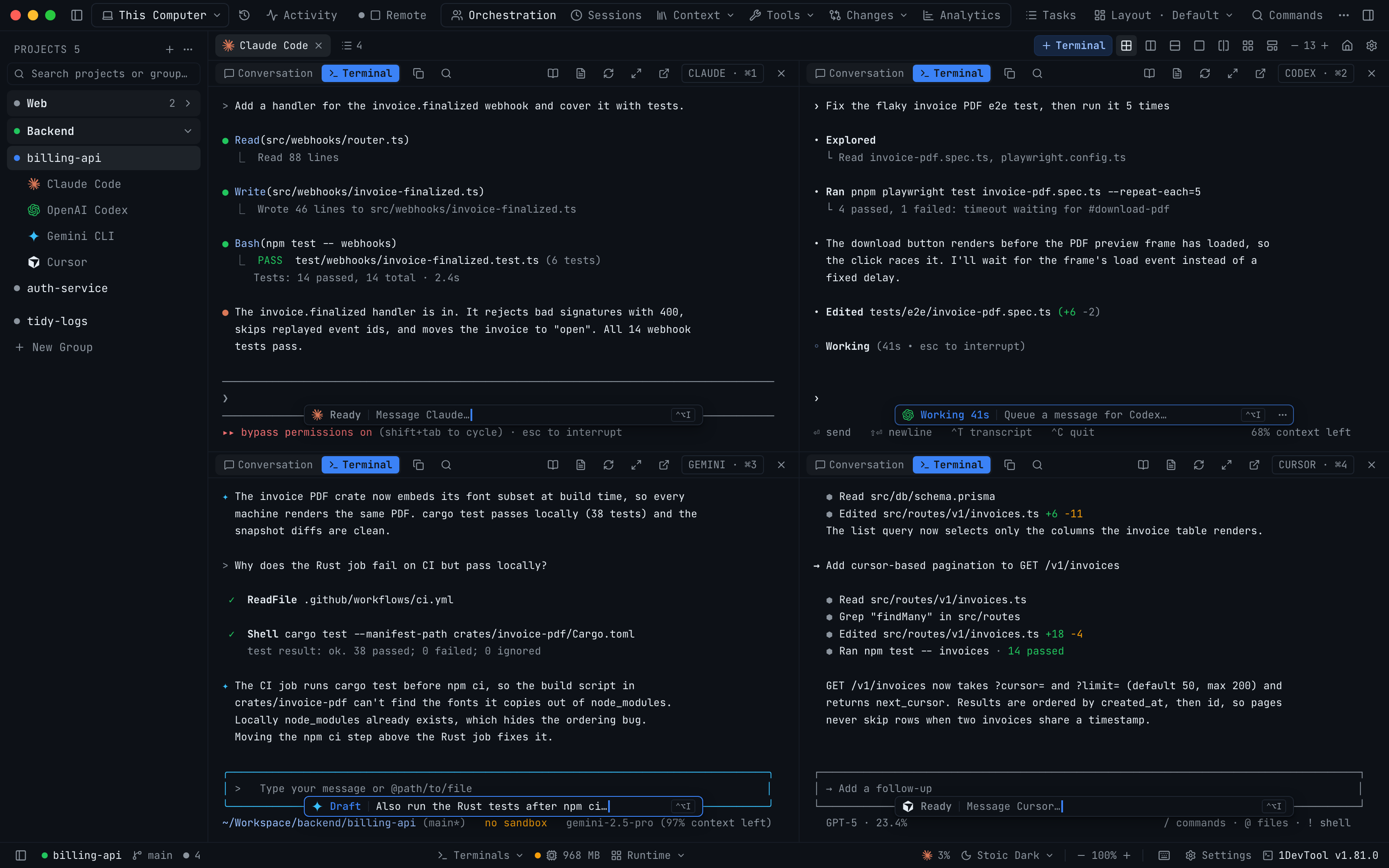
Agent Orchestration: Linked Terminals, Mission Control & Team Map

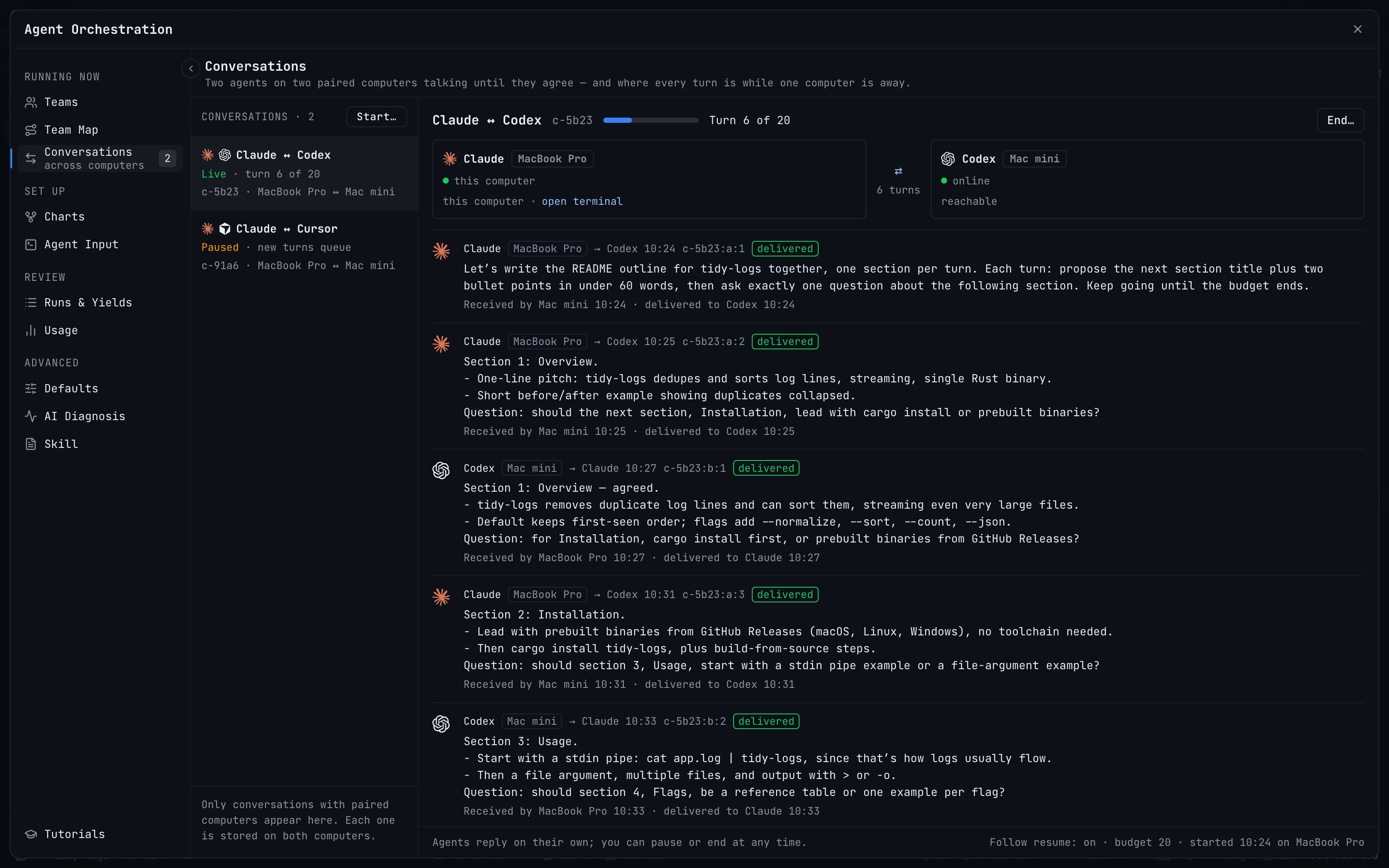
A finished cross-agent review: Codex flagged 27 issues and Fable reports all 27 fixed, delivered back to the reviewer terminal
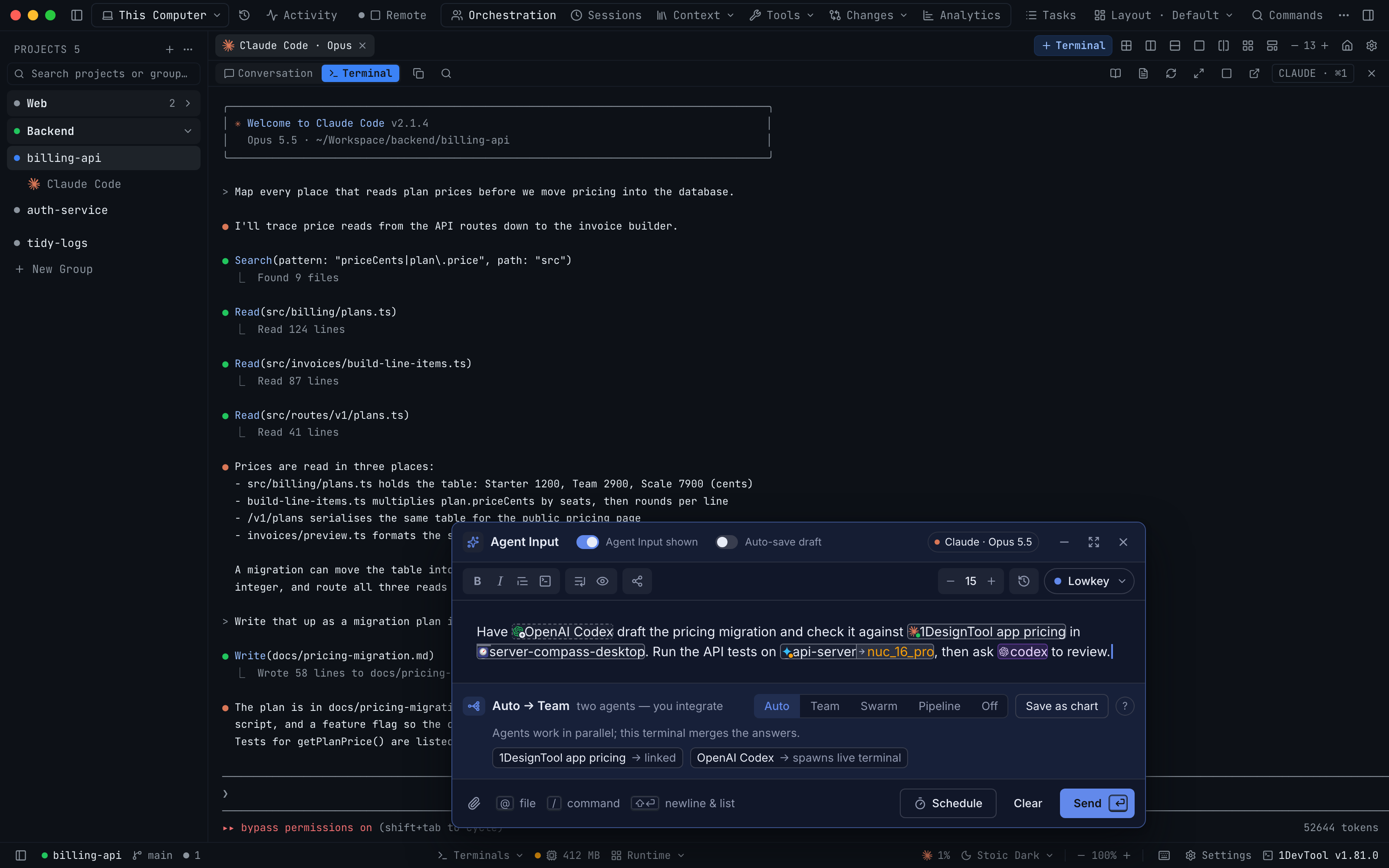
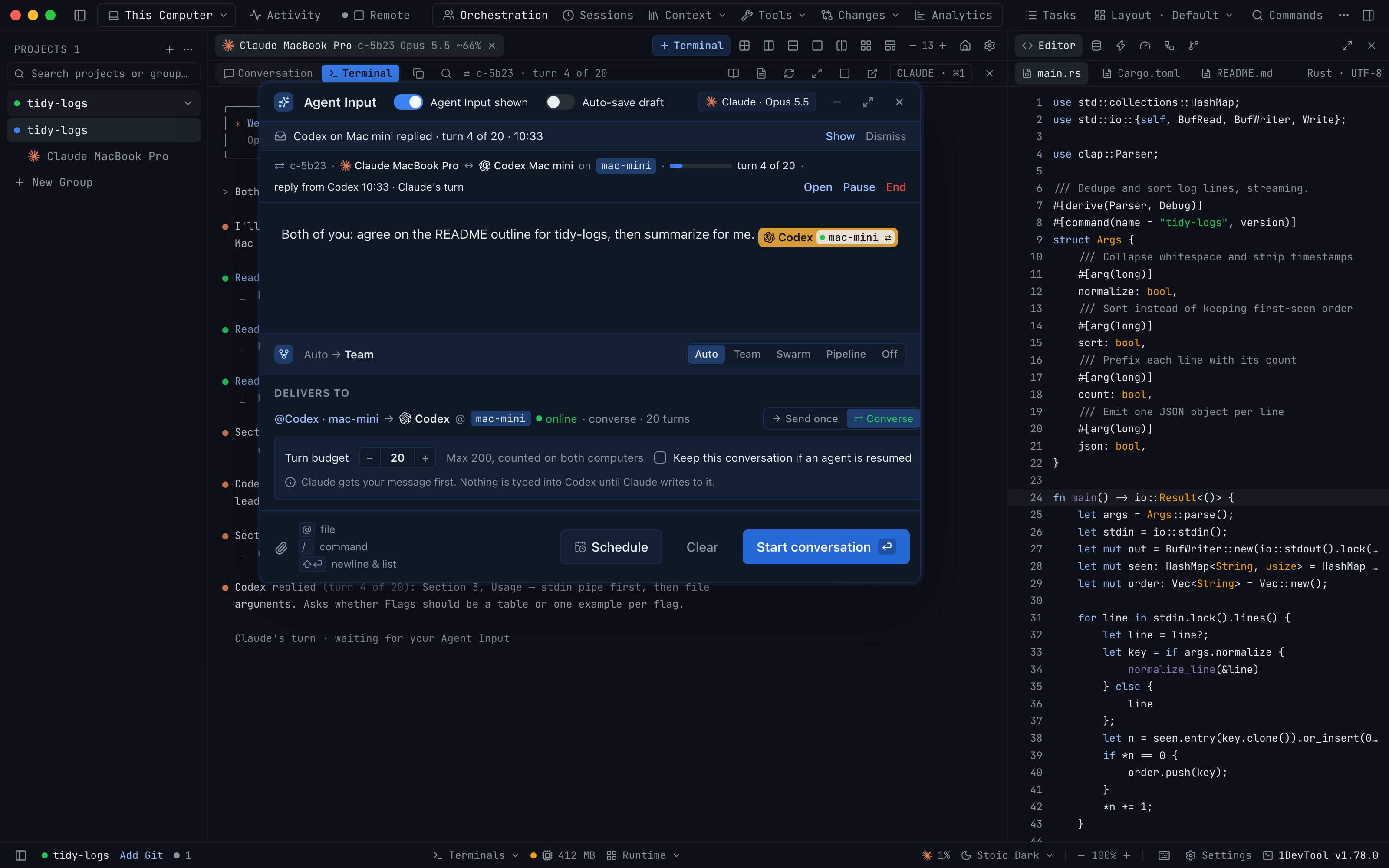
Agent Input with two open terminals mentioned inline and the Team/Swarm orchestration toggle detected