Mar 10, 2026
GitHub Copilot vs Cursor: The Definitive Comparison (2026)
GitHub Copilot vs Cursor head-to-head comparison. Features, pricing, AI models, and which one is better for your workflow.
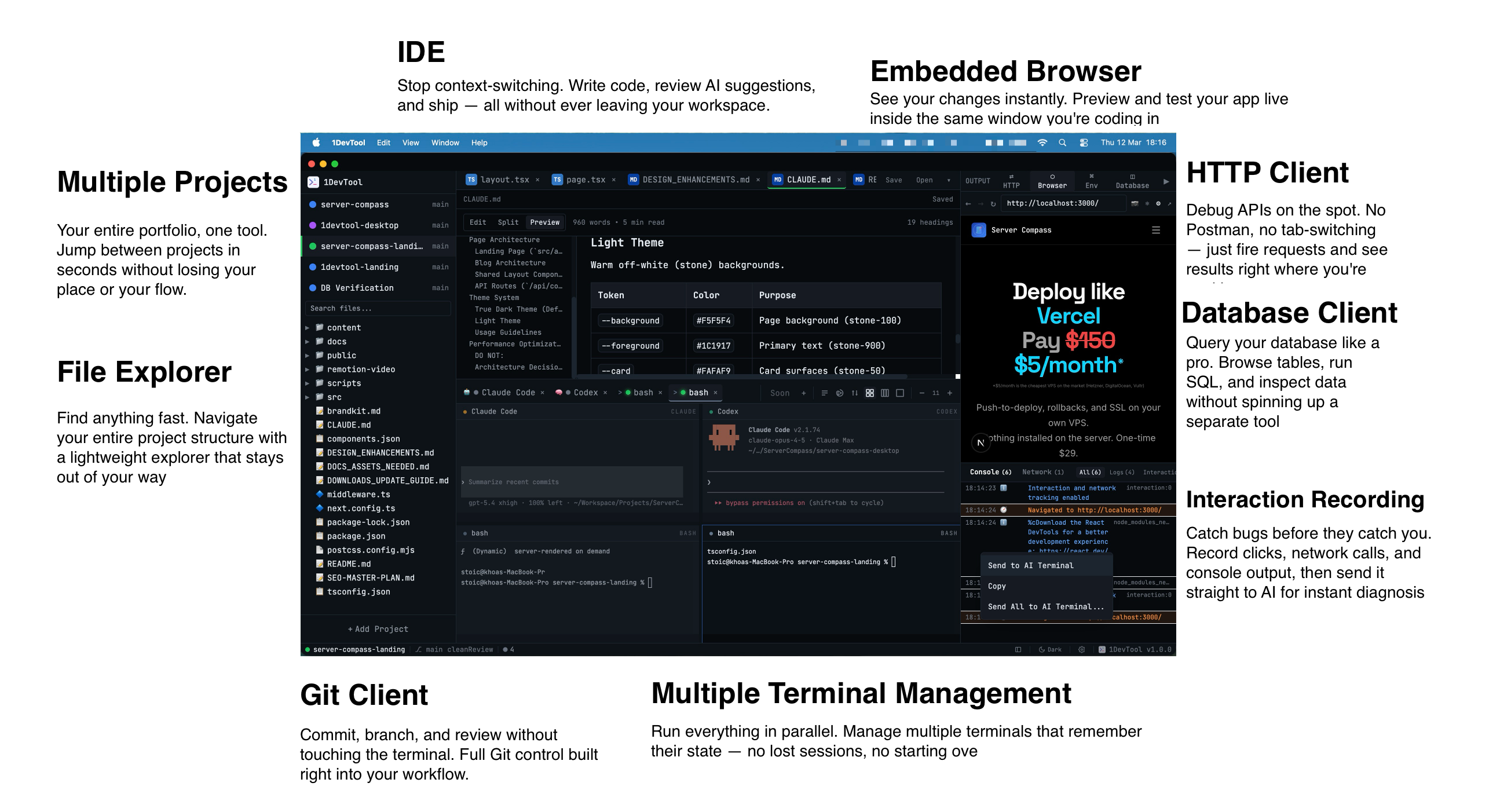
GitHub Copilot and Cursor represent two different philosophies in AI-assisted coding. Copilot enhances your existing IDE, while Cursor rebuilds the IDE experience around AI. This definitive comparison helps you decide which approach fits your development style.
The Fundamental Difference
GitHub Copilot is an AI assistant that plugs into your IDE. It adds AI features to VS Code, JetBrains, or Vim without changing how you work.
Cursor is an AI-native IDE. It's built from the ground up with AI at the center, offering capabilities that extensions simply can't match.
AI Capabilities Compared
Code Completion
Both tools excel at inline code suggestions, but they work differently:
- Copilot: Ghost text suggestions as you type, Tab to accept
- Cursor: Same ghost text, plus Cmd+K for inline generation with instructions
Winner: Tie - both provide excellent completions
Multi-File Editing
This is where Cursor pulls ahead significantly:
- Copilot: Limited to suggestions in the current file
- Cursor: Composer can edit multiple files simultaneously, understanding how changes propagate across your codebase
Winner: Cursor - Composer is a game-changer for refactoring
Chat & Conversation
- Copilot Chat: Good for explaining code and answering questions
- Cursor Chat: Same capabilities, plus @ mentions for files, docs, and web content
Winner: Cursor - @ mentions add powerful context control
AI Models
- Copilot: GPT-4 only (Microsoft/OpenAI)
- Cursor: Choice of Claude or GPT-4
Winner: Cursor - model choice is valuable as each has strengths
Pricing Comparison
Plan
Copilot
Cursor
Free
No
Limited (2 weeks Pro trial)
Individual
$10/month
$20/month
Business
$19/month
$40/month
Copilot is cheaper, but Cursor's additional capabilities may justify the price for many developers.
IDE Experience
Using Copilot
- Stay in your familiar IDE (VS Code, JetBrains, etc.)
- All your extensions and settings remain
- AI is additive, not transformative
- Easy to start - just install an extension
Using Cursor
- VS Code-based, so it feels familiar
- Most VS Code extensions work
- AI deeply integrated into every workflow
- Requires switching editors
Real-World Scenarios
Scenario 1: Adding a New Feature
With Copilot: Write code file by file, Copilot suggests completions as you go.
With Cursor: Describe the feature in Composer, let it scaffold multiple files at once, then refine.
Scenario 2: Refactoring a Function
With Copilot: Rename, update callers manually with some AI help.
With Cursor: Select code, Cmd+K, describe the refactor, Composer updates all affected files.
Scenario 3: Understanding Legacy Code
With Copilot: Copilot Chat explains selected code well.
With Cursor: Chat with @ mentions lets you reference multiple files and documentation in one conversation.
Who Should Choose What?
Choose GitHub Copilot If:
- You're happy with your current IDE setup
- You use JetBrains IDEs (Cursor is VS Code-based)
- You need enterprise compliance features
- Budget is a primary concern ($10 vs $20)
- Deep GitHub integration matters to you
Choose Cursor If:
- Multi-file editing and refactoring is important
- You want access to Claude (Anthropic's model)
- You're willing to invest more for better AI features
- You primarily use VS Code anyway
- You want the most advanced AI coding experience
Consider: 1DevTool
If you need more than just AI code completion, 1DevTool offers a complete developer workspace with AI built in. Beyond code editing, it includes AI-powered terminals, database client, HTTP testing, Git integration, and workflow automation—all with multi-model AI support.
The Verdict
For pure AI coding capabilities, Cursor is the better choice. Composer, model flexibility, and deep AI integration make it the more powerful tool.
For seamless integration with existing workflows, Copilot wins. It adds AI to your setup without disruption and costs less.
Many developers actually use both—Copilot in JetBrains for certain projects, Cursor for heavy AI-assisted work. Try both (Cursor offers a trial, Copilot has a free student tier) to see which fits your style.
From across the StoicSoft network
Hand-curated reads on the same topic from sister sites in the StoicSoft family.
 ServerCompass12 min read
Coolify vs Dokploy: Which Self-Hosted PaaS Should You Use?
A detailed comparison of Coolify and Dokploy covering features, ease of use, pricing, Docker support, GitHub integration, and community. Find out which self-hosted PaaS fits your workflow in 2026.
Read on servercompass.app ServerCompass12 min read
Server Compass vs Vercel: Take Control of Your Infrastructure and Save Thousands
If you're reading this, chances are you've experienced that sinking feeling when opening your Vercel invoice. What started as a convenient deployment platform has become an increasingly expensive proposition as your application scales.
Read on servercompass.app ServerCompass12 min read
Best VPS Control Panels for Developers in 2026
Compare the best VPS control panels for developers in 2026: CloudPanel, CyberPanel, Plesk, Webmin, and Server Compass. Features, pricing, ease of use, and which one fits your workflow.
Read on servercompass.app ServerCompass22 min read
Self-Hosted Vercel Alternative: Complete Guide (2026)
The complete guide to self-hosted Vercel alternatives. Compare Server Compass, Coolify, and CapRover. Learn how to migrate from Vercel, calculate real cost savings, and deploy with the same developer experience on your own VPS.
Read on servercompass.app