Apr 13, 2026
Go to Definition Across 10 Languages and App Templates for Instant Project Setup
Cmd+Click any symbol to jump to its definition across TypeScript, Python, Go, Rust, and six more languages with full navigation history. Plus curated starter templates with zoomable previews and real-time theme preview that applies instantly as you browse.
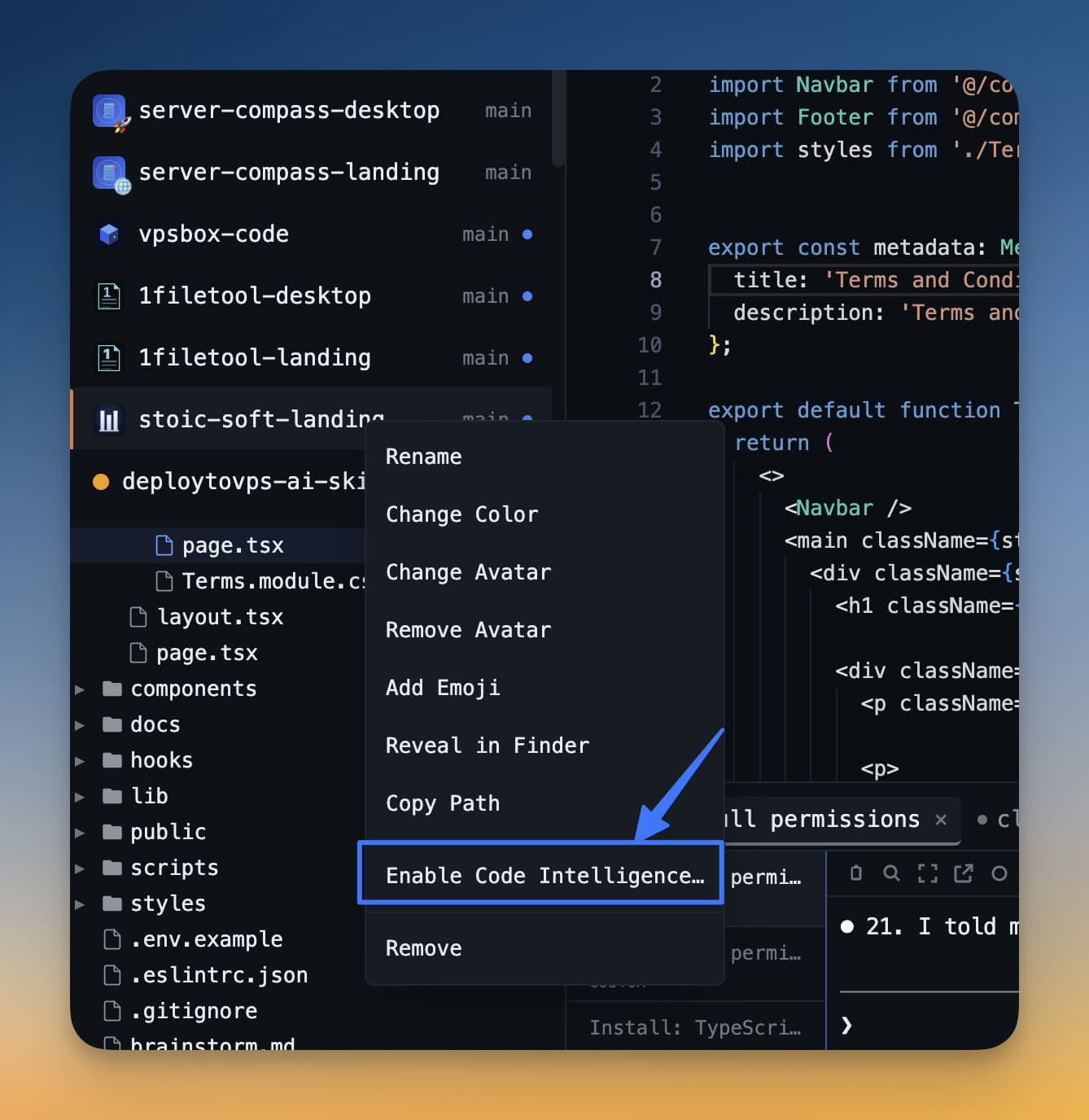
You're reading through an unfamiliar codebase. A function call appears on line 47 — resolveUserPermissions(ctx) — and you need to know what it does. You highlight the name, open Quick Open, type a guess at the filename, scroll through results, find the file, scan for the function definition, and finally land on it. Thirty seconds of friction for what should be a single click.
Meanwhile, starting a new project means hunting for a starter template on GitHub, cloning it, deleting the .git folder, renaming things, and hoping the dependencies still resolve. Two separate problems, both solved in 1DevTool v1.14.0.
Go to Definition brings Cmd+Click / F12 navigation to 10 languages — click any symbol and land on its definition instantly, even across files. App Templates let you spin up a new project from a curated catalog with a live preview lightbox and zero git knowledge required. And a set of real-time preview improvements mean you can browse themes, change fonts, and adjust terminal settings without ever hitting a save button.
Go to Definition Across 10 Languages
If you've used VS Code, you know the workflow: Cmd+Click a symbol and the editor jumps to where it's defined. 1DevTool v1.14.0 brings this same capability to its built-in editor, powered by real language servers running on your machine — not a sandboxed approximation.
Hold Cmd (or Ctrl on Windows/Linux) and click any function call, import, variable reference, or type annotation. The editor opens the file containing the definition, scrolls to the exact line, and positions your cursor on the symbol. Press F12 as an alternative shortcut if you prefer the keyboard. It works the same way whether the definition is in the same file, a different file in your project, or deep inside a dependency.
Supported Languages
Go to Definition works across 10 languages, each backed by a real LSP server:
Language
LSP Server
Detected By
TypeScript / JavaScript
typescript-language-server
tsconfig.json, package.json
Python
pyright
pyproject.toml, requirements.txt
Go
gopls
go.mod, go.work
Rust
rust-analyzer
Cargo.toml
C / C++
clangd
compile_commands.json
Ruby
solargraph
Gemfile
PHP
intelephense
composer.json
Swift
sourcekit-lsp
Package.swift
Each server runs as a real child process with full filesystem access — it reads your config files, parses your dependencies, and resolves modules the same way your build tool does. When Code Intelligence is disabled for a project, the definition provider returns immediately with zero IPC overhead (two property checks and an early return), so there's no performance cost for projects that don't need it.
Back and Forward Navigation
Every time you jump to a definition, your current position is pushed onto a navigation stack. Press Ctrl+− on Mac (or Alt+Left on Windows/Linux) to go back. Press Ctrl+Shift+− (or Alt+Right) to go forward. The stack holds up to 50 entries with FIFO eviction, so you can drill into nested definitions and retrace your steps without losing your place.
The editor toolbar shows back and forward arrow buttons that light up when history is available. These are the same shortcuts VS Code uses, so muscle memory transfers directly.
New Code Intelligence Settings Tab
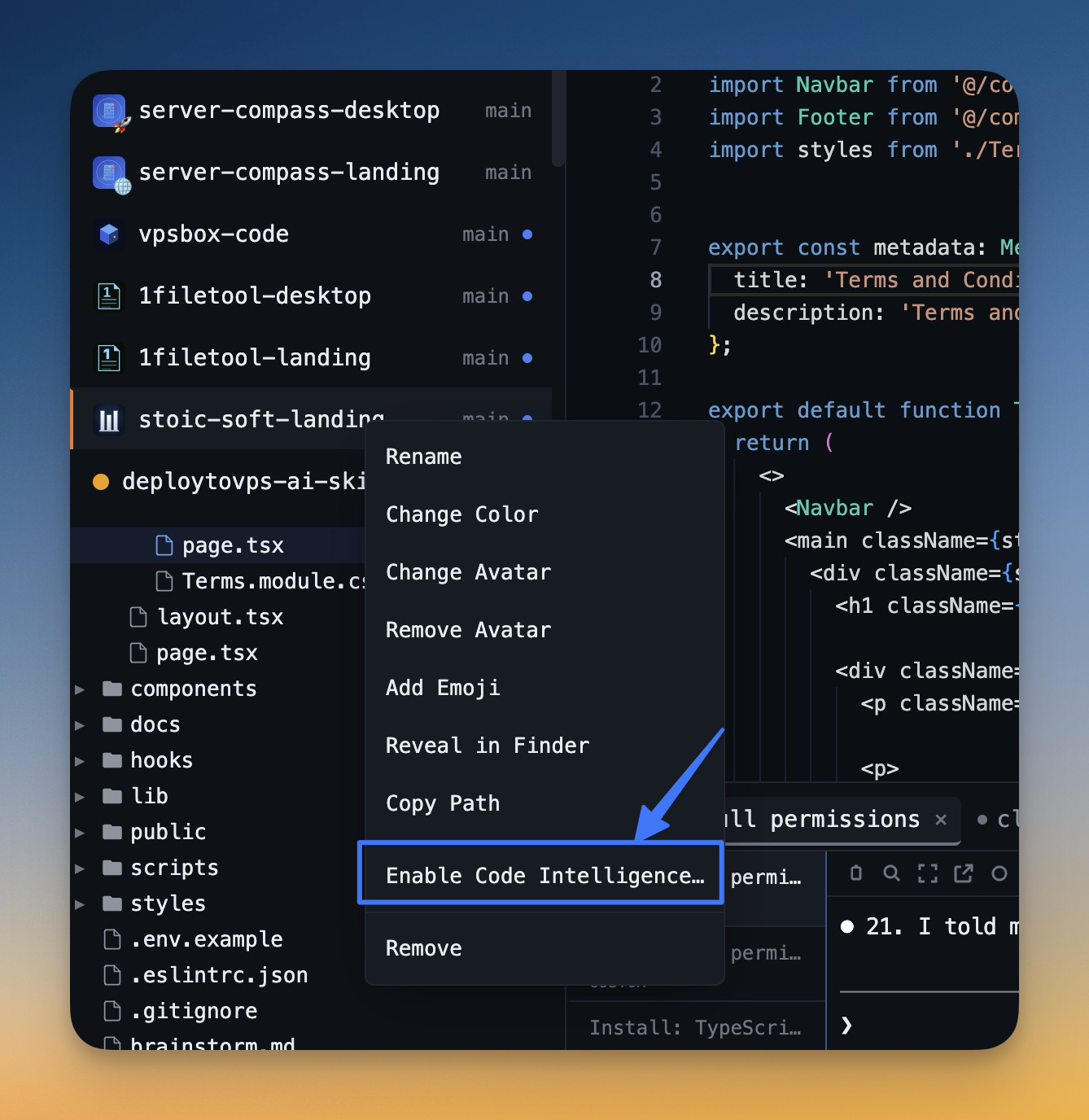
Settings > IDE now has a dedicated Code Intelligence sub-tab alongside AI Diff and Built-in TypeScript Checks. For each of the 10 supported languages, you can see:
- Whether the language server binary is detected on your machine (green dot) or missing (amber dot with install hints)
- Which capabilities are active: Diagnostics, Go to Definition, and upcoming Autocomplete and Hover
- The installed version and binary path
- A per-language enable/disable toggle and a quick-install button for missing servers
A Rescan my machine button re-detects available servers by scanning your $PATH, Homebrew, npm global installs, asdf, and nvm — without restarting the app.
Create Projects from Curated Starter Templates
Starting a new project shouldn't mean 20 minutes of scaffolding. The new App Templates dialog shows a browsable catalog of ready-to-use starter projects organized by category: Landing Pages, Blogs, SaaS Apps, and Desktop Apps. Each template shows a preview image, a description, and technology tags so you can find the right starting point in seconds.
Click to Zoom Preview Images
Click any template's preview thumbnail and it opens in a fullscreen lightbox. Scroll to zoom (0.5x to 4x magnification), drag to pan when zoomed, double-click to toggle between 1x and 2x, and use keyboard shortcuts (+ / - to step, 0 to reset, Esc to close). Templates with multiple preview images get left/right navigation arrows and dot indicators at the bottom. Above 200% zoom, the preview switches to crisp pixelated rendering instead of blurry bilinear scaling, so you can verify exact layout details.
Works Without Git Installed
If git isn't on your machine, 1DevTool automatically downloads the template as a compressed archive from GitHub instead of cloning. You get the same files either way — git just won't be initialized in the project folder. The app caches the template manifest for 5 minutes and falls back to a stale cache if the network is unavailable, so the catalog loads fast even on spotty connections.
From Template Tab in Add Project
The Add Project dialog now has three tabs: Open Existing, Create New, and From Template. The template tab uses the same category sidebar and horizontal card layout as the standalone Templates dialog, so you can start from a template without leaving the project creation flow. Pick a template, choose a destination folder, name the project, select an accent color, and click Create.
Real-Time Theme Preview
Choosing a theme used to mean clicking a card, closing settings, checking how it looks, reopening settings, trying another one, and repeating until you find the right fit. Now theme changes apply the instant you click a card. The new colors propagate through 35+ CSS variables injected directly into the document root — every panel, toolbar, sidebar, and editor updates simultaneously with no save step and no restart.
VS Code Theme Import with Live Rollback
Importing a VS Code theme file now shows a live preview before you commit to it. The importer parses the VS Code JSON (including JSONC with trailing commas), maps colors to 1DevTool's theme properties using smart fallbacks (if the sidebar background is missing, it derives one from the editor background), and applies everything as a preview. If you cancel or navigate away, the previous theme is automatically restored. The converter handles automatic light/dark detection based on luminance calculation, so you don't need to specify the theme type manually.
Font and Display Settings Update Instantly
Font family, font size, scrollbar visibility, and unfocused terminal opacity all apply in real time as you change them. The app detects which monospace fonts are installed on your system using document.fonts.check(), and you can import custom .ttf, .otf, or .woff2 files directly from settings. A live sample text preview shows exactly how your current selection renders before you move on.
tmux Mouse Scroll Control
If you use tmux, you've likely fought with mouse scroll behavior inside terminal apps. 1DevTool v1.14.0 adds a tmux Mouse Behavior setting with three explicit modes:
Mode
Scroll Behavior
Best For
Native text selection
Scrollbar moves the terminal viewport
Selecting text and scrolling output
Respect tmux config
Follows your ~/.tmux.conf
Users with custom tmux setups
Force tmux mouse on
Scroll moves the tmux pane and enters copy-mode
tmux power users
No more guessing why scroll doesn't work the way you expect — pick the mode that matches how you use tmux and move on.
Resume Session Filtering by AI Agent
The Resume panel now supports filtering sessions by agent type. If you're running Claude Code, Codex, Gemini CLI, Amp, and Qwen Code across different projects, you can narrow the list to just the agent you want instead of scrolling through every session from every tool. The preview text is also cleaner — system tags and internal XML are stripped, and the last few sentences are extracted as a readable summary instead of raw terminal output.
Before vs. After
Workflow
Before v1.14.0
After v1.14.0
Finding a function definition
Quick Open → guess filename → scroll → find symbol
Cmd+Click the symbol
Starting a new project
GitHub → clone template → delete .git → rename → install
Templates → pick one → Create
Choosing a theme
Click → close settings → check → reopen → try another
Click a theme card, see it live instantly
tmux scroll behavior
Google "tmux mouse scroll not working in terminal app"
Pick one of three modes in settings
Finding a past session
Scroll through all sessions from all agents
Filter by agent type, read clean previews
Who Benefits Most
Developer Profile
How This Helps
Multi-language developers
One-click navigation across TypeScript, Python, Go, Rust, C++, Ruby, PHP, and Swift — same shortcut, same history stack
Freelancers starting new client projects
App Templates cut scaffolding time from 20 minutes to 20 seconds
Theme customizers
Live preview means you can try 15 themes in 30 seconds instead of 15 minutes
tmux users
Three explicit scroll modes end the "why doesn't scroll work" frustration
Multi-agent power users
Filter resume sessions by Claude Code vs. Codex vs. Gemini so you find the right conversation fast
Bug Fixes in v1.14.0
- Fixed Command Palette and Quick Open flickering while typing — results now update smoothly after you pause, with a subtle "Searching..." indicator
- Fixed theme not applying until app restart
- Fixed file explorer collapsing all open folders on refresh
- Fixed tmux mouse scroll not working correctly inside 1DevTool
Try It Today
Go to Definition, App Templates, real-time theme preview, and tmux mouse control are all available now in 1DevTool v1.14.0. Download the latest version and Cmd+Click your way through any codebase — or start a fresh project from a template and have it running in under a minute.