Apr 15, 2026
Linux Dev Environment Alternatives to All-in-One Windows Tooling
A practical Linux-native setup for developers leaving MobaXterm-style workflows: tmux-backed sessions, organized terminals, project restore, SSH naming, diagnostics aliases, and remote monitoring.
Developers looking for a MobaXterm alternative on Linux often miss the convenience more than the exact app. A single window had terminals, sessions, saved destinations, file access, and quick diagnostics. On Linux, the pieces are stronger, but they are easier to scatter across your dev environment.
The practical replacement for your Linux dev environment is not one magic terminal. It is a small operating model: tmux persistence, a terminal manager with named layouts, clean SSH profiles, per-project startup routines, and one place to monitor long-running work.
What You Are Replacing
If you are coming from a MobaXterm-style workflow, you are probably replacing several jobs:
- Multiple persistent terminals.
- Named remote destinations and SSH habits.
- Quick file and project navigation.
- One-command environment startup.
- Diagnostics for ports, containers, logs, and local services.
Recreate those jobs directly. Do not chase a visual clone if your actual need is a reliable session strategy.
The Linux-Native Stack
1. Pair a Terminal Manager With tmux for Session Continuity
tmux gives you durability and session continuity. Your terminal manager gives you visibility. Use tmux for the session backbone and a workspace app for layout, naming, and switching.
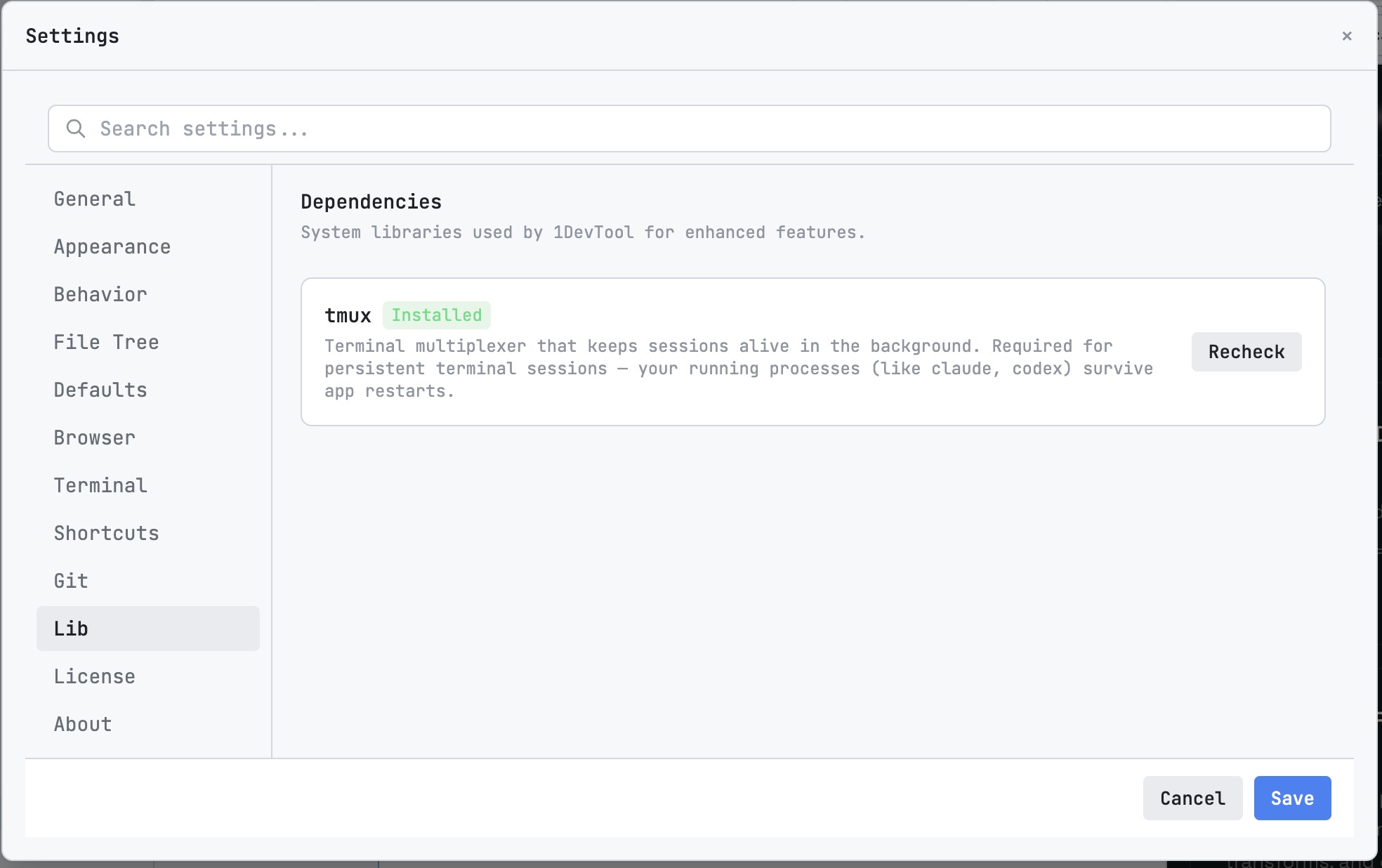
1DevTool's Session Persistence is built around tmux-backed terminals, so app restarts do not wipe scrollback or running processes. That matters for long builds, test watchers, deploy logs, and AI agents.
2. Centralize SSH Profiles
Keep remote naming boring and consistent in ~/.ssh/config. Use names that encode environment and role, such as prod-api-01, stage-worker-02, or client-vpn-bastion.
`Host stage-api-01 HostName 203.0.113.10 User deploy IdentityFile ~/.ssh/work_ed25519 ForwardAgent no ServerAliveInterval 30`
Then use your workspace terminals to run those named profiles. The goal is to avoid copying raw IPs, usernames, and flags from old notes.
3. Standardize Per-Project Startup
Every serious project should have one startup entry point. It can be a Make target, a package script, or a small shell script. It should start the services you actually need and print the checks you should run next.
`make dev npm run test:watch docker compose up api db redis ./scripts/check-local.sh`
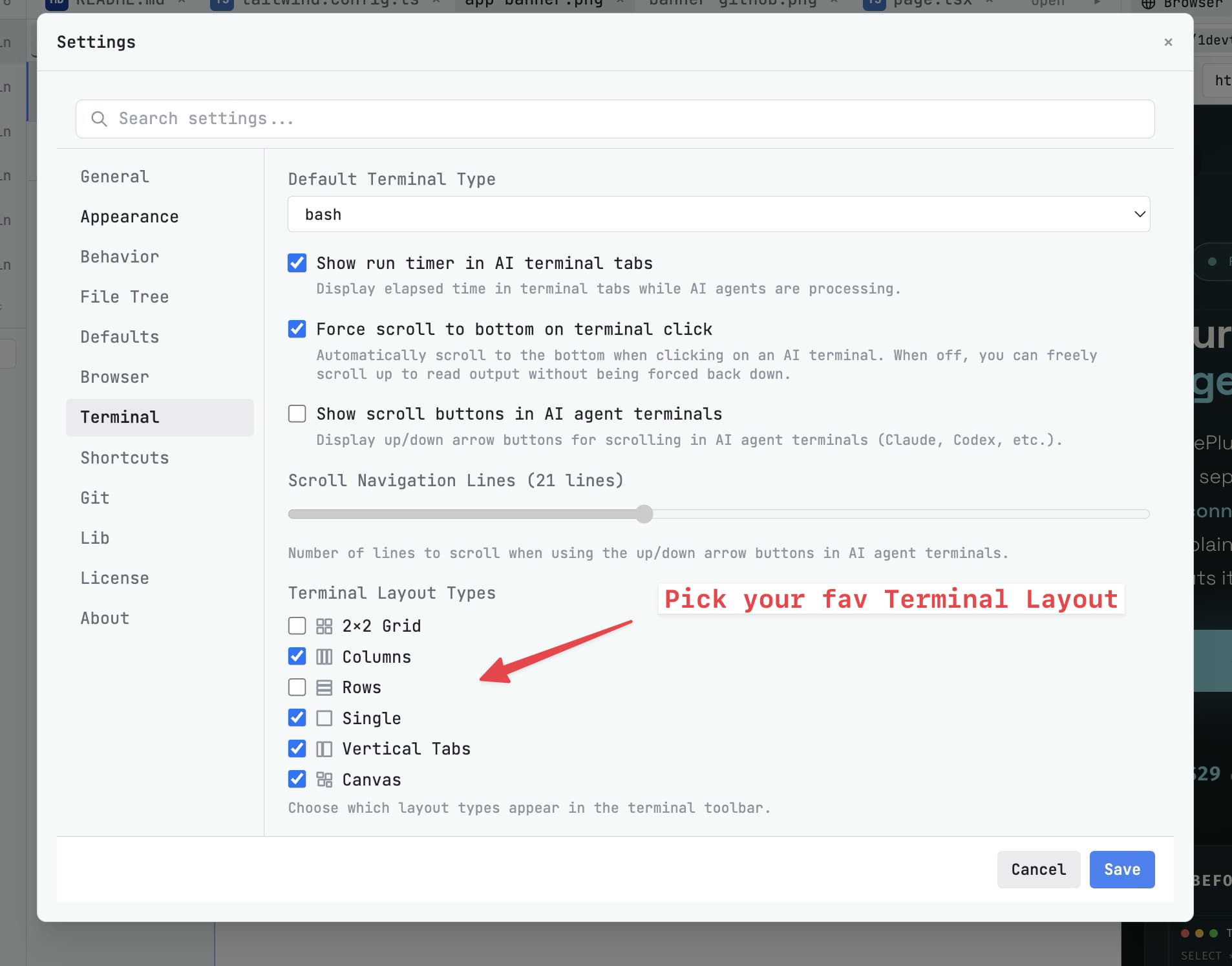
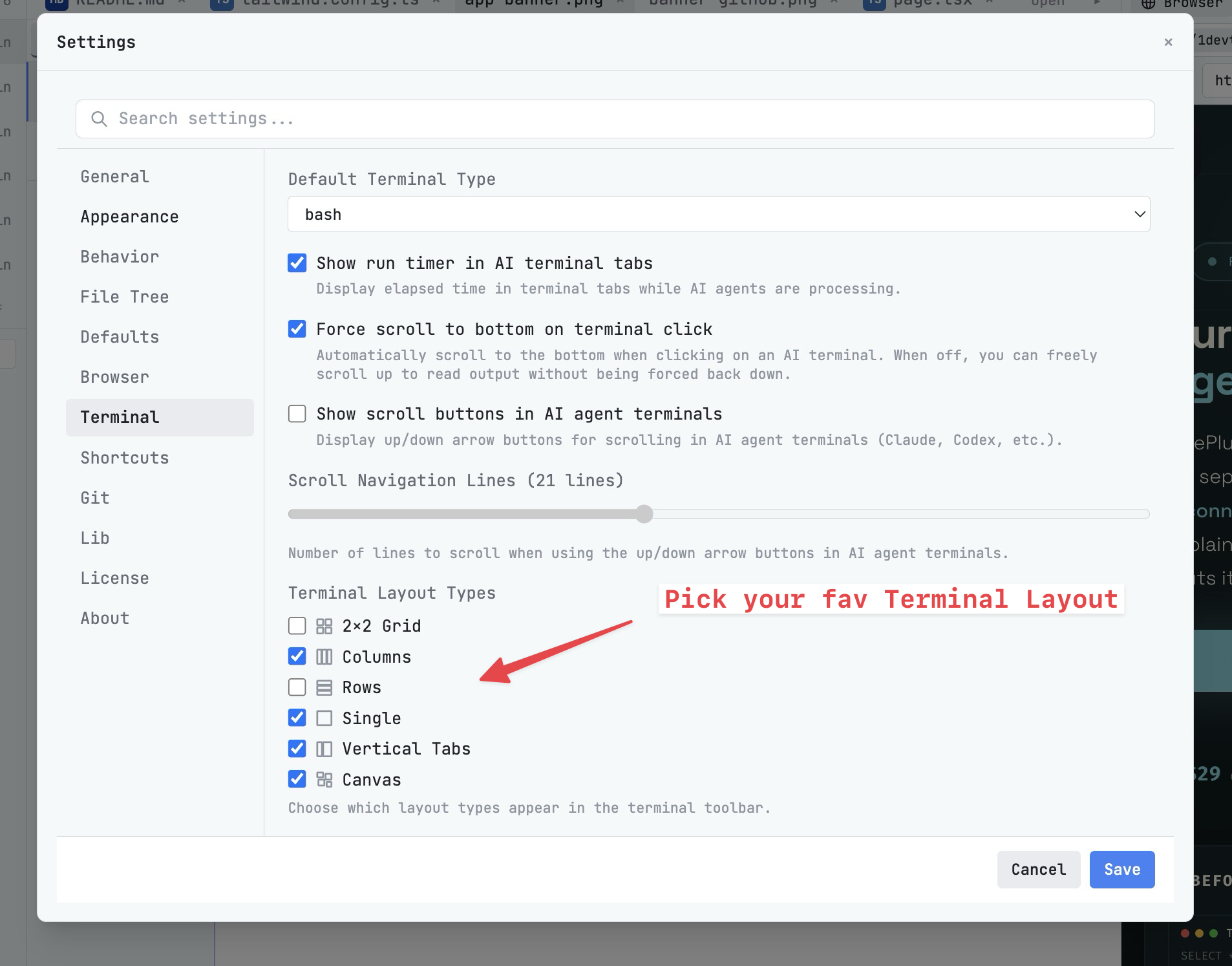
In 1DevTool, save a project layout with terminals named by job: app, tests, docker, logs, agent. Pair that with Layout Presets so the project opens in the shape you expect.
4. Add Quick Diagnostics Aliases
All-in-one tools feel fast because common diagnostics are nearby. On Linux, make those checks explicit:
`alias ports='ss -ltnp' alias dps='docker ps --format "table {{.Names}}\\t{{.Status}}\\t{{.Ports}}"' alias glog='git log --oneline --decorate -12' alias gst='git status --short --branch' alias disk='df -h .'`
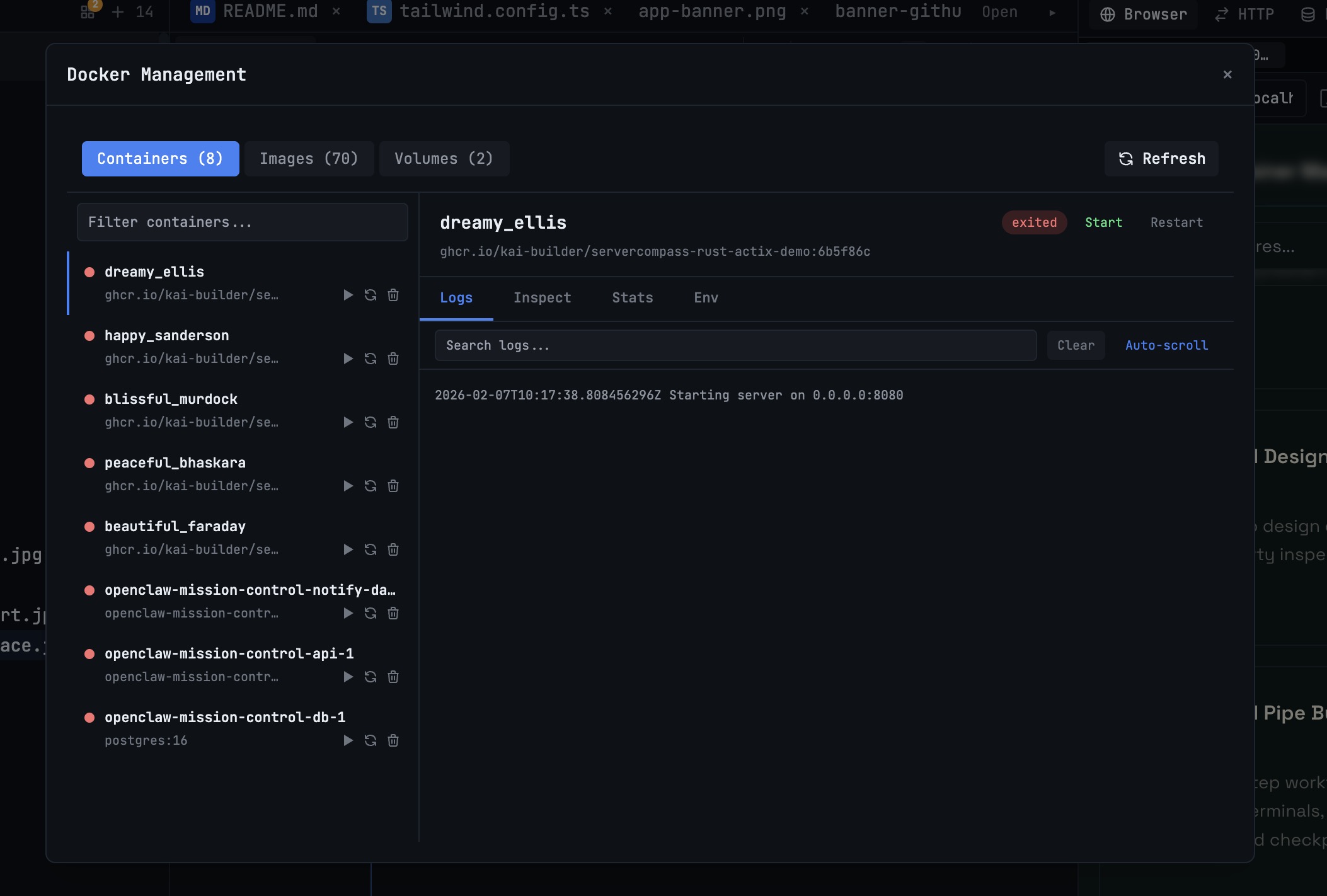
1DevTool covers several of these surfaces directly with Docker Manager, Port Manager, and visual git tooling, but keeping aliases gives you a portable fallback when you SSH into a plain server.
5. Restore Session State With One Command
Your Linux setup should have a single answer to "how do I get back to work?" That answer might be opening a 1DevTool project, running make dev, and resuming the named terminals. It should not be a checklist you reconstruct every morning.
If you run AI agents, pair this with Session Continuity and Activity Logs. Long-running agent work needs the same persistence as any other terminal process.
Remote Monitoring Without Full SSH
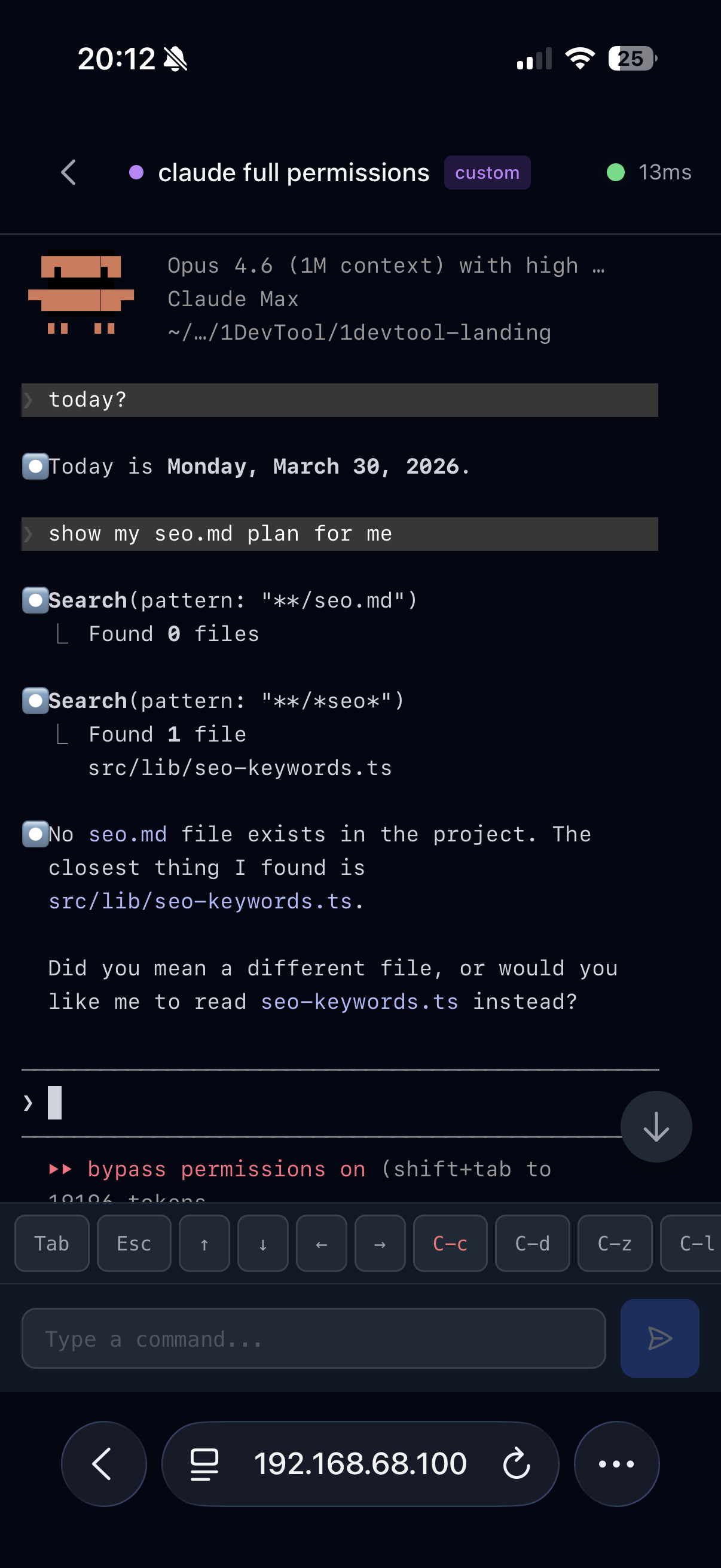
Sometimes you do not need a full remote shell from your phone. You only need to see whether a build finished or answer an agent prompt. 1DevTool's Remote Terminal lets you stream live output and send commands to running terminals from a paired mobile device.
Common Mistakes
- Rebuilding sessions manually: if you do it every morning, automate it.
- Unclear SSH names: raw IPs and ad hoc aliases lead to wrong-host mistakes.
- No portable fallback: GUI convenience should not replace basic shell commands.
- One giant terminal wall: name terminals by job and save layouts per project.
A Sane Starting Setup
- Keep SSH destinations in
~/.ssh/configwith boring names. - Use tmux-backed persistence for long-running local terminals.
- Create one project startup command.
- Save a terminal layout per project.
- Add aliases for diagnostics you use on remote machines.
- Use activity logs or notifications for long-running tasks.
The best Linux dev environment alternative to all-in-one Windows tooling is a workflow that preserves the convenience without hiding the underlying system. Keep the durable pieces portable, then use a terminal manager like 1DevTool to make daily project work faster.
Download 1DevTool when you want tmux-backed terminal persistence, project layouts, Docker and port visibility, AI terminals for Claude Code and Codex CLI, and remote terminal monitoring in one Linux-friendly workspace.