May 21, 2026
Quickstart everywhere: 1DevTool's new welcome screen, one-click agent launchers, and editor back in the center
v1.18.7 turns the empty state into a launchpad: a welcome screen with five project-picker tiles, six color-matched agent buttons on empty terminals, the editor back in the center column, and two new built-in layouts — Terminal Center and Terminal Right.
A new developer joins your team. They install 1DevTool for the first time. You watch them stare at an empty window with a single "+ Add Project" button, click it, and immediately face a dialog asking which kind of project? — followed by a second screen asking for a path, and a third asking which agent to launch in the terminal. By the time anything is actually on screen, they've made four decisions for an answer they already knew when they downloaded the app: "I want to clone our staging repo."
Or maybe it's not a new teammate. Maybe it's you, on a Monday morning, opening a project you haven't touched in a month. The terminal grid is empty. You want a Claude session next to a bash shell. You click "+", pick "Custom", scroll the dropdown, type the startup command. Three clicks for something you do twenty times a day.
Quickstart everywhere is the theme of v1.18.7. The first click and the empty state both get dragged out of the dialog and onto the surface where you actually work.
What changed
The welcome screen turns "add a project" into one tile-click instead of a dialog walk. The empty terminal grid turns "spawn an agent" into one button-click instead of a picker. And the editor — long pinned to the right sidebar as just another tab — moves back to the center column where code-on-top, terminal-underneath is the natural shape of a coding session.

How it works in practice
One click to start a project
The welcome screen replaces the empty "+ Add Project" state with five large tiles: Open Folder, Create New, Clone Git Repo, Connect SSH, and From Template. Each tile pre-selects its mode in the Add Project dialog, so the dialog opens in the right state instead of waiting for you to pick one. Click Clone, and the dialog lands you straight on the GitHub-account-and-repo picker — no first-screen question, no extra click. Click SSH, and your saved hosts are already showing.
If you already have projects in your workspace, the welcome screen reads the room: instead of pushing you to add another, it reminds you to pick one from the sidebar or hit ⌘P for the command palette.
One click to start an agent
Open a project with no terminals and you get a small empty state — No terminals yet, Pick an agent to launch, or open the full picker — followed by six color-matched buttons: Claude, Codex, Gemini, Amp, OpenCode, and bash. Each spawns the right CLI in a new terminal in a single click.

If you need something off the menu — a custom startup command, a non-default shell — the New Terminal button (with its ⌘T keyboard hint) opens the full Add Terminal dialog. And if your default agent is wrong, a Settings shortcut on the empty state jumps straight to the Terminal Settings tab, so changing your default doesn't require digging through the preferences tree.
The editor moves back to the center
For a few months the editor lived in the right sidebar, next to Browser and Database and HTTP, all of them sharing one narrow column. It worked for short edits but cramped anything longer than a screen. In v1.18.7 the editor returns to the center column, above your terminals — the classic IDE arrangement where the code is the main canvas and the terminal sits underneath it.
The Settings dialog gets the same treatment: it now opens at near-full window width, so the Layout Editor, the Commands list, and the Detected CLIs panel have room to render without horizontal scrolling.
Two new built-in layouts: Terminal Center and Terminal Right
If you live in your terminals more than your editor — say, you spend most of your day orchestrating AI agents — the built-in presets now include two terminal-first layouts.

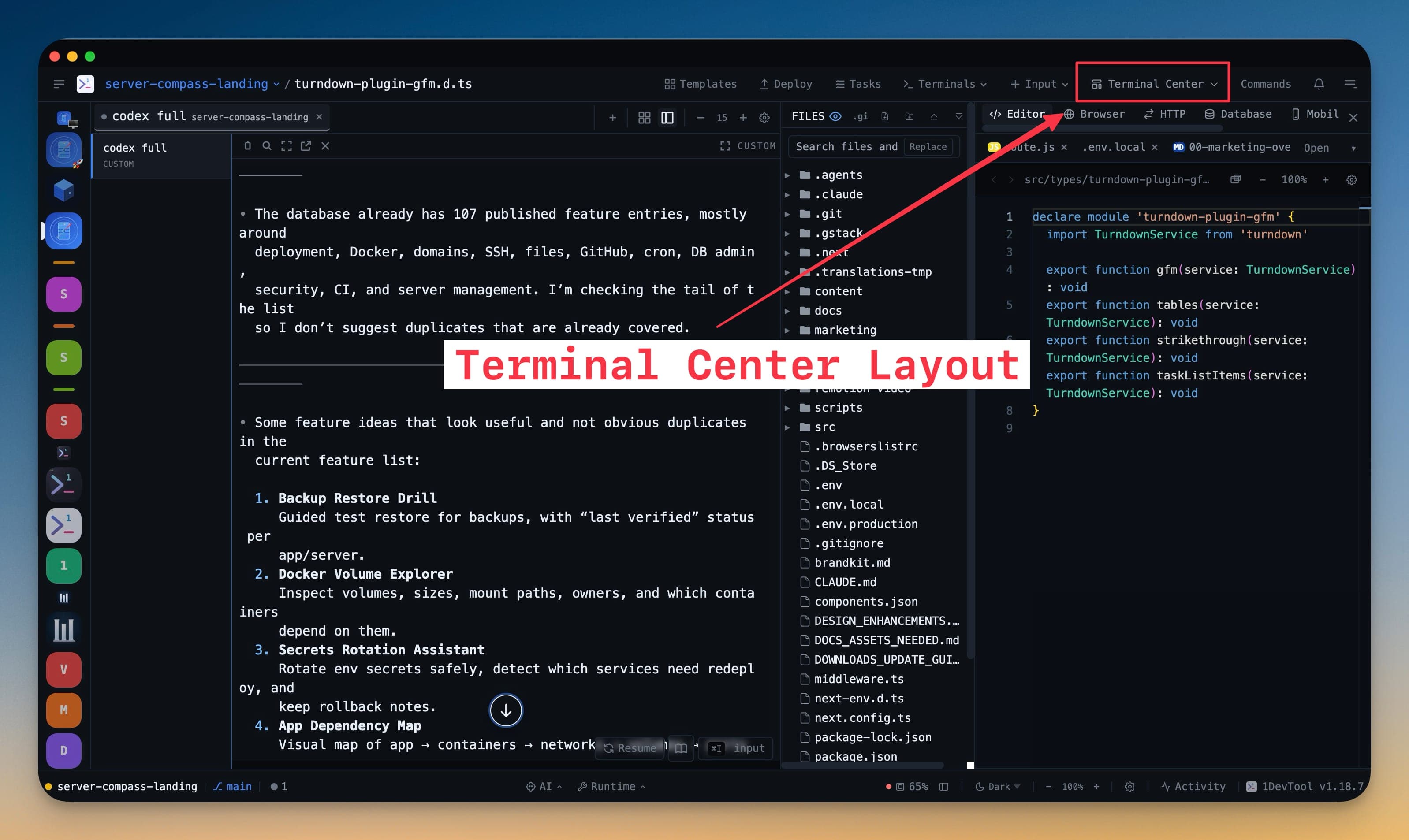
Terminal Center puts terminals in the middle of the workspace. Project icons sit on the far left, the chat-style channel sidebar and terminal view fill the center column, and a split right sidebar pins the File Tree alongside Editor / Browser / HTTP / Database / Mobile / AI Diff / Tool Box.

Terminal Right mirrors that arrangement: the File Tree and tool tabs split the center column, and terminals fill the entire right column. The result is a layout where you can scan code on the left while AI agents work on the right without the two competing for horizontal space. Both presets auto-apply the chat-style terminal grid, so the channel sidebar comes along with the preset — no separate layout switch required.
The built-in preset list itself is now smaller and sharper: Default, Chat Interface, Terminal Center, and Terminal Right. Focus, Terminal, Web Dev, API Dev, Database, and AI Collab have been retired in favor of the more powerful Layout Editor and your own custom presets. Anyone on a removed preset auto-migrates to Default, with their actual panel arrangement preserved.
Jump back to the tail with one click
Scrolling up to read past output used to mean scrolling all the way back to the live tail by hand. A floating jump-to-bottom pill now appears in any terminal the moment you're no longer at the tail — ringed in your accent color, visible against any terminal background, one click to snap back to live output.
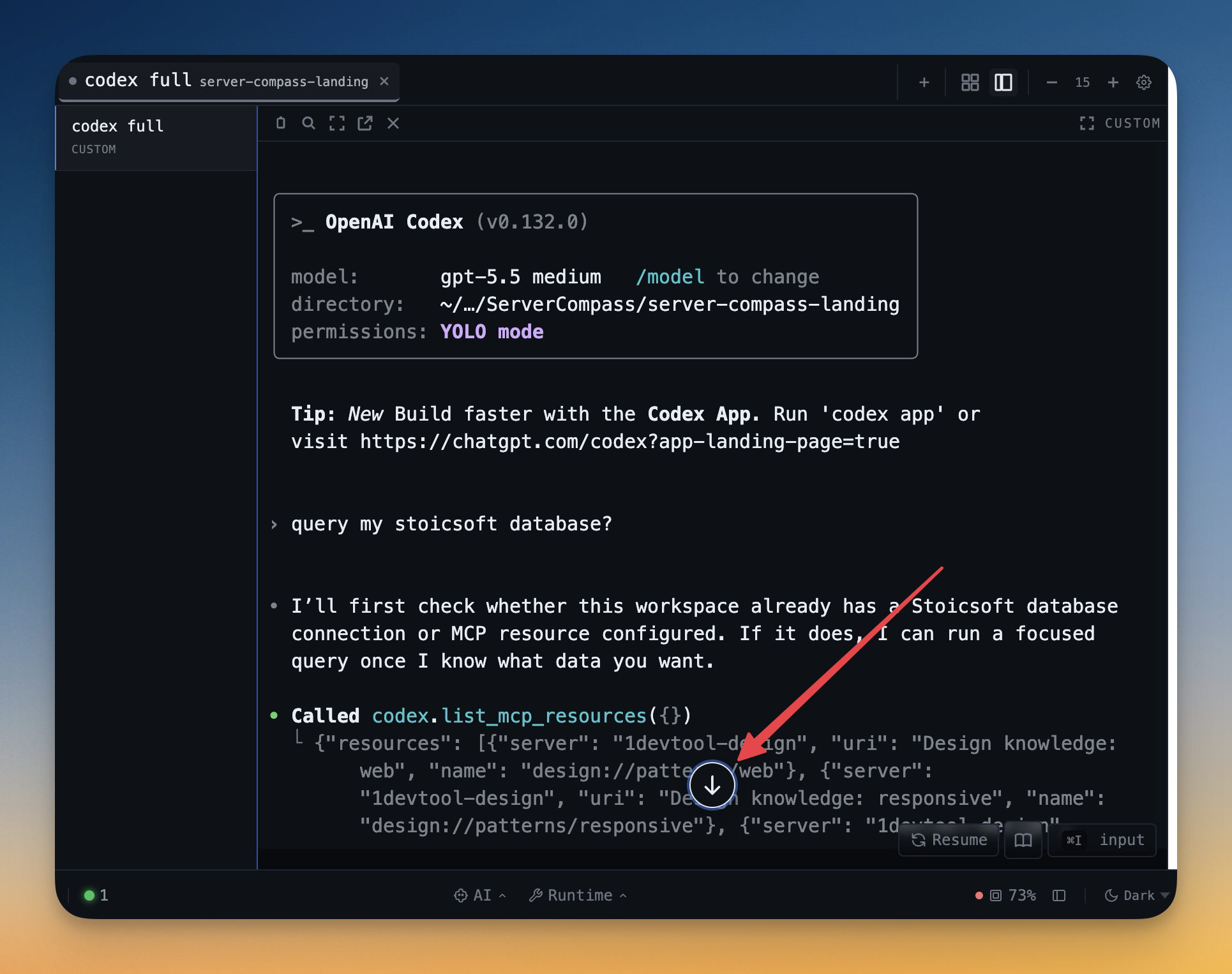
The pill is smart enough to disappear when it would get in the way. In reader mode and on alt-screen TUI apps (vim, htop, tmux) it hides itself, so it never overlaps with the TUI's own UI.
Drag tabs, inspect ports, and keep layouts straight
Three smaller-but-loved improvements round out the release. The right sidebar's tabs — Browser, Editor, HTTP, Database, Mobile, AI Diff, Tool Box — are now drag-reorderable, with the new order persisting per project so each project carries its own ordering. The Port Manager now expands inline when you click any PID: parent PID, user, CPU%, memory%, RSS, started-at, state, working directory, and the full command line all show up under the row, with a per-row Copy command button on hover. And the Agent Input @-mention picker is much faster — it searches lazily in the main process via execFile instead of synchronously enumerating ten thousand files when the overlay first opens, which fixes the "typing @ takes three seconds on Windows" symptom on large monorepos.
Before vs after
| The old workflow | v1.18.7 |
|---|---|
| Empty state shows one ambiguous "+ Add Project" button. Click → pick mode → pick path. | Welcome screen shows five tiles. Click → land in the right pre-configured flow. |
| Empty terminal grid: Add Terminal → pick agent → pick shell → maybe pick a preset. | Empty grid shows six color-matched agent buttons. One click spawns a running CLI. |
| Editor lives in the right sidebar, cramped between Browser and Database. | Editor in the center column above terminals — classic IDE shape. |
| Right-sidebar tabs are fixed order. Tools you use least sit next to tools you use constantly. | Drag any tab. Order persists per project. |
| Scrolling up means losing your place getting back. | Jump-to-bottom pill in the corner. One click back to the tail. |
Click a PID in Port Manager → run lsof/ps/pwdx in a terminal to find out what it is. | Click a PID → CPU%, memory%, working directory, full command line all show up under the row. |
Agent Input @-mention freezes for 3 seconds on a large Windows monorepo. | Lazy search via execFile. Snappy on any project size. |
Who benefits most
Teammates onboarding to 1DevTool. The welcome screen turns "first project in five clicks" into "first project in one click". The new defaults nudge them into a sensible layout without an opinion lecture.
Developers who live in terminals. Terminal Center and Terminal Right are designed for the workflow where AI agents and shells are the primary surface and code is something you read while they work.
Windows monorepo users. The @-mention fix alone is worth the upgrade — a project with 5,000+ files no longer stalls the overlay every time you reach for it.
Try it
Download v1.18.7 and open a fresh project. The welcome screen and the empty terminal grid do the rest — most of the upgrade is just less clicking to get to the same place. Open the layout picker in Settings to try Terminal Center or Terminal Right; if your eye lands on a built-in preset that's no longer there, you'll already be on Default with your panels preserved.