Mar 27, 2026
Search Text in Files & Find-Replace: Verify AI Agent Changes Instantly
AI agents rename functions and refactor code fast — but did they catch every reference? Content search with find-and-replace in 1DevTool lets you verify changes across your entire project without leaving your workspace.
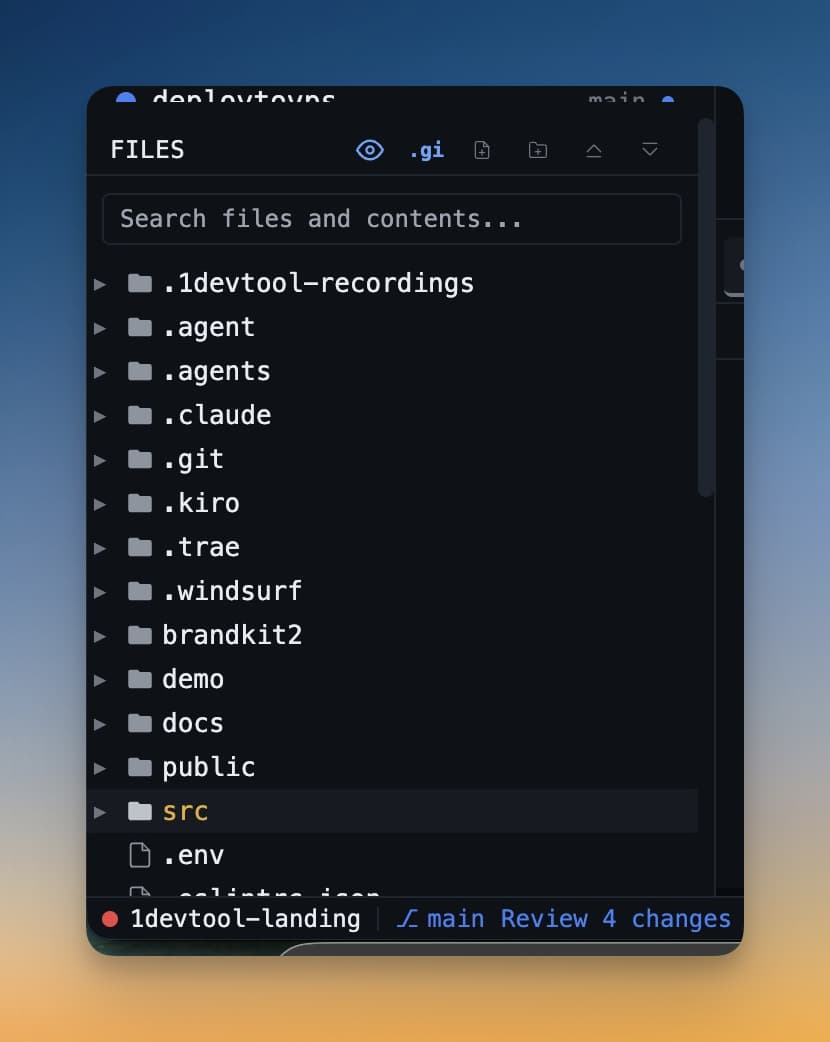
Claude Code just refactored your authentication module. Codex renamed a bunch of variables. Gemini CLI updated imports across twenty files. Now you need to find every instance of the old function name to make sure nothing was missed. In a traditional terminal workflow, you'd switch to a separate editor or run grep manually. In 1DevTool, you search right where you work.
v1.9.1 adds content search with find and replace directly in the file explorer, plus local image preview in markdown and zoomable image attachments in the agent input overlay.
Why Search in Files Matters for AI Coding
AI agents modify files fast — often faster than you can review. When Claude Code renames a function, it usually gets every reference. Usually. The exceptions are what break your build: a dynamic import, a string reference in a config file, a comment with the old name.
Having search built into the same workspace where your AI agents run means you can verify changes without context-switching. The agent finishes, you search, you confirm. All in one window.
How Content Search Works
Search with Line Previews
Open the file explorer and click the search icon. Type any text or pattern and 1DevTool searches across your entire project using ripgrep under the hood. Results appear as a tree grouped by file, with line previews showing the matching text in context. Each result shows the line number and a snippet of surrounding code.
Click any result to jump directly to that line in the editor. Match counts appear next to each file so you know at a glance how many occurrences exist.
Find and Replace Across Files
Need to rename something across your entire project? Expand the replace field, type the replacement text, and preview every change before applying. 1DevTool shows you exactly which lines will change in which files. Apply replacements selectively or all at once, with a status message confirming how many replacements were made.
This is especially useful after AI agents make bulk changes — you can verify the rename was complete, or catch the files the agent missed.
Local Images in Markdown
AI agents like Claude Code frequently reference images with relative paths in markdown files — architecture diagrams, screenshots, wireframes. Previously, you'd need to open those images separately to see what the agent was referencing. Now, images with relative paths render inline in both the split editor and reading mode.
This means when Claude Code generates a CHANGES.md that references ./screenshots/before.png, you see the image right there in the document — no extra clicks.
Zoomable Image Attachments
When you attach screenshots to the agent input overlay (the Cmd+I dialog), thumbnails used to be tiny and hard to verify. Now you can click any thumbnail to see a full-size lightbox view. Press Escape to close and get back to writing your prompt. Small change, big quality-of-life improvement when you're sending annotated screenshots to AI agents.
Other Improvements in v1.9.1
- .env files now visible — the file explorer shows .env files regardless of gitignore settings, so you can always find your environment configuration
- Auto-paste clipboard toggle — new setting in Settings > Terminal to control whether multi-line clipboard content is automatically pasted into terminals
Before vs After
Task
Before v1.9.1
After v1.9.1
Search project for a string
Switch to VS Code or run grep in terminal
Search in file explorer with line previews
Rename across files
Manual find/replace in external editor
Preview and apply replacements in-place
View images in markdown
Open image file separately
Inline rendering with relative paths
Verify screenshot attachment
Squint at tiny thumbnail
Click to zoom full-size lightbox
Try It Today
Content search and find-replace are available in 1DevTool v1.9.1. Next time an AI agent finishes a refactor, search your project to verify the changes before you commit.
Trust, but verify. Now you can do both without leaving your workspace.