Mar 25, 2026
Send Code to AI: Right-Click Context Menus for Terminal and Editor
Stop copying and pasting code between terminals. Select text in any AI terminal or code editor, right-click, and send it to another agent with file path, line numbers, and language context attached automatically.
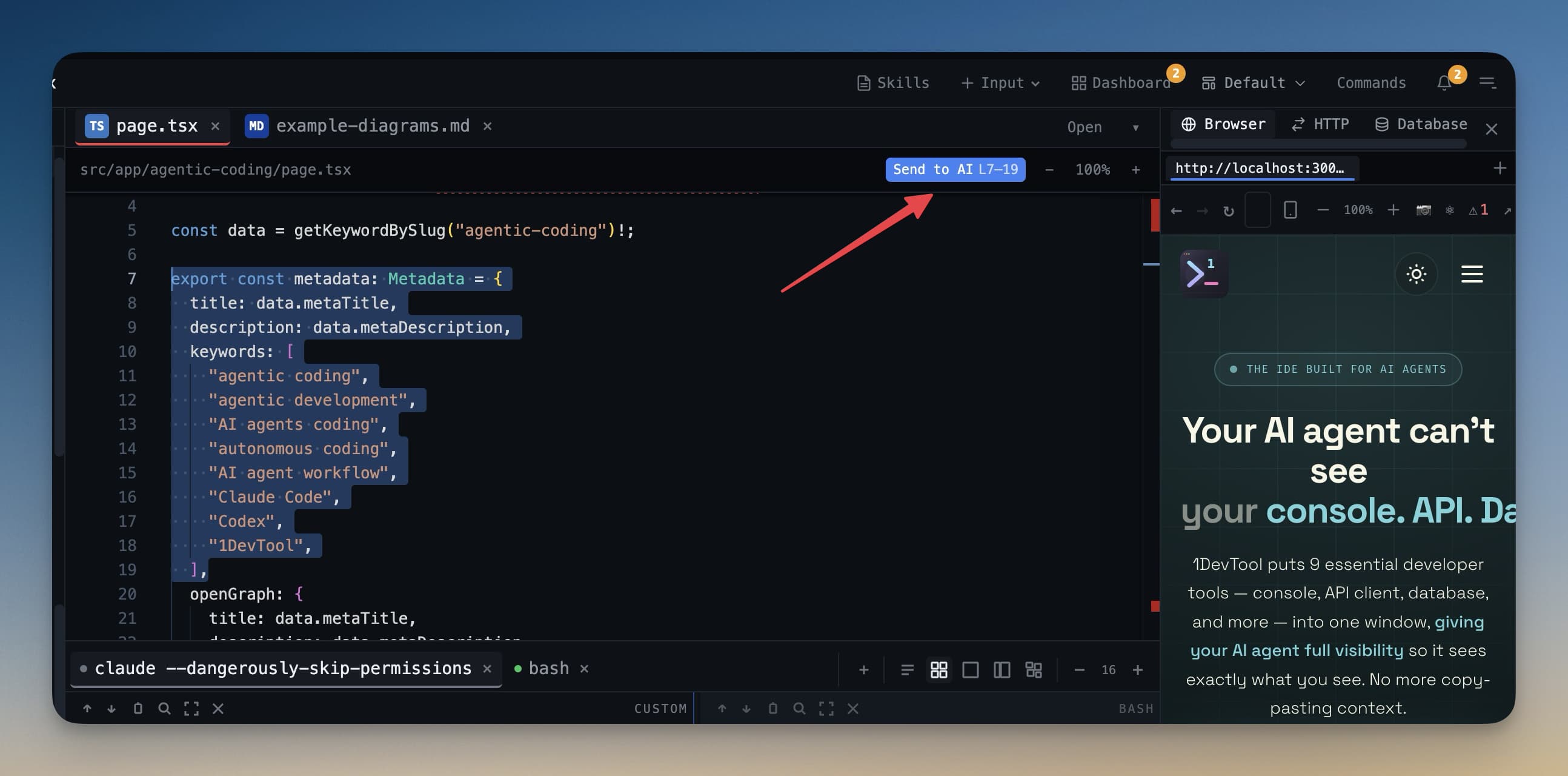
You're reading Claude Code's output in one terminal and spot a code snippet you want Codex to refactor. Or you're editing a file and want to send a function to Gemini CLI for review. In a traditional setup, you'd copy the text, switch terminals, type a prompt that includes the code, and paste. That's four steps when it should be one.
1DevTool v1.8.3 makes your AI terminals and code editor talk to each other. Select text, right-click, send — with full context automatically attached.
Why Context Sharing Between Terminals Matters
AI coding agents work best with context. When you paste a code snippet into Claude Code without saying where it came from, the agent has to guess the language, the file, the purpose. When you send code with the file path, line numbers, and language tag, the agent understands immediately and gives better answers.
The problem is that building that context manually is tedious. You have to format the prompt, include the file path, add line numbers. Most developers just paste the raw code and hope for the best. 1DevTool automates the context.
Terminal Context Menu: Right-Click to Send
Select any text in an AI terminal and right-click. The context menu now includes a Send to AI option that lets you choose which terminal receives the selection. The selected text is wrapped with the terminal name and running command as context, so the receiving agent knows exactly where the text came from.
This is especially powerful when one agent produces output that another agent needs to act on. Claude Code finds a bug? Select the error, right-click, send to Codex to fix it. Gemini CLI generates a migration? Select it, send to Claude Code to review.
Send to AI from the Code Editor
The same workflow works from the code editor. Select a function, a block, or even a single line in any file. Click "Send to AI" and choose which terminal receives it. 1DevTool automatically includes the file path, line numbers, and language — so the AI agent gets perfect context without you typing a single character of prompt.
Redesigned Add Terminal Dialog
Adding terminals also got an overhaul. The new dialog has two tabs — AI Agents and Shells — with both grid and list views. AI agents show their icons and descriptions, making it easy to pick the right tool for the job.
You can also create custom terminal commands with emoji icons. If you have a custom agent or a frequently-used shell script, save it as a command and it appears alongside Claude Code, Codex, and Gemini CLI in the dialog.
Crash-Resilient Terminal Buffers
Terminal output is now saved periodically in the background. If 1DevTool crashes (GPU issue, system service failure), your terminal buffers survive. When the app restarts, you see your previous terminal output instead of a blank screen. No more losing hours of AI agent output to an unexpected crash.
Before vs After
Task
Before
After
Send code to an AI agent
Copy, switch terminal, type prompt, paste
Select, right-click, Send to AI
Share context between agents
Copy output, manually format as prompt
Context auto-attached (file, line, language)
Add a custom terminal command
Not possible
Manage Commands in settings with emoji icons
Recover from a crash
Terminal buffers lost
Buffers restored automatically
Try It Today
Terminal context menus and Send to AI are available in 1DevTool v1.8.3. Stop manually copying code between terminals — let your AI agents share context with one right-click.
Select. Right-click. Send. Context included.