May 5, 2026
Start AI agent workflows from a template — channels in v1.18.0
Multi-agent runs always begin with the same orchestration boilerplate. v1.18.0 ships built-in templates for Fix Bug, Code Review, PR Review, Write Tests, Audit, Refactor, plus a dedicated channel workspace, faster routing, and a friendlier Free tier.
Every multi-agent run begins the same way. You open a channel, you pick which agents you want, you remember the prompt that worked last time and try to reconstruct it, you @mention three things, you fix a typo, and only then does the actual work start.
The orchestration is repetitive but it isn't reusable — every new task starts from blank, even when the shape of the request is identical to one you ran yesterday. Code Review is always Code Review. Fix Bug is always Fix Bug. The agents change, the files change, the bug changes — but the scaffolding around them is exactly the same paste job you've been doing for weeks.
What changed
In v1.18.0 you no longer rebuild the scaffolding by hand. 1DevTool ships with workflow templates for the things you do most often — Fix Bug, Implement Feature, Code Review, PR Review, Write Tests, Audit, Refactor — so you start from a populated channel, fill in the agent slots and the prompt fields, and run. Direct-mention requests now route through a fast path by default instead of sitting through the heavy planning loop, and the whole channel system has a dedicated floating workspace so it stops competing with your editor for screen real estate.
How it works in practice
Pick the workflow, not the boilerplate
Open the new template gallery and the most common multi-agent shapes are right there: Fix Bug, Implement Feature, Code Review, PR Review, Write Tests, Audit, Refactor. Each template arrives with the agent slots laid out for that workflow and a prompt skeleton wired in. You drop your specific files, your error message, your branch name into the placeholders — and skip the rebuild entirely.
The composer also got smarter while you fill it in. As you type @, the autocomplete now suggests terminals, files, folders, and special mentions, with active-project results surfaced first. So even when you're not starting from a template, the round-trip from "I want to mention this file" to "file is mentioned" is a few keystrokes shorter.
Keep channels in their own floating workspace
Channels open in a dedicated movable window now. You can park it on a second monitor, minimise it to a bubble while you keep coding, and restore it without rearranging the rest of your workspace.
Inside the channel, attachments are first-class. Mention files or directories, paste images, drag screenshots straight into the composer, broadcast with @all, or pull the latest clipboard with @clipboard. Cross-project mentions still work, so a single channel can pull agents from multiple projects when the task crosses repo boundaries.
Fast routing by default, smart orchestration when you want it
The biggest invisible change: a direct @mention request no longer triggers the heavy planning loop by default. Channels route those requests on a fast path so simple asks land on the right agent right away. The Smart Orchestrator mode is still there for open-ended jobs — flip it on per channel, pick the CLI and model, test the setup before you run.
And the chat itself reads cleaner. Repeated startup banners, prompt-frame chrome, and narrow soft-wrapped paragraphs are stripped or reflowed before they hit the bubble, so replies look like messages and not terminal dumps. The channel list also sorts by latest activity now, with compact timestamps and a search box for when you have more channels than the list comfortably shows.
Send a sticky note straight to AI
Every sticky note in 1DevTool can now be sent directly to an AI terminal as a prompt. Quick scratch ideas you jotted down between meetings stop being trapped in note format — one click and the agent is working from your scratch.
Before vs After
| Workflow | Before v1.18.0 | After v1.18.0 |
|---|---|---|
| Start a multi-agent code review | Open channel, pick agents, paste your standard review prompt, @mention each file by hand | Pick the Code Review template, drop in the files, run |
| Reach for the Channels view | Switches your active panel; coding view goes away | Floating workspace; minimise to a bubble while you keep coding |
Send a @mention request | Goes through Smart Orchestrator's planning loop | Fast routing by default; orchestration only when you opt in |
| Read agent replies | Mixed with startup banners and frame chrome | Stripped to the actual reply, formatted as chat |
| Free tier ceiling | Hard 500-message lifetime cap | No lifetime cap; AI terminals stay usable on Free |
Who benefits most
Teams who run code reviews through agents — the Code Review and PR Review templates make the third or fourth review of the day a one-click setup instead of a full-prompt rebuild.
Solo devs juggling several agents at once — the floating channel workspace plus the bubble means Channels can stay live in your peripheral vision without crowding the editor.
Free-tier users coming back after a break — the old 500-message lifetime cap was the main reason Free felt like a trial. Removing it lets you keep working on lighter projects without an upgrade prompt looming over every prompt.
Try it
Update to v1.18.0 (status bar will tell you if you're behind), open Channels, and pick any of the built-in templates from the new gallery. Replace the placeholder agents and prompts with the specifics of what you're working on right now. Then minimise the channel to a bubble and keep coding — the agents will surface back when they have something to say.
The orchestration is finally something you set up once and reuse, not something you rebuild every time you sit down.
From across the StoicSoft network
Hand-curated reads on the same topic from sister sites in the StoicSoft family.
 ServerCompass6 min read
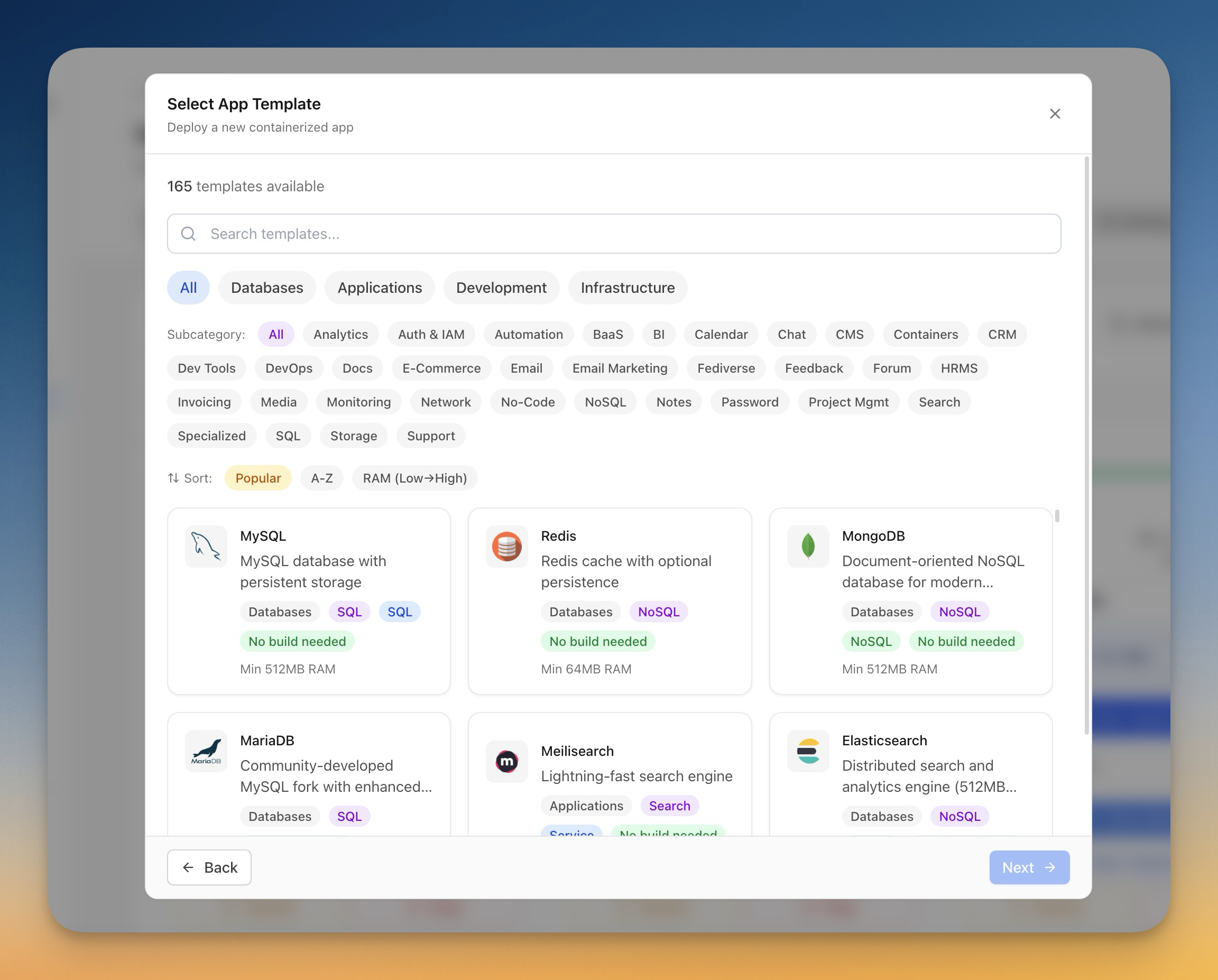
Deploy NocoDB, Budibase, and Node-RED to Your VPS in One Click
Self-host popular no-code and low-code platforms on your own VPS. One-click templates for NocoDB, Activepieces, Budibase, Node-RED, and ToolJet with auto-generated passwords.
Read on servercompass.app- ServerCompass6 min read
50 New One-Click Deploy Templates: From AI Tools to Media Servers
Deploy 50 new self-hosted apps including AnythingLLM, Plex, Affine, Dashy, and Pi-hole with one click. Server Compass now ships 247 templates total.
Read on servercompass.app