Mar 28, 2026
Terminal Manager & Diagram Export: Control Every AI Agent From One Dashboard
Running six AI terminals across three projects? The Terminal Manager gives you a Kanban board of every terminal across every project — plus one-click Mermaid diagram export to PNG, JPEG, and SVG.
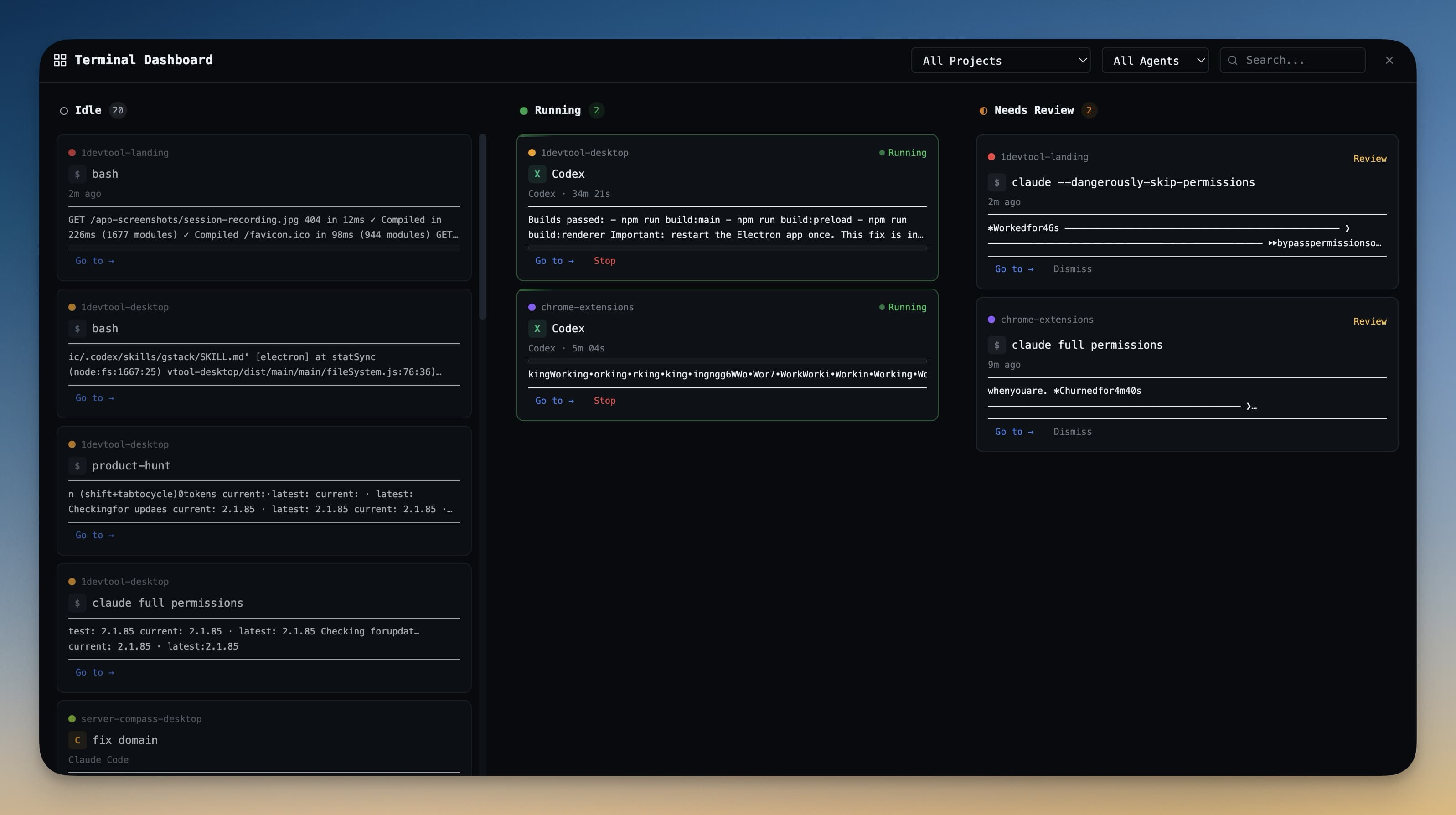
You're running Claude Code on the backend, Codex on the frontend, a Bash terminal compiling assets, and Gemini CLI writing docs. That's four terminals in one project. Multiply by three projects and you have twelve terminals scattered across your workspace. Which ones are still running? Which finished five minutes ago? Which one threw an error you haven't noticed yet?
Without a centralized view, your AI coding workflow becomes a guessing game. You Alt-Tab between terminals, scroll through output hoping to spot the one that needs attention, and waste time on terminals that are already idle.
1DevTool v1.9.3 introduces the Terminal Manager — a unified dashboard to view, search, and control every terminal across all your projects — plus Diagram Export to save Mermaid diagrams as PNG, JPEG, or SVG.
Why You Need a Terminal Manager
Modern AI code editors encourage running multiple agents simultaneously. You kick off Claude Code for a refactor, Codex for tests, and Gemini CLI for documentation — all in parallel. The problem isn't running them. The problem is knowing what they're doing.
Traditional terminal setups give you tabs or panes. That works for two or three terminals. But agentic coding workflows routinely hit six, eight, or twelve terminals across multiple projects. Tabs don't scale. You need a bird's-eye view.
How the Terminal Manager Works
The Terminal Manager is a full-screen overlay that shows every terminal across every project in a single, searchable view. It's organized as a Kanban board with three columns: Idle, Running, and Needs Review.
Kanban Board: See Everything at a Glance
Each terminal appears as a card with the project name (color-coded), terminal name, agent type, and a live status indicator. The three columns tell you instantly:
- Idle (gray dot) — terminals waiting for input or finished
- Running (green dot) — AI agents actively processing
- Needs Review (amber dot) — agents that finished and generated output worth reviewing
Click any card to jump directly to that terminal in its project. The dashboard polls every 10 seconds to keep statuses fresh, and you can navigate entirely with arrow keys and Enter.
Live Preview Pane
Click a terminal card to see its recent output in a preview pane — without leaving the manager. This lets you quickly triage which terminals need attention. If the preview shows the agent is still mid-task, you move on. If it shows an error or a completion message, you click through to the full terminal.
Full-Text Search Across All Terminals
Type in the search bar to filter terminals by name, project, agent type, or even buffer content. Looking for the terminal where Claude Code mentioned a migration file? Search for "migration" and the manager filters to matching terminals instantly.
Bulk Actions: Close, Send Commands, Create
The Terminal Manager isn't just for viewing — it's for controlling:
- Bulk close: Select multiple terminals with checkboxes, or use "close idle" to clean up all inactive terminals in a project with one click
- Quick actions: Send Ctrl+C, Ctrl+D, or Clear to any terminal directly from its card — no need to switch to the terminal first
- Create terminals: Launch new Bash, Claude Code, Codex, or Gemini CLI terminals in any project without leaving the manager
Diagram Export: Mermaid to PNG, JPEG, SVG
AI agents frequently generate Mermaid diagrams — architecture diagrams, sequence diagrams, flowcharts. 1DevTool already renders these inline in the markdown editor. Now you can export any diagram as a high-resolution image.
- PNG — for docs, Slack, and presentations (2x Retina resolution by default)
- JPEG — for smaller file sizes when transparency isn't needed
- SVG — for scalable graphics in web pages and design tools
Click any rendered diagram in the editor and select your export format from the menu. The 2x Retina support means exported images look crisp on high-DPI displays without any extra configuration.
Under the Hood: Faster and Lighter
v1.9.3 also includes significant performance improvements that make the entire app snappier:
- Smarter terminal resource management — inactive terminals release rendering resources and auto-detach background tmux sessions, reducing memory usage
- Faster git status — refreshes only when files actually change instead of polling every 10 seconds
- Faster file change detection — instant refresh from file system events instead of polling every 2 seconds
- No more file watcher leaks — watchers are properly cleaned up when switching between projects
Before vs After
Task
Without Terminal Manager
With Terminal Manager
Check which agents are running
Click through each terminal tab
Open dashboard — see all statuses at once
Find a specific terminal
Scroll through tabs, guess which project
Search by name, project, or output content
Clean up idle terminals
Close them one by one
One-click "close idle" per project
Preview terminal output
Switch to terminal, scroll up
Click card to see preview inline
Export a Mermaid diagram
Screenshot and crop manually
Click → Export → PNG/JPEG/SVG
Who Benefits Most
Developer Profile
Without Terminal Manager
With Terminal Manager
Multi-agent power user (6+ terminals)
Loses track of which agents finished
Kanban board shows all statuses at a glance
Multi-project freelancer
Terminals from different projects blend together
Color-coded project grouping with search
Team lead reviewing agent output
Opens each terminal to check results
Preview pane for quick triage
Documentation writer
Screenshots and crops Mermaid diagrams
One-click SVG/PNG export at 2x resolution
Try It Today
The Terminal Manager and Diagram Export are available now in 1DevTool v1.9.3. If you're running more than a handful of AI agents, the dashboard will change how you work — no more hunting through tabs to find the terminal that needs your attention.
Every terminal. Every project. One dashboard.