May 10, 2026
Edit Mermaid diagrams visually — no more hand-tweaking syntax until the layout looks right
v1.18.3 ships a full visual editor for Mermaid diagrams: click any rendered diagram in markdown to open a lightbox, drag nodes, recolor, restyle edges, and save the layout back into the source. Plus on-the-fly startup command presets and a saner Mermaid renderer for AI-generated diagrams.
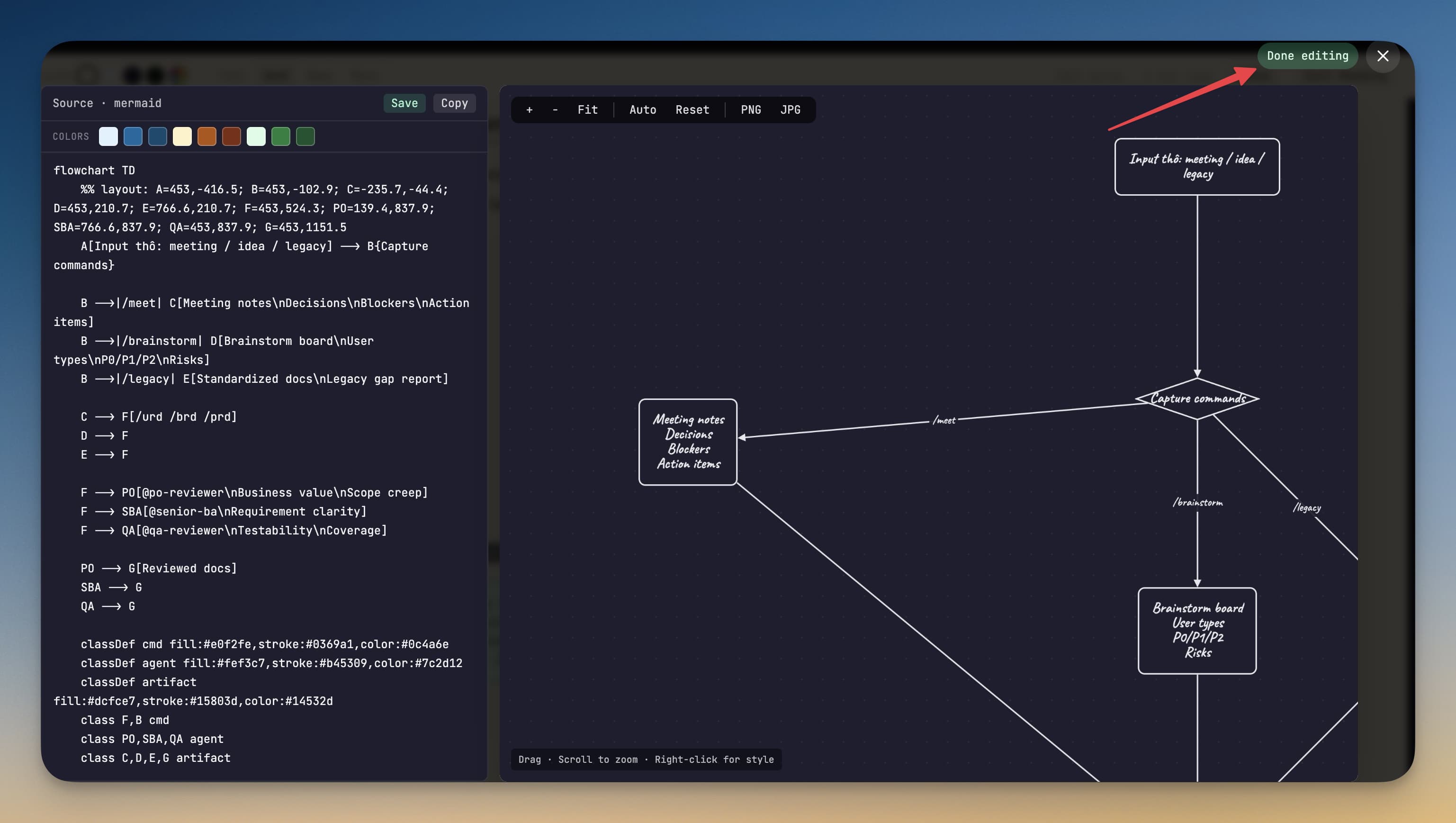
An AI agent gives you a Mermaid diagram. The shape is mostly right but the layout is a tangle — two nodes are stacked on top of each other, the labels overflow, that one important node is buried in the middle of the graph instead of at the entry point. You know what you want, and you know it would take ten seconds in a visual editor to drag things around. But Mermaid is text. So you go back to the source.
You guess at coordinates. You add style directives by trial and error. You hop back to the preview, see what changed, hop back to the source, change another value, render again. After fifteen minutes you have something that looks acceptable, and you've forgotten what you were originally trying to document.
What changed
In v1.18.3 you can now click any rendered Mermaid diagram in a markdown preview to open it in a full visual editor. You drag the nodes where you want them, right-click to recolor and restyle edges, and Save writes the updated Mermaid source — including layout positions and styles as native style directives — straight back to the markdown file.
How it works in practice
Click the rendered diagram, edit on a canvas
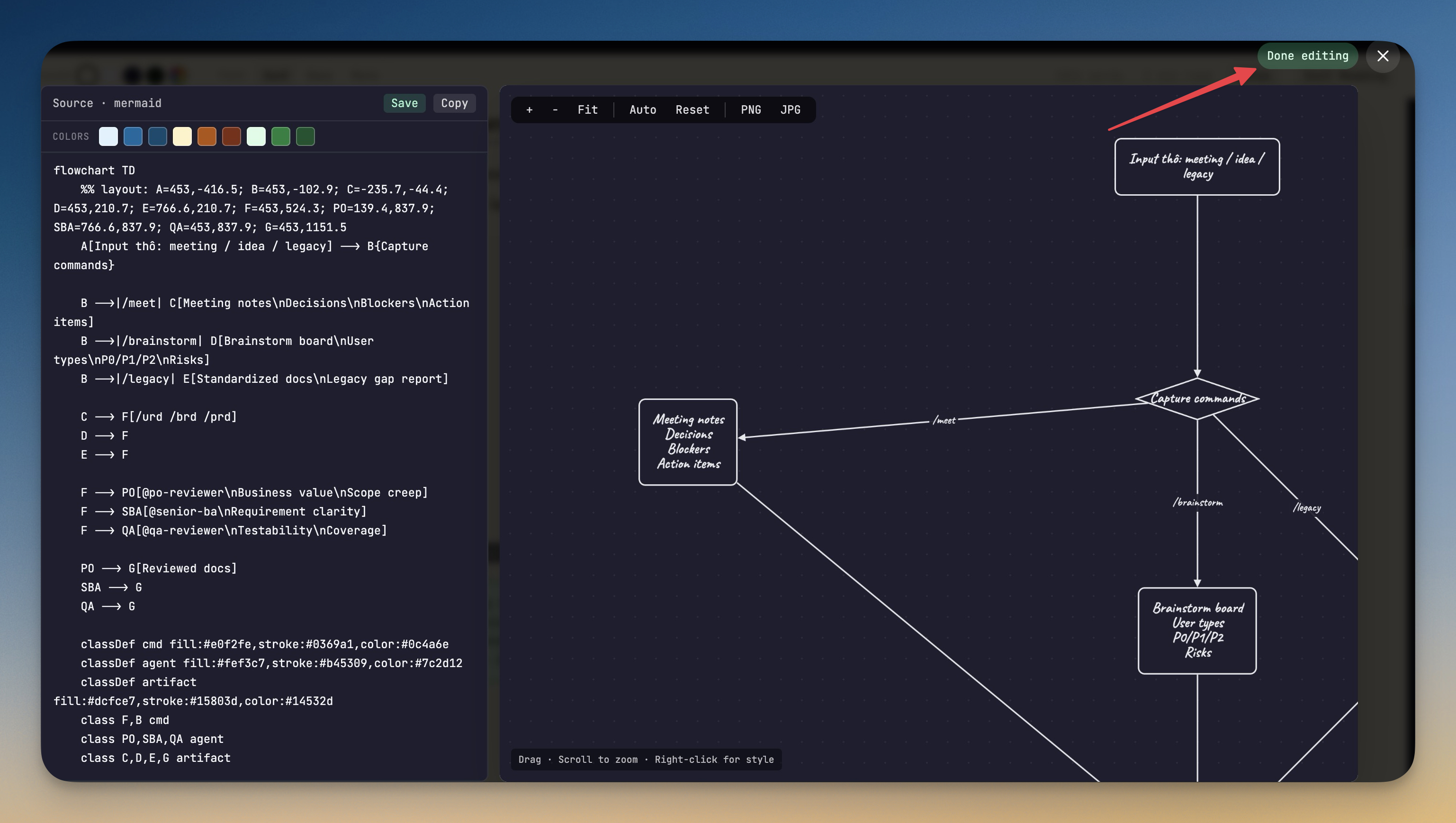
In any markdown file with a Mermaid block, the rendered preview is now a live entry point. Click it and a lightbox opens with the visual editor: your diagram on a real canvas, every node draggable, every edge selectable. Drag a node and its position persists per file — the layout sticks across sessions instead of resetting to whatever Mermaid's auto-layout produces every time you reopen the file.
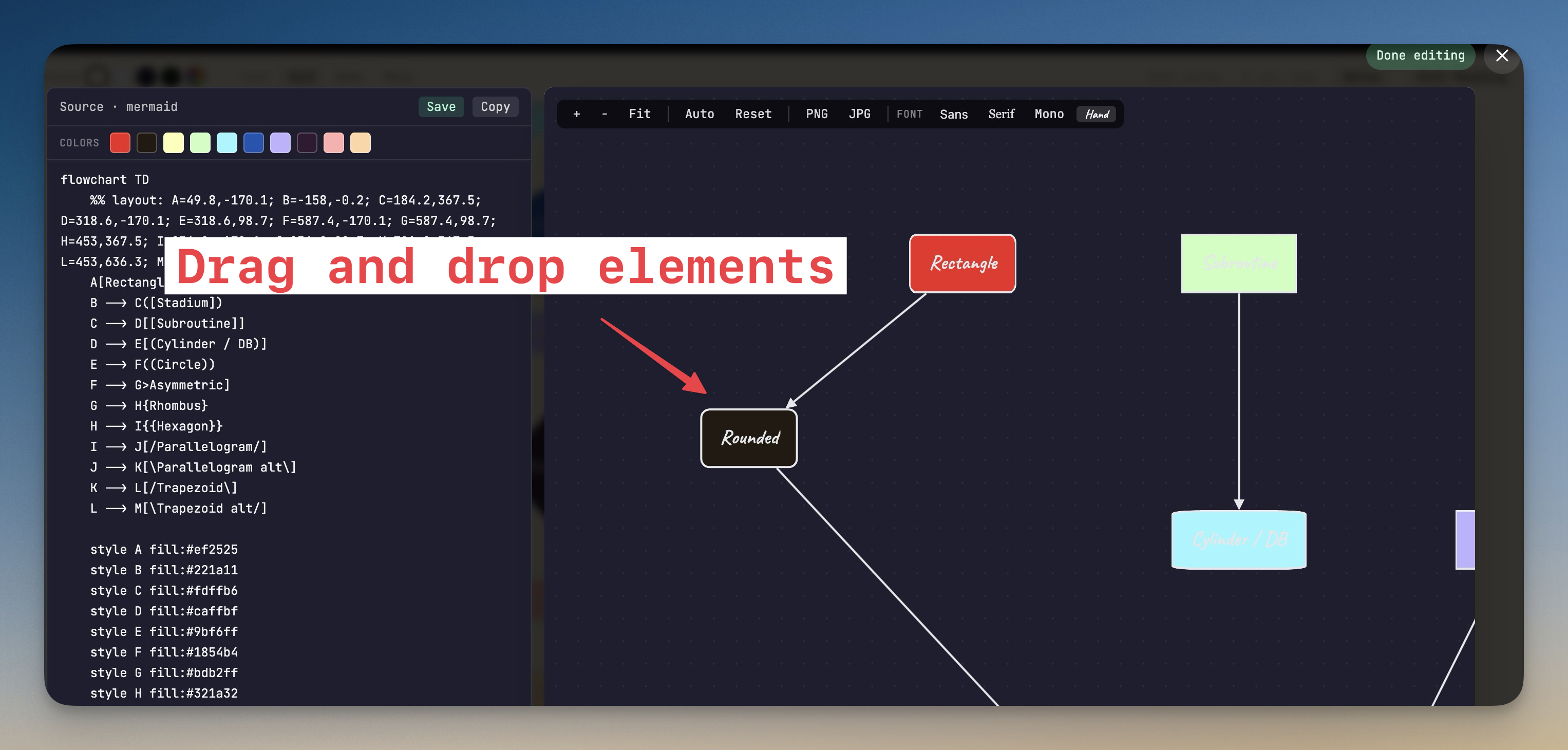
Right-click is where most of the styling lives. Right-click a node to pick a color from a preset palette of 8 friendly colors — no hex pickers, no guessing. Right-click an edge to set arrow direction (forward, backward, both, or none) and line style (solid, dashed, or dotted). The choices you make on the canvas are encoded back into the Mermaid source as native style directives, so when the file renders anywhere else — GitHub, your blog, a docs site — it looks the same.
Source and canvas in sync
The lightbox shows the visual editor next to the raw Mermaid source. Edits you make on either side update the other in real time. So if a quick text edit is faster than a drag (renaming a node, adding a new arrow), you can do it in the source pane and watch the canvas update. And if you want to see exactly what your visual changes produced, the source pane shows you the new Mermaid syntax line by line as you click around.
Save writes straight to disk
One more thing about the workflow: hitting Save in the lightbox writes the updated Mermaid source straight to the markdown file, no waiting for the regular auto-save debounce. The diagram you just laid out is on disk by the time the lightbox closes — no risk of losing the layout to a refresh, no second click to confirm.
A nicer Mermaid renderer for AI-generated diagrams
The other half of v1.18.3 is renderer fixes that make AI-generated Mermaid actually render. Three patterns that used to break:
- Literal
\ninside node labels. AI agents emit\n(the two characters) inside Mermaid labels expecting a newline. Mermaid 11+ rejected these asInvalid syntax. 1DevTool now rewrites them to<br/>so the diagram renders the way the AI expected. - Bracket labels starting with
/or@. Patterns likeF[/urd /brd /prd](Mermaid thought it was a parallelogram) andG[@handle: foo](Mermaid thought it was shape-data) used to fail the parser. They're now quoted automatically and render as plain rectangles. - Successful diagrams flagged as errors. A defensive check that mistook Mermaid 11's built-in
.error-iconCSS class for a real error icon was tripping on every successful render. The check is gone.
If you've been pasting AI-generated Mermaid into 1DevTool and watching half of it fail to render, that half should now render.
Before vs After
| Workflow | Before v1.18.3 | After v1.18.3 |
|---|---|---|
| Adjust the layout of a Mermaid diagram | Edit source, render, eyeball, edit source again — repeat for fifteen minutes | Click the diagram, drag nodes on the canvas, hit Save |
| Recolor a node | Add a style nodeId fill:#hex,stroke:#hex line by hand | Right-click the node, pick from a preset palette |
| Change arrow direction or line style | Edit the edge syntax in source by hand | Right-click the edge, pick the new direction and style |
Diagram from an AI agent that uses \n in a label | Invalid syntax error | Renders with line breaks the way the AI intended |
| Save a one-off custom startup command | Bounce into Manage Commands → fill the form → save → return to New Terminal | Type the command in the New Terminal dialog → click Add <your command> → launch |
Also in v1.18.3
Save Custom Startup Commands On The Fly. When no preset matches your search in the New Terminal dialog, an Add <your command> button now appears under the empty results. One click saves it as a custom preset under the current tab (Terminal or AI Agents), selects it for the new terminal, and you're ready to launch. No more detour through Manage Commands just to add a one-liner.
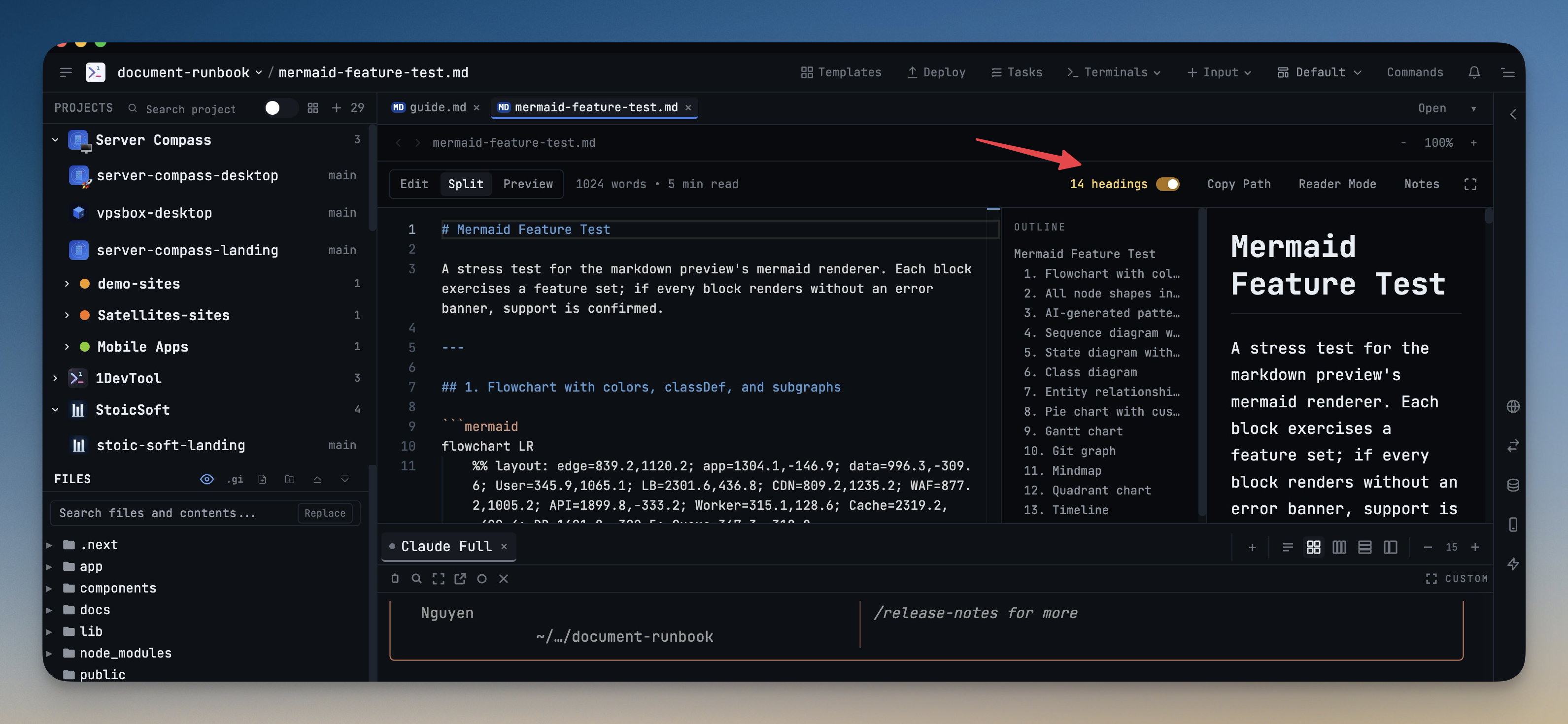
Markdown outline visibility persists. Closing the markdown outline panel now stays closed across sessions, so you don't dismiss it every time you open a new markdown file.
Light theme polish. The Agent Input overlay's default Lowkey persona switches to a soft light-gray palette in light mode instead of forcing a dark navy frame onto a light workspace. And a global CSS rule that was overriding every transparent input with a solid background — most visibly in the Agent Input composer and across the Developer Toolkit (JSON Formatter, JWT Decoder, Regex Tester, Diff Viewer, etc.) — is gone, so transparent inputs actually render transparent again.
Try it
Update to v1.18.3, open any markdown file with a Mermaid diagram, and click the rendered output. Drag a node. Right-click another. Hit Save. Watch the source pane fill in with the style directives that capture what you just did, and watch your markdown file update on disk in the same beat.
The text-only round-trip for tweaking diagrams is over. You can finally fix the layout instead of just settling for it.