Apr 8, 2026
Git Worktrees, Visual Commit Graph, and Multi-Account GitHub for AI Coding Workflows
Run multiple branches of the same repo side-by-side with a first-class Worktrees tab, navigate your history in a colored lane-based commit graph, and lock projects to specific GitHub accounts so you never push from the wrong identity again.
You're mid-feature when an urgent hotfix lands in Slack. The code you have open is half-broken — three new files, two deleted ones, a migration that hasn't been run, a Claude Code session that's been running for twenty minutes and is still going. The standard git stash + git checkout main dance is going to flatten every one of those things, and an hour later when you come back to your feature branch, you'll have lost the agent's context, your editor state, and your scroll position. Worse: you'll discover that one of the files you stashed had unstaged changes you forgot about, and now you have to remember which lines you'd already written before the interruption.
This is the workflow that git worktrees were invented to fix. Git itself has supported them since 2015, but the gap between "git supports them" and "a developer can actually use them in their daily workflow without typing git worktree add from a terminal" has stayed wide open for ten years. Most GUI git clients still don't expose them. Most editors still don't either.
1DevTool v1.12.0 closes that gap. The release ships three substantial git features: a brand-new Worktrees tab in the Git Client that treats worktrees as first-class workspace objects, a Visual Git Graph that renders your repo history as a colored lane-based commit graph, and Multi-Account GitHub with token-aware fetch, pull, and push so you never accidentally push your work commits from your personal identity again.
Git Worktrees: Side-by-Side Branches Without git stash
A worktree is git's answer to the "I need to be on two branches at once" problem. Instead of stashing and checking out, you ask git to create a second working directory linked to the same .git folder. The two directories share history, objects, and refs — so they're cheap on disk — but each one has its own checked-out branch, its own files, and its own dirty state. Edit a file in one and it doesn't appear in the other. Run a build in one and the artifacts don't leak across.
That's the primitive. The thing 1DevTool adds is treating each worktree as a first-class object in the workspace — visible, switchable, and integrated with the rest of your tools.
Worktrees Tab: One Card Per Linked Working Copy
The new Worktrees tab in the Git Client renders every worktree on the repo as a card. Each card shows:
- The branch name currently checked out in that worktree, plus a colored dot for visual identification across the workspace
- A dirty state badge (clean / modified / staged) that auto-refreshes every five seconds while the panel is open, so editing a file in one worktree shows up in the others without you clicking refresh
- A lock state with a one-click toggle — locked worktrees are protected from accidental removal, which matters for the long-running "I'm always on this branch" worktrees you don't want to nuke by accident
- The list of terminals running inside the worktree, so you can see at a glance which AI agents and dev servers belong to which working copy
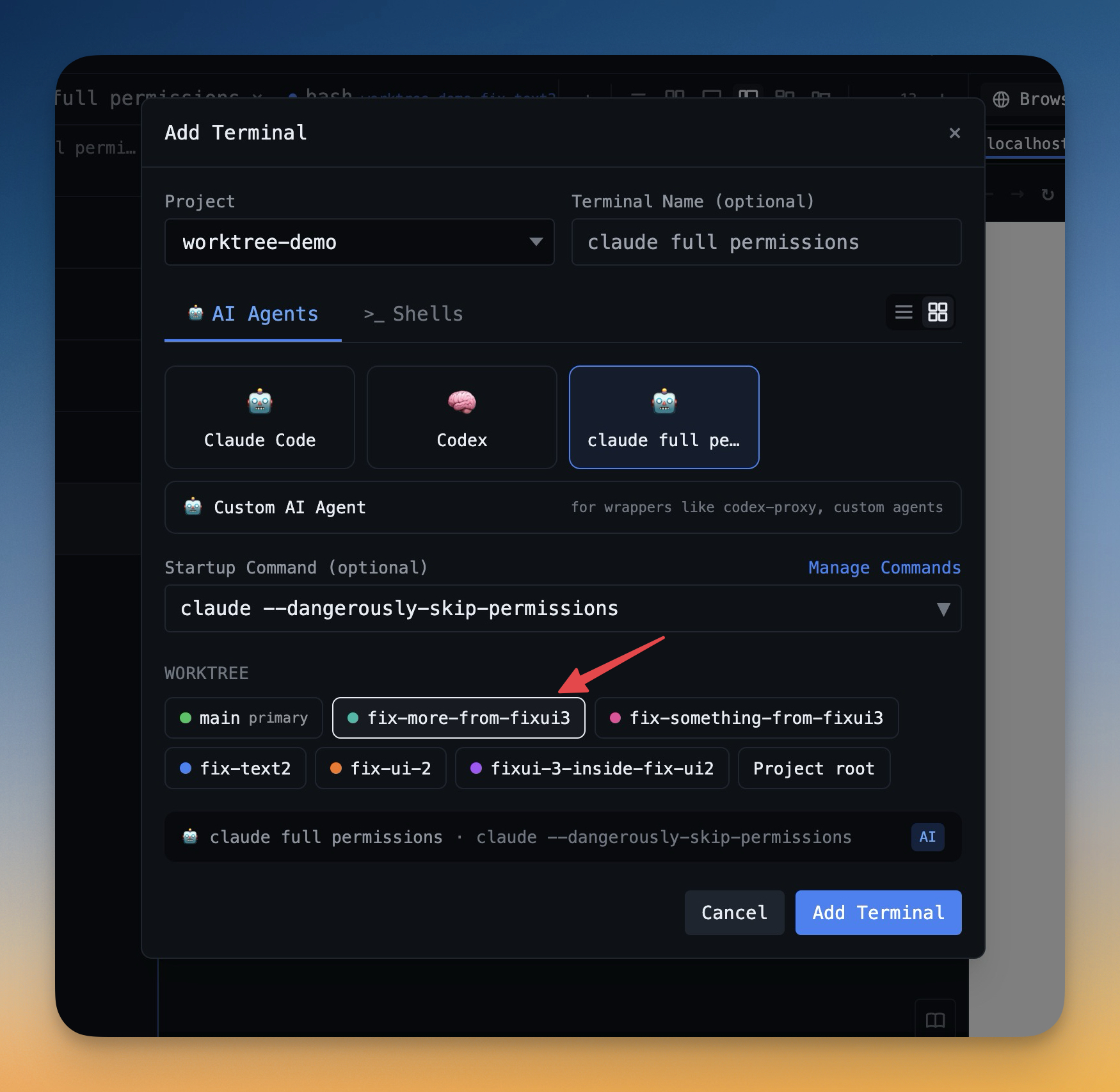
Each card has a + Terminal button. Click it and the full Add Terminal dialog opens with that worktree pre-selected — so spawning a Claude Code or Codex session inside a specific branch is a single click instead of a multi-step folder navigation.
Worktree-Aware Everything
The deeper change is that every git command in the Git Client now runs against the active worktree, not just the project root. Stage a file from the visual git panel and it stages in the worktree your focused terminal lives in. Commit, fetch, pull, push — all of them honor the active worktree. The Add Terminal dialog's worktree picker even defaults to whichever worktree your currently focused terminal is using, so opening a sibling tab in the same working copy is a single click.
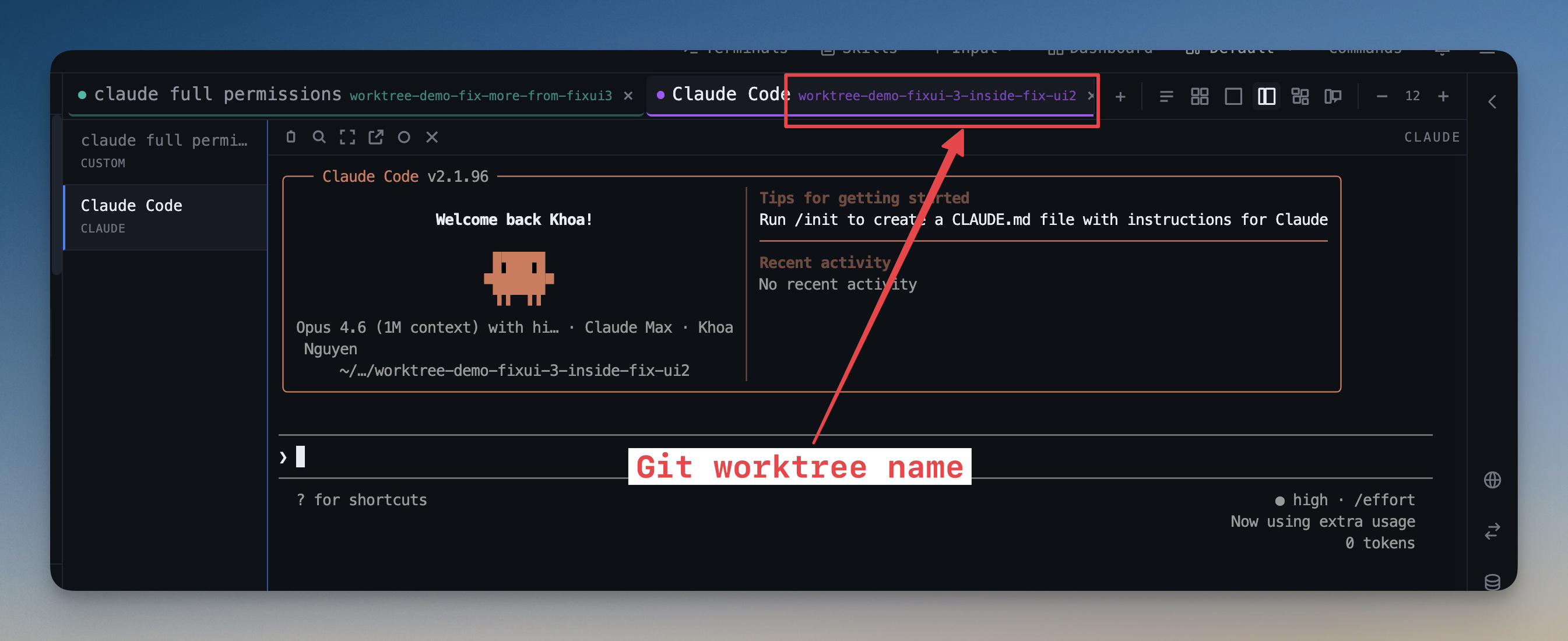
Terminals also get labeled with the worktree name in the tab header. If you have one Claude Code session running in main/ and another running in feature-billing/, you'll see both branches in the tab strip and never confuse them.
Real-Time Git State Watcher
Worktrees that get created or modified outside the GUI used to require a manual refresh. The new Real-Time Git State Watcher tracks every external change to your repo's git directory — commits from a terminal, branches created on the command line, worktrees added by hand — and refreshes the Git Client without you ever clicking refresh. Rapid filesystem events from operations like rebases or git gc are debounced into a single coalesced refresh, so the UI stays smooth even during heavy git activity.
Visual Git Graph: Read History the Way it Actually Looks
Reading git log in a terminal is fine for the last five commits and useless for the last five hundred. Real merge histories — branches, hotfixes, reverts, multi-parent merges, the squash you regret from last quarter — are nearly impossible to understand from a flat text list. You can build a mental model from git log --graph --all --oneline, but it takes practice and it falls apart the moment two long-lived branches diverge and reconverge.
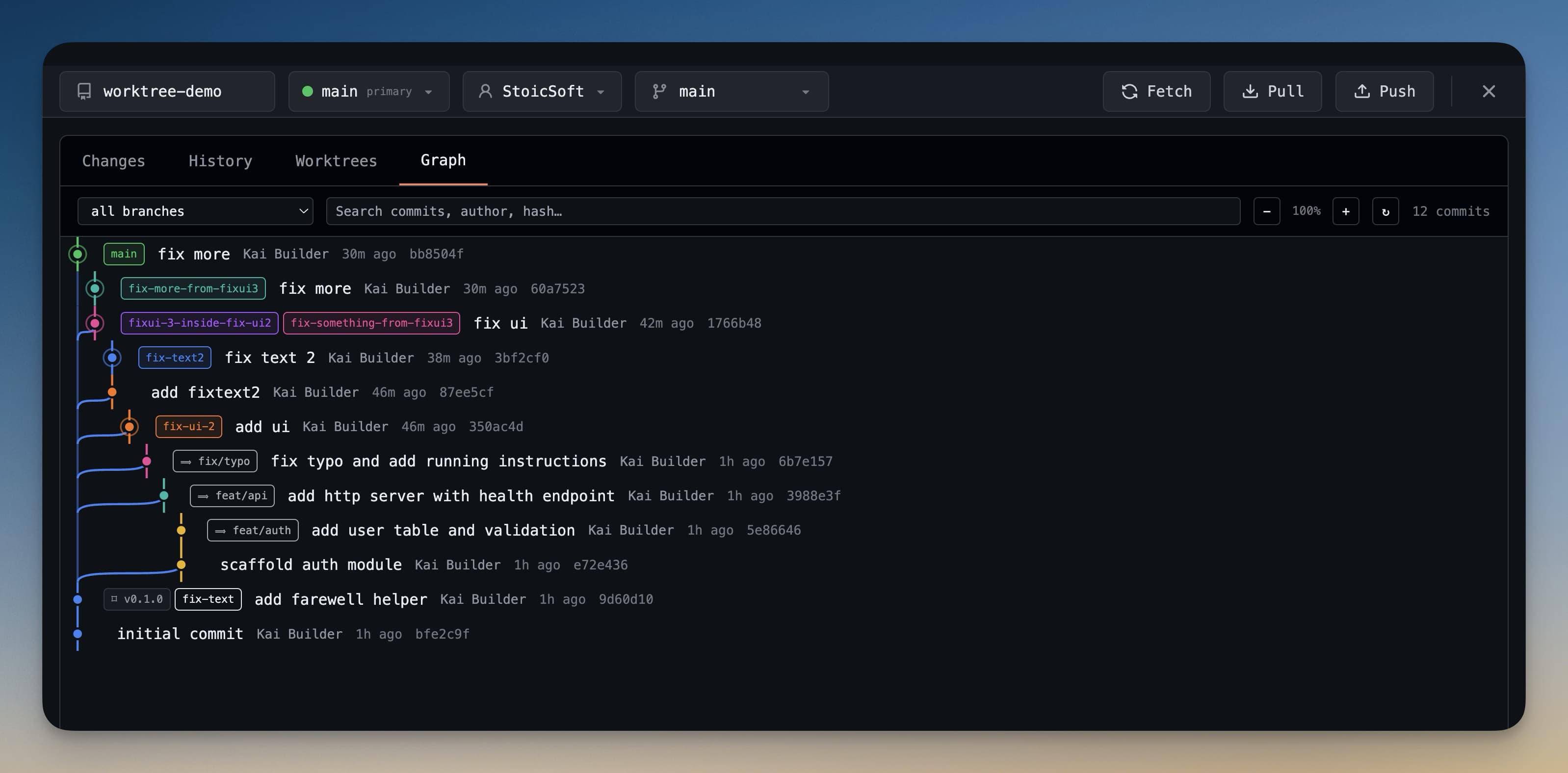
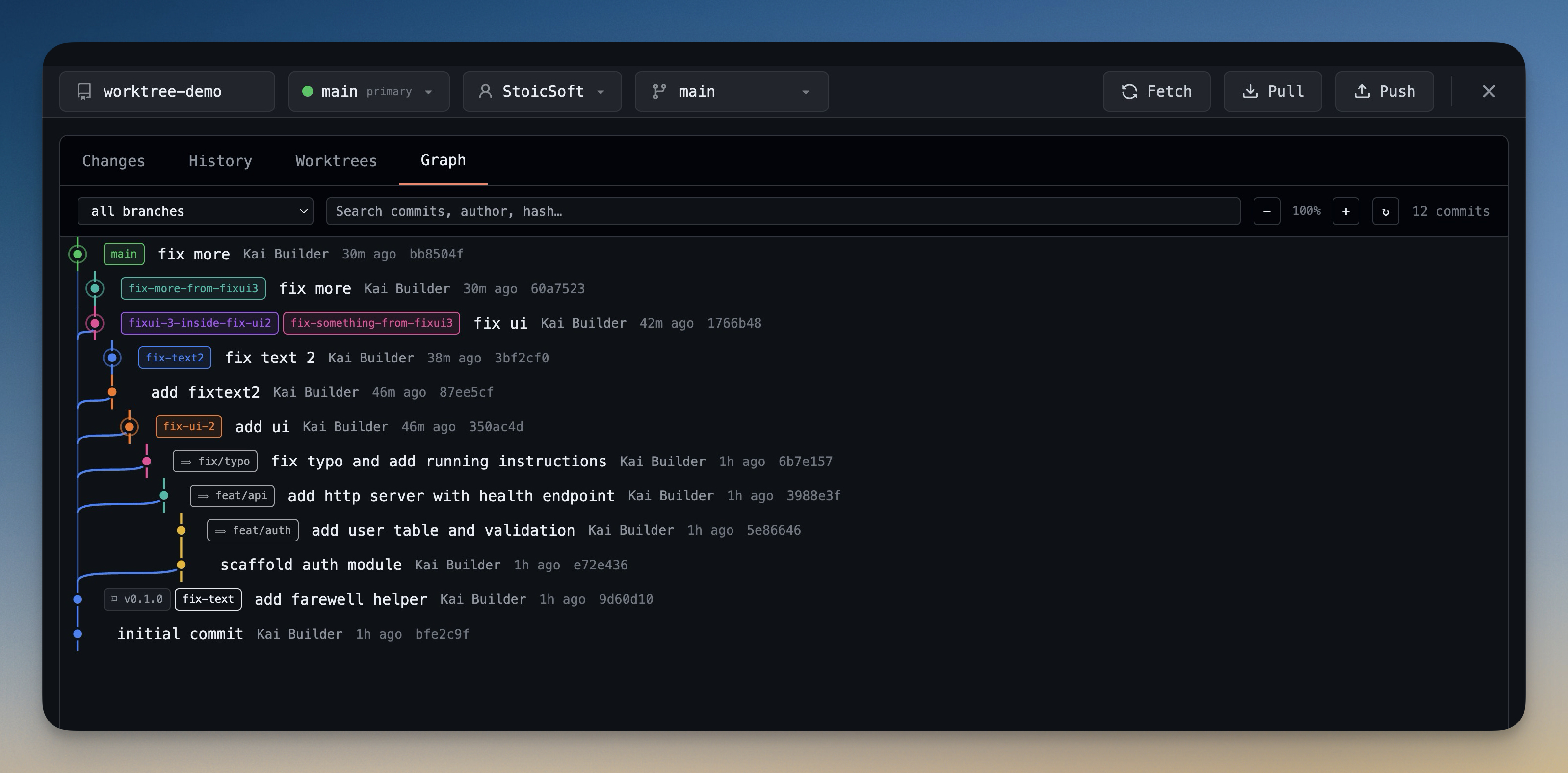
The new Graph tab in the Git Client renders the entire repository history as a colored, lane-based commit graph with curved merge connectors — like tig, GitKraken, and Sublime Merge. Each commit is a circle on a colored lane. Each merge bends back into its parent lane with a curved connector. Each branch tip is labeled, and each tag and remote ref appears as an inline pill next to the commit it points to.
Click any commit and a side panel shows the commit message, author, date, and the list of changed files. The graph supports:
- Branch filtering — show only commits reachable from a specific branch, to focus on the slice you actually care about
- Live search by commit message, hash, or author with highlighted matches in the graph
- Zoom from 60% to 180% with the keyboard or zoom buttons, for projects with thousands of commits where the default density is too tight
- Right-click any commit → New Worktree from Here — the killer feature for hotfixes off an old release. Find the commit, right-click, name the worktree, and you have a clean working copy at that exact revision without disturbing your current branch
Multi-Account GitHub: Stop Pushing From the Wrong Identity
If you have a personal GitHub account and a work GitHub account, you have done the following at least once:
- Pushed work commits from your personal identity
- Opened a PR with the wrong author email
- Run
git pushon a fresh repo and watched it land in literally the wrong organization because the credential helper had cached the wrong token - Spent forty minutes trying to figure out which
~/.gitconfiginclude was overriding which
The root cause is the same every time: the git CLI is identity-blind. Your machine has a single global config, a single credential helper, and a single set of cached tokens, and whichever one happens to be active when you push is the one git uses. The right fix is per-project identity binding, and that's what 1DevTool v1.12.0 ships.
Save Every GitHub Identity as an Account, Once
In Settings → Git, you can now save every GitHub identity as a named account with its own Personal Access Token, display name, and email. The account list shows how many projects are currently using each account, so you know which one is your "main" identity at a glance. There's also a Save & Set as Default button on the Machine Default Git panel that ingests whatever git config --global already says into a proper account in one click — useful when you're onboarding 1DevTool to a machine that already has a git identity configured.
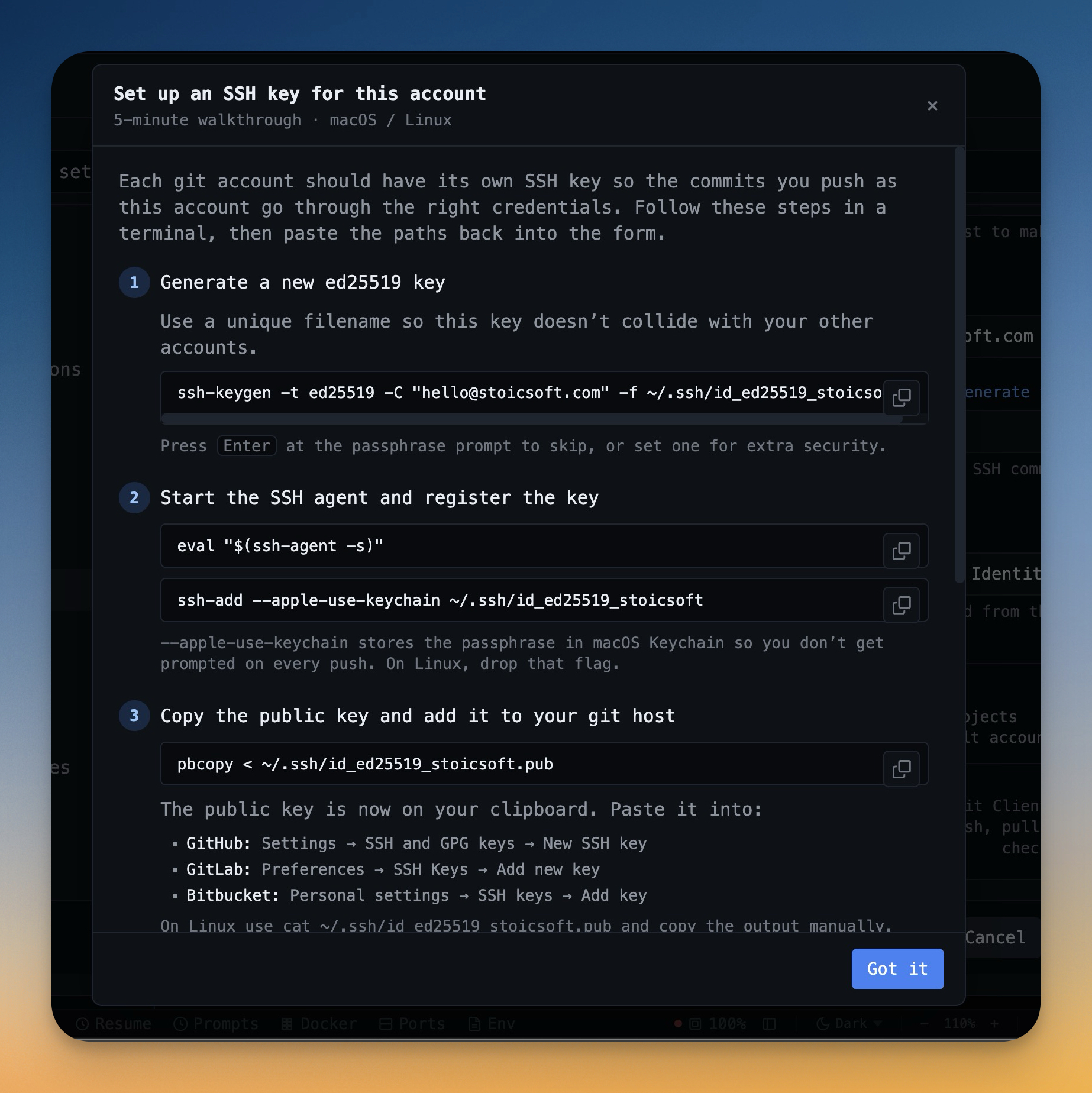
Lock Each Project to a Specific Account
The Add Project dialog now has an optional Git Account picker. Lock a project to a specific account and every git operation in that project — fetch, pull, push, publish — automatically uses the account's Personal Access Token instead of falling back to whatever credential helper your machine has cached. The bug where you accidentally push work commits from your personal identity becomes structurally impossible.
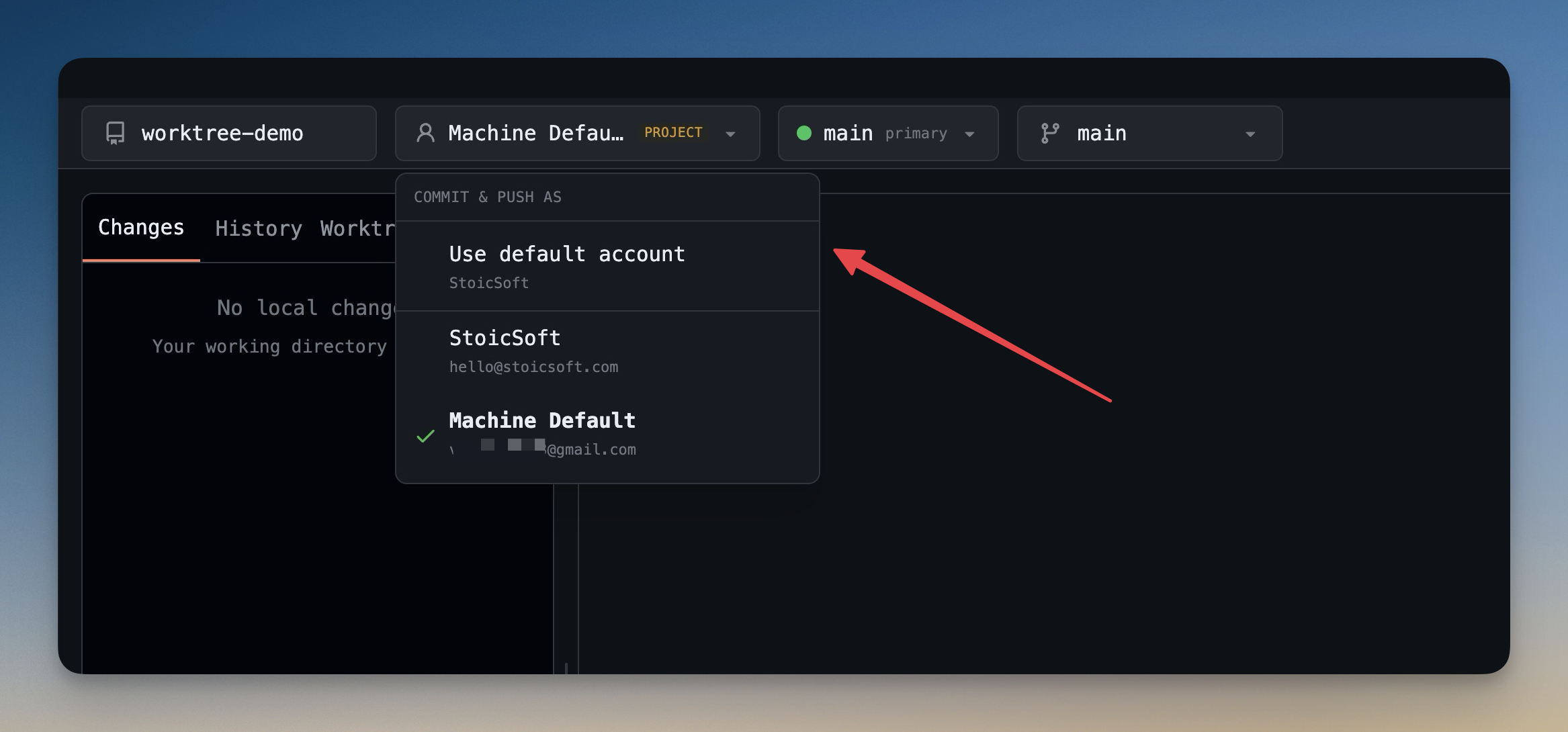
Publish Repository: Live Token Verification
The Publish Repository dialog used to be the most common place where wrong-account publishes happened — you'd build a fresh local repo, click Publish, and discover an hour later that it landed under the wrong organization. The new dialog re-verifies the token live before you click Publish, shows "token belongs to actual-login" in the header, displays a destination URL preview (github.com/actual-login/repo-name), and hard-blocks the Publish button until verification succeeds. The wrong-account-publish bug is fixed by construction.
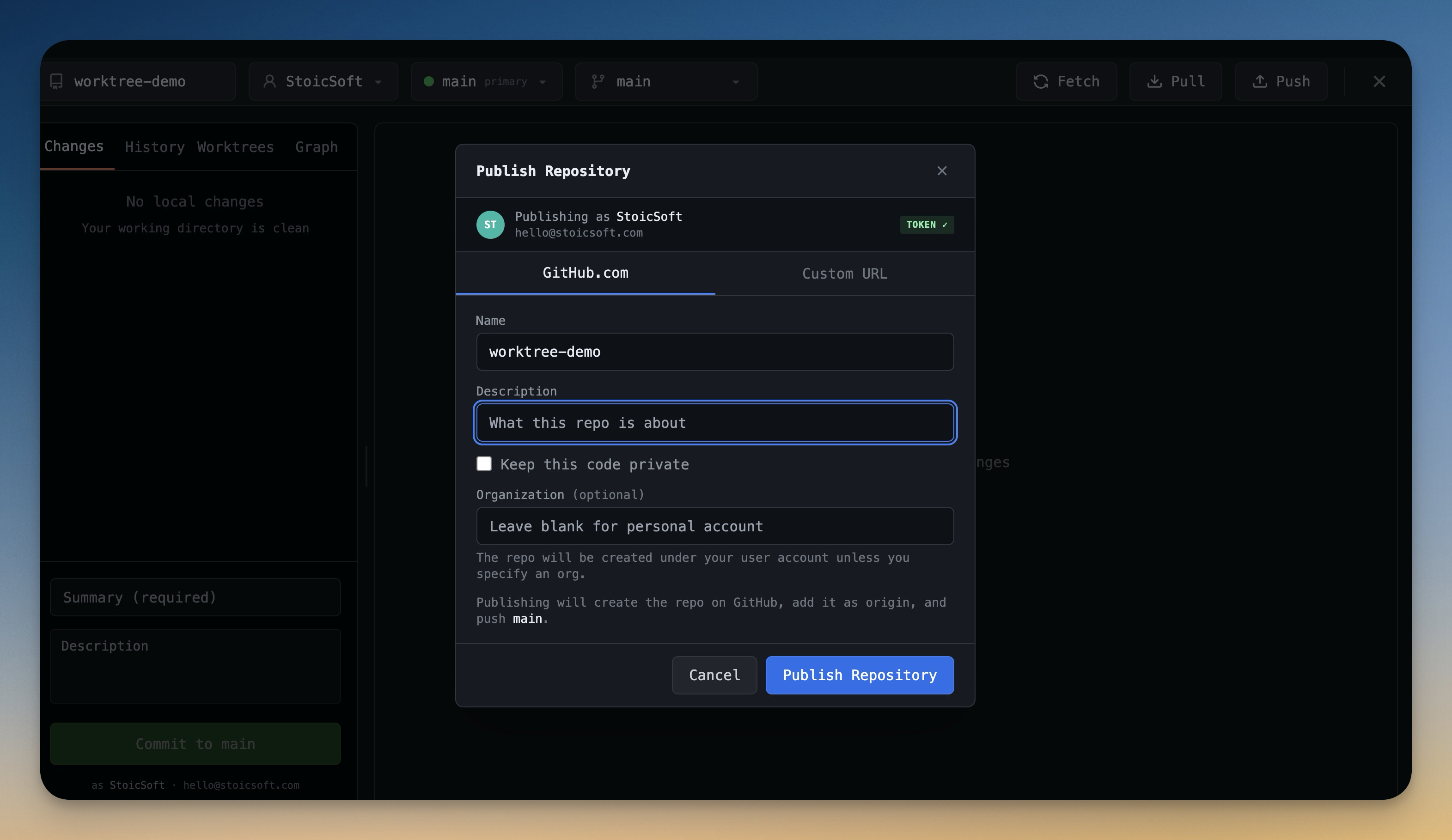
Bonus: Drag Files Into the AI Prompt Box
v1.12.0 also ships a small but disproportionately useful change for anyone using claude code or Codex inside 1DevTool: you can now drag files, folders, or entire projects from the sidebar straight into the AI prompt box (Cmd+I), and the path drops in as a proper @mention insertion at your cursor. Drag five files in a row and they stack as five mentions. Drag an image file and it automatically attaches as a preview instead, so screenshots and design references skip the copy-paste-encode dance entirely.
Who Benefits Most
You
Why this release matters
Get pulled off feature work for hotfixes
Worktrees let you keep your feature branch alive — Claude Code session and all — while you fix the urgent bug in a sibling working copy
Have separate work and personal GitHub accounts
Lock each project to its account once and never push from the wrong identity again
Maintain long-lived branches (release/staging/hotfix)
Lockable, persistent worktrees let you keep one working copy per long-lived branch with no juggling
Need to read complex merge histories
The Visual Git Graph turns multi-branch history into a glance instead of a 20-minute archeology session
Run multiple AI agents in parallel on the same repo
One worktree per branch, one AI agent per worktree, every agent labeled with its branch in the tab strip
Onboard new repos frequently
Live token verification on Publish means you never have to clean up a wrong-org repo again
Try It Today
Git Worktrees, Visual Git Graph, and Multi-Account GitHub all ship in 1DevTool v1.12.0. Download the latest from 1devtool.com, open any repo, and click the Git Client tab — the Worktrees and Graph tabs are right there alongside Changes. To enable multi-account, head to Settings → Git and add your first identity.
And once you're running multiple agents across multiple worktrees, the next thing you'll want is Code Intelligence and the AI Diff Panel — both shipped one day later in v1.13.0 — so the editor stops inventing false errors and you can review every file your agents touched, per session, before you accept the changes.
From across the StoicSoft network
Hand-curated reads on the same topic from sister sites in the StoicSoft family.
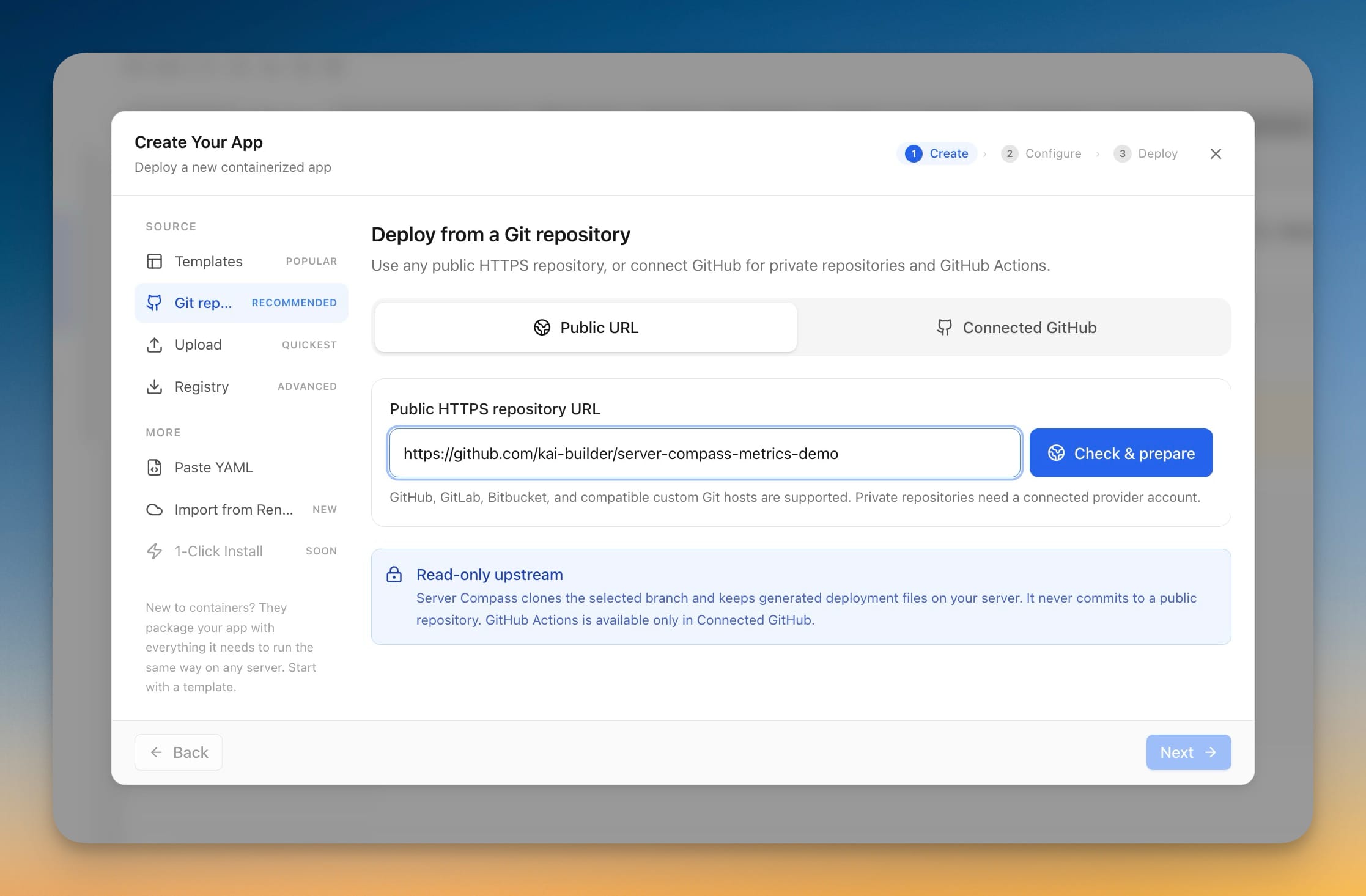 ServerCompass5 min read
Deploy Any Public Git Repository Without Forking It
Paste a public HTTPS repository URL from GitHub, GitLab, or Bitbucket, pick a branch, and deploy — no account connection, no fork, and the app you get has full redeploy, rollback, and backup support.
Read on servercompass.app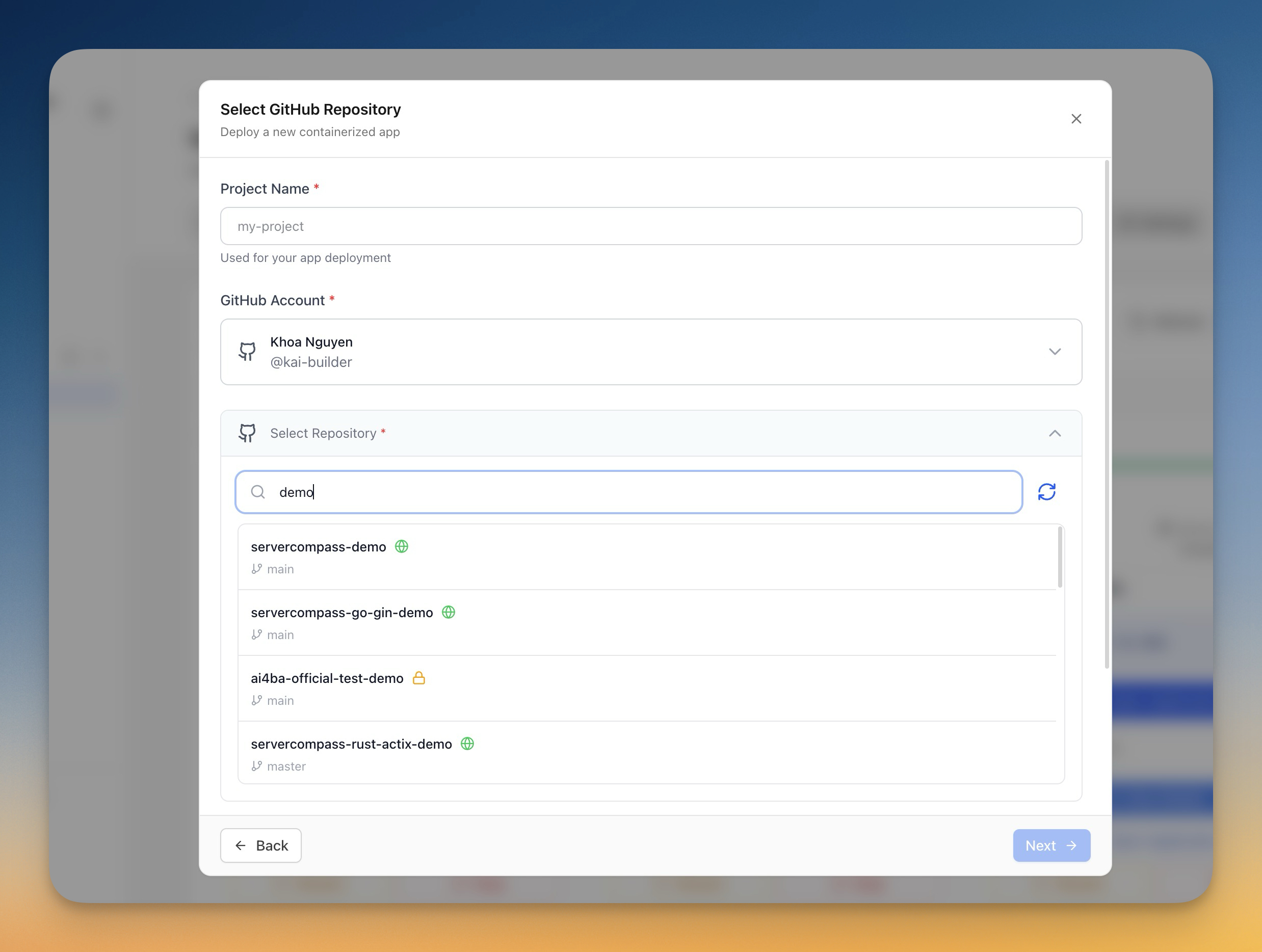 ServerCompass5 min read
Stop Blind Pushes to Your GitHub Repos
Server Compass now shows you exactly what files will be committed to your GitHub repository before any deploy push happens — so you never get a surprise commit on the wrong branch again.
Read on servercompass.app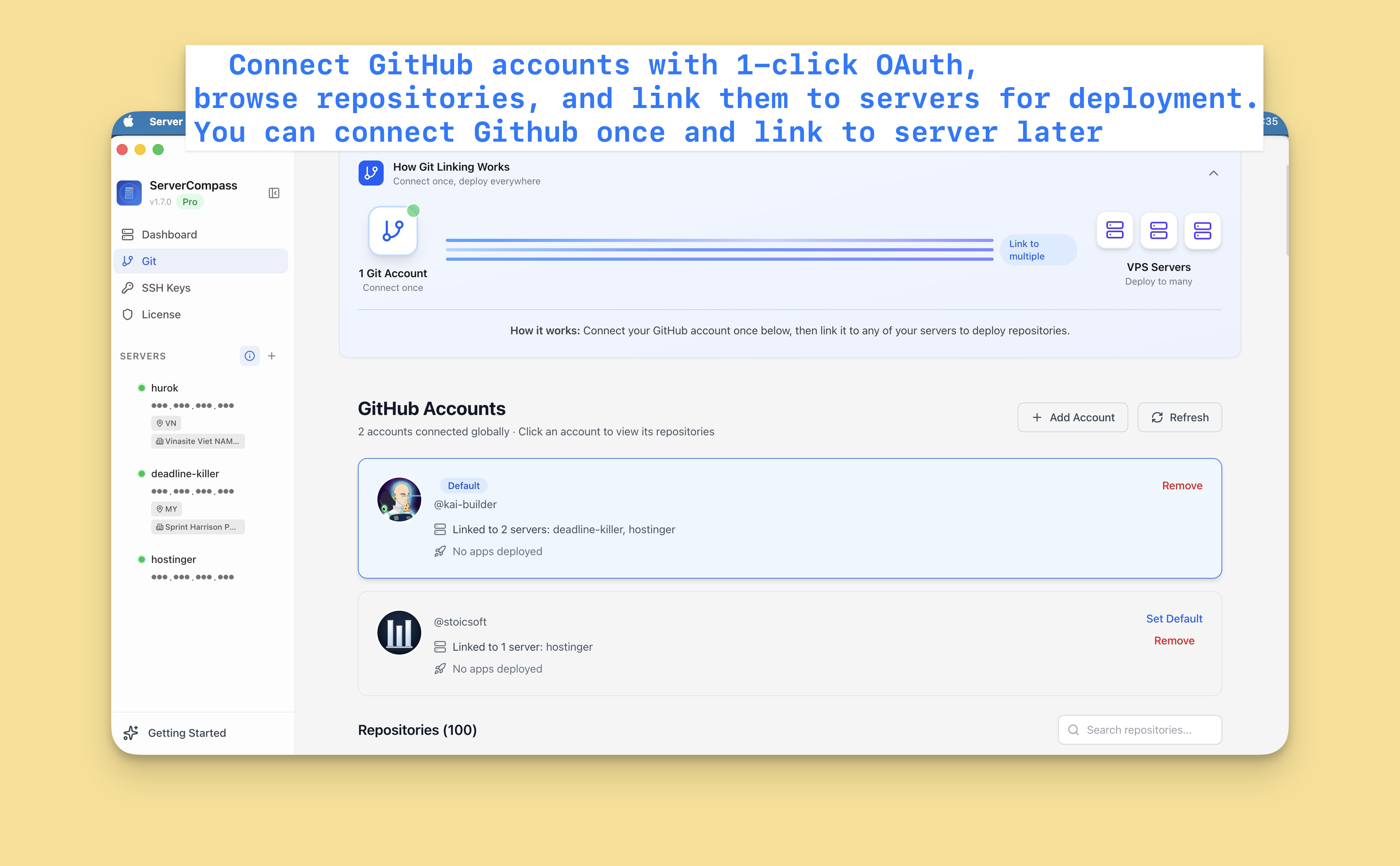 ServerCompass10 min read
How to connect your GitHub account and deploy your first Next.js app to your VPS
This guide will walk you through connecting your GitHub account to your Virtual Private Server (VPS) and deploying your first Next.js application using Server Compass. No complex configurations needed.
Read on servercompass.app