Apr 9, 2026
Per-Project Code Intelligence and an AI Diff Review Panel for Claude Code Sessions
Real per-project language servers (typescript-language-server, gopls, pyright, rust-analyzer, and five more) replace Monaco's false-error squiggles with accurate diagnostics, and a brand new AI Diff panel tracks every file modification any AI agent makes — Claude Code, Codex, Gemini, Amp — with per-file Accept and Revert.
You open a TypeScript file in a fresh project. Before you've typed a character, the editor is already lit up with red squiggles. Cannot find module './Foo.module.css'. JSX element implicitly has type 'any'. Cannot find module 'react/jsx-runtime'. Six more on every component you scroll past. The build runs fine. The app loads fine. Every single one of those errors is a lie.
This is the experience of running a sandboxed TypeScript worker — like the one Monaco ships with — against a real project. The worker can't read your node_modules, can't parse your tsconfig.json, can't resolve your *.d.ts declarations, and can't see your CSS Modules plugin. So it invents errors for everything it can't verify, and your editor turns into a noise machine that you eventually train yourself to ignore. Which means the day a real type error appears, you ignore it too.
1DevTool v1.13.0 ships the fix for both halves of this problem. Per-Project Code Intelligence spawns a real language server — typescript-language-server, gopls, pyright, rust-analyzer, and five more — for the projects you opt into, with full access to your filesystem, your config, and your dependencies. And the brand-new AI Diff Review Panel tracks every file modification any AI agent makes — Claude Code, Codex, Gemini, Amp, custom — and gives you per-file Accept and Revert buttons so you can review your agents' work before it lands.
Why Monaco's Built-In TypeScript Lies to You
Monaco — the editor component that powers VS Code, 1DevTool's editor strip, and a long list of web-based IDEs — ships with a bundled TypeScript worker. The worker runs in a sandboxed thread inside the renderer, with no filesystem access. It can't read node_modules. It can't open your tsconfig.json. It can't parse your CSS Modules side-effect declarations. It can't walk your monorepo to find a sibling package's exports.
What it can do is parse the file you have open and run a subset of TypeScript diagnostics against the in-memory text. That subset is enough for syntax checking, basic flow analysis, and the kind of intra-file type errors that don't cross a module boundary. It is not enough for module resolution, declaration files, JSX runtime detection, or anything else that requires reading the disk.
So the worker has two options for the diagnostics it can't answer. It can stay quiet and let you discover the import error at build time — at which point you have no idea which file the error came from — or it can speculate. Monaco speculates. Aggressively. Every time it can't resolve a module, it emits TS2307. Every time it sees a JSX element it can't type, it emits TS7026. Every time it can't find react/jsx-runtime — which it can never find from a sandboxed worker — it emits TS2875. And every time it sees an import for a file with no .d.ts, it emits TS7016.
Your build is fine. Your types are fine. The squiggles are fake.
Per-Project Code Intelligence: Real Language Servers, On Demand
The right fix is to spawn a real language server — a real typescript-language-server process, with real filesystem access, that can read your tsconfig.json and node_modules and tell you the truth about your code. The reason most editors don't do this in a sandboxed environment is that language servers are heavy: a single TypeScript engine can take 200–500 MB of RAM and 5–30 seconds to do its first index. Spawn one per project automatically and a developer with ten projects open is running five gigabytes of language servers in the background.
1DevTool's answer is per-project, on-demand, opt-in. Code Intelligence engines never spawn automatically. They only run for projects you explicitly enable, so memory cost is bounded by your choice instead of automatic background spawning.
Enable From the Right-Click Menu
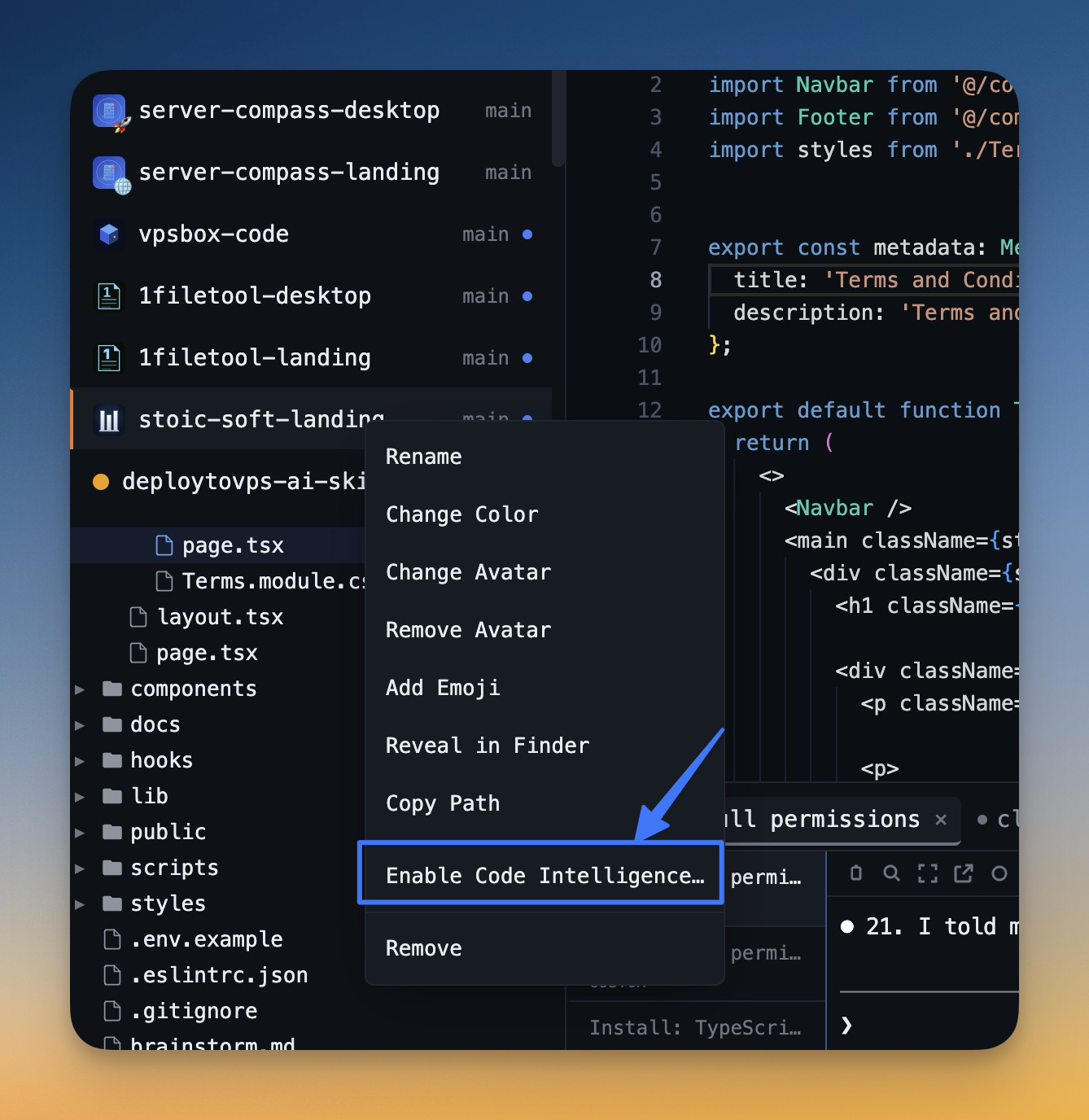
Right-click any project in the sidebar and pick Enable Code Intelligence… A dialog scans the project, lists every language it detects, and shows the file count for each (55 TypeScript files, 12 Python files, etc.) along with the installed engine version. Languages whose binaries are present on your machine are pre-checked; languages it detected but couldn't find an engine for show up in a separate Detected but not installed section with a hint for the install command (npm install -g typescript-language-server, pip install pyright, and friends).
A clear inline warning explains the cost — 200–500 MB of RAM per engine, 5–30 seconds for the first index — so nobody opts in by accident. Confirm the dialog and the engines spawn in the background, indexing your project against its real configuration.
Eight Languages Out of the Box
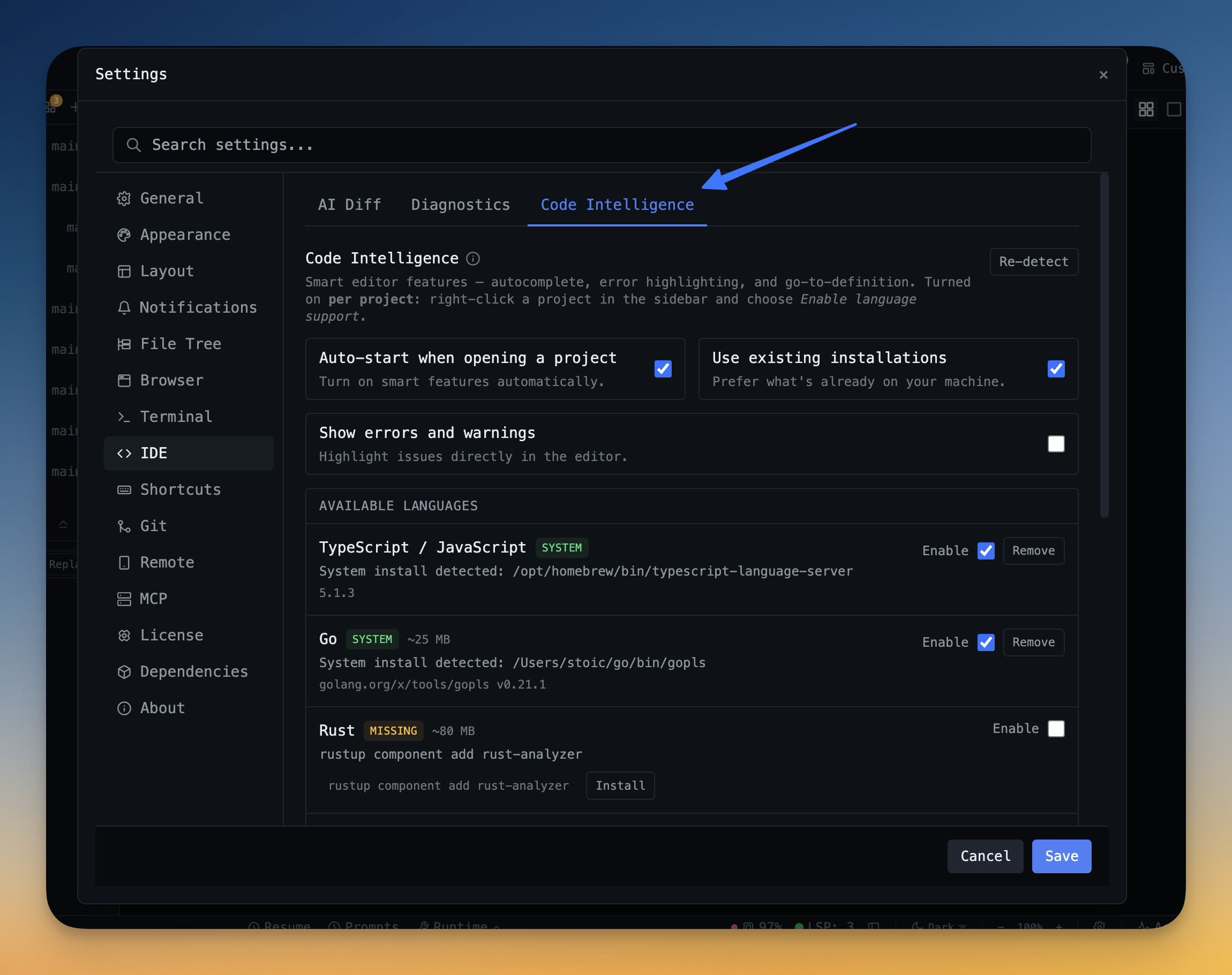
Code Intelligence ships with adapters for eight language engines, all detected automatically by file extension:
- TypeScript / JavaScript —
typescript-language-server - Python —
pyright - Go —
gopls - Rust —
rust-analyzer - C / C++ —
clangd - Ruby —
solargraph - PHP —
intelephense - Swift —
sourcekit-lsp
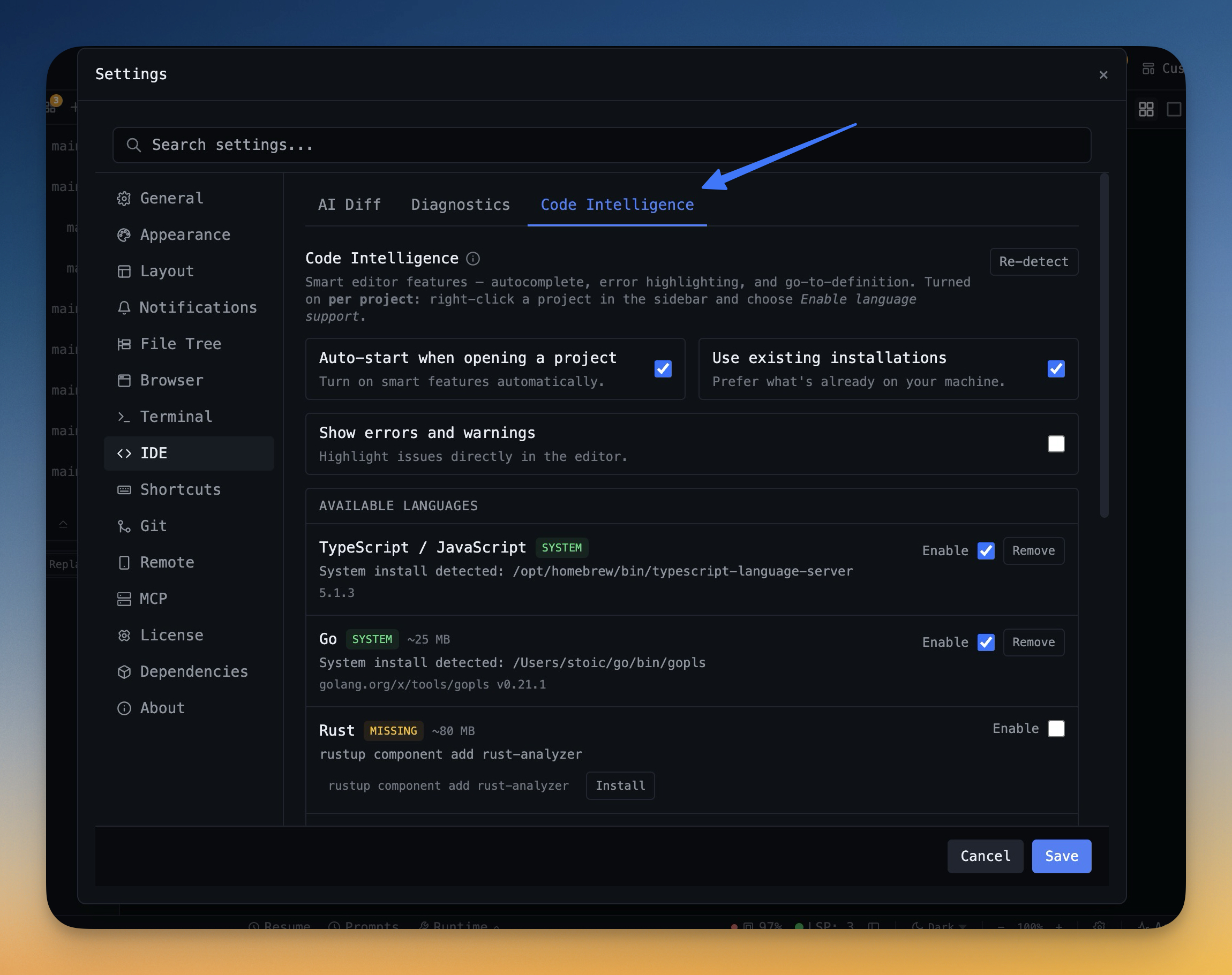
The Code Intelligence settings page in Settings → IDE → Code Intelligence is purely a status board: it shows which engines are present on your machine, the version of each, and which projects currently have them enabled. There's a Rescan my machine button in the Available Languages header that re-scans your $PATH and common install locations (brew, npm i -g, asdf, nvm) to pick up engines you installed externally without restarting the app. Turning an engine on for a specific project still happens from the right-click menu in the sidebar — there is no "global enable" button, by design.
Status Bar Brain Icon: One-Click Stop
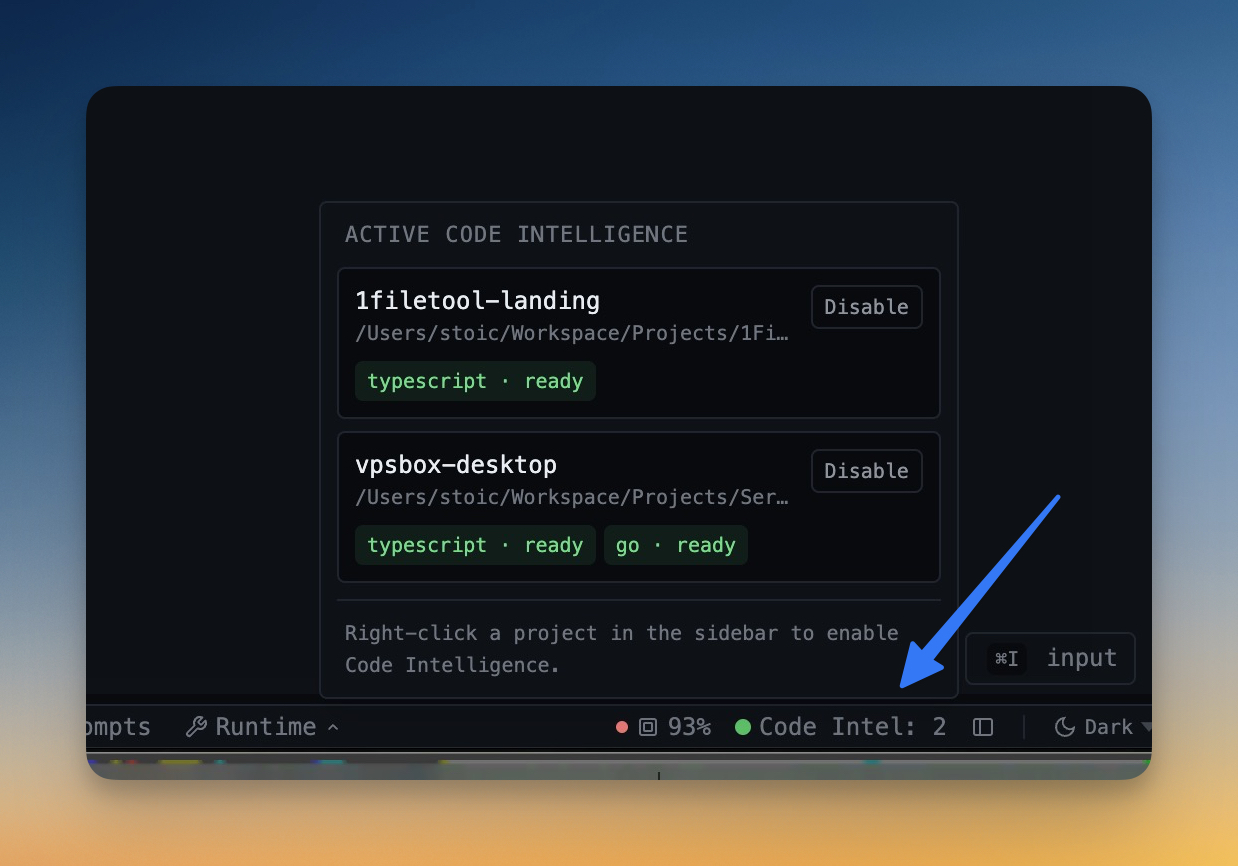
Once at least one project has Code Intelligence active, a green dot, a brain icon, and an active project count appear in the bottom status bar. Click the icon and a popover lists every active project, every engine it's running, the live status (ready / starting / crashed), and a Disable button per project. This is the emergency-stop UI: if your machine is under memory pressure, one click frees the entire 200–500 MB an engine is consuming.
Right-clicking an enabled project in the sidebar adds two more options: Restart Code Intelligence (bounce the child processes if an engine gets stuck or you change a tsconfig.json and want a clean reload) and Disable Code Intelligence (SIGTERM the processes, free their RAM, clear the persistent flag so they don't auto-respawn next launch).
Sticky Across App Restarts
Once you enable Code Intelligence on a project, the choice persists. Quit and relaunch and the engines respawn automatically for the projects that were enabled — you never re-enable per session. The persistent flag is cleared the moment you Disable, so the opt-in is durable but not sneaky.
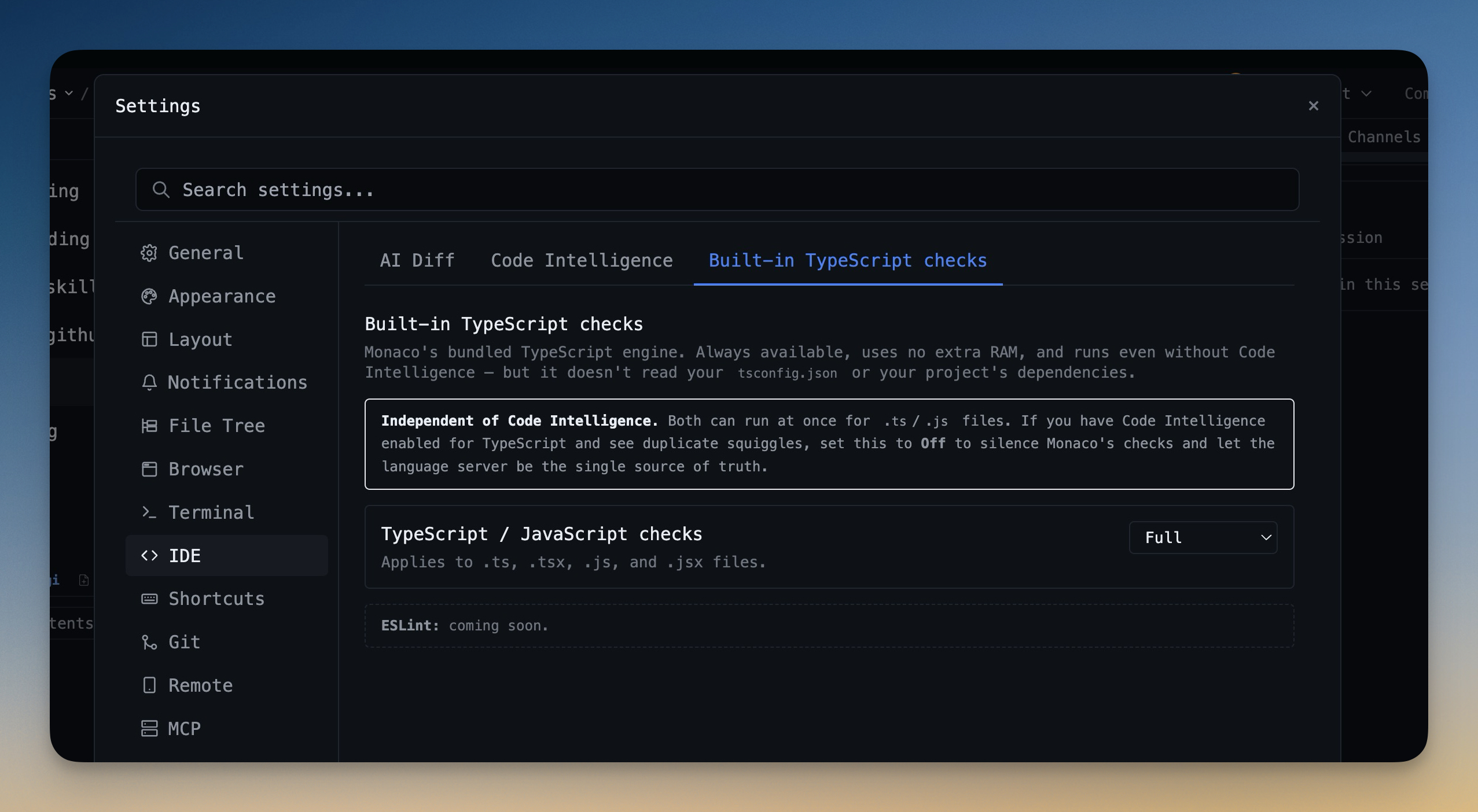
Built-in TypeScript Checks: Three Modes
For projects where you don't want to opt into Code Intelligence — small scripts, scratch files, third-party code you're reading — the editor still has Monaco's bundled TypeScript checker. v1.13.0 ships a new Built-in TypeScript checks settings page with three modes:
- Full — semantic and syntax checks with the module-resolution false-positive diagnostics (TS2307, TS7026, TS2875, TS7016, and six others) suppressed. Use this when Code Intelligence is running per-project so the language engine provides authoritative diagnostics
- Syntax only — parse errors only. No type checking, no module resolution. The default for new installs because it eliminates the entire class of false positives that the sandboxed worker would otherwise invent
- Off — completely silent. No squiggles. Useful when Code Intelligence is the single source of truth for TypeScript errors and you want to avoid duplicate squiggles
AI Diff Review Panel: See Every File Your Agent Touched
The other half of v1.13.0 is the AI Diff Review Panel, and it answers a question every claude code user has asked at some point: what actually changed during that twenty-minute run?
AI agents touch dozens of files in a single prompt. You can't safely review all of them in scrollback — by the time the agent finishes, the "edited file: src/components/Foo.tsx" line is buried under 400 lines of subsequent output. Most developers either trust the agent blindly and ship bugs, or burn 20 minutes diff-ing files manually after the fact, or run git status and try to mentally reconstruct which change came from which prompt.
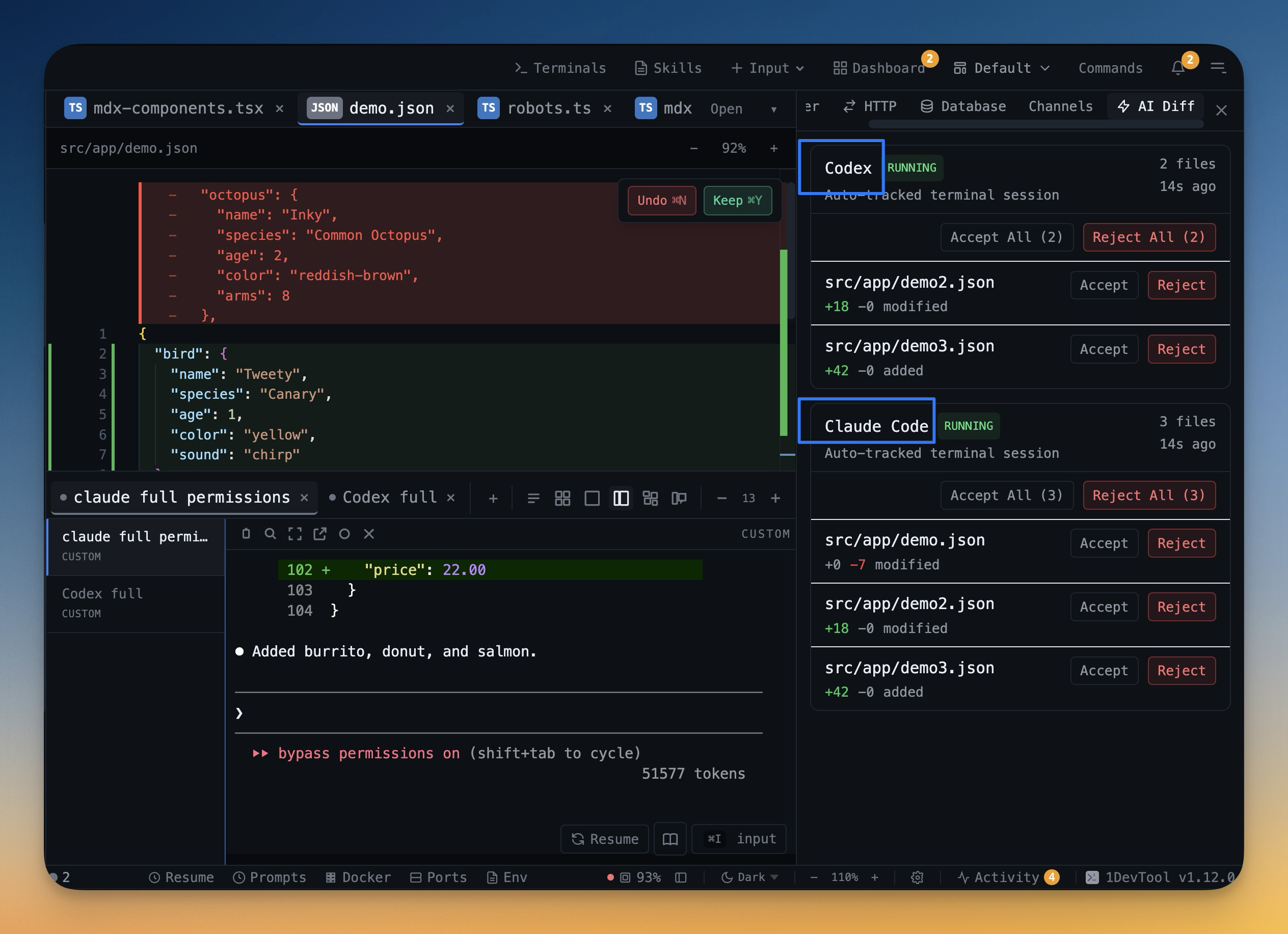
The AI Diff panel solves this by snapshotting affected files at the moment an AI agent starts a new prompt, watching the agent's file modifications, and grouping every change into a reviewable session.
Per-Prompt Baselines
When an AI agent starts a new prompt, the AI Diff system snapshots the affected files before the agent edits them. This is the baseline. As the agent works, every file it modifies is tracked against its baseline. When the agent finishes — or even if you walk away during the run — the panel shows you exactly which files changed and what changed in each one.
Accept or Revert, Per File or Per Session
Each pending change has its own Accept and Revert buttons. Accept locks the change in and removes it from the pending queue. Revert restores the file to its pre-agent baseline, undoing whatever the agent did to that one file. For when you trust — or distrust — an entire run, the session header has bulk Accept and bulk Revert buttons: ship every file the agent touched in one click, or undo the entire run and start over.
Inline Diff Overlay in the Editor
Click any changed file in the AI Diff panel and 1DevTool opens it in the IDE strip with the diff visible inline as Monaco overlay highlights — added lines in green, removed lines in red, modified ranges in a side-by-side gutter. You can read the agent's work in the actual file, in the actual editor, with the actual surrounding code as context. No external diff viewer. No tab switching. No git diff in a terminal.
Session History
Every AI agent run creates an AI Diff session with the agent type (Claude Code, Codex, Gemini, Amp, etc.), the prompt that started it, the start time, and the count of changed files. The Sessions tab in the panel rolls up every past session into a browsable list — expand any session to see its file list, and accept or revert old changes any time. The pattern is the same as a code review queue, but at the granularity of an AI prompt instead of a Pull Request.
Off by Default, Opt In When You're Ready
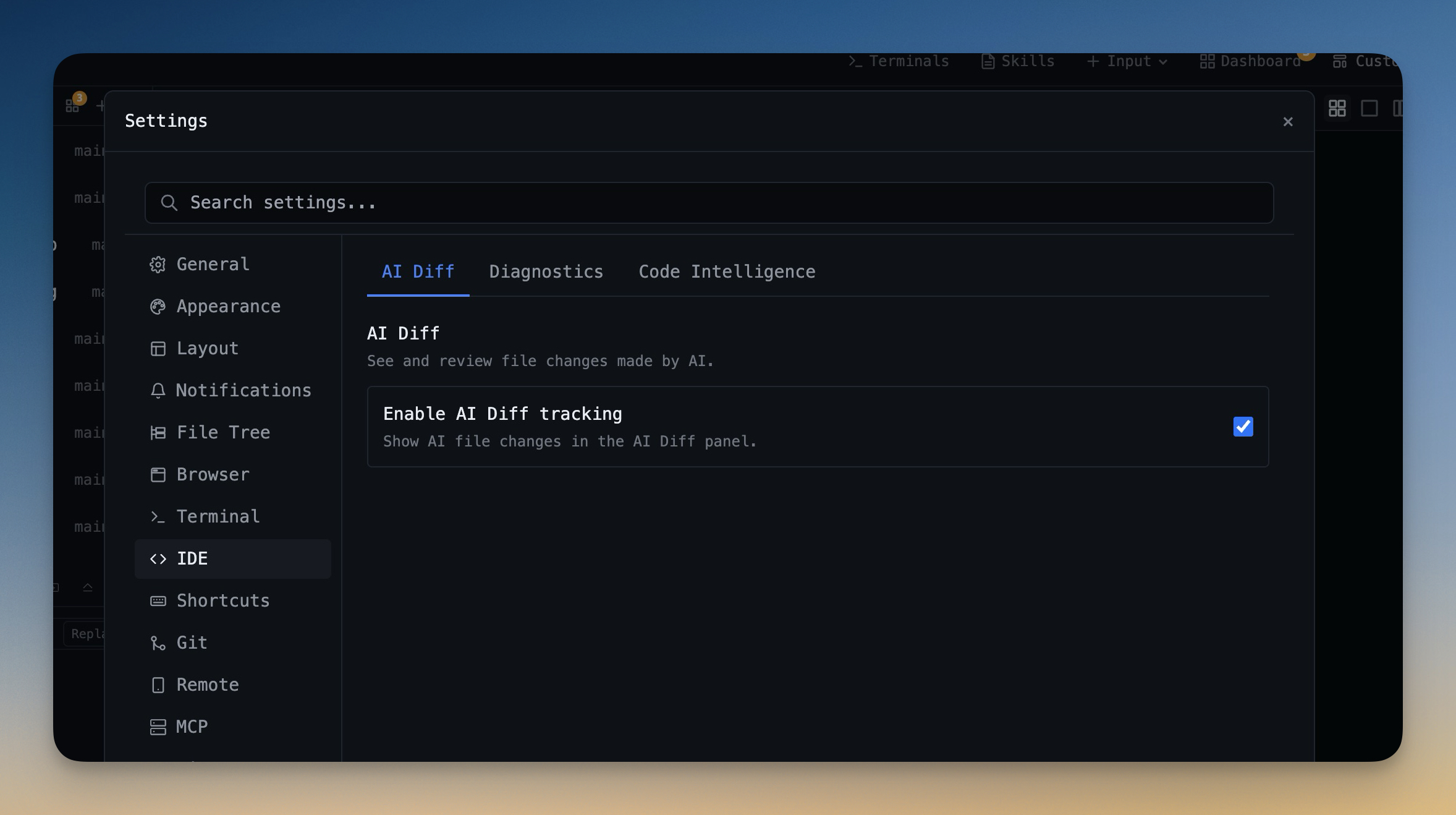
The AI Diff panel is off by default. To turn it on, head to Settings → IDE → AI Diff and flip the toggle. From that moment forward, every AI agent run is tracked — and the panel populates as you work.
Settings Reorganization: Sub-Tabs in the IDE Tab
Both Code Intelligence and AI Diff live in the IDE settings tab, and the IDE tab has been reorganized with sub-tabs to hold them. AI Diff, Code Intelligence, and Built-in TypeScript checks each get their own focused page so the settings dialog stops being a giant scroll. Click the sub-tab at the top of the IDE tab to switch between them.
And for everything that used to be called Language Server in the codebase: the feature is now called Code Intelligence in every place a user can see it — settings, dialogs, right-click menus, status bar tooltip, install errors. Internally it's still LSP. The rename is purely cosmetic so the feature stops sounding like a protocol spec and starts sounding like the thing it actually does.
Before vs After
The old workflow
1DevTool v1.13.0
Open a TypeScript file → ten red squiggles → ignore them all → miss the real one
Enable Code Intelligence on the project → real typescript-language-server reads your tsconfig and node_modules → only real errors show up
AI agent runs for 20 minutes → 30 files changed → no idea which → diff manually
AI Diff panel shows every file the agent touched, grouped by session, with Accept/Revert per file
git status shows 30 changed files mixed in with your own work — can't tell which came from the agent
AI Diff baselines snapshot files at prompt start, so agent changes are isolated from your manual edits
Every CSS module import is a fake error → train yourself to ignore squiggles
Suppression list silences TS2307, TS7026, TS2875, TS7016 in the bundled checker; Code Intelligence resolves them for real
Spawn a global language server for every open project → 5 GB of RAM
Per-project, on-demand, opt-in — only pay for the projects you actually want intelligence on
Who Benefits Most
You
Why this release matters
Use TypeScript with CSS Modules, Next.js, or any modern bundler
The fake-error squiggles you used to see on every import are gone in Syntax-only mode and never appear once Code Intelligence is on
Run Claude Code, Codex, or Gemini on multi-file refactors
The AI Diff panel finally answers "what just changed" without you trawling scrollback
Work in Python, Go, Rust, C/C++, Ruby, PHP, or Swift
Each language gets a real per-project engine — pyright, gopls, rust-analyzer, clangd, solargraph, intelephense, sourcekit-lsp
Switch between many small projects through the day
Per-project opt-in means you never pay 500 MB of RAM for a project you're only opening to read a README
Review AI agent changes before shipping them
Per-file Accept and Revert with inline diff overlays make "trust but verify" a one-click action instead of a commit-and-rollback dance
Try It Today
Per-Project Code Intelligence and the AI Diff Review Panel both ship in 1DevTool v1.13.0. Download the latest from 1devtool.com, right-click any project in the sidebar and pick Enable Code Intelligence… to turn on real language servers for that project. Then head to Settings → IDE → AI Diff to flip the AI Diff panel on, and your next Claude Code session will start tracking every file change.
And if you haven't seen the v1.12.0 release yet, both features were designed to pair with Git Worktrees and the Visual Git Graph — which let you run separate AI agents on separate branches in the same repo, each with its own working copy and its own diff history.