Multi-Account Git
Lock projects to specific GitHub accounts so you never push from the wrong identity again — with token-aware fetch, pull, push, and a live token verification on every publish.
More Screenshots
Click any image to zoom in
Why You Need This
How this feature boosts your daily productivity
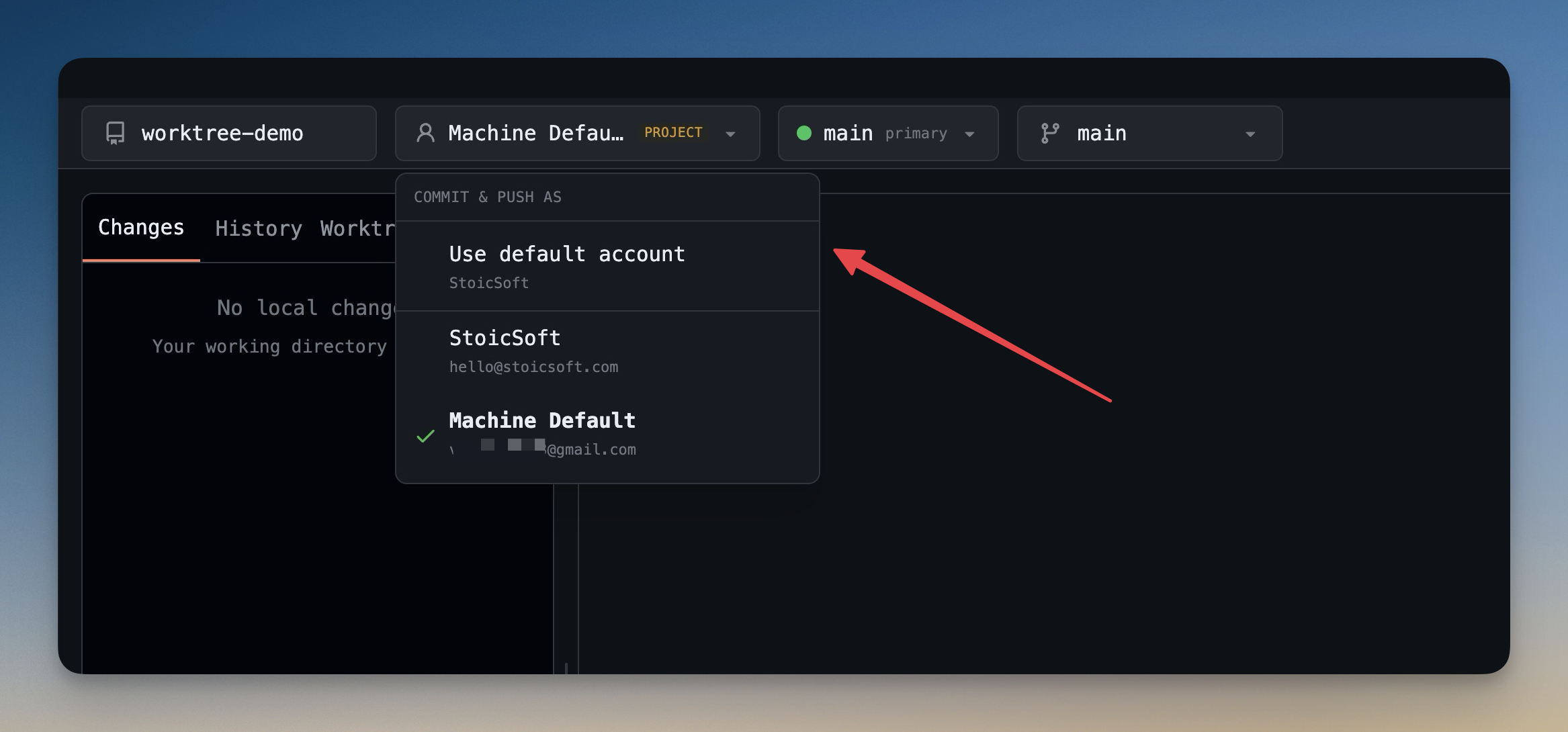
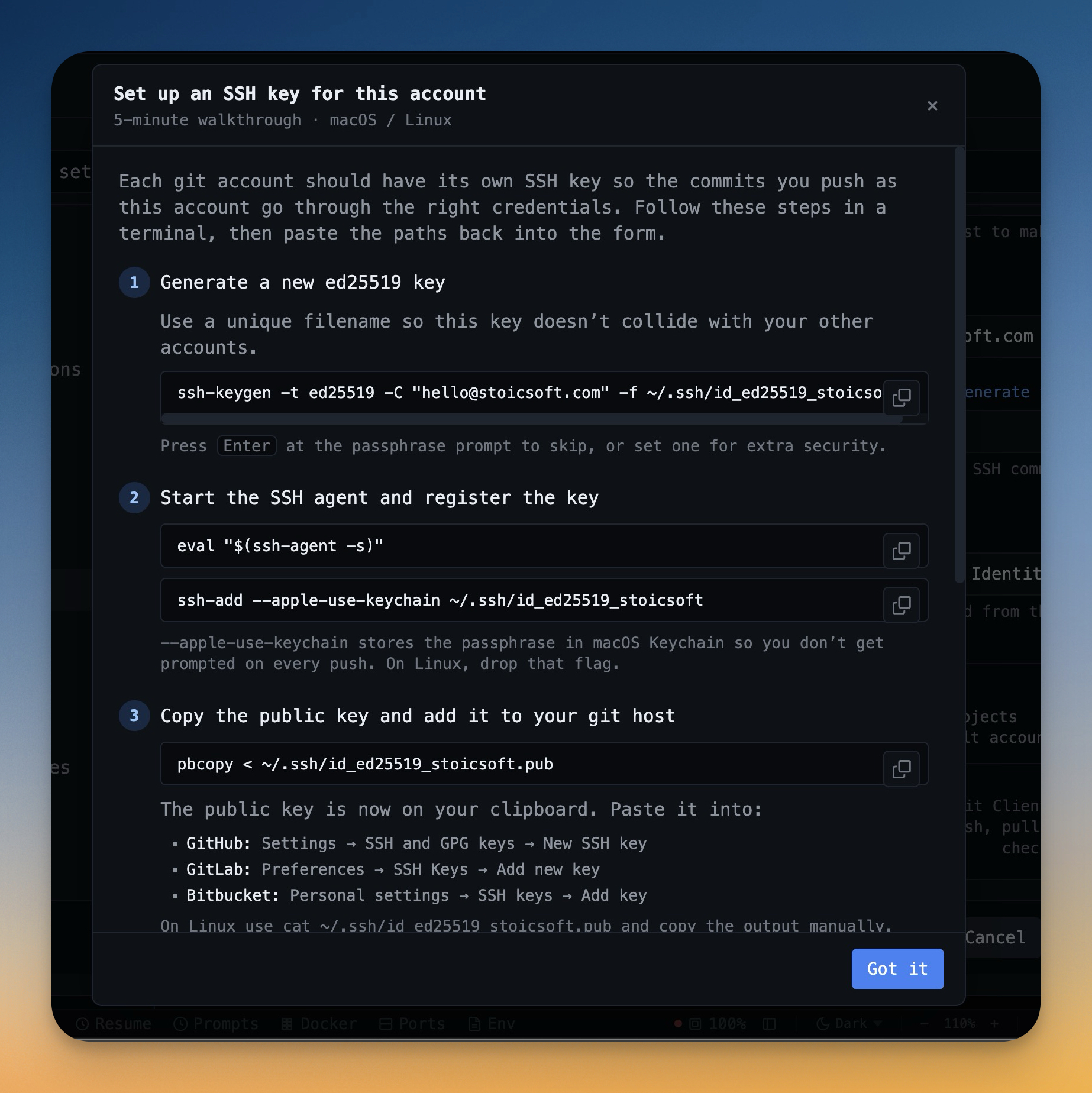
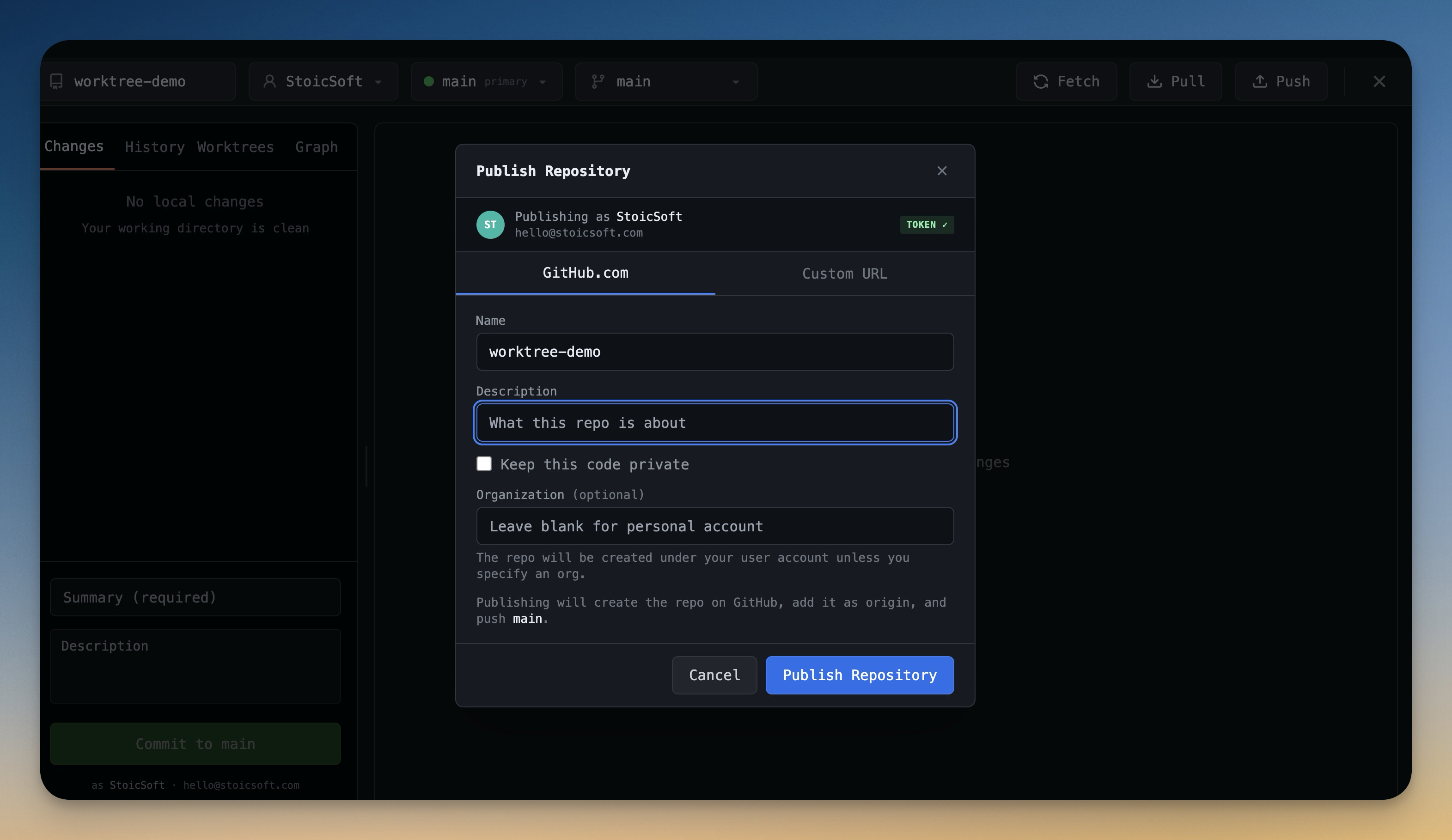
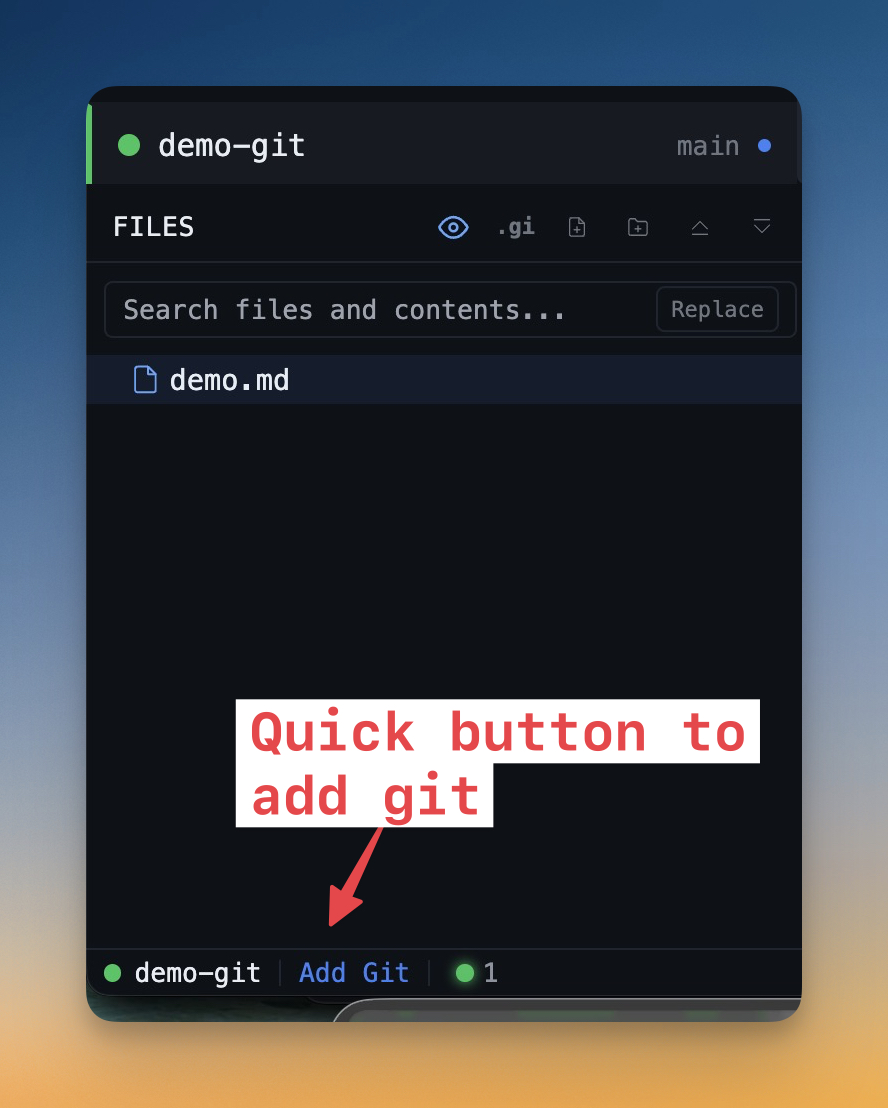
If you have a personal GitHub account and a work GitHub account, you've done it: pushed work commits from your personal identity, opened a PR with the wrong author, or worse — accidentally published a private repo to the wrong organization because the credential helper cached the wrong token. Multi-Account Git lets you save every GitHub identity as an account in Settings → Git, lock each project to a specific account in the Add Project dialog, and have every git transfer (fetch, pull, push) honor that account's Personal Access Token automatically — instead of falling back to whatever credential helper your machine has cached. The Publish Repository dialog re-verifies the token live before you click publish, shows "token belongs to actual-login" in the header, displays a destination URL preview, and hard-blocks the Publish button until verification succeeds — so the wrong-account-publish bug is fixed by construction. The Account picker in the Git Client never hides after publishing a new repo, so the chosen account stays pinned and you can immediately push more commits with the same identity. A "Save & Set as Default" button on the Machine Default Git panel ingests whatever `git config --global` already says into a proper account in one click, and the account list shows how many projects are using each account so you know which one is your "main" identity at a glance.
How It Works
Get started in 4 simple steps
Add Your Projects
Click the "+" button to add project folders. Assign unique colors for instant visual identification.
Browse & Navigate
Use the file explorer to browse your project. Filter files, toggle hidden items, and search instantly.
Switch Instantly
Click any project to switch. Your entire workspace state — terminals, files, layout — restores automatically.
Choose Your Layout
Select a preset layout or create a custom one. Your layout is saved per project for consistent workflows.
Without 1DevTool
The manual way vs. the 1DevTool way
The Hard Way
The 1DevTool Way
Key Capabilities
Everything included with Multi-Account Git
Why It Matters
The productivity impact of having project management built into your workspace
Instant Project Switching
Switch between projects in one click with complete state restoration. No more 5-minute setup rituals.
Visual Organization
Color-coded projects, file type icons, and layout presets keep your workspace organized and recognizable.
Smart File Navigation
.gitignore-aware filtering, instant search, and context menus make finding and opening files effortless.
Workspace Memory
Every project remembers its terminals, open files, database connections, and layout. Pick up exactly where you left off.
More in Project Management
Other features in this category you might find useful
Multi-Project Workspace
Work on multiple projects simultaneously with instant switching. Entire workspace state is preserved per project.
Smart File Explorer
Real-time file tree with type icons, .gitignore filtering, search, and right-click context menus.
Per-Project Code Intelligence
Spawn real typescript-language-server, gopls, pyright, rust-analyzer, clangd, solargraph, intelephense, or sourcekit-lsp for the projects you opt into — with project-aware errors and zero false positives.
Color-Coded Projects
Assign accent colors to each project for instant visual identification across your workspace.
Ready to boost your workflow?
Download 1DevTool for free and experience Multi-Account Git along with 322 other features — all in one app.