Per-Project Code Intelligence
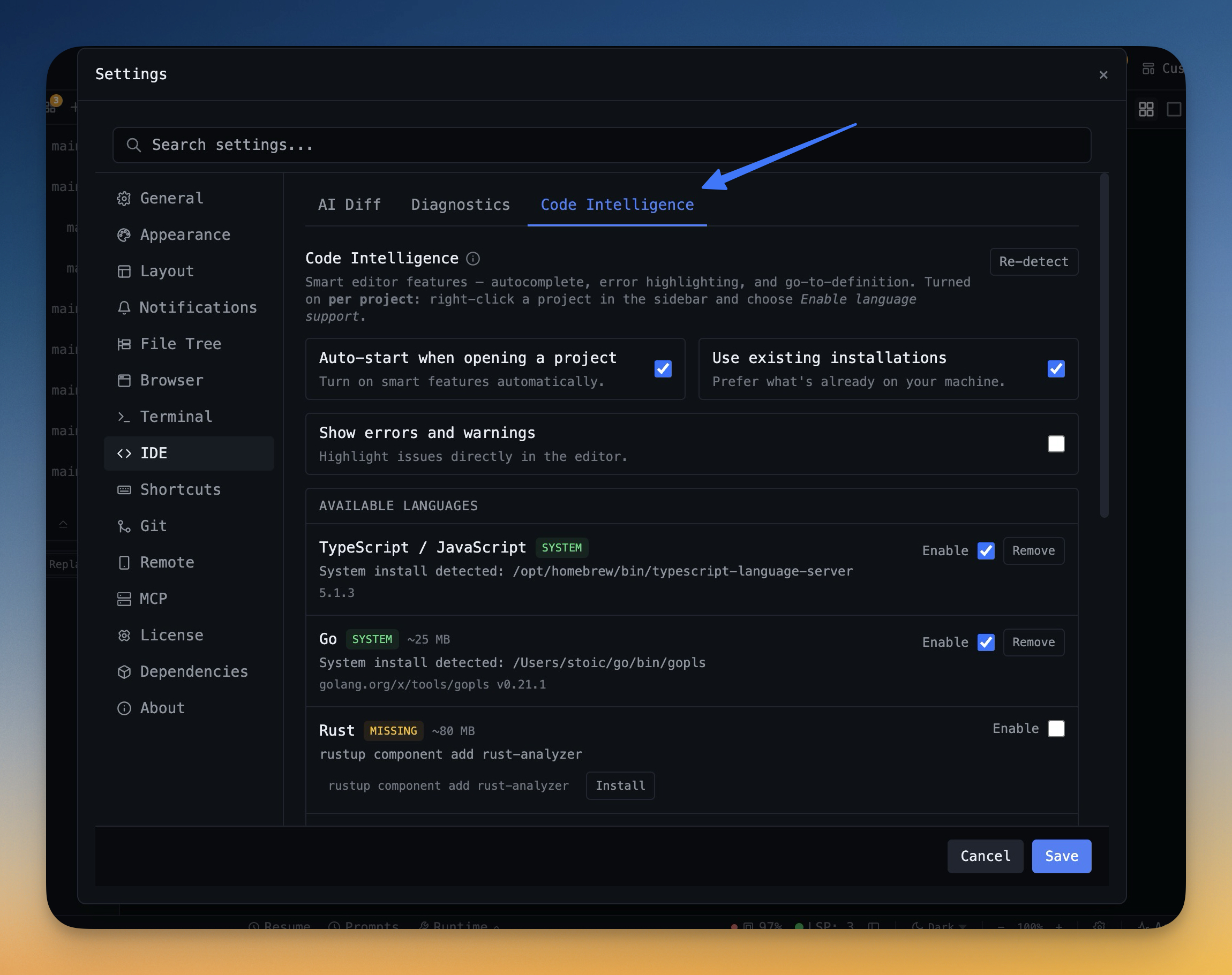
Spawn real typescript-language-server, gopls, pyright, rust-analyzer, clangd, solargraph, intelephense, or sourcekit-lsp for the projects you opt into — with project-aware errors and zero false positives.
More Screenshots
Click any image to zoom in
Why You Need This
How this feature boosts your daily productivity
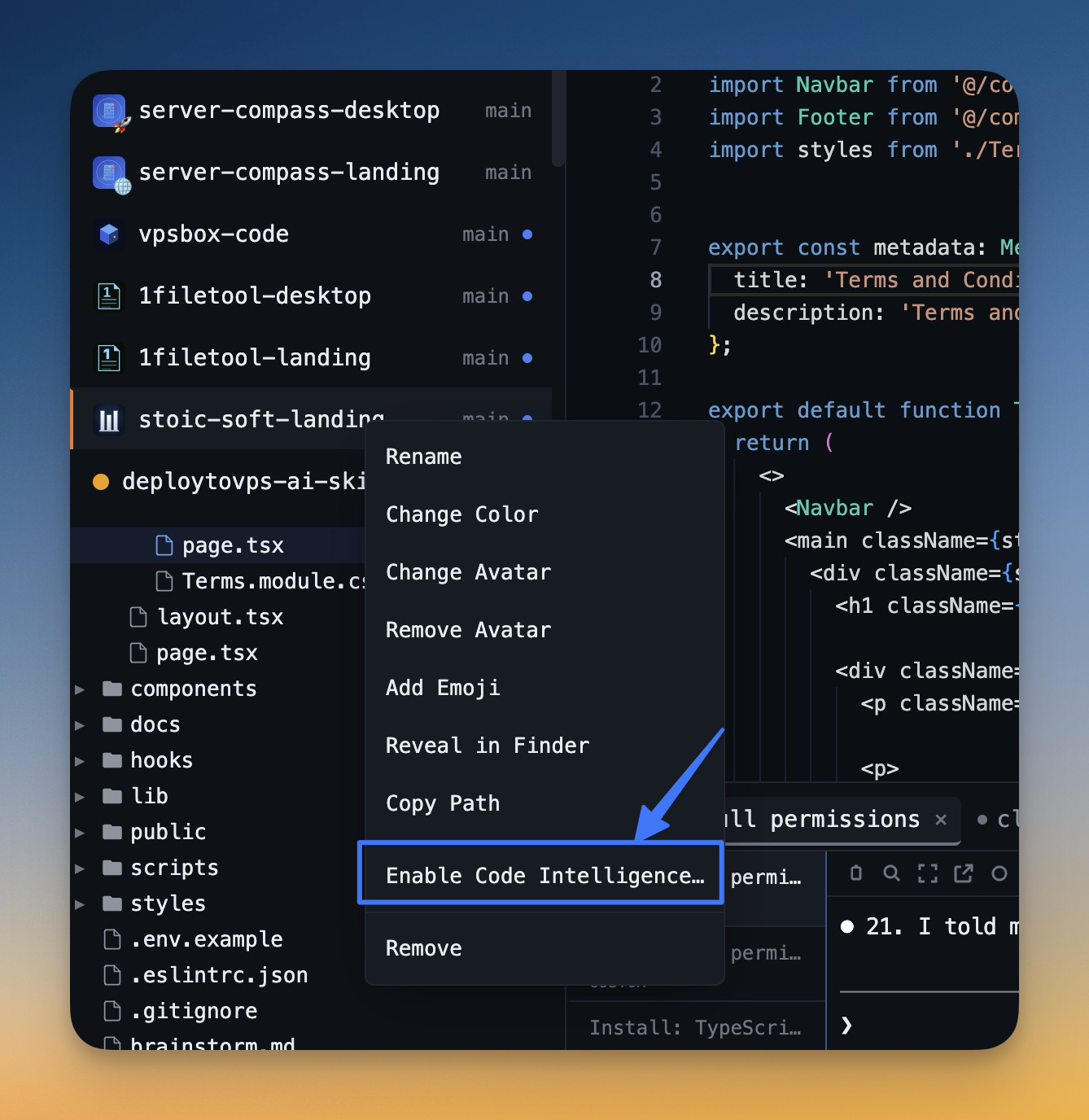
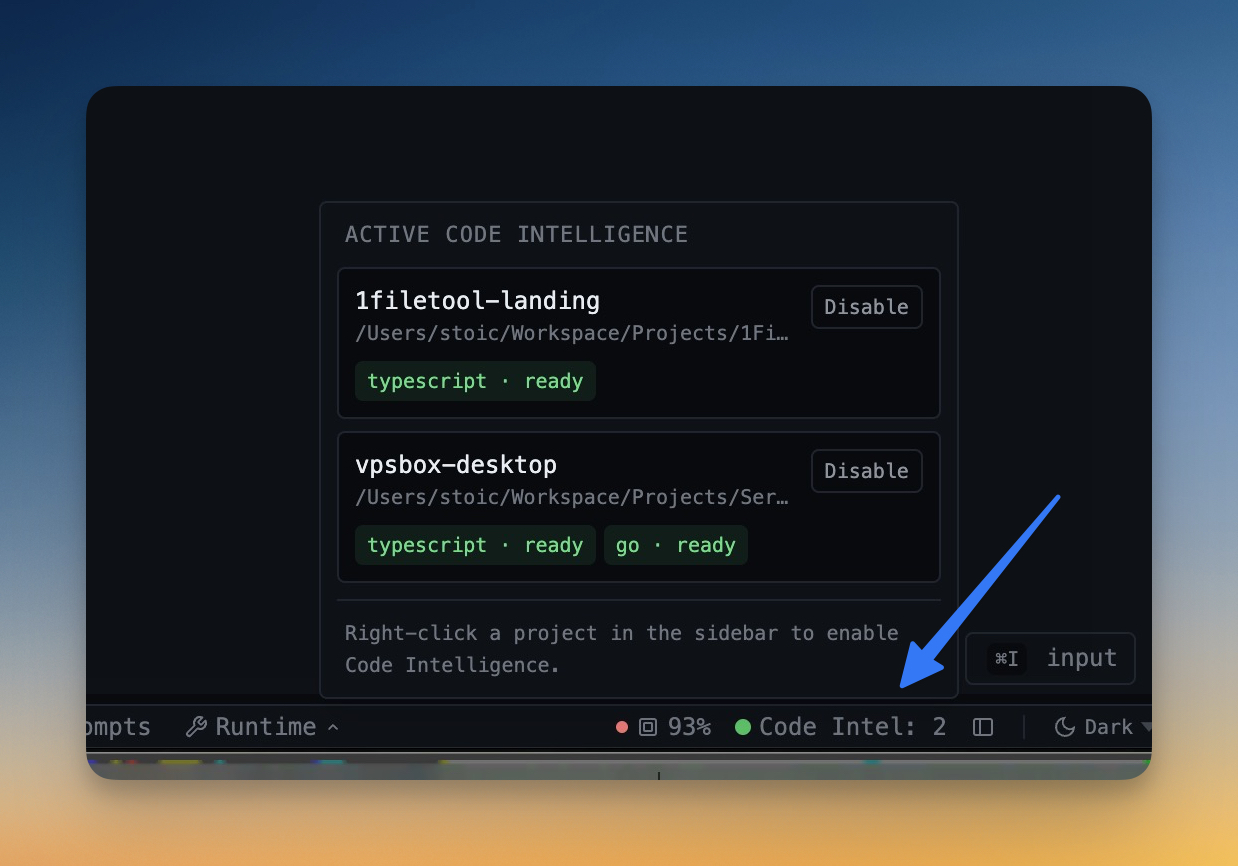
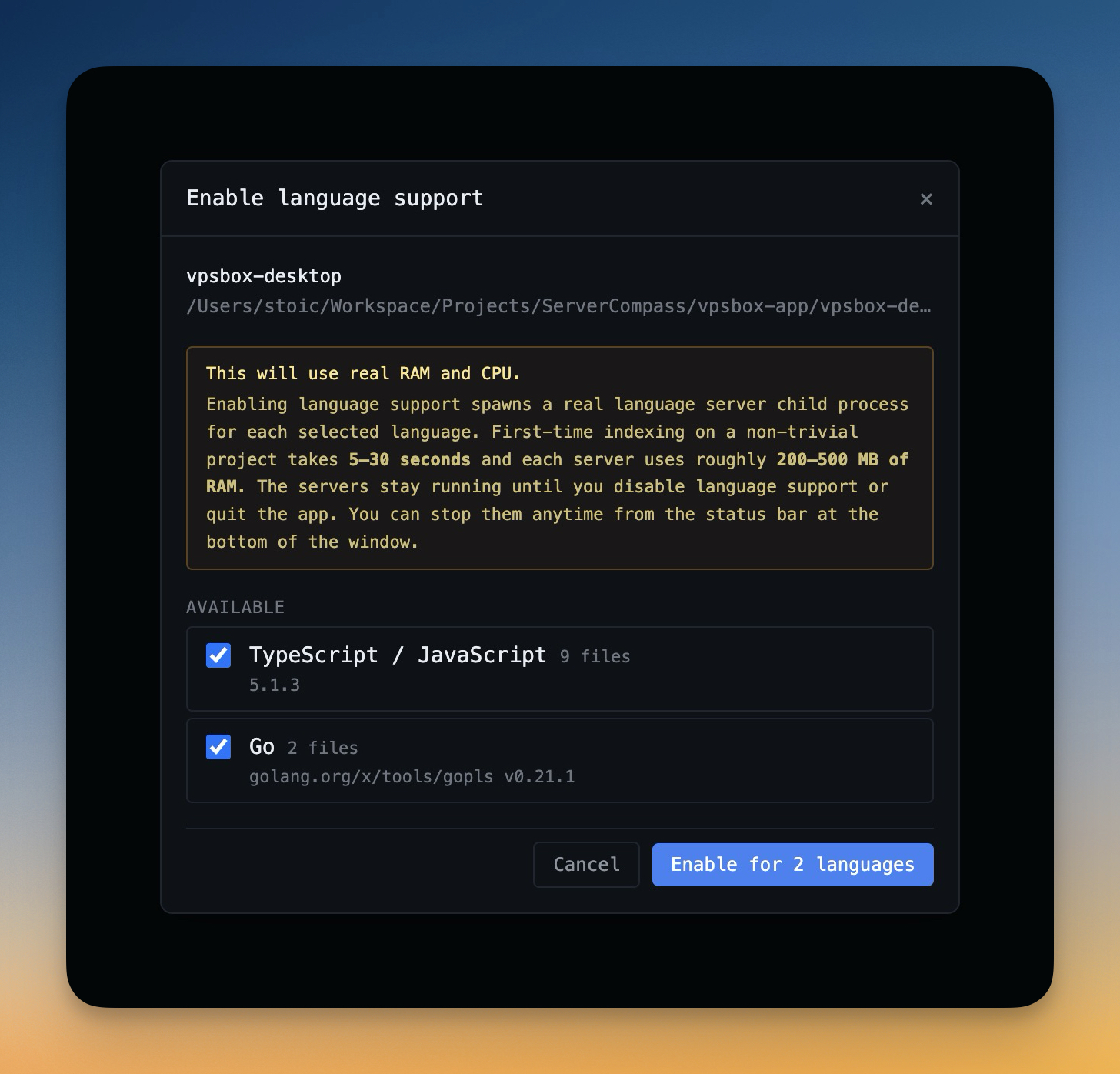
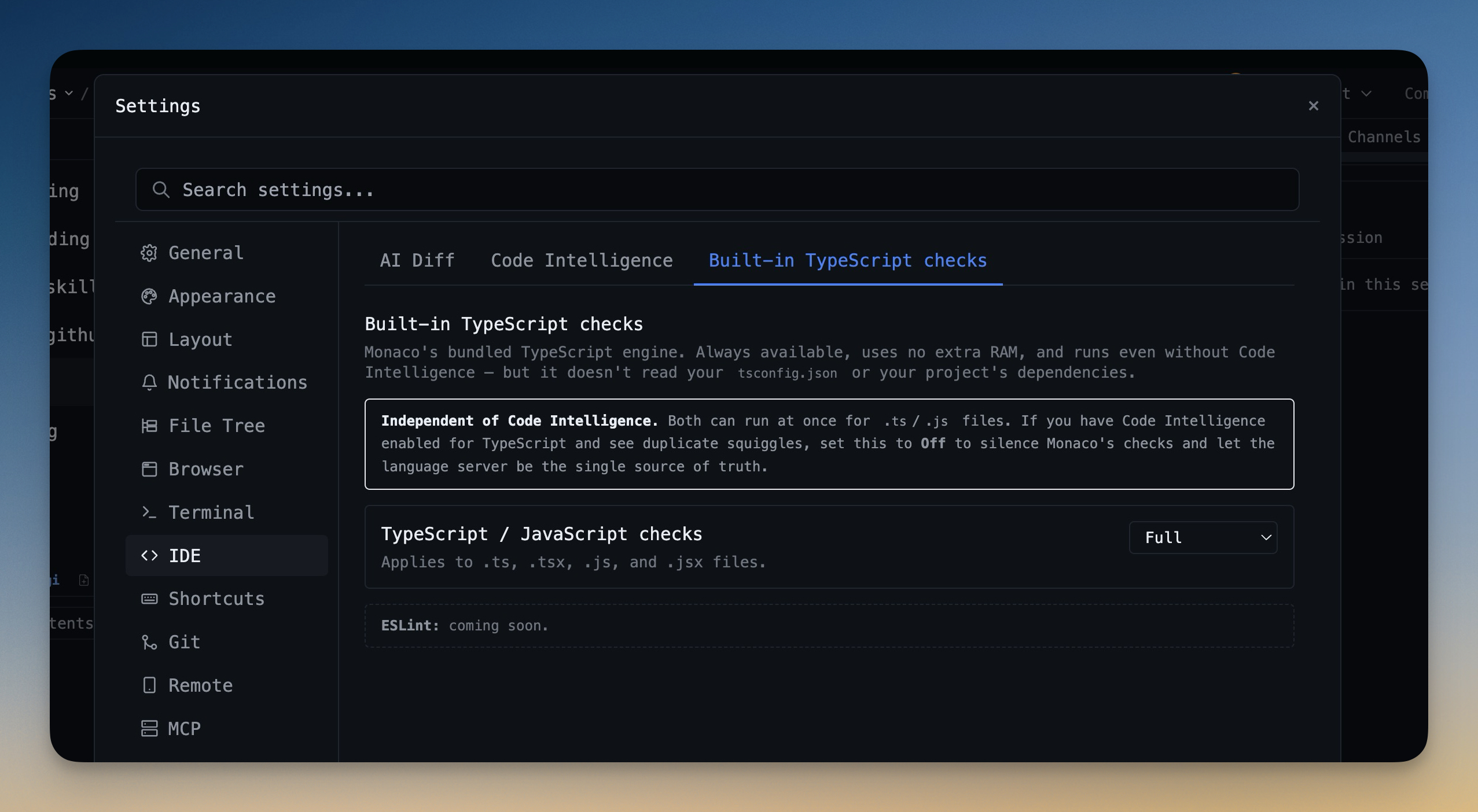
Monaco's sandboxed TypeScript worker can't read your `node_modules`, your `tsconfig.json`, or your `*.d.ts` files — so it spends all day flagging fake errors on every CSS module import, every JSX element, and every "react/jsx-runtime" import. Code Intelligence solves this by spawning a real language server (typescript-language-server, gopls, pyright, rust-analyzer, clangd, solargraph, intelephense, or sourcekit-lsp) per project you explicitly opt into. The engine reads your actual `tsconfig.json`, `node_modules`, and type declarations, so the squiggles you see are real and the false positives finally go away. Right-click any project in the sidebar and pick "Enable Code Intelligence…" — a dialog scans your project, lists every detected language with file counts ("55 TypeScript files") and the installed engine version, and lets you turn on the ones you want. Engines only spawn for projects you enable, so memory cost is bounded by your choice (200–500 MB per engine) instead of automatic background spawning. A green brain icon in the status bar shows every active project with a per-project Disable button as the emergency-stop UI for freeing RAM in one click. Eight languages out of the box: TypeScript / JavaScript, Python, Go, Rust, C / C++, Ruby, PHP, and Swift — all detected automatically by file extension. The choice persists across app restarts, so engines respawn next launch without you re-enabling them.
How It Works
Get started in 4 simple steps
Add Your Projects
Click the "+" button to add project folders. Assign unique colors for instant visual identification.
Browse & Navigate
Use the file explorer to browse your project. Filter files, toggle hidden items, and search instantly.
Switch Instantly
Click any project to switch. Your entire workspace state — terminals, files, layout — restores automatically.
Choose Your Layout
Select a preset layout or create a custom one. Your layout is saved per project for consistent workflows.
Without 1DevTool
The manual way vs. the 1DevTool way
The Hard Way
The 1DevTool Way
Key Capabilities
Everything included with Per-Project Code Intelligence
Why It Matters
The productivity impact of having project management built into your workspace
Instant Project Switching
Switch between projects in one click with complete state restoration. No more 5-minute setup rituals.
Visual Organization
Color-coded projects, file type icons, and layout presets keep your workspace organized and recognizable.
Smart File Navigation
.gitignore-aware filtering, instant search, and context menus make finding and opening files effortless.
Workspace Memory
Every project remembers its terminals, open files, database connections, and layout. Pick up exactly where you left off.
More in Project Management
Other features in this category you might find useful
Multi-Project Workspace
Work on multiple projects simultaneously with instant switching. Entire workspace state is preserved per project.
Smart File Explorer
Real-time file tree with type icons, .gitignore filtering, search, and right-click context menus.
Color-Coded Projects
Assign accent colors to each project for instant visual identification across your workspace.
Layout Presets
Pre-configured layouts for Focus, Terminal, Web Dev, API Dev, and Database work — or create your own.
Ready to boost your workflow?
Download 1DevTool for free and experience Per-Project Code Intelligence along with 322 other features — all in one app.