May 28, 2026
Click a Postman, Bruno, or Insomnia collection — every request opens instantly
1DevTool now treats Postman, Bruno, and Insomnia collection files as native — click any of them in the file explorer and the requests, folders, and environments land in the HTTP client straight away.
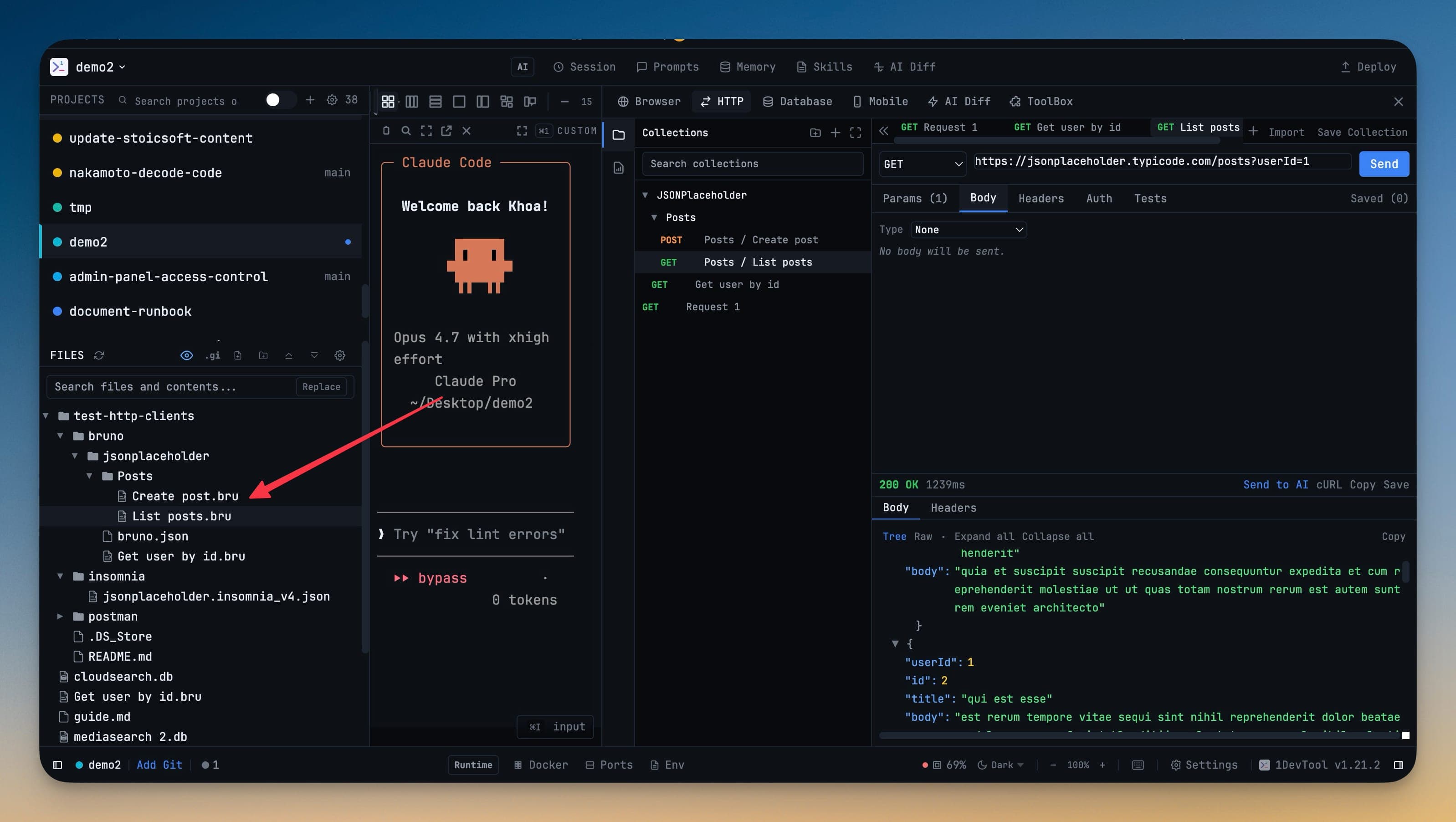
If you've ever shared an API project between teammates, you know the dance. Someone exports a Postman collection or commits a bruno/ folder. You clone the repo, find the file, then go file → import → pick file → confirm → wait. Three dialogs and a coffee later, the requests are in your HTTP client.
The import worked. But it took longer than the test request you wanted to run in the first place. And next time someone updates the collection, you do the whole dance again — or worse, you forget, and ship a stale version of the call.
v1.21.3 deletes that whole dance.
What changed
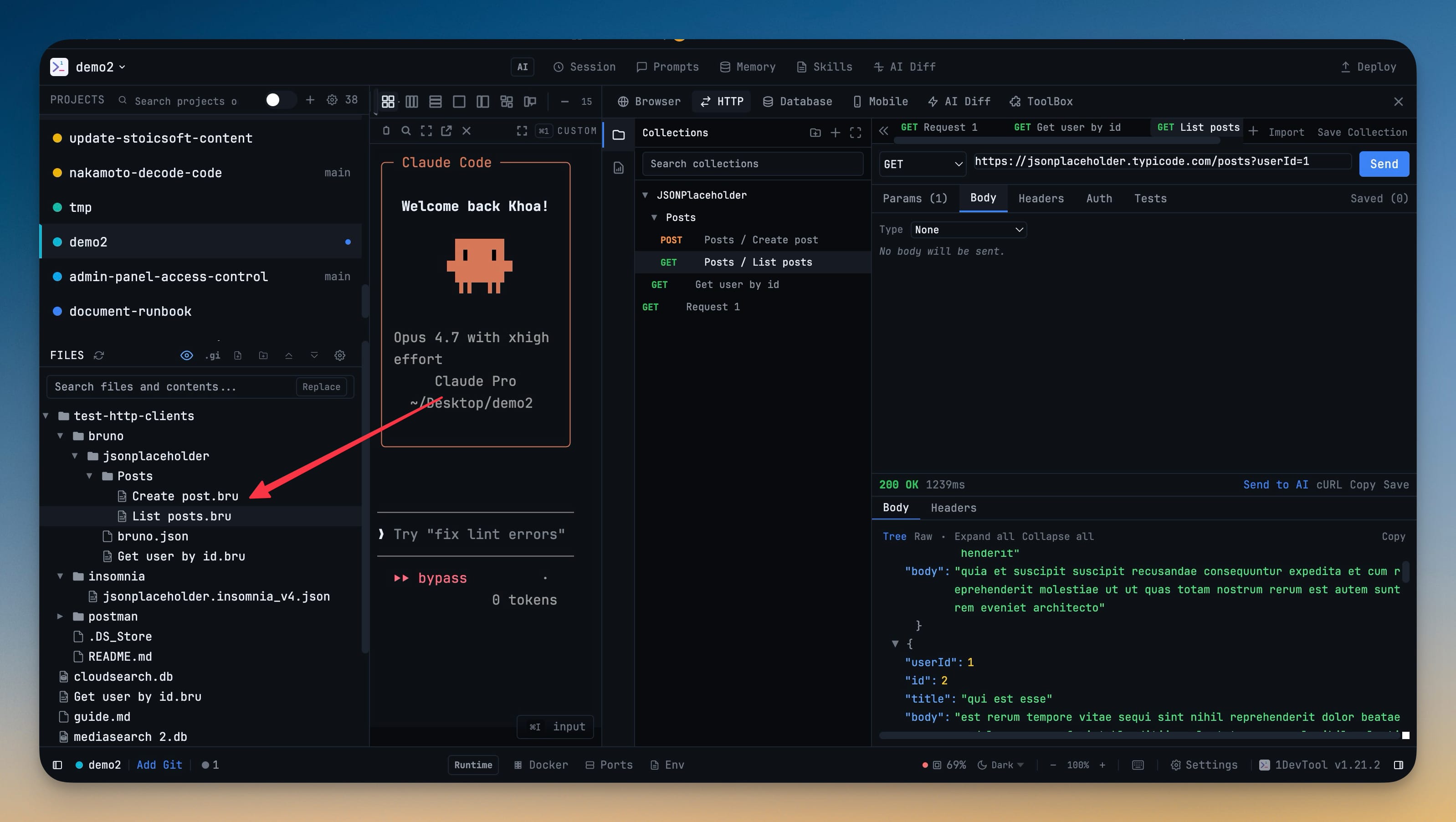
Postman, Bruno, and Insomnia collection files are now first-class citizens in 1DevTool's file explorer. Click one and every request in it opens in the HTTP client immediately — no import dialog, no manual format selection, no copy-paste. The first request becomes the active tab and the rest are right there in the HTTP sidebar.
How it works in practice
Supported formats are the ones you actually use
Three formats, recognised by filename and content:
- Postman v2.1 —
*.postman_collection.json, plus*.postman_environment.jsonfor env variables - Insomnia v4 —
*.insomnia.json,*.insomnia.yaml, plaininsomnia.yaml, orinsomnia_v4.json - Bruno — individual
.brufiles and wholebruno/folders with theirenvironments/*.brusiblings
If a file doesn't match one of those name patterns, or the content doesn't look like the format it claims, 1DevTool quietly skips it and treats the file as plain text. No false positives, no "why did clicking this YAML file open the HTTP client" surprises.
Folder structure is preserved, not flattened
If your Postman collection had Auth → Login, Auth → Refresh Token, Users → Get Profile, that's the tree you see in 1DevTool's HTTP sidebar — not a flat list of seven requests with prefixed names. Bruno folder hierarchies translate the same way. The mental model your team built into the collection survives the import.
Environments come along
Postman environment files dropped next to a collection, Insomnia environment blocks inside the same JSON, Bruno environments/*.bru files — they all get pulled in alongside the requests. The variables you'd use to fill in {{baseUrl}} or {{accessToken}} are immediately available in the environment picker.
When the import finishes, a summary toast tells you exactly what landed: "Imported 47 requests + 2 environments from MyCollection.postman_collection.json". You know what you got without spelunking through the sidebar.
Re-clicking is fast jump, not re-import
Once a collection file is imported, clicking the same file again doesn't re-import — it instantly switches the HTTP panel to that request. So if you have your file tree open on the left and the HTTP client on the right, you can navigate your API the way you navigate code: by clicking the file you care about.
Dedicated file icons for .bru, .postman_collection.json, and Insomnia exports make collection files stand out in the tree so you can find them at a glance. Right-click any of them for the explicit Open in HTTP Client menu item if you prefer.
Before vs after
| Step | The old way | With v1.21.3 |
|---|---|---|
| See collection in file explorer | ✓ | ✓ |
| Open HTTP client | Click panel | (already open) |
| Trigger import | File → Import → Pick file → Confirm format | Click the file |
| See requests | After the import dialog closes | Immediately |
| Switch to a specific request | Hunt in the sidebar | Click that request file |
| Update after teammate edits | Re-run the import | Pull from git, file change picks up automatically |
Also new — preview HTML files in the built-in browser
A smaller convenience in the same release: right-click any .html or .htm file and you'll see Open in 1DevTool's Browser alongside Open with Machine's Browser. The first one renders the file inside the browser panel right next to your editor — perfect for previewing static sites, build outputs, exported reports, or that scratch HTML you wrote to test a layout idea.
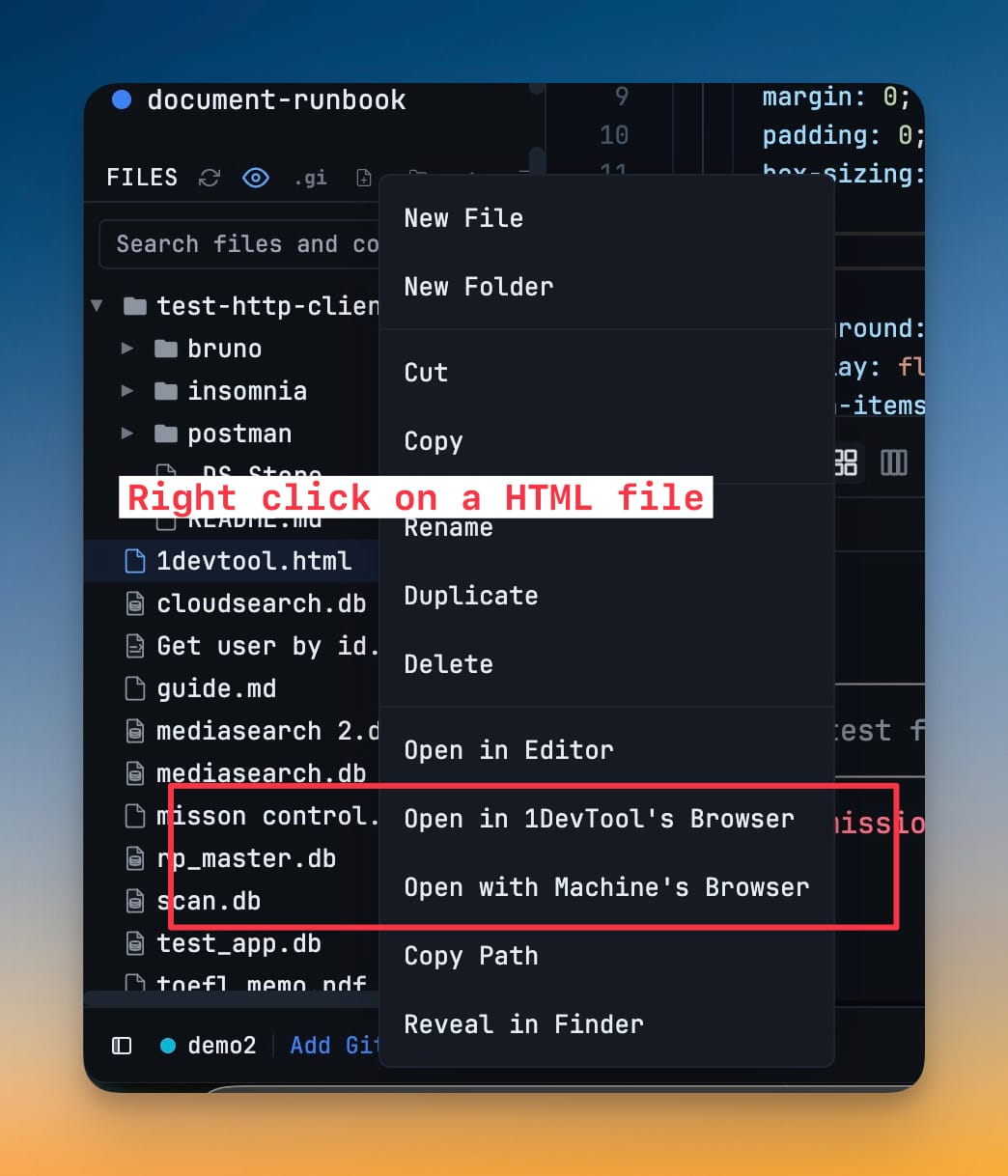
The same context menu pair is available for PDFs, audio, and video files — so previewing build artefacts, design exports, or media assets stays inside 1DevTool instead of bouncing through Finder.
A few quieter fixes
- The project dropdown in the breadcrumb now sorts the way your sidebar does (group-aware, root groups first), instead of in random insertion order.
- Force scroll to bottom on terminal click is now off by default for new users — so you can scroll up through agent output without the terminal yanking you back. Existing users keep their current setting; it's a toggle in Settings → Terminal.
- Fixed clicking an already-imported Bruno or Postman request file doing nothing — the HTTP panel now refreshes from project state instead of silently keeping the previous request on screen.
Try it
Update to v1.21.3, drop a .postman_collection.json, .bru, or .insomnia.json into a 1DevTool project, and click it. The collection that took you a multi-step import last week opens in one click this week. If you live in a multi-collection API project, this is the first version of 1DevTool that lets you navigate your API the same way you navigate code.
From across the StoicSoft network
Hand-curated reads on the same topic from sister sites in the StoicSoft family.
 ServerCompass6 min read
Move Render Apps to Your Own VPS Without Rewriting the Dockerfile
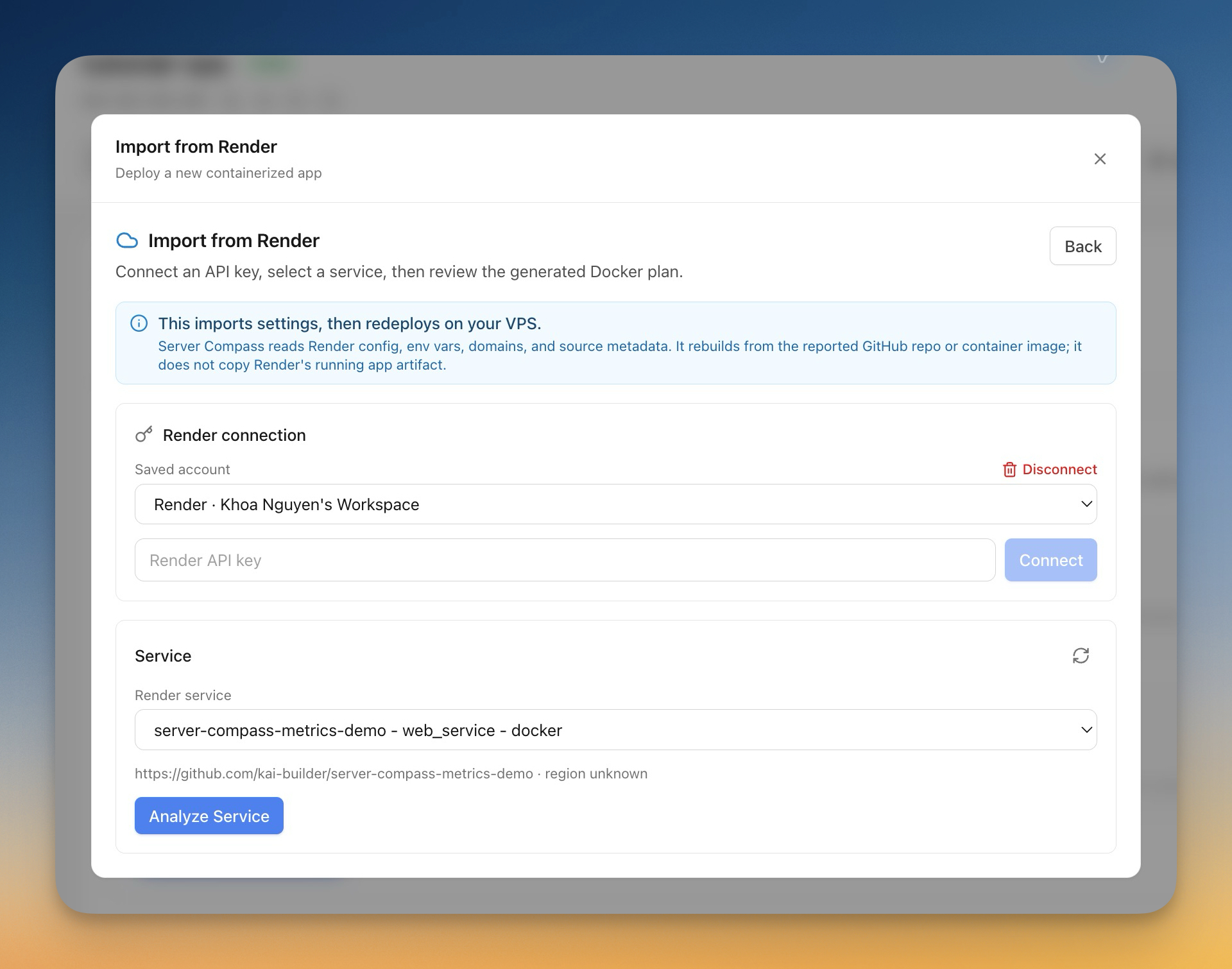
Server Compass v1.26.0 connects to your Render API key, pulls env vars, domains, secret files, and build commands, and generates a Docker plan you can deploy in one click — plus firewall lockout protection for custom SSH ports.
Read on servercompass.app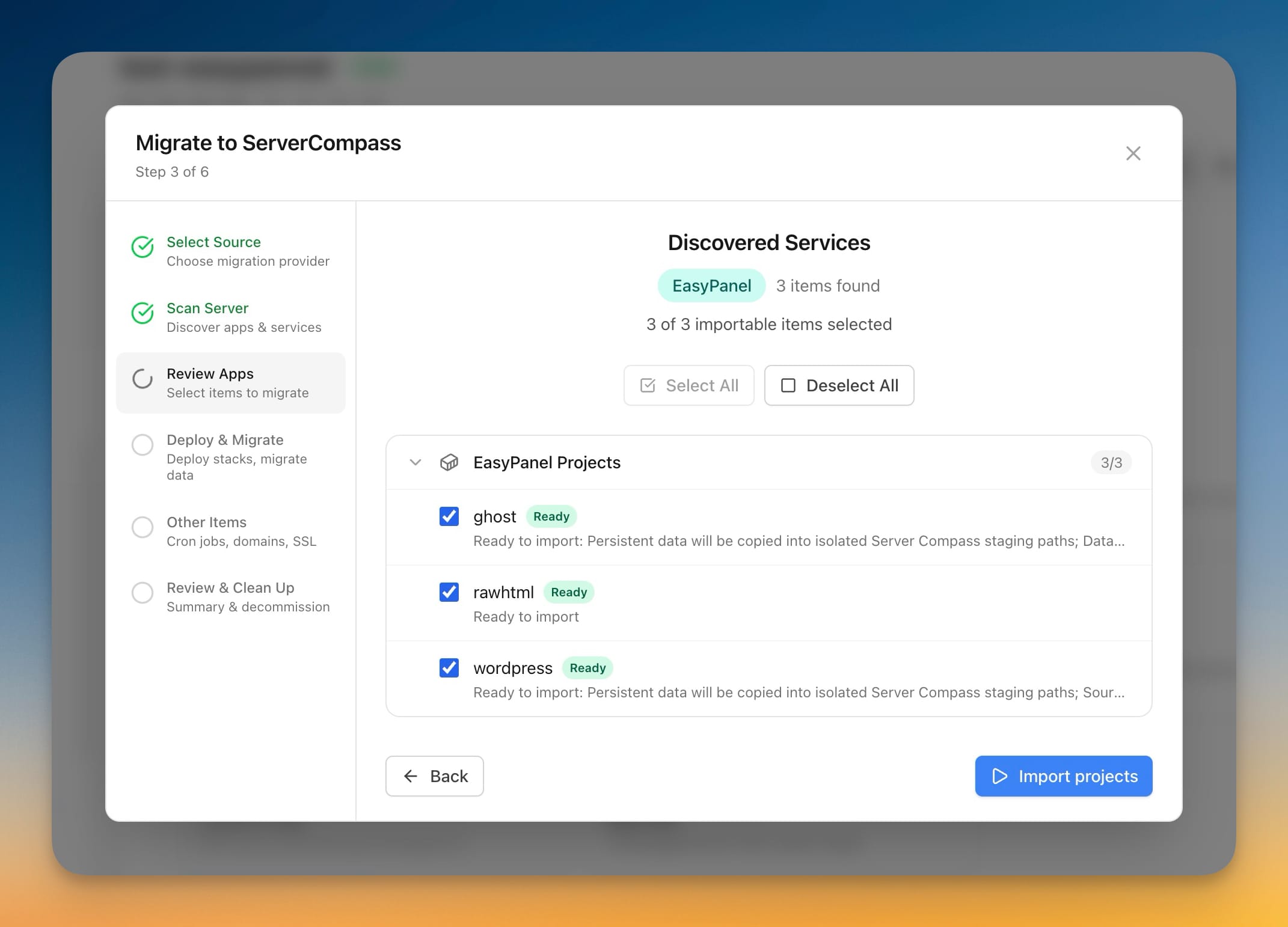 ServerCompass7 min read
Move Your EasyPanel Apps to Your Own VPS — Without Taking the Old One Down
Server Compass v1.33.0 connects over your existing SSH login, takes a read-only inventory of your EasyPanel projects, and copies supported apps plus their MySQL, MariaDB, and PostgreSQL data into isolated staging — while EasyPanel keeps serving traffic.
Read on servercompass.app