May 26, 2026
Click any .sqlite file to start querying — no connection setup
1DevTool's new SQLite client opens .sqlite, .sqlite3, and .db files straight from the file explorer. Plus a searchable keyboard shortcut guide one ⌘/ away.
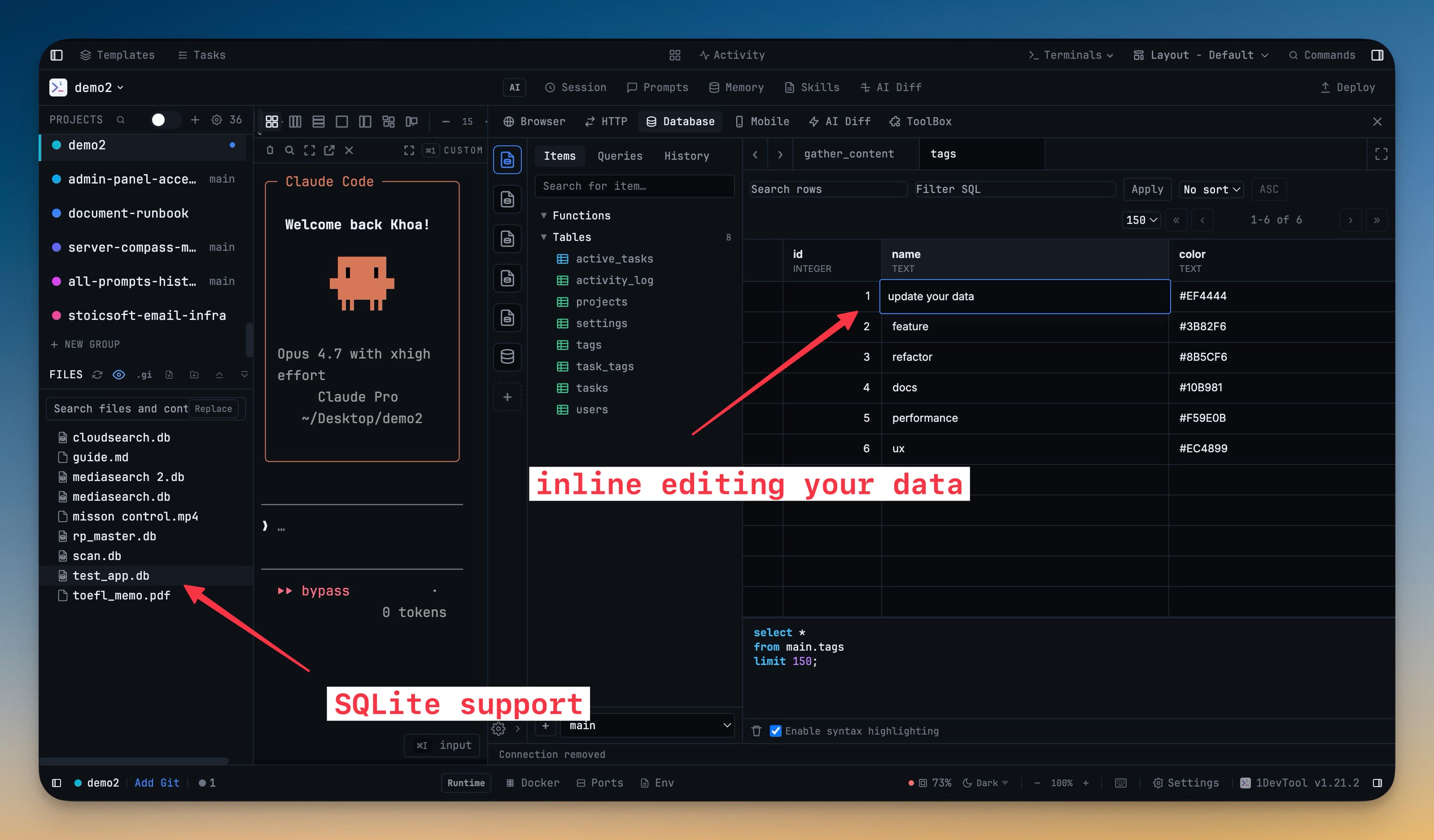
You spotted a .sqlite file in the project — maybe a Rails dev database, a Better-Auth session store, or a scratch file some script left behind. You want to peek inside. What happens next is annoyingly familiar.
You go look for a SQLite GUI. You install DB Browser, or you remember you already have TablePlus but it's behind a paywall now, or you give up and pipe sqlite3 file.db '.dump' through less. Either way, the moment you wanted to ask the file one quick question — what tables does it have, how many rows, what's in the user table — turned into a 60-second detour into installing or configuring another tool.
That detour is gone in v1.21.2.
What changed
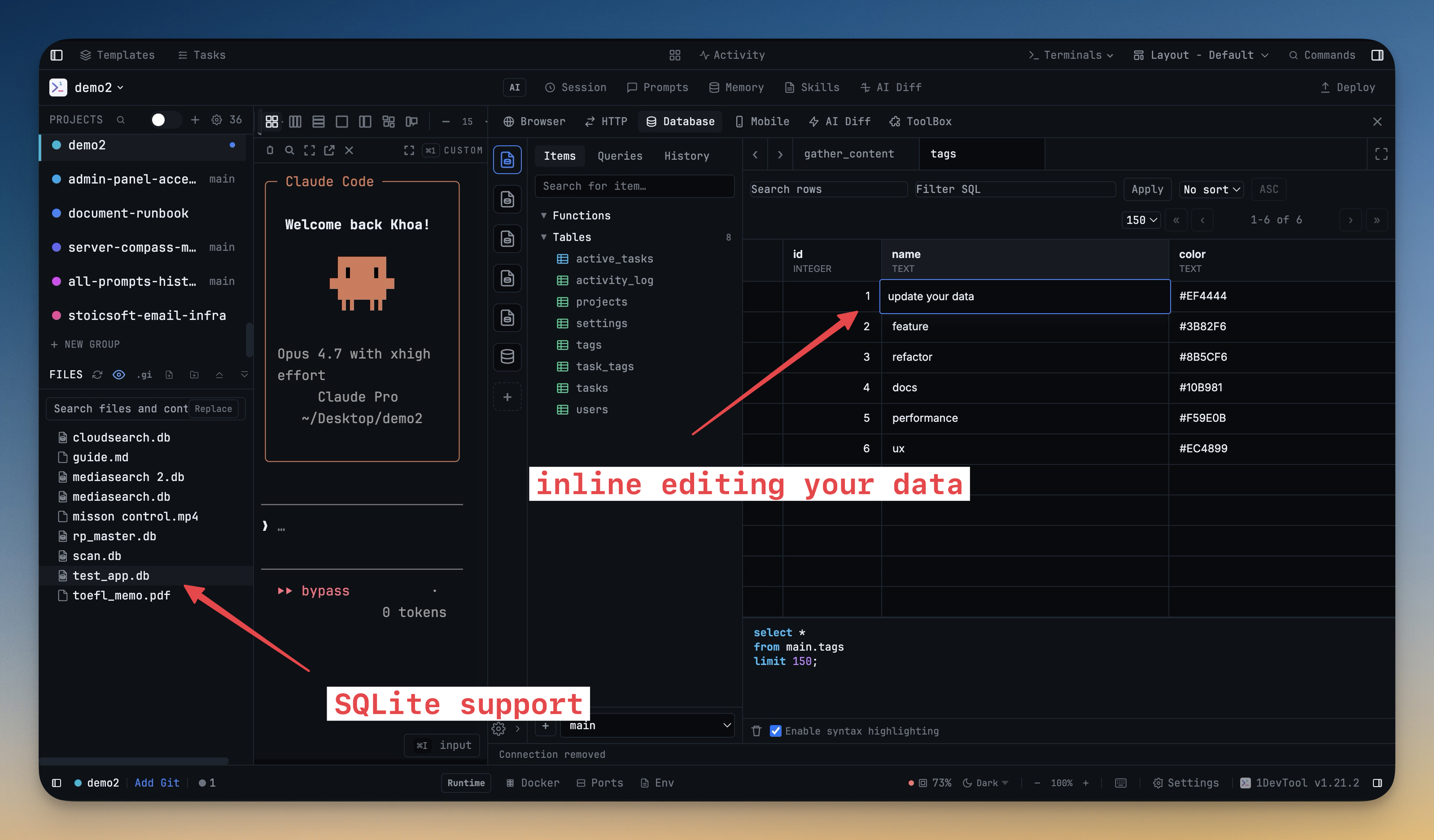
Click any .sqlite, .sqlite3, or .db file in 1DevTool's file explorer and it opens in the database client immediately — same SQL editor, same result grid, same schema sidebar you use for Postgres, MySQL, Redis, and every other engine 1DevTool already speaks. No connection setup, no "new connection" dialog, no engine picker. You clicked a database file; you're querying it.
How it works in practice
Click-to-open from the file tree
SQLite files now get a dedicated file icon in the explorer so they stand out next to your code. Single-click one and 1DevTool tests the file is a valid SQLite database, creates an internal connection on the fly, and drops you into the query editor with the schema already loaded in the sidebar. Right-click the same file and you'll see Open in Database Client in the context menu — handy when you want to be explicit about intent.
The connection that gets created is scoped to the file. It doesn't pollute your saved-connections list with one-off entries for every database file you've ever clicked.
The schema sidebar tells you what you're looking at
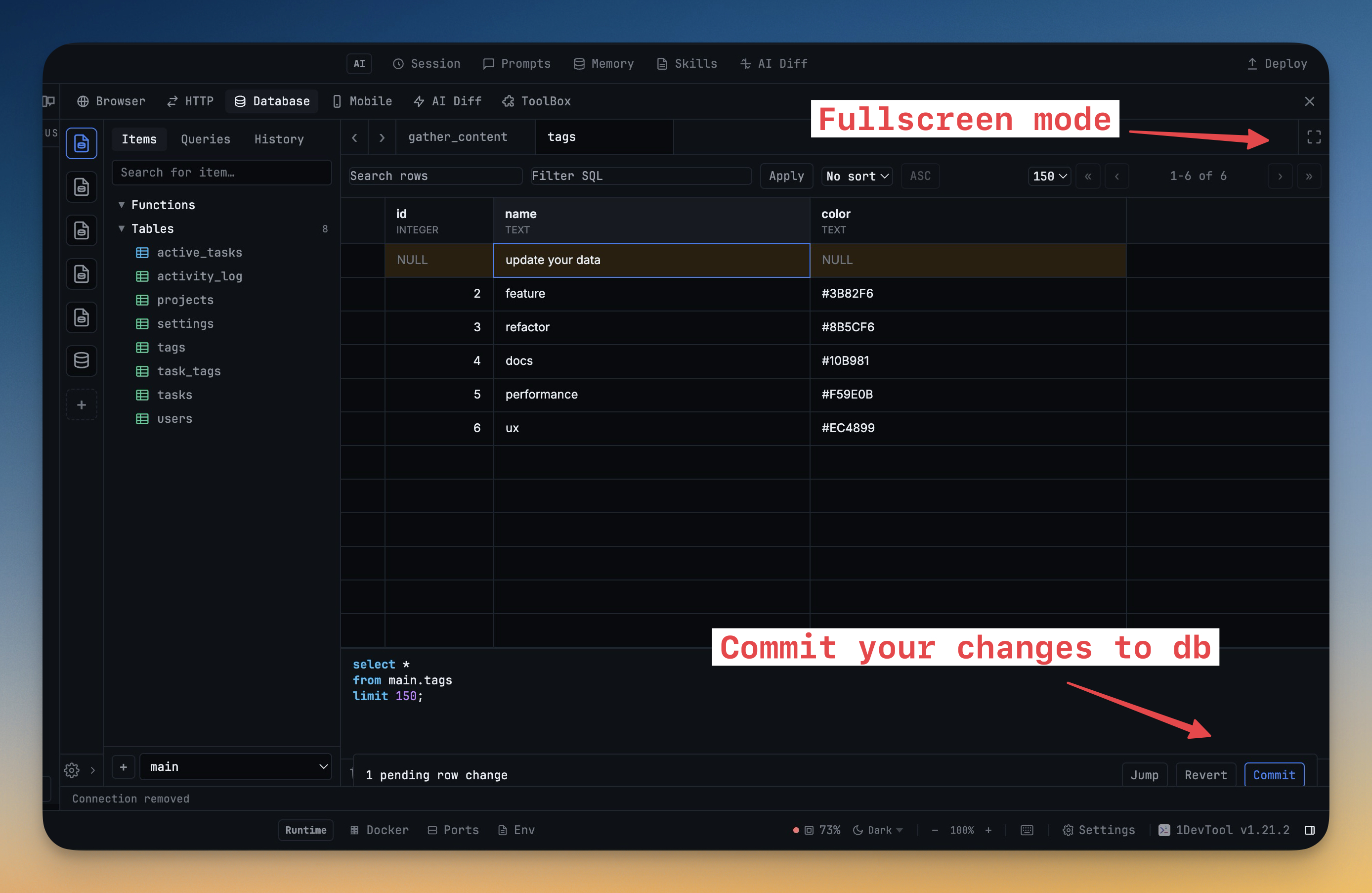
Table and view listings now show row counts inline. Before you write a single query, you can see at a glance: this users table has 3 rows, this sessions table has 12,847. That's usually enough to know whether you're looking at the right database or the wrong one — and which tables are worth a SELECT * versus a LIMIT 100.
Edits in the result grid are staged, not committed. When you're ready you click Commit Changes and 1DevTool writes them in one transaction. Misclick a cell? Discard the edit and the file on disk is untouched.
Adding a connection by hand still works — but easier
For files outside your project tree, the connection form now adapts when you pick SQLite as the engine. Host, port, user, password, SSL — all hidden, because none of them apply to a local file. The only field that matters is the path, and there's a Browse button next to it that opens your OS file picker so you don't have to type the path manually.
Before vs after
| Step | The old way | With 1DevTool v1.21.2 |
|---|---|---|
| Discover database file | See .sqlite file in explorer | See .sqlite file in explorer |
| Pick a GUI | Install DB Browser, pay for TablePlus, or use sqlite3 CLI | (skip) |
| Configure connection | Point the GUI at the file | (skip) |
| Open file | Wait for schema to load | Single-click in file tree |
| Start querying | New tab → write SQL | Cursor already in editor with schema loaded |
One more thing — press ⌘/ for the shortcut guide
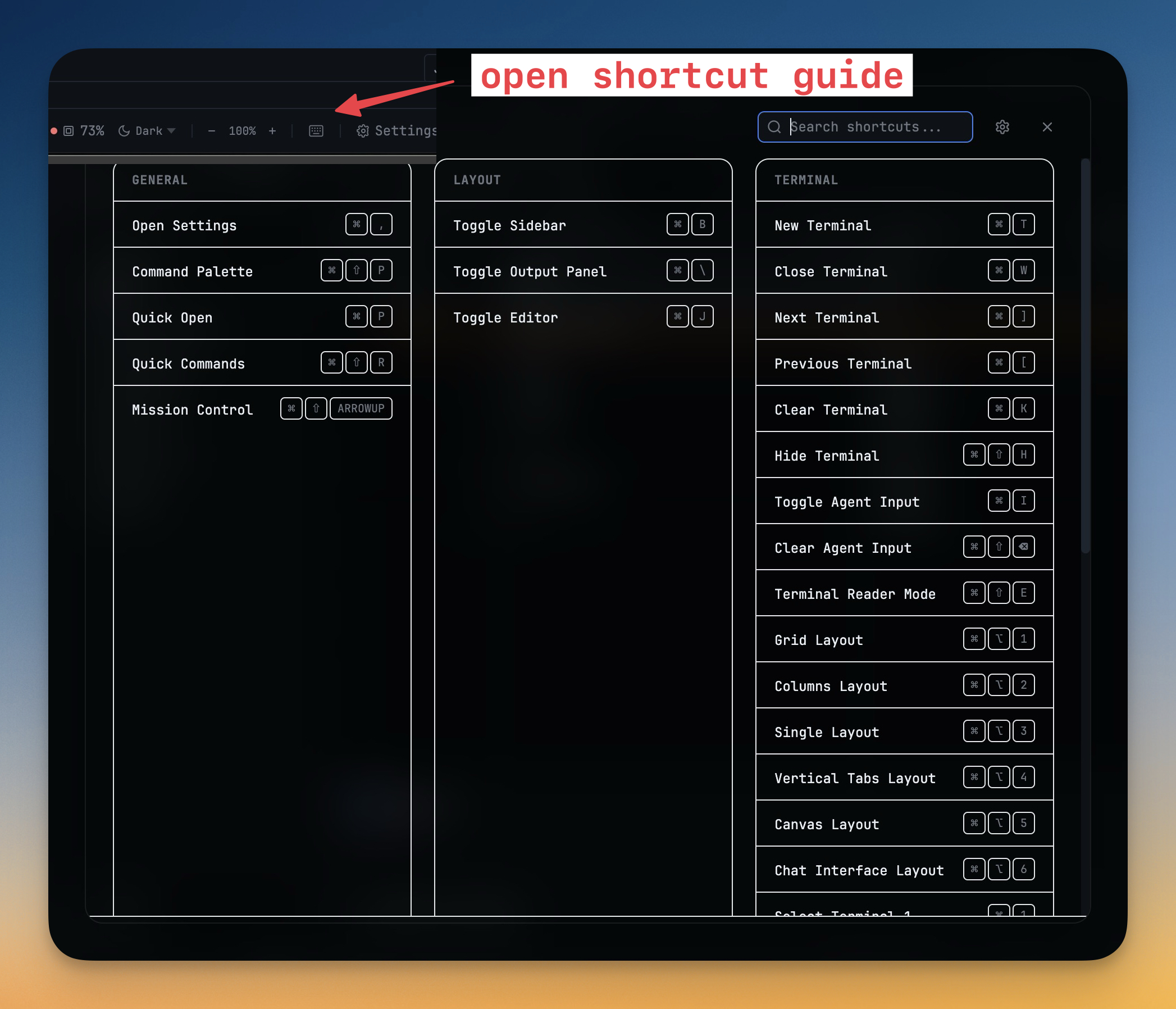
While you're getting comfortable with the SQLite client, here's something else worth knowing about: press ⌘/ (or Ctrl+/ on Windows/Linux) and a searchable shortcut reference fades in. Every keyboard binding the app has, organized into General, Layout, Terminal, Editor, Browser, and Tasks. Type to filter by name, key combination, or description — "switch panel" surfaces the panel-switching bindings, "⌘k" shows you what's bound to that combo.
There's a link straight to Settings → Shortcuts in the header if you want to rebind anything.
Try it
Grab v1.21.2 and click a .sqlite file. If you don't have one handy, the easiest test is to look in your operating system's caches — Chrome, Slack, Notes.app, almost every Electron and native macOS app keeps state in SQLite. (Just don't UPDATE anything while the app is running.) For everything else, press ⌘/ to see what shortcuts you have for free.
From across the StoicSoft network
Hand-curated reads on the same topic from sister sites in the StoicSoft family.
 ServerCompass5 min read
Never Lose Your SSH Connection Again: Auto-Recovery and Database Table Browser
Automatic SSH reconnection with retry logic, plus a database table browser with data viewer, pagination, search, and smart record creation forms.
Read on servercompass.app ServerCompass5 min read
Browse, Query, and Back Up Your Databases Without Leaving Your Desktop
Built-in database admin panel with credentials management, one-click backup/restore, SQL query editor, and table browsing for PostgreSQL, MySQL, and MongoDB.
Read on servercompass.app