May 22, 2026
Drag Files Into Any Terminal — No More Typing Paths
Drop a file from Finder or the File Tree onto any terminal to insert its path instantly — AI terminals get @mention syntax, shell terminals get properly escaped paths.
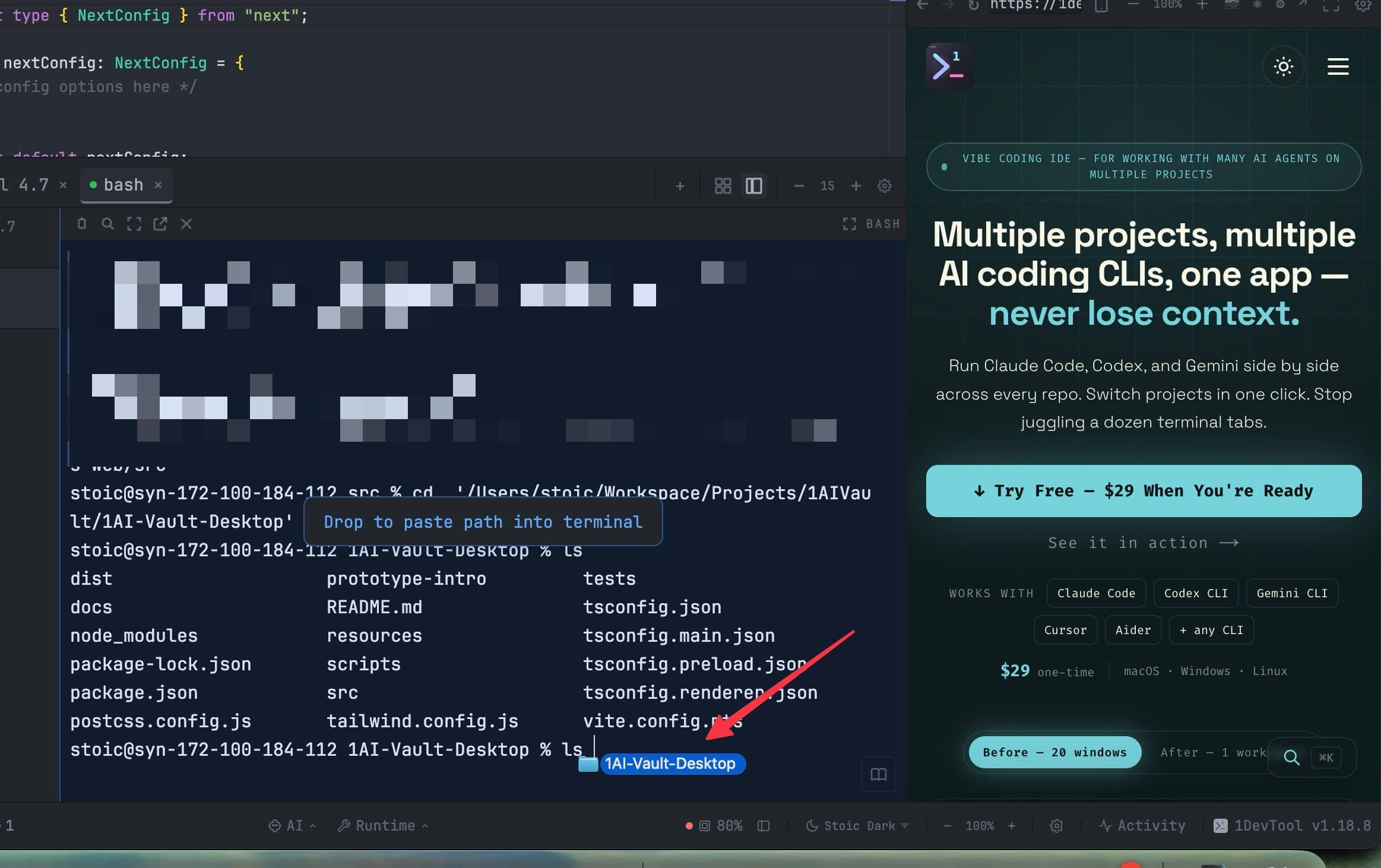
You're halfway through a command and you need a file path. So you switch to Finder, navigate to the file, right-click, copy the path, switch back to the terminal, paste it, and realize you forgot the quotes around the space in the directory name. Or you're feeding a file to your AI agent and you type the path from memory, getting it wrong twice before landing on the right one.
Path entry shouldn't require context-switching or memorization. You can see the file right there in Finder or the File Tree. You just need to get it into the terminal.
What changed
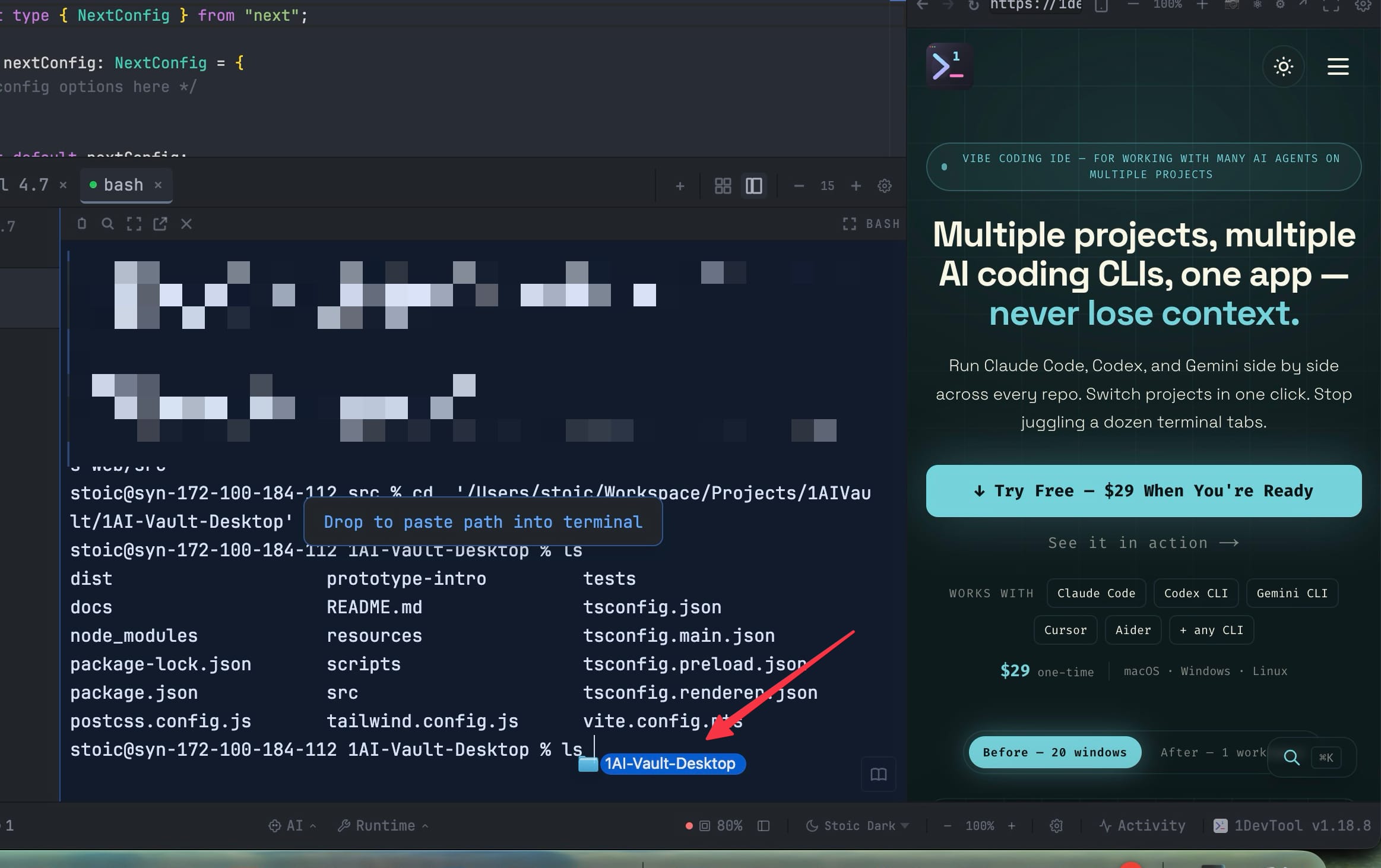
1DevTool v1.19.0 lets you drag any file or folder from Finder, Explorer, or the built-in File Tree directly onto a terminal to insert its path at the cursor. AI terminals receive @mention syntax so your agent treats the file as a real reference. Shell terminals get properly shell-escaped paths with correct quoting for your platform.
How it works in practice
Shell terminals: escaped paths ready to use
Drag a file from Finder onto a bash or zsh terminal. The path lands at the cursor with proper single-quote escaping on macOS and Linux, or double-quote escaping on Windows. If you've already typed cat or cd , the path slots right in after your partial command. Drop multiple files at once and they arrive space-separated, each individually escaped.
AI terminals: @mention syntax for agent prompts
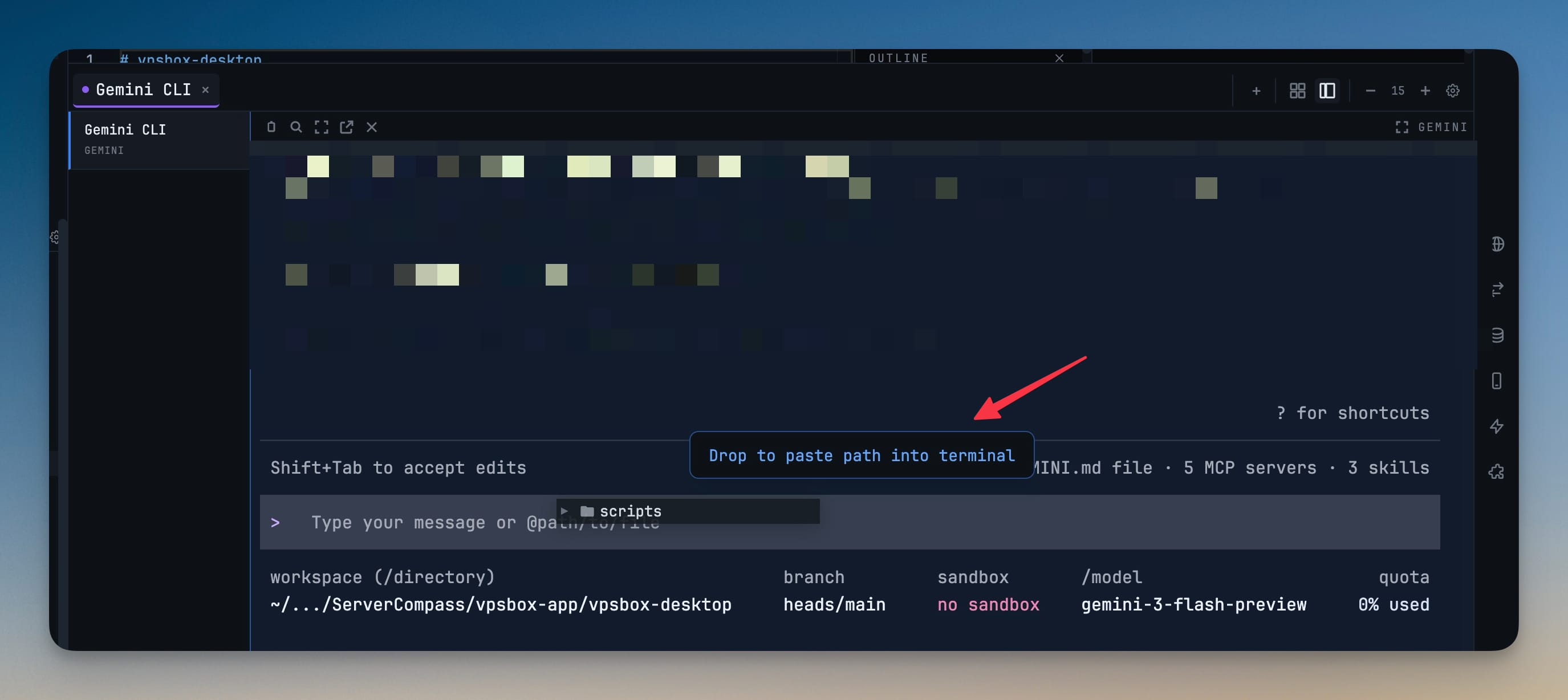
Drop a file onto a Claude, Codex, or Gemini terminal and the path appears as @path/to/file in the agent prompt draft. Your AI agent parses it as a file reference — not a quoted string it needs to guess about — so it can read, edit, or reason about the file directly.
Internal File Tree drags
The same gesture works from 1DevTool's own File Tree panel. Drag a file from the sidebar onto any terminal. No need to right-click and copy path, no need to type it out. The File Tree already shows you the file — now you can put it where you need it in one motion.
Native Selection is now the default tmux mode
v1.19.0 also makes Native Selection the default tmux mouse behavior. Wheel scroll moves the terminal directly, drag selects text natively, and the tmux copy-mode position indicator never appears. If you previously switched to "Force tmux mouse on" to work around scroll issues, you're automatically migrated back to the working default.
Before vs After
| Before | After |
|---|---|
| Copy path from Finder, paste, fix quoting | Drag the file, path is inserted and escaped |
Type @/path/to/file manually for AI agents | Drop the file, @mention syntax auto-generated |
| Multi-file paths: copy-paste one at a time | Drop a selection, all paths inserted at once |
| Tmux scroll broke native wheel behavior | Native Selection mode works out of the box |
Performance gains under the hood
The dashboard is dramatically faster in this release. Terminal card previews now pull from an indexed SQLite query instead of scanning live PTY buffers. Git status calls for AI terminal cards are fetched lazily and cached per run. The terminal process lookup that used to scan every project's terminal list on every keystroke is now an O(1) Map index. And AI terminal buffers are no longer saved to disk every 30 seconds — they rehydrate via session resume on restart, so the periodic serialization was pure wasted I/O.
Try it
Update to v1.19.0 and drag a file from Finder onto your terminal. That path you used to type from memory arrives perfectly escaped in one gesture.