May 25, 2026
Preview PDFs, Videos, and Audio Without Leaving Your Editor
Click a PDF, video, or audio file in the file explorer and it renders in the browser panel — no separate app, no context switch.
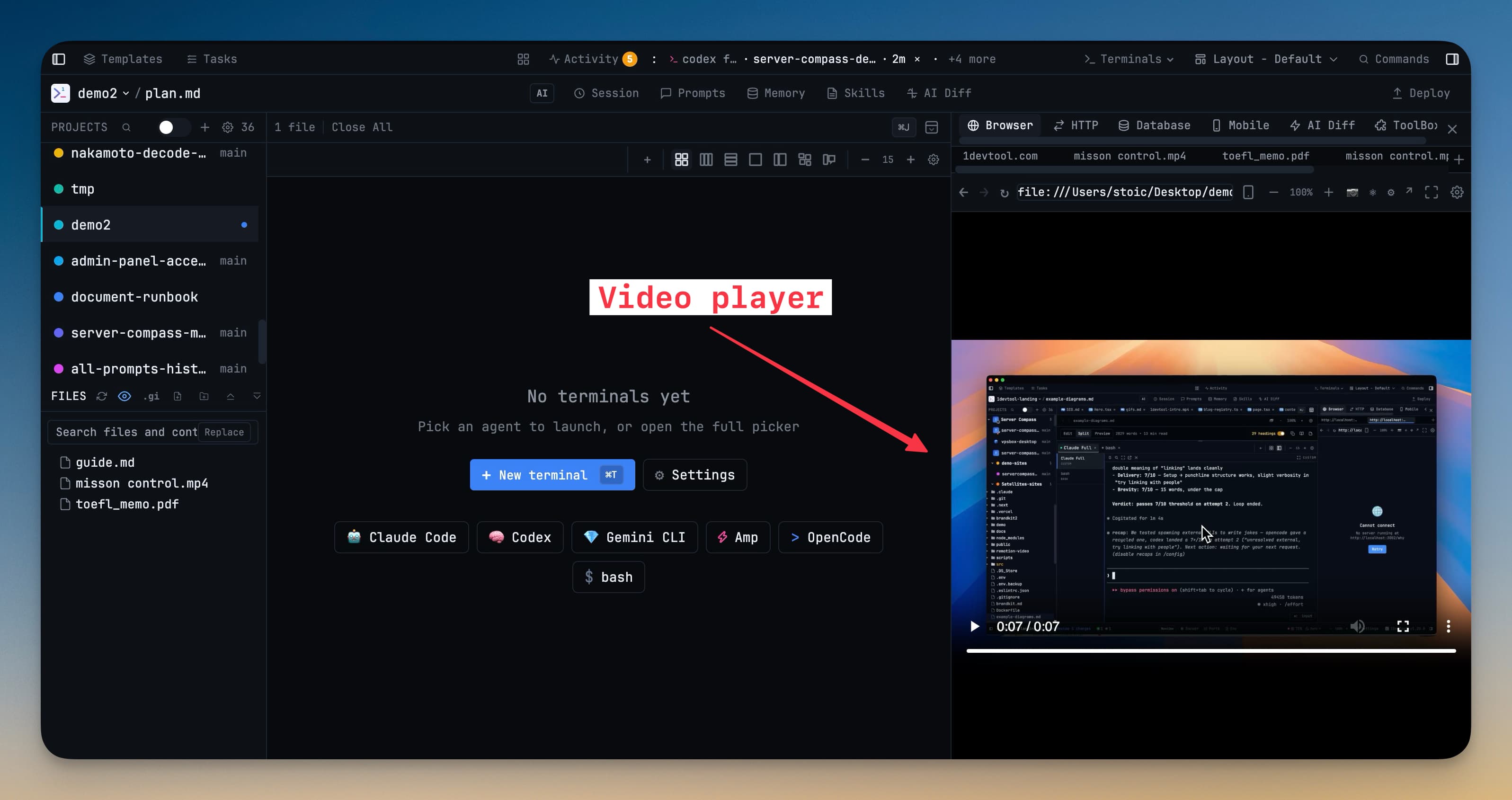
You click a PDF in your file explorer and your OS opens Preview. You click a video and QuickTime launches. Each file pulls you out of your editor and into a different app. By the time you find the right page or timestamp, you have forgotten what you were looking for.
1DevTool v1.21.1 keeps media files inside the app. PDFs, videos, and audio play in the built-in browser panel — no context switch, no separate window.
Media files open where you already are
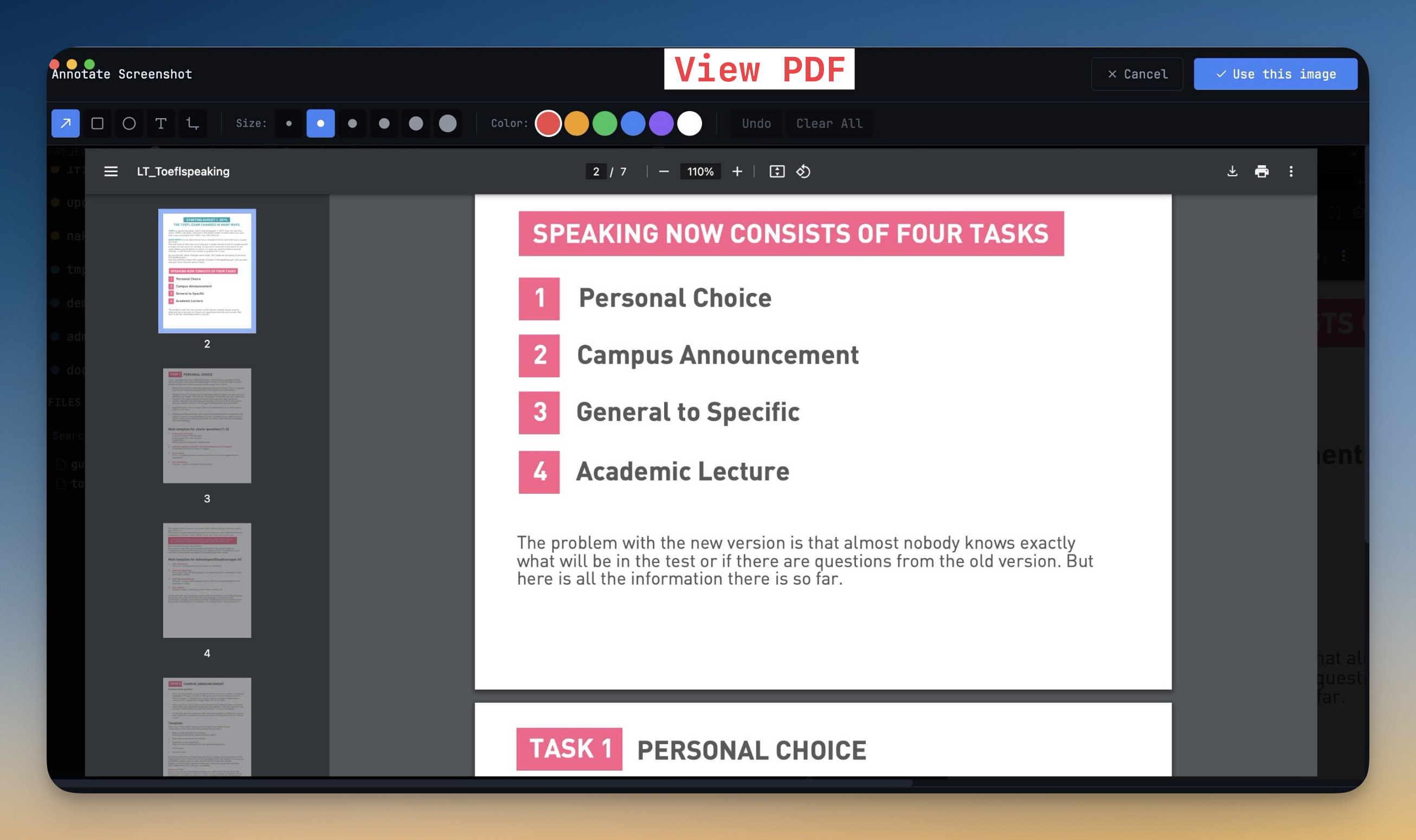
Click a PDF, video, or audio file in the file explorer and it opens directly in the browser panel. The file renders inline using the embedded Chromium engine, which means full PDF page navigation, native video controls with seeking and playback speed, and audio playback with waveform scrubbing.
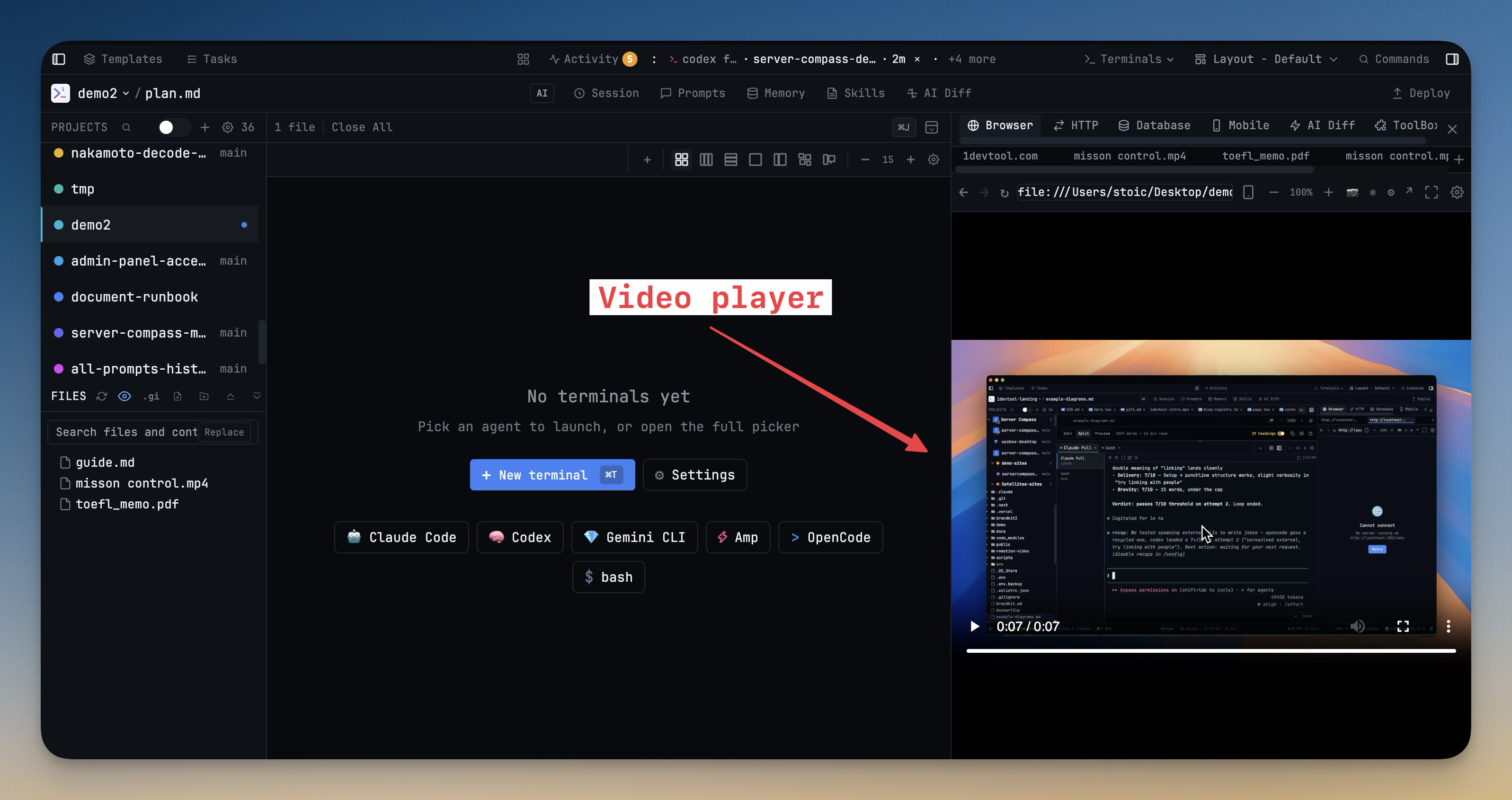
Supported formats cover the files developers actually encounter: PDF for documentation and specs, MP4/WebM/OGV for video, and MP3/WAV/OGG/FLAC/AAC/M4A/OPUS for audio. If you open a media file through the editor tabs instead of the file explorer, a styled placeholder card explains the file type and offers a one-click "Open in Browser" button. If the browser has reached its tab limit, the file falls back to an editor tab so it always opens somewhere.
How media preview works in practice
Preview documentation alongside code
Open a project's ARCHITECTURE.pdf in the browser panel while editing the code it describes. Scroll through the PDF on the right, write code on the left. No separate window to manage, no Alt-Tab to find the right page.
Review video recordings without leaving your workspace
Click a screen recording or test video in the file explorer and it plays in-place. Pause, seek, adjust speed — all with standard video controls. Useful when reviewing UI recordings, demo videos, or test output captured as video.
Listen to audio assets in context
Audio files play with the same embedded controls. If you are working on a project that handles audio — transcription tools, podcast apps, sound effects — you can preview files without opening a media player.
MCP badges now land on the right terminal
This release also fixes a subtle but important accuracy issue with MCP tool activity badges. Previously, badges for tool calls could appear on whichever terminal was most recently active, regardless of which agent triggered the call. Now each badge is tied to the specific AI agent that invoked the tool.
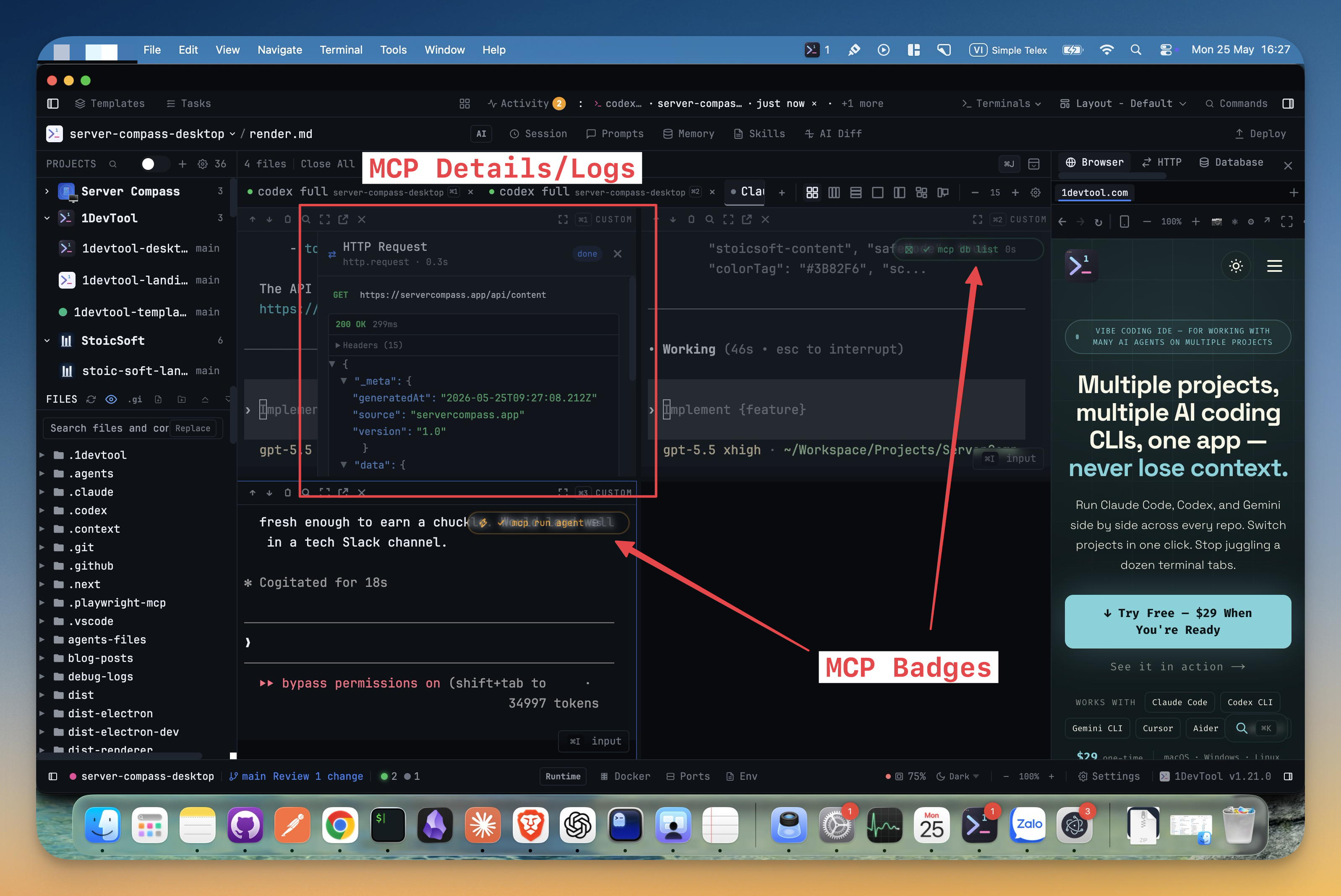
The fix works through terminal identity tracking in the MCP bridge. Each tool invocation carries a terminal ID through the bridge so badges land on the correct terminal even when multiple agents are running simultaneously. Sub-agent detection has also been expanded to recognize Codex inline-mode output patterns (Running <cli>, Ran <cli>) alongside the existing Claude Bash() format.
Before vs After
| Scenario | Before v1.21.1 | After v1.21.1 |
|---|---|---|
| Open a PDF from the project | Launches system Preview → separate window → find the right page | Click in file explorer → renders in browser panel → scroll alongside code |
| Play a video file | Launches QuickTime/VLC → new window → lose workspace context | Click in file explorer → plays inline with native controls |
| Check which AI triggered a tool call | Badge appears on the last active terminal → ambiguous | Badge appears on the exact terminal that owns the agent |
Open a file:// path in the browser | Broken — path got prefixed with http:// | Works — local paths are recognized and loaded correctly |
Try it
Update to 1DevTool v1.21.1 and click any PDF, video, or audio file in your file explorer. It opens in the browser panel — no configuration, no plugins, no separate app.
From across the StoicSoft network
Hand-curated reads on the same topic from sister sites in the StoicSoft family.
