Jul 9, 2026
Split-View Editor, Collapsible Terminals, and Grok as a Built-In Agent
1DevTool 1.35.0 lets you split the editor into side-by-side groups, collapse and resize the terminal panel, auto-name your AI tabs, switch branches from the status bar, and run Grok as a built-in agent.
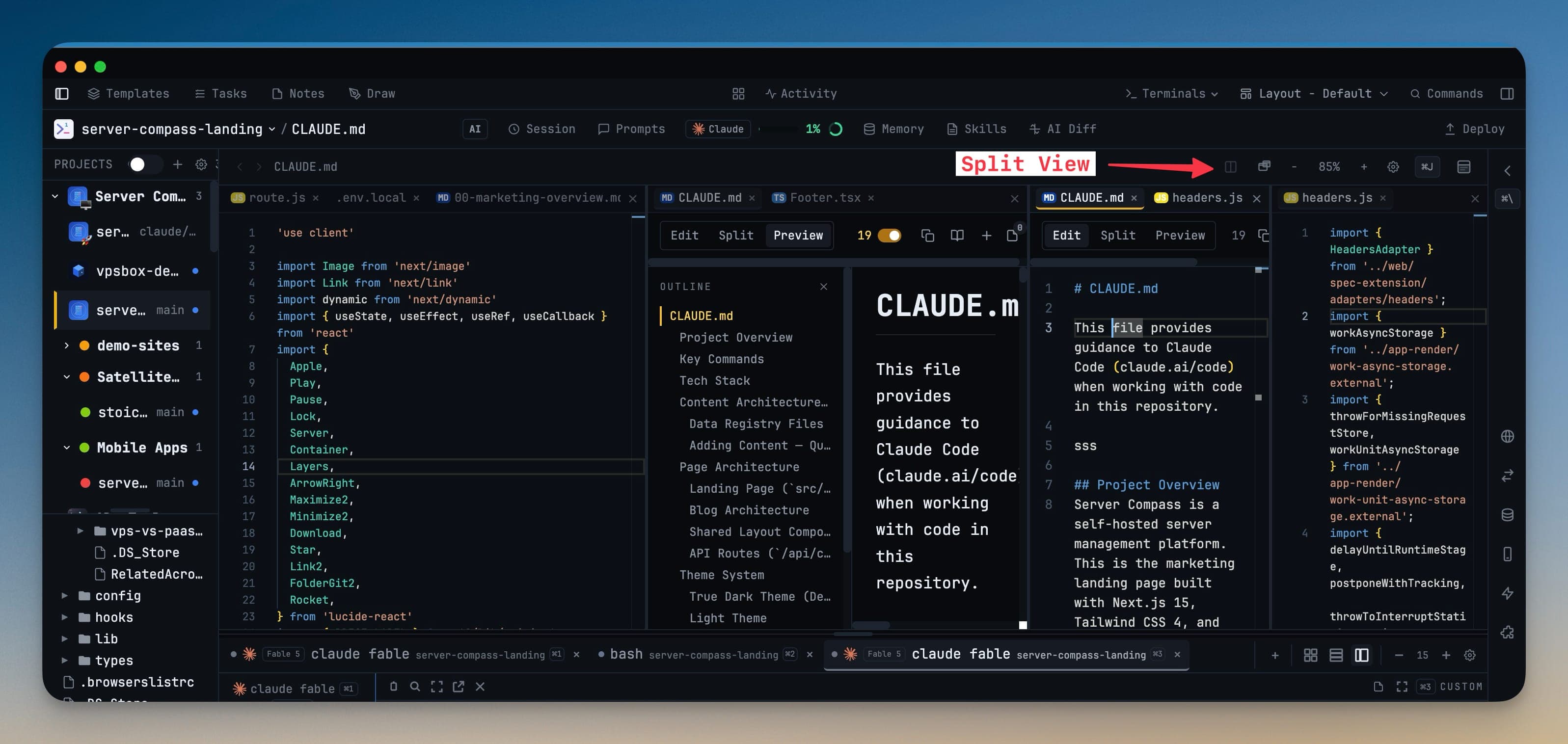
Your editor started the day with one file open. By mid-afternoon you're jumping between a component and the API route that feeds it, scrolling up in one to remember what the other returned. The terminals stacked under your code have crept up to half the screen, so reading a long file means squinting at the top third. And the four AI agents you kicked off an hour ago are all labeled "Terminal 2," "Terminal 3," "Terminal 4" — you have to click into each one just to remember which is refactoring auth and which is writing tests.
None of that is the work. It's the friction around the work — a workspace that doesn't quite fit the shape of what you're doing right now.
Your editor and terminals now bend to fit the task
1DevTool 1.35.0 makes the workspace reshape around you instead of the other way around. You can split the editor into side-by-side groups, fold the terminal panel out of the way when you need to read, widen the terminal tab list, and let your AI tabs name themselves after what they're actually doing. The layout stops being a fixed frame and starts moving with the task in front of you.
How it works in practice
Compare two files without losing either one
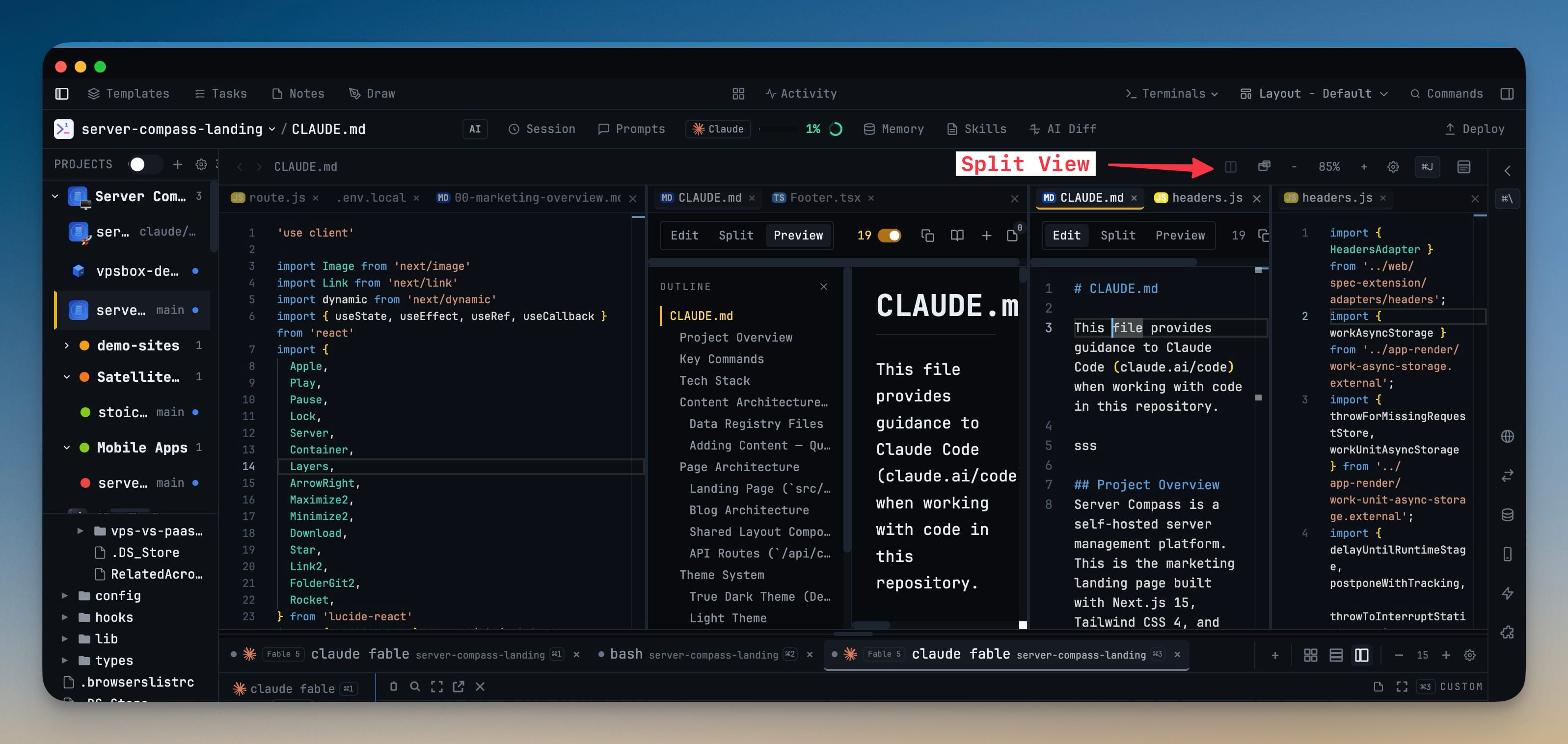
Open a second file beside the first instead of tabbing back and forth. The editor now splits into as many as four side-by-side groups, and you drag the dividers to give each one the width it needs — a wide code pane on the left, a narrow reference on the right. You can even keep the same file open in two groups at once, editing at the top while you watch a different section below. When you close the last file in a group, that group closes itself, so the split never leaves an empty column behind.
Fold the terminals away when you're reading
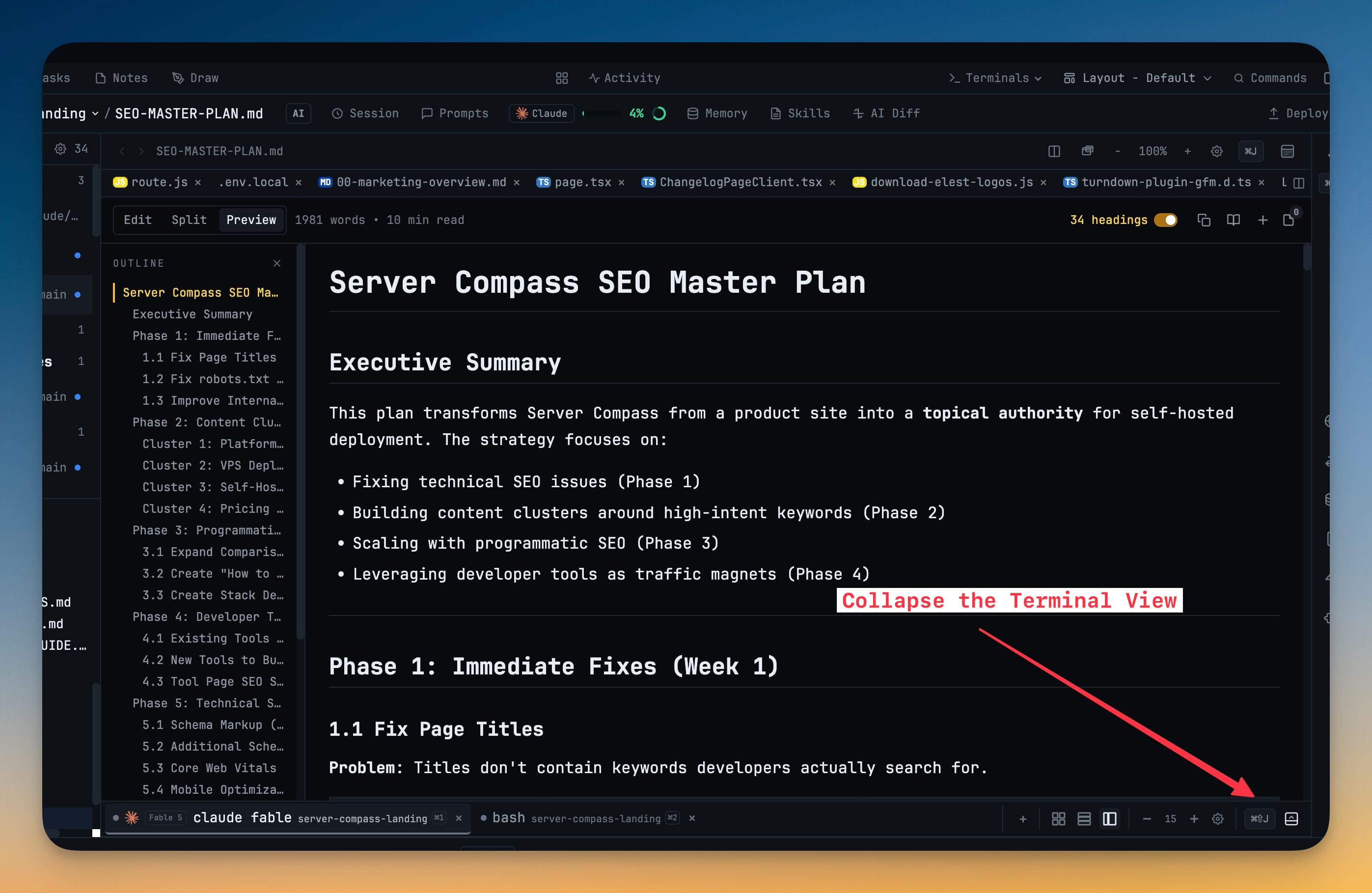
Sometimes you just want the whole screen for the file. Collapse the terminal section with the header toggle or Cmd/Ctrl+Shift+J, and the editor expands to fill the space. The terminals don't stop — they keep running in the background, so your dev server, your build watch, and your AI agents all carry on while they're hidden. Hit the toggle again and everything is exactly where you left it, scrollback intact.
Give your terminal tabs the width — and the names — they deserve
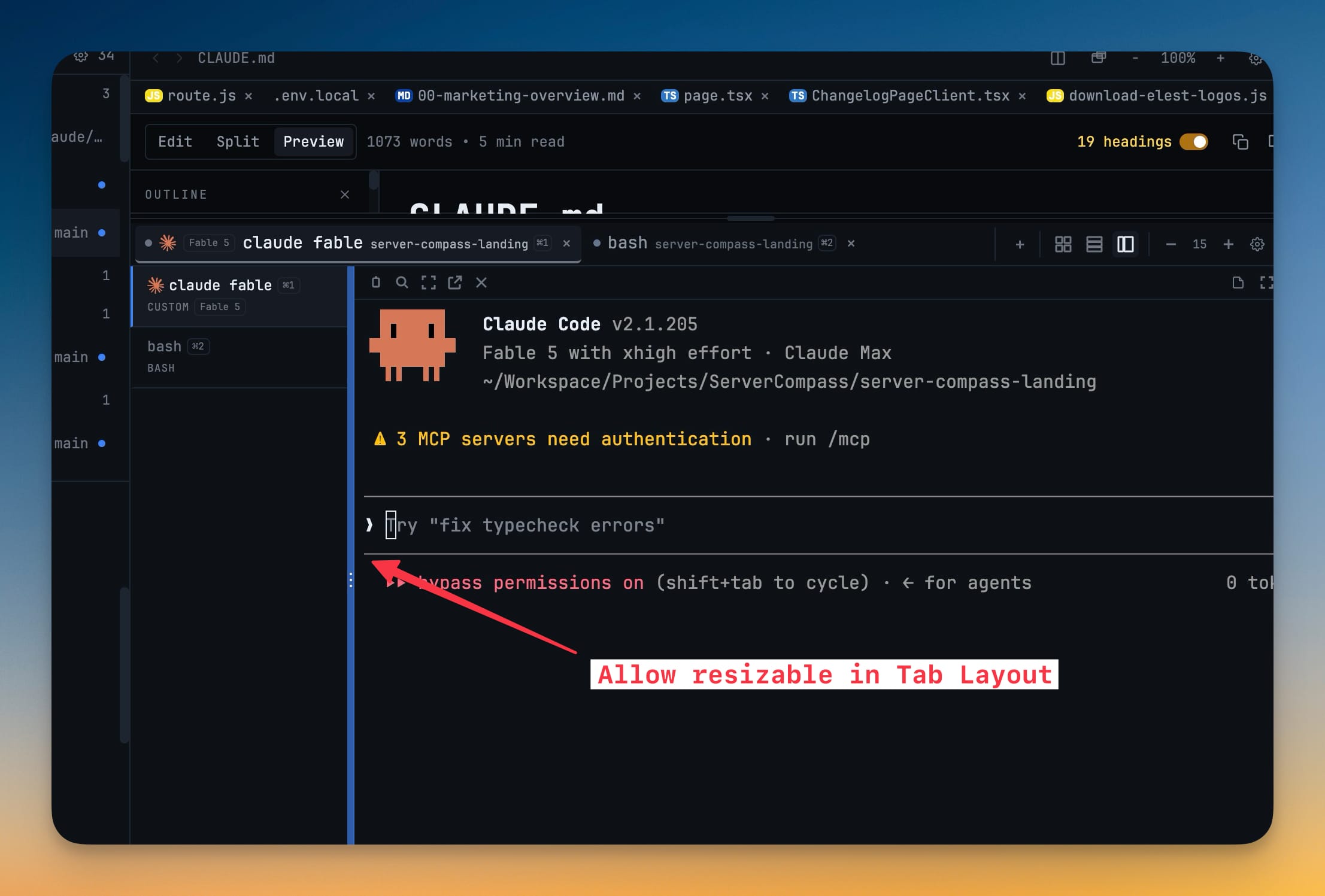
In the vertical-tabs layout, the tab list used to be a fixed sliver. Now you drag its edge to whatever width reads best, and double-click the handle to snap it back to default. The width is remembered per project, so a repo with long session titles can keep a wider list while a scratch project stays compact.
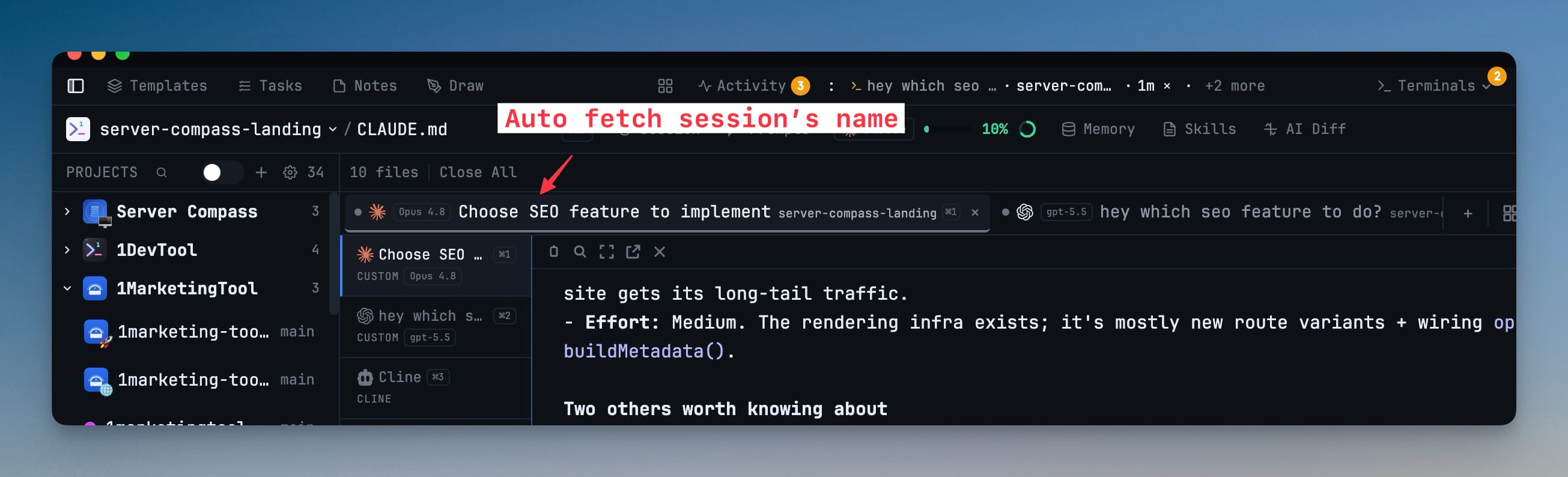
And those anonymous "Terminal 3" tabs are gone: AI terminal tabs now rename themselves to the current session title, so the tab that's "Choose SEO feature to implement" says exactly that. Tabs you named by hand stay untouched — the auto-naming only fills in the ones you never bothered to label.
Switch branches without leaving your code
The branch name in the status bar is now a full picker. Click it and your most recently used branches sit at the top, grouped with relative dates, so the branch you touched ten minutes ago is one click away instead of buried in an alphabetical list. You can create a new branch inline, fetch and sync, and jump to a worktree — all without opening a separate Git view.

Before vs after
| Task | Before 1.35.0 | With 1.35.0 |
|---|---|---|
| Reference a second file | Tab back and forth, losing your place | Split the editor and keep both in view |
| Read a long file | Terminals eat half the screen | Collapse the terminal panel with Cmd/Ctrl+Shift+J |
| Find the right AI tab | Click each "Terminal 3" to see what it's doing | Tabs are named after their session |
| Widen the tab list | Stuck at a fixed width | Drag it to fit, remembered per project |
| Switch branches | Open the Git client, scroll the branch list | Click the status-bar picker, recent branches on top |
Also new in 1.35.0
Grok joins the agent lineup
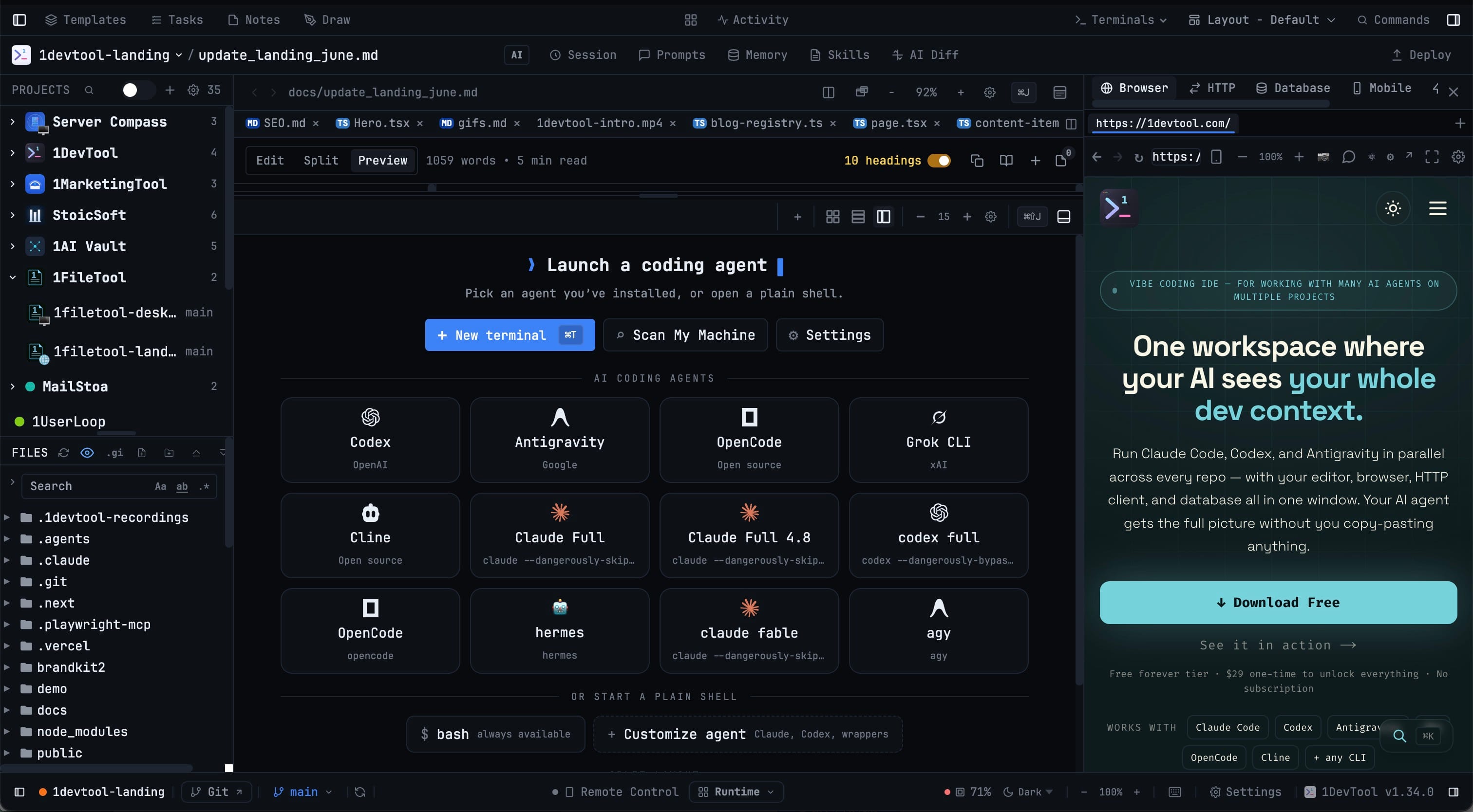
Grok (xAI) is now a first-class agent, not a plain shell you paste a command into. It shows up in the terminal launchers, in settings visibility, and in the empty-workspace quick actions, and it uses the same prompt handling, headless mode, and sub-agent detection as every other supported agent. You can resume earlier Grok conversations from Resume AI Sessions — with titles, previews, and project context — and orchestration handoffs can now target Grok or let Grok delegate out to other tools.
Schedule prompts from your phone
Remote Control can now send an Agent Input prompt later — on a timer, at a specific time, or at the next quota reset — matching the scheduling you already have on the desktop. Queue the prompt from your phone on the walk home and it fires when your quota comes back, attachments and agent handoffs included.
A safer way to quit
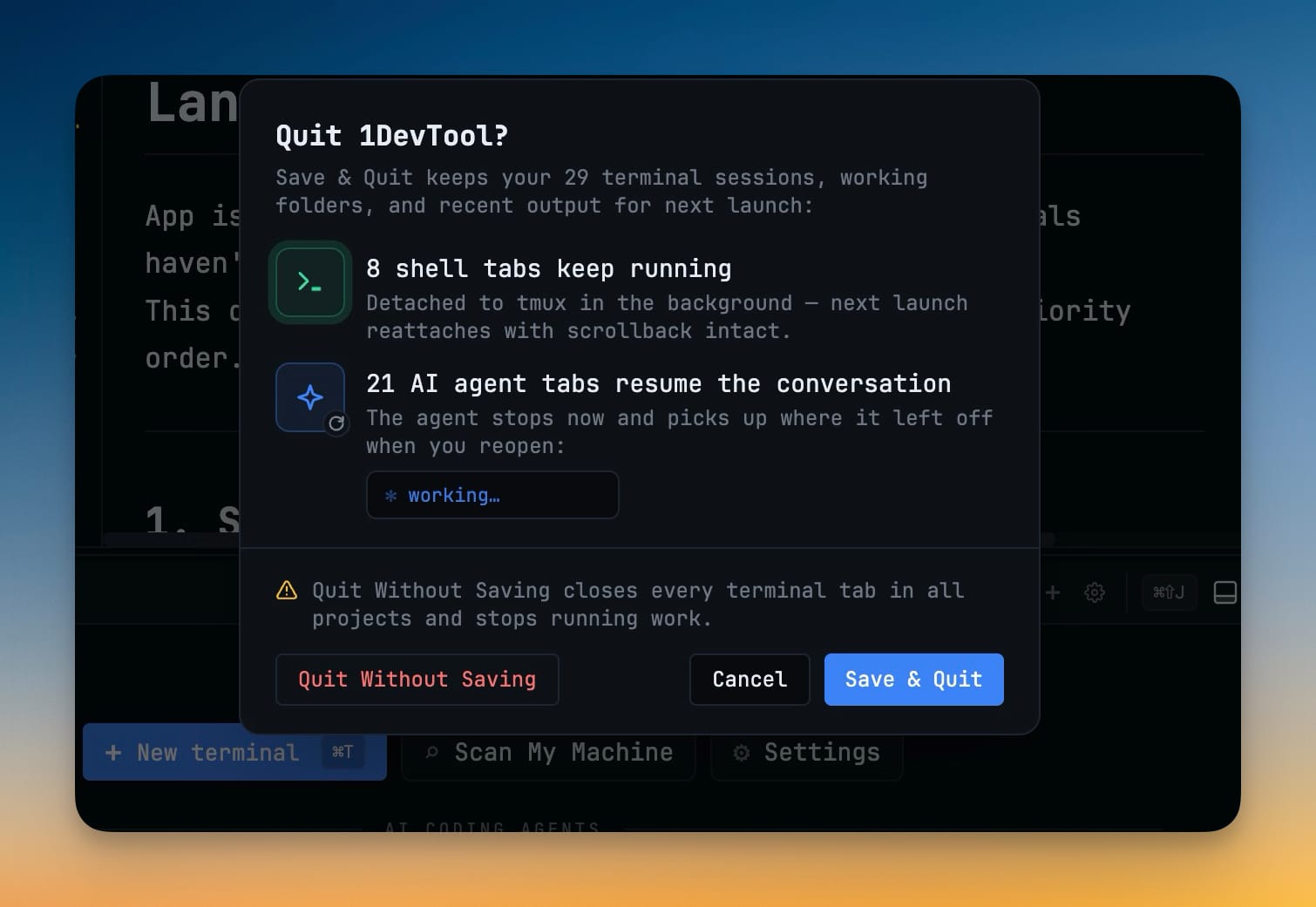
Close the app with live sessions open and 1DevTool now asks first. The quit dialog shows exactly what's at stake — how many shell tabs and AI agent tabs are affected — and lets you Save & Quit (shells detach to tmux and reattach next launch, AI agents resume the conversation), Cancel, or deliberately Quit Without Saving. No more losing an afternoon of context to a reflexive Cmd+Q.
The empty-workspace launcher also got tidier: it now shows only the agents you've actually set up and hides the ones that still need a CLI install, so every card you see launches cleanly instead of failing halfway.
Who benefits most
- Anyone running multiple AI agents at once. Named tabs, a resizable tab list, and a quit dialog that preserves sessions turn a wall of anonymous terminals into something you can actually navigate.
- Readers and reviewers. Split view plus a collapsible terminal panel means you can put two files side by side or hand the whole screen to one, depending on whether you're writing or reading.
- Frequent branch switchers. The status-bar picker with recent branches on top pays off every time you bounce between a feature branch and main.
Try it
Update to 1DevTool 1.35.0 and the workspace stops fighting you: split the editor when you need two files, collapse the terminals when you need one, and let your tabs name themselves. Then launch Grok next to Claude and Codex and see which one you reach for.
Download the latest 1DevTool or browse the full changelog to see everything in this release.
From across the StoicSoft network
Hand-curated reads on the same topic from sister sites in the StoicSoft family.
 ServerCompass8 min read
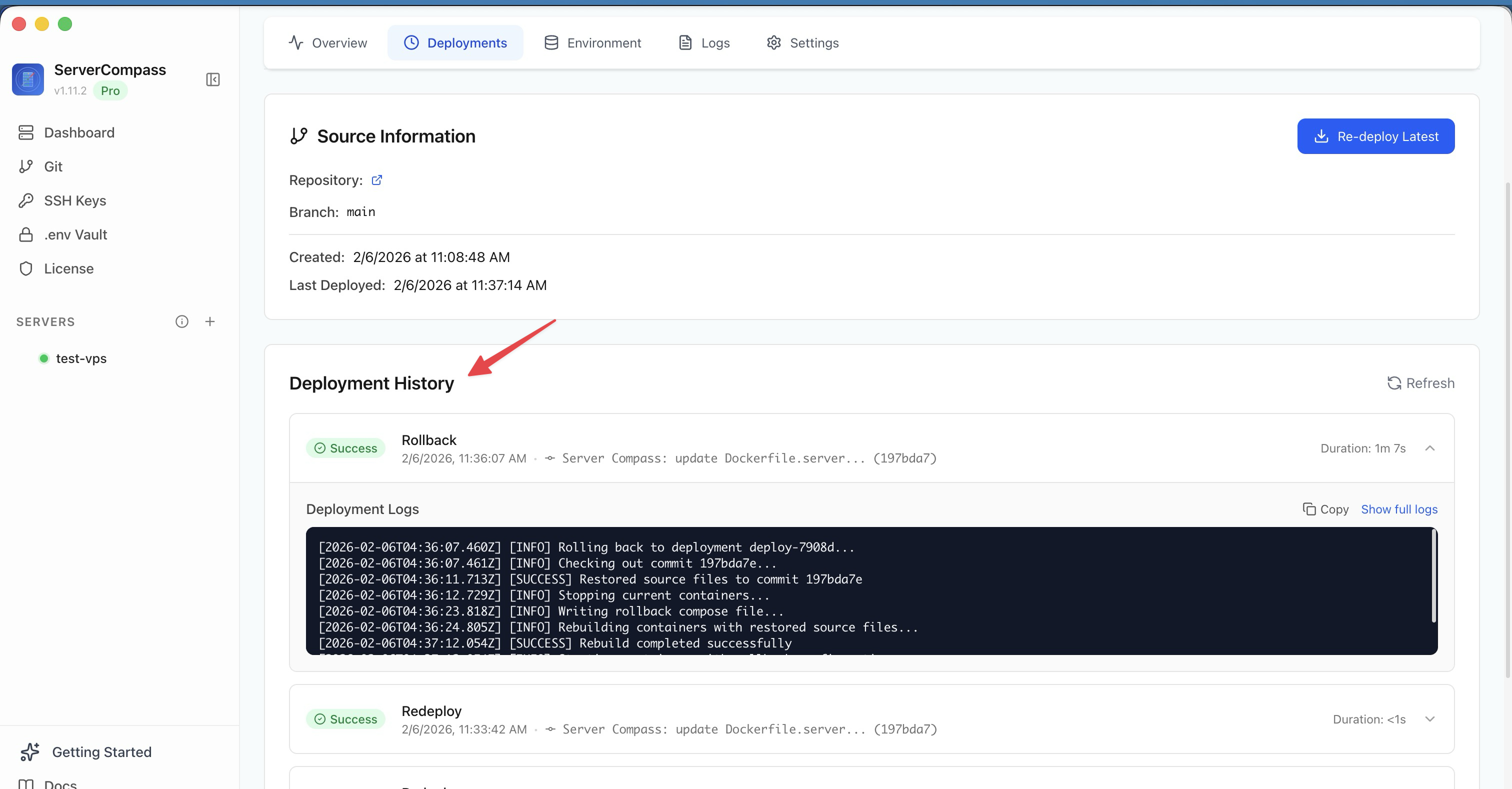
Deploy to VPS in 5 minutes (Not 5 hours): Server Compass v1.1.7
New ZIP file deployments, enhanced GitHub integration, bulk env variables, and persistent logs. Get Vercel-like UX on your $5 VPS.
Read on servercompass.app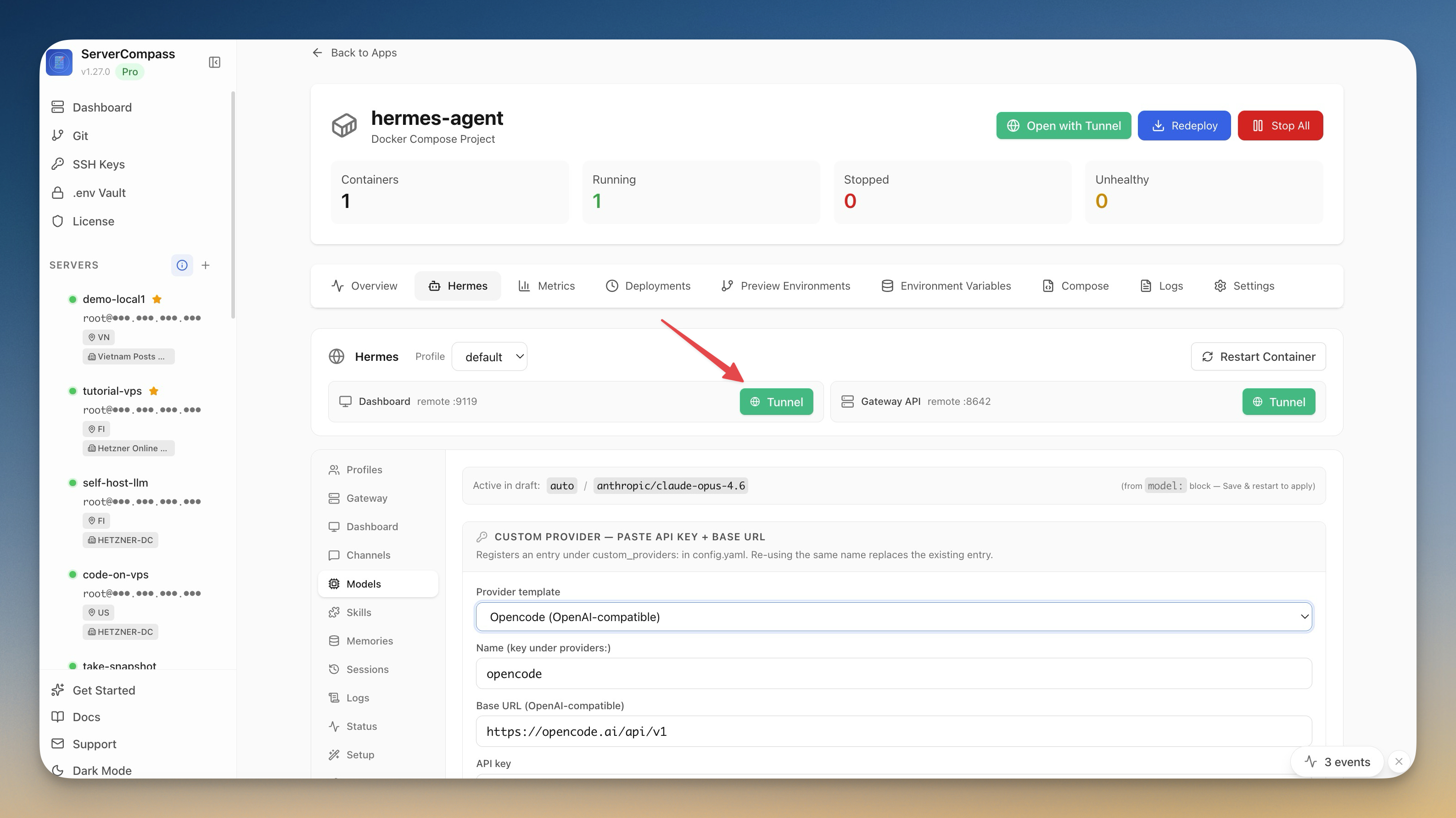 ServerCompass5 min read
Self-Host an AI Agent on Your VPS in One Click
Server Compass v1.27.0 deploys Hermes Agent to your VPS in one click — your own OpenAI-compatible gateway, a web dashboard reachable through an SSH tunnel, and chat platforms wired in from the same window.
Read on servercompass.app