Aug 28, 2026
Your Agent Runs Now Tell You Why They Stalled — and Fix It Themselves
When an agent hits a quota wall or a sign-in prompt, another AI now reads its screen, names the problem, and — on a team seat with backups — hands the work over before the timeout runs out.
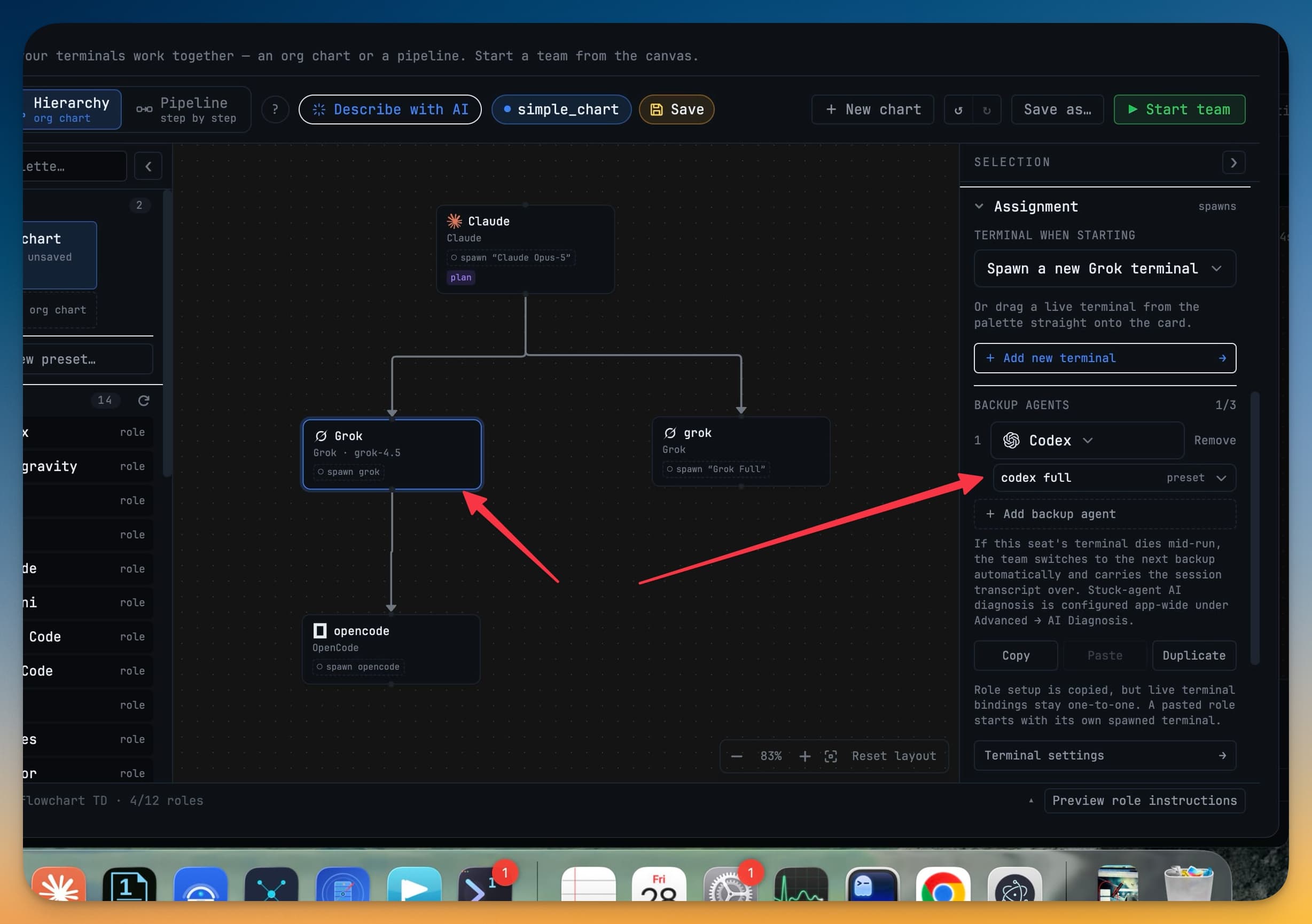
You fire one prompt at a team of four agents and step away to get coffee. Claude plans, Codex builds, Grok reviews, opencode writes the docs. By the time you are back, three of them are done — and one has been sitting on a red wall for nine minutes. It hit its five-hour quota, or a provider popped a "confirm your billing" modal, or the CLI quietly logged itself out and is parked at a sign-in prompt. The agent is not working. It is not failing, either. It is just stuck — and because nothing crashed, the run waits out the whole timeout before anyone notices. Ten minutes gone, for a wall you could have cleared in ten seconds, if only something had told you it was there.
What changed
When a send to an agent keeps bouncing, another AI now reads that terminal's screen and tells you what is wrong. And if the stuck seat is part of a team with a backup agent lined up, it hands the work over on its own — no waiting out the timeout, no watching the whole run stall on one wall.
The feature is called AI Diagnosis, and it turns a stuck agent from a silent ten-minute hole into a labeled problem you — or the team itself — can act on right away.
How it works in practice
An AI reads the screen when a send keeps failing
Give it about two minutes. If a terminal keeps refusing work — the send goes out and nothing comes back — an installed checker AI looks at that terminal's screen text and classifies what it sees: a quota wall, an upsell modal, a sign-in prompt, a rate limit. It is not guessing from an error code; it is reading the same screen you would have read if you had been watching.
Two guardrails keep it honest. A healthy agent is never checked, and an agent that is genuinely busy on a long task is never mistaken for a stuck one — the diagnosis only fires when work has actually stopped moving.
A team seat with backups fills itself
This is where it pays off. If the stuck terminal is a seat on a Charts org chart or pipeline and you have given that seat a backup agent, AI Diagnosis does not just label the problem — it triggers the failover. The next backup opens in that seat, inherits the conversation so far, and picks up where the wedged agent stopped. The team keeps moving instead of stalling on one wall.
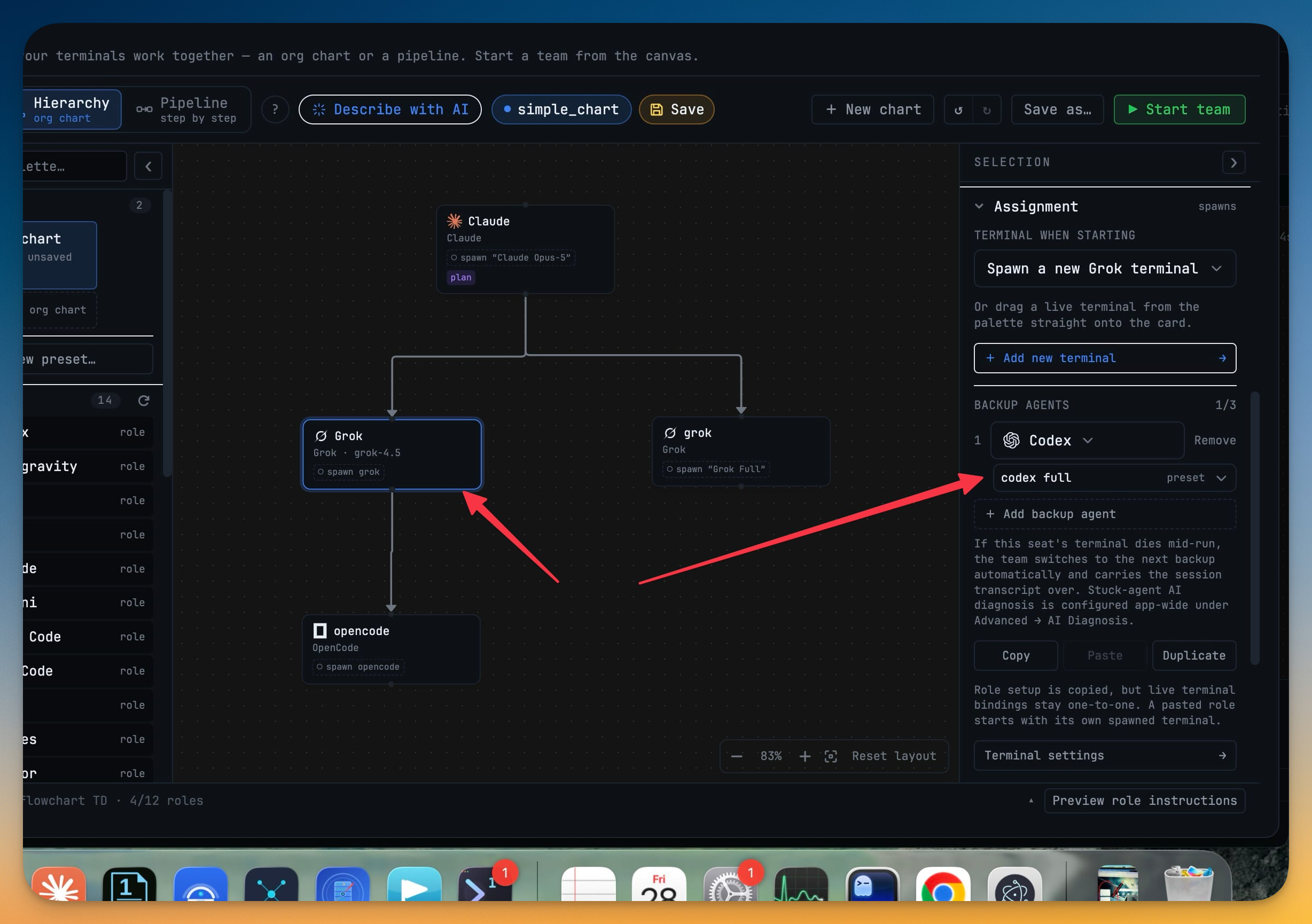
For any other terminal — one without backups, or an ad-hoc linked one — the diagnosis arrives as a notification instead, so you can clear the wall yourself and get the agent moving again.
You choose which agents do the checking
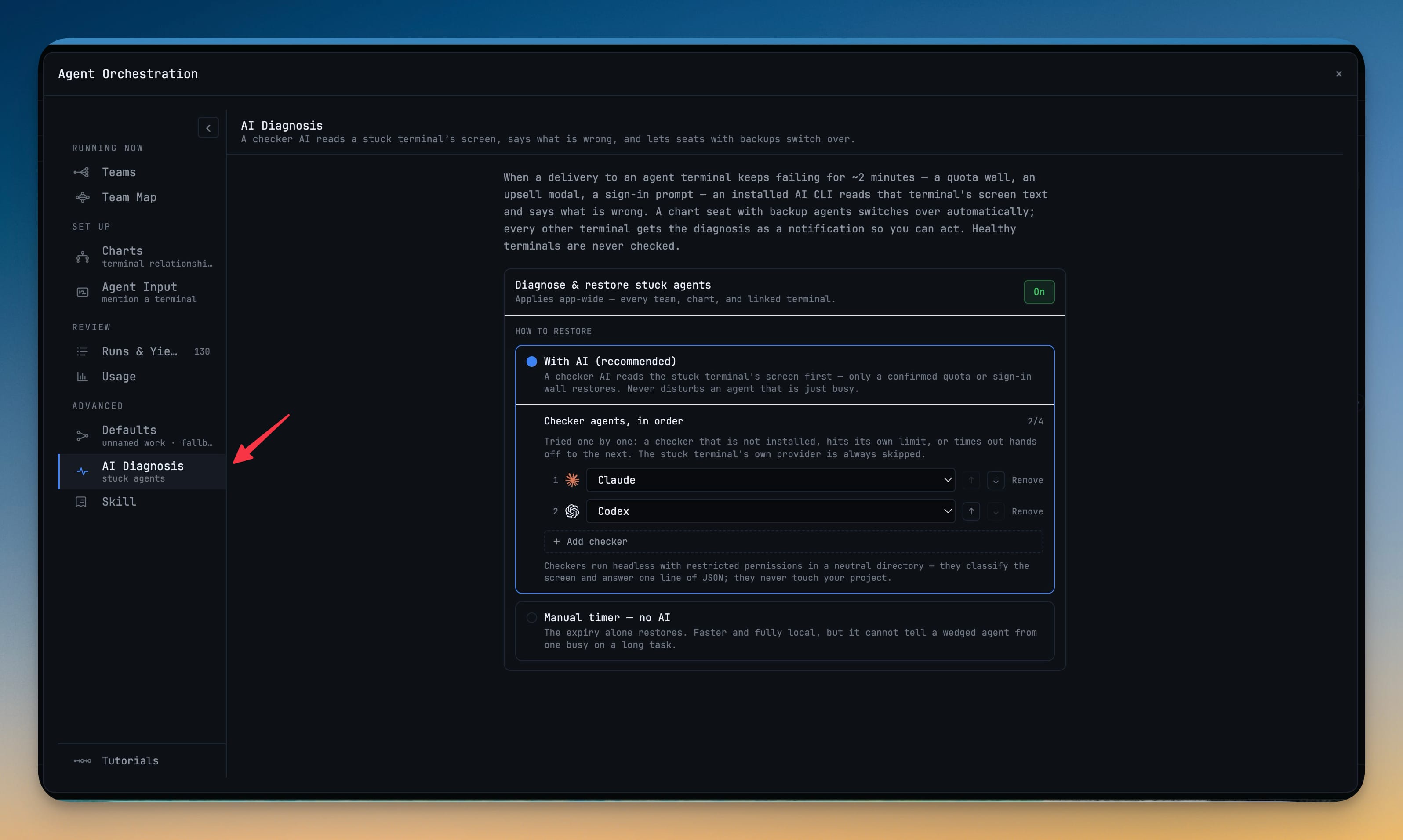
You decide who does the reading. AI Diagnosis uses an ordered checker chain: the first checker that is installed and has quota takes the job; one that is not installed, hits its own limit, or times out simply hands off to the next. The stuck terminal's own provider is always skipped — a wedged Claude never diagnoses itself.
On by default, with one clear consent
Reading a stuck terminal's screen means reading whatever happens to be on it — which can include secrets — so the first time it runs, AI Diagnosis asks for your one-time OK. After that the checkers run headless with restricted permissions in a neutral folder: they classify the screen, answer one line of JSON, and never touch your project. The toggle, the consent, and the checker chain all live in one place, under Advanced → AI Diagnosis. Prefer to keep AI out of it entirely? A Manual timer mode restores on the expiry alone — faster and fully local, though it cannot tell a wedged agent from one that is just thinking.
Before vs after
| The old way | With AI Diagnosis |
|---|---|
| An agent hits a quota wall and goes quiet | A checker AI reads the screen and names the wall |
| The run waits out the full ten-minute timeout | A seat with a backup fails over in seconds |
| You find out when you come back and check | The diagnosis arrives as a notification |
| You reconstruct what went wrong from a dead screen | You get "quota wall" or "sign-in prompt" spelled out |
| One stuck seat stalls the whole team | The team keeps moving; only the wall stops |
Who benefits most
If you run teams overnight or unattended, this is the difference between coming back to finished work and coming back to a run that died in minute three. A seat with a backup now clears its own walls while you are away.
If you juggle multiple accounts to dodge rate limits, AI Diagnosis catches the exact moment one runs dry and moves the work to a seat that still has quota, instead of letting a whole chart idle behind it.
If you have ever lost ten minutes to a sign-in prompt you did not know was there, the notification alone earns its keep — a stuck agent stops being a silent hole and becomes a thing you can see.
Try it
Update to v1.69.0, open Advanced → AI Diagnosis in the orchestration dashboard, and give it your one-time OK. Add a backup agent or two to the seats on your next chart, and the next time an agent hits a wall, the run reads the screen, names the problem, and — where it can — hands the seat over before the timeout ever runs out. Your team stops waiting on walls you cannot see.