Jun 7, 2026
Stop Describing UI Bugs in Words — Draw on Your Screenshots Instead
1DevTool now lets you draw arrows, add text, and highlight areas on attached images and screenshots directly in the agent input overlay before sending them to an AI agent.
You attach a screenshot of a broken layout to your AI agent and type: "The button in the top right, below the header, next to the search icon — it has the wrong padding." The AI looks at the image, reads your description, and flags three different buttons that could match. You go back and forth twice before it fixes the right one.
Describing a UI element in words when you can see it in a screenshot is the slowest way to point at something. You know exactly what you mean. The AI does not have a cursor.
You can now draw directly on the image before you send it
The agent input overlay now includes an annotation layer. Before you hit send, you can draw on any attached image or screenshot — add arrows, place text labels, highlight a region with colour, or sketch a freehand mark. The annotated version replaces the original attachment, so the AI receives your marked-up image automatically.
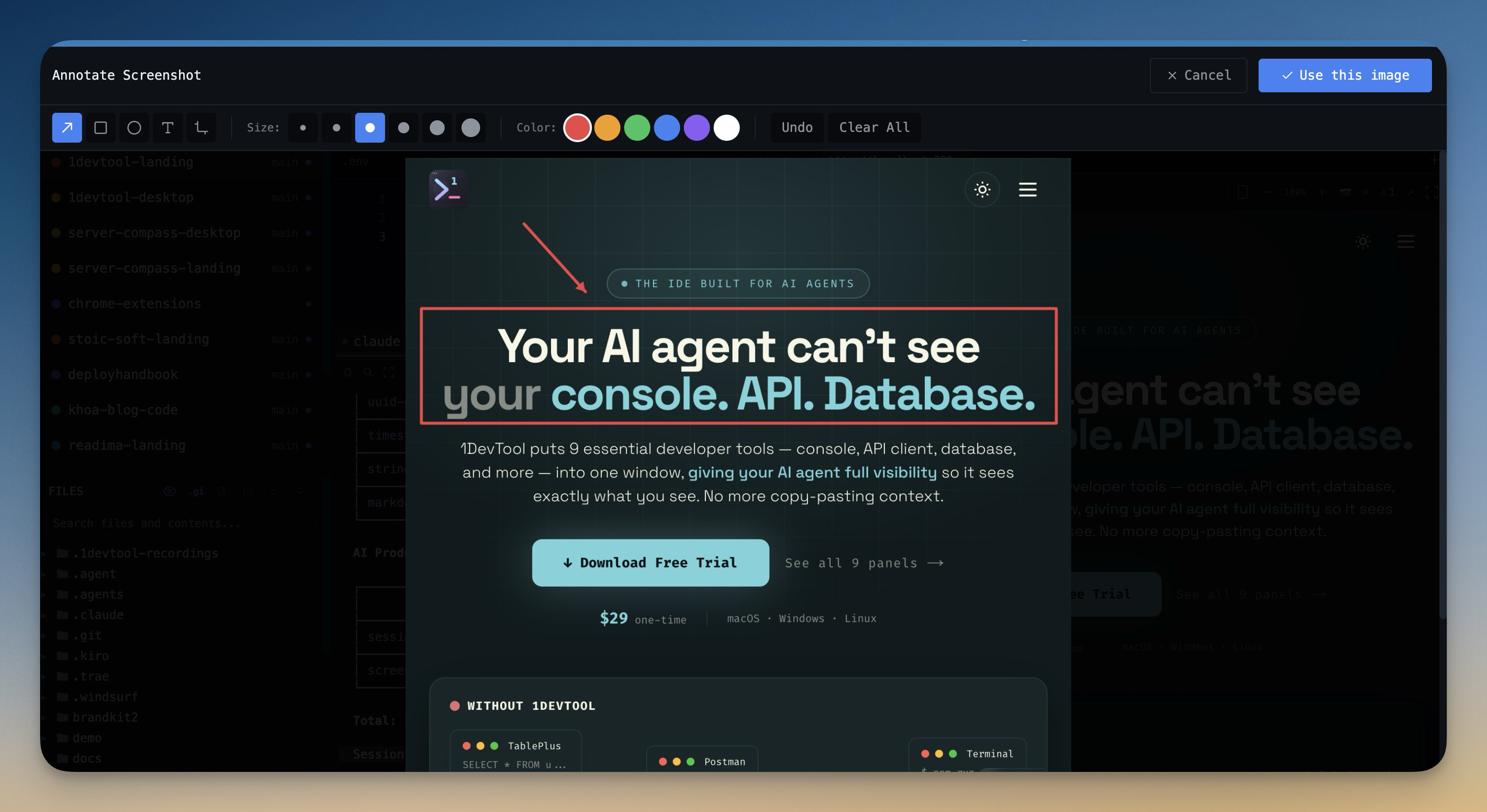
How it works in practice
Open the annotation toolbar
Attach an image or take a screenshot with the attachment button in the agent input area. An annotation icon appears on the preview thumbnail. Click it to open the drawing overlay — the image fills the panel and the toolbar appears along the top or side.
Mark exactly what you mean
Pick from arrows, text labels, highlight brushes, and freehand drawing. Add an arrow pointing to the misaligned element. Type a short label: "this one". Highlight the region with a colour wash if the area is ambiguous. You can combine tools in a single annotation pass.
The annotated image is the attachment
When you close the annotation view and send the prompt, the AI receives the annotated image — not the clean original. You do not need to export it separately, save it to disk, or re-attach it. The overlay handles the merge.
Before vs After
| Pointing the AI at a UI element | Before v1.23.1 | After v1.23.1 |
|---|---|---|
| Describe which button has the bug | Write a paragraph | Draw an arrow on it |
| Show where a layout breaks | Paste coordinates or element names | Circle the region directly |
| Distinguish between two similar elements | Lengthy disambiguation text | Label each one with a text annotation |
Who benefits most
Designers reviewing implementations — when the component does not match the spec, marking up the screenshot is faster than writing an issue and leaves no ambiguity about which element you mean.
Developers debugging CSS — highlight the exact region where padding, alignment, or overflow is off so the AI can focus its analysis on the right place without guessing from a full-page screenshot.
QA engineers filing tickets via AI — annotate the reproduction screenshot in the same session where you are describing the bug, without switching to a separate image editor.
Try it
Update to v1.23.1 or later from the update banner or 1devtool.com. Attach any image in the agent input overlay — the annotation option appears on the attachment thumbnail.