Jun 26, 2026
Send HTTP Requests and Query Your Database From Your Phone
Remote Control's new Tools tab puts an HTTP client and a database client on your phone — send a request or run a query through your desktop without going back to your keyboard.
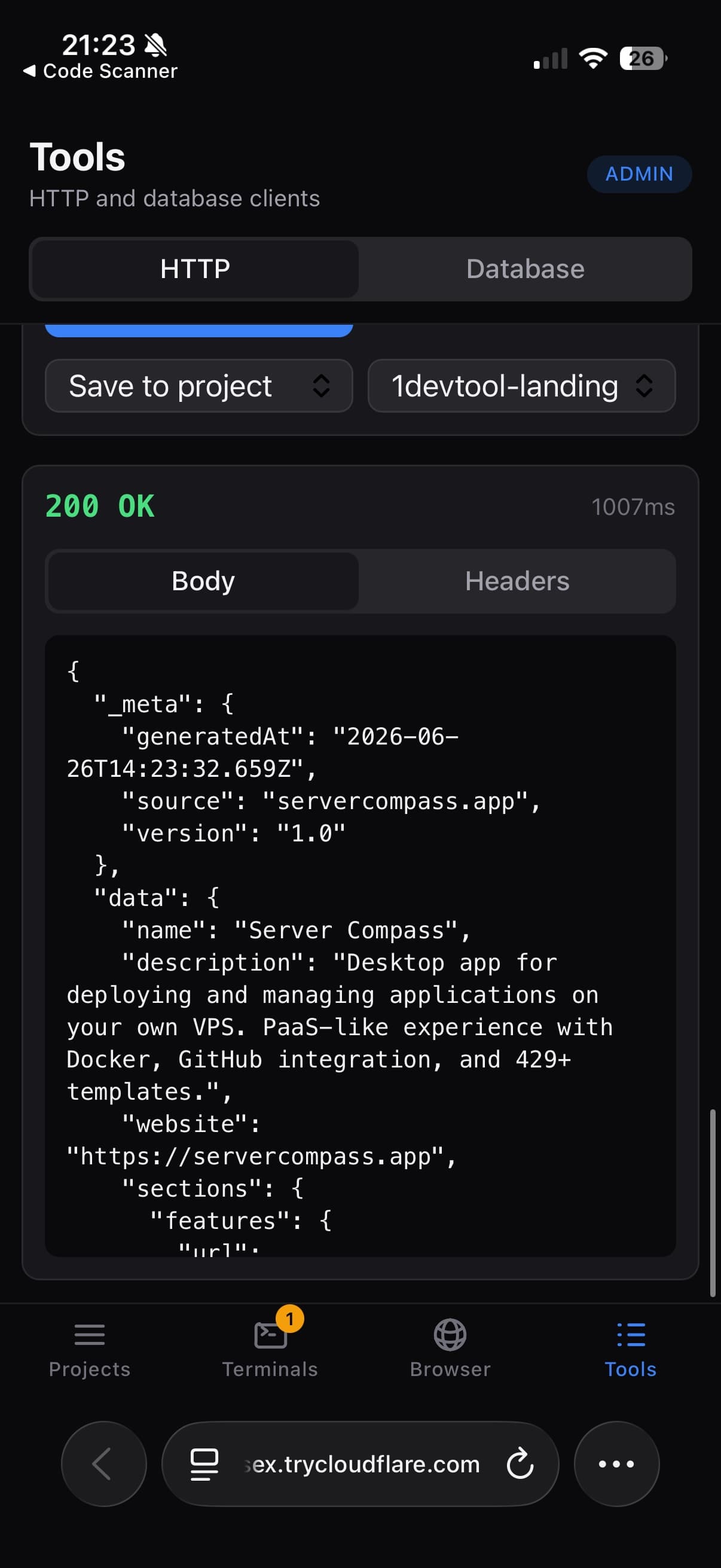
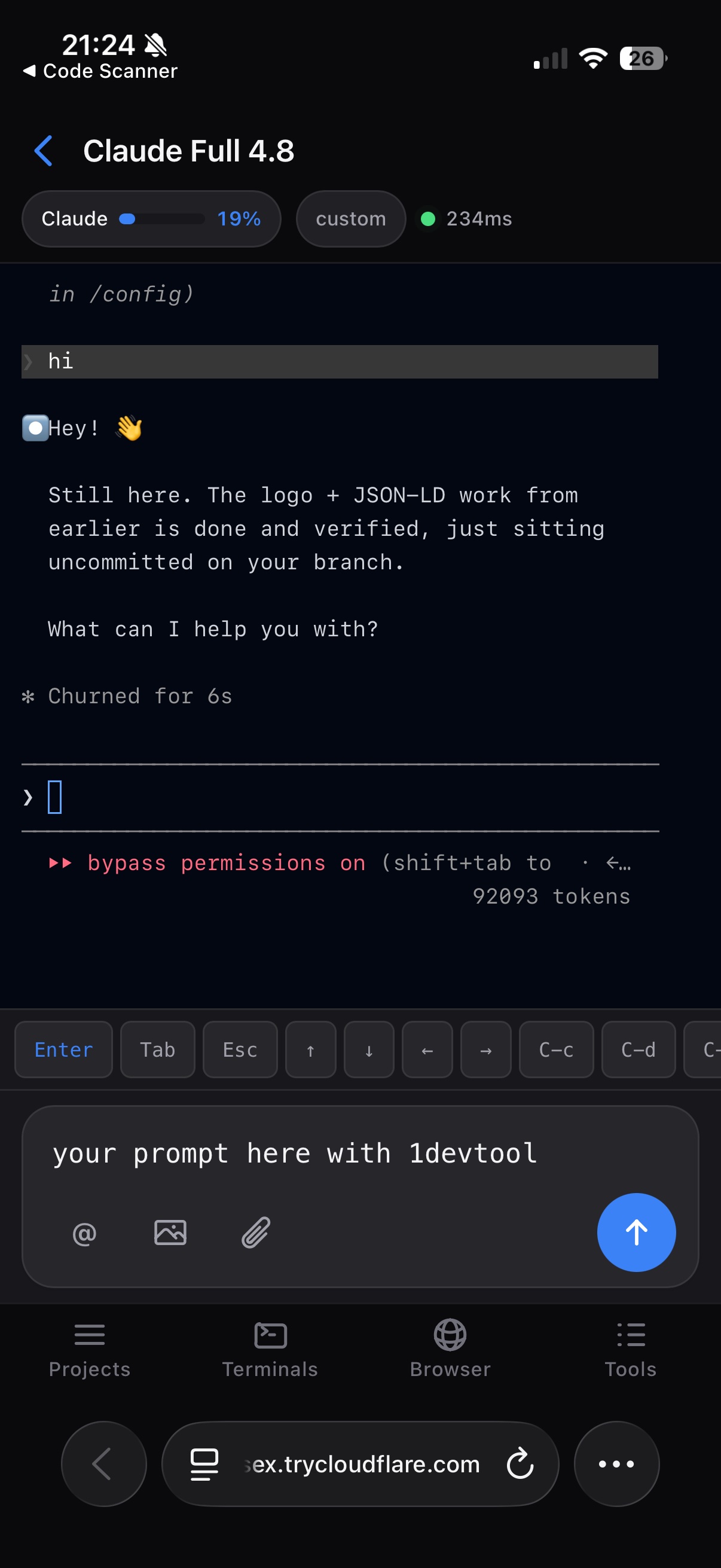
You sent an agent off on a task and stepped away from your desk — coffee, lunch, the couch, the train. A few minutes later the question lands: did that endpoint actually come back up? Or did the migration write the rows it was supposed to? Until now, answering meant one of two things — walk back to your keyboard, or sit on the question until you did.
1DevTool's Remote Control already let you watch terminals, browse files, review an agent's diff, and even commit from your phone. But the moment you needed to test something — hit an API, run a quick query — the phone ran out of road. You could see that the work happened; you couldn't poke it to confirm it worked.
What changed
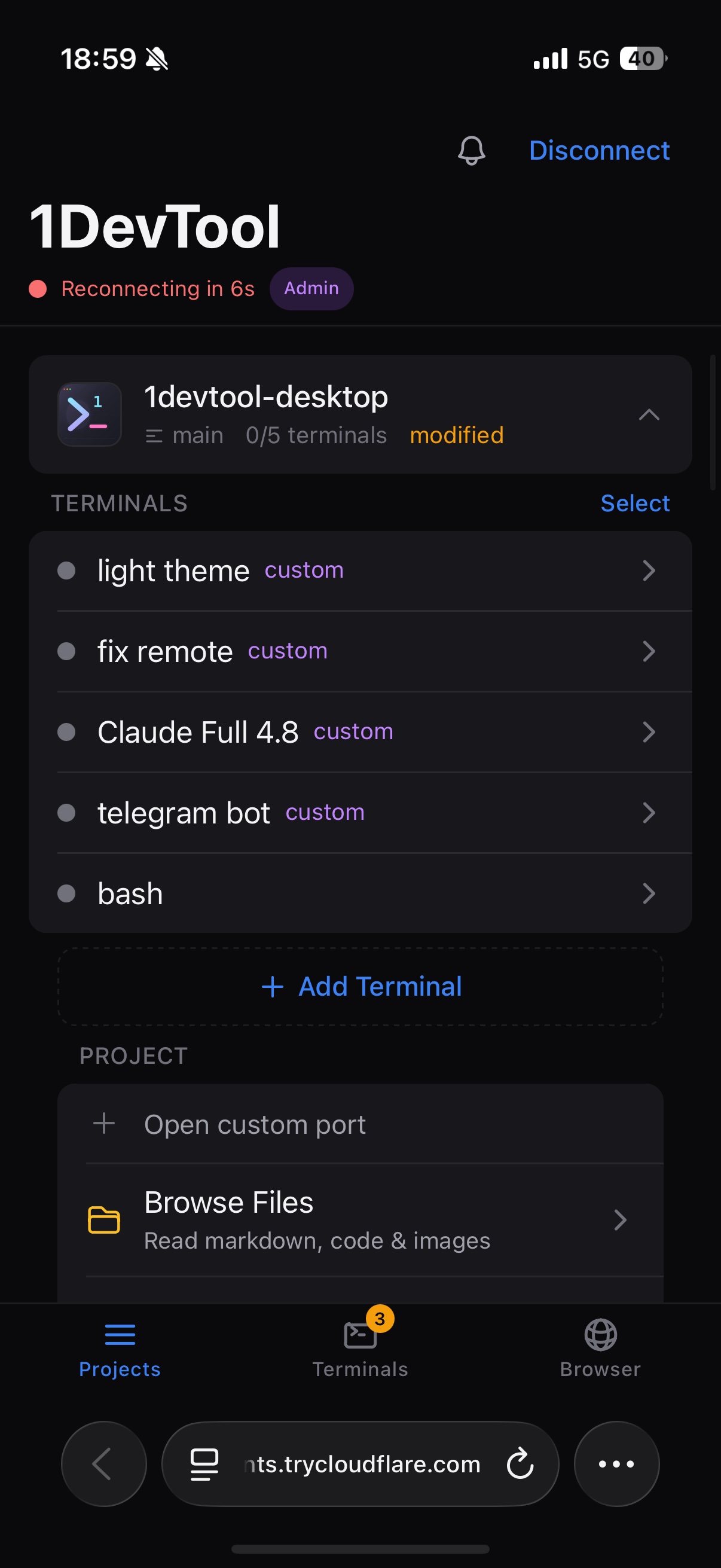
v1.29.0 adds a Tools tab to Remote Control. Open it on your phone and you get two clients that used to live only on your desktop: an HTTP client and a database client. Now you can send a real request or run a real query from wherever you are, and the call runs through your desktop workspace — same network, same saved connections, same project context.
How it works in practice
Send an HTTP request without your keyboard
Open Tools → HTTP. You pick a method — GET, POST, PUT, PATCH, DELETE, HEAD, or OPTIONS — type the URL, and fill in headers, auth, and a body type (JSON, text, XML, form-urlencoded, or form-data) the same way you would on the desktop. Then you tap send.
The response comes back with everything you'd normally check by eye: the status code, how long it took in milliseconds, the body, and the headers — each on its own view, so a large JSON payload never buries the status line. A green 200 OK in 1007 ms tells you the service is healthy before you've even thought about opening a laptop.
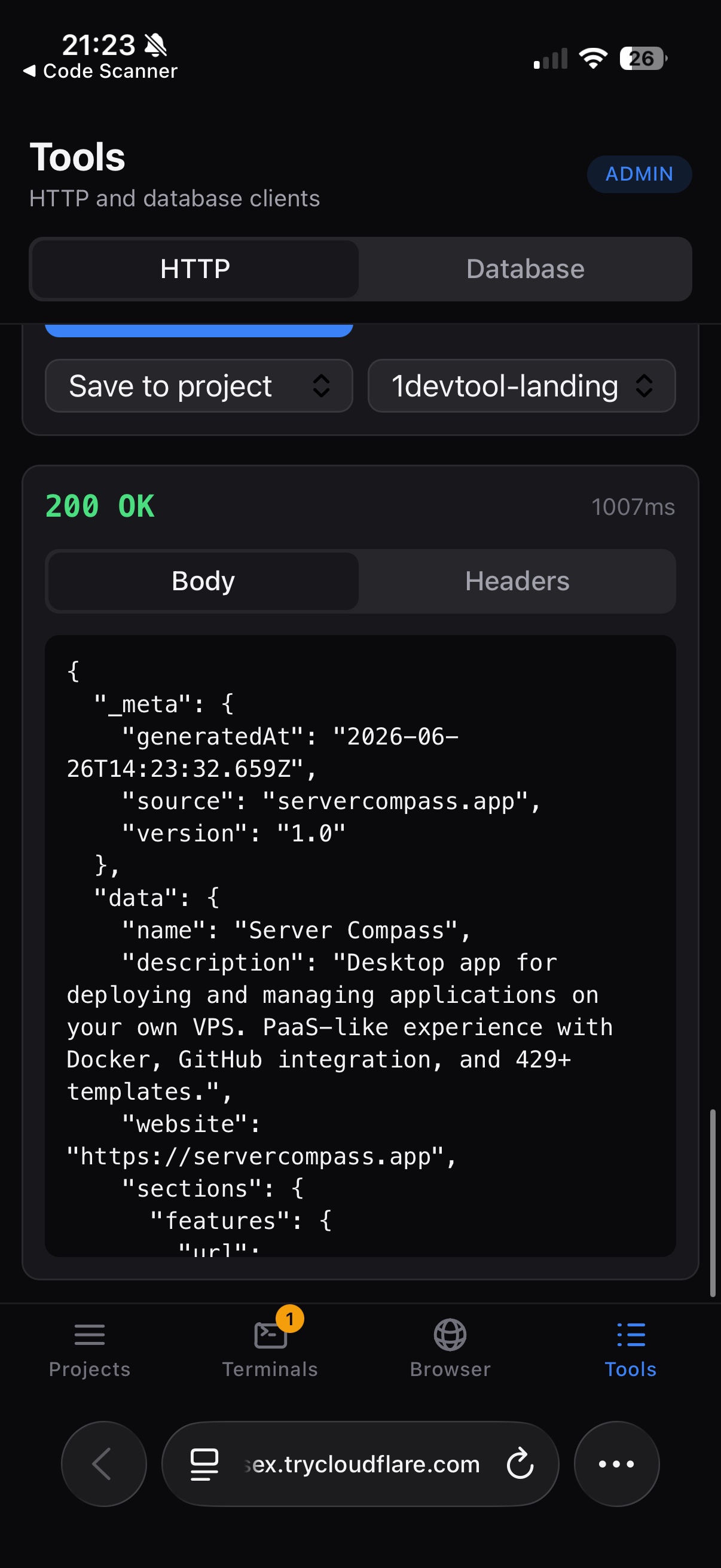
You don't have to rebuild the request every time, either. Save it — globally, so it follows you across projects, or back to a specific project so the phone and your desktop stay in sync. The request you built at your desk this morning is one tap away from the couch tonight.
Query a database from the same tab
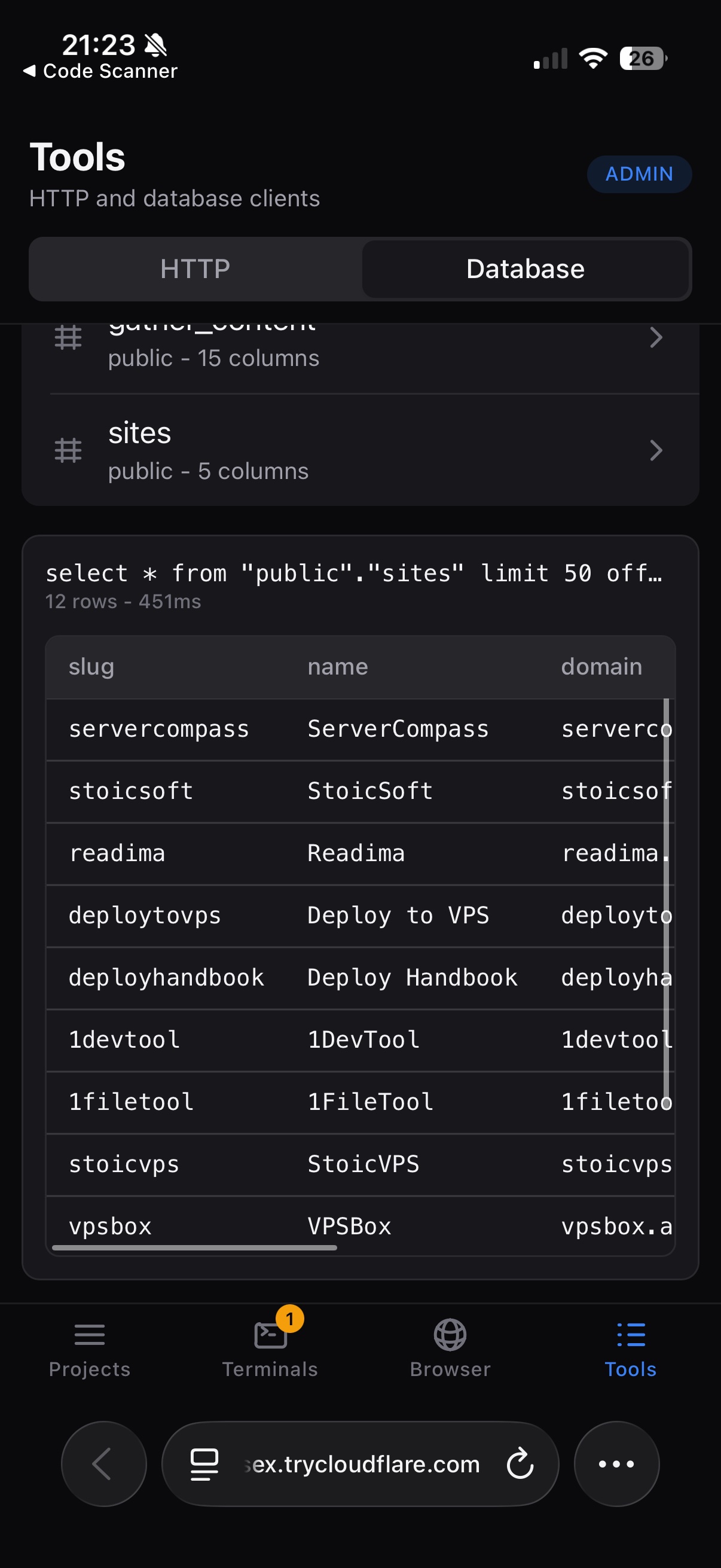
Flip the toggle to Database and the Tools tab becomes a SQL client. It lists the database connections you've already saved in 1DevTool, so you're not retyping a connection string on a phone keyboard. Tap one, test that it still connects, and load its schema to see which tables exist.
From there you run a query and read the result inline — rendered as a table when the response fits one, or as raw output when it doesn't. Want to eyeball a table without writing SQL at all? Preview it directly. Checking whether a row landed, whether a job marked itself done, whether prod has the record you expect — that's now a thirty-second answer from your pocket.
It respects who's allowed to act
Reading logs is one thing; sending network requests and running database commands is another. The Tools tab knows the difference. HTTP and database tools require operator or admin access — the same permission tiers that already govern Remote Control. Hand someone a viewer link and they can follow along; only an operator can actually fire a request or run a query. The capability scales with how much you trust the person holding the phone, instead of being all-or-nothing.
These tools sit alongside the rest of the redesigned phone experience — the Projects, Terminals, and Browser tabs, plus a cleaner chat-style terminal composer for prompting your agents — so testing an endpoint and nudging an agent now live in the same place.
Before vs after
| When you're away from your desk | Before v1.29.0 | With the Tools tab |
|---|---|---|
| Check if an endpoint is up | Wait until you're back, or open a laptop | Tap a saved request, read the status and latency |
| Confirm a migration wrote rows | Ask someone sitting at a keyboard | Run a SELECT and read the table inline |
| Reuse a request you built earlier | Rebuild it from memory on a phone | Open the one you saved to the project |
| Let a teammate test safely | Share full access or nothing | Operators act, viewers watch |
Who gets the most out of this
- Solo developers and indie hackers who are the entire on-call rotation. The "is it up?" question doesn't wait for you to sit down — and now neither does the answer.
- Anyone running long agent tasks. You kick off a migration or a deploy script, walk away, and verify the outcome — endpoint healthy, rows written — from the same phone you're already watching the terminal on.
- Small teams with shared environments. Operator and admin gating means you can hand out Remote Control access without handing everyone the keys to run arbitrary queries against your database.
Try it
Update to v1.29.0, open Remote Control on your phone, and tap the new Tools tab. Send a saved request or run a quick query and watch it execute through your desktop workspace. The next time the "did it actually work?" question hits while you're away from your keyboard, you'll have the answer before you've finished reaching for your laptop.
From across the StoicSoft network
Hand-curated reads on the same topic from sister sites in the StoicSoft family.
 ServerCompass8 min read
Deploy to VPS in 5 minutes (Not 5 hours): Server Compass v1.1.7
New ZIP file deployments, enhanced GitHub integration, bulk env variables, and persistent logs. Get Vercel-like UX on your $5 VPS.
Read on servercompass.app ServerCompass5 min read
Browse, Query, and Back Up Your Databases Without Leaving Your Desktop
Built-in database admin panel with credentials management, one-click backup/restore, SQL query editor, and table browsing for PostgreSQL, MySQL, and MongoDB.
Read on servercompass.app