Jul 5, 2026
See Codex quota resets and safer AI prompts in 1DevTool
1DevTool now shows Codex reset credits with exact expiry times, makes AI terminal tabs easier to scan with real agent logos, and keeps Agent Input submissions and file drops cleaner.
When you are deep in an AI-assisted coding session, the small interruptions hurt more than they look. You glance at a terminal tab and have to remember which custom command is running there. You ask Codex for another pass, but you are not sure whether your current quota window is almost done or whether you have reset credits available. You drop files into a prompt and then stop to clean up duplicated text before you can send the actual instruction.
None of those moments is a full workflow on its own, but they decide whether a long agent run feels controlled or fragile. Version 1.32.1 focuses on those moments: the status details you need before you start another Codex task, the visual labels that tell agents apart at a glance, and the prompt handoff rules that keep Agent Input from carrying stray text into the next composer.
What changed
Now you can see Codex reset credits, scan agent terminals by their real logos, and submit or drop prompt context without cleaning up leftovers afterward.
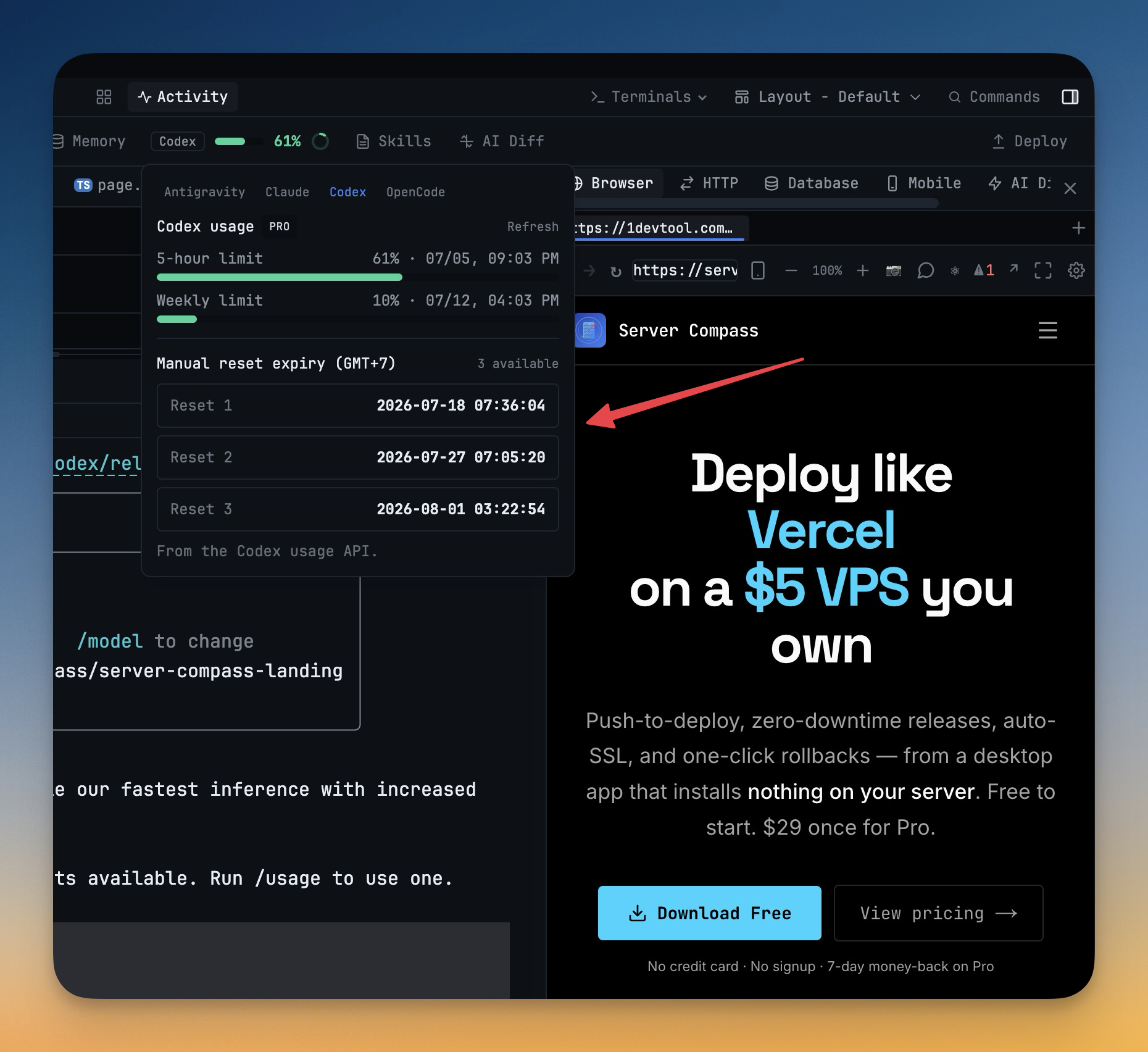
The Codex usage popover now includes manual reset expiry details from the Codex usage API. Instead of only seeing the active 5-hour and weekly windows, you can also see how many reset credits are available and when each one expires. The same reset information is available in the desktop quota popover and in Remote Control, so you do not have to switch devices or open a separate billing page before deciding whether to keep a heavy Codex task moving.
AI terminal branding is also easier to read. Built-in launchers and terminal tabs now show recognizable marks for Claude, Codex, Gemini, Amp, OpenCode, Qwen, Cline, Cursor, Windsurf, and Antigravity. Custom presets can inherit the right logo when the command matches a known agent, while still keeping the preset name and shortcut you chose.
Agent Input received the practical cleanup that matters when you compose prompts all day. Submitting from the overlay no longer leaves trailing words behind in a fresh composer. Dropping files into an AI terminal no longer duplicates multi-line prompt text, and selected Codex skills survive the drop path instead of being broken by the inserted file context.
How it works in practice
You can decide whether Codex has room for the next task
Open a Codex terminal and look at the usage pill in the status bar. The pill still follows the focused AI terminal, so you see the active agent instead of a generic workspace number. Click the pill and the popover shows the current Codex 5-hour limit, weekly limit, and the manual reset section.
The reset section is meant for the moment before you start work that might burn a lot of quota. You can see whether reset credits are available, then read the exact expiry time for each credit. That changes the decision from guesswork into a quick check: use a reset now, save it for later, or switch to another agent before you strand a task halfway through.
Because the same data appears in Remote Control, you can make that call from your phone while watching a longer run. If a Codex session is waiting and you are away from the desktop, you can still check the reset state before nudging the next prompt forward.
You can identify custom agents without reading every tab label
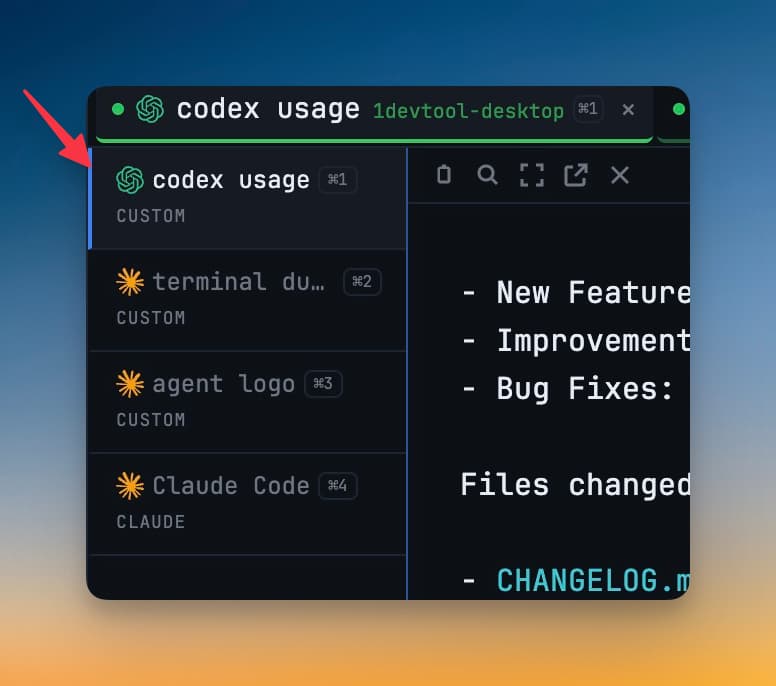
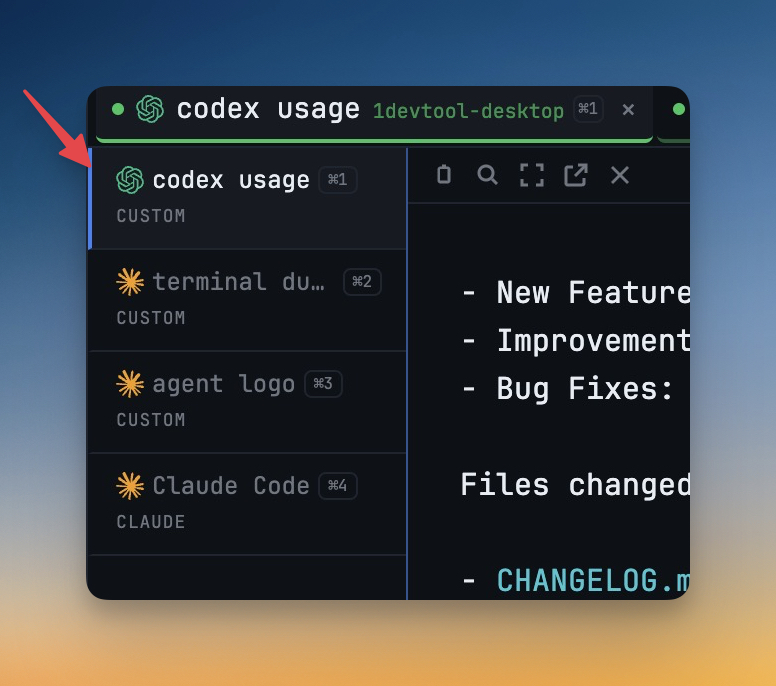
Many 1DevTool setups mix official agents with custom wrappers. A terminal named codex usage, a preset that launches Claude through a local script, and an OpenCode command can all look similar when the screen is busy. The new agent logo matching gives those terminals a visual anchor.
When a launcher, tab, or custom preset maps to a known agent, 1DevTool shows the matching mark next to the name. You still keep your custom command, naming convention, and shortcut number; the icon simply makes the list easier to scan. In a grid layout, that means you can spot Codex, Claude, Gemini, or another agent before you read the full tab text.
This helps most when you are running several agents in parallel. You can leave one tab reviewing a diff, another tab generating tests, and another tab checking docs, then return to the right one by sight instead of by memory.
You can submit richer prompts without repairing the composer
Agent Input exists so you can write a real prompt instead of squeezing instructions into a terminal line. The value disappears if the handoff adds cleanup work. Version 1.32.1 tightens that handoff.
When you submit from Agent Input, 1DevTool gives the terminal enough time to receive the prompt before sending the return key. It also trims the submit-only newline that should not become part of the next draft. The result is simple: after you send a prompt, the new composer starts clean instead of keeping a few trailing words from the previous instruction.
File drops are cleaner too. If you drag a file or folder into an AI terminal while a multi-line prompt is present, the drop no longer duplicates that prompt text. If you selected Codex skills before adding files, the inserted file context does not break the skill selection. You can build the context you meant to send, rather than stopping to delete accidental copies before the agent sees them.
Before vs After
| Workflow | Before | After |
|---|---|---|
| Checking Codex capacity | You saw active usage windows, then had to infer whether reset credits were available elsewhere. | The usage popover shows available reset credits and exact expiry times beside the active Codex windows. |
| Managing several AI terminals | Custom presets could require reading each label carefully, especially in dense tab or launcher lists. | Known agents show recognizable logos, including matched custom presets, so the right terminal is easier to spot. |
| Sending Agent Input prompts | A fast submit could leave trailing text behind in the next composer. | Prompt submission is delayed and trimmed so the next composer starts clean. |
| Dropping files into prompt context | Multi-line prompt text could duplicate, and selected Codex skills could be disrupted by the drop. | File drops preserve the intended prompt and keep selected Codex skills intact. |
| Running fresh dev sessions | A clean first-run dev session could collide with another development window. | Fresh sessions can run beside another dev window without closing it. |
Who benefits most
If you use Codex heavily, the quota changes are the most direct win. You can see reset credits before you commit to a long edit, migration, or review, and you can make the same check from Remote Control when you are not sitting at the desktop.
If you maintain several custom AI presets, the logo matching makes your launcher and tab list less ambiguous. You do not have to rename every command just to make the UI scannable; the matched agent mark gives each preset a recognizable shape while your own label still carries the local meaning.
If you use Agent Input for context-heavy prompts, the submit and file-drop fixes remove the small cleanup loops that interrupt flow. You can write the instruction, attach the files, keep selected Codex skills, and send the prompt without checking whether the composer accidentally carried old text forward.
Try it
Version 1.32.1 is available now from the 1DevTool download page. Open a Codex terminal, check the usage pill, then try your usual Agent Input workflow with a few file drops. The difference should show up in the places where you normally had to pause, reread, or clean up before letting the agent continue.
From across the StoicSoft network
Hand-curated reads on the same topic from sister sites in the StoicSoft family.
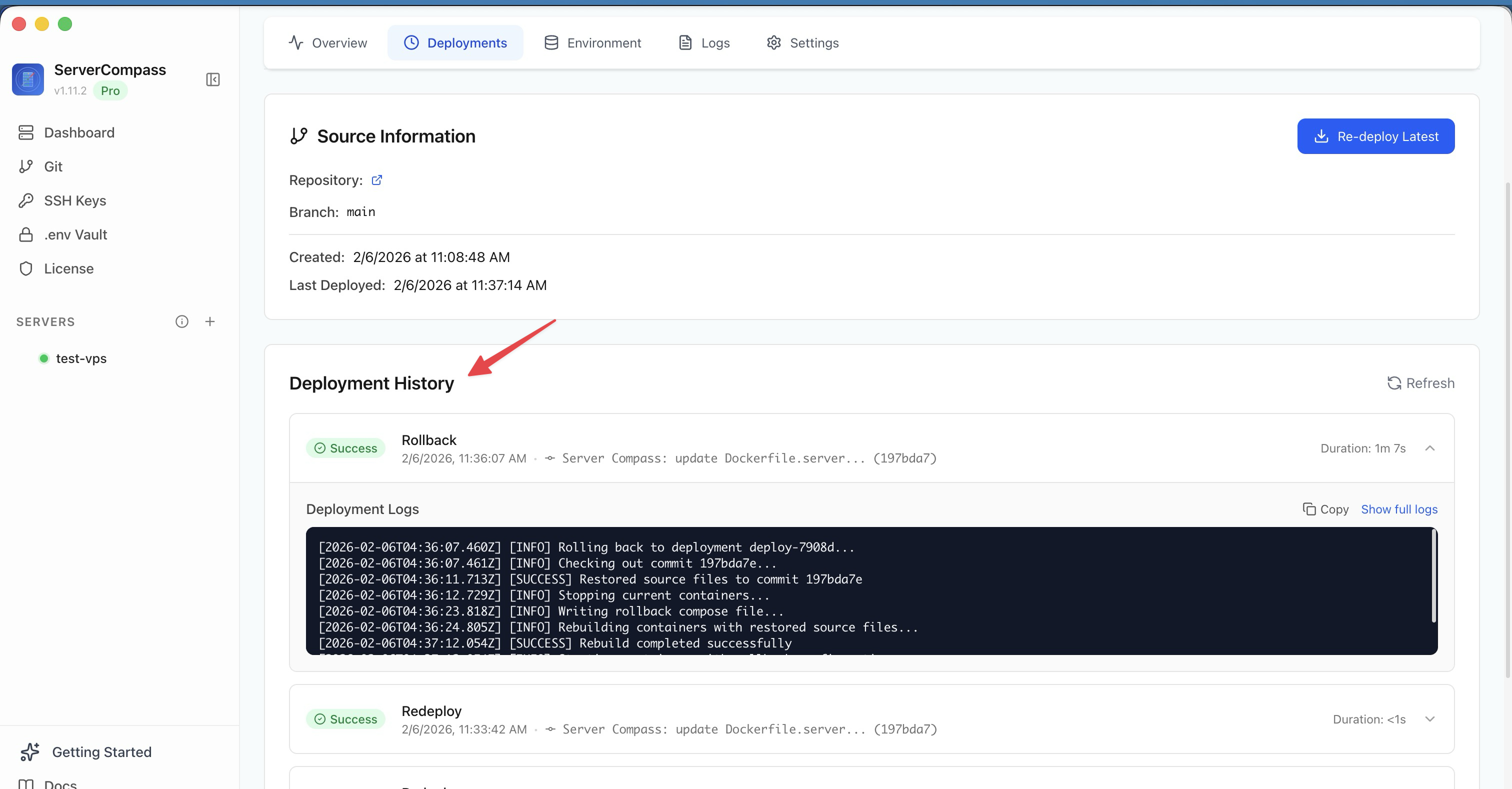 ServerCompass8 min read
Deploy to VPS in 5 minutes (Not 5 hours): Server Compass v1.1.7
New ZIP file deployments, enhanced GitHub integration, bulk env variables, and persistent logs. Get Vercel-like UX on your $5 VPS.
Read on servercompass.app ServerCompass5 min read
Self-Host an AI Agent on Your VPS in One Click
Server Compass v1.27.0 deploys Hermes Agent to your VPS in one click — your own OpenAI-compatible gateway, a web dashboard reachable through an SSH tunnel, and chat platforms wired in from the same window.
Read on servercompass.app