Jun 14, 2026
Pin Comments On Any Web Page And Send Them To Your AI Agent
Drop numbered comments directly on any page in the browser panel, then bundle them into a single AI prompt with element and position context attached.
You're QA'ing a teammate's pull request in the built-in browser. The pagination is wrong on the second page, the empty-state card overflows on mobile, and the gradient in the header has the wrong stop. Three things, three different spots on the page.
So you do what you always do: alt-tab to your AI terminal, type "the pagination is broken — see screenshot 1", paste the screenshot, type the next note, paste again. By the third one you've already lost track of which screen you were describing. The agent gets a wall of vague text and a few disconnected images, and answers with a vague fix that addresses one issue and misses the other two.
What changed
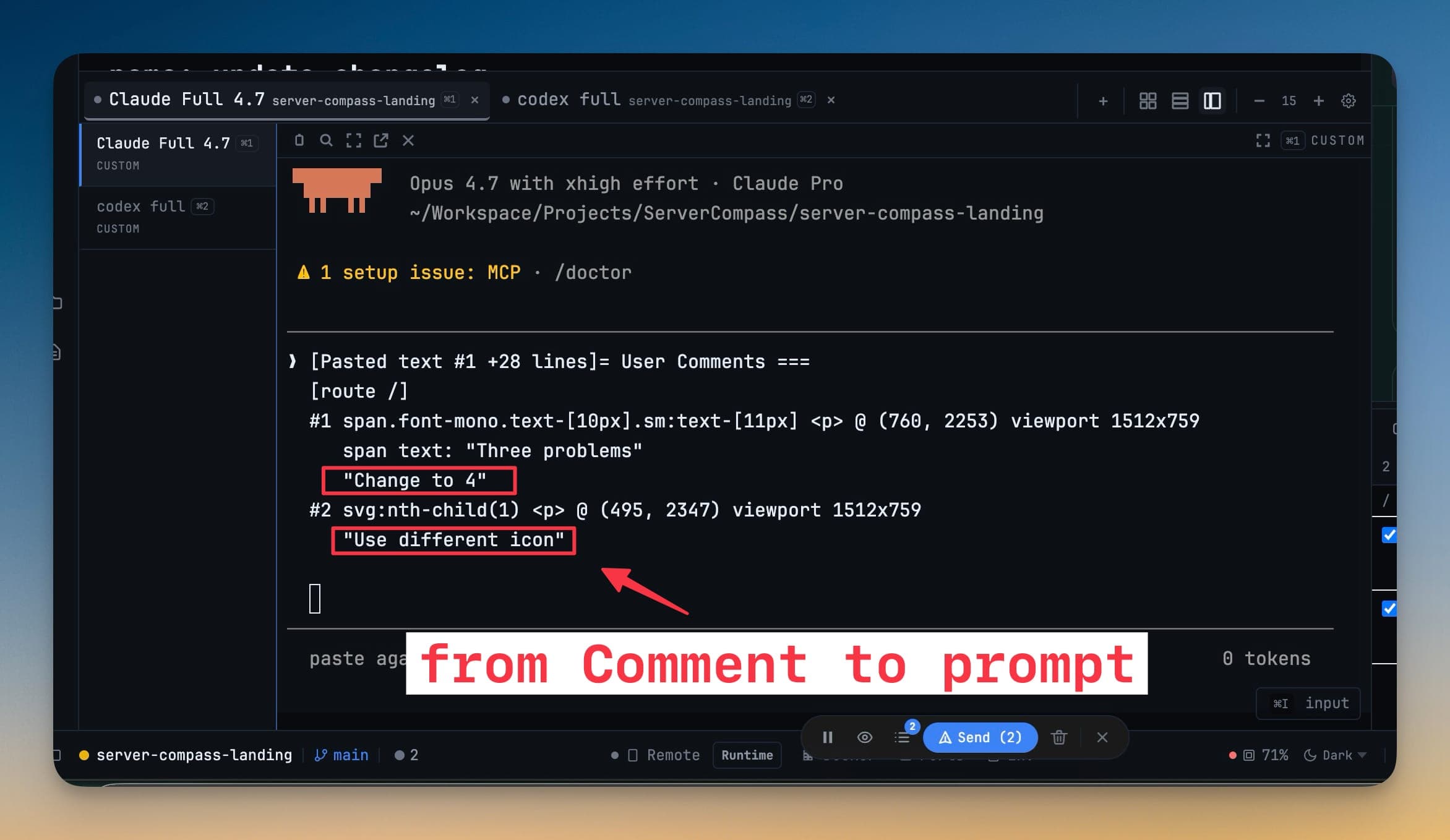
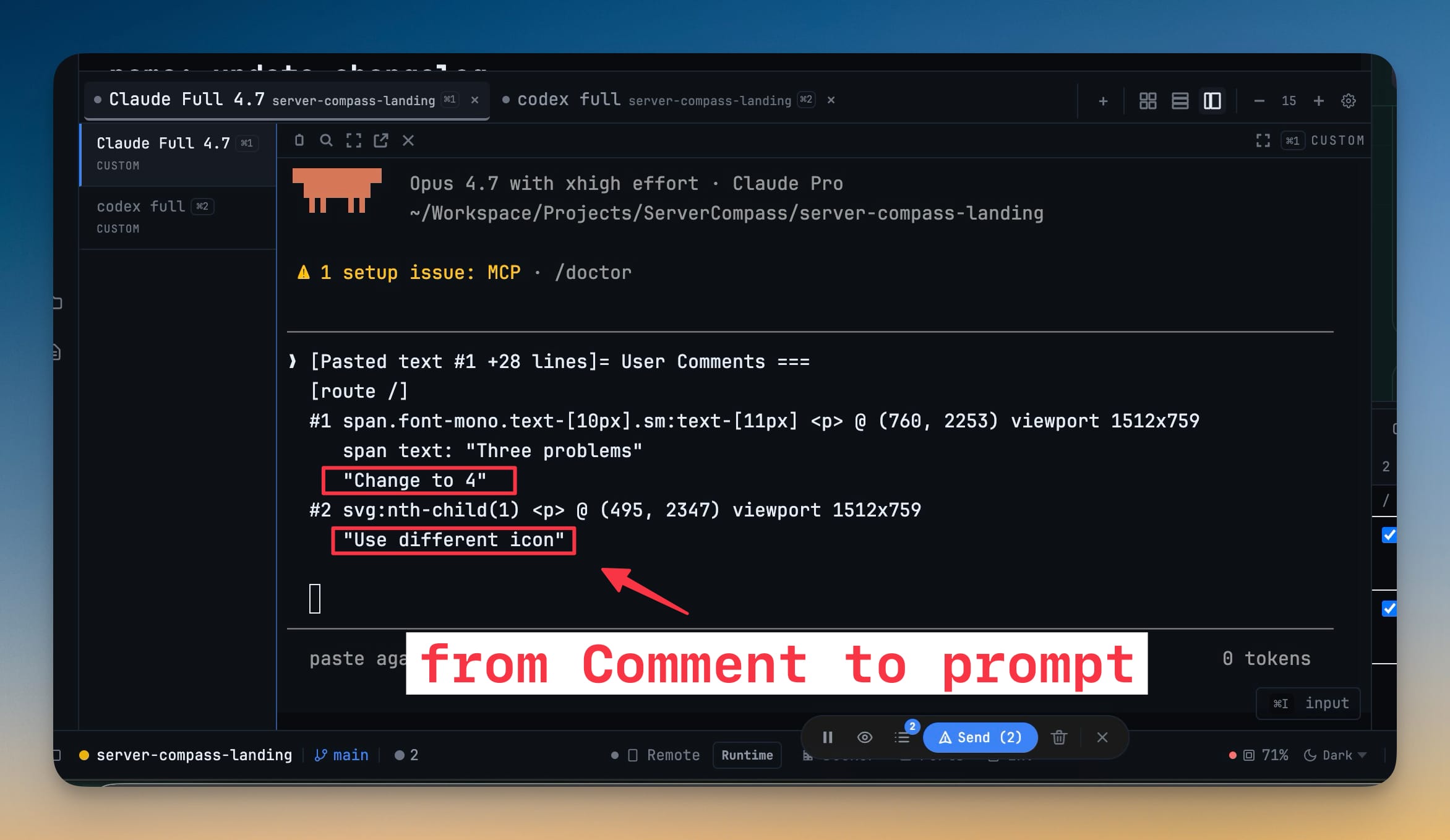
In v1.25.0 you can drop numbered comments directly on the page — element-aware, position-aware, page-aware — and send the whole bundle to an AI agent as a single prompt. The agent receives every comment with the element it points to, where on the page it sits, which route it was made on, and the screenshots and console state alongside.
You stop describing the bug. You point at it.
How it works in practice
Turn on comment mode and start pinning
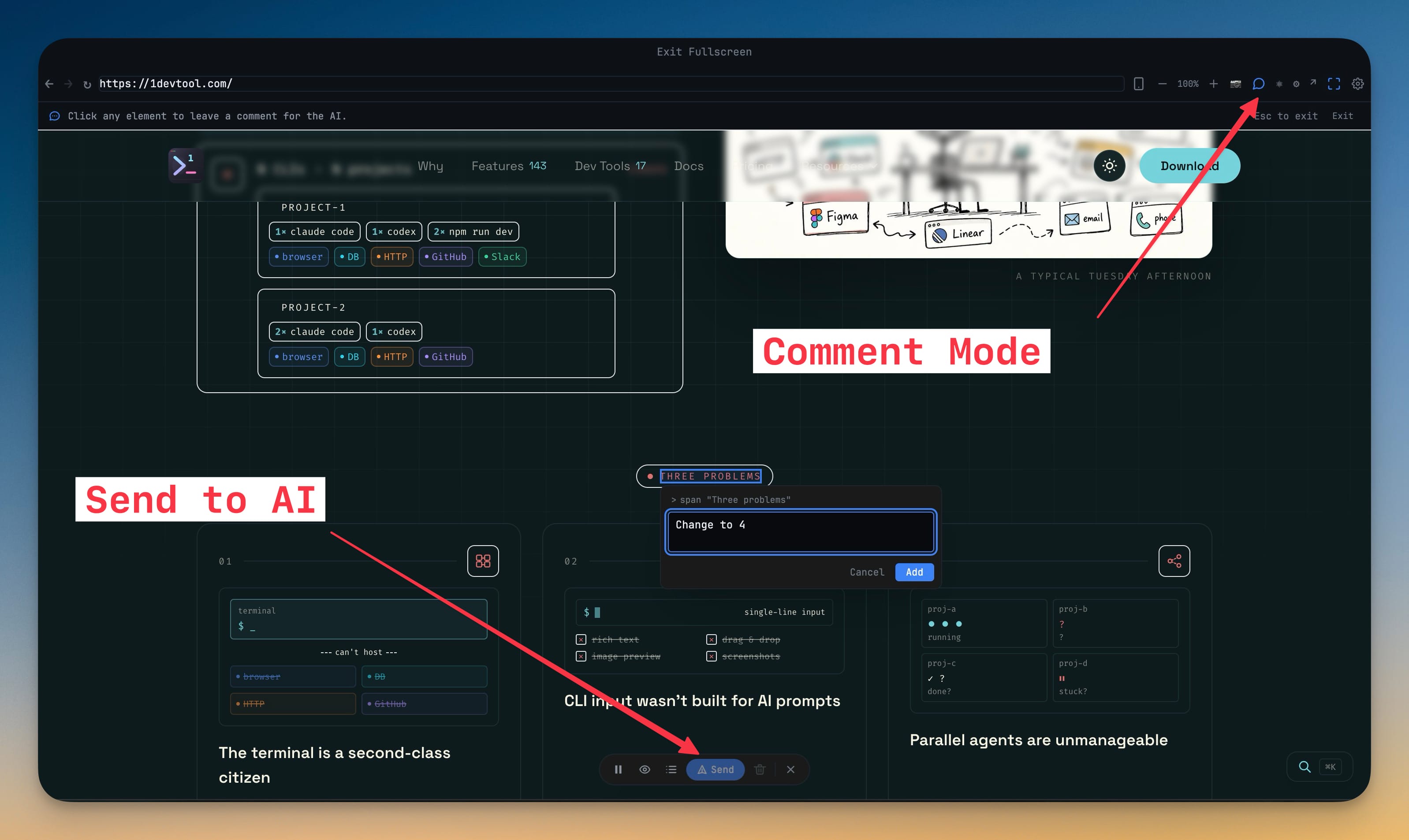
Open the browser panel, click the comment toggle (💬) in the toolbar — the icon also has the keyboard shortcut C. The page goes into comment mode: hover any element and it highlights, click and you drop a numbered pin with a popover for the note. Each pin captures the element it's attached to, its position, the page URL, and the screen size so a fix can later be reproduced on the exact viewport you saw.
You can drop several comments on the same page, navigate to another route, and keep going. The pins stick. The whole session is yours until you send or clear it.
Review and triage in the Comments tab
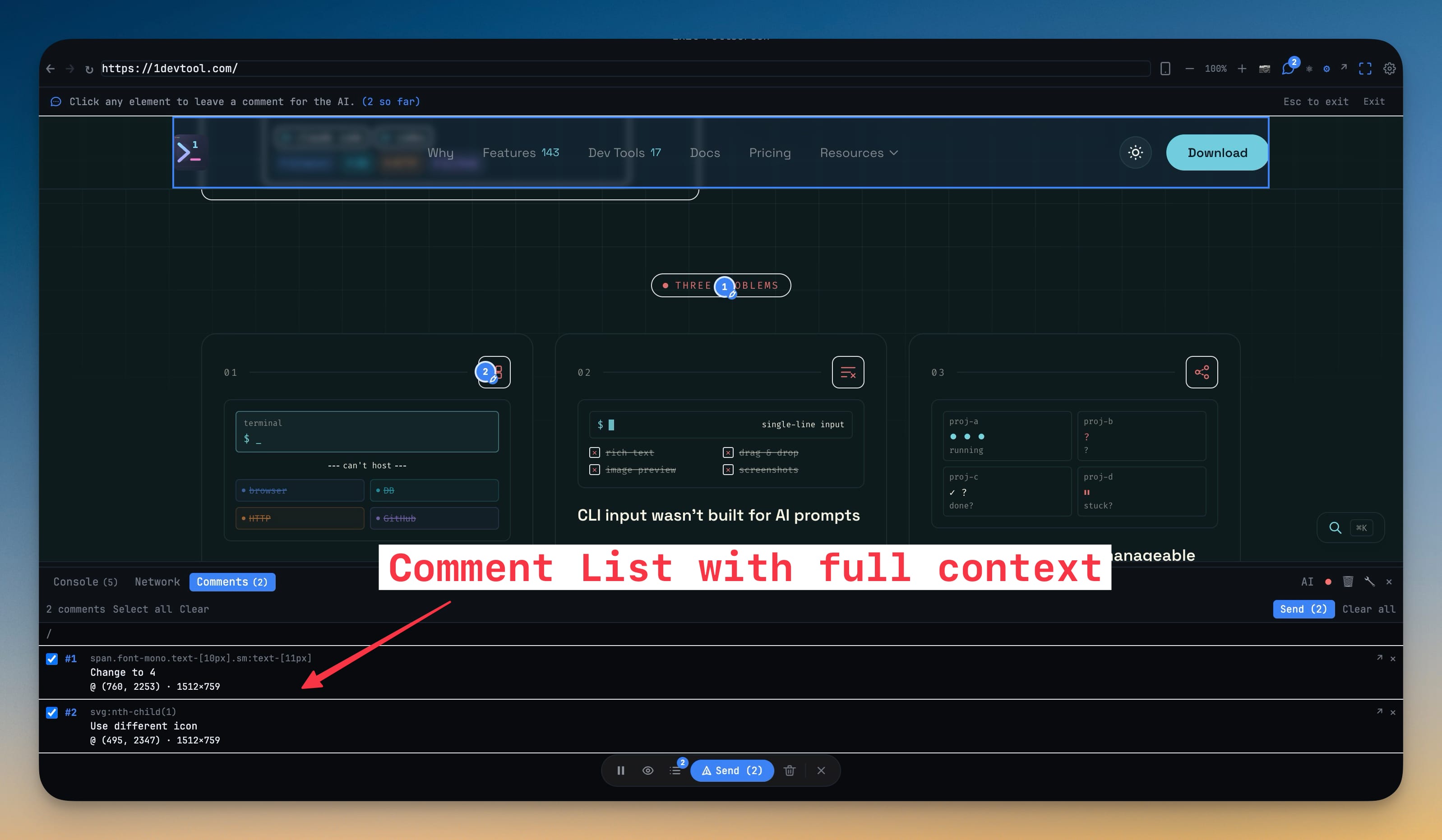
When you're done pinning, switch to the Comments tab. Notes are grouped by page so you can see "five things wrong with /pricing, two with /dashboard" at a glance. Each one has Jump to comment, a selection checkbox, and a delete control. You can prune duplicates, demote nitpicks, and pick exactly the set worth sending.
Bundle everything into one AI prompt
Hit Send to AI Terminal. The dialog packages the comments you selected — each one with its anchor element, its location on the page, and the page URL — along with the browser's console logs, network requests, and screenshots. Add a top-level instruction ("fix these three layout bugs"), pick the terminal, and send.
What the agent receives isn't a paraphrase of what you saw. It's element-aware, position-aware, route-aware feedback grouped by page. The agent can read it the same way you'd read a structured bug report.
Before vs After
| Workflow | The old way | With v1.25.0 |
|---|---|---|
| Spot 3 bugs on a live page | Screenshot each, alt-tab, type vague descriptions | Click comment mode, drop 3 pins, type one note each |
| Tell the agent where the bug is | "the second card from the top, sort of" | Element ref, x/y position, page URL — sent automatically |
| Group feedback across routes | Manually note "this is from /pricing, this from /home" | Comments grouped by page in the panel |
| Trigger the fix | One bug per prompt, hope for the best | One prompt with all the structured context attached |
Who benefits most
Developers QA'ing their own UI work. Instead of describing CSS bugs in prose, pin them. The agent fixes the exact element you pointed at, not its best guess.
Designers reviewing implementation. Drop pins where the build diverged from the design and send the whole batch to whoever's iterating — without leaving the app you're already looking at.
Anyone reviewing AI agent output. When the agent rebuilds a page and the result needs three corrections, the round trip used to take five messages. Now it's one.
Plus: Reader Mode and Sticky Note Settings
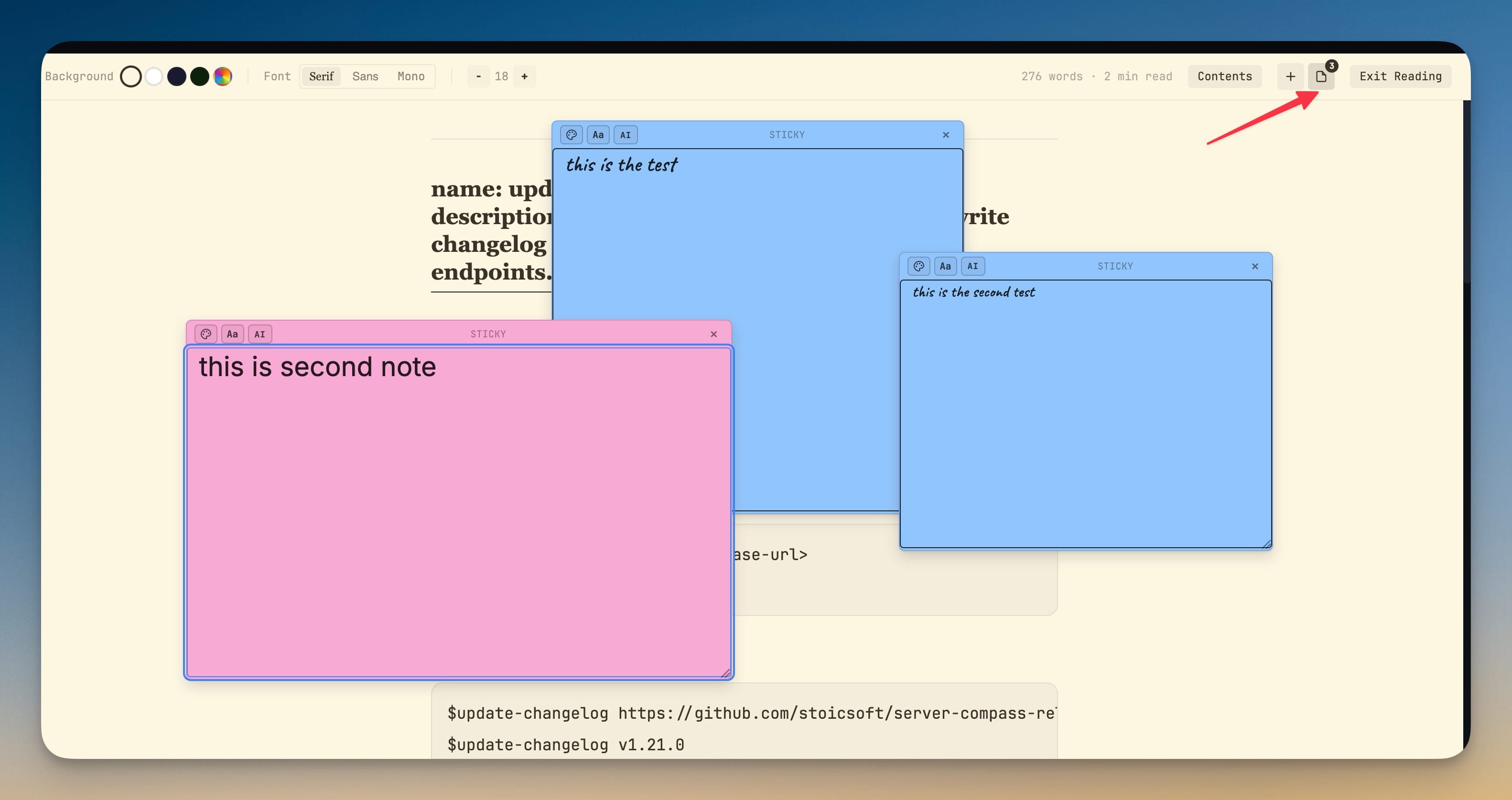
v1.25.0 also gives Reader Mode its own settings panel — set your preferred background (Sepia, White, Dark, Green, or a custom color), font, font size, and content width once in Settings → IDE and it applies wherever you read. Sticky notes get the same treatment: default color, font, font size, and size, so every new note matches how you actually like to work. Old preferences carry over automatically on first upgrade.
And: First-Run Onboarding
For people opening 1DevTool for the first time, v1.25.0 adds a guided welcome card, a dismissible Get Started checklist that ticks itself off as you do the steps, and a smarter empty-terminal screen with one-click launch chips for Claude, Codex, Gemini, Amp, OpenCode, and Bash — the chips dim the agents that aren't installed and show a copy-paste install hint, so nobody's first 1DevTool moment is "command not found".
Try it
Update to v1.25.0, open the browser panel on whatever app you're building, and press C. Drop three pins. Send them. The first time you get an AI fix that addresses all three at once — with the right elements — is the moment this clicks.
From across the StoicSoft network
Hand-curated reads on the same topic from sister sites in the StoicSoft family.