Jun 21, 2026
Control Your Dev Machine From Your Phone
Remote Control now lets you browse and read project files, review diffs and push commits, mention files in agent prompts, and get a notification the moment a task finishes — all from your phone.
You wrapped up at your desk, handed an agent a long-running task, and walked away. Now you're on the couch — or on the train — and the question gnaws at you: is it done yet? Did it touch the right file? Did it break anything? Until now, the honest answer was "I'll find out when I get back to my machine." Your project lived on one computer, and so did you.
That gap is where work stalls. You can't read the file the agent just rewrote. You can't glance at the diff before it goes stale in your memory. You can't commit the good change while it's fresh, and you definitely can't tell — without staring at the screen — the exact moment a command finishes or an agent goes idle waiting for your input.
What changed
Remote Control is no longer just a live terminal on your phone. In v1.26.0 it becomes a real, two-way window into your project: you can browse and read your files, review and ship Git changes, drop file mentions into an agent prompt, and get a notification the instant something finishes — all from the phone in your pocket, while your machine keeps doing the heavy lifting at your desk.
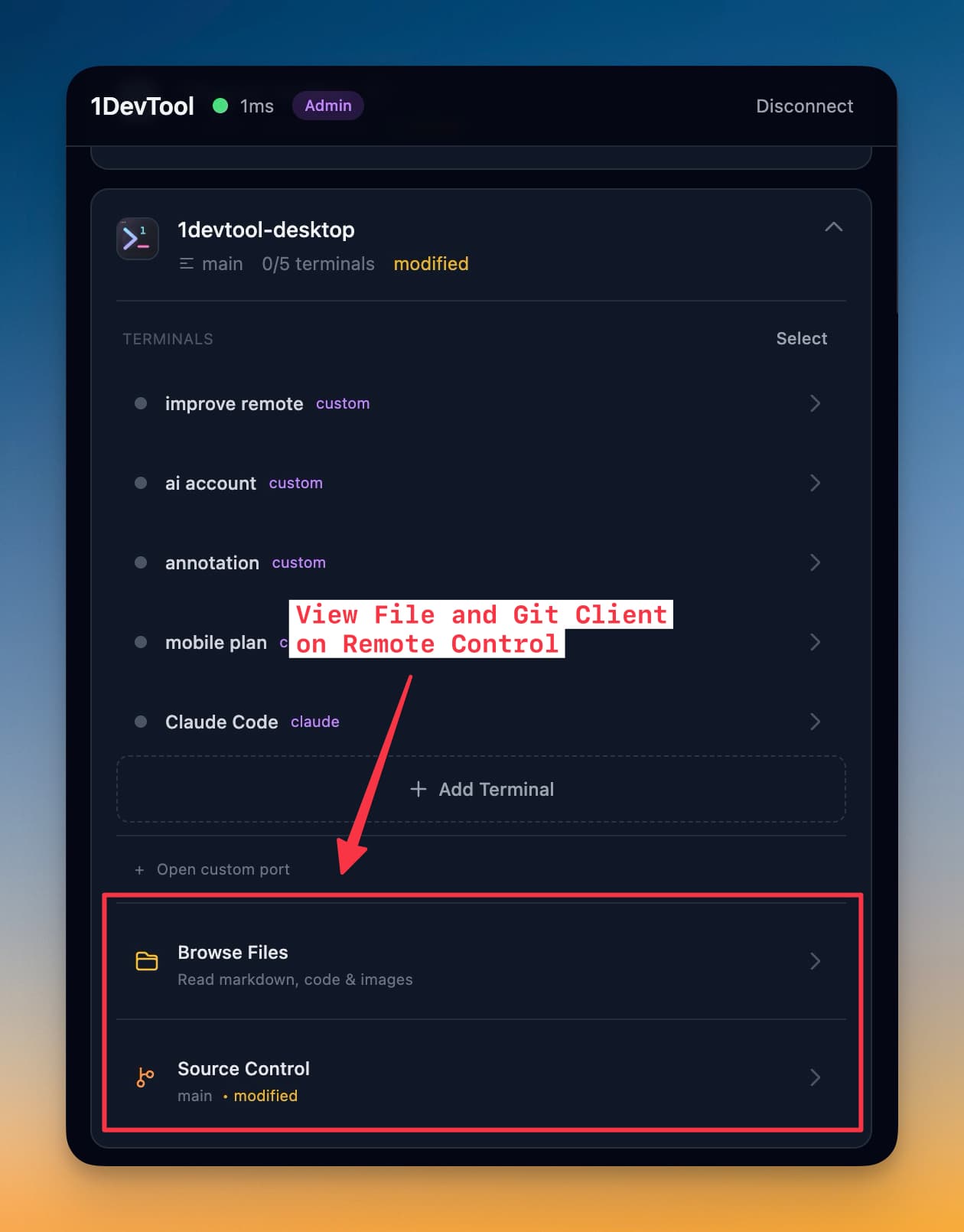
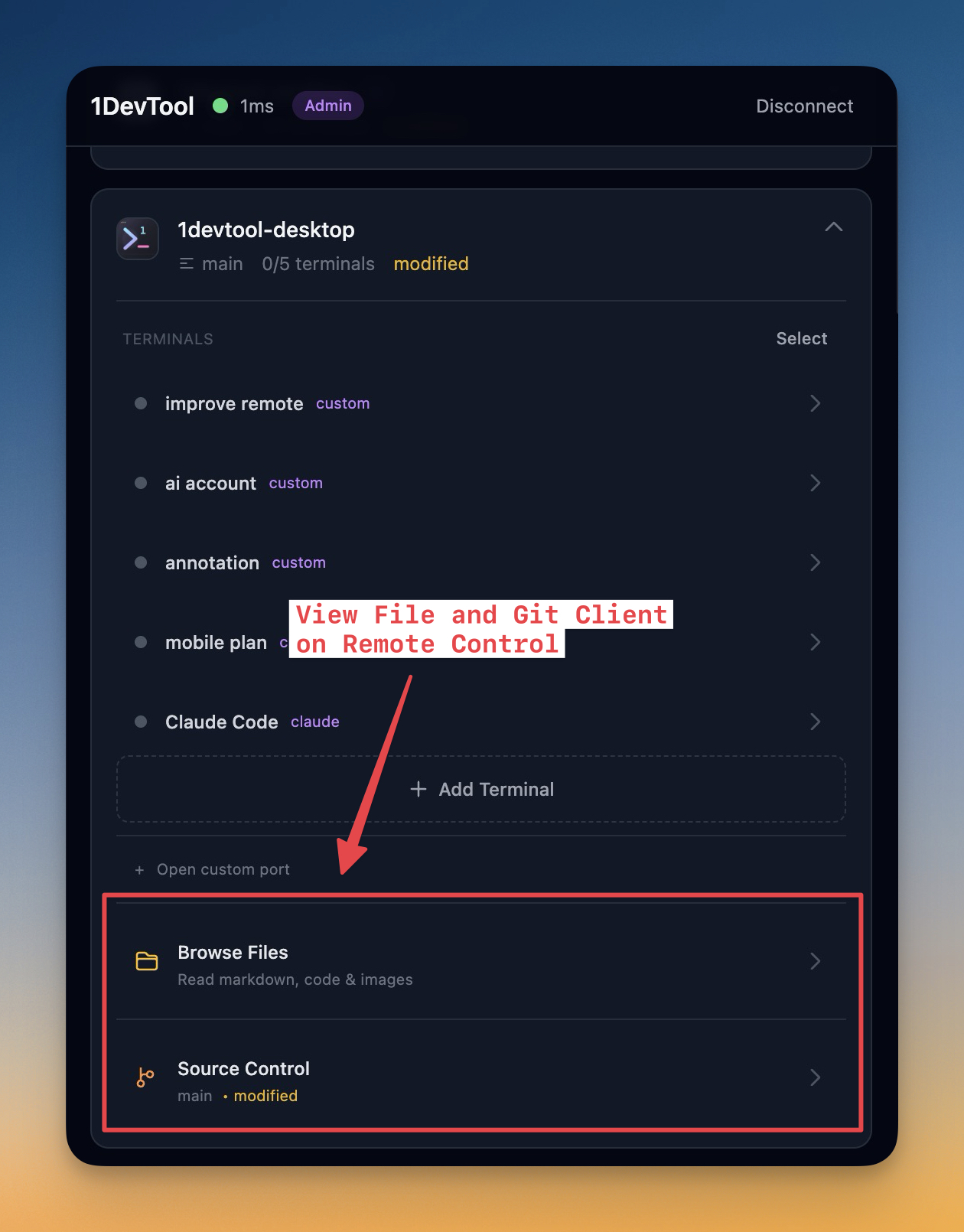
Open any project in the Remote Control dashboard and you'll see two new entries sitting right under the terminal list: Browse Files and Source Control.
How it works in practice
Read any file — markdown, code, or images
Tap Browse Files and you get the same project tree you have at your desk: folder navigation, breadcrumbs, and a project-wide Search files by name box for when you'd rather jump straight to SEO_PLAN.md than click through three folders.
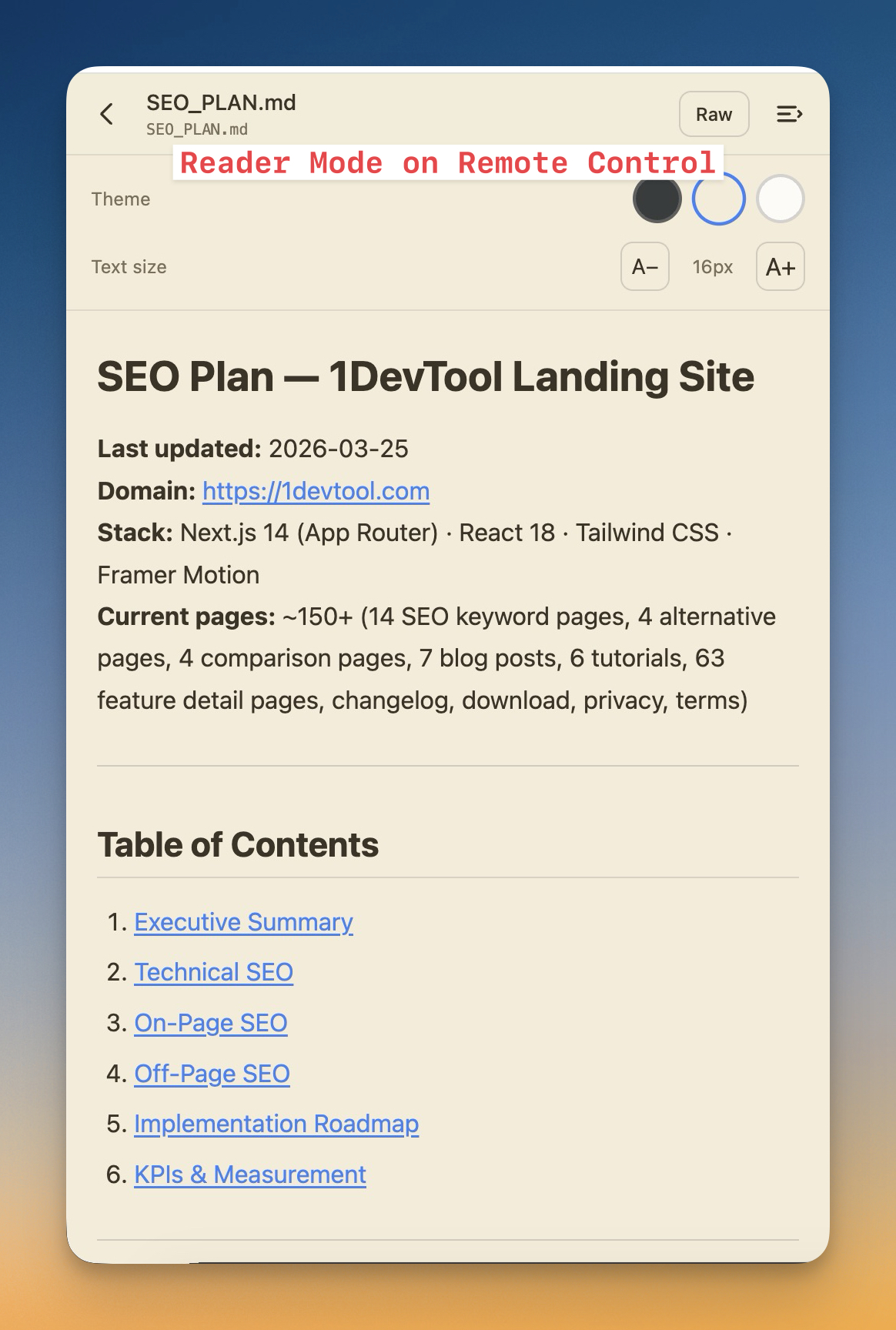
Open a file and it renders the way it should. Markdown drops into a distraction-free reader — not a wall of raw ## and backticks, but formatted headings, lists, and links you can actually read on a small screen. Code opens with syntax highlighting. Images preview inline.
Because you're reading on a phone, the reader gives you the knobs that matter: pick a Dark, Sepia, or Light theme, nudge the text size up or down, and 1DevTool remembers your choice for the next file you open. If you want the source instead of the rendered view, Raw is one tap away.
And if you spot a typo or a one-line fix while you're reading? With operator access you can edit the file in place and save it straight back to the project — no terminal, no detour.
Review and ship changes from Source Control
This is the part that closes the loop on agent work. Tap Source Control and you see your current branch, every changed file grouped by status — Staged and Changes — and a tap on any file opens its diff. You can read exactly what your agent did to the codebase on the live terminal stream, then check the diff to confirm it's what you wanted.
When it is, you don't have to wait until you're back at your desk to capture it. With operator access the action bar gives you Commit, Pull, and Push right there. Write a message in the commit composer — it stages all changes — tap Commit all changes, then Push. The change is in your remote before the moment passes. (And if the working tree is clean, it tells you so plainly instead of leaving you guessing.)
Mention files while prompting an agent
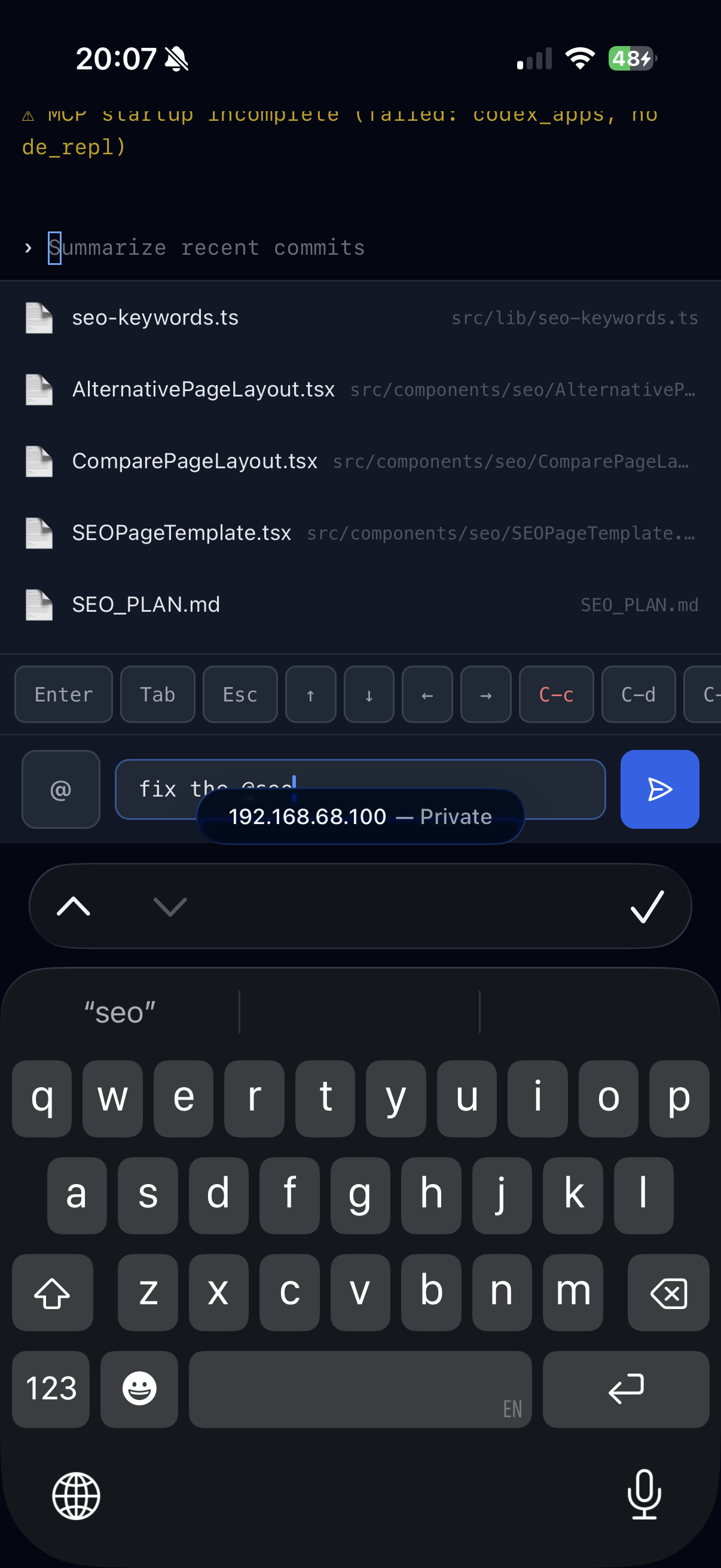
Prompting an agent from your phone used to mean either typing out full paths by hand or settling for vague instructions. Now, type @ in the remote terminal and a file typeahead pops up, filtering your project as you type — so @seo narrows to the files you mean in a couple of keystrokes.
Prefer to browse? Open the full file picker sheet, search or navigate the whole project, and insert a mention from there. Either way the agent gets a precise @path/to/file reference instead of a hand-typed guess — so prompting from the couch is as exact as prompting at your desk.
Know the moment it's done
The whole point of handing work to an agent and walking away is that you don't want to babysit it. But you also don't want to check back ten times for nothing. So now your phone tells you when something actually happens: a terminal command finishes, or an AI agent goes idle waiting for you.
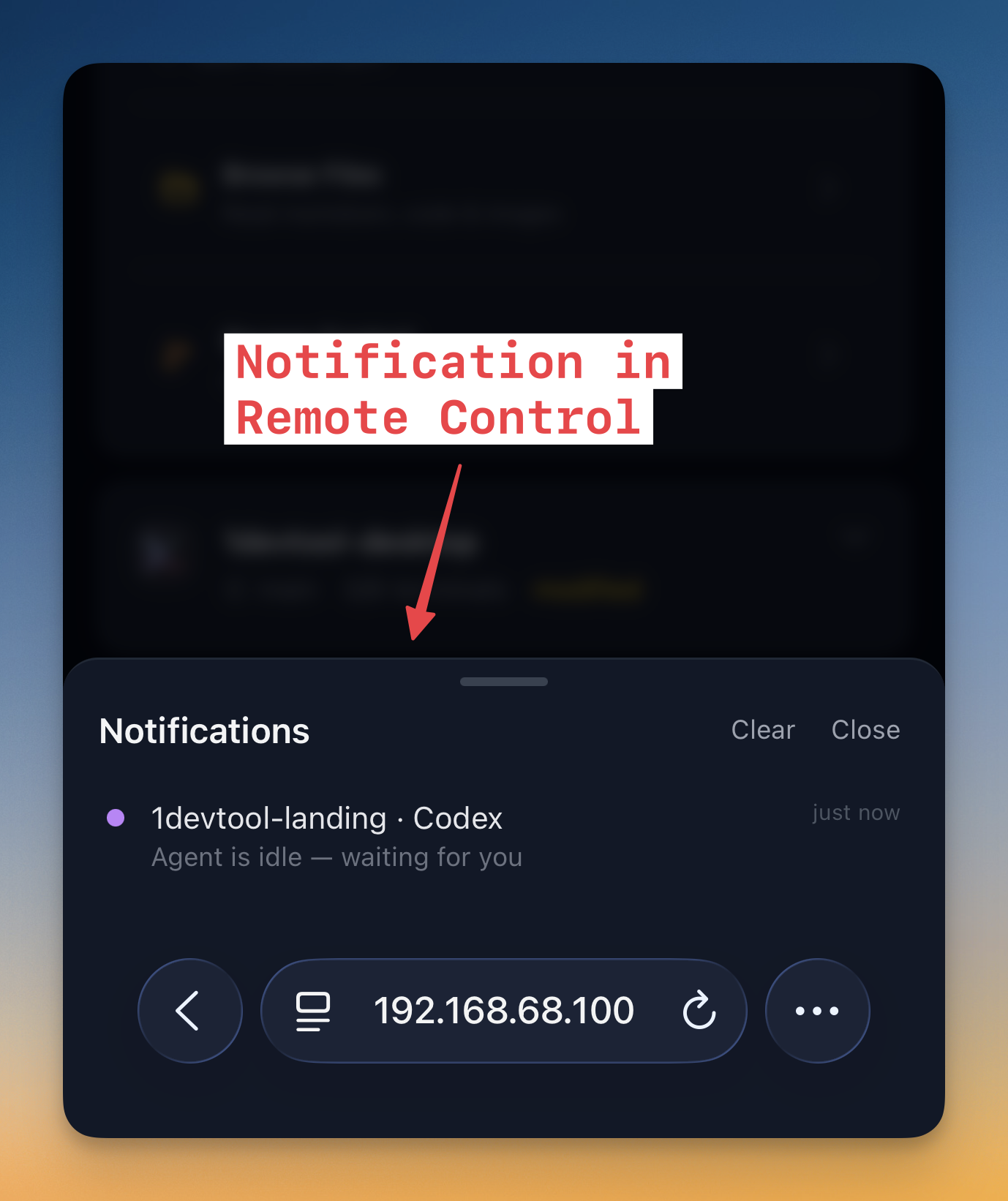
The alert reaches you three ways, depending on where you're looking. An in-app banner slides in at the top while you're using Remote Control. A bell in the header keeps an unread count. And when the page is in the background — phone locked, app switched away — a native notification reaches you anyway. Tap it and you land directly in the exact terminal that triggered it, ready to read the result or send the next instruction.
Before vs after
| When you're away from your desk | Before v1.26.0 | With v1.26.0 |
|---|---|---|
| Read the file an agent just changed | Wait until you're back at the machine | Browse Files → open it in the reader |
| Check what the agent actually did | Trust the terminal scrollback | Open Source Control → tap the file for its diff |
| Capture a good change | Hope nothing overwrites it before you return | Commit and push from your phone |
| Point an agent at a specific file | Type the full path by hand, or guess | Type @ and pick it from the typeahead |
| Know a task finished | Keep checking the screen | Get a banner, a bell, or a native notification |
Who benefits most
If you lean on AI agents for long-running work, this is the release that lets you actually leave the room. Kick off the task, pocket your phone, and get pulled back only when the agent finishes or needs you — then review the diff and ship it without sitting back down.
If you context-switch between rooms, meetings, and a commute, your project stops being chained to one desk. A five-minute gap is now enough time to read a file, approve a change, and push it.
Try it
Update to v1.26.0, open Remote Control, and pair your phone with your machine. Then walk away from your desk on purpose — start an agent, leave the room, and let your phone tell you when there's something worth looking at. The work keeps moving whether or not you're sitting in front of it.
Download 1DevTool and put your dev machine in your pocket.