Jun 1, 2026
Delegate Any AI Agent From Anywhere — v1.22.0 Brings @-Mention Orchestration, Live Theme Editing, and a Whiteboard
v1.22.0 turns every AI terminal in 1DevTool into a delegation hub: type @codex or @opencode inside Claude's terminal and the task pipes through the bundled 1devtool-agent CLI — no MCP server, no copy-paste. Plus call-chain badges, a Theme Editor with live preview, and an Excalidraw whiteboard.
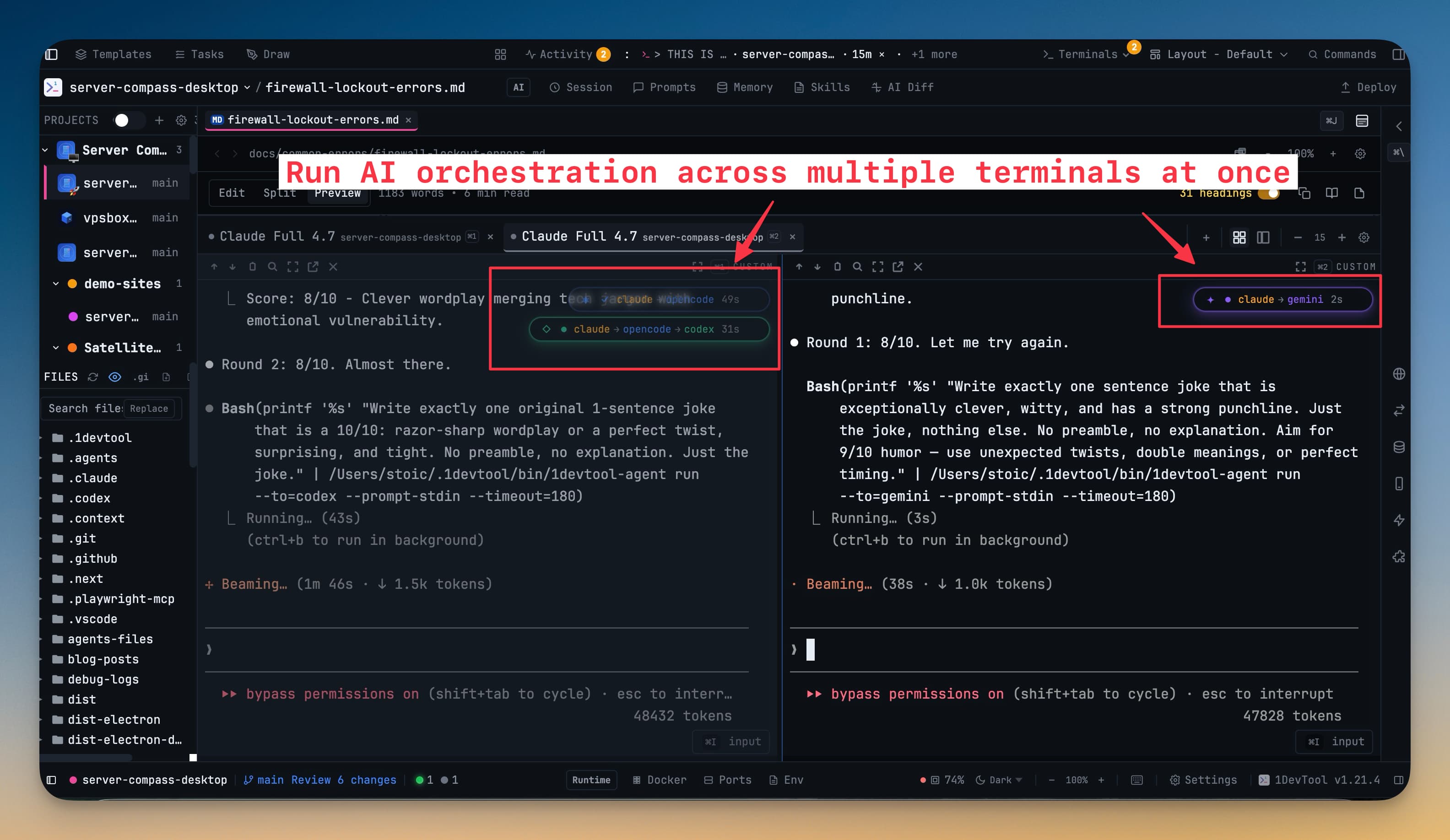
You set up Claude to write the new endpoint. It nails the handler but the validation feels off, so you want a second pair of eyes — maybe Codex would catch the edge case Claude keeps glossing over. So you alt-tab, paste the same prompt into a different terminal, wait, copy the answer back, and try to remember where you were. By the time the comparison is in front of you, the loop is broken and you've lost the thread.
Multi-agent workflows have been like this for a year — every AI CLI in its own terminal, every handoff a manual copy-paste, every "let me get a second opinion" costing a context switch you can't afford.
What changed
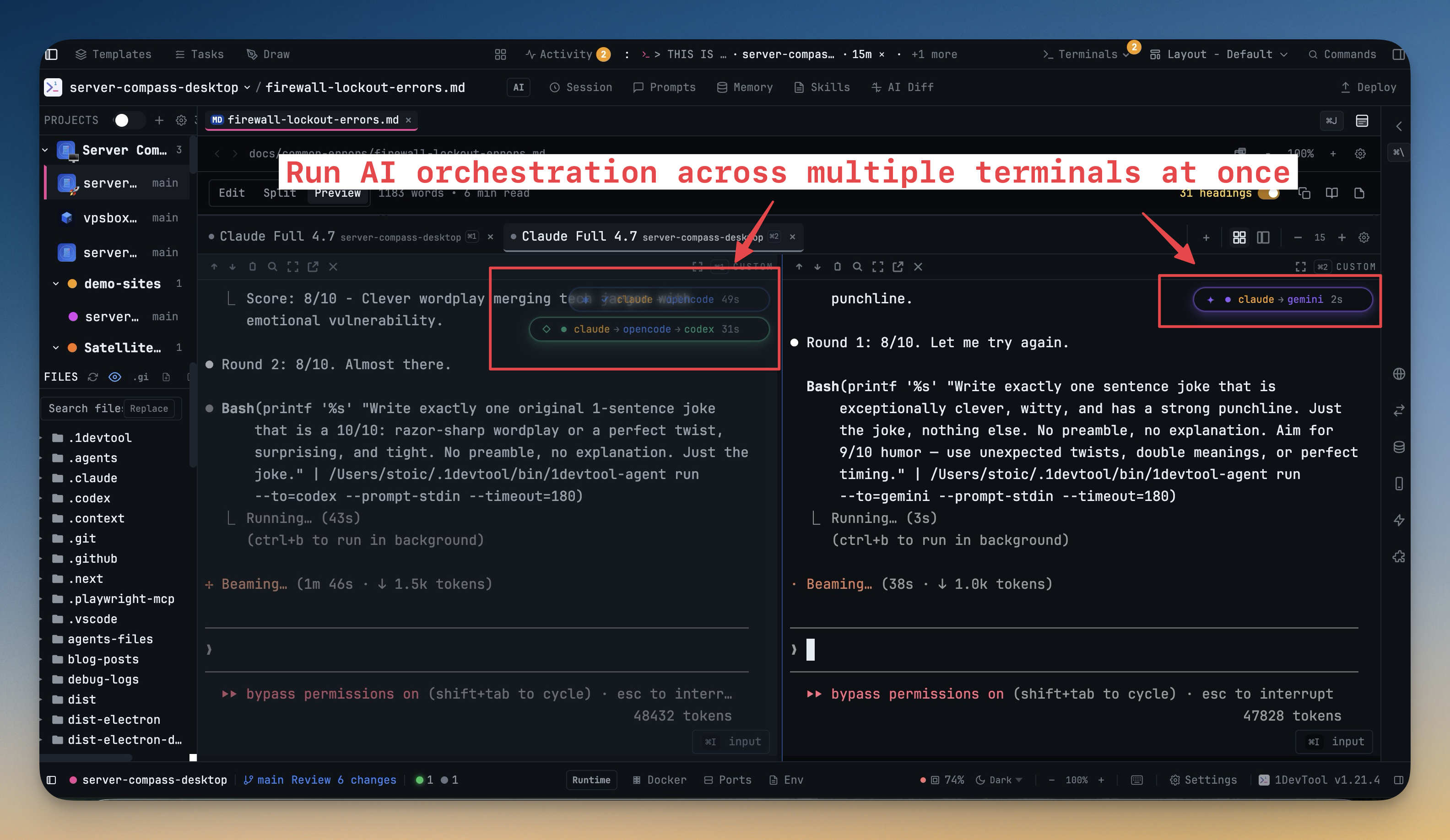
v1.22.0 turns those terminals into a network. Type @codex review what claude just wrote inside any AI terminal and the agent you're already talking to delegates to Codex — runs it, pipes the result back into your conversation, lets you keep going. No second window, no copy-paste, no MCP server to babysit.
The mechanism behind it is a small CLI called 1devtool-agent, installed under ~/.1devtool/bin/ on first launch. Your host agent calls it through a per-agent skill that 1DevTool reinstalls on every app boot. The old MCP-based Run Agent tool is gone — it dropped after about ten minutes of idle time, which made long sessions unusable. The CLI doesn't.
How it works in practice
Delegate with an @-mention
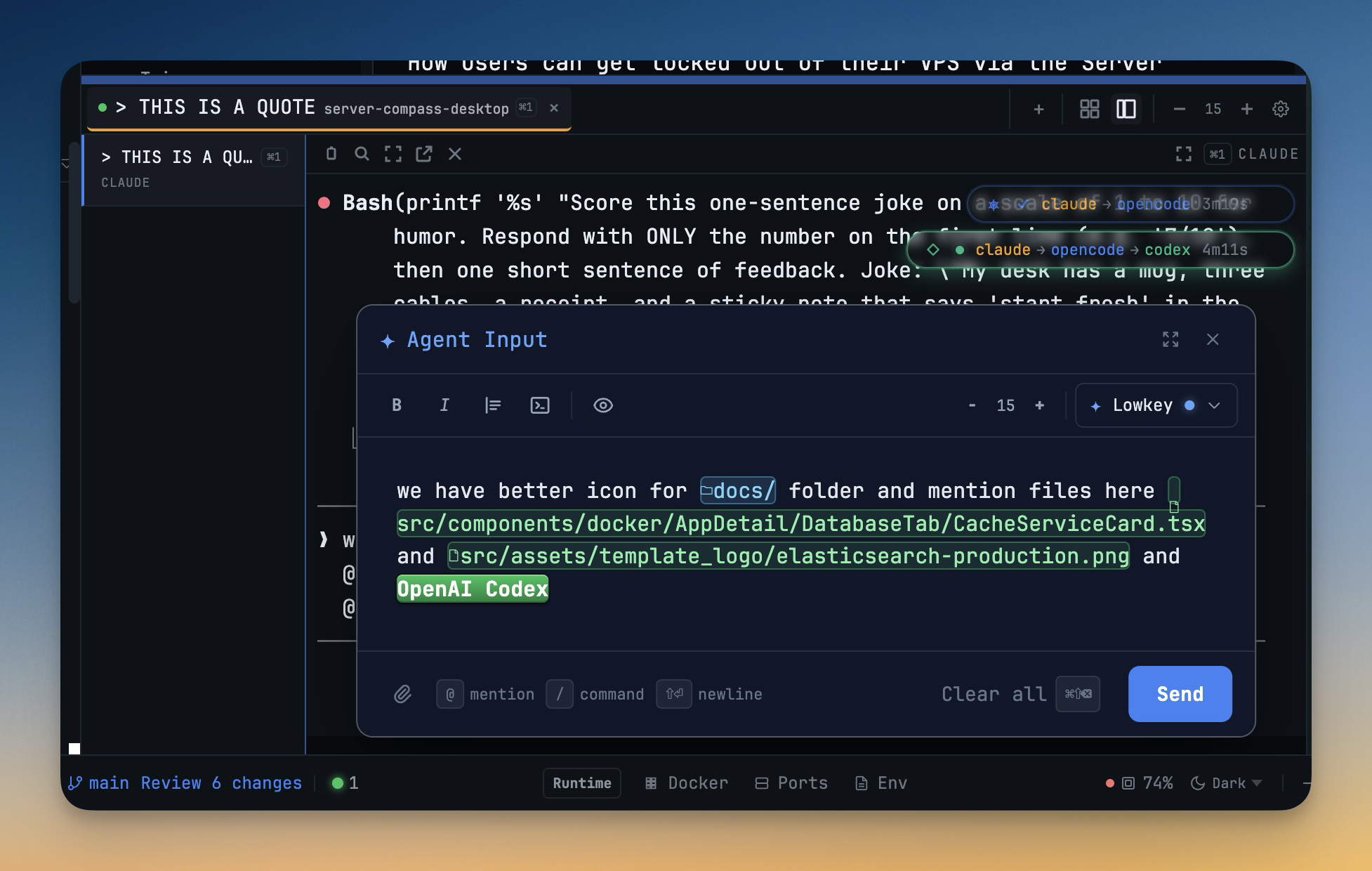
Inside any AI terminal — Claude, Codex, Gemini, OpenCode, Amp, Qwen, Aider — type @<agent> followed by the task. Your active agent picks it up, hands it off, and waits for the result.
@codex review the validation in api/orders/route.ts
@opencode score the test coverage in tests/checkout/
@gemini summarize this stack trace
The delegated agent runs headless in the same project working directory, so it can read and write the same files the caller can. When it finishes, its full text output lands in your terminal as the @-mention result — ready to act on, or to chain into another @-mention if you want a three-way comparison.
The popup that helps you write those mentions got nicer too. File and folder icons now render next to suggested paths, so you can see at a glance whether @codex review api/orders is going to land on a directory or a single file.
Follow the call chain on the badge
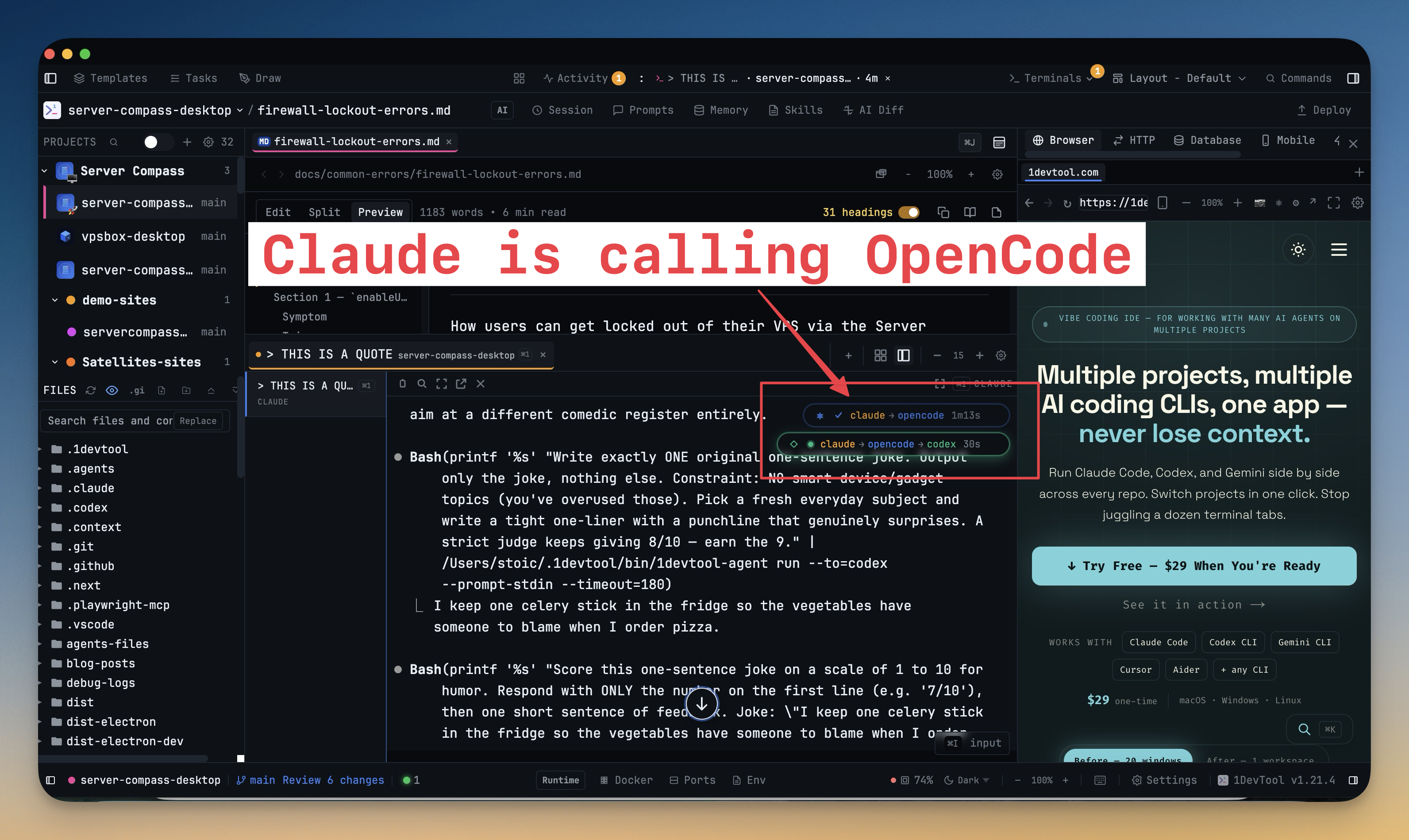
Every spawn is visible above the terminal as a badge — and now those badges show the whole chain. Where you used to see spawn codex, you now see claude → codex with each agent name in its own color.
When Codex itself decides to call OpenCode mid-run, the badge updates in place to claude → codex → opencode. You can tell, without opening a single log file, which agent kicked off which sub-task, and how deep the chain has gone.
Sketch where you're already working
Half of debugging is drawing arrows on top of things. A box for each service, a line for the request that's failing, a circle around the spot on the screenshot where the dropdown disappeared. Pulling out a separate app for that breaks the loop you're already in.
v1.22.0 adds a Draw button to 1DevTool's top bar. Click it and a full-screen Excalidraw canvas opens — freehand pen, shapes, arrows, text, sticky-note frames, image insert. Drop in a screenshot of the bug, annotate it, and save. Close the canvas, come back tomorrow, your scene is still there. The Excalidraw bundle is loaded lazily, so app startup stays as fast as it was without it.
Tune your theme without restarting
The other quiet upgrade is the Theme Editor. Settings → Appearance → Theme, hover any theme card, click Fork & Edit, and a side-by-side editor opens — raw JSON on the left, named form fields on the right for every color slot.
Every change repaints the app within a fraction of a second. There's no Save-and-Reload loop. If you're starting from a VS Code theme you imported, the editor copies the current values so you can tweak two or three colors instead of rebuilding the whole palette. And the import itself got dramatically more faithful — sidebar, breadcrumb, status bar, panel, peek view, and Monaco accents now round-trip correctly, and a theme's semanticTokenColors are converted into matching Monaco syntax rules.
Before vs after
| Before v1.22.0 | After v1.22.0 |
|---|---|
| Open a second terminal for Codex, paste the prompt, wait, copy result back to Claude | @codex review … inside Claude's terminal; result pipes back inline |
| MCP server drops after ~10 min idle, mid-session | 1devtool-agent CLI runs per-invocation; nothing to keep alive |
Sub-agent badge says spawn codex — no idea who called it | Badge shows claude → codex → opencode with each agent colored |
| Pull out Excalidraw web or a separate sketch app to mark up a screenshot | Click Draw, annotate, close — scene persists locally |
| Edit a theme JSON file, reload the app, realize the contrast is off, repeat | Fork & Edit → JSON + form editor → live repaint on every keystroke |
Who benefits most
Multi-agent power users — anyone routinely running two or more AI CLIs side by side. The cost of asking for a second opinion drops to a single line of text in the terminal you're already in.
Anyone whose long sessions used to drop — the MCP-based orchestrator failed at ~10 min idle, which made all-day Claude or OpenCode sessions unreliable. The CLI is stateless per invocation, so there's nothing to drop.
Theme tinkerers — if you've ever fought with VS Code theme imports that silently dropped half your colors, the new converter and the live editor make the loop tight enough to actually finish a theme.
Try it
Update to v1.22.0, open any AI terminal, and type @<agent> <prompt> — pick any agent you've got installed. The skill is auto-reinstalled on boot, the CLI is on your PATH, and the badge above the terminal will tell you who's talking to whom. If anything looks off after an upgrade, Settings → AI → Orchestration → Reinstall orchestration skill rebuilds the skill files in every detected agent's skills directory in one click.
What used to be a manual handoff is now a one-line delegation. The terminals you've been running side by side finally know about each other.