Jun 30, 2026
A Friendlier Git Client That Follows You Across Projects
1DevTool's Git Client got a warmer redesign — and now you can switch projects, see whose account you're committing as, and scroll your full history without ever closing the window.
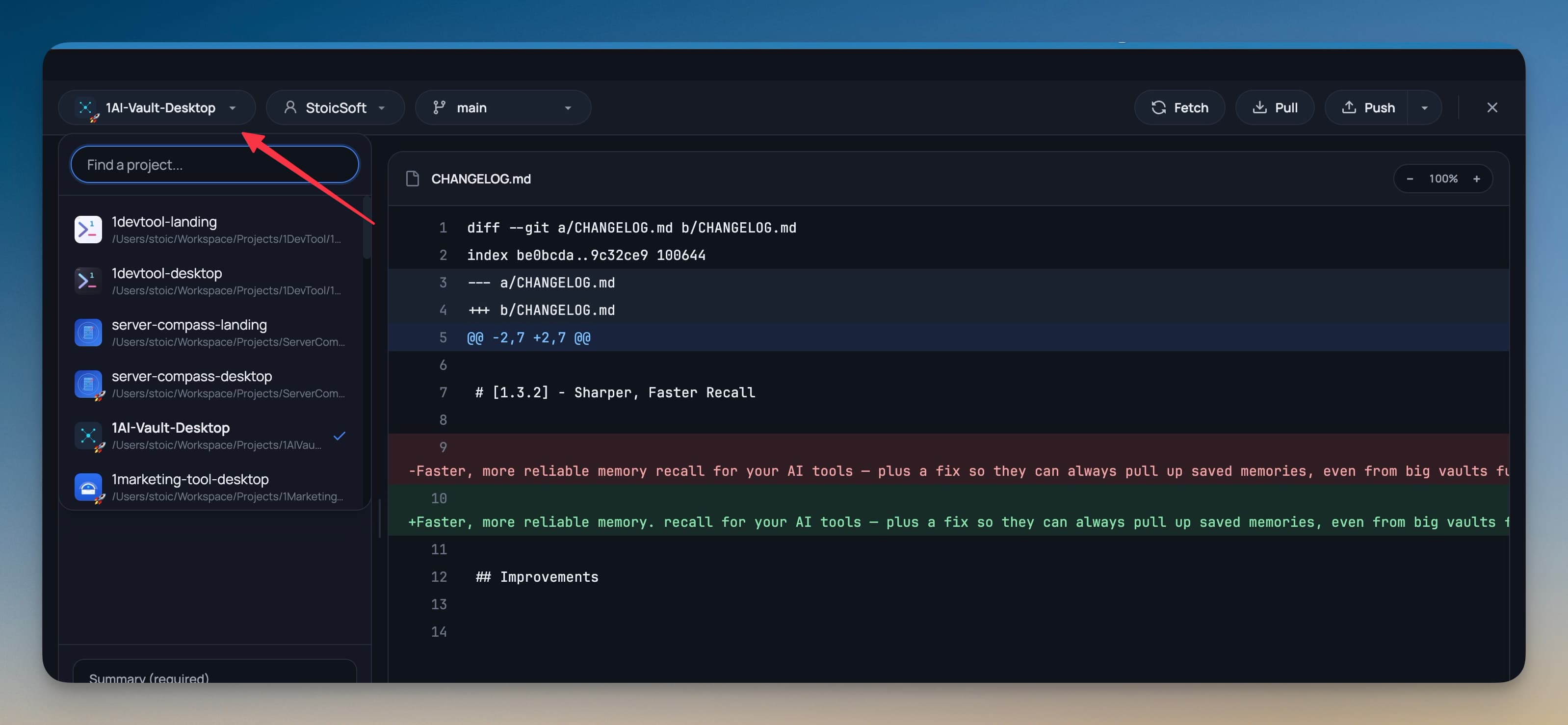
If you touch more than one repository in a day — a frontend here, an API there, a landing page you keep nudging — the Git window has a way of getting underfoot. You open it for one project, scan your changes, commit, close it. Then you switch projects and open it again. And again. Somewhere in that loop you push as the wrong account, because the only way to tell which identity was active was to remember.
Source control shouldn't ask for that much bookkeeping.
The Git Client now moves with you
This release gives the Git Client a warmer, friendlier look — and, more to the point, makes it follow your work instead of pinning you to one project at a time. You can switch projects from inside the Git window, see exactly which account you're committing as, and scroll back through your whole history without it stalling a few commits in. Diffs, hashes, and file paths still render in monospace, and diff colors are untouched, so code still reads like code.
How it works in practice
Switch projects without leaving Git
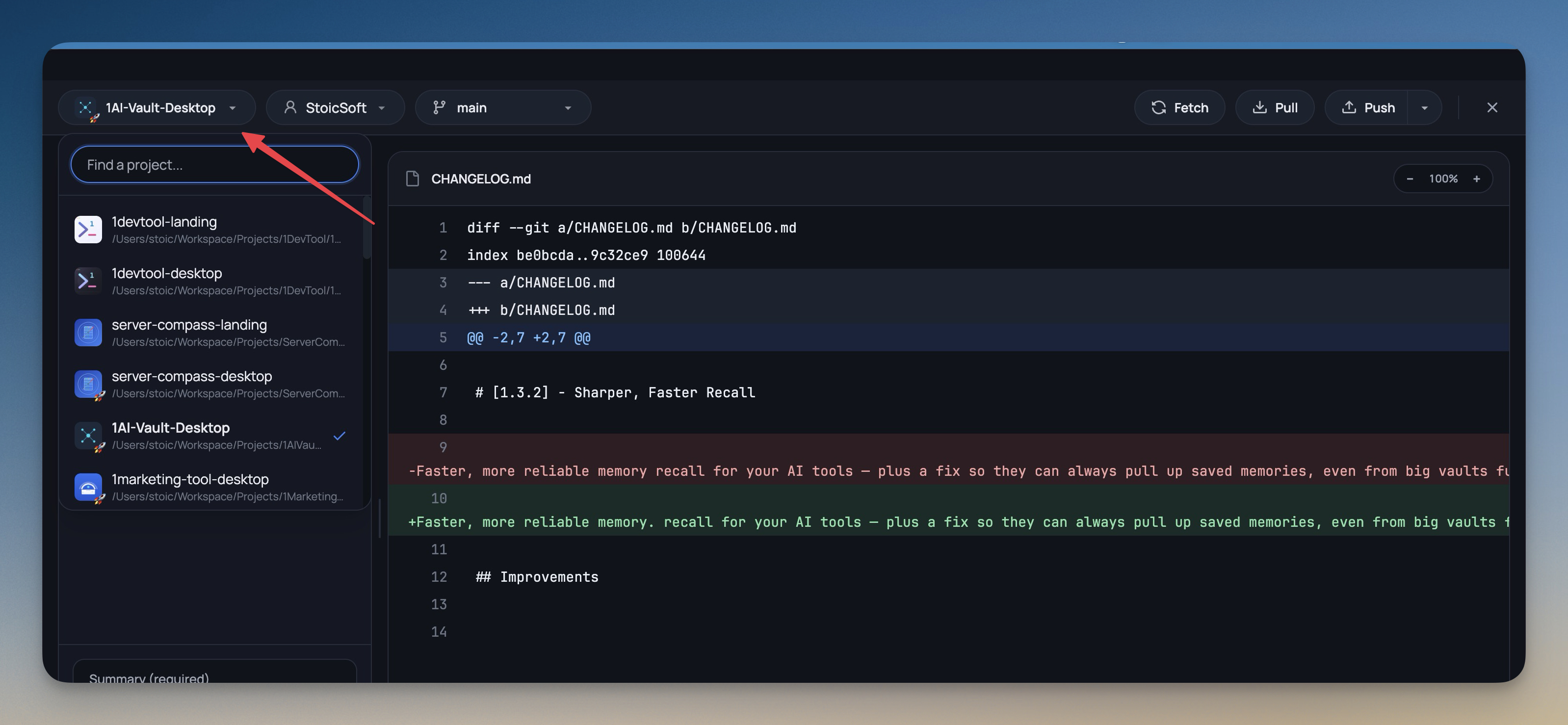
The project name in the Git toolbar is now a picker. Click it, type into Find a project…, and jump straight to any other project's Changes, History, Worktrees, or Graph — no closing the dialog, no reopening it for the next repo. Each project in the list carries its own avatar, color, and emoji, so a workspace full of repos stays scannable instead of collapsing into a column of near-identical names.
See who you're committing as
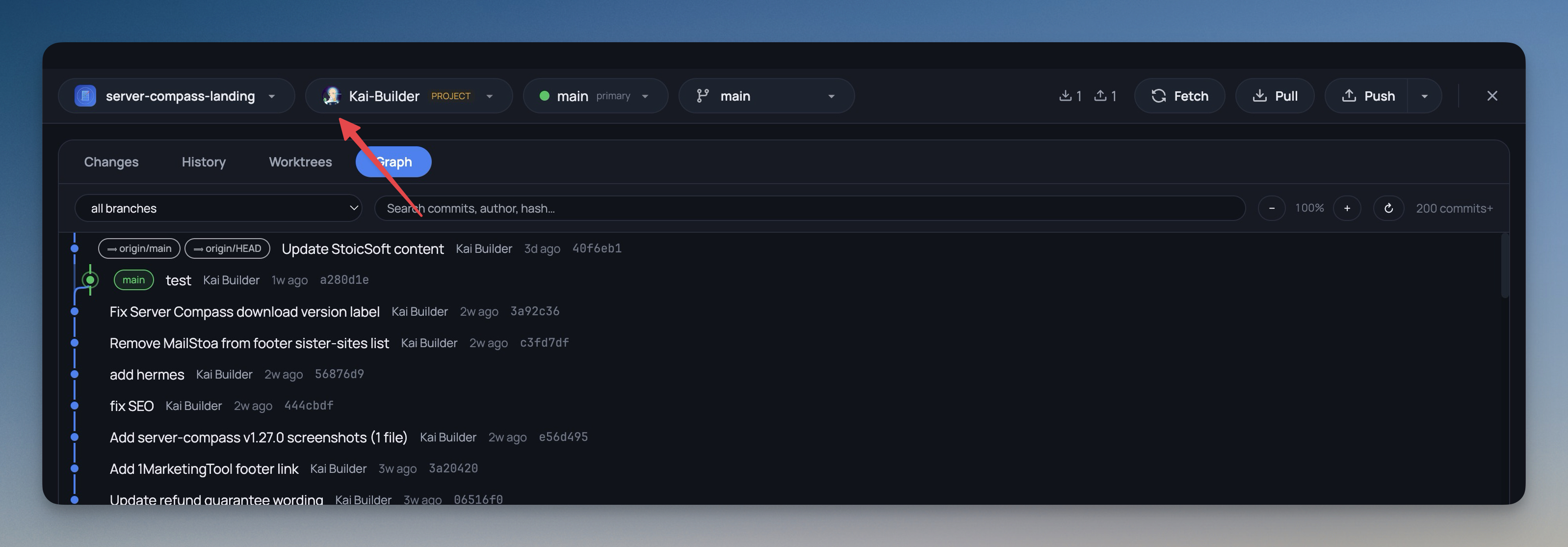
Pushing under the wrong identity is the kind of mistake you only notice after it lands. The git account picker now shows your GitHub or GitLab profile picture for each account, with a colored initials badge when no avatar is set. The same faces show up in Settings → Git, so the account you're about to commit with is something you recognize at a glance rather than a name you have to parse.
Project avatars in the header, too
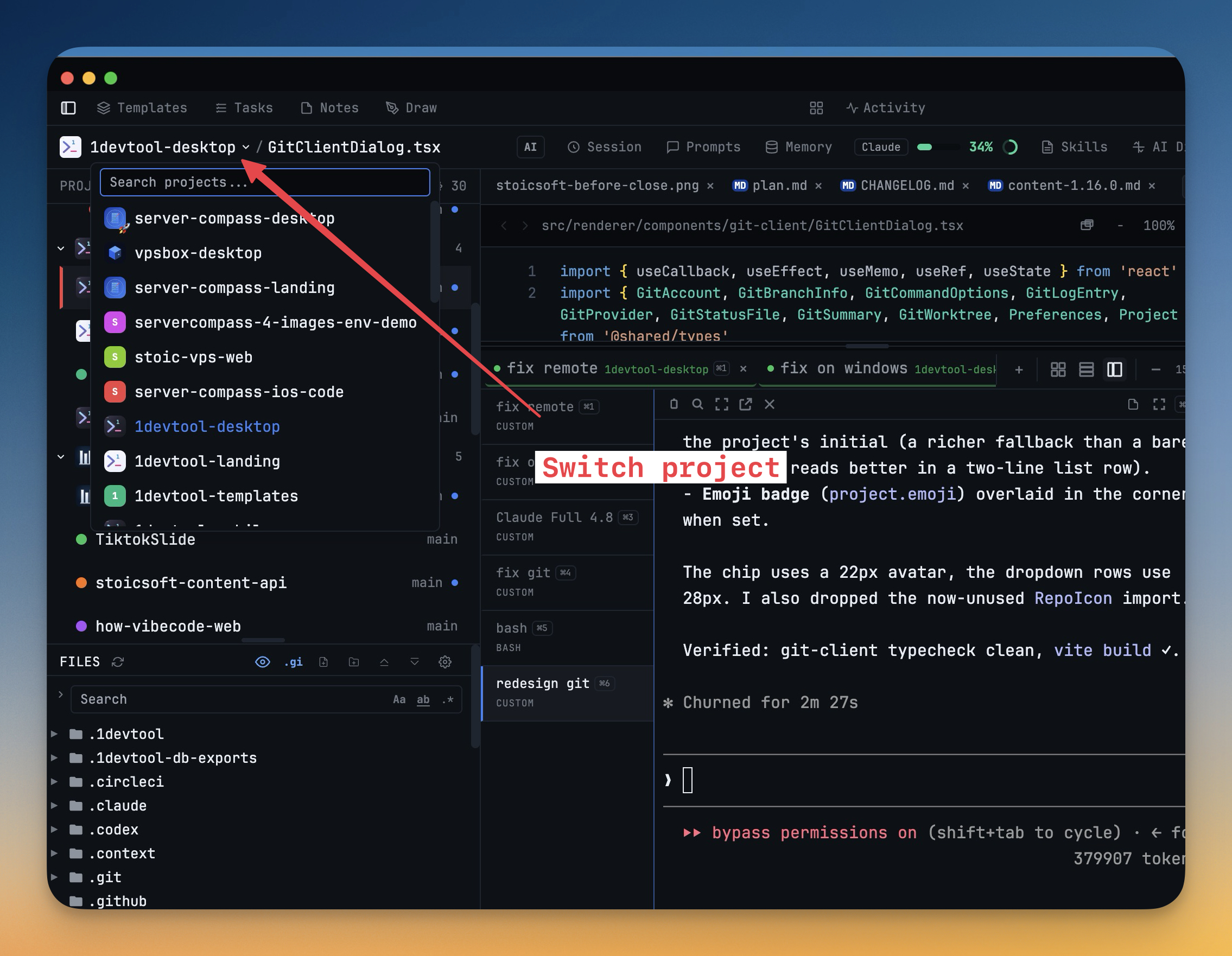
The recognizability carries beyond the Git window. The project switcher in the top breadcrumb now shows each project's avatar and emoji as well, so the same visual shorthand you use to tell repos apart in Git works everywhere you switch projects.
Scroll back through your whole history
The History tab used to stop at the most recent handful of commits. Now it keeps loading older commits as you scroll, so you can travel all the way back through a project's timeline — useful when you're tracking down when a change actually shipped instead of guessing where the list cut off.
Before vs. after
| Working across repos in Git | Before | After |
|---|---|---|
| View another project's changes | Close the Git window, switch projects, reopen it | Pick the project from the toolbar |
| Know which account you're committing as | Remember it, or dig through settings | A profile picture sits right in the toolbar |
| Tell projects apart | Read each name | Scan by avatar, color, and emoji |
| Look at older commits | Stuck at the most recent few | Scroll back through the whole timeline |
A few more quality-of-life wins
Not everything here is about Git.
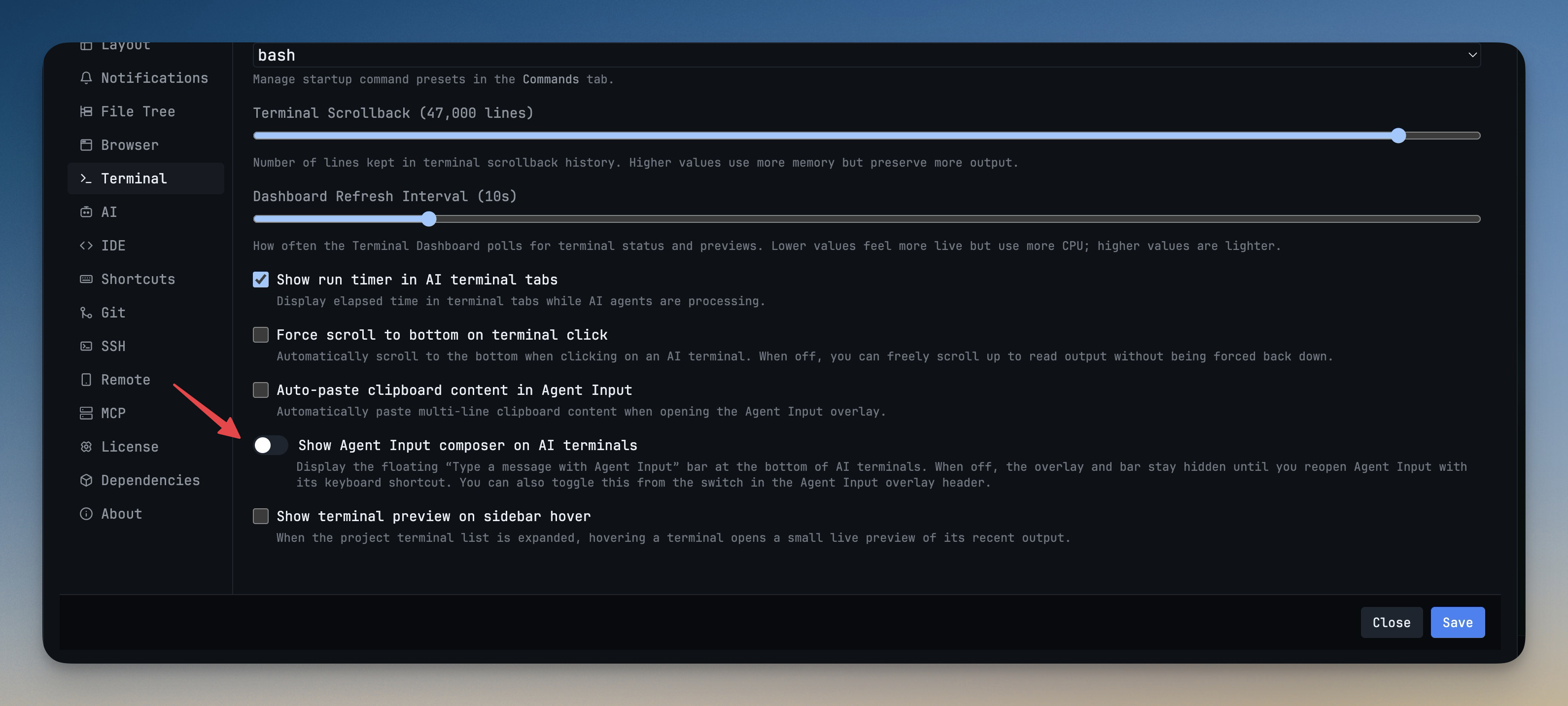
Decide whether the Agent Input bar shows up. A new Terminal setting lets you hide the floating Agent Input composer on AI terminals. When it's off, a small ⌘I input pill — and its keyboard shortcut — brings the composer back whenever you want it. You can also flip the same switch straight from the Agent Input overlay header, so the bar is there when you're drafting a prompt and out of the way when you're reading output.
Generated files appear instantly. Files your AI agent writes into build-output folders — dist, build, .next, coverage, target, vendor — now show up in the File Explorer in real time, instead of only after a manual refresh or a project switch. When an agent scaffolds output, you see it the moment it lands.
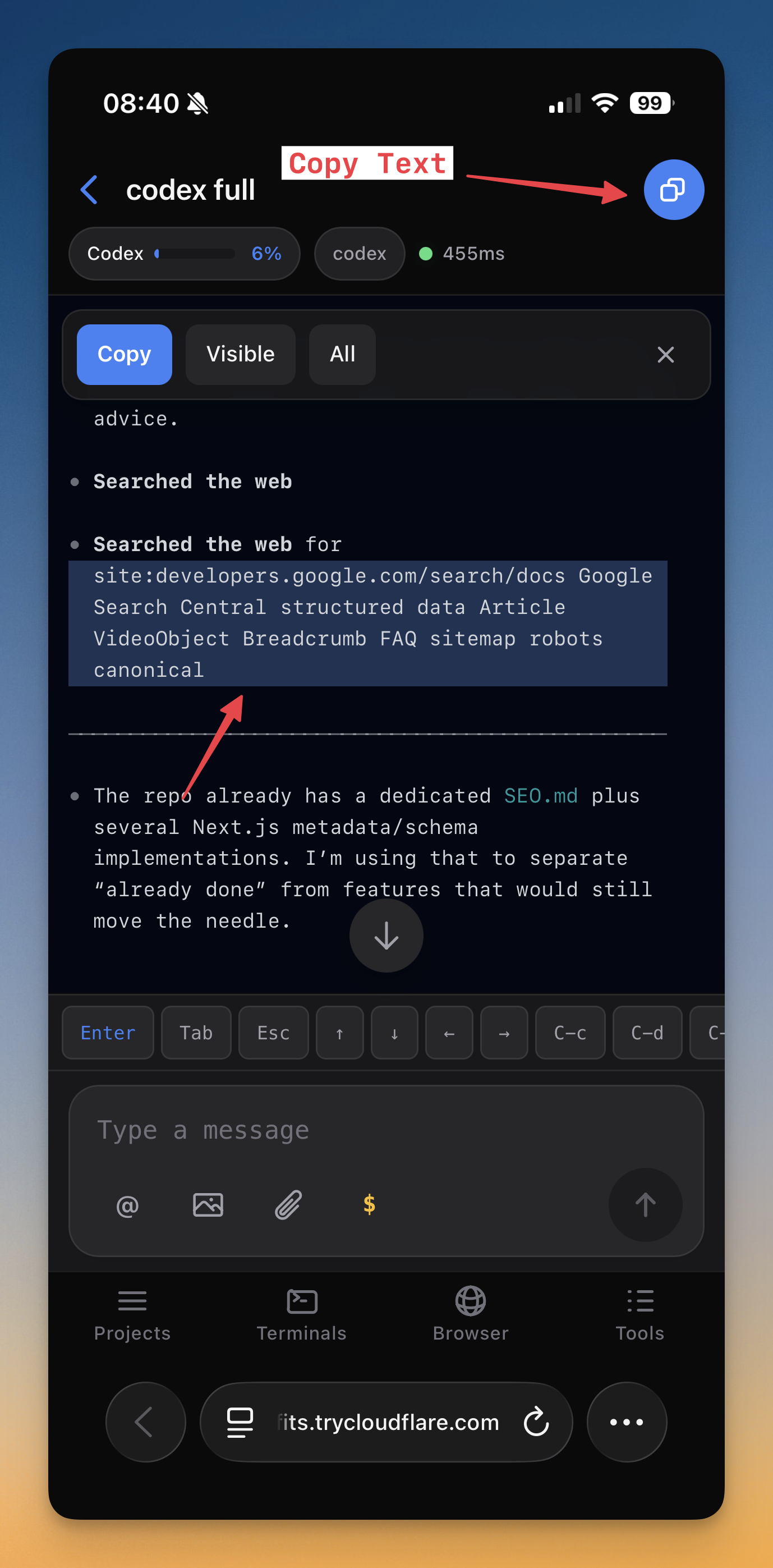
Copy from the phone terminal. Remote Control can now copy terminal text straight to your phone's clipboard, and tapping a project on the dashboard scrolls right to it — small things that make driving your dev machine from your phone feel less like a workaround.
We also fixed pasting into Claude on Windows losing the cursor, so your next keystrokes land in the prompt instead of disappearing, and made phone connections more reliable when a session reconnects.
Try it
Update to v1.30.0, open the Git Client on any project, and click the project name in the toolbar. Switch to another repo, check the face next to your commit, and scroll all the way back through the history — all without ever closing the window. The fewer detours between you and a clean commit, the more the tool stays out of your way.