Jul 12, 2026
Know exactly what every AI agent is doing — from your desk or your phone
1DevTool v1.38.0 adds live run timers to every terminal tab and brings Reader Mode to Remote Control, so you can tell which agents are still working at a glance and read their full conversations comfortably from your phone.
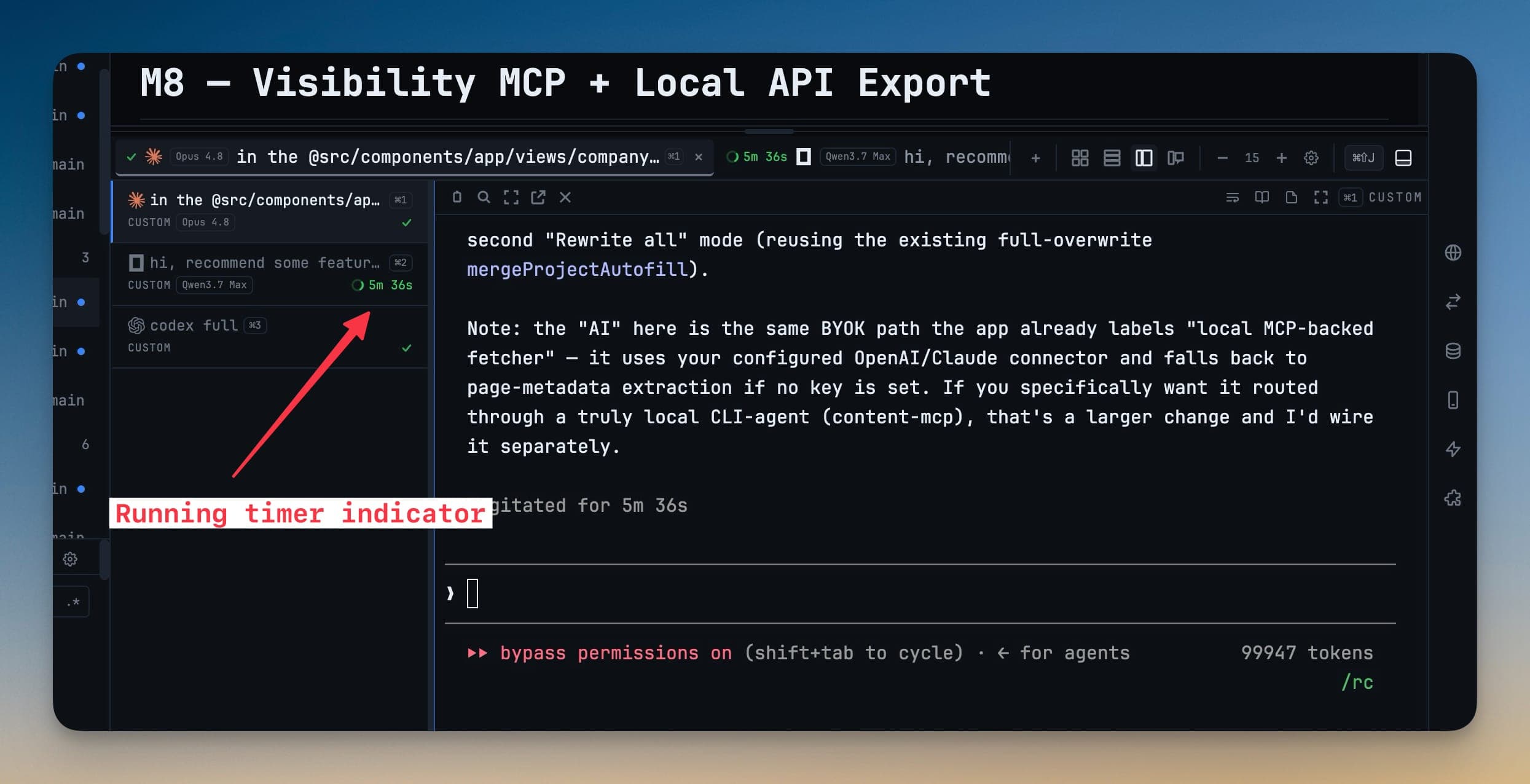
You hand a task to an AI agent in a terminal, then switch to another tab to keep working. Ten minutes later you glance back — is it still thinking, or did it quietly finish four minutes ago while you weren't looking? The only way to know is to click into the tab and scroll. Multiply that by the three or four agents you have running at once, and a real part of your day becomes checking on work you can't see.
It gets worse the moment you stand up. You start a long refactor, grab a coffee, and want to check progress from your phone. Remote Control has always let you do that — but you were reading the agent's reasoning in a raw terminal, wrapping and scrolling through a wall of monospaced text on a screen the size of your palm.
1DevTool v1.38.0 fixes both. You can now see how long every agent has been working at a glance, and read its entire conversation on your phone as comfortably as an article.
What changed
Two additions, one goal — knowing what your AI agents are doing without digging for it:
- Live run timers on every terminal tab. While an agent is working, its tab shows a spinner and a live elapsed timer. The instant it finishes, that turns into a check mark.
- Reader Mode on Remote Control. The clean, readable transcript view you already have on the desktop now works from your phone, turning a live terminal into something you can actually read.
How it works in practice
See how long every agent has been running
Every terminal running an AI agent now carries its own timer, right on the tab. A spinner and a running clock — 5m 36s, ticking up — tell you an agent is still working. When the run completes, the spinner becomes a check mark and the timer stops for good.
That small change answers the two questions you used to open each tab to check: is this one still going? and how long has it taken? You can scan a row of terminals and immediately tell which agents are busy and which are done, without interrupting any of them.
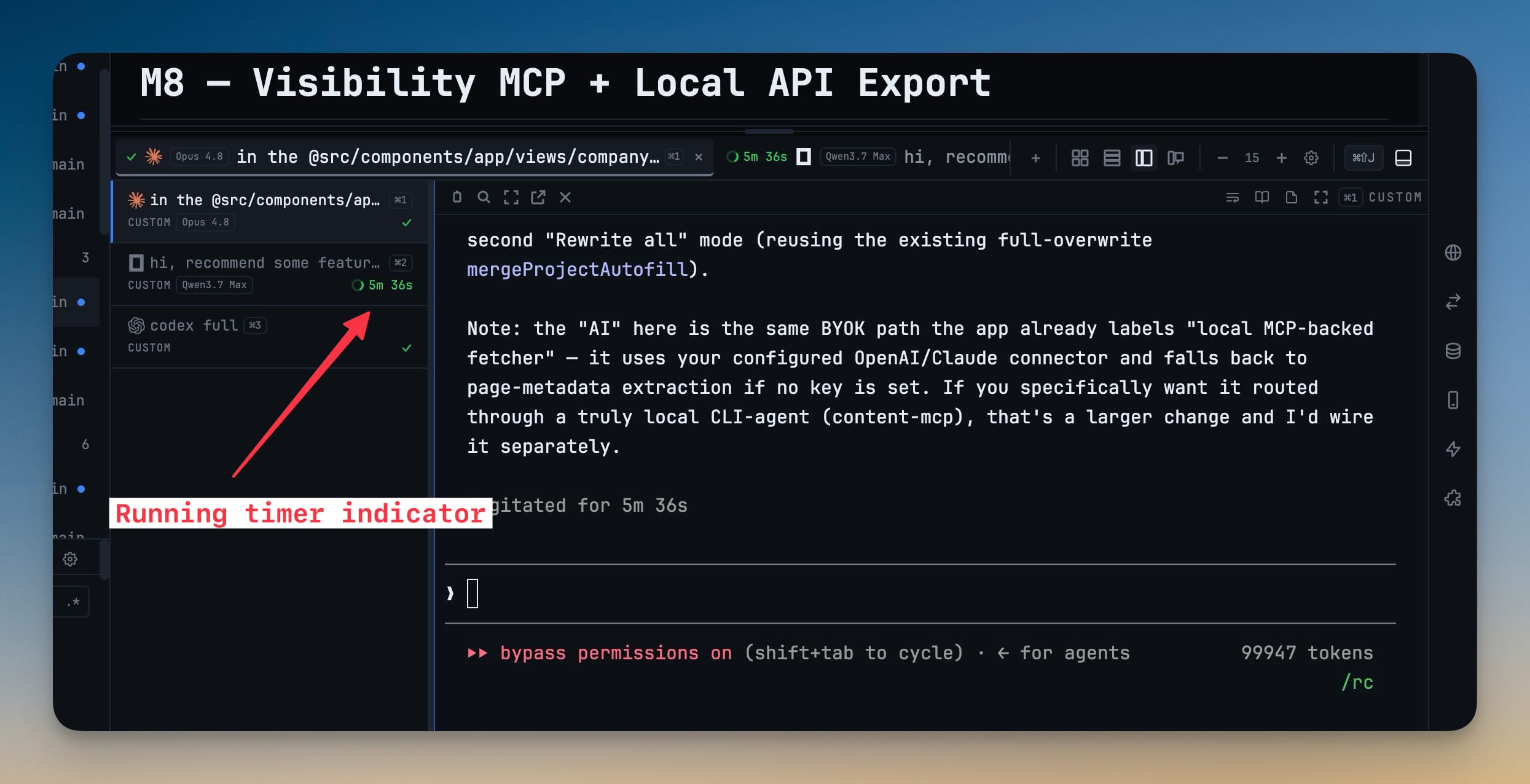
The timer is also honest about finishing. A run that fails or is cancelled stops cleanly — the timer won't hang forever or come back to life after the agent has already stopped, so a check mark on the tab always means the work is genuinely done.
Read the whole conversation on your phone
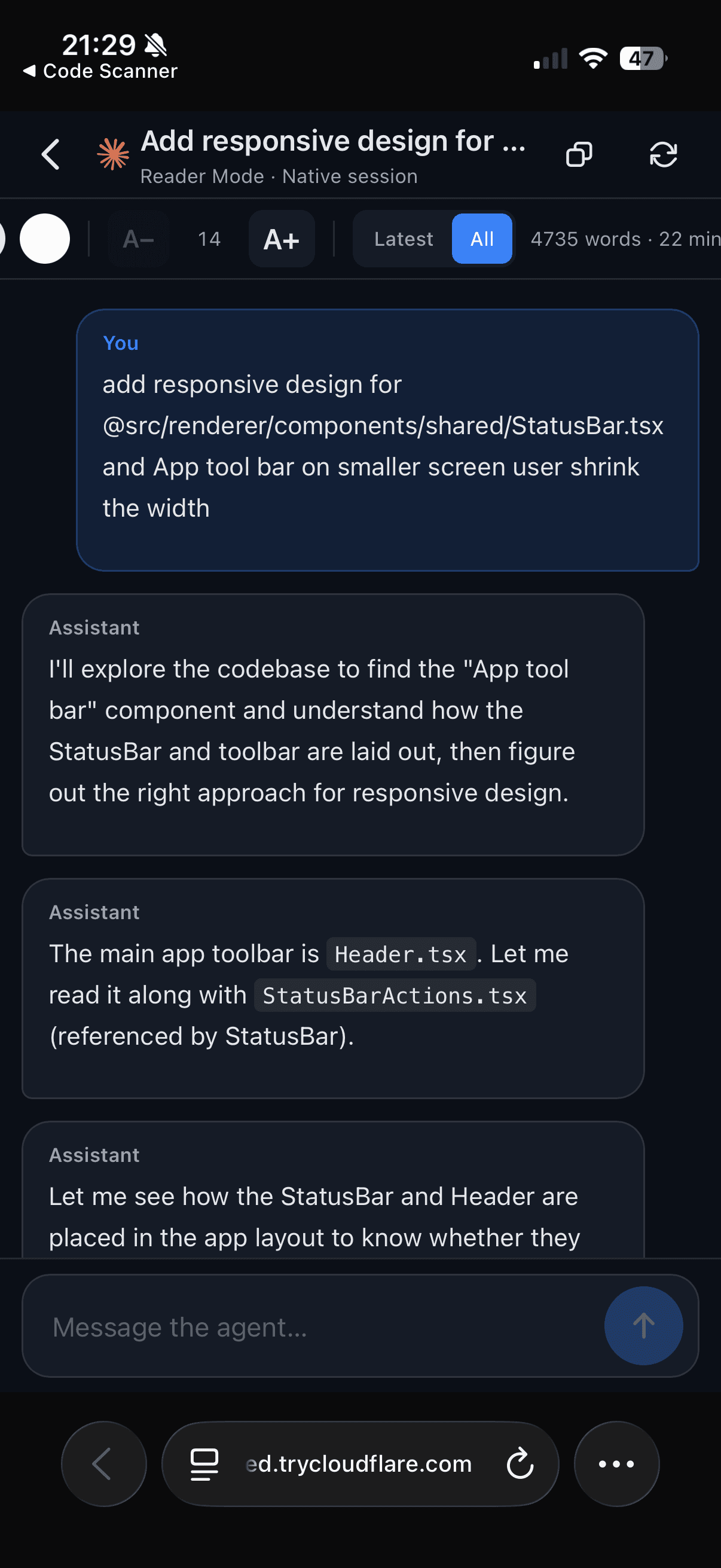
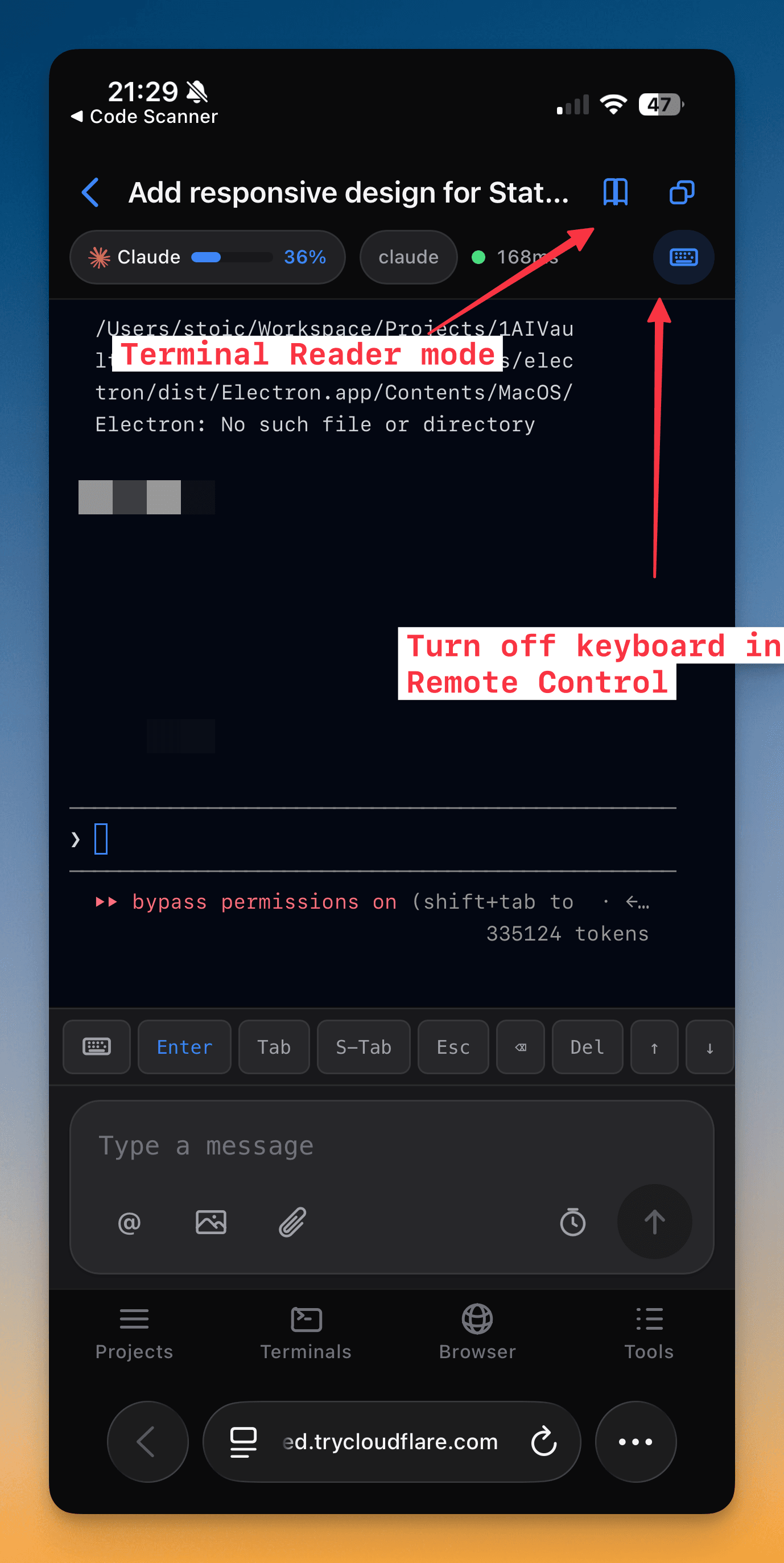
Open Remote Control on your phone, tap the Reader Mode icon in the header, and the raw terminal becomes a clean transcript — your prompts and the agent's replies laid out as readable messages instead of wrapped terminal output.
It reads like a document because it is treated like one. There's a word count and a reading-time estimate at the top, and you can bump the font up or down through five sizes (14 to 23 pt) until it's comfortable on your screen. A Latest / All switch lets you jump to just the newest exchange or scroll the entire history, and the view keeps up as the agent keeps talking.
Tap less, and keep your desktop layout intact
Two smaller changes make the phone experience feel less cramped. When you're reading rather than typing, you can hide the on-screen keyboard with a single toggle in Remote Control, giving the transcript the full height of the screen. And viewing a terminal from your phone no longer forces your desktop app down to phone width — the desktop keeps its own layout, so you don't come back to your Mac to find everything squeezed into a narrow column with a blank gap beside it.
Before vs after
| Checking on an AI agent | Before v1.38.0 | Now |
|---|---|---|
| Is this agent still working? | Click into the tab and scroll to the bottom | Glance at the tab — spinner and live timer, or a check mark |
| How long has it been running? | No idea unless you timed it yourself | Elapsed time counts up on the tab |
| Reading its reasoning on a phone | Raw terminal text, wrapped and tiny | Clean transcript with adjustable font and reading time |
| Jumping to the latest reply on mobile | Scroll through the whole buffer | Tap Latest to go straight to the newest exchange |
| Checking mobile without wrecking your desktop | Desktop layout squeezed to phone width | Desktop keeps its own width |
Who benefits most
People running long agent jobs. If your agents routinely work for minutes at a time — big refactors, test runs, migrations — the per-tab timer turns "did it stall?" anxiety into a one-second glance.
Anyone who steps away from their desk. Kick off a task, walk away, and follow the agent's thinking from your phone in a view built for reading, not just a mirror of the terminal.
Multi-agent orchestrators. When you're running several agents in parallel, the row of timers and check marks becomes a live status board — you always know which lanes are still moving and which are ready for your review.
Try it
Update to 1DevTool v1.38.0 and the timers show up automatically the next time you run an agent; open Remote Control on your phone and tap the Reader Mode icon to read along. The result is less clicking to find out what your agents are doing — and the freedom to keep an eye on them from wherever you are.