Jul 6, 2026
Work Across Multiple Git Repositories From One Workspace
Multi-Repository Workspaces let one project folder hold several independent Git repositories while Git actions, worktrees, change badges, and AI terminals stay scoped to the repo you choose.
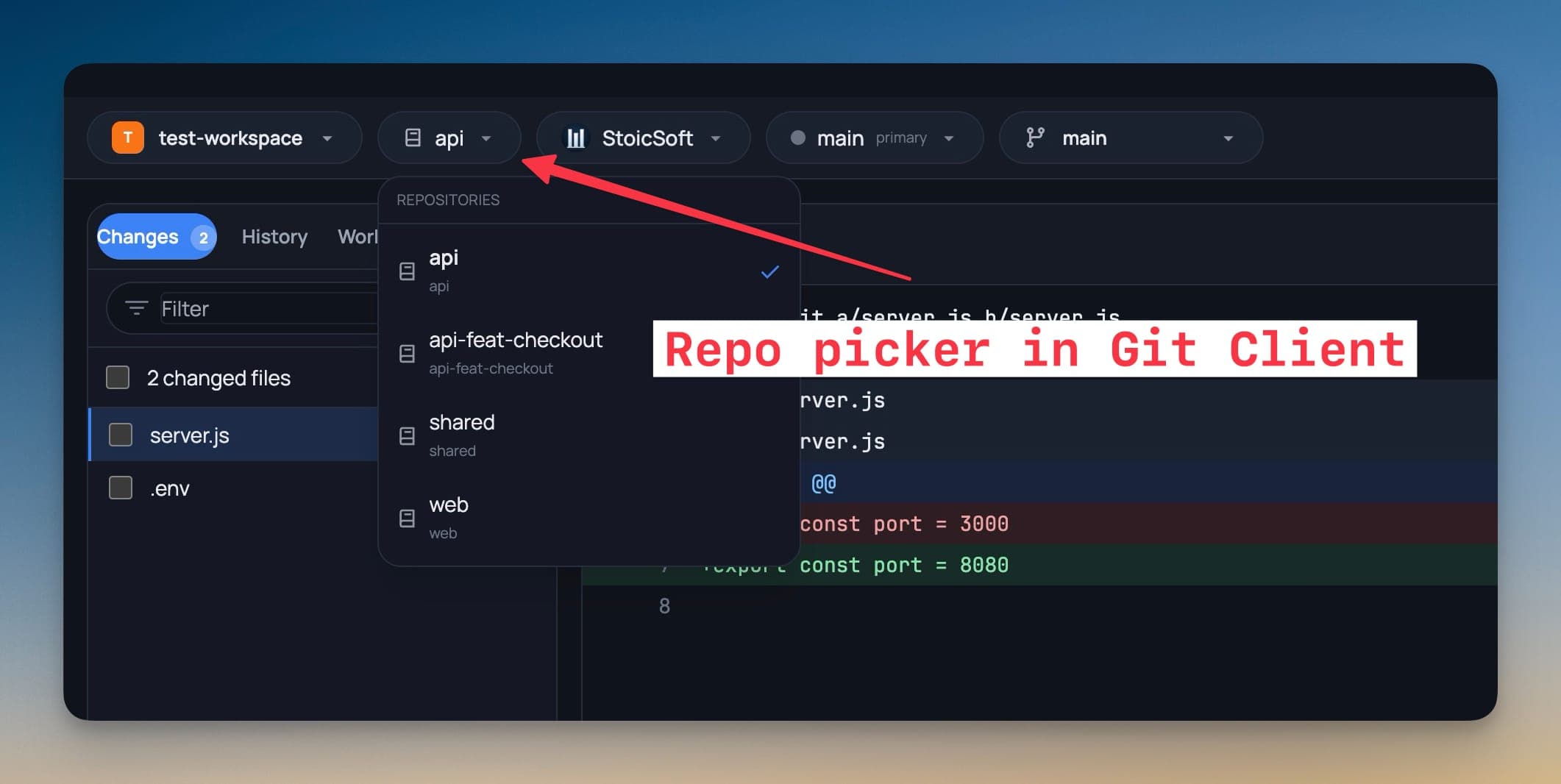
A project folder often starts simple: one repo, one branch, one set of changes. Then real work expands it. You keep an API checkout next to a web checkout, add a shared package, create a temporary worktree for a risky branch, and leave docs or local scripts beside them. The folder is still one workspace in your head, but Git sees several independent repositories.
Before this release, that split forced you to keep extra mental state. You had to remember which terminal was in which repo, which worktree a branch belonged to, and whether a change badge came from the project root or a nested checkout. It was easy to open the right workspace and still run the wrong Git action against the wrong repository.
What changed
Multi-Repository Workspaces let you work inside one project folder that contains several Git repositories without flattening them into one repo or opening each one as a separate project.
How it works in practice
You choose the repository before Git actions run
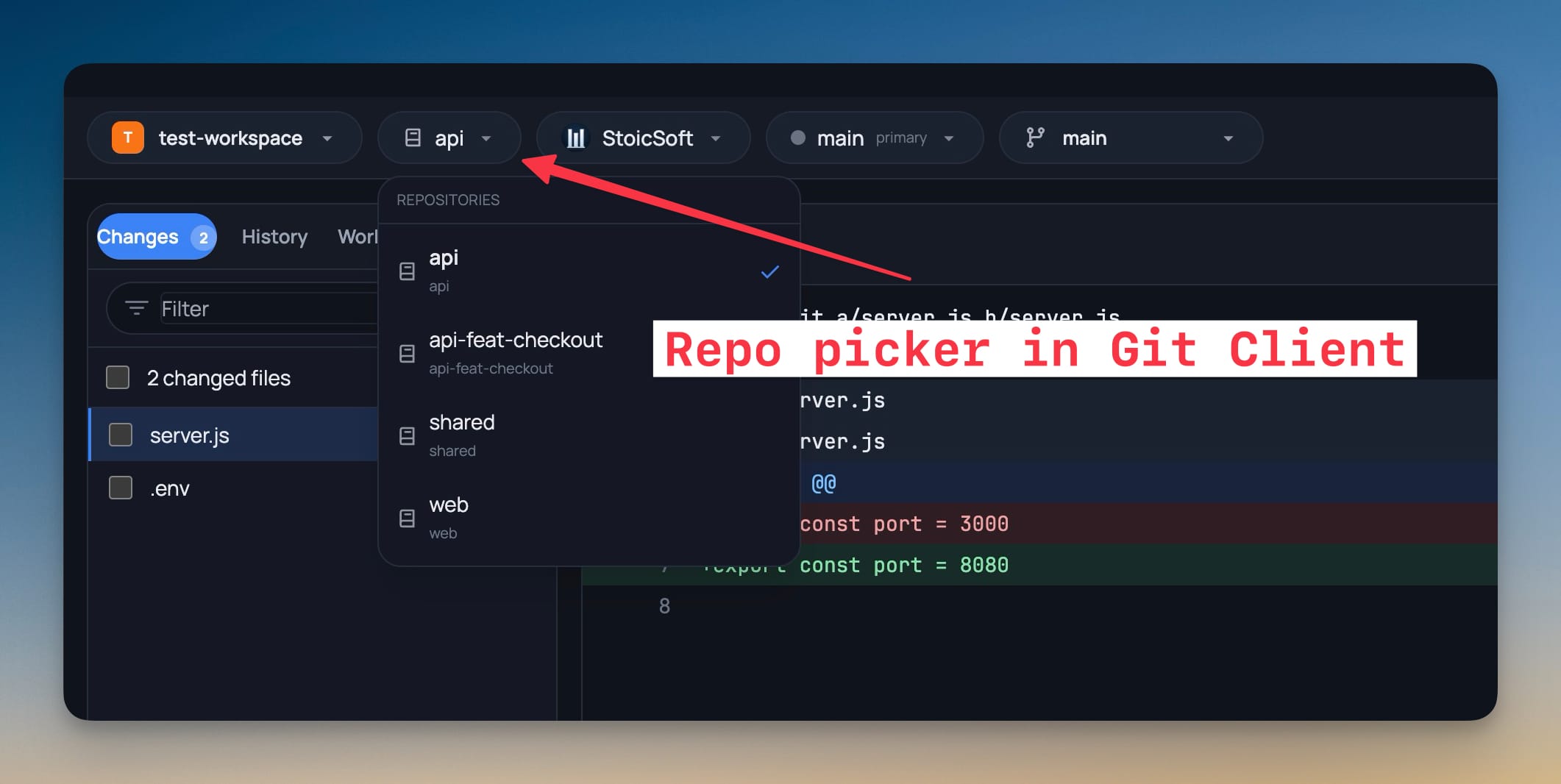
The Git Client now detects independent repositories inside the workspace folder and shows a repository picker next to the project picker. Choose api, web, shared, or another nested repo, and the Git Client narrows itself to that target. Changes, History, Worktrees, Graph, branches, commits, diffs, fetch, pull, push, and publish actions all follow the selected repository.
That means you can keep a parent folder such as test-workspace open while reviewing only the web repo. When you switch to api, the old selected file, commit, diff, and branch state clears before the new repo loads, so stale rows from another repo do not stay clickable.
The file explorer keeps the whole workspace visible
The file tree still starts at the workspace root. Switching the Git Client to a nested repo does not hide the rest of the folder from you. Non-git folders remain visible, and change badges account for the nested repositories below the root.
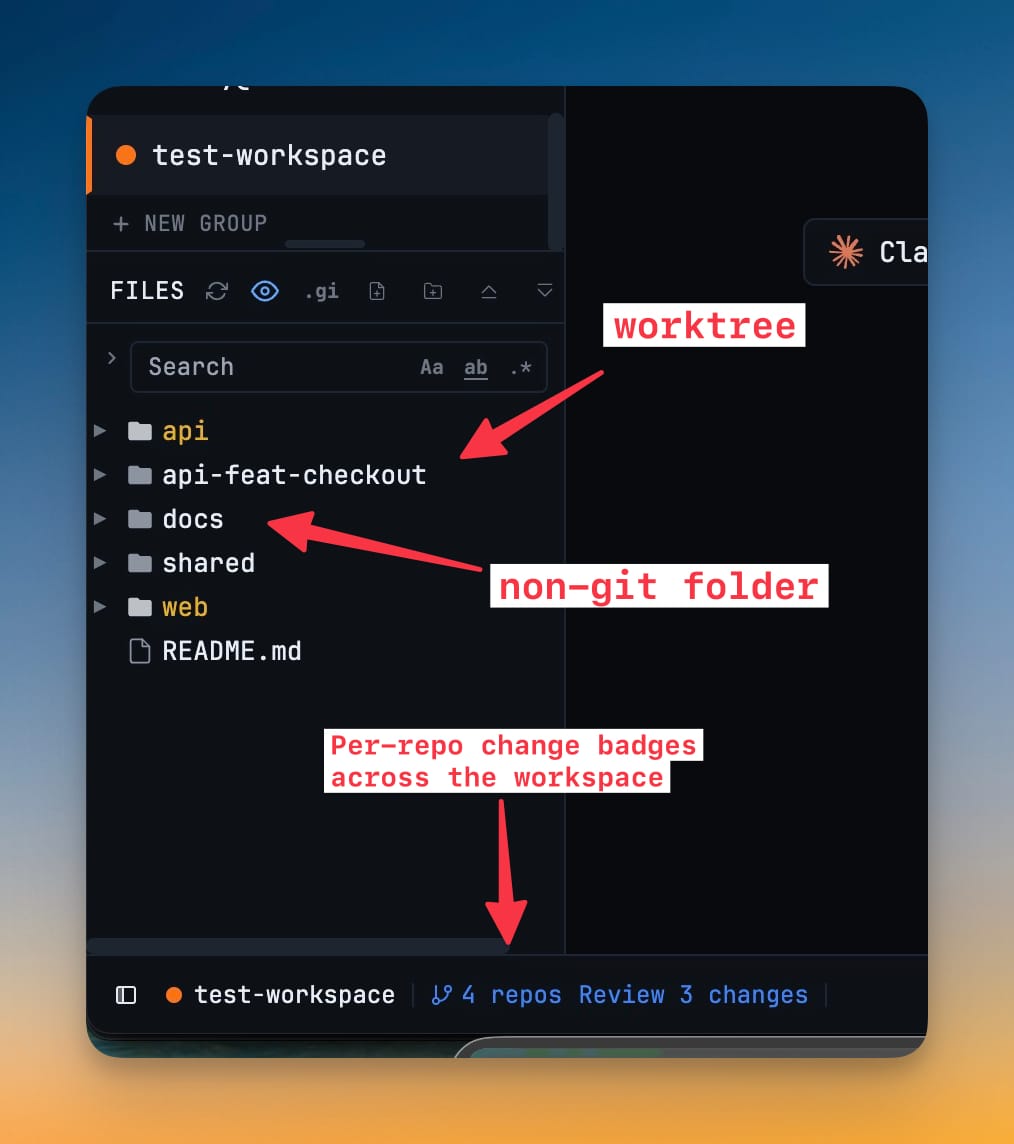
The status bar also understands the multi-repo shape. If the root folder is not itself a repo but contains repositories, it opens the Git Client instead of trying to initialize Git at the root. You see how many repos were found and how many changes need review across them.
Worktrees stay scoped to the active repo
Worktree actions now follow the repository you selected, not the outer workspace folder. Create, remove, prune, lock, unlock, graph, and terminal launch actions use the active repo as their base. If you are viewing the web repo, a new worktree path is generated under that repo's workspace area instead of being attached to the wrong checkout.
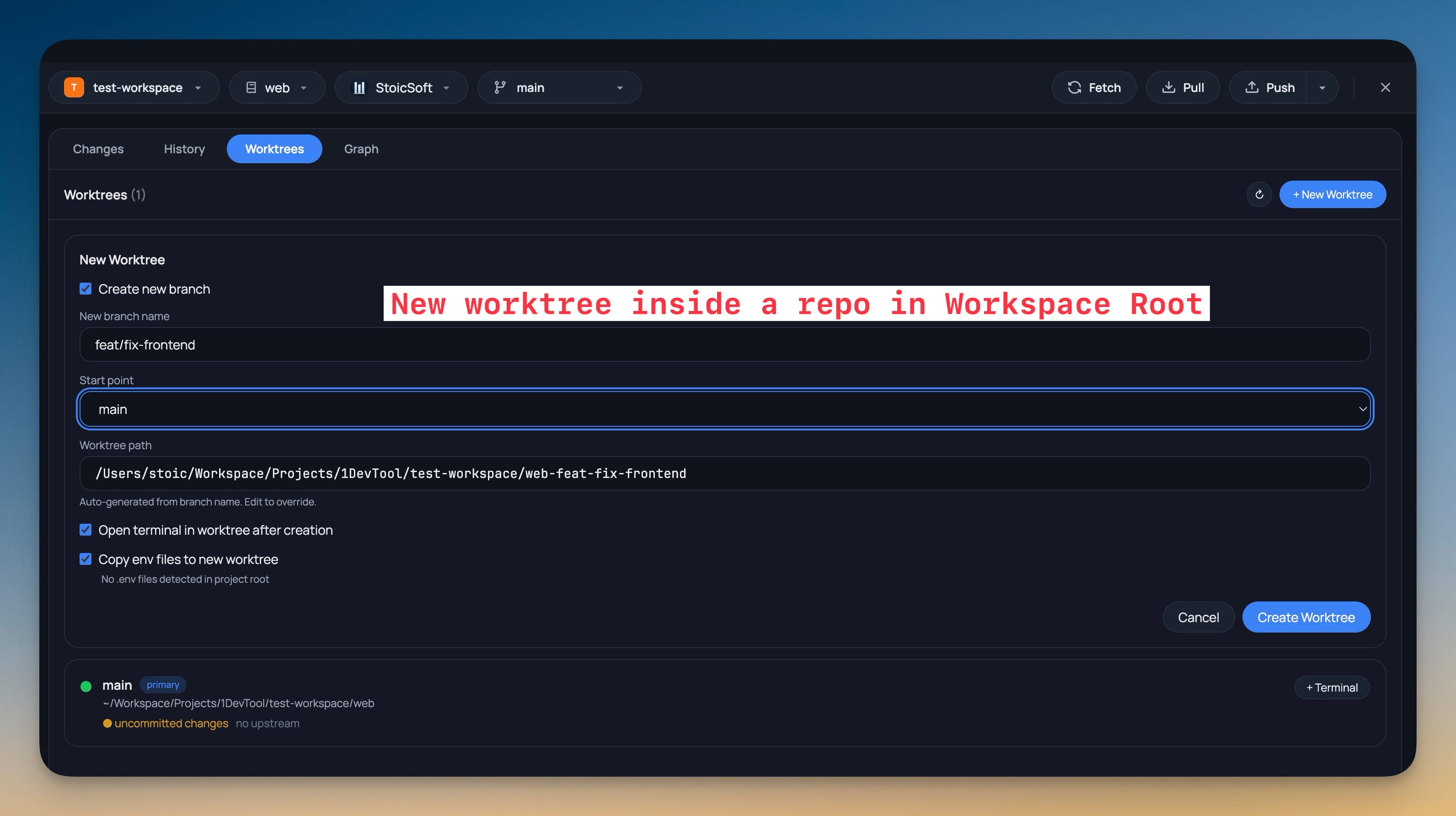
This matters when you keep multiple related repos together. You can create a feat/fix-frontend worktree for the web app while the API and shared package stay in the same visible workspace. You do not have to leave the project or rebuild your terminal layout just to keep the worktree attached to the right repository.
AI terminals can start in the repo that matches the task
Add Terminal now offers repository choices when a workspace contains multiple repos. You can start an AI agent at the workspace root when the prompt needs to coordinate across everything, or start it inside a specific repo when the task should stay narrow.
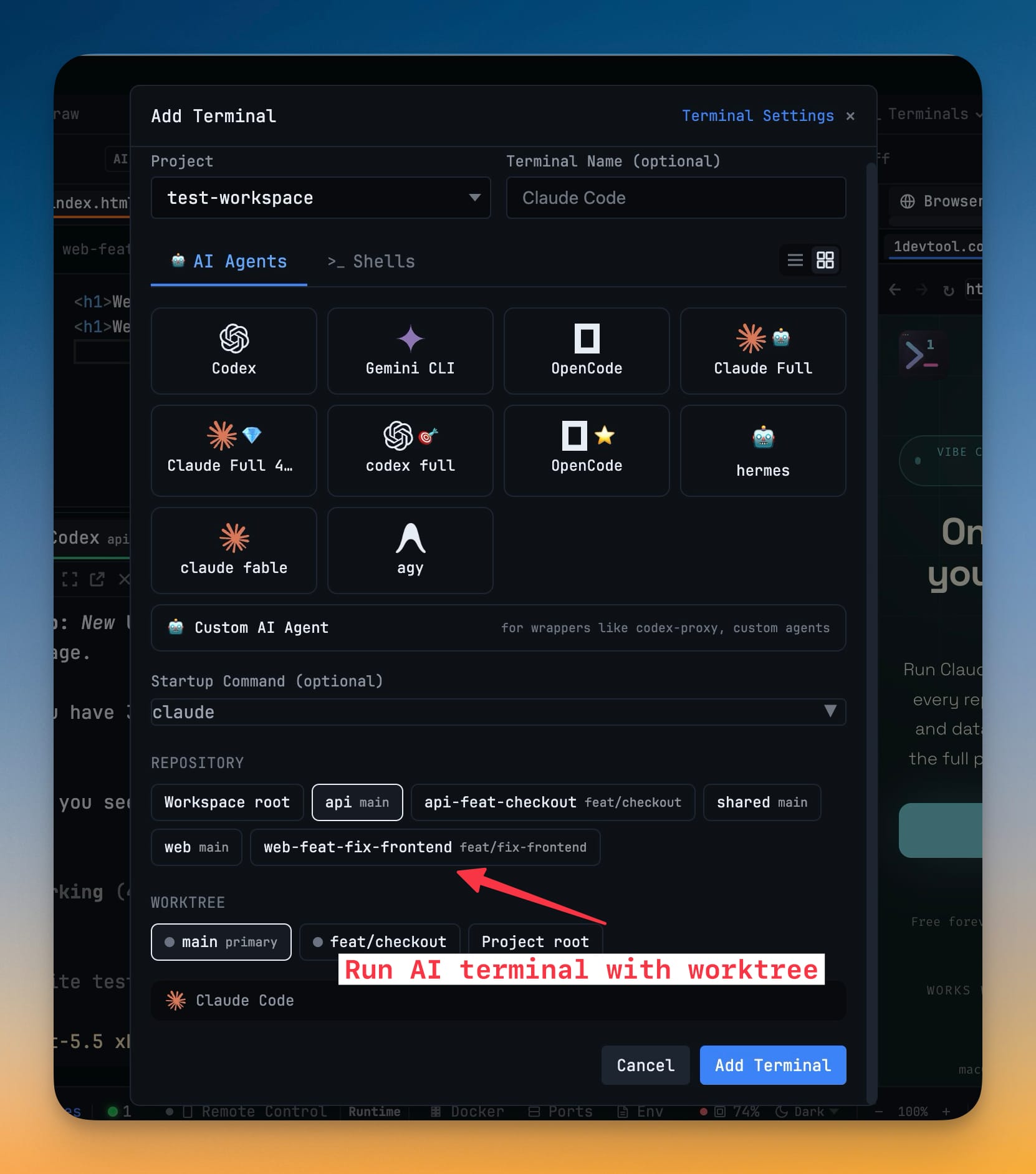
That distinction is useful for agent work. A refactor across API and web can still begin from the root. A focused bug fix in api-feat-checkout can start inside that repo and worktree, with the terminal already pointed at the right files.
Before vs After
| Before | After |
|---|---|
| Open each repo as a separate project or keep switching terminal folders. | Keep the parent workspace open and pick the active repo in Git Client. |
| Guess whether a change badge came from the root repo or a nested checkout. | See nested repo change counts across the workspace. |
| Create worktrees from the wrong base when several repos sit together. | Worktree actions follow the selected repository. |
Launch an AI terminal, then manually cd into the repo or worktree. | Choose the repo and worktree before the terminal starts. |
| Risk stale diff or commit selections after changing context. | Repo switches clear old selection state before the new target loads. |
Who benefits most
If you work in a small monorepo-like folder made from separate repos, you can keep the mental model you already use without forcing Git into the wrong shape.
If you juggle feature worktrees, you can create and launch terminals from the repo that owns the branch instead of checking paths by hand.
If you use AI agents across a stack, you can decide whether the agent should see the whole workspace or stay inside one repo before it starts.
Try it
Open a folder that contains several Git repositories, then open the Git Client from the status bar. Pick a repo, review its changes, create a worktree if needed, and launch your next AI terminal from the matching repo or worktree. You keep one workspace on screen while each Git action stays attached to the right repository.
From across the StoicSoft network
Hand-curated reads on the same topic from sister sites in the StoicSoft family.
 ServerCompass5 min read
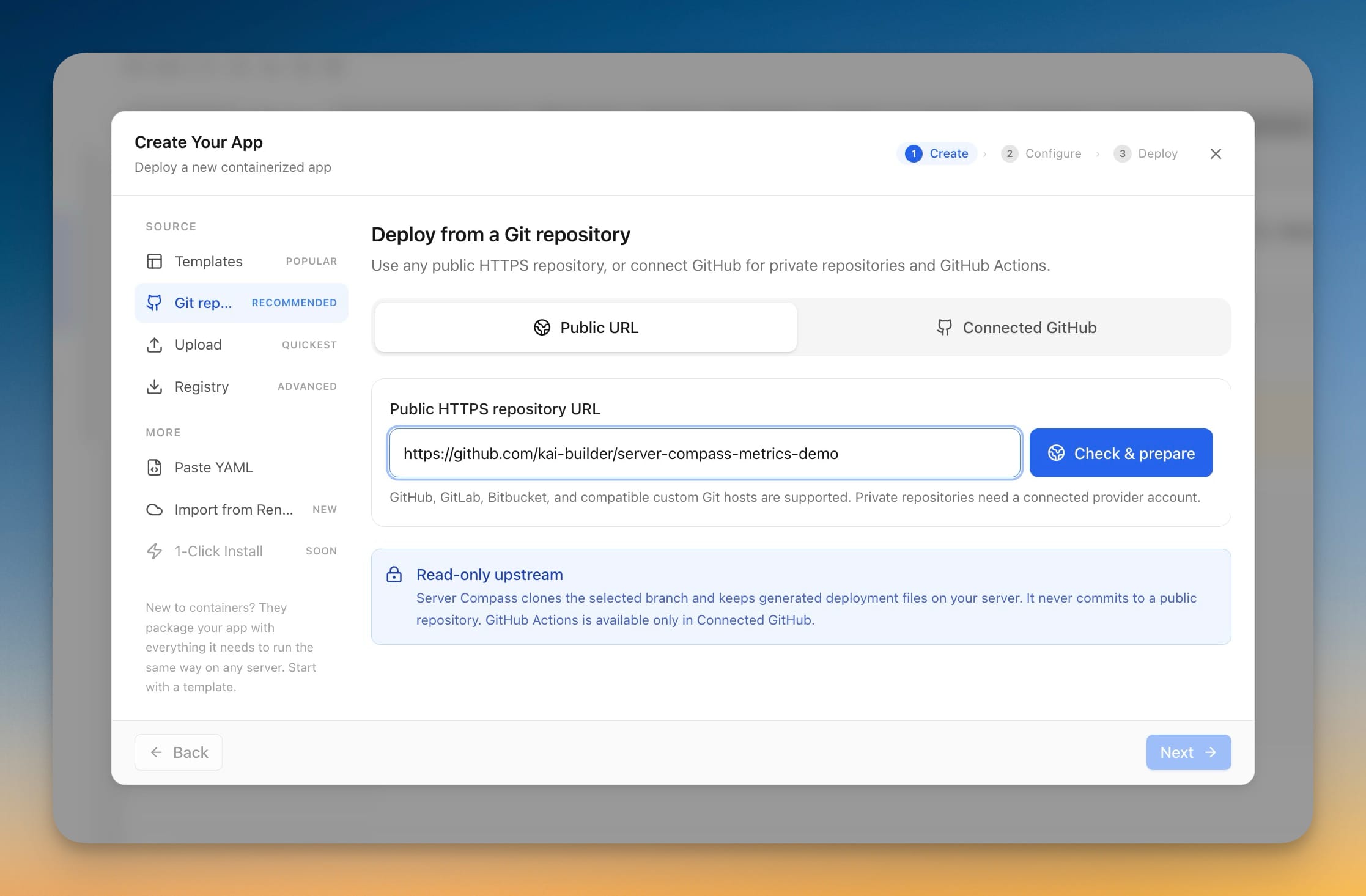
Deploy Any Public Git Repository Without Forking It
Paste a public HTTPS repository URL from GitHub, GitLab, or Bitbucket, pick a branch, and deploy — no account connection, no fork, and the app you get has full redeploy, rollback, and backup support.
Read on servercompass.app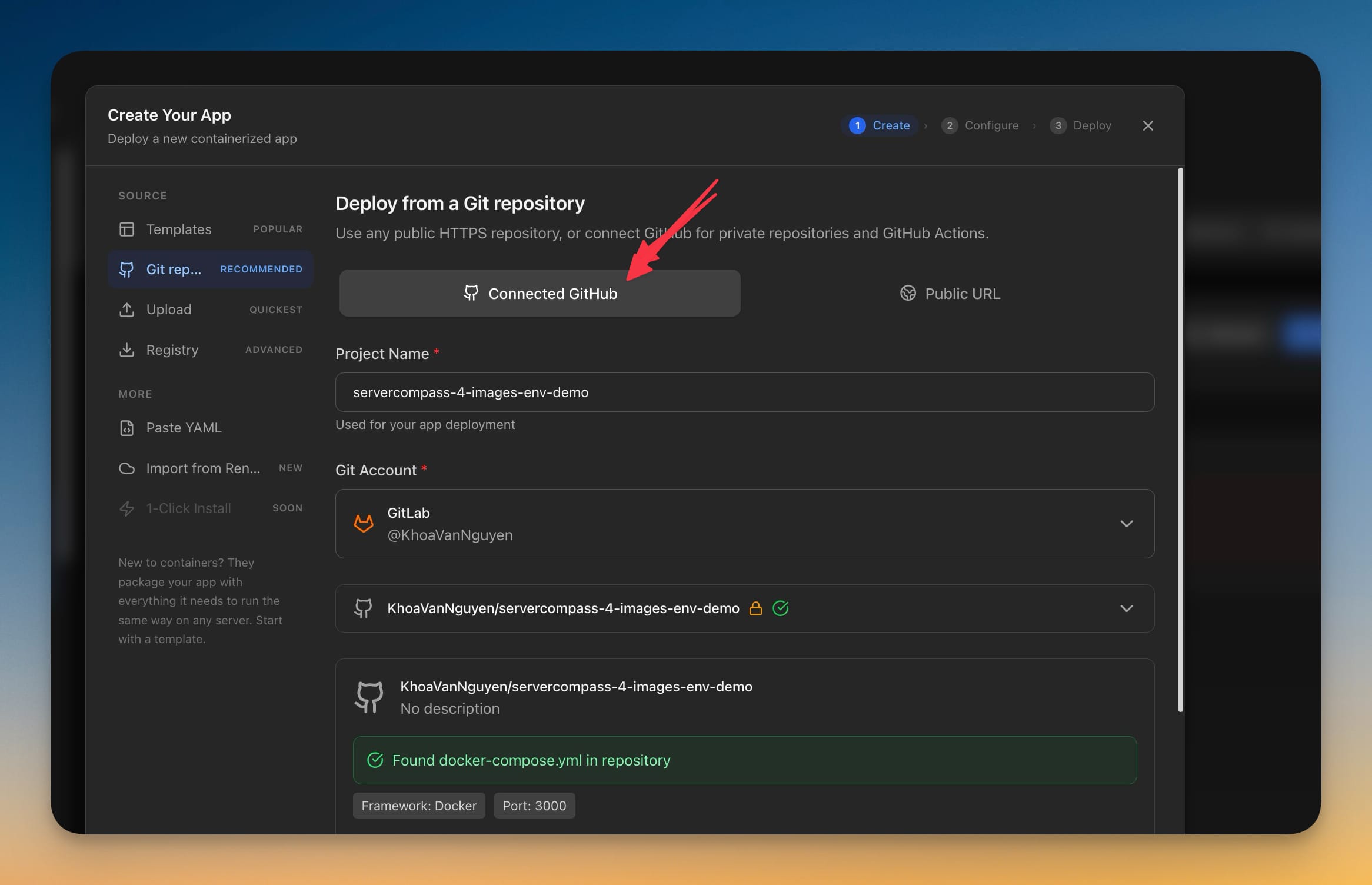 ServerCompass7 min read
Deploy Private GitLab Projects to Your Own Server
Server Compass 1.39.0 connects to GitLab.com and self-managed GitLab with a personal access token, so private projects — including ones nested deep in subgroups — deploy the same way GitHub projects already do.
Read on servercompass.app