Oct 11, 2026
Read a session before you resume it: the new Resume AI Sessions
Resume AI Sessions is now a split view with a live preview, so you can check the branch, tool calls and conversation before you resume, and choose exactly how it continues.
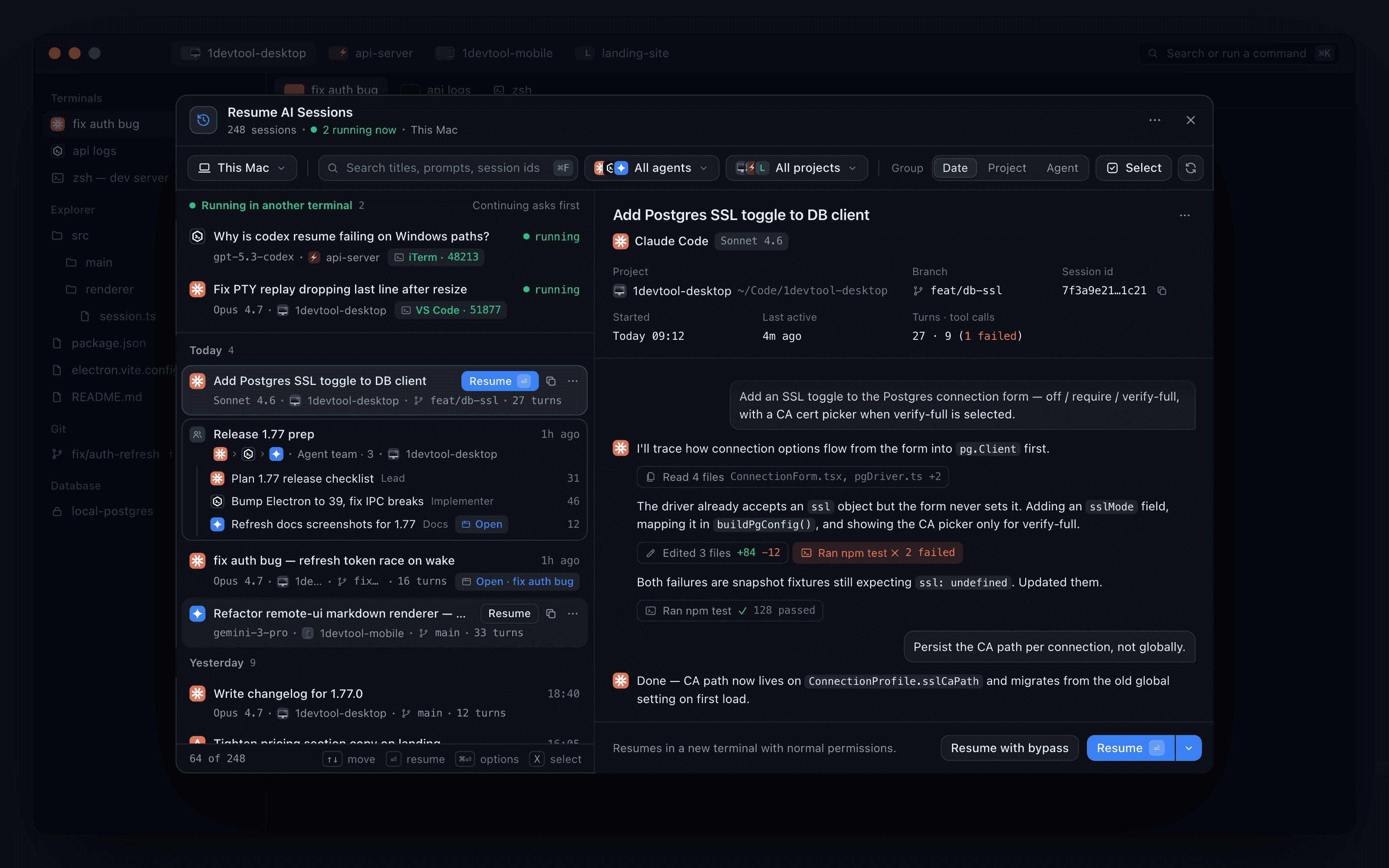
You know the session exists. Yesterday afternoon an agent worked out why the Postgres form never passed its SSL settings to the driver, ran the tests, fixed two snapshots, and you closed the laptop before wiring the last piece. Today you want that exact conversation back, with all the context it built up.
So you open the session list, and it is a wall of near-identical titles. Three of them mention SSL. One belongs to a different branch. One might still be open in a terminal on the other monitor. Resuming the wrong one costs you a fresh context window. Resuming one that is still running somewhere else gives you two copies of the same agent quietly drifting apart. Until now, the only way to be sure was to resume and find out.
What changed
In 1DevTool v1.77.1, Resume AI Sessions becomes a split view: a quiet two-line list on the left and a live preview of the selected session on the right. Now you can read a session before you resume it, and pick how it continues, without leaving the window.
Open it from the Sessions button in the top bar or from Resume AI Sessions… in the app menu. Selecting a row no longer replaces the list. It fills the preview, so you can move down the list and compare sessions side by side.
How it works in practice
Read the session before you commit to it
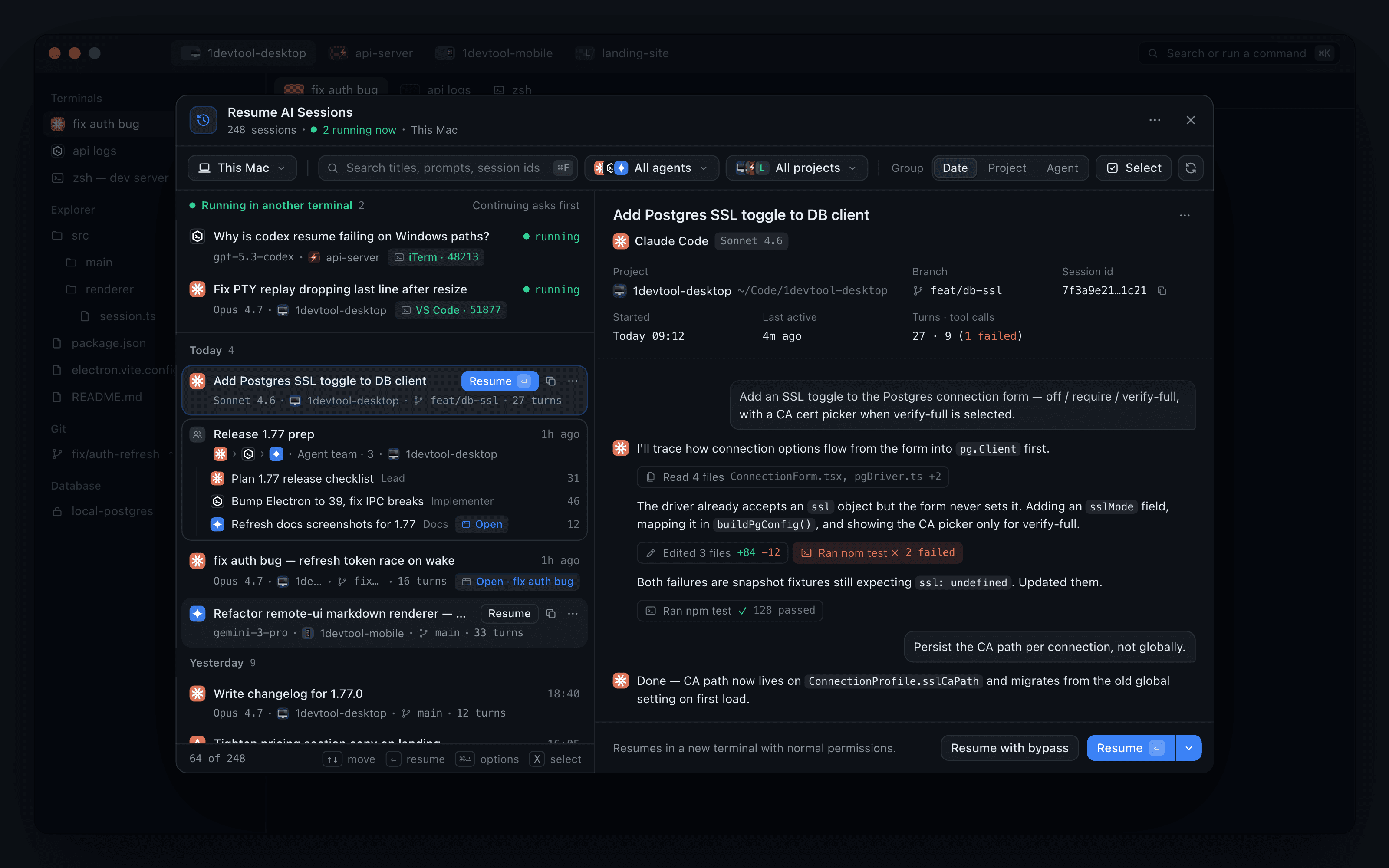
The preview header answers the questions you used to guess at: the project and its path, the branch, the session id, when it started and when it was last active, and Turns · tool calls, with failed tool calls counted in red. Below that is the conversation itself.
Tool calls show up as compact chips, such as "Read 4 files" or "Ran npm test, 2 failed", and you can expand one when the detail matters. Long conversations open on the last 40 messages, with Show N earlier messages above them, so the preview lands on where the session actually ended rather than where it began. In a narrow window the preview slides in over the list, and Back to sessions takes you back.
Find it in a long history
Search now matches titles, prompts and session ids, so pasting an id from a log or a teammate's message finds the session directly. Group switches the list between Date, Project and Agent, and 1DevTool remembers your choice. Date grouping splits the history into Today, Yesterday, This week, This month and Older, and the headers stay in view as you scroll.
A Machine filter sits next to the project filter. It narrows the list to This computer, one of your SSH machines, or a paired device, which helps once sessions run in more than one place. The list keeps loading as you scroll instead of making you page through it.
See what is still running before you touch it
Sessions that are live in another terminal sit at the top under Running in another terminal, labelled with the app and process that holds them. Each row has Continue here →. If you resume a session that is live elsewhere, 1DevTool offers Close it & continue here instead of starting a second copy. If the session is already open in one of your tabs, you get Go to tab, which takes you to the conversation you already have.
Agent teams appear as a single card that shows the member chain (lead, implementer, docs) and has one Resume team action, so you don't have to rebuild the team one terminal at a time.
Resume exactly the way you mean to
Rows stay quiet at rest. When you hover or select one, Resume, a copy-id button and a ⋯ menu replace the timestamp. The menu covers Resume with bypass permissions, Resume with options…, Copy session id and Hand off to another agent.
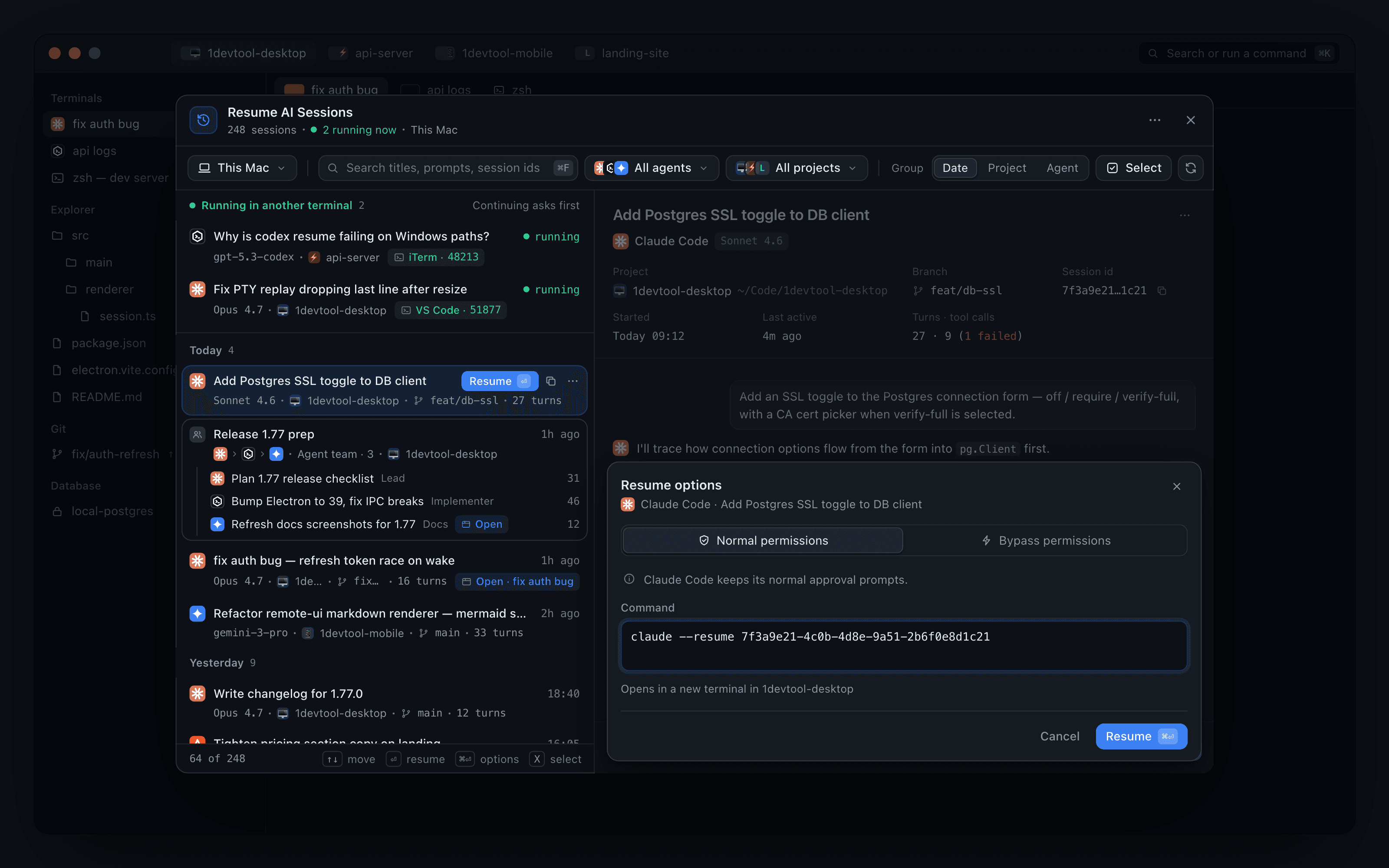
In the preview, Resume is a split button that also offers Copy transcript. Resume with options… opens a sheet inside the preview rather than a separate window. In that sheet you choose Normal permissions or Bypass permissions, edit the exact command before it runs (for example claude --resume 7f3a9e21-…), and see which terminal it will open in. Whichever permission mode you used last becomes the default for the next plain Resume.
Combine or hand off sessions from the same window
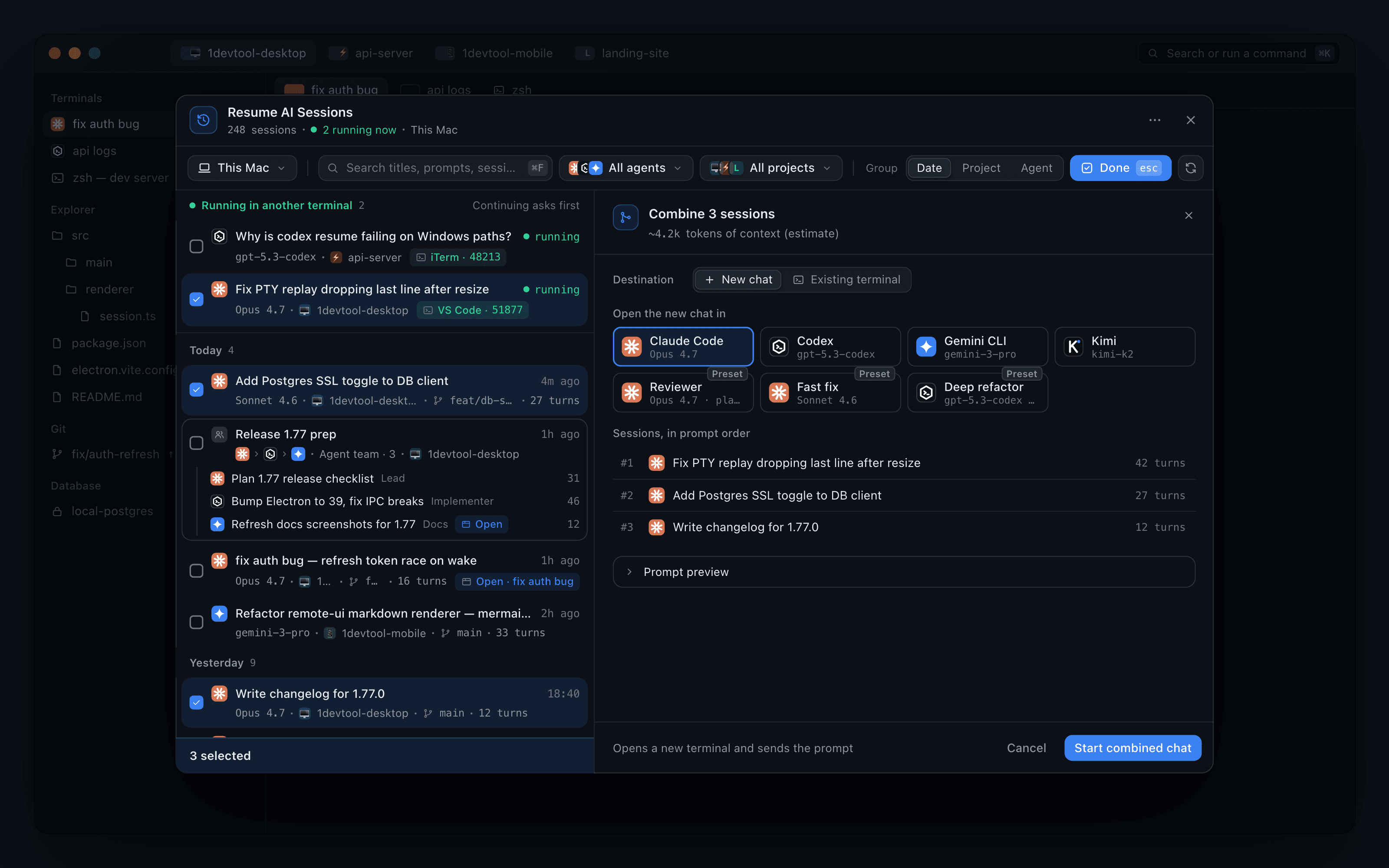
Sometimes the context you need is spread across several sessions: one that fixed a PTY bug, one that added the SSL toggle, one that wrote the changelog. Press Select (or X) and tick sessions. If you pick one, you can hand it to a different agent. If you pick several, the pane turns into Combine N sessions, which merges them into one opening prompt in the order shown under Sessions, in prompt order.
You choose where the result goes. New chat opens a fresh terminal with any agent or saved preset. Existing terminal lets you search your open terminals and send the prompt there. Before you press Start combined chat, the pane shows an estimate of how many tokens of context the combined prompt adds, so you can see whether it fits before the agent starts.
Do all of it from the keyboard
↑ and ↓ move the selection and update the preview as you go. ⏎ resumes and ⌘⏎ opens the options sheet. X enters select mode, ⌘C copies the session id, and Esc backs out one step at a time. The footer of the list keeps these hints on screen, so you don't need to memorise them.
Your phone reconnects on its own
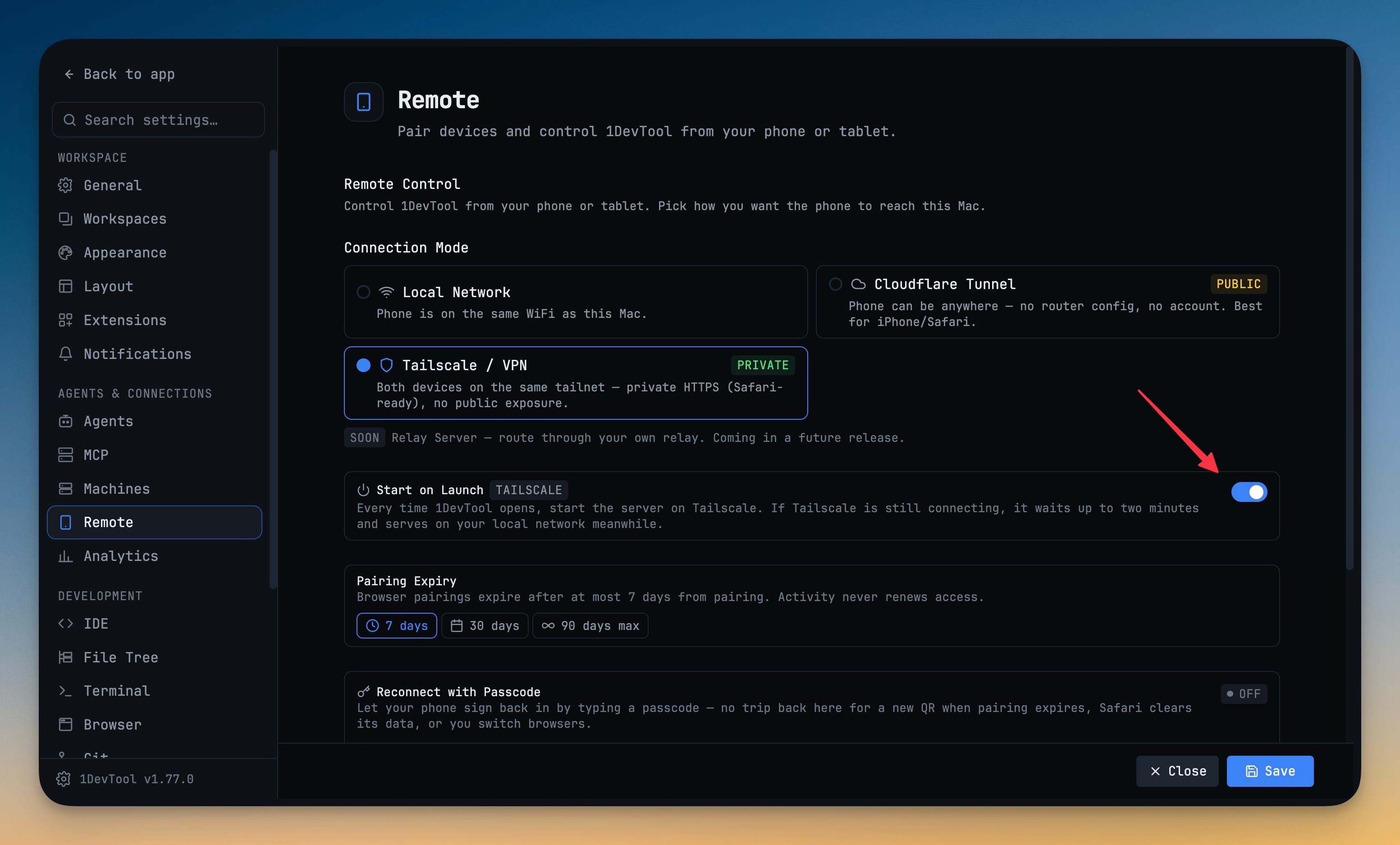
v1.77.1 also adds Start on Launch to Settings → Remote. Turn it on and the remote server starts every time 1DevTool opens, so a paired phone reconnects without a trip back to Settings. On Tailscale it waits up to two minutes for Tailscale to connect and serves on your local network in the meantime. Cloudflare Tunnel is public, so it never starts by itself, and the switch stays off in that mode.
Before vs After
| Task | Before | After (v1.77.1) |
|---|---|---|
| Check a session is the right one | Resume it and scroll back | Read the preview: branch, turns, failed tool calls, conversation |
| Find a session from an id in a log | Scroll and guess | Paste the id into search |
| Avoid two copies of a live session | Remember which terminal had it | Running in another terminal on top, Close it & continue here |
| Resume with bypass or a tweaked command | Resume, then restart by hand | Resume with options…: permission mode, editable command, target terminal |
| Merge context from several sessions | Copy and paste transcripts | Select → Combine N sessions → New chat or Existing terminal |
| Reconnect your phone after a restart | Open Settings → Remote, start the server | Start on Launch does it every time |
Who benefits most
Developers with long agent histories. When you have hundreds of sessions across projects and agents, grouping, id search and the preview let you get to the right one in a few keystrokes.
Anyone running agents in several places at once. The running section and the Close it & continue here prompt stop two copies of one conversation from drifting apart across terminals and machines.
People who switch agents mid-task. Handing a session to another agent, or combining three into one prompt with a context estimate, keeps the work moving when one model is out of quota or a better fit for the next step.
Try it
Update to 1DevTool v1.77.1 and click Sessions in the top bar. Your full history is already there, now with a preview beside it, so you can see the right conversation before you resume it and choose how it continues.