Jul 17, 2026
Read, Schedule, and Prompt Without Leaving 1DevTool
1DevTool 1.48 keeps three things in one window: dock a live terminal beside whatever you're reading, manage system cron jobs from a real panel, and float the Agent Input composer to any size.
You know the rhythm of a long working session. You're deep in a design doc or an AI agent's six-thousand-word plan, reading carefully — and then you need to run one command. Check a branch. Kick off a build. Ask the agent a follow-up question. So you leave. You drop out of the clean reading view, hunt for the right terminal, run the thing, and then try to find your place in the document again. The reading and the doing live in different windows, and every switch between them costs you the thread you were holding.
The same tax shows up in smaller ways all day. You want a script to run every morning, so you open a terminal, type crontab -e, squint at five space-separated fields, and hope you didn't fat-finger the schedule. You're writing a careful prompt to an agent, but the composer is wedged into a narrow terminal pane with barely three lines of room. None of these are hard problems. They're just interruptions — little context switches that quietly add up over a day.
What changed
1DevTool 1.48 is about staying put. Three separate parts of the app now come to you instead of making you leave: you can dock a live terminal beside whatever you're reading, manage your system cron jobs from a proper panel, and pull the Agent Input composer out into a floating window sized however you like. Read, schedule, and prompt — without switching windows.
How it works in practice
Run a terminal right beside what you're reading
Reader Mode strips a Markdown file down to a clean, book-like page — serif type, a contents outline, a word count and reading-time estimate. It's the best way to actually read a long plan. The catch used to be that reading and running were mutually exclusive: the moment you needed a terminal, you left.
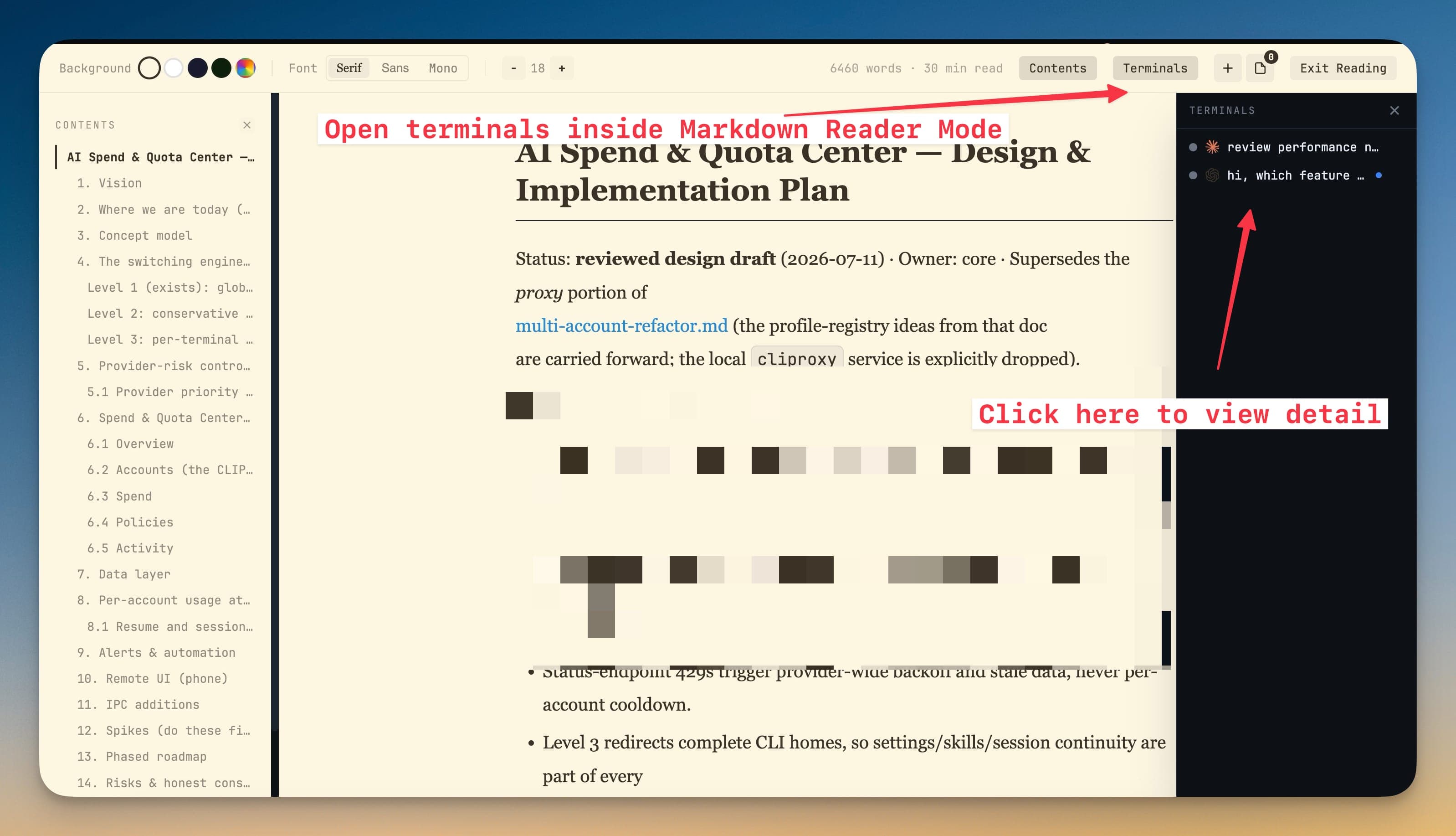
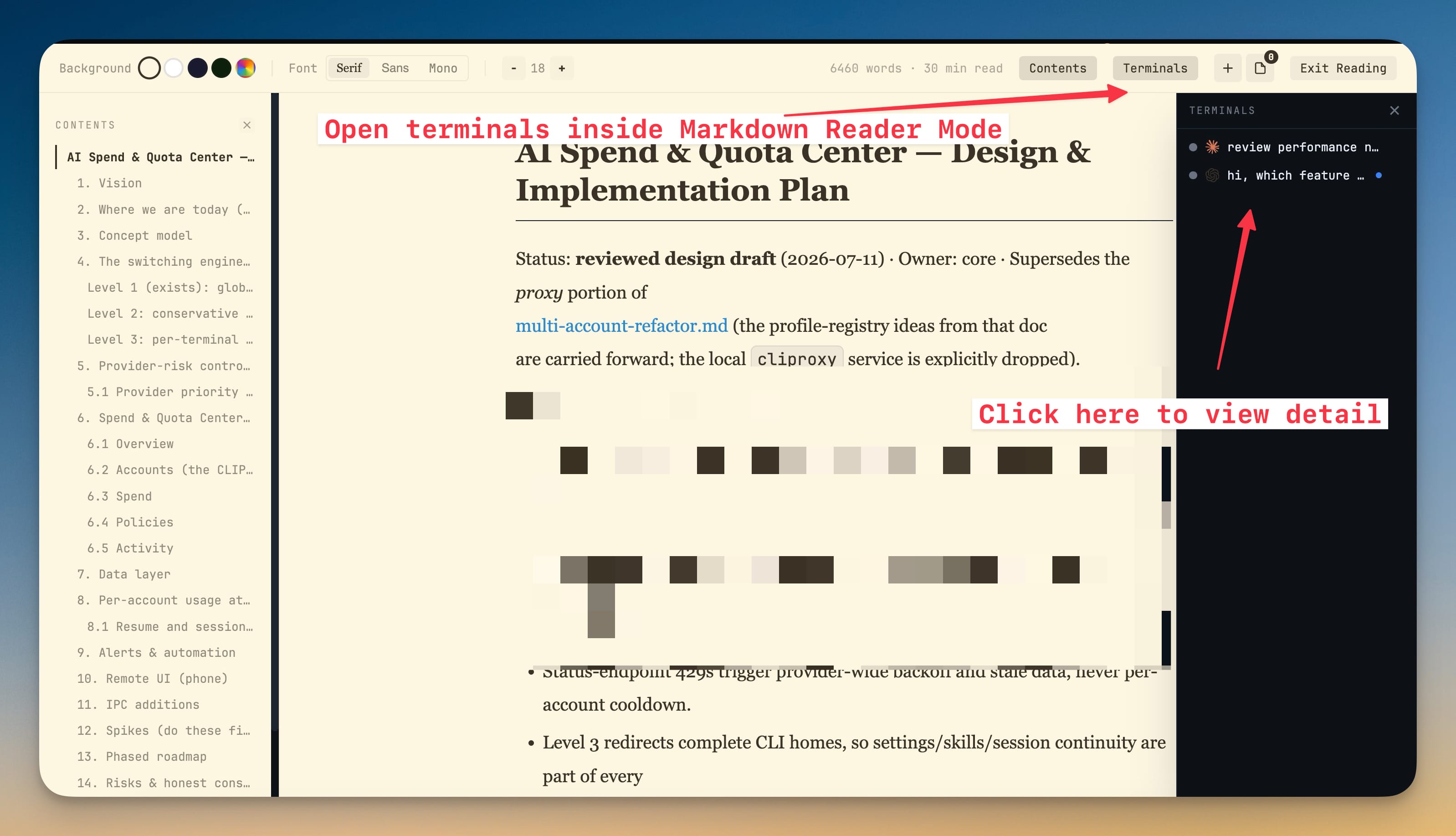
Now there's a Terminals button in the Reader Mode header. Click it and any of the project's terminals docks to the side of the page — a real, live terminal with full output, scrollback, and Agent Input, not a static snapshot. You can start a command, watch it run, and keep reading without leaving the reading view. Spin up a new terminal straight from the dock, and when you close it your scrollback hands back cleanly so nothing is lost.
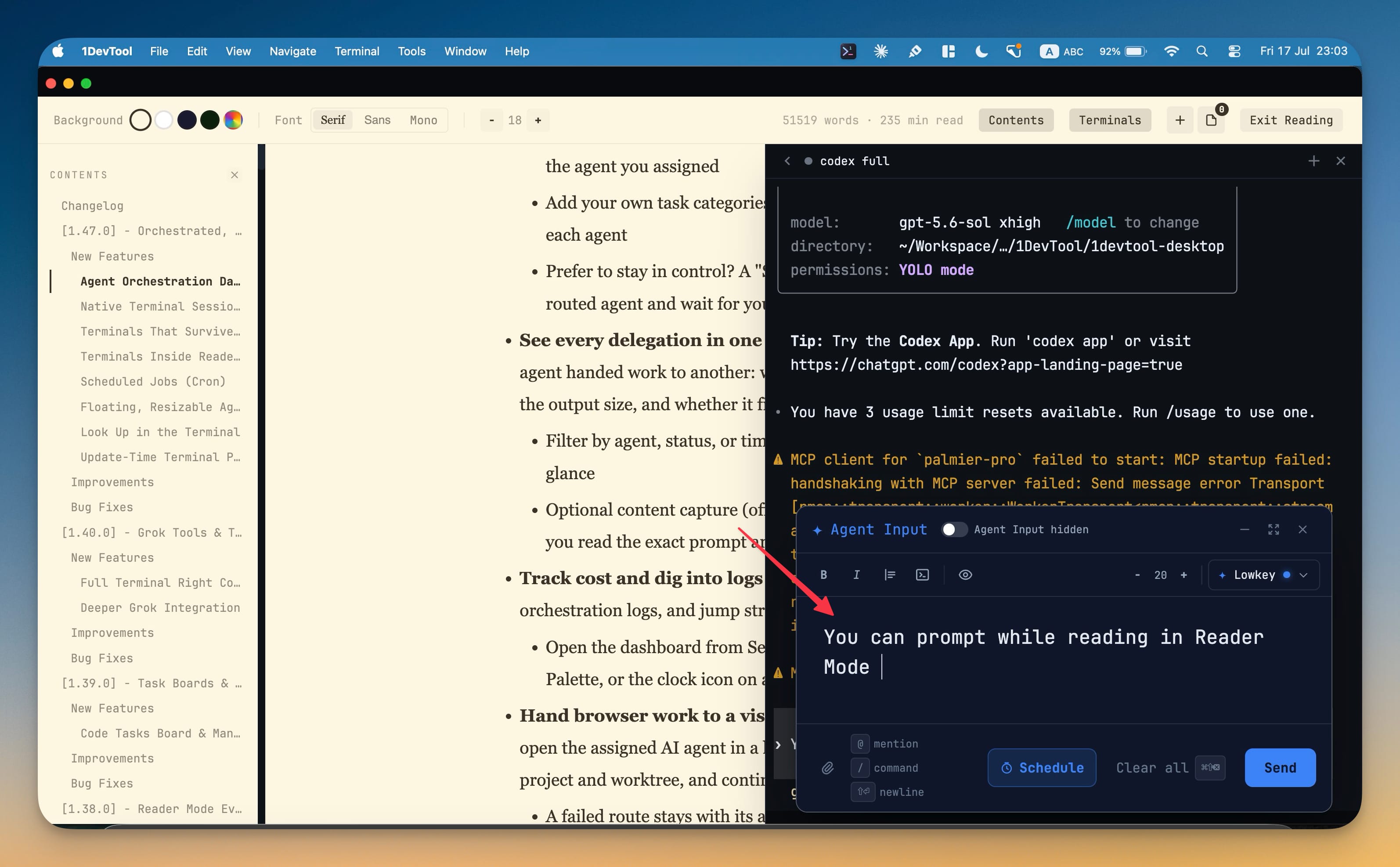
Because it's the real Agent Input, you can prompt an AI agent while you read, too. Reach a passage in the plan you want to push back on, type your correction into the composer docked on the right, and send it — the document stays open, your place intact.
Schedule a job without touching the crontab
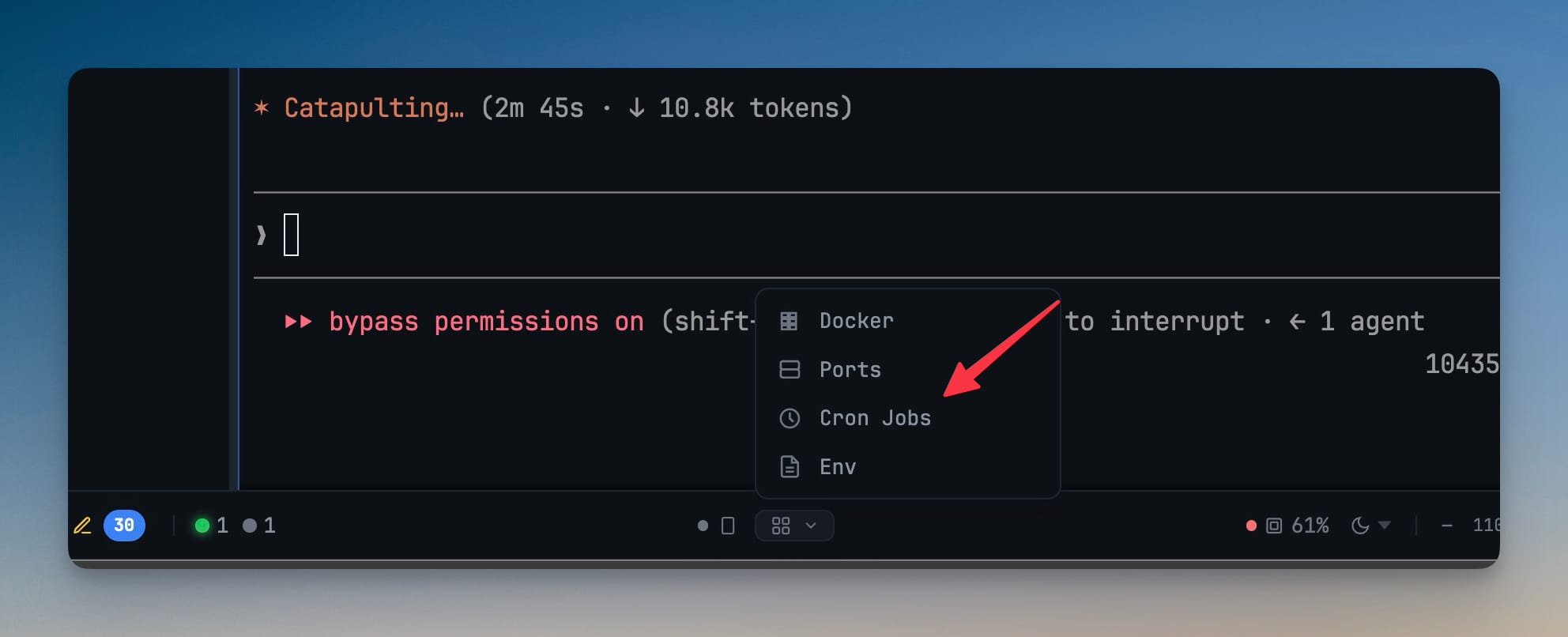
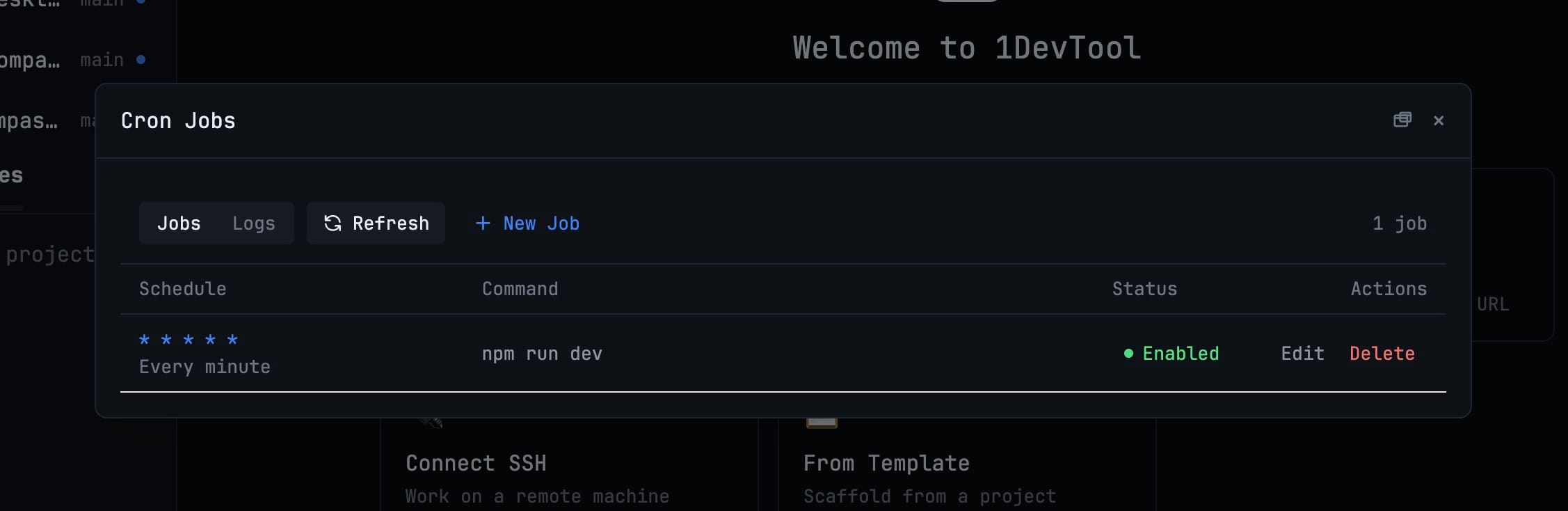
Open the Runtime tools menu in the status bar and you'll find a new entry: Cron Jobs.
The Cron Jobs manager reads your current user crontab and lays every job out in a table — schedule, command, status, and a per-row Edit and Delete. Adding one is a single New Job click away: pick a ready-made schedule (every 5 minutes, hourly, weekdays at 9:00, monthly, at startup) or type your own five-field expression, and 1DevTool spells the timing out in plain English so you can confirm exactly when it will run before you commit. Enable or disable a job without deleting it, and pop the whole manager out to a second monitor when you want it off to the side.
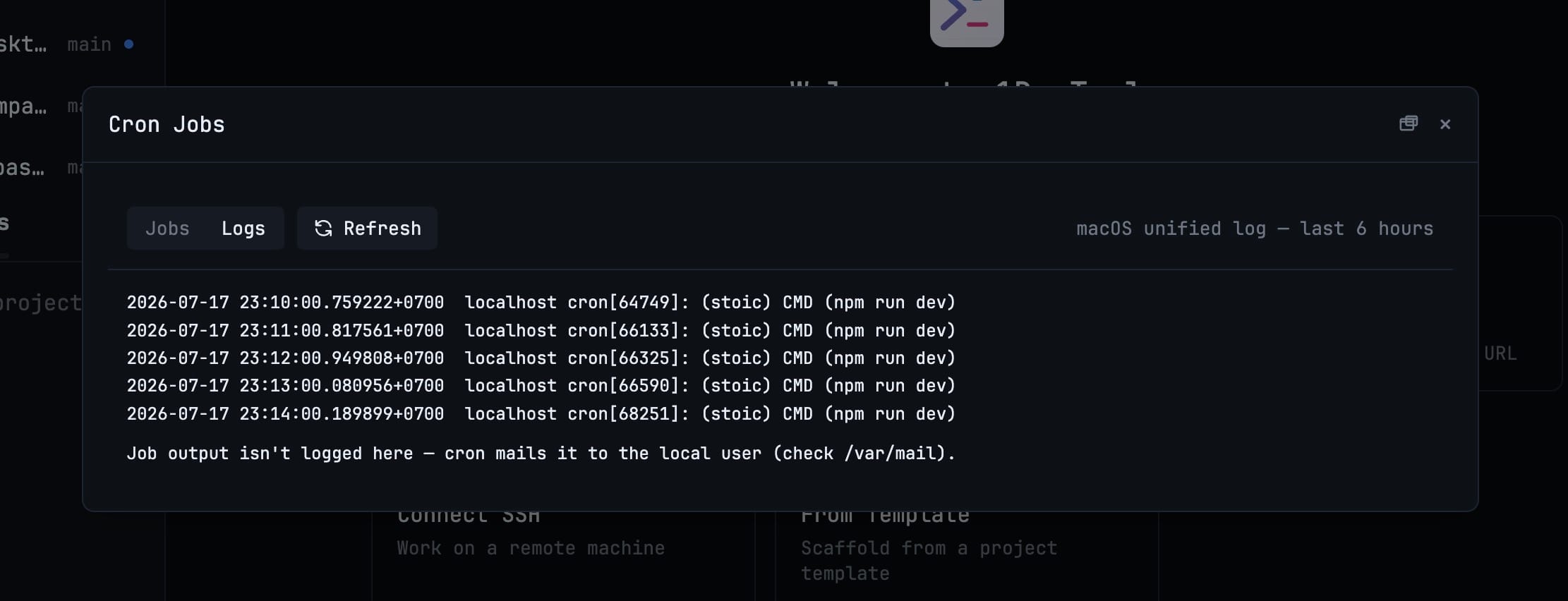
A Logs tab pulls recent runs straight from the macOS unified log, so you can confirm a job actually fired over the last few hours instead of wondering. It's also honest about a detail people trip over: cron mails a job's own output to the local user, so the Logs view shows you that the job ran rather than pretending to capture what it printed.
Cron Jobs works on macOS and Linux, where the system crontab lives. On Windows, 1DevTool points you to Task Scheduler instead of pretending a crontab is there.
Give your prompt room to breathe
The Agent Input composer used to be pinned inside its terminal pane. In 1.48 you can grab its header and drag it anywhere in the workspace, then resize it from any edge or corner until it's the size you actually want to write in.
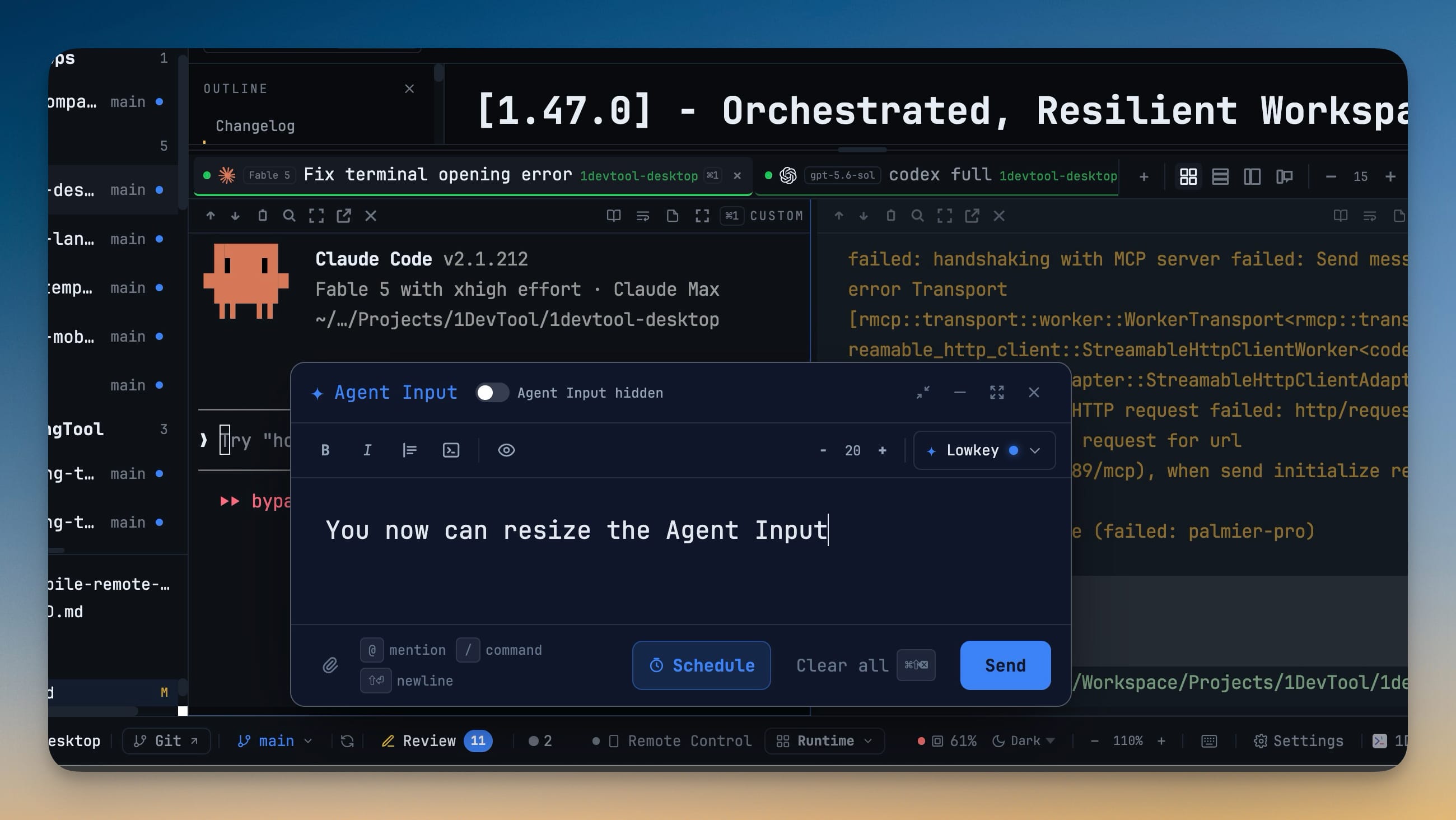
It also floats on its own when it needs to — if a terminal pane gets too narrow to hold the composer comfortably, it detaches automatically so the editor and its controls stay reachable. The size you settle on is remembered between sessions, and a Dock control snaps it back into the terminal pane whenever you want the anchored composer again.
Before vs after
| Task | Before 1.48 | In 1.48 |
|---|---|---|
| Run a command while reading a doc | Leave Reader Mode, find the terminal, run it, scroll back to find your place | Dock a live terminal beside the page and keep reading |
| Prompt an agent about what you're reading | Exit the reading view, switch to the terminal, lose the passage | Type into Agent Input docked next to the document |
| Add a scheduled job | crontab -e, count five fields, hope the syntax is right | Pick a preset, read the schedule in plain English, click Add |
| Confirm a cron job ran | Dig through system logs by hand | Open the Logs tab in the Cron Jobs manager |
| Write a long prompt | Squeeze into a three-line pane or go fullscreen | Float and resize the composer to any size you like |
Who benefits most
Anyone who reads long AI transcripts. Plans, design docs, and agent output routinely run to thousands of words, and Reader Mode is where you go to actually absorb them. Being able to run a command or fire a follow-up prompt without dropping out of the reading view keeps a two-hour review from turning into two hours of window-switching.
Developers with recurring local tasks. Backups, sync scripts, nightly builds — the small jobs that belong in cron but never quite make it there because editing a crontab is a chore. The Cron Jobs manager turns it into a panel you'll actually open: presets, plain-English schedules, and a log to prove it ran.
Heavy prompt writers. If you routinely hand agents long, structured instructions with mentions and attachments, a composer you can size and place yourself beats fighting a cramped pane every time you have something real to say.
Try it
Update to 1DevTool 1.48, and the next time you're deep in a document, look for the Terminals button in the Reader Mode header — then never leave the page to run a command again. Read, schedule, and prompt, all without switching windows.
Download the latest 1DevTool, or browse the full changelog to see everything in 1.48.