Jul 2, 2026
Recover SSH Workspaces Without Restarting
Remote SSH projects can now recover from stale mounts, missing sshfs, and dropped connections without making you restart the app. AI terminals also reopen with useful context when native session resume is not available.
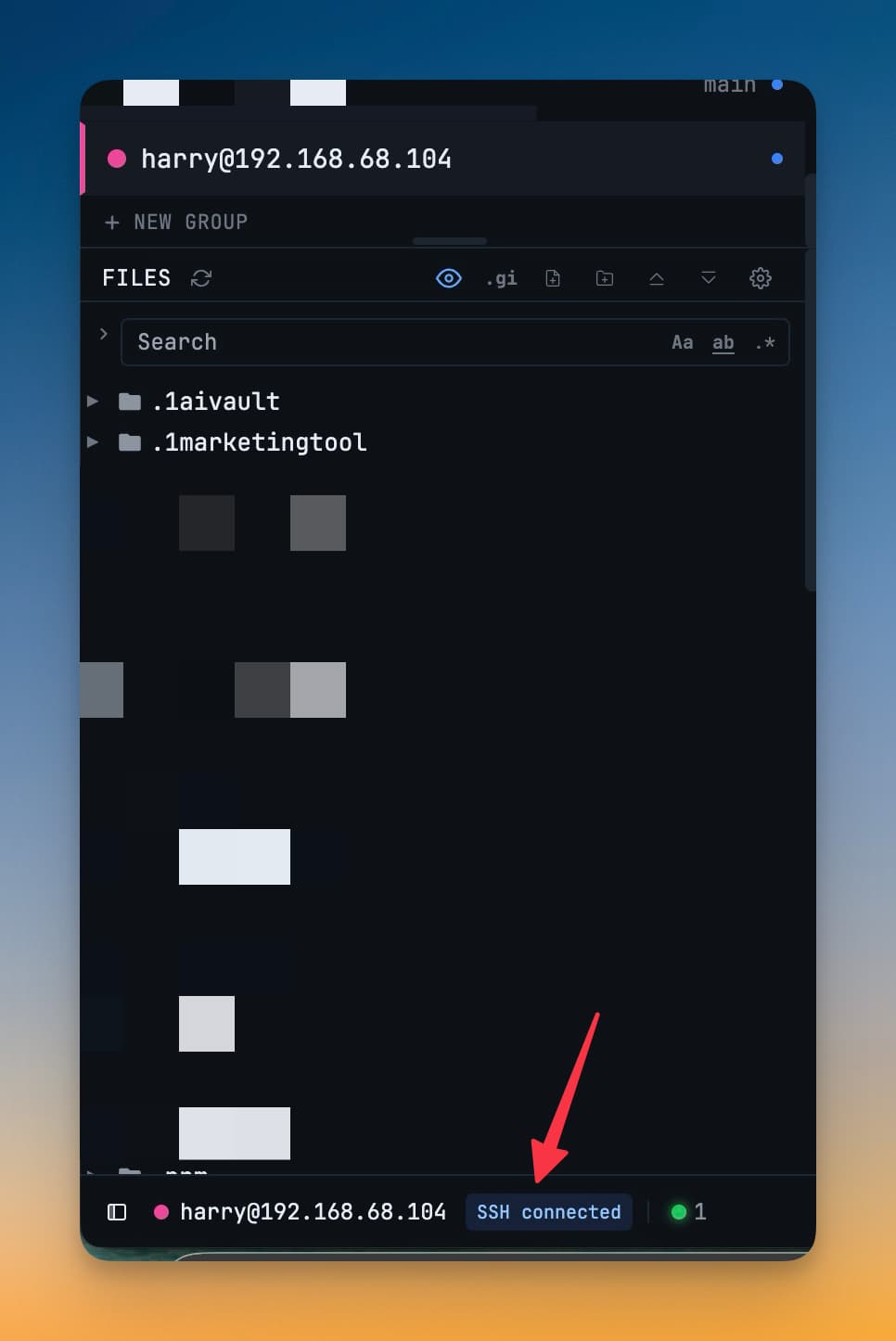
When a remote workspace drops, the interruption is bigger than the error message. You were in the middle of reading files, running commands, or asking an AI agent to inspect code on a server, and suddenly the project feels half-attached. The file tree may stop reflecting the remote machine. The terminal may still be open, but the mount underneath it is no longer trustworthy. The old escape hatch was familiar: close things, reopen the app, reconnect the host, and rebuild enough context to continue.
That friction gets worse when it happens at the same time as an app restart. Remote projects depend on the network, sshfs, host keys, paths, and local helper processes. AI terminals depend on agent-specific session stores that may not be ready at the exact moment the app quits. When either side misses its recovery window, you spend your time proving that the environment still exists instead of doing the work you opened it for.
What changed
Now you can recover an SSH workspace from inside the workspace itself, and your AI terminal tabs keep useful context even when a native resume session cannot be matched. 1DevTool v1.31.0 makes remote projects more recoverable before connection, during setup, and after a stale mount or restart.

How it works in practice
You choose the remote folder before saving the project
Remote setup starts earlier now. When you add an SSH project or edit a host in SSH Manager, you can use Scan to browse directories on the remote machine before the project is saved. You move through folders with the same key-based access that the final mount will use, then choose Use this folder when the workspace root is correct.
That matters because path mistakes used to hide until the mount step. A typo in /var/www/app, a home directory written as ~, or a key that could not authenticate might not become obvious until after you created the project and tried to open it. Scanning turns that into a setup-time check. If access fails, you see the problem while you are still deciding which folder to use.
You can install sshfs where the missing dependency is felt
SSH workspaces need sshfs support. When it is missing, the Files sidebar now gives you the install action directly in the place where the remote file tree should appear. You can launch the installer, copy the install command, open Libraries settings, or retry after installing without digging through a separate settings hunt.
The workspace also retries once sshfs is detected. The practical result is simple: you fix the dependency and continue the project setup from the same context. You do not have to remember which host, user, key, and path you were configuring before the dependency check stopped you.
You remount from the status bar when the server comes back
The SSH status pill is now a recovery control, not just a label. If a server sleeps, restarts, changes network state, or drops the mount, you can use the status bar to refresh the remote workspace. Switching back to an SSH project also checks whether the mount is still alive and refreshes stale state when needed.
This is the day-to-day difference in v1.31.0: a remote project can recover without making the app restart part of the workflow. You can get back to the server after a network drop, stale mount, or dependency repair from the workspace you are already using.
Your AI tabs stop reopening as blank rooms
AI terminals now get another layer of persistence. When an agent cannot be matched to a resumable conversation before the app quits, 1DevTool keeps a capped copy of the last terminal output. On reopen, that transcript appears above the fresh agent session with a visible separator, so you can see where the previous work ended and where the new session begins.
This does not pretend to be the same as a native agent resume. It gives you the important part when native resume is not available: the last useful context on screen. You can read the previous commands, agent output, file paths, and decisions before continuing.
OpenCode also joins the automatic session detection list in this release. If you use OpenCode next to Claude, Codex, Gemini, or Qwen, 1DevTool can detect the right OpenCode session and reopen it with the same kind of continuity you expect from the other AI terminals.
Before vs After
| Workflow | Before v1.31.0 | In v1.31.0 |
|---|---|---|
| Choose an SSH project folder | Type the path and discover mistakes after saving or mounting. | Scan remote directories first, then pick Use this folder. |
| Missing sshfs | Leave the workspace flow to figure out the dependency. | Install, copy commands, open Libraries settings, and retry from the file tree. |
| Stale remote mount | Restart the app or recreate enough state to reconnect. | Use the SSH status pill or project switch recovery to refresh the mount. |
| AI terminal with no matched resume session | Reopen to a blank tab and reconstruct the last context manually. | Reopen with a saved transcript above a fresh agent session. |
| OpenCode continuity | Treat OpenCode sessions as harder to match after restart. | Auto-detect OpenCode sessions alongside the other supported agents. |
Who benefits most
If you work directly on remote servers, this release removes several small recovery rituals that used to stack up. You can validate the folder while creating the project, handle sshfs from the file tree, and refresh the mount after the machine or network changes state.
If you keep multiple AI terminals open inside a project, the fallback transcript protects you from the most frustrating failure mode: an agent tab that comes back empty even though it had useful output before quit. You may still start a fresh agent process, but you start with the previous transcript visible.
If OpenCode is part of your workflow, the session detection work makes it a first-class participant in restart recovery. Your OpenCode tabs have a better chance of finding the right prior conversation instead of reopening without context.
Try it
Update to v1.31.0, open an SSH project, and watch the bottom status pill the next time the remote host changes state. The important change is not a new screen you have to manage. It is that the workspace gives you recovery controls in the places where remote development actually breaks.
From across the StoicSoft network
Hand-curated reads on the same topic from sister sites in the StoicSoft family.
 ServerCompass25 min read
Save 5 hours a month: The lazy developer's guide to VPS deployments
Tired of typing ssh user@server and running the same 10 commands every time you deploy? This guide shows how to transform your VPS deployment workflow from terminal chaos to visual simplicity.
Read on servercompass.app ServerCompass5 min read
Never Lose Your SSH Connection Again: Auto-Recovery and Database Table Browser
Automatic SSH reconnection with retry logic, plus a database table browser with data viewer, pagination, search, and smart record creation forms.
Read on servercompass.app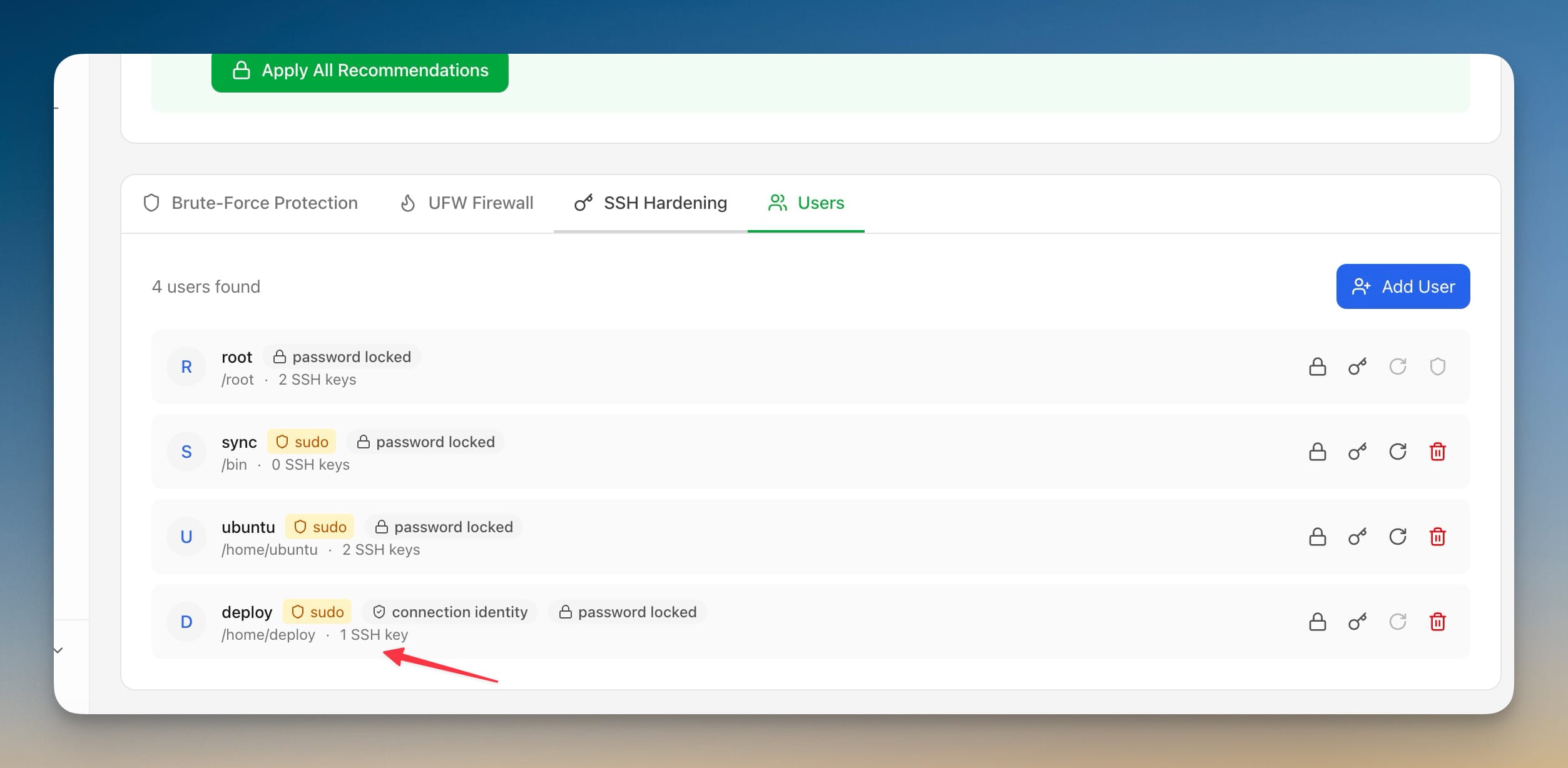 ServerCompass6 min read
Stop Running Your VPS as Root
Server Compass now runs as a non-root sudo user end to end — firewall, brute-force protection, SSH hardening, Docker and deploys all work from an ordinary account, and disabling root login stays locked until a working key-based fallback is verified.
Read on servercompass.app ServerCompass5 min read
Never Lock Yourself Out of Your Server Again
Server Compass now protects your SSH firewall rule from accidental deletion, blocks duplicate port 22 entries, and adds per-config backup passphrases — so critical access paths can't be removed by mistake.
Read on servercompass.app