Jul 7, 2026
Recover Closed Terminals and Edit C# Projects Faster
1DevTool 1.33.1 adds Reopen Closed Terminal, C# and .NET Code Intelligence, safer project folder renaming, and clearer AI usage surfaces.
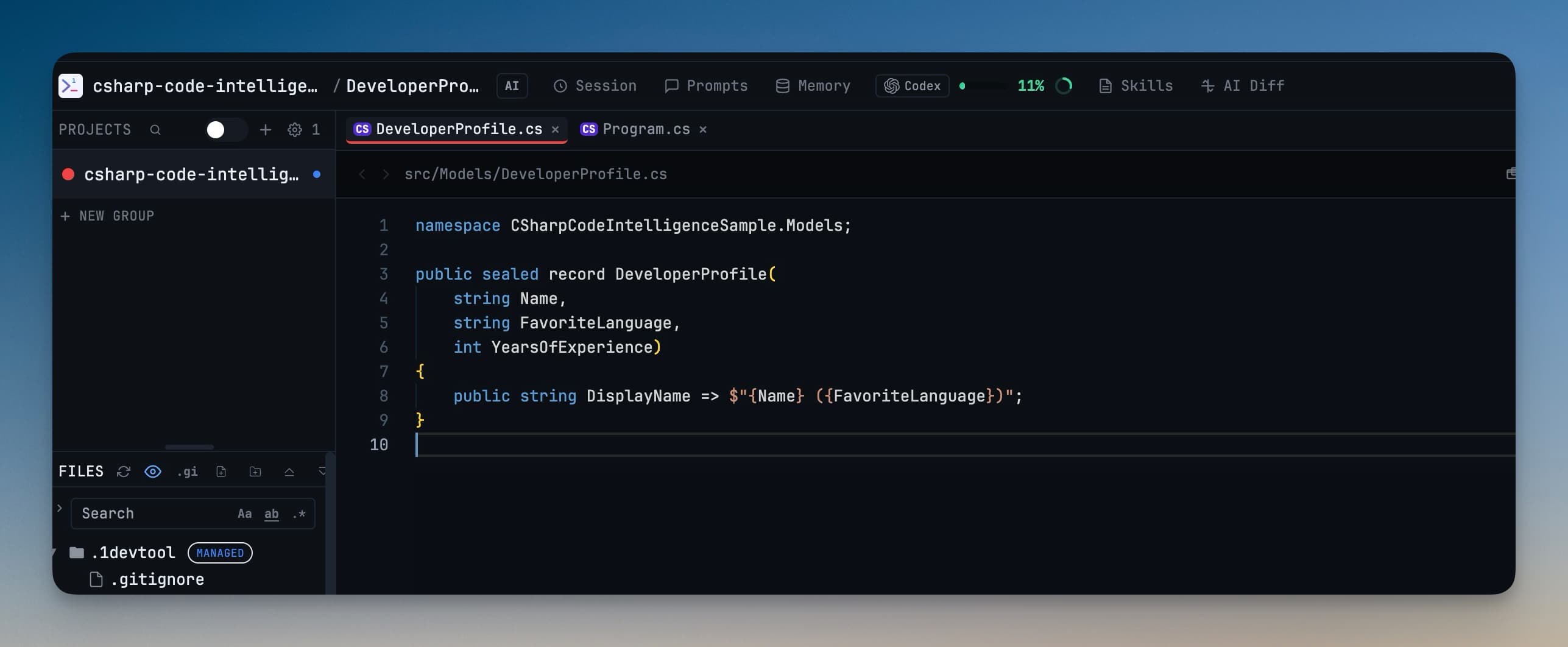
Closing the wrong terminal is usually a small mistake with a long tail. You remember the command, the folder, and maybe the agent that was running there, but rebuilding the exact tab still interrupts the work. The same thing happens when you open a C# project in a general-purpose editor and the editor treats it like plain text: the file opens, but the project context is missing.
1DevTool 1.33.1 focuses on those everyday breaks in flow. It gives closed terminals a quick recovery path, brings C# and .NET projects into Code Intelligence, and makes project renaming safer when the folder on disk has to move with the workspace.
What changed
You can now reopen recently closed terminals from the terminal menu, edit C# files with Code Intelligence when the C# language server is available, and rename local project folders from the sidebar while 1DevTool keeps workspace paths aligned.
How it works in practice
Recover the terminal you closed a moment ago
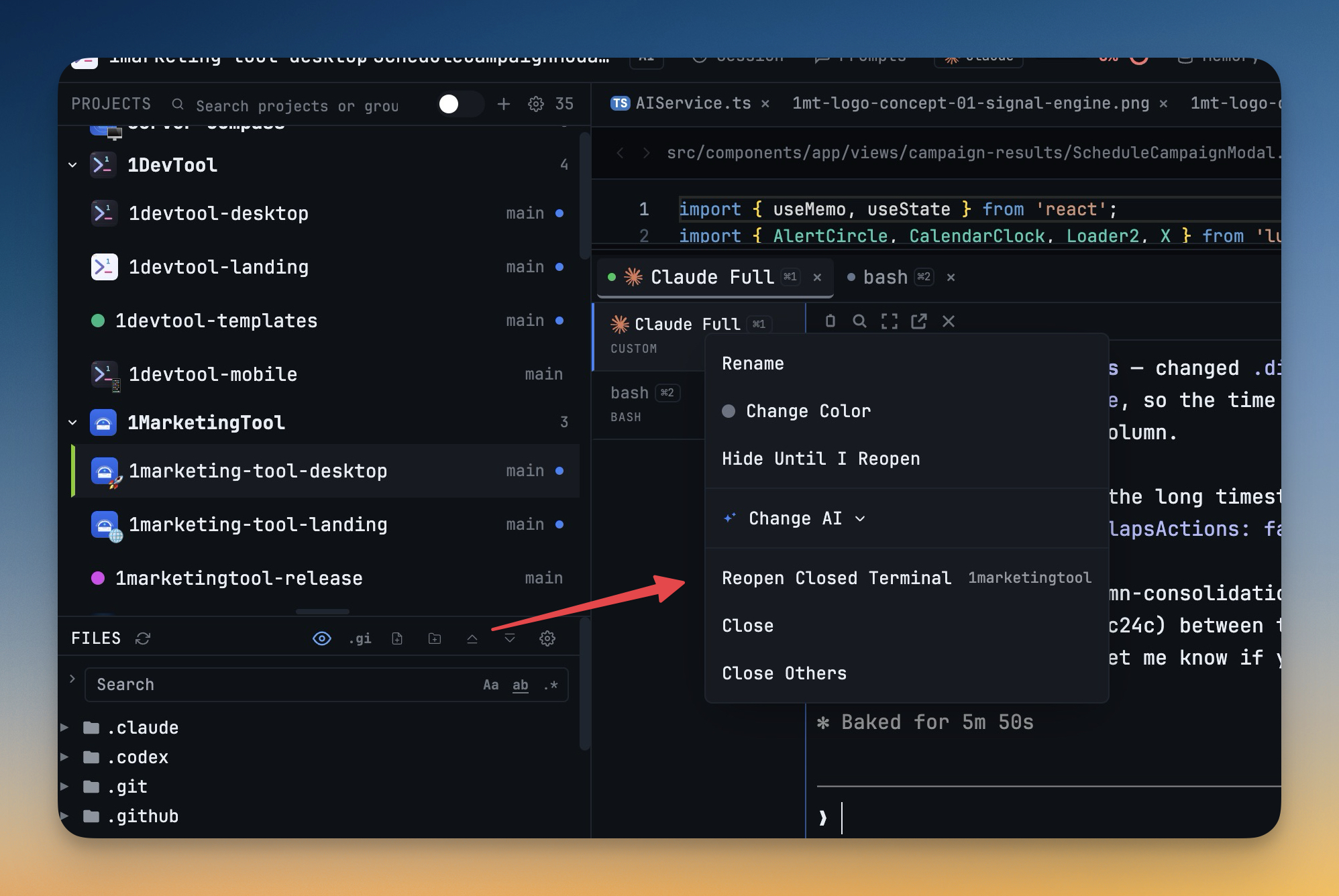
Right-click a terminal tab and choose Reopen Closed Terminal. 1DevTool restores the most recently closed terminal setup in last-closed order, so you can bring back several closed tabs one at a time.
The restored terminal keeps the details that make the tab useful: its name, command, color, working folder, worktree binding, and AI conversation resume information. Under the hood, closed terminals are stored per project, then restored into the same project with a fresh terminal id and the original setup. That means recovery is fast without trying to revive a killed PTY session as if nothing happened.
Work in C# and .NET projects with editor intelligence
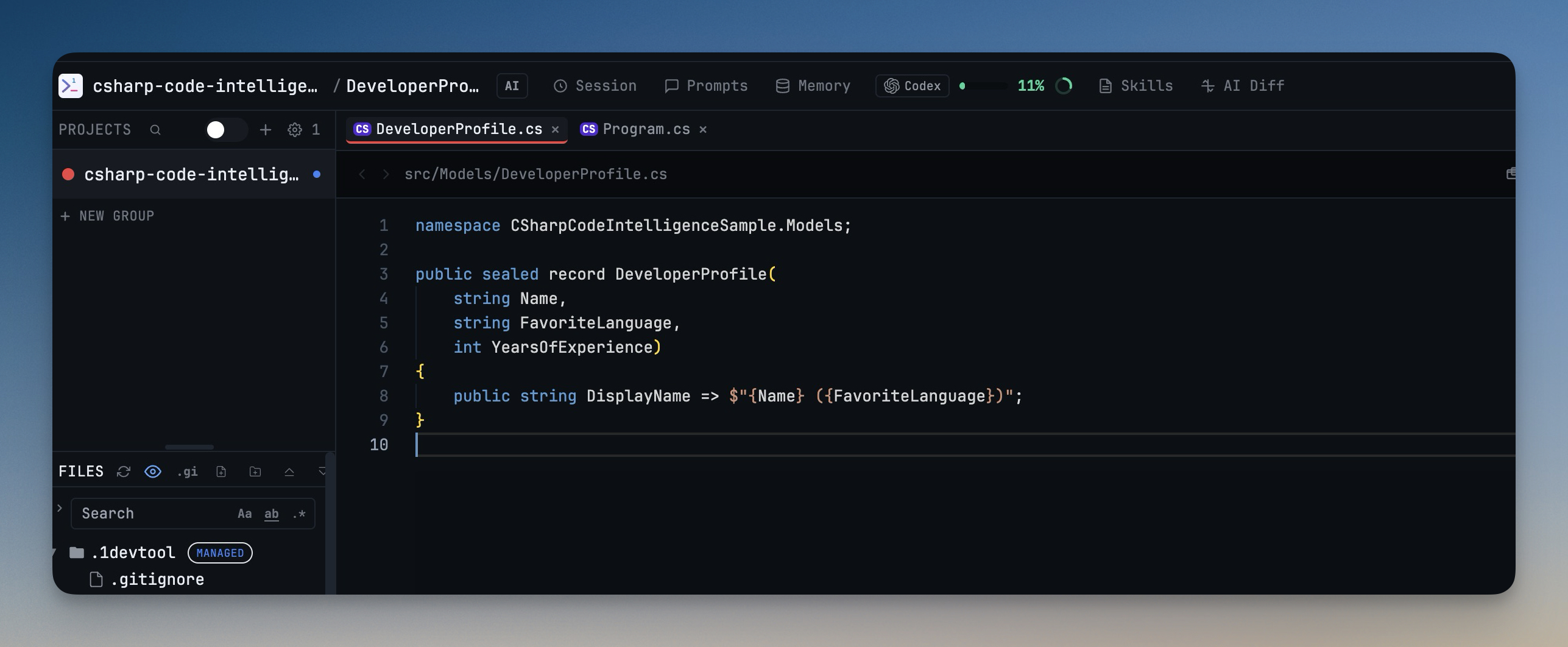
C# files now get language badges, editor language detection, diagnostics, go-to-definition support, and language-server-backed editor behavior when the C# language server is installed. If you move between TypeScript, shell scripts, and .NET code in the same workspace, the editor can now recognize C# files as first-class code instead of generic text.
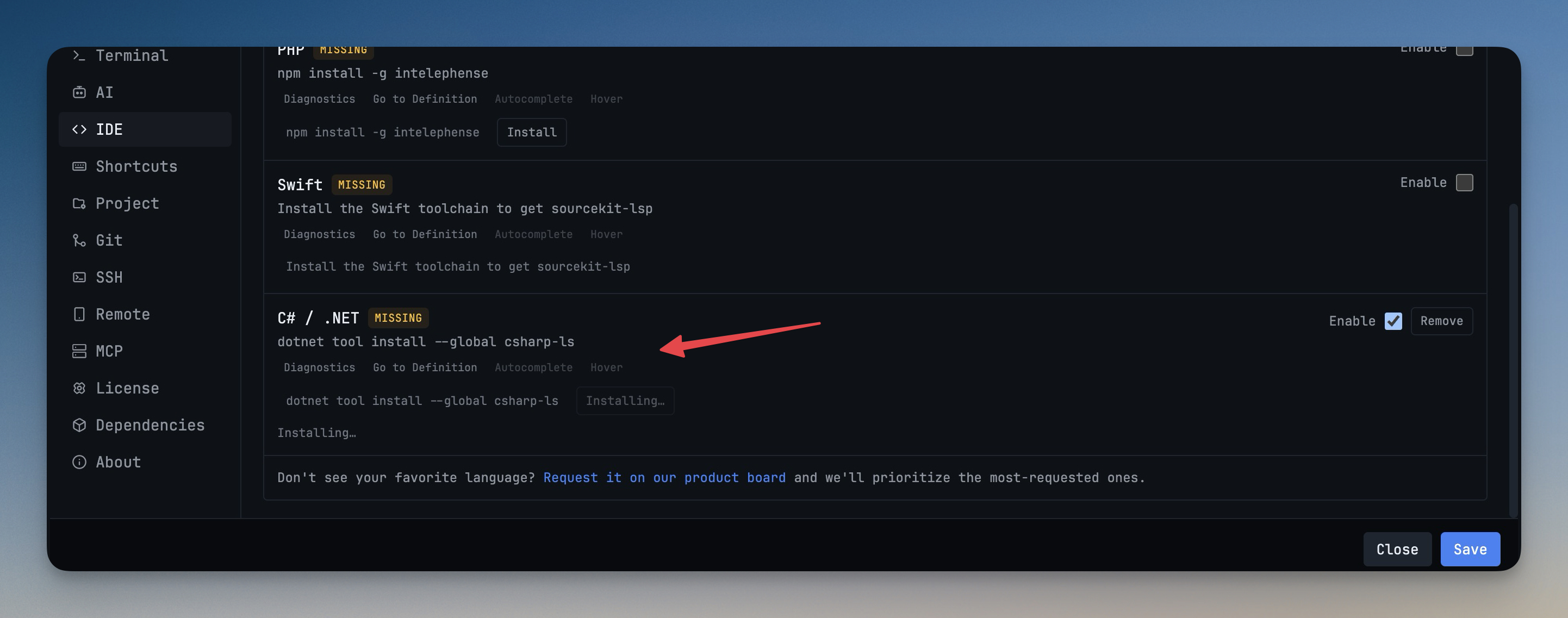
Code Intelligence settings list C# / .NET alongside other supported language servers. 1DevTool uses csharp-ls and can install or update it through .NET global tools. If the app sees a .NET runtime but no SDK, or no .NET install at all, the setup surface gives you the specific next step instead of leaving a language server failure unexplained.
Turn editor intelligence on when the project needs it
The Enable Code Intelligence dialog makes the setup decision explicit. You can see which language servers are supported, which ones are detected, and what needs to be installed before the editor starts depending on them.
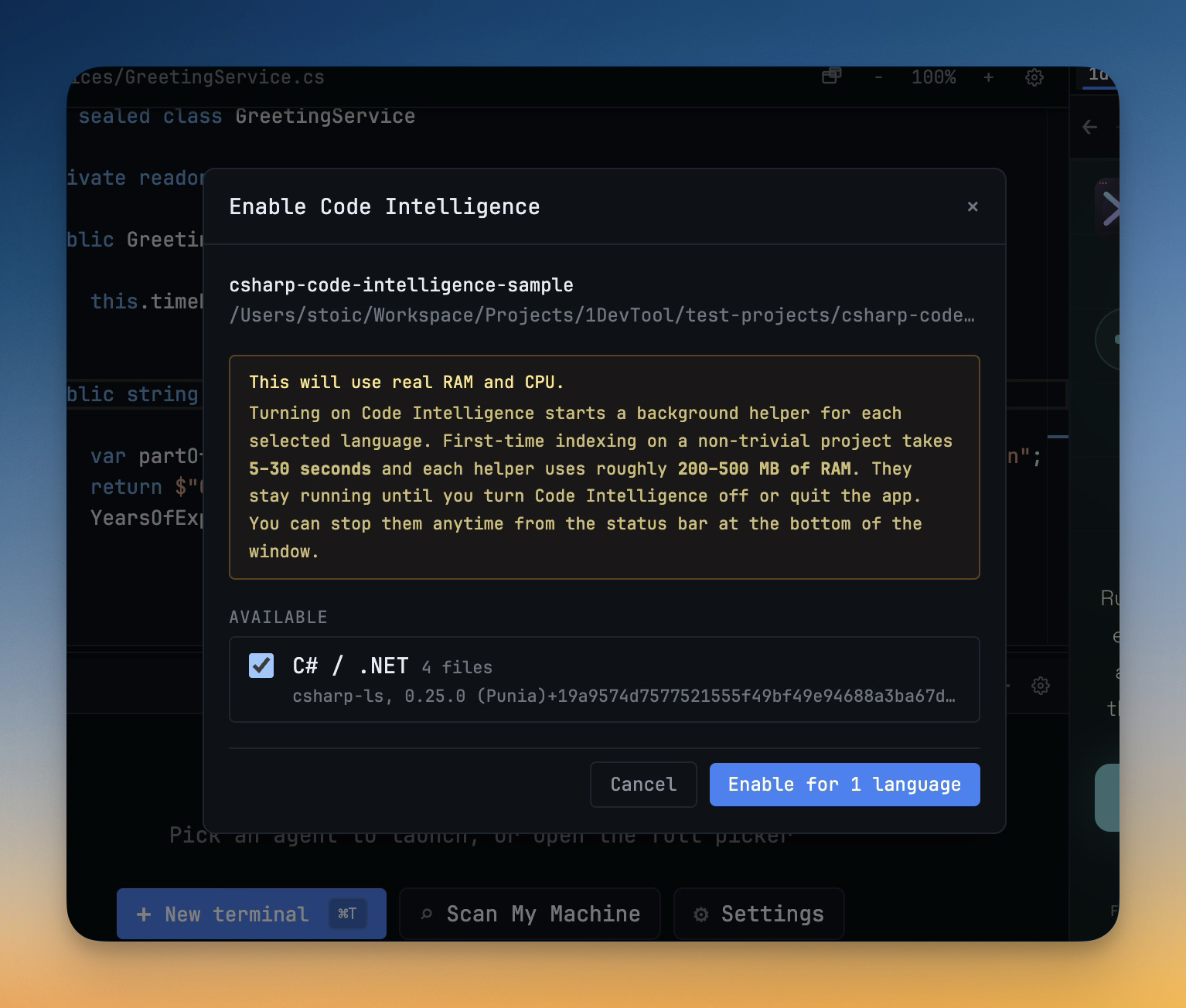
This matters for mixed stacks. A workspace can contain frontend code, backend services, scripts, and C# projects. The app should not guess blindly, and it should not make you debug language-server setup through a separate terminal unless that is what you want to do.
Rename a local project without breaking the workspace
Renaming a local project from the sidebar now moves the folder on disk and rebases the project paths that point inside it. Open files, terminal working folders, worktree bindings, HTTP request file paths, SQLite database paths, prototype roots, file-tree expansion state, and project settings write-back all follow the new root.
SSH projects are handled differently on purpose. Renaming an SSH project updates the display name without trying to rename a remote folder. That keeps the local UI flexible without performing a remote filesystem operation you did not ask for.
Keep AI surfaces easier to scan
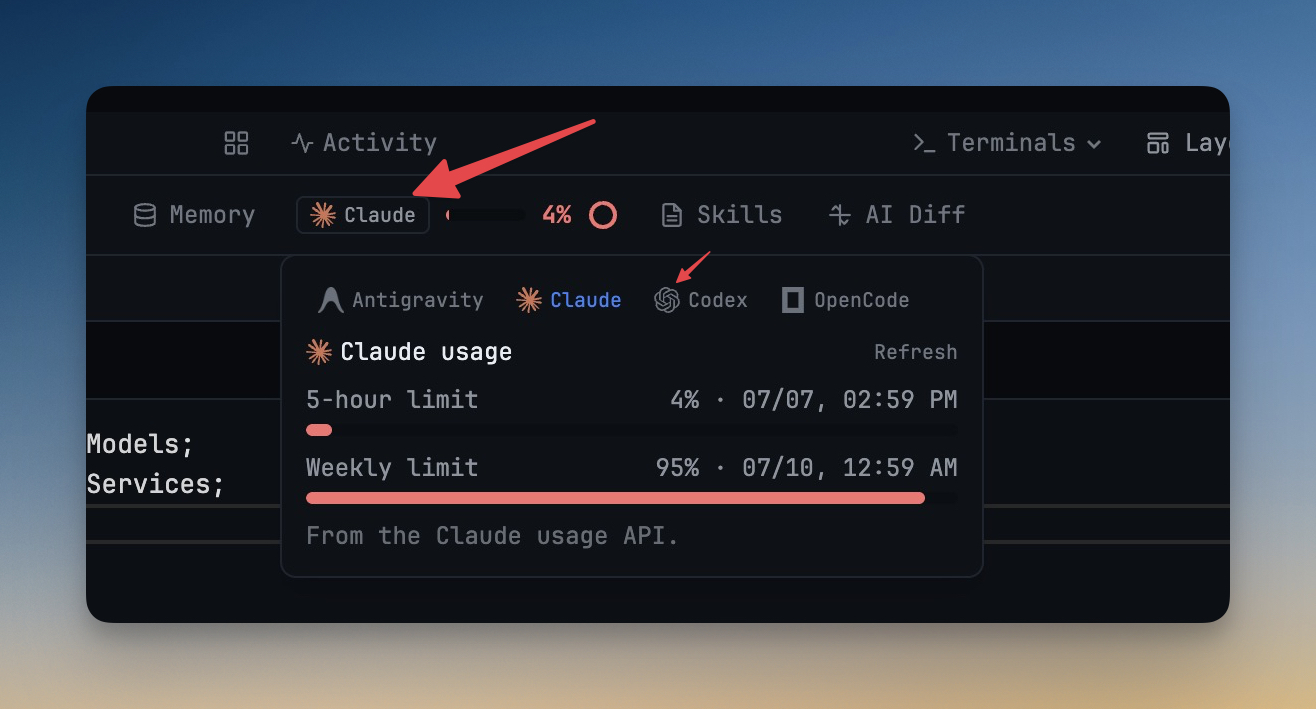
This release also extends recognizable agent logos across AI usage, Remote Control usage, AI Diff sessions, Skills, and Memory. The App Toolbar now places AI usage immediately after Prompts and before Memory, keeping prompt history, usage, and memory controls together.
Before vs After
| Workflow | Before | Now |
|---|---|---|
| Closed terminal recovery | Recreate the tab, folder, command, and AI context manually | Reopen the last closed terminal from the tab menu |
| C# editing | Open C# files without full language-server support | Use C# detection, diagnostics, and go-to-definition when csharp-ls is available |
| Language server setup | Diagnose missing .NET or csharp-ls outside the editor | Install or update through Code Intelligence settings with clearer setup messages |
| Project renaming | Rename the label and risk stale paths elsewhere | Move the local folder and rebase workspace paths together |
| AI usage scanning | Read text labels across several AI surfaces | Recognize agent marks in usage, AI Diff, Skills, and Memory |
Who benefits most
If you keep many terminal tabs open, Reopen Closed Terminal saves you from rebuilding a working tab after a mistaken close. It is especially useful when the terminal had a custom command, a worktree folder, or an AI conversation attached.
If you work in .NET alongside web projects, C# Code Intelligence keeps the editor useful without leaving 1DevTool. You can inspect diagnostics and definitions while the terminal, browser, Git, and database tools stay in the same workspace.
If you rename project folders during cleanup or handoff, safer project renaming reduces stale path problems. The folder move and workspace rebase happen together, and SSH project names stay UI-only.
Try it
Download 1DevTool 1.33.1, close a disposable terminal, then reopen it from the terminal menu. Open a C# file in a .NET project and check Code Intelligence settings for the C# / .NET language server. The result is less recovery work, better editor context, and safer project organization inside the same workspace.