Jun 11, 2026
Drive Your 1DevTool Desktop From Anywhere With Cloudflare Tunnel
Cloudflare Tunnel routes Remote Control over a public URL, so your phone can reach your desktop from any network — and the phone dashboard can now start new terminals on its own.
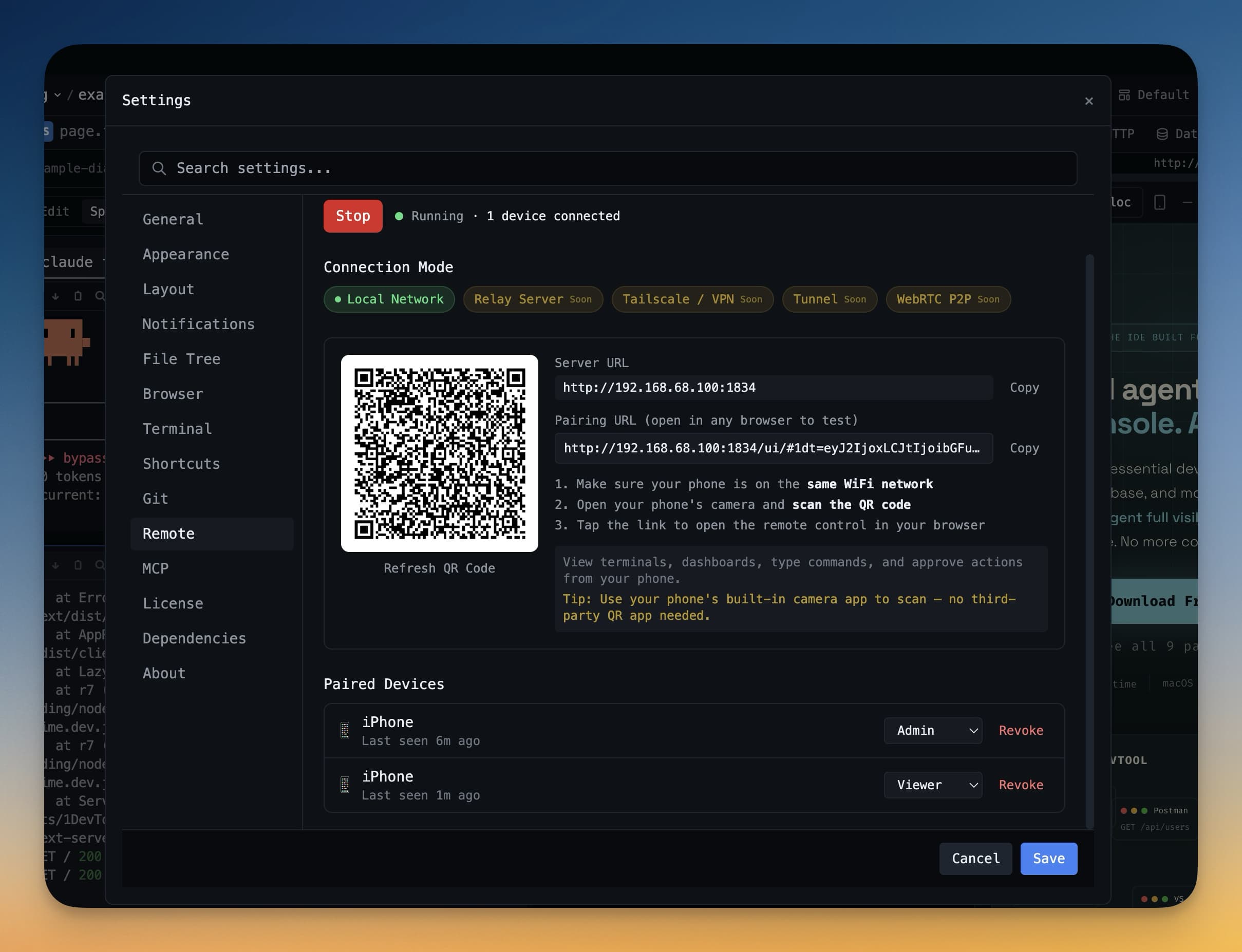
Remote Control used to require you and your phone to be on the same Wi-Fi. Tethered to your desk at the office, fine. Working from a coffee shop, fine. Stuck on hotel Wi-Fi that puts every device on its own client-isolated network, watching tests run on your laptop back at the apartment and unable to tap a single button — not fine.
The workaround was port-forwarding on a router you didn't own, or a VPN, or just giving up and running back to the laptop. None of those are realistic when the build's already running and you just want to kick off the next agent from your phone in the airport.
What changed
In v1.24.0 Remote Control can route over a Cloudflare Tunnel that 1DevTool installs and manages for you. Open Settings → Remote, pick Cloudflare Tunnel, and the QR code your phone scans points at a public URL instead of a LAN address. Pair once, then control your desktop from anywhere — LTE, hotel Wi-Fi, somebody else's network — without router config or a VPN.
The same release also adds Add Terminal to the phone dashboard, so once you're paired remotely you don't just watch terminals: you start new ones.
How it works in practice
Switch from LAN to Cloudflare Tunnel
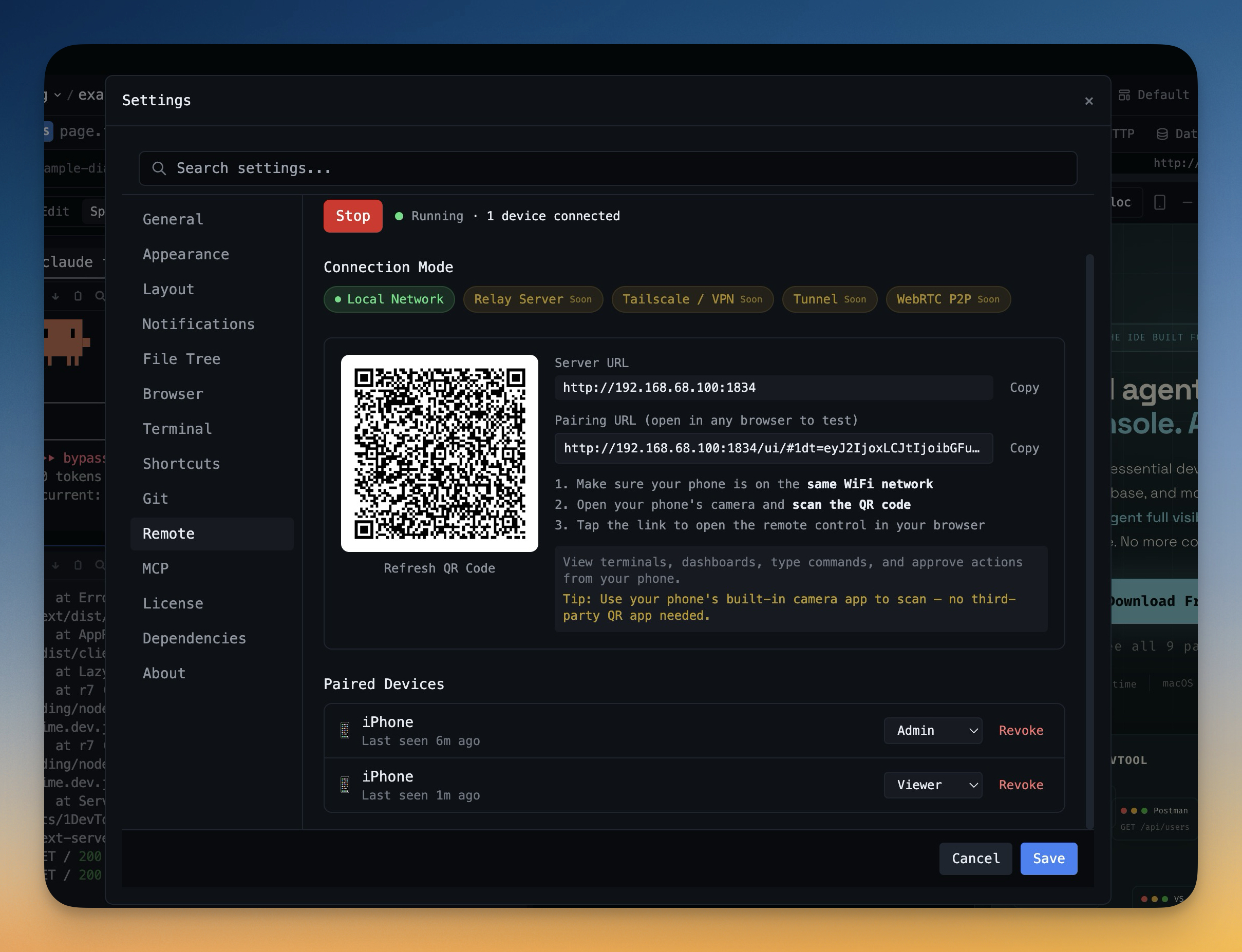
In Settings → Remote, the connection mode now has two pills: Local Network and Cloudflare Tunnel. Pick the tunnel. The first time, 1DevTool downloads cloudflared directly from the app — there's a progress bar, signature verification, and start/stop controls. The binary lives in app data and you can remove it from the same panel; there's no global install to clean up later.
Once the tunnel starts, the pairing URL and QR code automatically switch over to the public address. Stop the tunnel and they switch back to your LAN address. You don't have to regenerate anything.
Pair from the phone, deliberately
The pairing flow only completes after you tap Connect on the phone — opening a QR preview in a camera app or scanner no longer triggers a pair on its own. If you start in an in-app browser (Instagram, Slack, Messages), the pairing page now stays valid while it nudges you to open the link in Safari and explains why a real browser keeps you signed in across reloads. The credentials are remembered per server URL, so refreshing the page or coming back later doesn't force a fresh pair.
Add terminals from the phone
The phone dashboard now shows each project with its real avatar and emoji — not just a color dot — and every project card has an Add Terminal button. Tap it and you get a mobile sheet for picking what to launch: Claude, Codex, Gemini, Amp, OpenCode, plain bash / zsh / PowerShell, or any saved command preset you've defined. The new terminal opens immediately, streams live output, and lets you type without going back to the desktop.
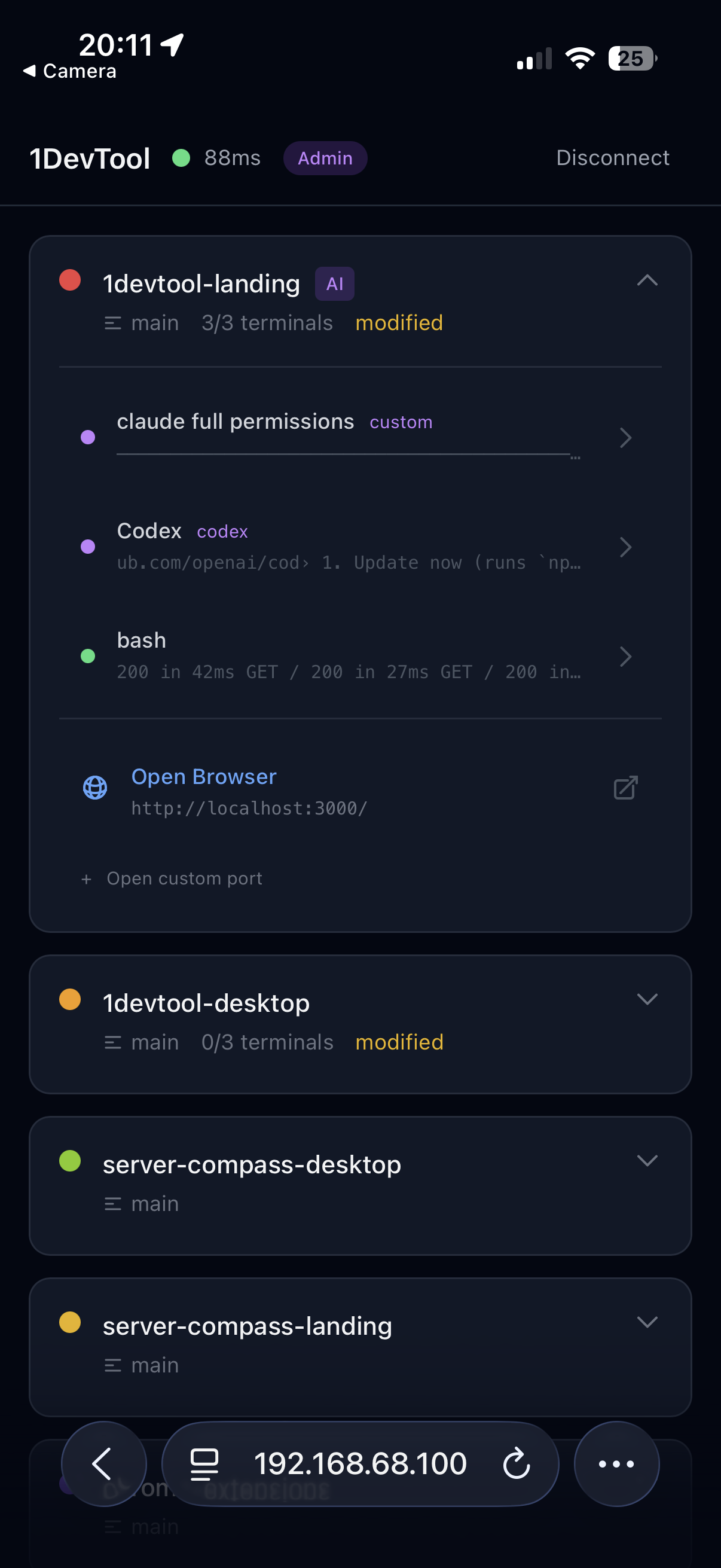
The status row at the top of the dashboard makes your access level explicit — Viewer, Approver, Operator, or Admin — and the Add Terminal sheet tells you up front when starting a process needs Operator or Admin permission. You stop tapping buttons and waiting for ambiguous "nothing happened" failures.
Before vs After
| Scenario | The old way | With v1.24.0 |
|---|---|---|
| Connect from hotel Wi-Fi or LTE | Port-forward, VPN, or give up | Pick Cloudflare Tunnel, scan the new QR code |
Install cloudflared | brew, manual download, PATH | App downloads, verifies, and starts it for you |
| Open a new terminal from your phone | Couldn't — only watch existing terminals | Tap Add Terminal → pick an agent or shell |
| Pair from a Messages preview | Pair started silently and burned the link | Pair only triggers after you tap Connect |
| Lose pairing after a refresh | Re-scan every time | Credentials saved per server URL |
Who benefits most
Anyone running long agent jobs on a desktop they're not sitting at. Kick off a Codex refactor on the office machine, drive to lunch, watch progress on your phone over LTE, and start the next terminal without going back.
Developers on hotel or conference Wi-Fi. Networks with client isolation kill LAN-only remote control. The tunnel doesn't care about the network topology.
Anyone whose phone uses a different network than their laptop. Carrier 5G on the phone, Wi-Fi on the laptop — the tunnel bridges them cleanly with no router config.
Try it
Update to v1.24.0, open Settings → Remote, flip to Cloudflare Tunnel, and let 1DevTool install cloudflared for you. Scan the QR with your phone from anywhere — not just your home Wi-Fi. Then tap Add Terminal on a project and watch a remote agent start from your pocket.
From across the StoicSoft network
Hand-curated reads on the same topic from sister sites in the StoicSoft family.