Jun 18, 2026
Save Your Terminal Sessions Before You Quit 1DevTool
1DevTool now asks whether to save or discard active terminals when you quit, and Git History adds commit actions that reduce the number of side trips to external tools.
You close the app at the end of a long session and realize too late that one terminal still had the useful output, another had the exact working directory you needed tomorrow, and a third was still doing work you meant to keep alive.
That kind of loss usually happens in the gap between intent and consequence. You meant to close the app. You did not mean to throw away the state of every terminal attached to it.
What changed
In v1.25.3, 1DevTool asks whether you want to save or discard active terminal sessions before quitting. If you save, the app keeps the terminal tabs, working folders, and recent output so the next launch feels like a continuation instead of a reset. If you discard, the sessions are shut down cleanly instead of being left ambiguous.
How it works in practice
Make quitting a deliberate decision instead of a gamble
When you quit with active terminal sessions, 1DevTool opens a dialog with three explicit choices: Save & Quit, Quit Without Saving, or Cancel. The dialog explains what the save path preserves and what the discard path stops. You no longer have to remember whether this specific close action will preserve the state you care about.
Resume the work that actually mattered
Choosing Save & Quit preserves the terminal tabs, their working folders, and the recent output you were using as context. That matters most when the app is serving as a multi-terminal workspace for AI agents, build processes, and project-specific shells. Reopening the app stops feeling like starting over from a cold terminal grid.
Inspect old commits without leaving the History panel
The same release makes Git History much more actionable. Commit detail now shows stacked author avatars, a one-click full-hash copy button, an external link to open the commit on GitHub, GitLab, or Bitbucket, total additions and deletions in the header, and a right-click file menu inside the History tab. That menu lets you open the file in the IDE, open it on the remote, reveal it in Finder or Explorer, or copy its path straight from commit history.
Before vs After
| Workflow | The old way | With v1.25.3 |
|---|---|---|
| Quit with several active terminals | Hope the app preserves what you wanted | Choose Save, Discard, or Cancel explicitly |
| Recover terminal context next launch | Recreate tabs and re-find output manually | Reopen the app with saved tabs, folders, and recent output |
| Inspect a file from an older commit | Copy the path by hand or switch to an external tool | Right-click the file inside History and act immediately |
| Share or inspect a commit hash | Re-select text or open another app | Click one button to copy the full hash or open the remote page |
Who benefits most
People using 1DevTool as their primary terminal workspace benefit first, because terminal state is the thing they are most likely to lose by accident. Developers reviewing commit history also benefit, because the History tab now supports real next steps instead of just passive reading.
Try it
Update to v1.25.3, open a few meaningful terminals, and quit the app once on purpose. The moment you see a clear save-or-discard choice instead of a blind shutdown, the feature makes sense.
From across the StoicSoft network
Hand-curated reads on the same topic from sister sites in the StoicSoft family.
 ServerCompass6 min read
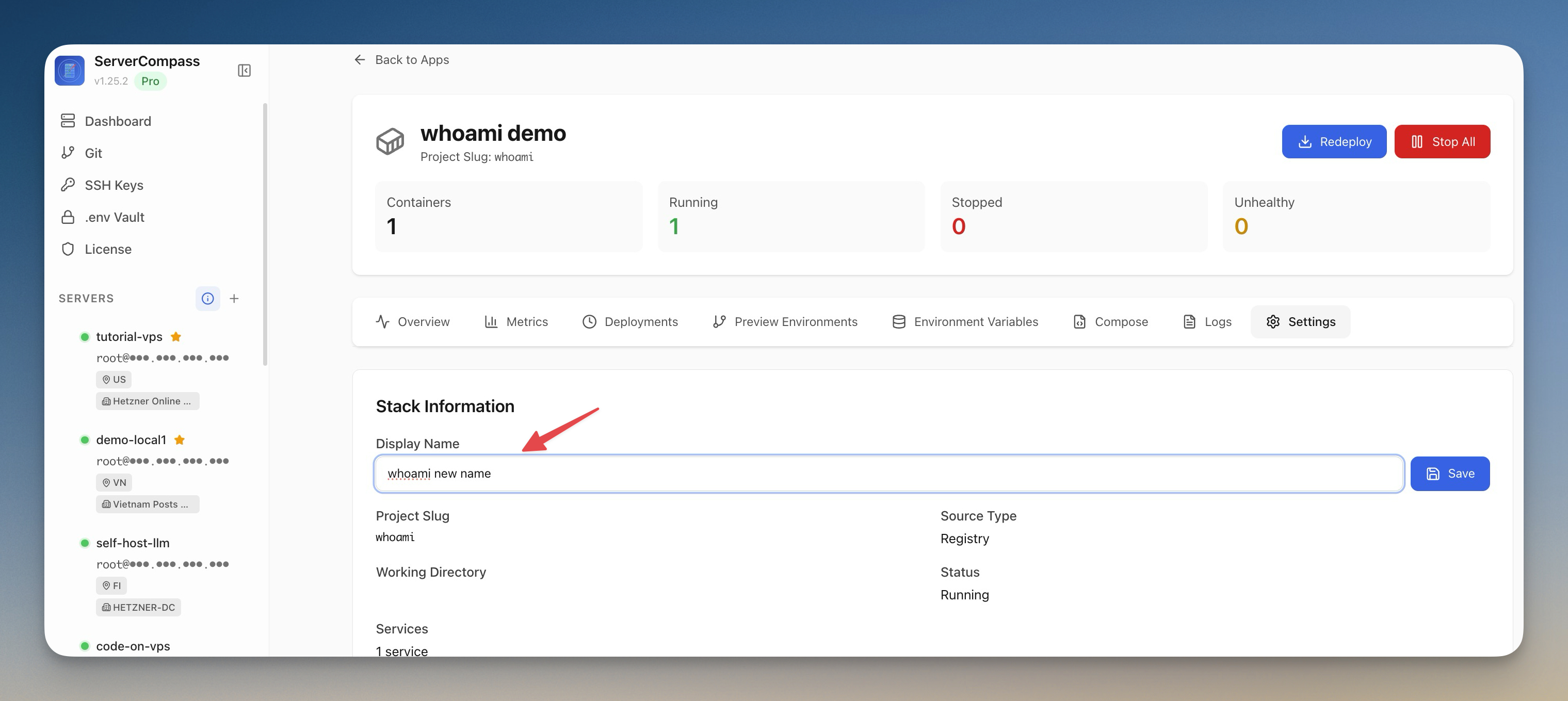
Rename Your Docker Apps Without Breaking Them
Server Compass v1.25.3 introduces friendly Custom App Display Names — replace cryptic project slugs with human-readable labels across every view, while containers, volumes, and folders on the server stay exactly where Docker expects them.
Read on servercompass.app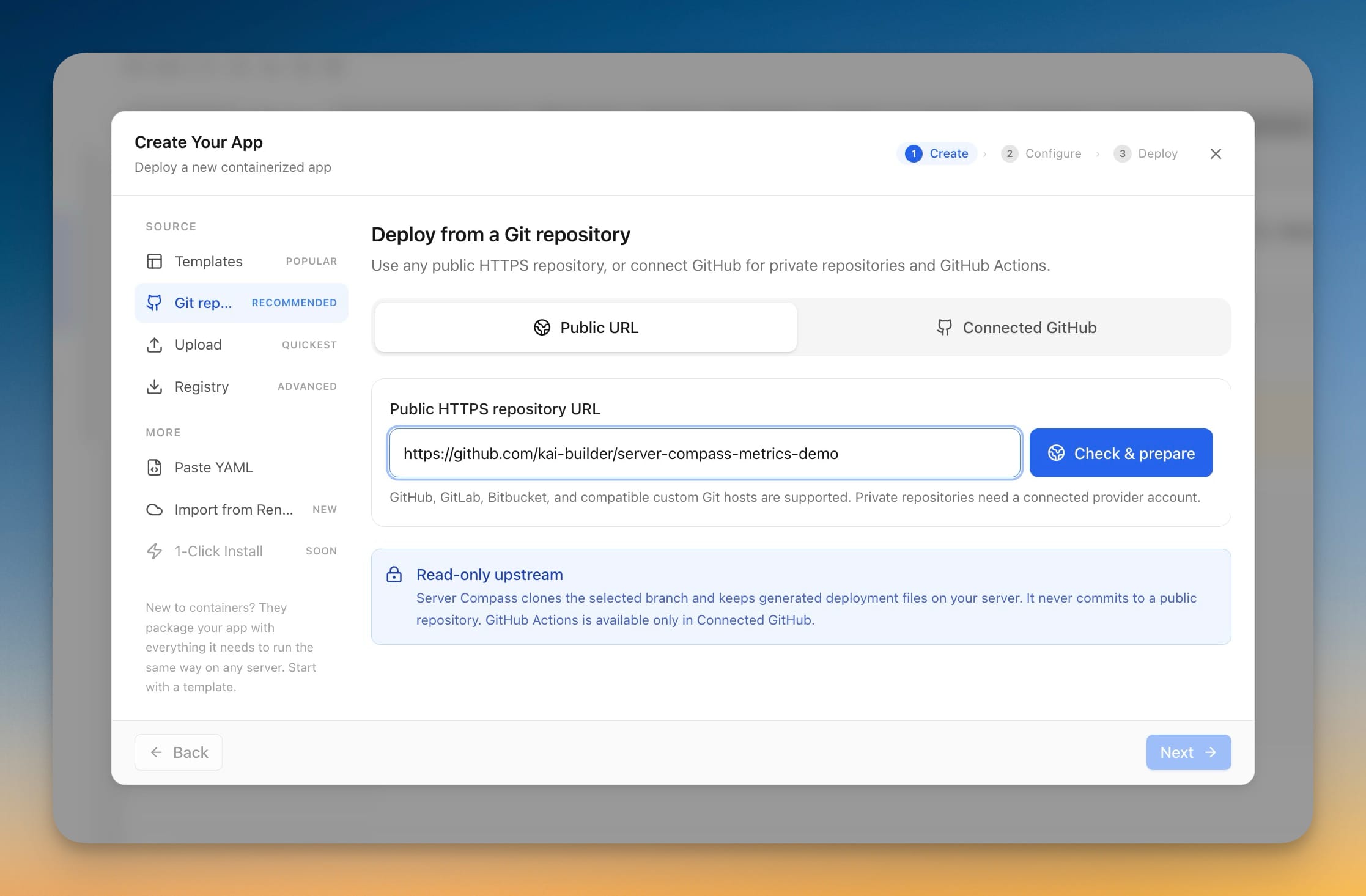 ServerCompass5 min read
Deploy Any Public Git Repository Without Forking It
Paste a public HTTPS repository URL from GitHub, GitLab, or Bitbucket, pick a branch, and deploy — no account connection, no fork, and the app you get has full redeploy, rollback, and backup support.
Read on servercompass.app