Jul 4, 2026
Share Your Project Setup Through the Repo
1DevTool v1.32.0 lets you commit your workspace — database connections, API requests, browser tabs, and terminal layout — in a .1devtool/ folder, so teammates clone into the same project without sharing secrets. Also new: scheduled agent prompts and Antigravity quota in the usage pill.
You clone a repository, open it, and the code is all there — but the project around the code is missing. The database connection you need to run a query isn't set up. The API requests you'd been testing live in some other window. The browser tabs you keep open beside the app — the docs, the staging URL, the dashboard — start empty. Your terminals aren't split the way you like them, and the agent you launch has no idea what this project is. The repo carried the source. It didn't carry the workspace.
That gap is quiet but expensive. Every new teammate rebuilds it by hand, usually by pinging someone to ask which connection string to use and which URL is staging. Every time you move to a second machine, you do the same setup twice. And none of it is written down anywhere the repo can see, so it drifts — whoever configured the project three months ago ends up with a slightly different setup than everyone who joined since.
What changed
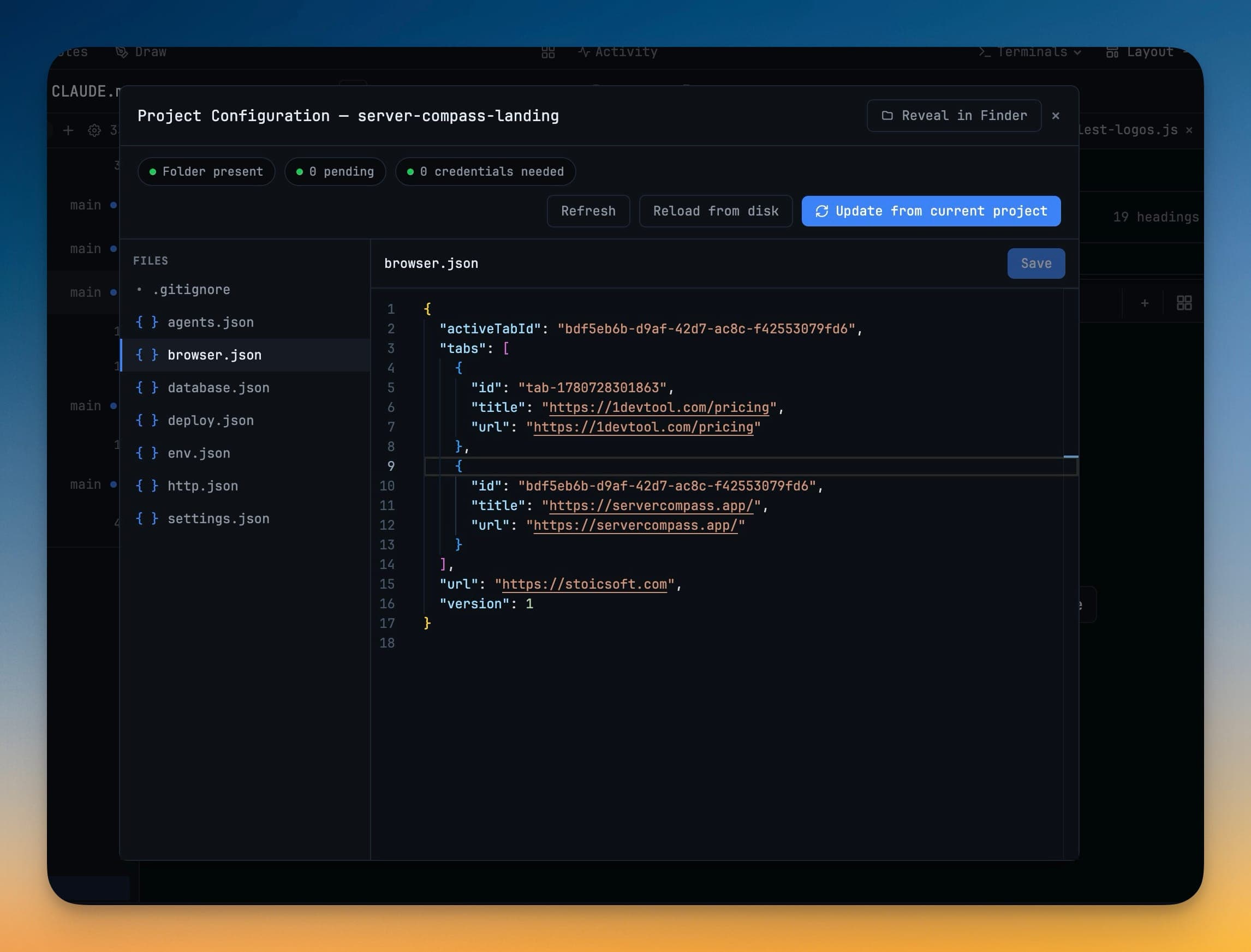
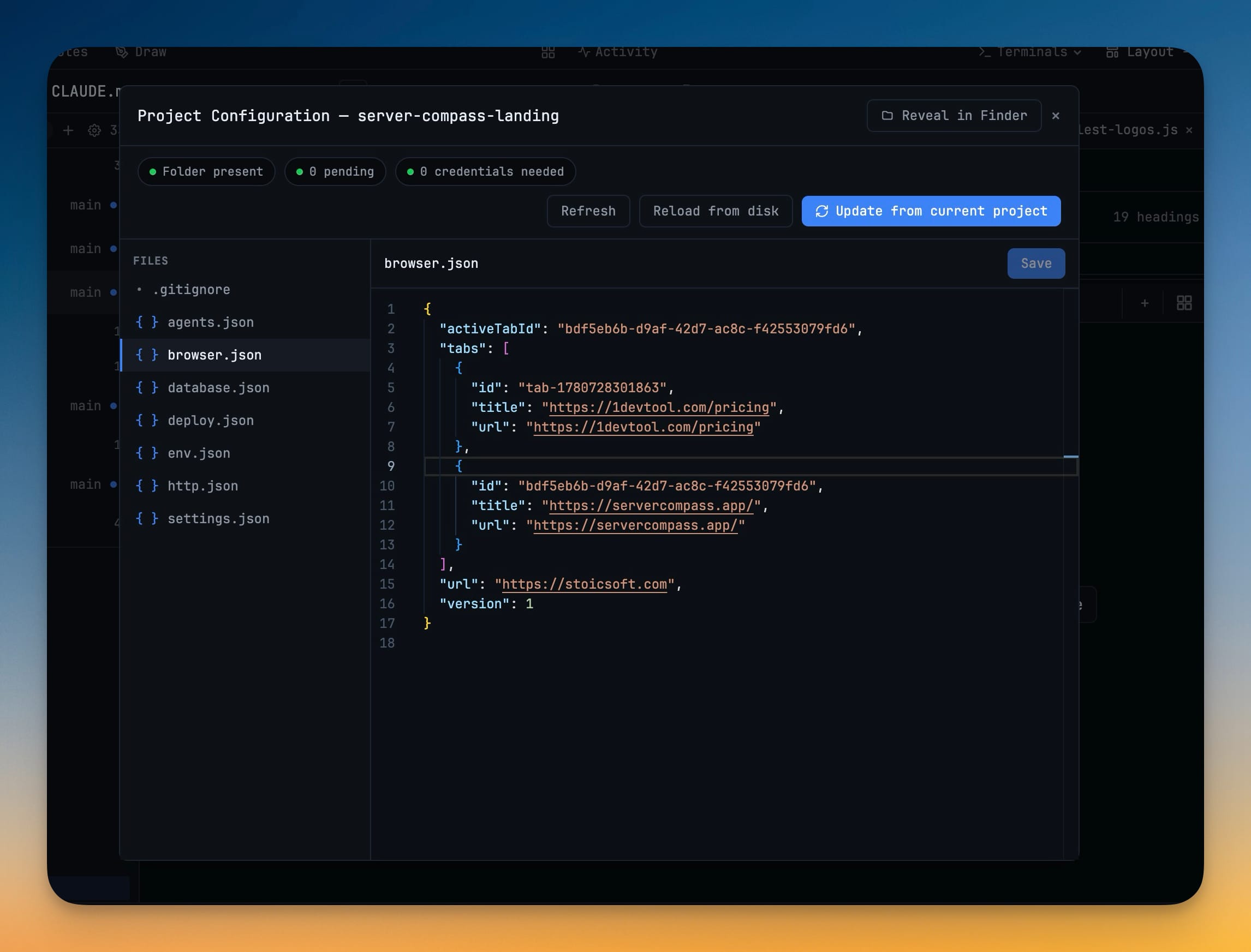
Now you can commit your workspace setup alongside your code. 1DevTool v1.32.0 introduces Project Configuration Folders: a .1devtool/ folder — in the spirit of .vscode/ — that captures your browser tabs, database connections, HTTP requests and environments, deploy config, environment preferences, and terminal presets as plain JSON. Push it, and a teammate who clones the repo opens the project into the same workspace you set up: same tabs, same connections, same layout.
How it works in practice
Share your setup through the repo
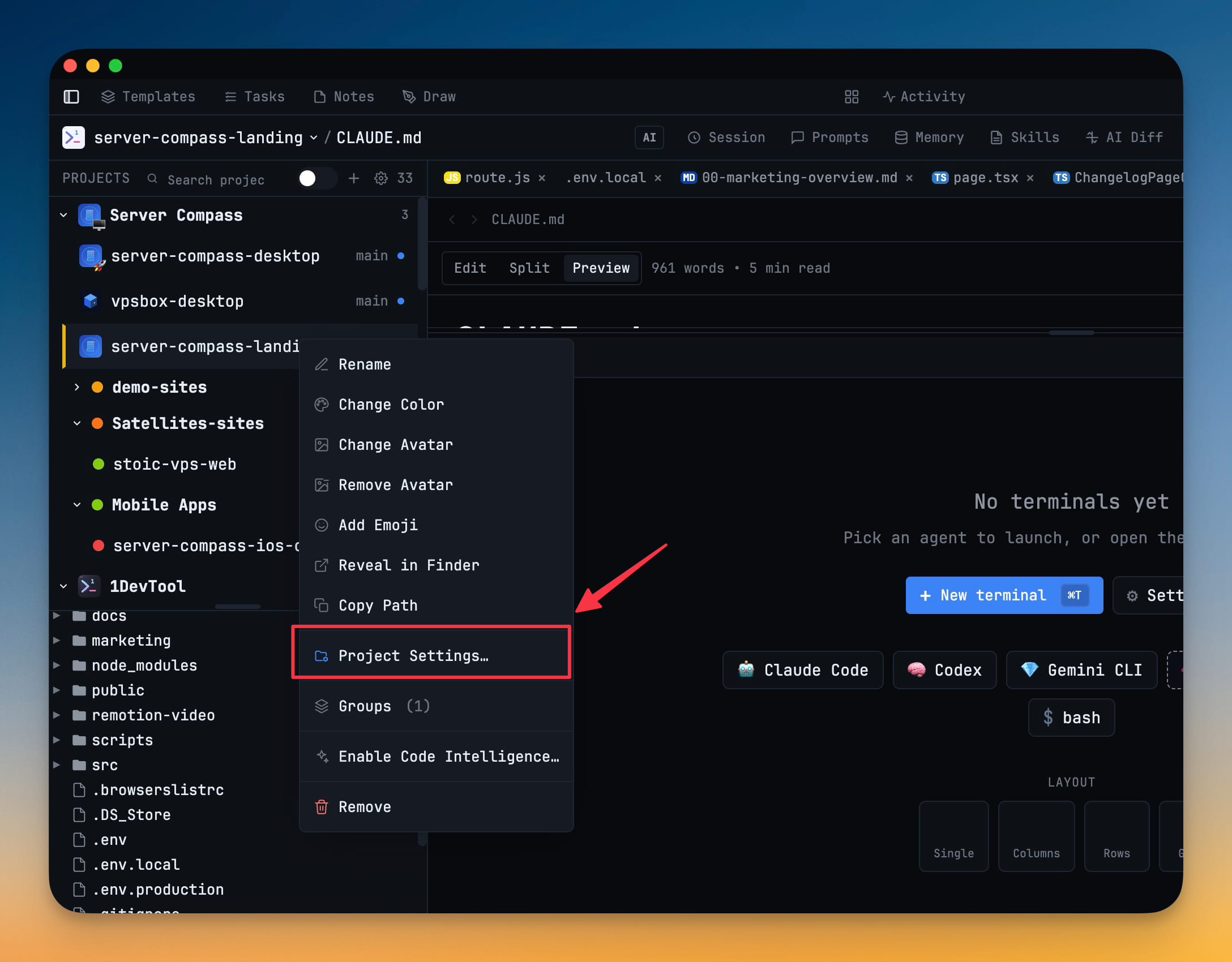
You turn it on per project. Open Settings → Project, or right-click the project in the sidebar and choose Project Settings…, then enable the settings folder. 1DevTool writes .1devtool/ into the project and keeps it in sync as your config changes. When you want to snapshot the current state — the tabs you have open now, the connection you just added — click Update from current project and it captures everything into the folder, ready to commit.
The folder is deliberately readable. Each domain gets its own file: browser.json for tabs, database.json for connections, http.json for requests and environments, plus deploy.json, env.json, and agents.json. Every file is written sorted and stable, so changing one connection produces a clean one-line diff in review instead of a churned blob.
Your config travels, your secrets don't
Sharing a database connection is useful. Sharing its password in a committed file is not. So 1DevTool splits them. When it writes the config, it strips every secret — database passwords, HTTP secret variables, deploy tokens and env values — into a separate secrets.local.json that is gitignored before anything is written and encrypted with your OS keychain. What lands in the committed files is a reference, never the value itself.
When your teammate opens the cloned project, they see a Credentials needed prompt listing exactly which secrets the project expects — this connection's password, that environment's API key. They supply their own once, stored encrypted on their machine, and the prompt clears. Nobody pastes secrets into chat, and no secret rides along in git history.
Review what can run before it runs
Some project config is just data — tabs and URLs are harmless to apply. Other config can run code: terminal startup commands, agent presets, channel templates, and skills. Applying those automatically from a repo you just cloned would mean trusting a file to execute on your machine sight unseen.
1DevTool holds that line. When you open a project whose shared config includes anything executable, the passive parts — browser, env, HTTP requests, database connections — are applied for you, and the executable parts wait in a review panel labeled clearly as able to run code. You expand each one, see what it does, and choose Apply all when you're satisfied — or Skip for now. Approval is tracked per file by content hash, so a later git pull that changes one preset re-prompts for that single file and leaves everything you already trusted alone.
Before vs After
| Getting a teammate productive on a project | Before v1.32.0 | With Project Configuration Folders |
|---|---|---|
| Database connections | Ask which host and database, add each by hand | Present on clone; supply your own password once |
| API requests & environments | Rebuild them or export/import manually | Come with the repo |
| Browser tabs (docs, staging, dashboards) | Reopen from memory | Restored with the project |
| Terminal layout & startup commands | Recreate, then run unknown commands on faith | Restored after an explicit review |
| Secrets | Shared over chat, easy to leak | Never committed; each dev supplies their own |
Also new in v1.32.0
Schedule a prompt to send later
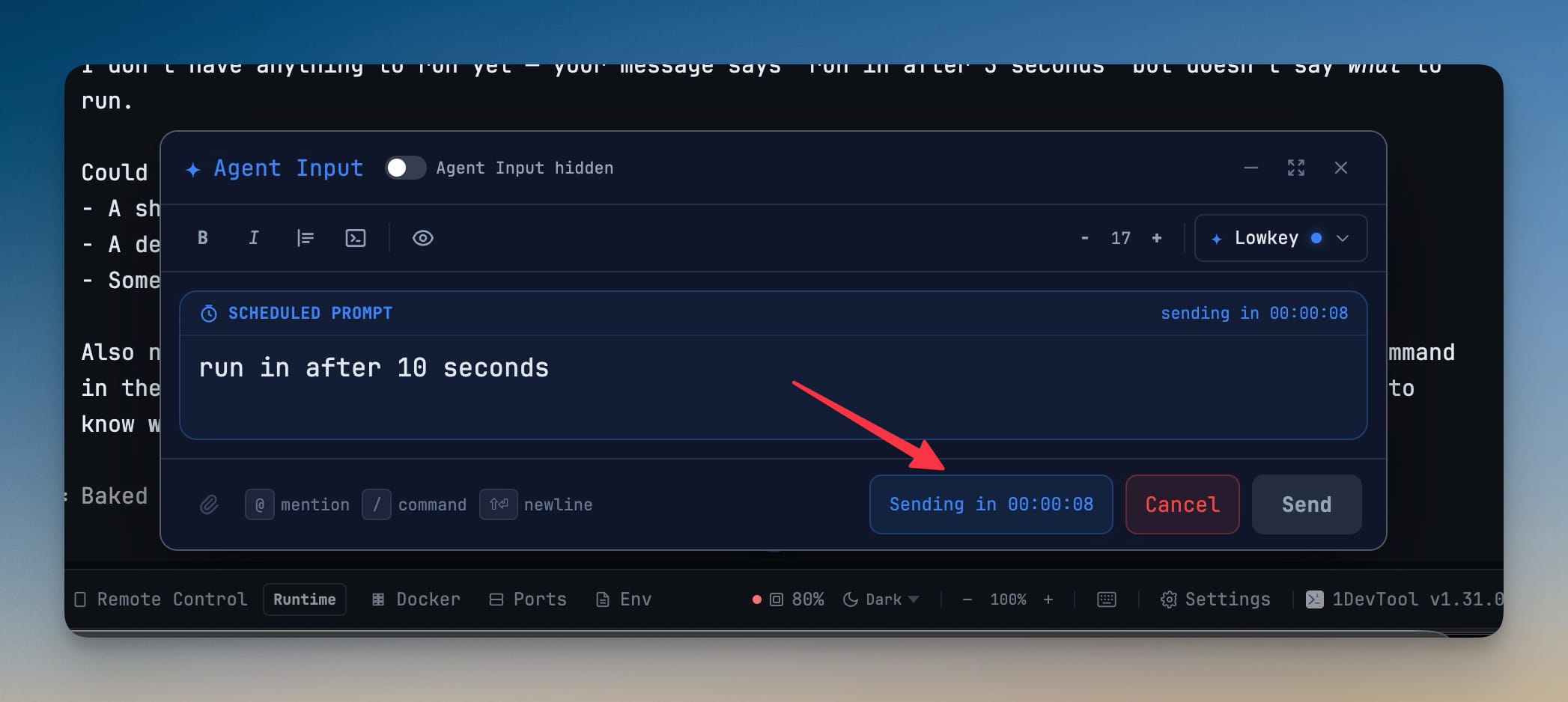
Agent Input can now wait. Type your prompt, set a timer in hours, minutes, and seconds, and click Schedule instead of Send — 1DevTool holds the message and delivers it to the terminal when the timer fires.
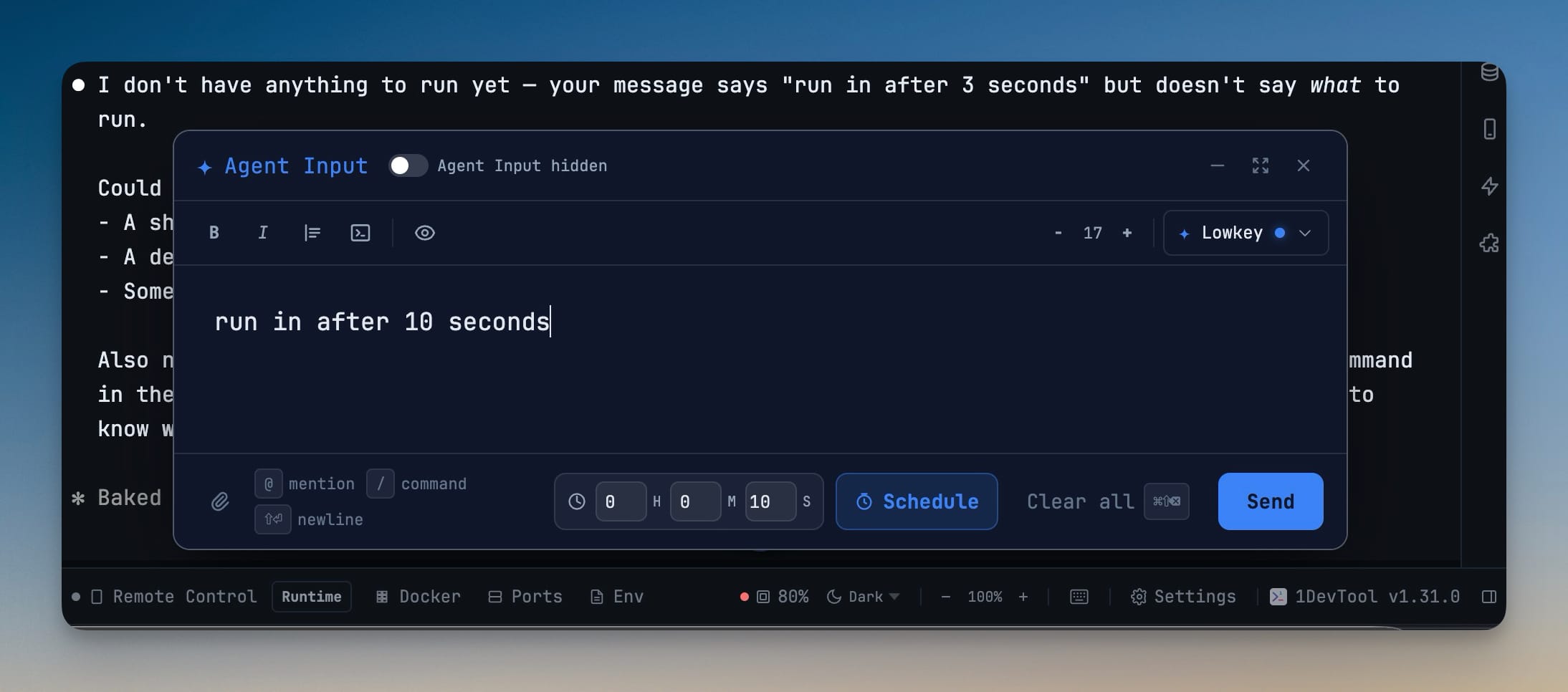
While it waits, the composer shows the queued prompt with a live countdown and a Cancel button, so you can call it back if plans change. It's the same send path as a normal message: attachments, AI Diff, and agent handoff all behave exactly as they would if you'd hit Send yourself. Line up a prompt to kick off after a long build finishes, or stage work so an agent starts the moment you step away.
Antigravity quota in the usage pill
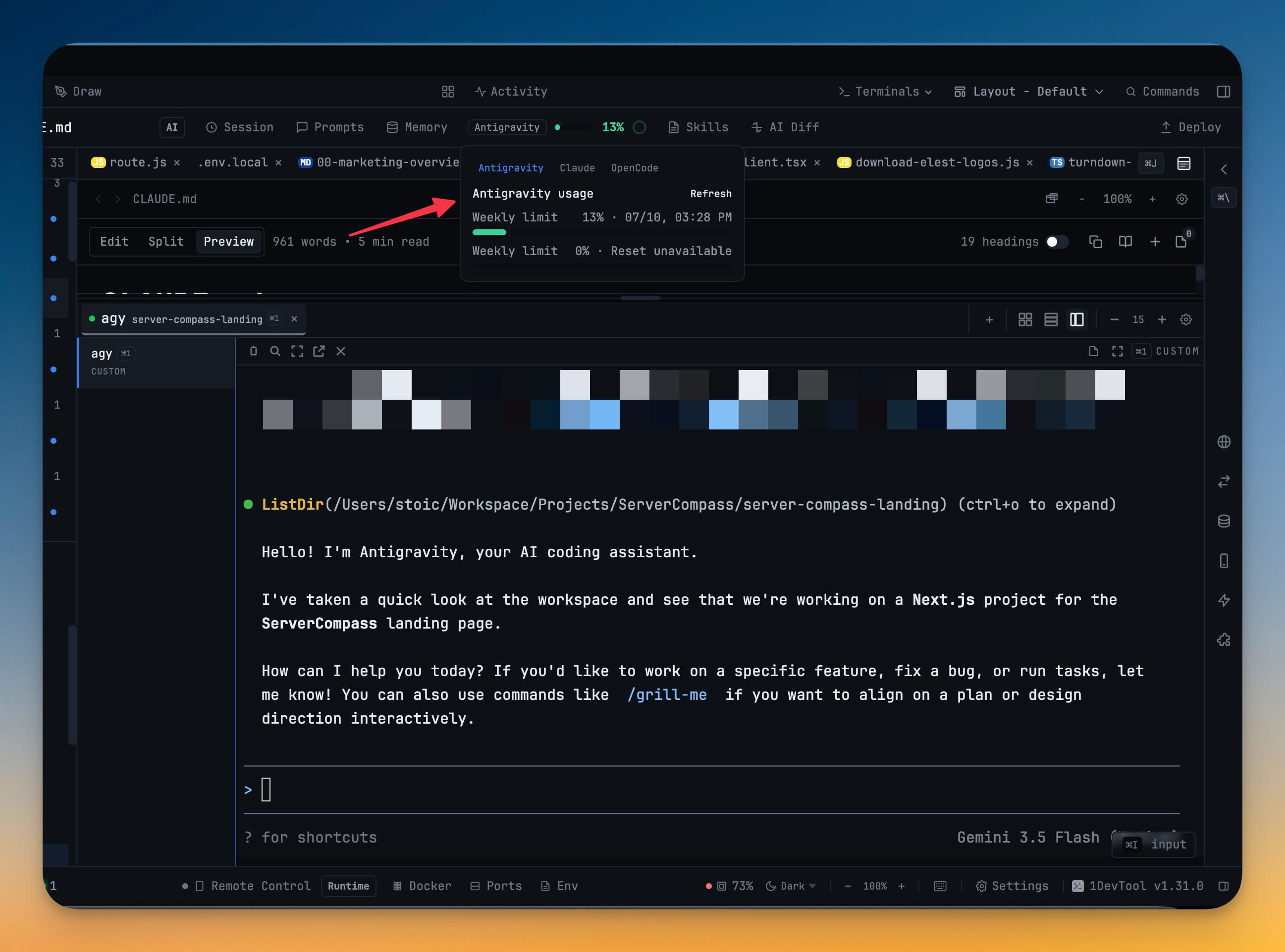
If you run Google's Antigravity agent, its quota now shows up in the AI usage pill alongside Claude, Codex, and the rest. When an Antigravity terminal is focused, 1DevTool reads its usage screen directly — and falls back to your signed-in Google credentials when it can't — then shows your weekly limit as a bar and a ring you can click for the full breakdown. The same quota now appears in Remote Control, so you can check what's left from your phone. Terminals launched from custom agy presets are recognized too.
This release also sharpens Remote Control on phones across the board: terminals, file viewers, and navigation now fit around mobile browser chrome and the on-screen keyboard instead of hiding behind them; desktop-attached terminals mirror at their real size so agent screens don't redraw at phone width; and mobile terminal cards show project avatars so multi-project lists are easy to scan.
Who benefits most
Teams onboarding new developers get the biggest lift. The setup that used to live in someone's head or a stale wiki page now travels with the repo, and a new hire is productive on day one instead of day three.
Solo developers who work across machines stop doing setup twice. Commit once on your desktop, pull on your laptop, and the workspace is already there.
Open-source maintainers can ship a sensible default workspace with the project so contributors land in a configured environment — with the reassurance that nothing executable runs until the contributor has reviewed and approved it.
Try it
Update to 1DevTool v1.32.0, open a project you work on with other people, and turn on the settings folder from Settings → Project. Commit the .1devtool/ folder it creates, and the next person to clone the repo opens it into the workspace you built — connections, requests, tabs, and layout included, each with their own secrets and their own approval. The project finally travels with the code.