Jul 2, 2026
Ship Git Changes From Your Phone
1DevTool v1.30.1 brings Source Control and Prompt History to Remote Control, so you can review diffs, inspect commits, and ship narrow Git changes from your phone.
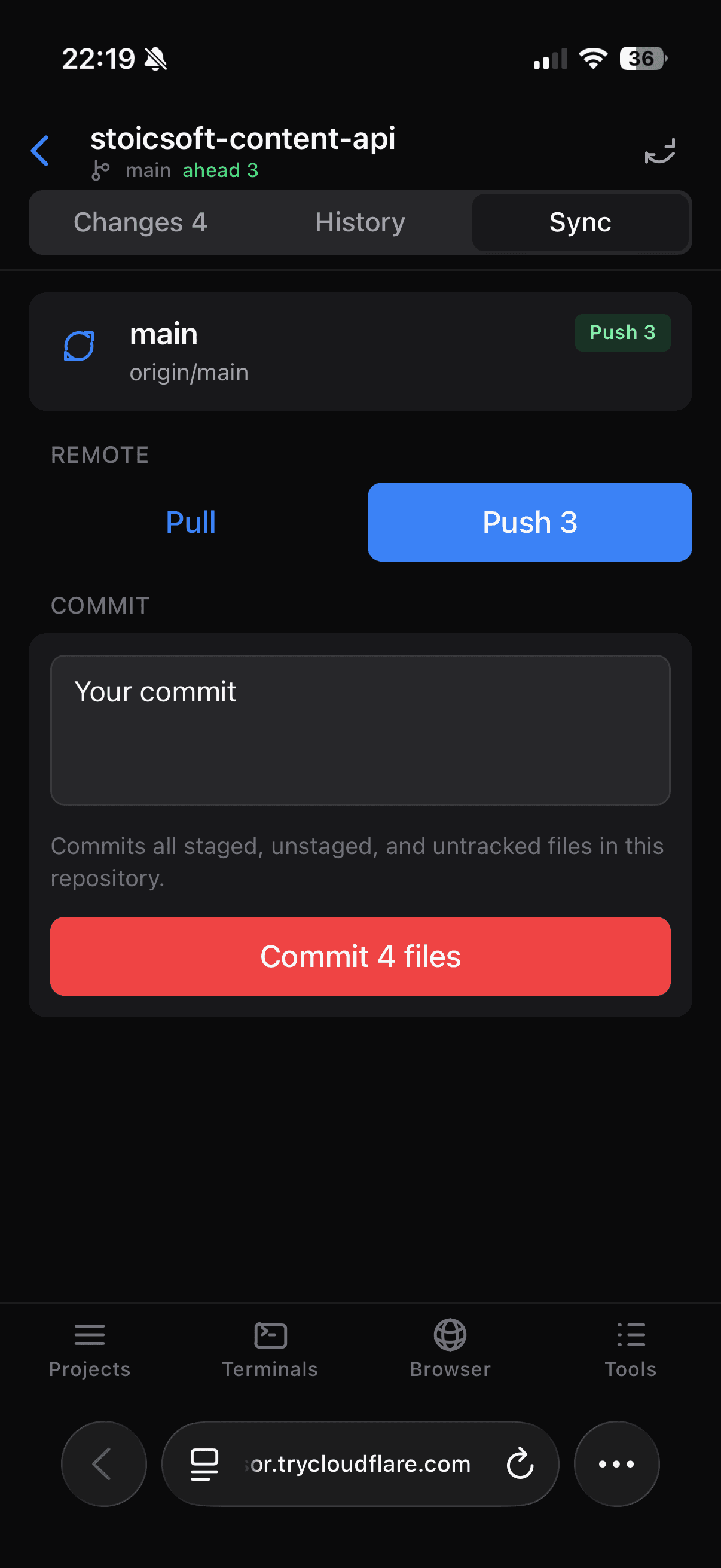
When an AI agent finishes work while you are away from your desk, the hard part is not usually reading the terminal output. The hard part is deciding whether the change is safe to keep. You need to see what files changed, inspect the diff, understand whether the branch is ahead or behind, and capture the work before the context disappears.
Until now, that usually meant waiting until you were back at the desktop. Remote Control could keep you close to your running terminals, but Git review still belonged to the full app. If an agent fixed a bug while you were on the train, at lunch, or standing in another room, you could watch the result but not comfortably review and ship it.
What changed
Source Control in Remote Control now lets you review and ship Git changes from your phone without returning to the desktop. Each project gets a mobile Git view with Changes, History, and Sync tabs, plus a companion Prompt History view so the prompt or note that led to the change is still close by.

How it works in practice
Start from the project you are already monitoring
Open Remote Control and choose the project you are supervising. The Project section now includes Source Control next to Browse Files, Resume AI Session, and Prompt History. That means the path from watching an agent to reviewing its code is one tap, not a handoff to another screen on your desktop.
The dashboard also shows the current branch under each project, so you can see whether you are looking at the right repository before you enter the Git flow. If you are managing several repos from the same phone session, that small detail matters. You can jump into the project that just changed, check Git, and return to terminals without losing your place.
Review changed files before you act
The Changes tab is built for the phone screen. It shows the current branch, upstream, ahead and behind state, changed-file counts, staged files, untracked files, and conflicts. You can search changed files, filter by state, and tap a file to open the mobile diff.
The diff view keeps code in a monospace layout with line numbers, additions, removals, and hunk context. You are not guessing from filenames or terminal output. You can inspect the exact patch, move between files, and decide whether the agent made the change you asked for.

Check history and commit details
The History tab now gives you recent commits from the selected branch. Tap a commit and you can inspect the author, hash, parent count, changed files, total additions and deletions, and the text diff for that commit.
This is useful when you need to understand what happened just before the current change. Maybe the agent built on a commit you made yesterday. Maybe a landing-page update already shipped and the current work only needs a small follow-up. The phone view now lets you answer that without opening the desktop Git client.


Commit, pull, and push with Operator access
When the change is ready, the Sync tab shows the branch, upstream, Pull and Push actions, and a commit box. The commit action stages and commits the repository's staged, unstaged, and untracked files with your message. Pull and Push use the current branch and show counts when the repo is behind or ahead.
Write actions still respect Remote Control permissions. Viewers can inspect status and diffs, but commit, pull, push, sync, and delete actions require Operator or Admin access. That keeps the phone workflow useful for review without turning every paired device into an unrestricted deploy surface.

Reuse the prompt that produced the change
Prompt History is now available from Remote Control too. You can search prompts for this project or across all projects, filter by agent, copy a previous prompt, delete entries with Operator access, and sync local prompt history. Sticky notes have their own tab and source filters, so notes from reader mode and terminals are not mixed into one long list.
That closes a common mobile review loop. If the diff looks almost right but needs one more instruction, you can copy the earlier prompt, adjust it, and send the next request from the phone instead of reconstructing it from memory.

Before vs After
| Before | After |
|---|---|
| Watch terminal output from your phone, then wait for the desktop to inspect Git. | Open Source Control from the same Remote Control project view. |
| Guess whether a changed file is safe from filenames or terminal summaries. | Search, filter, and open a real mobile diff with additions and removals. |
| Return to the desktop to inspect recent commits or commit details. | Tap History and open commit details from the phone. |
| Leave small completed fixes uncommitted until you are back at your keyboard. | Commit, pull, and push from the Sync tab when you have Operator access. |
| Recreate the prompt that led to the work from memory. | Search Prompt History, copy the previous prompt, and continue the loop. |
Who benefits most
If you supervise AI agents while away from your desk, this removes the dead time between "the agent finished" and "the work is captured." You can review the diff while the context is still fresh and decide whether to commit or ask for one more change.
If you maintain small production fixes, the mobile Git view gives you enough information to handle narrow updates without opening the full desktop app. You still see branch state, upstream state, and changed files before you push.
If you build from reusable prompts, Remote Control Prompt History makes your phone workflow less disposable. The prompt that worked yesterday is searchable, copyable, and ready to reuse when the next project hits the same pattern.
Try it
Update to 1DevTool v1.30.1, open Remote Control from your phone, and choose a project with Git changes. Start with Changes to inspect the patch, use History when you need context, then move to Sync when the change is ready to commit or push. The result is a shorter loop between an agent finishing work and you deciding what happens next.
From across the StoicSoft network
Hand-curated reads on the same topic from sister sites in the StoicSoft family.
 ServerCompass5 min read
Deploy Any Public Git Repository Without Forking It
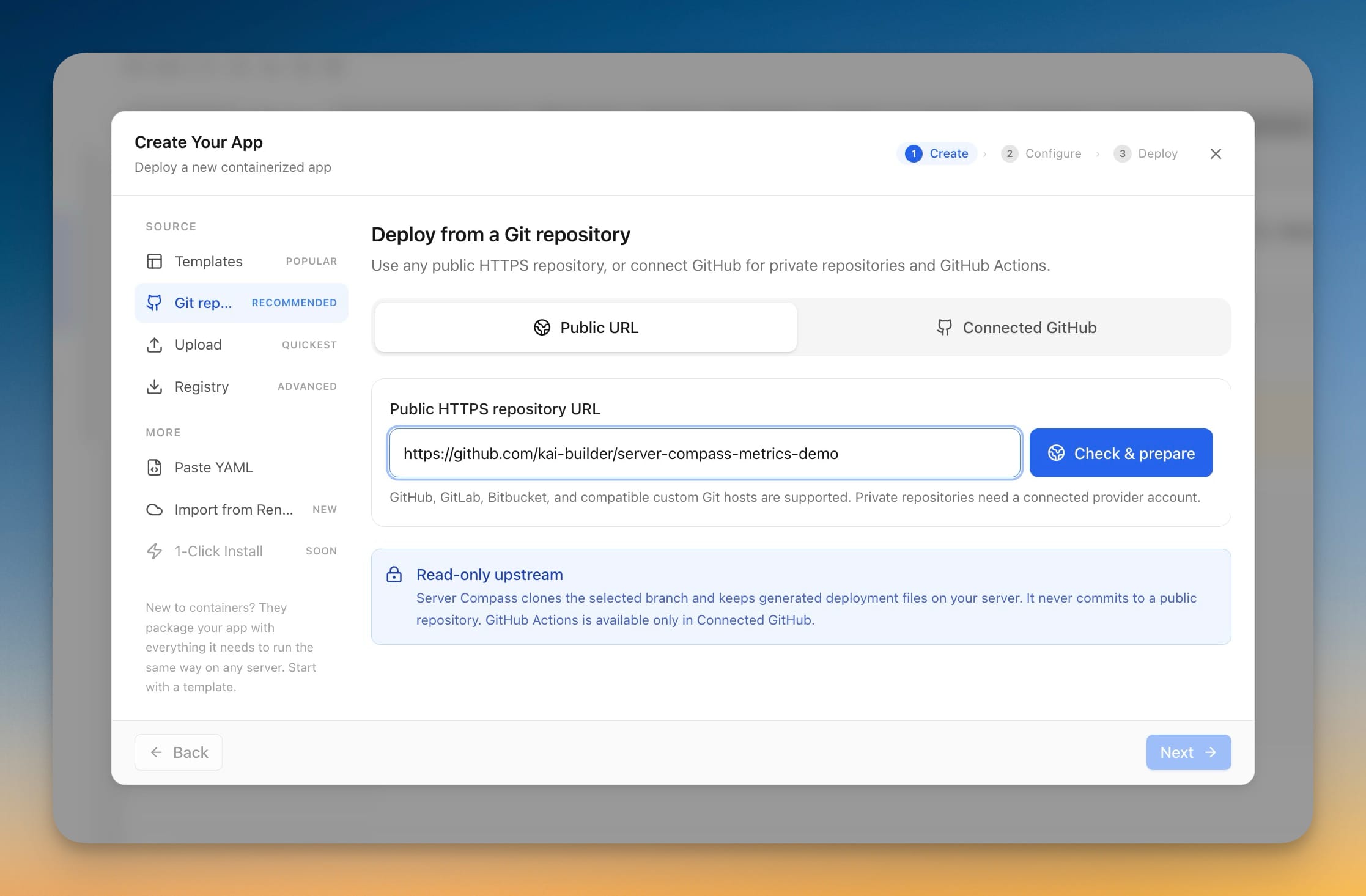
Paste a public HTTPS repository URL from GitHub, GitLab, or Bitbucket, pick a branch, and deploy — no account connection, no fork, and the app you get has full redeploy, rollback, and backup support.
Read on servercompass.app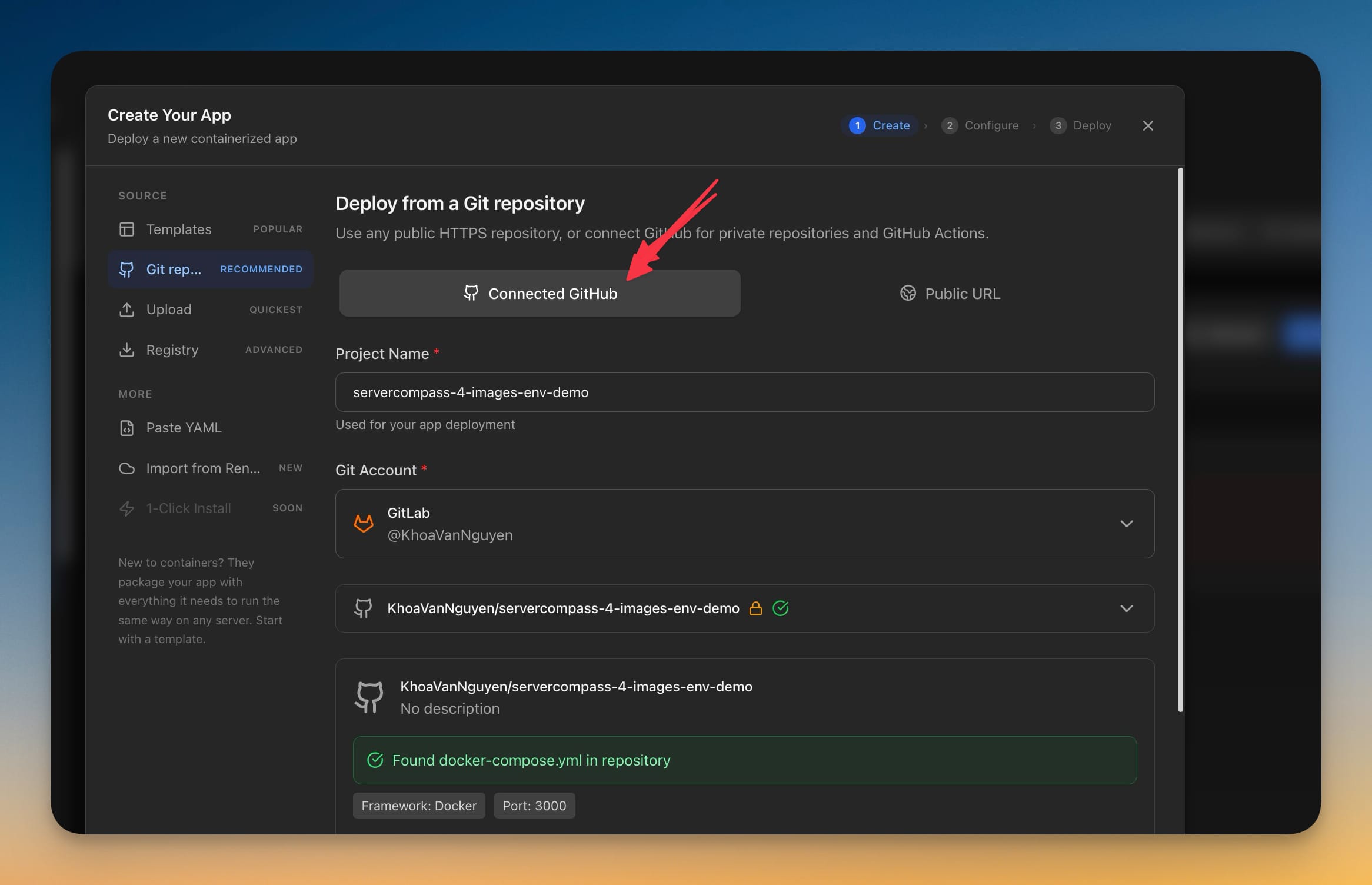 ServerCompass7 min read
Deploy Private GitLab Projects to Your Own Server
Server Compass 1.39.0 connects to GitLab.com and self-managed GitLab with a personal access token, so private projects — including ones nested deep in subgroups — deploy the same way GitHub projects already do.
Read on servercompass.app