Jun 24, 2026
Switch AI Agents Mid-Task — and Pick Up Sessions From Any Terminal
Switch the AI agent on any terminal tab without losing the conversation, pull in sessions running in iTerm or Ghostty, and publish straight to GitLab.
You're deep in a session with one coding agent. The plan is mostly right, but it's stuck on a detail, and you have a hunch a different model would crack it in one shot. So you do the math: kill the session, open a fresh one with the other agent, re-paste the context, re-explain everything you already tried, and hope you didn't leave out the part that mattered. The model switch costs you five minutes and most of your momentum.
Or this one: you kicked off a long agent run in iTerm last night, closed your laptop, and now you want it back — but inside 1DevTool, where your project, files, and terminals already live. The session is right there, running in another terminal app, with no clean way to bring it home.
v1.27.0 closes both gaps. Your AI session is no longer tied to the agent that started it or the terminal that's hosting it.
What changed
You can now switch the AI agent on any terminal tab without losing the conversation, and you can pick up agent sessions running in other terminal apps — iTerm, Ghostty, VS Code, and more — and continue them inside 1DevTool. This release also adds first-class GitLab support and a PowerShell terminal.
How it works in practice
Change the agent on a terminal tab
Right-click any AI terminal tab and open the Change AI submenu. Pick a different agent — Claude, Codex, Gemini, Amp, OpenCode, or Qwen — and 1DevTool launches it in place. Before the old agent closes, its last visible prompt is read straight off the screen and seeded into the new session, so the thing you were just asking carries over instead of evaporating.
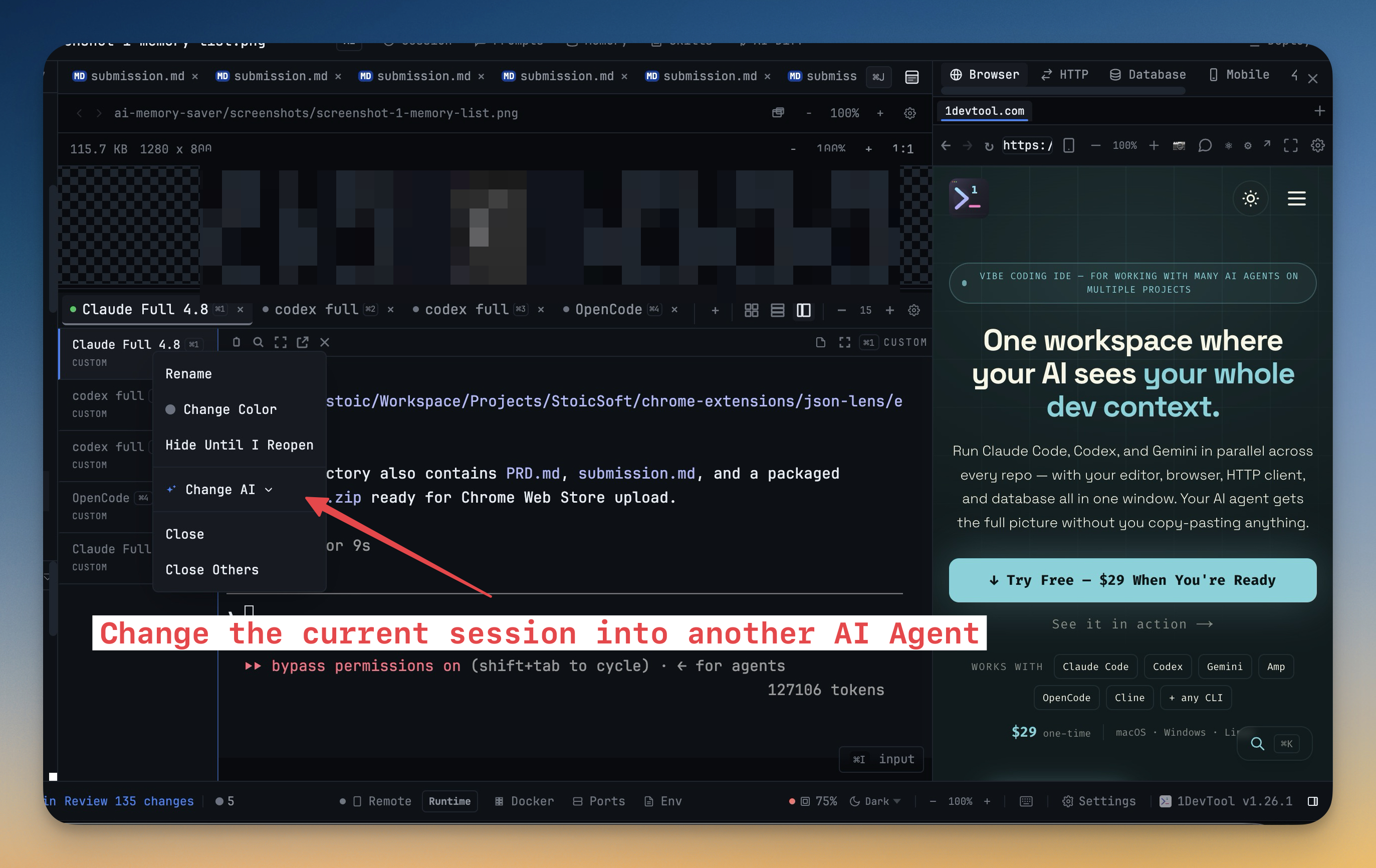
Trying a second opinion now costs one click, not a context-rebuilding ritual. If Codex stalls on a refactor, hand the same prompt to Claude and see who does better — on the same tab, in the same working directory.
Switch agents from the Resume panel too
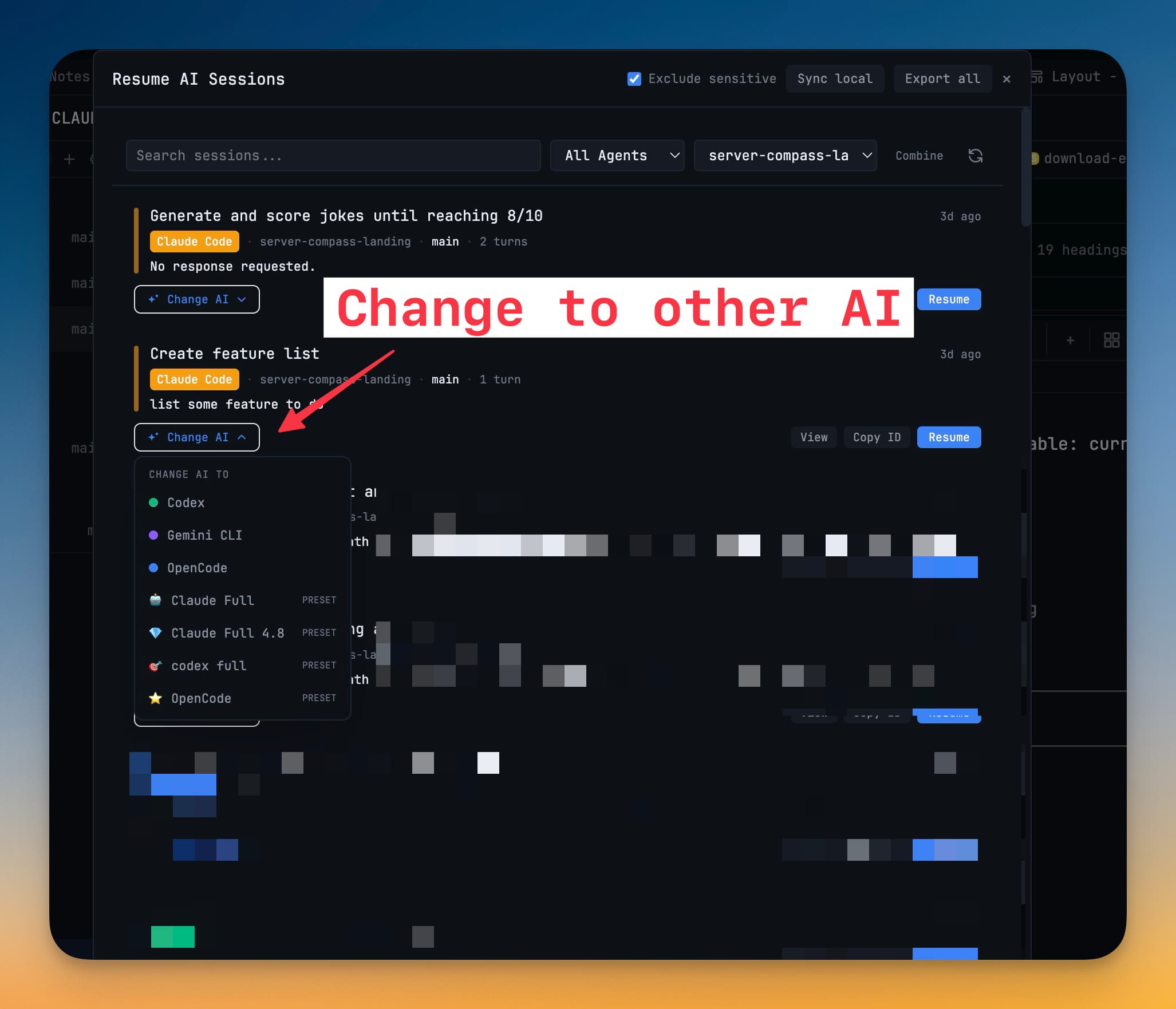
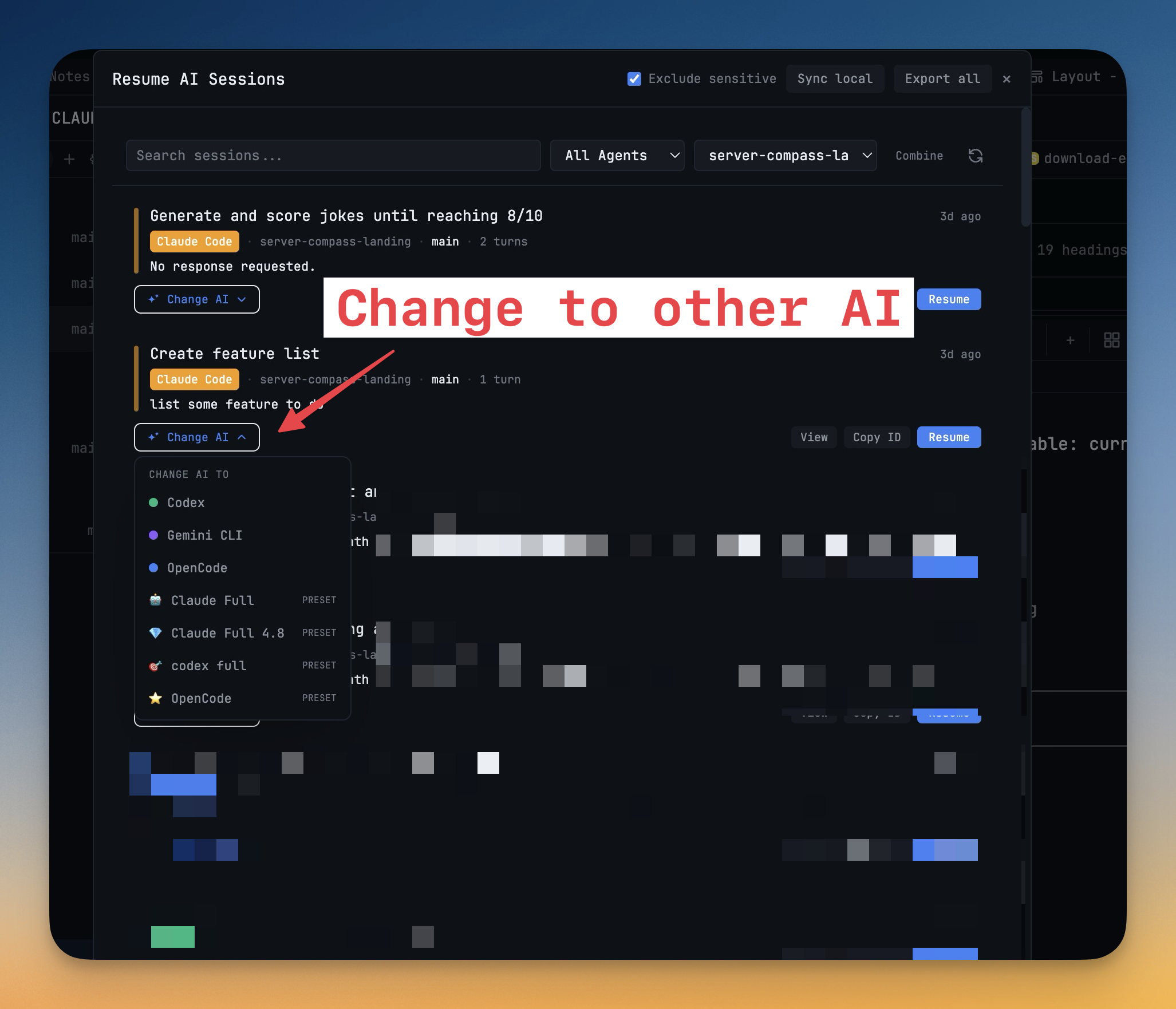
The same Change AI control lives in the Resume panel, next to every saved session. Browse your history, find the session you want to revisit, and relaunch it with a different agent right from the card — handy when you already know which past conversation to continue but want a different model driving this time.
Continue a session that's running in another terminal
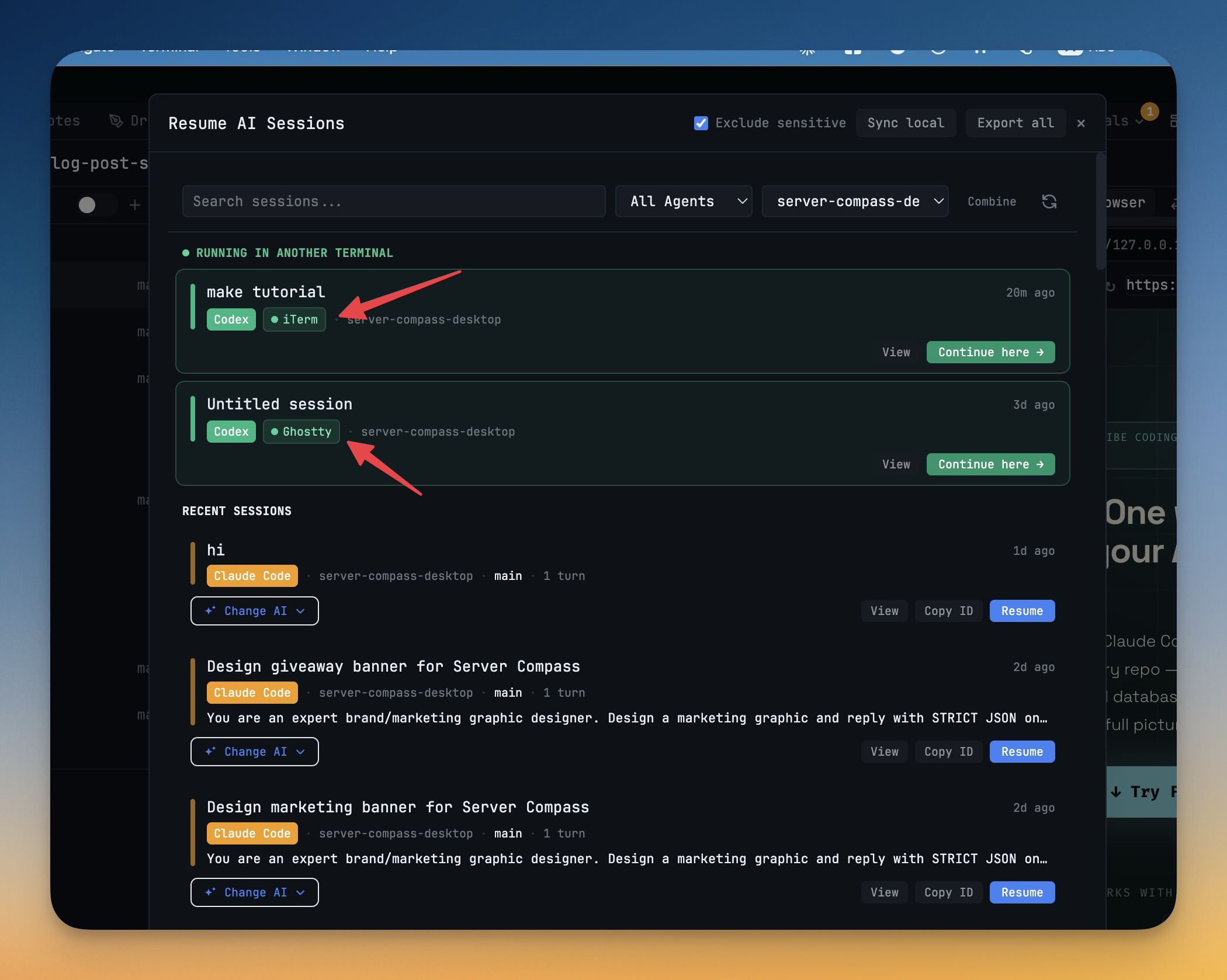
Open the Resume panel and you'll see a new Running In Another Terminal group at the top. 1DevTool scans for Claude, Codex, Gemini, and OpenCode sessions running live outside the app — in Ghostty, iTerm, Apple Terminal, VS Code, Cursor, WezTerm, kitty, Warp, and others — and lists them separately so you can tell them apart from your own tabs. Each card shows which app owns the session and its working directory, and the list refreshes every five seconds so it stays honest as sessions start and stop.
Click Continue here and 1DevTool closes the external agent process and reopens the session inside the app with a full resume — the whole conversation comes with it.
Publish and sync with GitLab
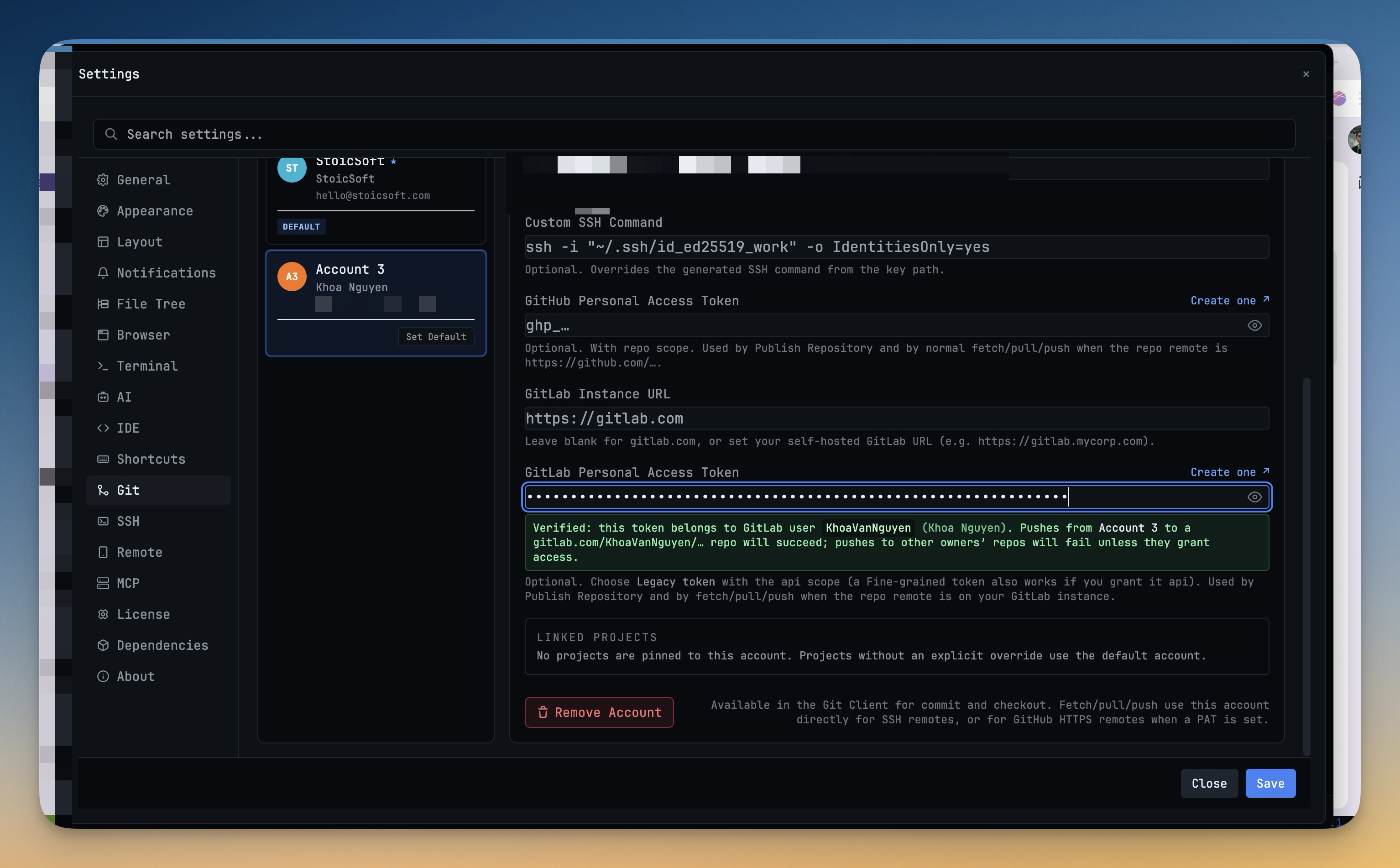
GitLab is now a first-class git host alongside GitHub. Add a GitLab Personal Access Token in Settings → Git and 1DevTool verifies it, showing the username, avatar, and namespace it belongs to — so you know exactly which account will act on your behalf before anything is pushed.
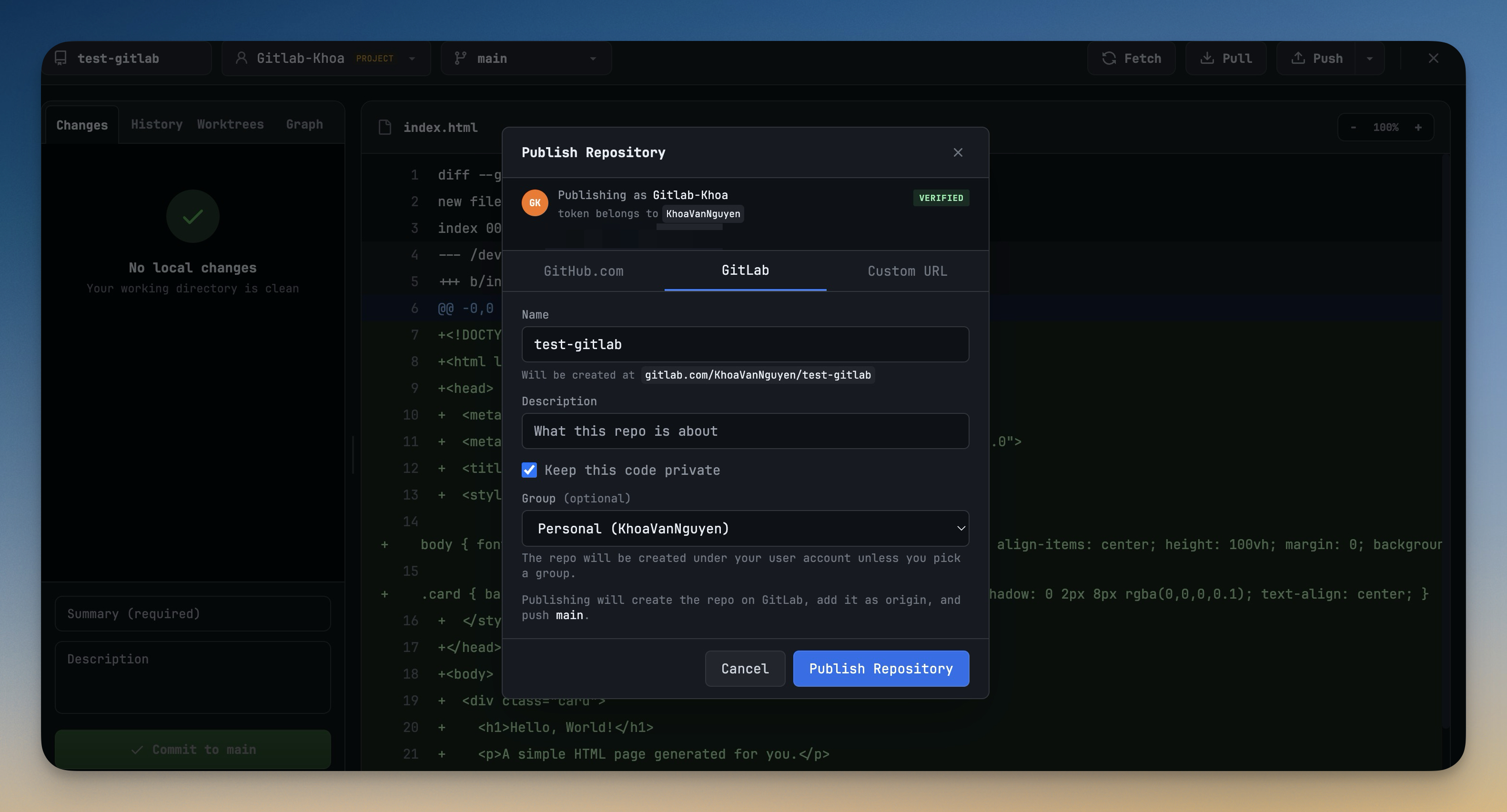
From there the Publish Repository dialog lets you choose GitLab as the destination, pick a namespace (your personal account or any group you can access), and set visibility — public, internal, or private. If your token is missing the api scope, you get a clear warning up front instead of a failed push and a cryptic error. Projects backed by GitLab repos then push, pull, and track branches exactly like GitHub ones, and self-hosted GitLab instances work too.
One more: PowerShell terminals
The Add Terminal dialog now lists PowerShell next to Bash and Zsh in the Shells tab. Windows users — and anyone who prefers PowerShell — can open one with a single click and run it in the same grid, layouts, and session persistence as every other terminal.
Before vs After
| Task | Before v1.27.0 | After v1.27.0 |
|---|---|---|
| Try a different agent on the same task | Kill the session, open a new one, re-paste context | Right-click the tab, choose Change AI; last prompt carries over |
| Resume an agent running in iTerm or Ghostty | No way to bring it into 1DevTool | Resume panel, Continue here |
| Push a repo to GitLab | Drop to the CLI or a browser | Publish Repository, GitLab tab |
| Open a PowerShell shell | Not available | Add Terminal, Shells, PowerShell |
Who benefits most
- Multi-agent developers who keep Claude, Codex, and Gemini in rotation — switching between them is now a tab action, not a restart.
- Developers who live between terminals — start a run wherever's convenient and pull it into your workspace when you sit down.
- GitLab teams who were locked out of 1DevTool's git workflows until now.
Try it
Update to v1.27.0, right-click a terminal tab, and hand your current prompt to a different agent. Then open the Resume panel and look for sessions running in your other terminals — you can pull them home in one click.
From across the StoicSoft network
Hand-curated reads on the same topic from sister sites in the StoicSoft family.
 ServerCompass5 min read
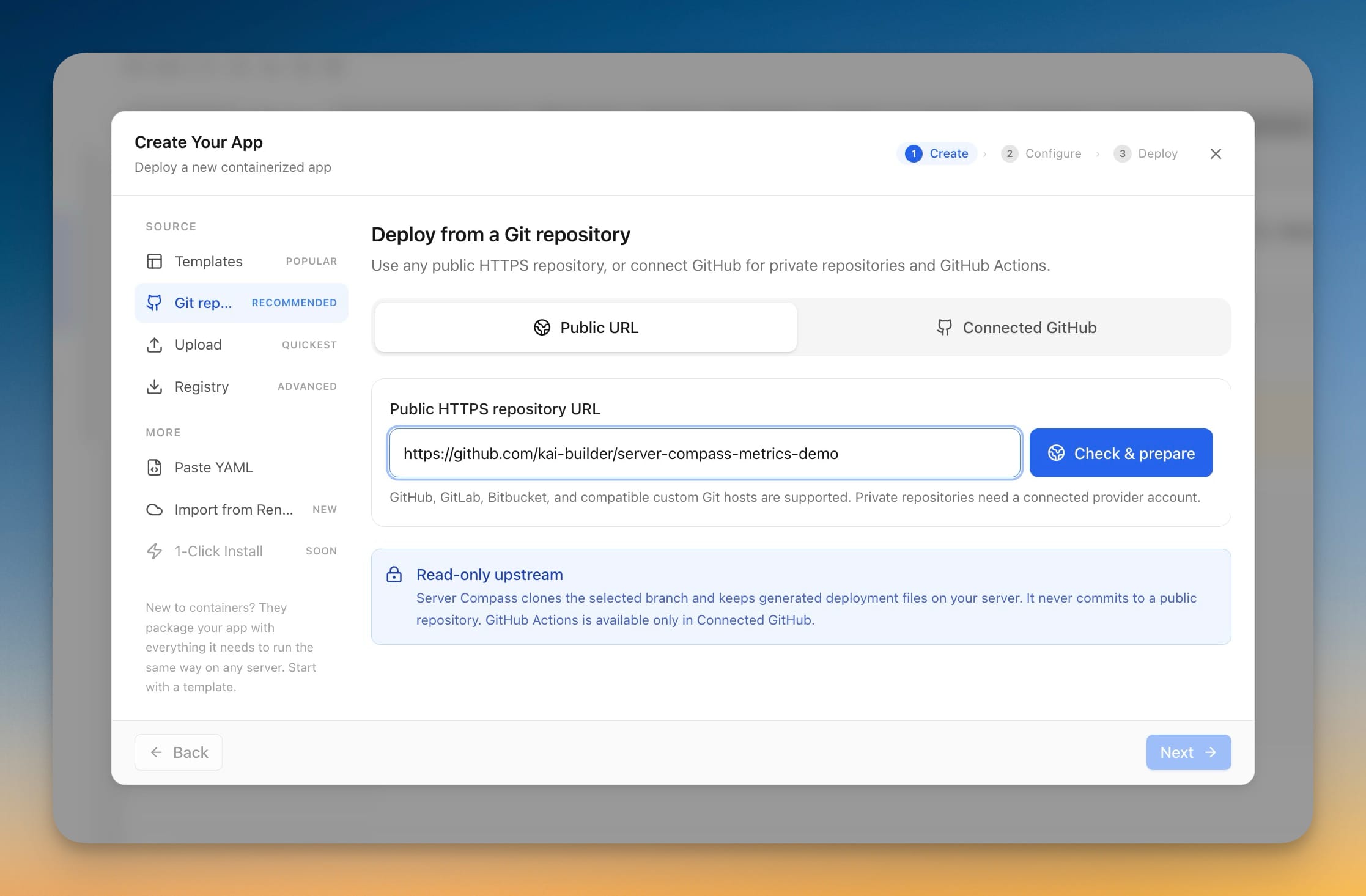
Deploy Any Public Git Repository Without Forking It
Paste a public HTTPS repository URL from GitHub, GitLab, or Bitbucket, pick a branch, and deploy — no account connection, no fork, and the app you get has full redeploy, rollback, and backup support.
Read on servercompass.app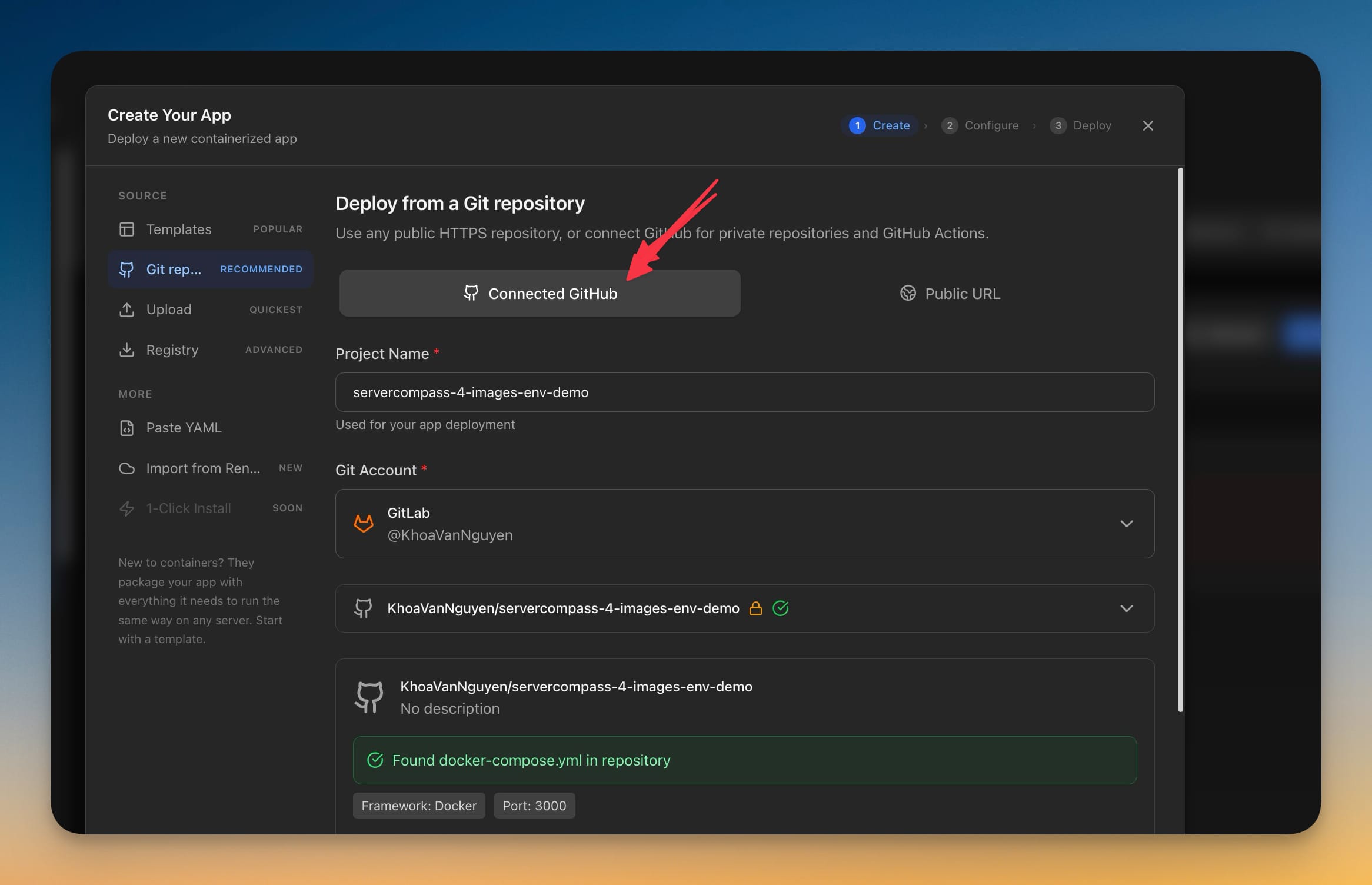 ServerCompass7 min read
Deploy Private GitLab Projects to Your Own Server
Server Compass 1.39.0 connects to GitLab.com and self-managed GitLab with a personal access token, so private projects — including ones nested deep in subgroups — deploy the same way GitHub projects already do.
Read on servercompass.app