Jun 5, 2026
See Every Terminal and Resume AI Sessions Your Way
1DevTool v1.23.0 adds a full-screen Terminal Canvas for scanning live terminal work and editable resume commands for restarting AI sessions with the right mode.
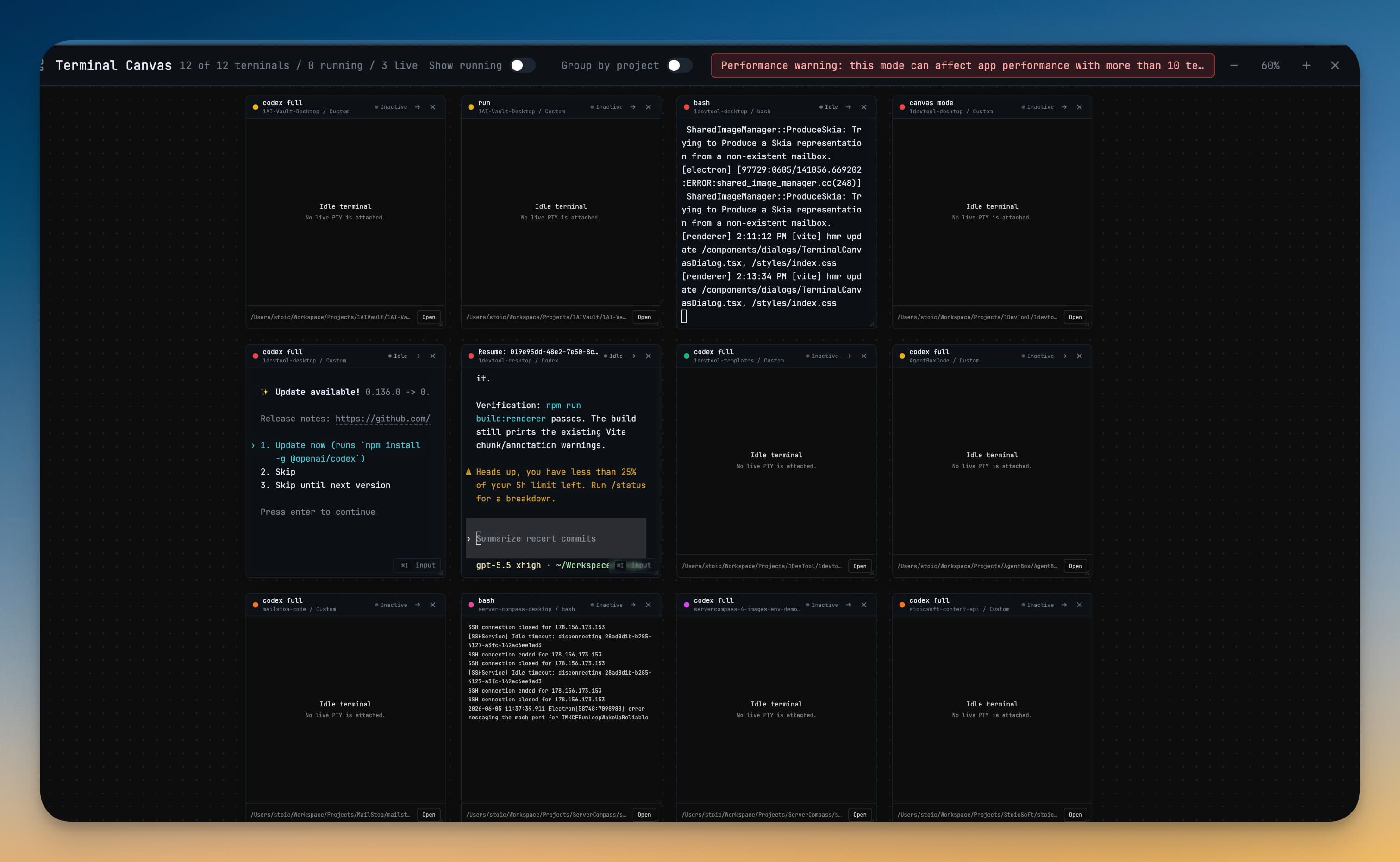
When several terminals are doing useful work at the same time, the hard part is no longer starting another command. The hard part is keeping enough of the work visible that you can make the next decision without clicking through a stack of tabs.
You might have a dev server streaming logs, a test runner waiting on a file change, Claude reviewing one branch, Codex implementing another fix, and a shell parked in a different project. Each session matters, but a compact terminal list can make them feel disconnected. When you cannot see the whole workspace, you spend attention asking where things are instead of deciding what needs your input.
What changed
1DevTool v1.23.0 adds Terminal Canvas and editable AI session resume commands, so you can see terminal work spatially and restart agent sessions with the exact command you intend to run.

Terminal Canvas gives you a full-screen map of live terminal cards. Editable resume commands give you a review step before a past AI session opens, with normal and bypass variants visible before launch.
How it works in practice
You can scan terminal work as a workspace, not a list
Open the terminal dropdown and choose Canvas Layout. Instead of compressing every terminal into a tab or row, 1DevTool lays them out as cards on a pannable canvas. Each card keeps the important context in view: terminal name, project path, live output or saved preview, and status indicators for running, idle, error, live, and inactive sessions.
That changes how you monitor parallel work. You can keep a long-running build in one corner, an AI agent in another, and a log stream beside the project it belongs to. When the canvas is crowded, zoom out to regain the overview. When one session needs attention, zoom back in and open it directly.

The canvas also understands that multi-project work is different from single-project work. Turn on Group by project when you want each project to become its own cluster. Leave Show running enabled when you only care about sessions that are currently active. If an inactive terminal still matters, its preview card can reopen it without forcing you to hunt through the project tree.
You can resume AI sessions with the command in front of you
Resuming an AI session is more sensitive than opening a normal shell. The command decides which agent starts, which session ID it receives, and whether it runs with normal approval prompts or bypass permissions. Before this release, the app could choose the resume command for you, but you had less room to inspect or adjust it before the terminal opened.
Now the Resume AI Sessions flow prepares two command cards: Run with bypass permissions and Run with normal permissions. Each card shows the command that will be executed, and each command is editable. If the generated command is already right, you launch it as-is. If you need to adjust a flag, remove a bypass mode, or adapt the command to a particular workspace, you can do that before the session starts.

This matters most when you work across several AI CLIs. Claude, Codex, Gemini, Qwen, Amp, and OpenCode do not all resume the same way. 1DevTool now prepares agent-specific resume commands, resumes Codex in inline mode to keep restored conversations cleaner, and resumes Gemini sessions natively instead of dropping you into a fresh Gemini terminal without the selected context.
You can move through terminal views faster
The terminal dropdown now treats Dashboard, List, and Canvas as first-class destinations. The menu shows shortcut hints, so you can learn the fastest path while you browse. Terminal shortcuts are configurable too, which means the new defaults can fit around the bindings you already rely on.
The terminal list also gets keyboard navigation with Arrow keys, Home, End, Page Up, Page Down, Enter, and Space. When you need the precision of a list, you can move through it without reaching for the mouse. When you need the shape of the workspace, you can jump to Canvas.
Before vs After
| Before | After |
|---|---|
| You clicked through terminal tabs or a compact list to understand what was running. | You open Canvas Layout and see live terminal cards across the workspace. |
| Active, idle, and inactive sessions were harder to compare at once. | Status badges and running-only filters make the important sessions stand out. |
| Multi-project terminal work felt mixed together. | Group by project clusters related terminals together. |
| AI resume commands launched with less chance to inspect the exact command. | Normal and bypass command cards are visible and editable before launch. |
| Different AI agents required you to remember resume syntax details. | 1DevTool prepares agent-specific commands for the supported CLIs. |
| New terminal shortcuts could collide with existing custom bindings. | Shortcut updates merge safely and duplicate bindings are blocked with a visible warning. |
Who benefits most
If you run multiple AI agents, Terminal Canvas gives you a better control surface. You can keep the agents visible as they work, spot which one needs attention, and jump into the right session without turning monitoring into its own task.
If you switch between projects during the day, project grouping reduces the cost of context changes. A terminal is no longer just another item in a global list; it sits near the project it belongs to, with its path and state visible.
If you care about permission mode, editable resume commands remove guesswork. You can choose normal approvals for routine work, use bypass only when the workspace is isolated enough for it, and confirm the actual command before a terminal is created.
Try it
Install 1DevTool v1.23.0, open the terminal dropdown, and switch between Dashboard, List, and Canvas Layout. Then open Resume AI Sessions and inspect the normal and bypass command cards before restarting an agent session. You get a clearer view of parallel terminal work and more control over how your AI context comes back.
From across the StoicSoft network
Hand-curated reads on the same topic from sister sites in the StoicSoft family.
 ServerCompass8 min read
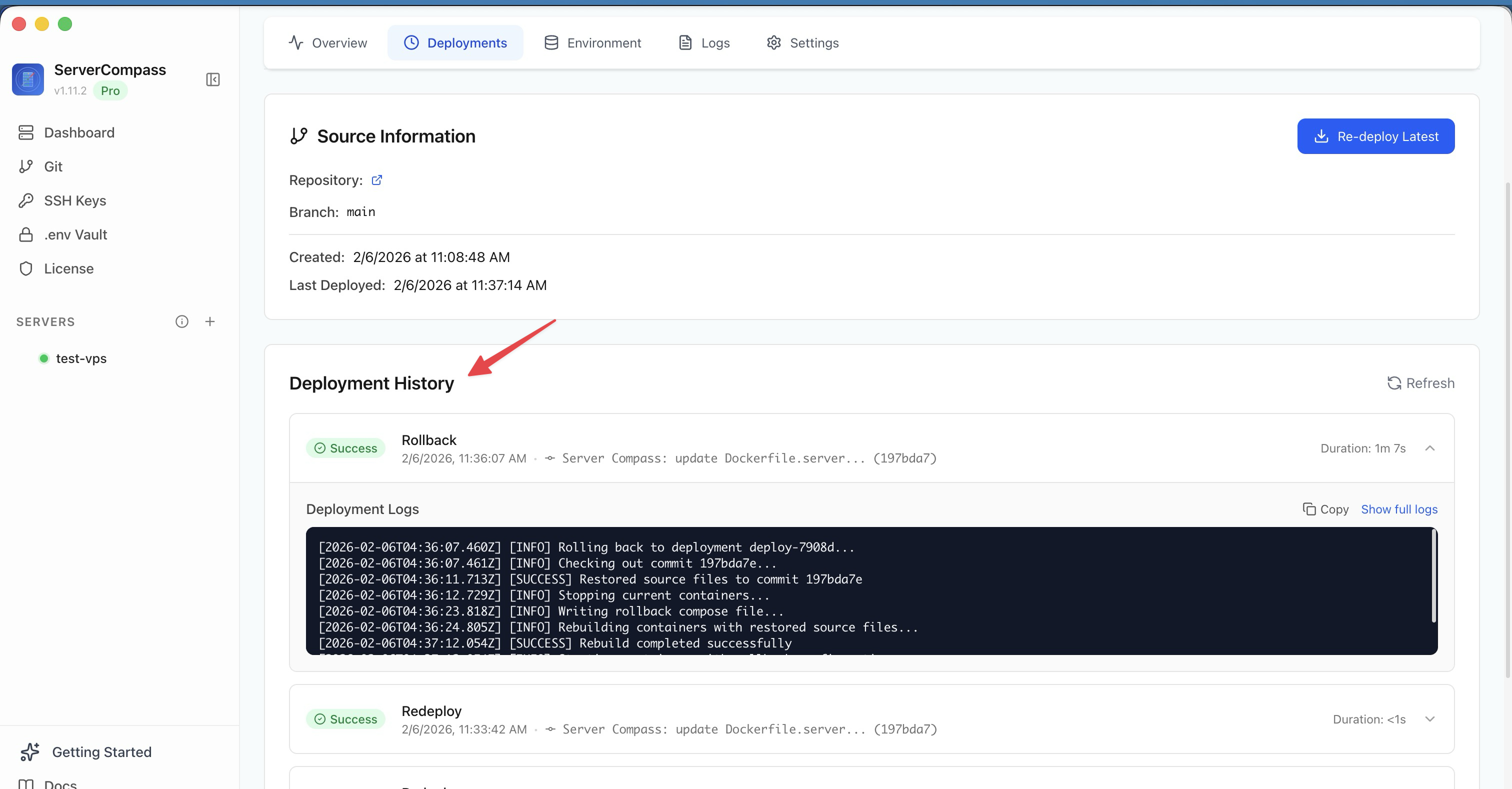
Deploy to VPS in 5 minutes (Not 5 hours): Server Compass v1.1.7
New ZIP file deployments, enhanced GitHub integration, bulk env variables, and persistent logs. Get Vercel-like UX on your $5 VPS.
Read on servercompass.app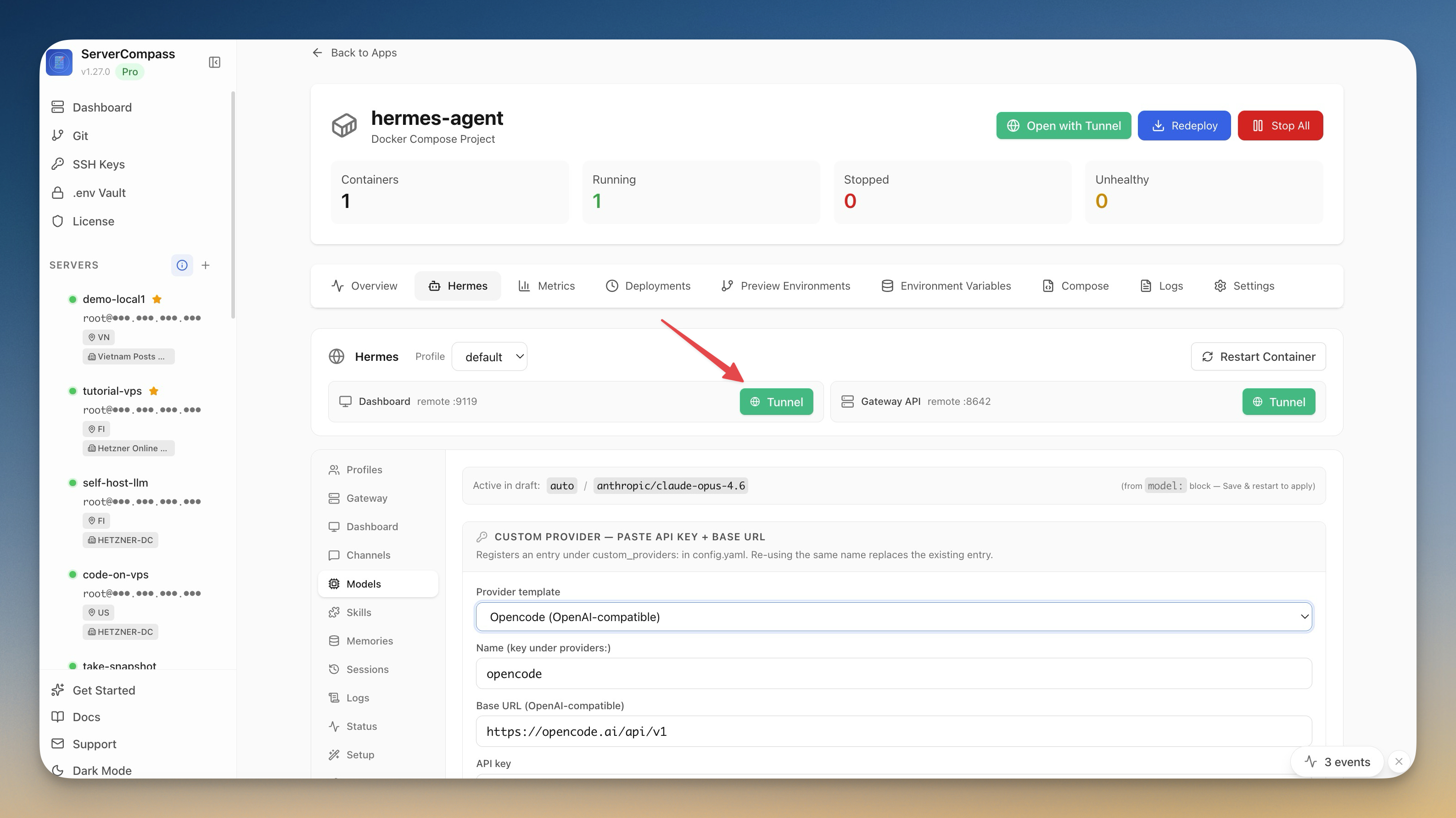 ServerCompass5 min read
Self-Host an AI Agent on Your VPS in One Click
Server Compass v1.27.0 deploys Hermes Agent to your VPS in one click — your own OpenAI-compatible gateway, a web dashboard reachable through an SSH tunnel, and chat platforms wired in from the same window.
Read on servercompass.app ServerCompass4 min read
150+ new self-hostable apps just landed in Server Compass v1.25.0
Server Compass just tripled the deploy catalog: 428 one-click templates, up from 239. AI tooling, productivity, finance, dev tools, storage, monitoring — the gap between 'I want to try this self-hosted app tonight' and 'it deploys' just shrank dramatically.
Read on servercompass.app