Jun 26, 2026
Track AI Usage Without Leaving Your Workspace
1DevTool v1.28.0 puts Claude and Codex plan usage in the status bar, keeps unsent Agent Input drafts visible, and gives the phone remote a faster tabbed home.
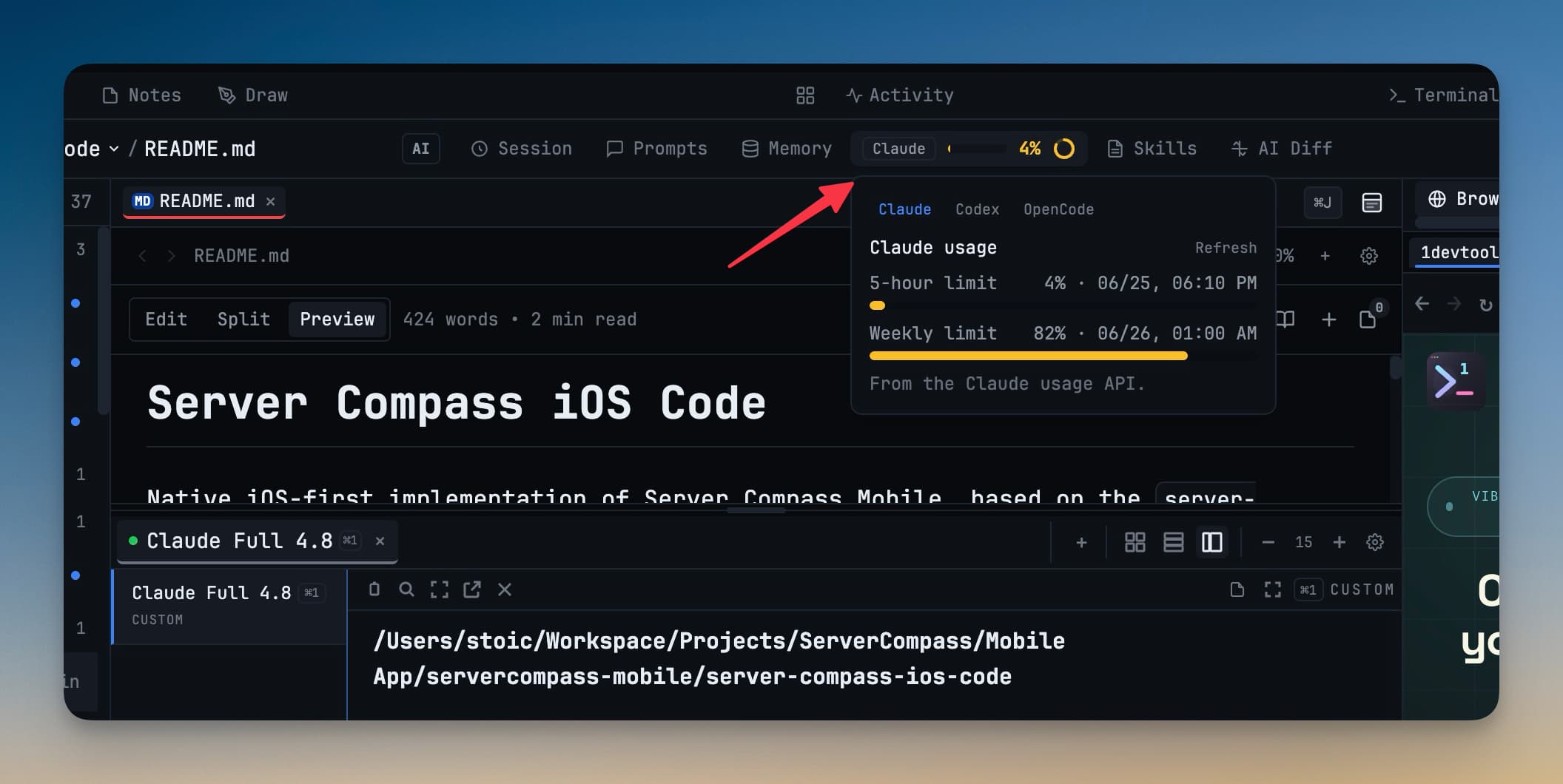
Before this release, checking whether an AI session was about to hit a plan limit meant breaking your flow. You might be watching Claude work through a long refactor, or running Codex through a Windows terminal session, and the only way to know where you stood was to leave the workspace and check somewhere else. That is exactly the kind of small context switch that turns into a missed warning.
The same thing happened with prompts. You could start shaping a careful Agent Input message, close the overlay, switch projects, or inspect output, and the draft still existed, but it was easy to forget it was there. On your phone, Remote Control also had the pieces you needed, but moving between projects, terminals, and browser preview took more navigation than a small screen should require.
What changed
Now you can see AI plan usage, recover unsent prompts, and navigate the phone remote without leaving the work surface you are already using.
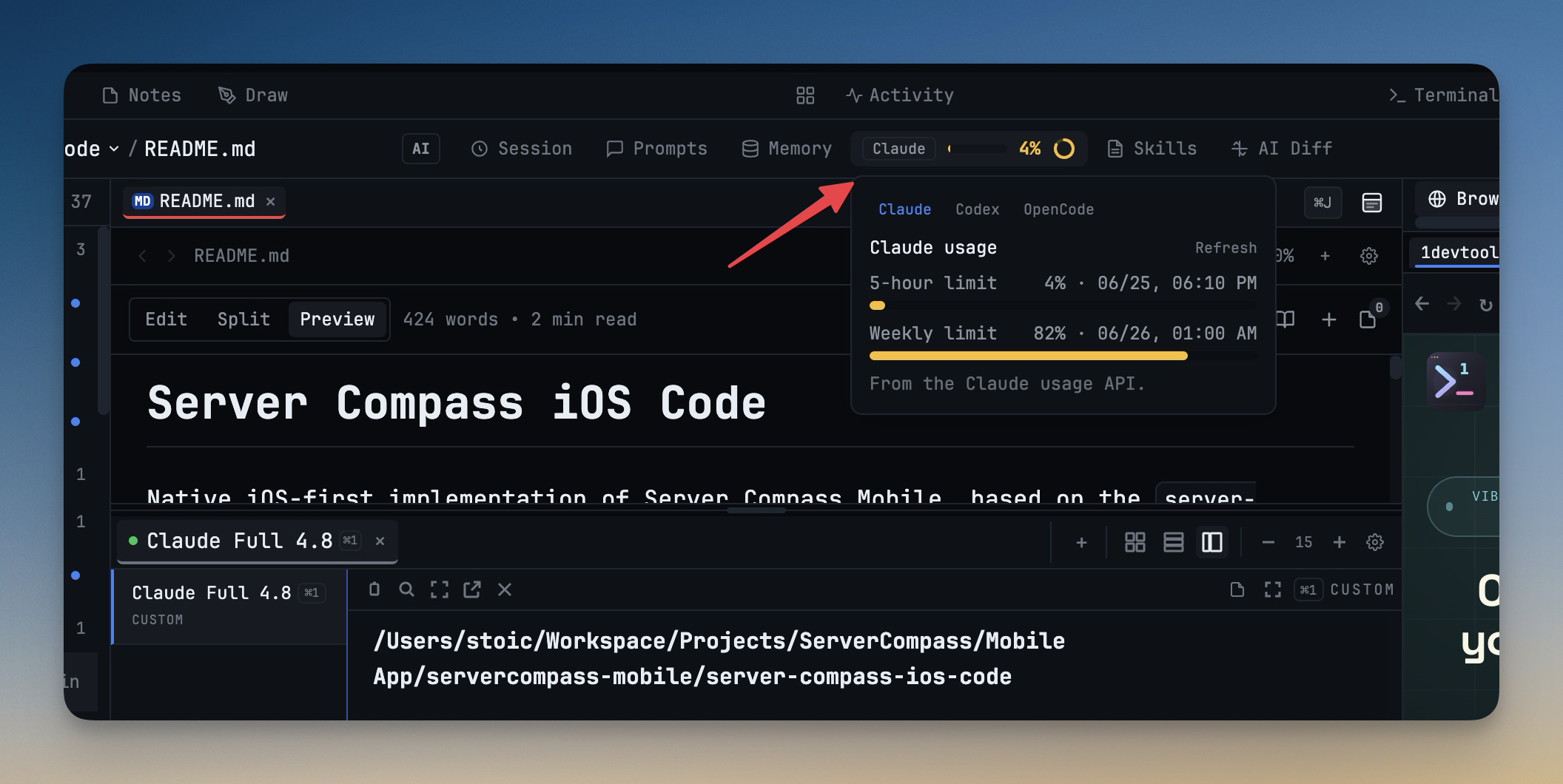
The headline change is a live usage pill in the status bar for AI terminals. When you focus a Claude or Codex terminal, 1DevTool shows the active agent, the current usage percentage, and a small ring for the secondary quota window when one is available. Click the pill and you get the full usage popover, including the 5-hour window, weekly limit, plan badge, reset timing, and a refresh control.
How it works in practice
You can watch quota without opening another page
Start working in a Claude or Codex terminal as usual. The usage pill follows the focused AI terminal, so a shell tab stays clean and an AI tab shows the relevant account. Under the hood, the renderer resolves the terminal's declared agent kind, maps it to the quota provider, and asks for that agent only. That keeps the status bar useful without forcing every provider to refresh just because you changed focus.
When you click the pill, the popover loads the bigger picture. You can compare every signed-in AI account that reports quota data, see the plan badge when the provider returns one, and refresh the selected account from the same panel. If you manage multiple Claude or Codex accounts, Settings, AI, Accounts also includes an opt-in "Auto-switch at" control. When enabled, 1DevTool can switch to a healthier saved account once the active account reaches your chosen threshold.
You can return to an unsent prompt at a glance
The Agent Input box now makes pending drafts visible even when the overlay is closed. If you typed a message, attached files, or pasted images but have not sent the prompt, the idle composer changes from "Type a message with Agent Input" to a preview of that draft. It shows the saved text when there is text, or the attachment count when the draft is mostly files.
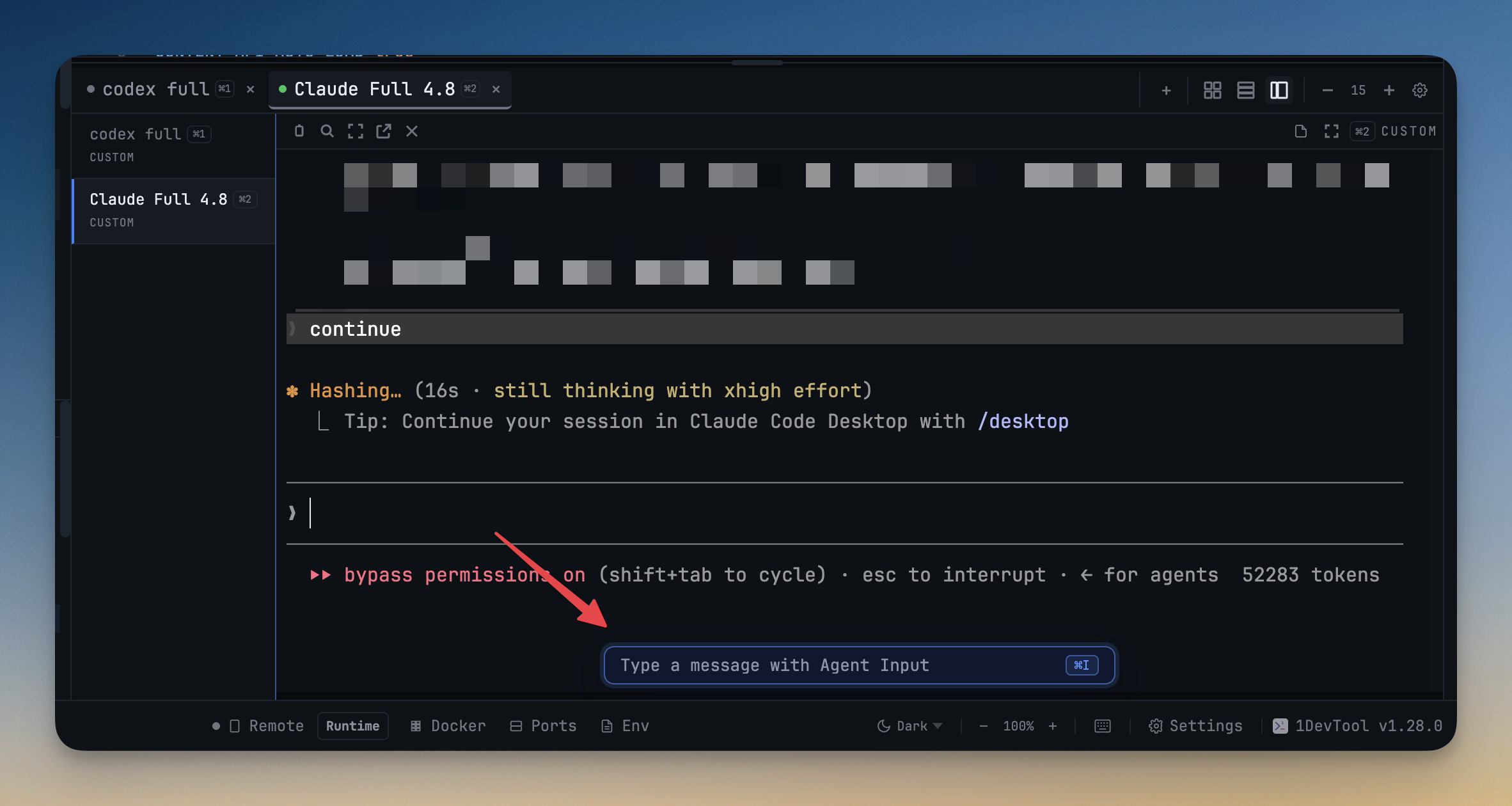
This matters when you are building a prompt slowly. You can inspect terminal output, jump to another panel, or close the overlay to get more screen space, then come back without trying to remember what you were about to ask. Click the composer or press Cmd-I or Ctrl-I, and the same draft is ready to finish.
You can drive the phone remote from three obvious places
Remote Control on your phone now opens into a home shell with three bottom tabs: Projects, Terminals, and Browser. Projects keeps the refreshed dashboard for choosing a workspace and opening project actions. Browser gives you the embedded preview path without making you drill through a project card first.
The new Terminals tab is the biggest navigation improvement. It flattens terminals across projects into Needs review, Running, and Idle groups. Running AI sessions show elapsed time. Review-ready sessions get a badge on the bottom tab, so the phone can tell you when something needs attention even before you open the list. Tap a card and you land directly in that terminal.
Before vs After
| Workflow | Before | Now |
|---|---|---|
| Check AI usage | Leave the workspace, inspect a provider page or account state, then return to the terminal | Read the live pill in the status bar and open the popover for quota windows and plan details |
| Continue an unsent prompt | Reopen Agent Input and remember whether you had a draft | See the draft preview in the idle composer and continue it directly |
| Review phone terminals | Open a project, scan its terminals, back out, and repeat for another project | Open the Terminals tab and scan Needs review, Running, and Idle across all projects |
| Handle quota pressure | Notice a limit late and manually switch accounts | Opt into auto-switch for Claude or Codex accounts at a threshold you choose |
Who benefits most
Developers who keep long AI terminals running get the most immediate value. The status bar makes quota visible while the agent is still working, so you can plan a handoff or switch accounts before the session stalls.
Anyone who writes careful prompts in stages also gets a smoother loop. The draft preview turns the idle composer into a reminder instead of a blank entry point, which is especially useful when a prompt includes file mentions or screenshots you do not want to rebuild.
Remote Control users get a faster phone workflow. If you use your phone to check agents away from the desk, the bottom tabs and Terminals overview reduce the number of taps between "something finished" and the exact terminal that needs your attention.
Try it
Update to 1DevTool v1.28.0, focus a Claude or Codex terminal, and watch the status bar while you work. Open Agent Input, type a draft, close it, and confirm the idle composer keeps the prompt visible. If you use Remote Control, open the phone UI and switch between Projects, Terminals, and Browser from the new bottom tab bar.
From across the StoicSoft network
Hand-curated reads on the same topic from sister sites in the StoicSoft family.
 ServerCompass8 min read
Deploy to VPS in 5 minutes (Not 5 hours): Server Compass v1.1.7
New ZIP file deployments, enhanced GitHub integration, bulk env variables, and persistent logs. Get Vercel-like UX on your $5 VPS.
Read on servercompass.app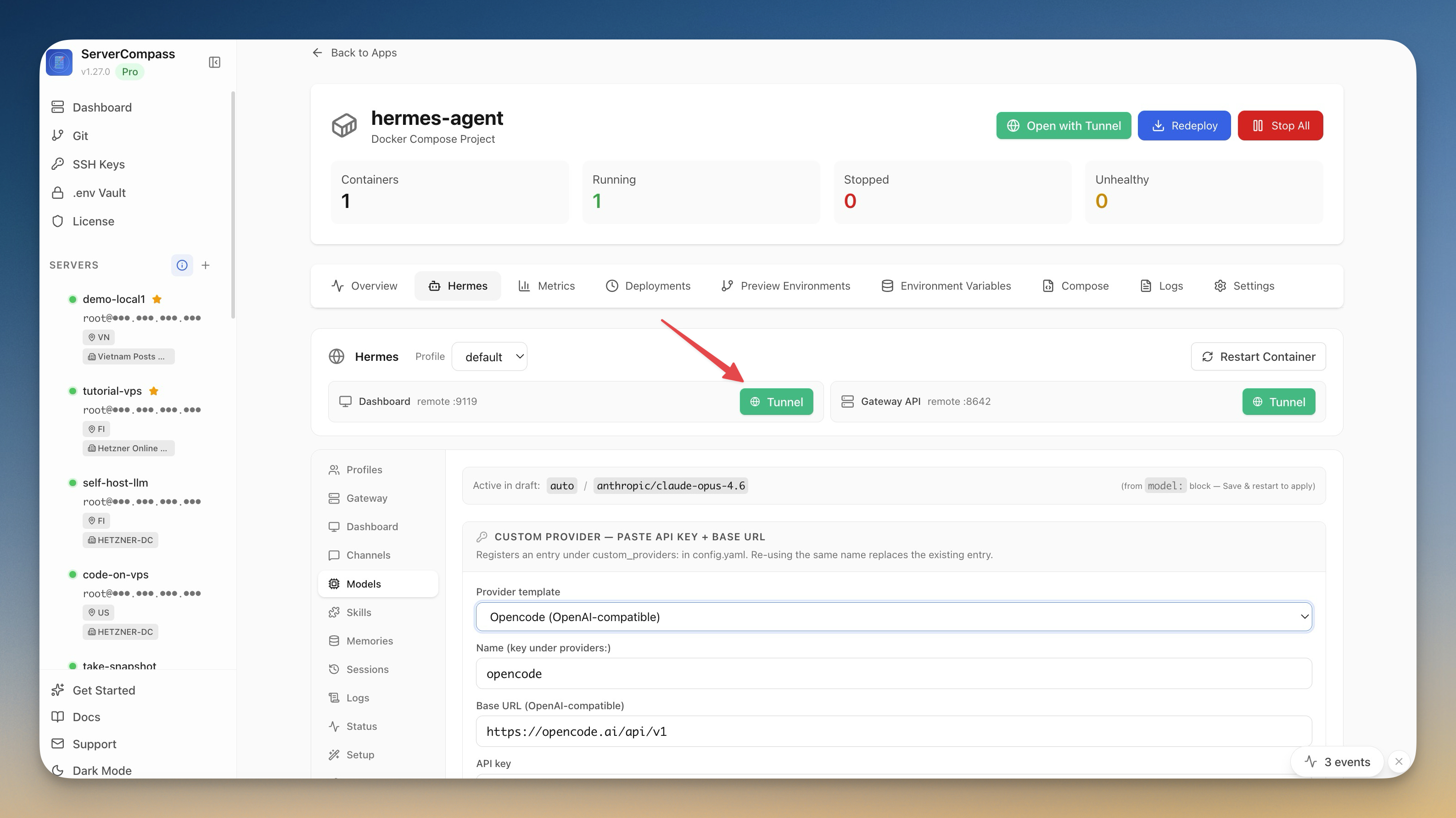 ServerCompass5 min read
Self-Host an AI Agent on Your VPS in One Click
Server Compass v1.27.0 deploys Hermes Agent to your VPS in one click — your own OpenAI-compatible gateway, a web dashboard reachable through an SSH tunnel, and chat platforms wired in from the same window.
Read on servercompass.app ServerCompass4 min read
150+ new self-hostable apps just landed in Server Compass v1.25.0
Server Compass just tripled the deploy catalog: 428 one-click templates, up from 239. AI tooling, productivity, finance, dev tools, storage, monitoring — the gap between 'I want to try this self-hosted app tonight' and 'it deploys' just shrank dramatically.
Read on servercompass.app