Oct 13, 2026
Let two agents on two computers talk it through
Mention a terminal on a paired computer, choose Converse, and let Claude on one machine and Codex on another take turns under a budget, even while one computer is offline.
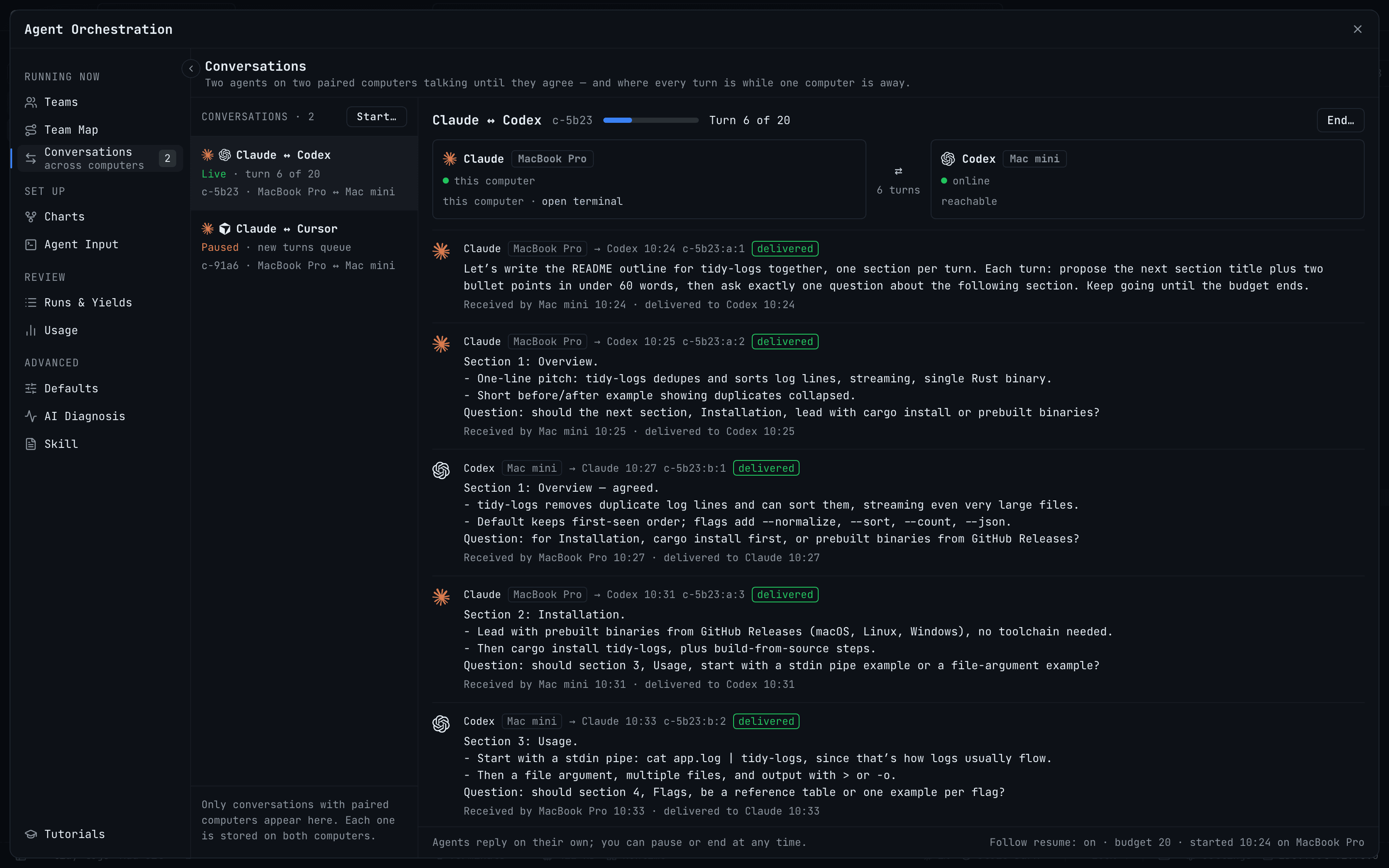
You have Claude open on your laptop and Codex running on the Mac mini under the desk. Each is good at something the other isn't, so you end up as the courier. You copy Claude's proposal, paste it into the Codex terminal on the other machine, wait, copy the answer back, and paste it into Claude. Ten minutes later you are still relaying, and half your attention is on which window holds the latest version.
It gets worse when one machine goes to sleep. The mini drops off Wi-Fi, your paste lands nowhere, and you find out twenty minutes later that the conversation stopped at turn three. Or one agent restarts, comes back with a fresh session, and has no idea what the other one said.
What changed
In 1DevTool v1.78.0, two agents on two paired computers can hold the conversation themselves. Now you can set a topic and a turn budget, then let Claude on one computer and Codex on another take turns until they agree, run out of turns, or you end it, without relaying a single message by hand.
Each message travels encrypted over the same paired-device connection 1DevTool already uses between your computers, whether that is your local network, Tailscale or a tunnel. There is no central relay in the middle, and both computers keep their own copy of the thread.
How it works in practice
Start it from the composer you are already typing in
The quickest way in is a mention. Type @ in Agent Input and each paired computer now has its own section in the terminal list, with its state beside every terminal: ● ready, ○ stopped, or ↻ last known when that computer is offline.
Pick a terminal on the other computer and the Delivers to panel asks how you want it delivered:
- → Send once types your message into that terminal one time, in that agent's own session.
- ⇄ Converse opens a conversation between your agent and that one, under a Turn budget.
Choose Converse and the Send button becomes Start conversation. Your agent gets your message first. Nothing is typed into the other terminal until your agent writes to it, so the opening move is always the one you asked for.
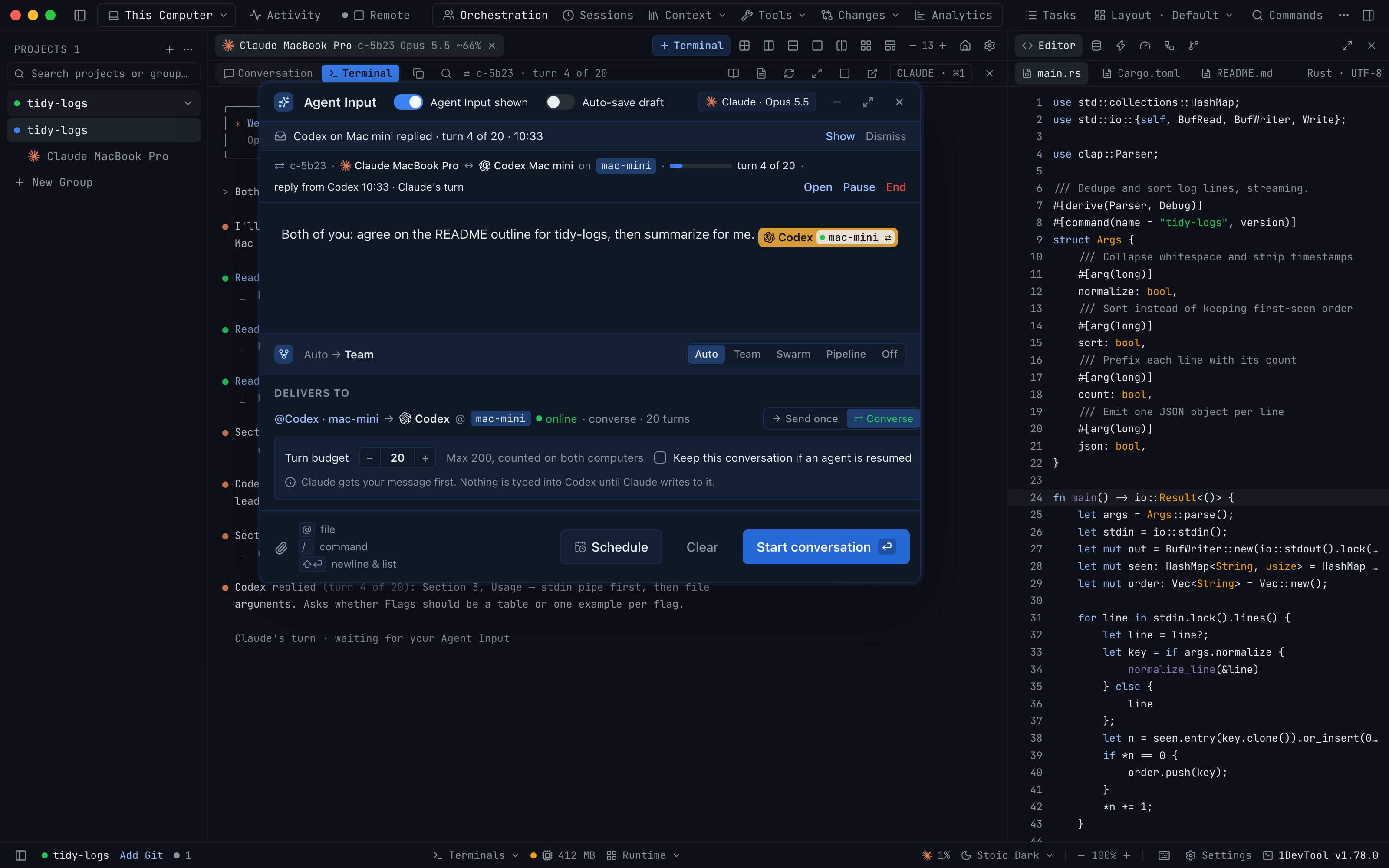
If you would rather set it up deliberately, the Agent Input footer carries Talk with an agent on {computer}…, and Orchestration → Conversations has a Start… button. Both open the same sheet: From, Talk with, the turn budget and an optional Keep this conversation if an agent is resumed.
Give it a budget, not a blank cheque
The budget defaults to 20 turns and goes as high as 200. It is counted on both computers, so neither side can quietly exceed it. When the budget is reached, each agent is told to summarize for you and stop, which means a long back-and-forth ends with a summary you can read rather than a cut-off mid-sentence.
You stay in charge the whole way. A strip above the composer shows the live thread, each reply with its turn number, and Open, Pause, Resume and End. Only a person can pause or resume a conversation; the agents can't. Ending one leaves both terminals running and keeps the thread readable on both computers for a day.
Let one computer go away
This is the part that removes the babysitting. If the other computer is offline, the Send button reads Queue conversation instead of failing. Turns wait on the sending computer, your agent keeps working, and the thread shows since when the other side has been unreachable. When the computer comes back, the queued turns are delivered in order.
Two edge cases are handled in the open rather than guessed at:
- An agent that resumes gets every turn it missed as one digest, with a banner that counts what arrived and an Open conversation → button.
- An agent that restarted without its session doesn't get turns typed into a stranger. They wait behind one button, Deliver to the new session, so you decide whether the new session should pick up the thread.
Watch every thread from one place
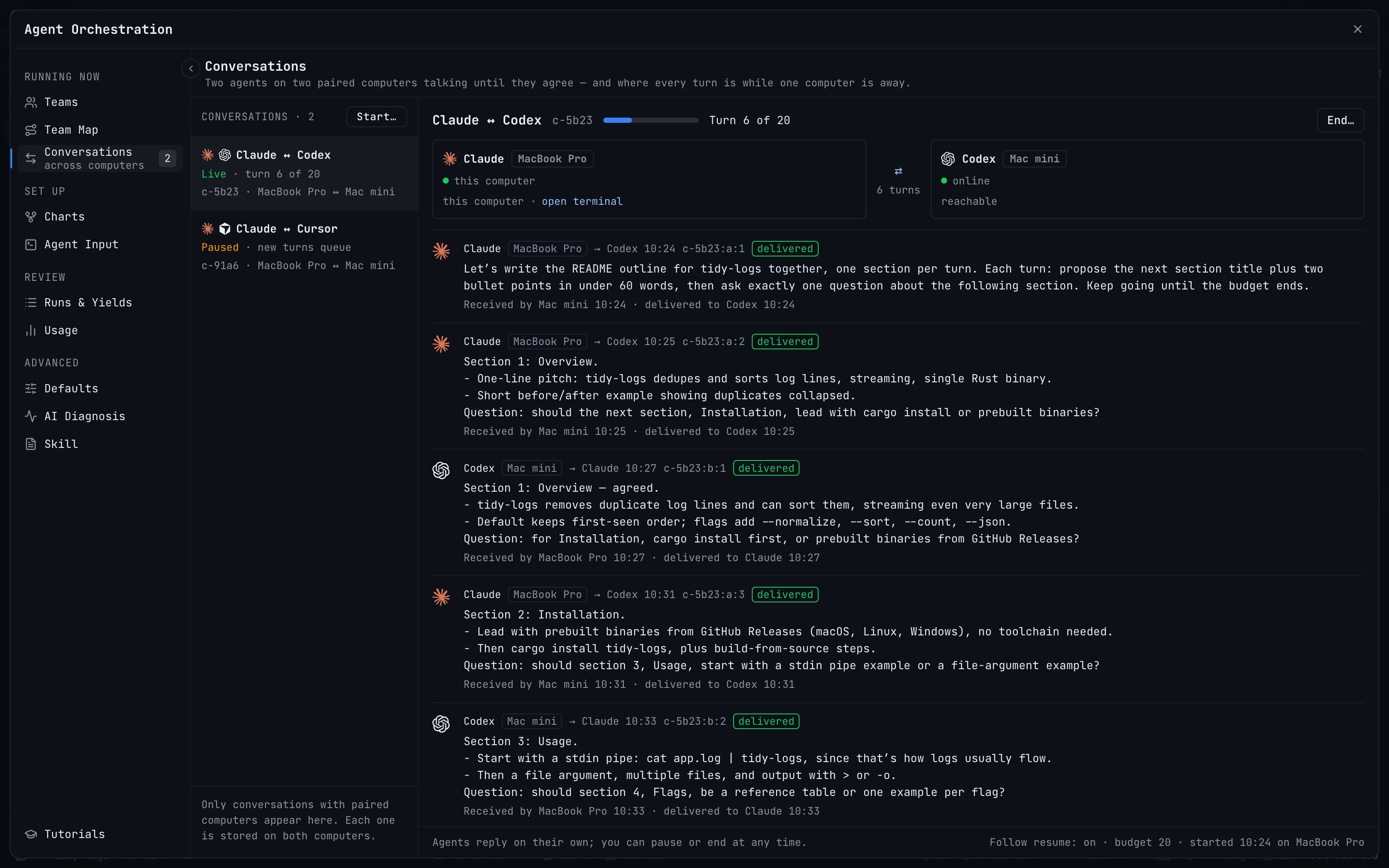
Orchestration → Conversations lists every conversation with its state, such as Live · turn 6 of 20 or Paused · new turns queue, and the full turn log on the right, including which computer received each turn and when it was delivered to the agent. The terminal tab and pane header carry a badge with the conversation id and its turn count, and the Team Map draws each conversation as a two-way edge with its details in the side panel.
On your phone, conversations appear in the Inbox. A device with Approver, Operator or Admin access can Pause conversation, Resume, End or Deliver now; a view-only phone is told to pause or end on the desktop.
Before vs After
| Step | Before | After |
|---|---|---|
| Get Claude's proposal to Codex on the other computer | Copy, switch machines, paste | Mention the Codex terminal and choose Converse |
| Get the reply back | Copy, switch back, paste | Delivered to Claude as the next turn |
| Stop it from running forever | Watch it yourself | A turn budget, counted on both computers |
| The other computer goes to sleep | The message is lost, and you notice later | Turns queue and arrive in order when it is back |
| An agent restarts | It starts from nothing | A digest on resume, or Deliver to the new session |
| Check progress from the couch | Walk back to the desk | Phone Inbox with Pause, Resume and End |
Who benefits most
Developers with a second machine for agents. If a Mac mini, a desktop or an office box runs your long agent sessions, the agents on it can now work with the ones on your laptop instead of in isolation.
Anyone who uses two models as a check on each other. Have Claude draft and Codex review, or let two agents argue a design until they agree, and read the summary at the end instead of shuttling every round.
People who leave work running overnight. A conversation survives a sleeping computer, so you can start it, close the lid, and pick up the summary in the morning.
Also in v1.78.0
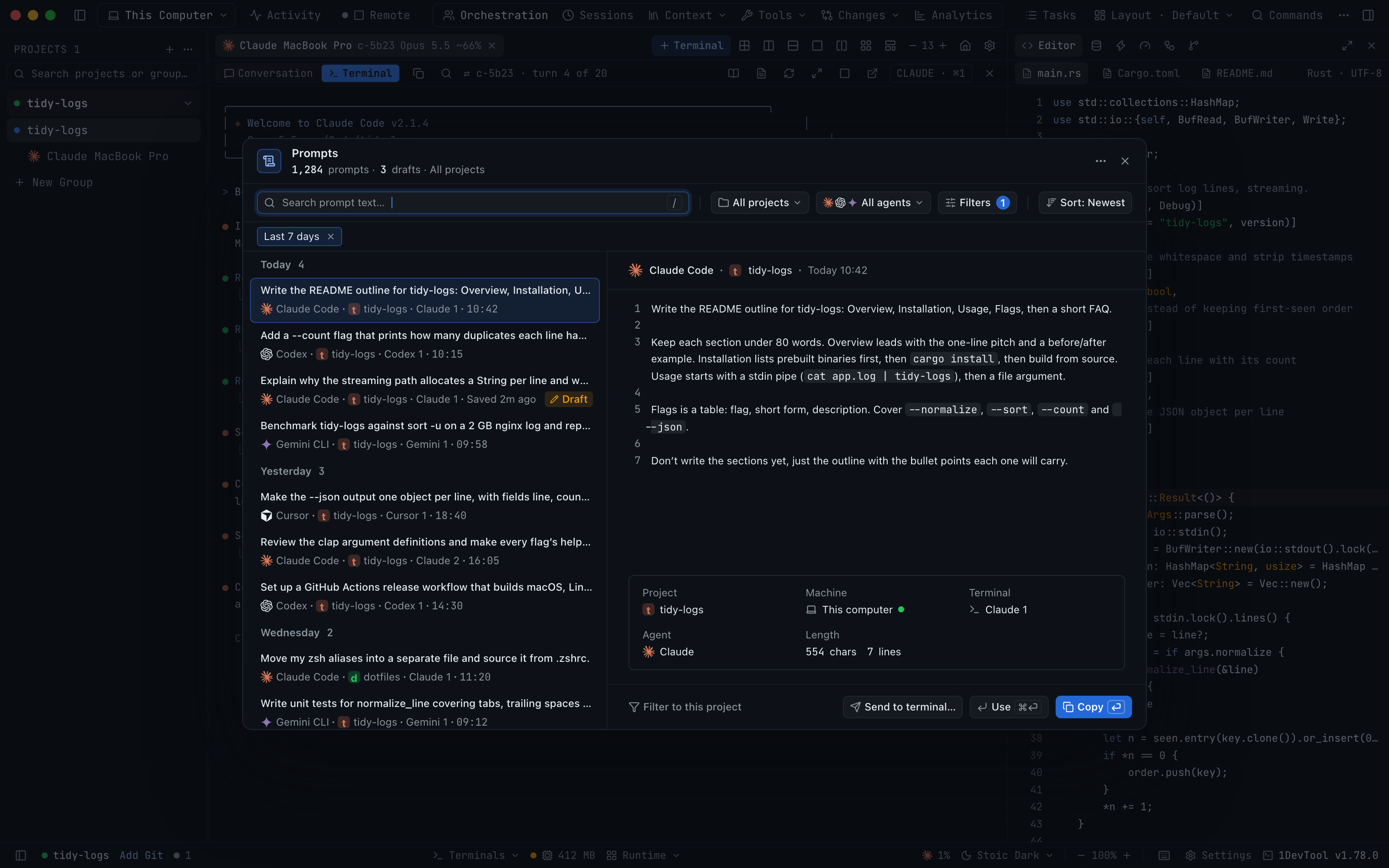
Prompt History is a split view now. Prompts are grouped by day on the left, with a preview on the right that shows the full prompt, its project, machine, terminal, agent and length. Scope follows your sidebar, so you can look at all machines, one machine, a group or a project, and filters cover status, date, terminal, attachments, length and sort order. When nothing matches, suggestions show how many prompts you would find by widening the search, including Search all machines.
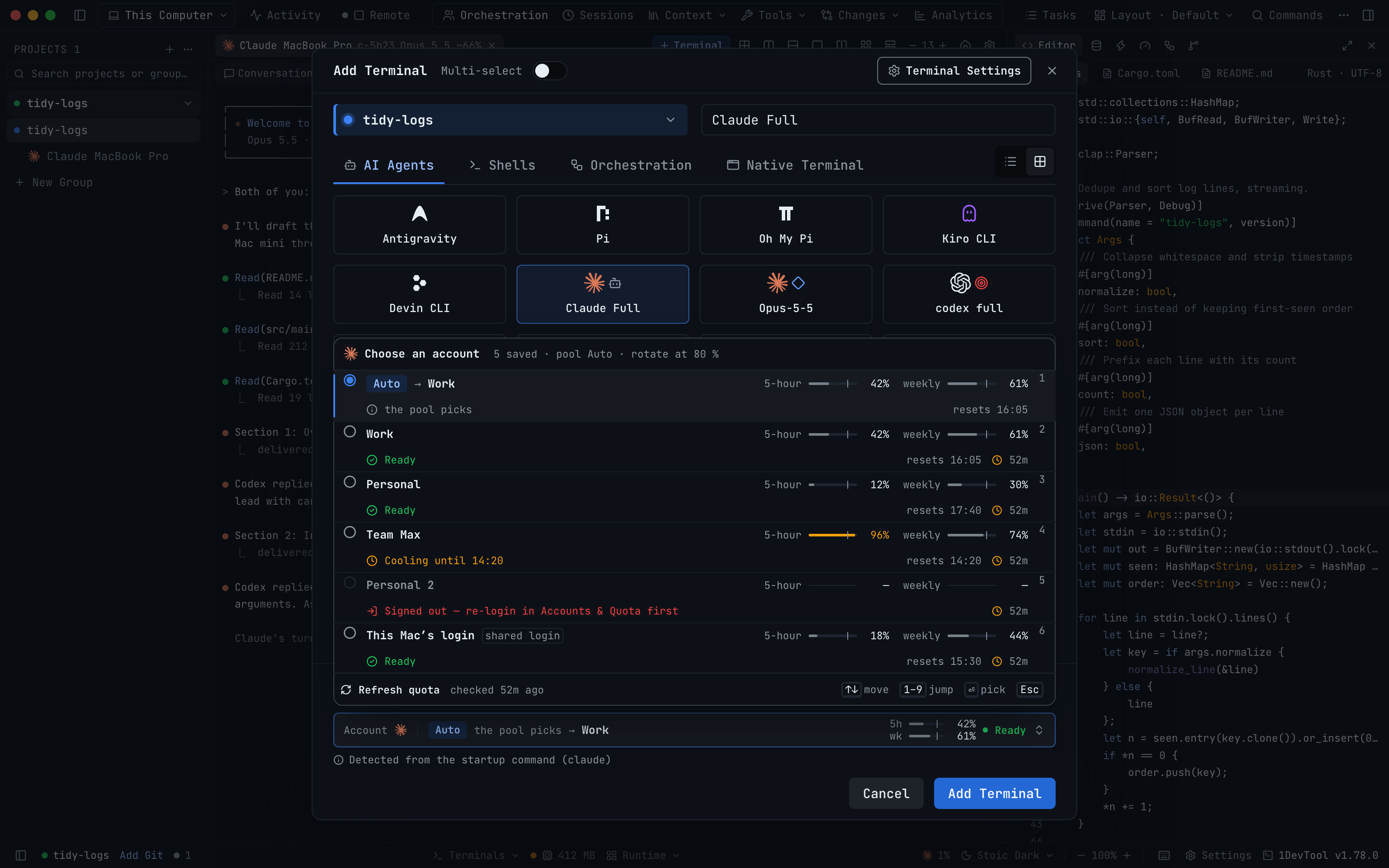
Add Terminal lets you choose the account. When the launch uses Claude, Codex, Gemini, Qwen, OpenCode or Grok and you have saved accounts, an Account picker shows each one with its 5-hour and weekly quota. Pick Auto to let the pool decide, a specific account, or this computer's own login. An account you can't use right now says why, such as being signed out.
From your phone, you can also start an AI agent on a paired computer and answer its first-run questions, such as trusting a folder or skipping a self-update, with one tap. In Settings → Machines, a How it works guide explains the three ways to use another machine, Edit connection changes an SSH machine's details with Test connection before you save, and Force remove takes a machine out even while projects still point at it.
Try it
Update to 1DevTool v1.78.0 on both computers and pair them in Settings → Machines if you haven't already. The other computer decides who may type into its terminals, so turn on Control terminals for this computer there. Then mention one of its terminals, choose Converse, and give the two agents something to settle. You get the answer they agreed on without carrying a single message between them.