Jun 10, 2026
Stop Switching Tools to Search Your Files: VS Code-Style Search Is Now in the File Explorer
1DevTool's file explorer now offers full-text search with case-sensitive, whole-word, and regex toggles, include/exclude glob patterns, and direct-to-line jumps — plus Reveal in Finder from terminal output and Elixir language support.
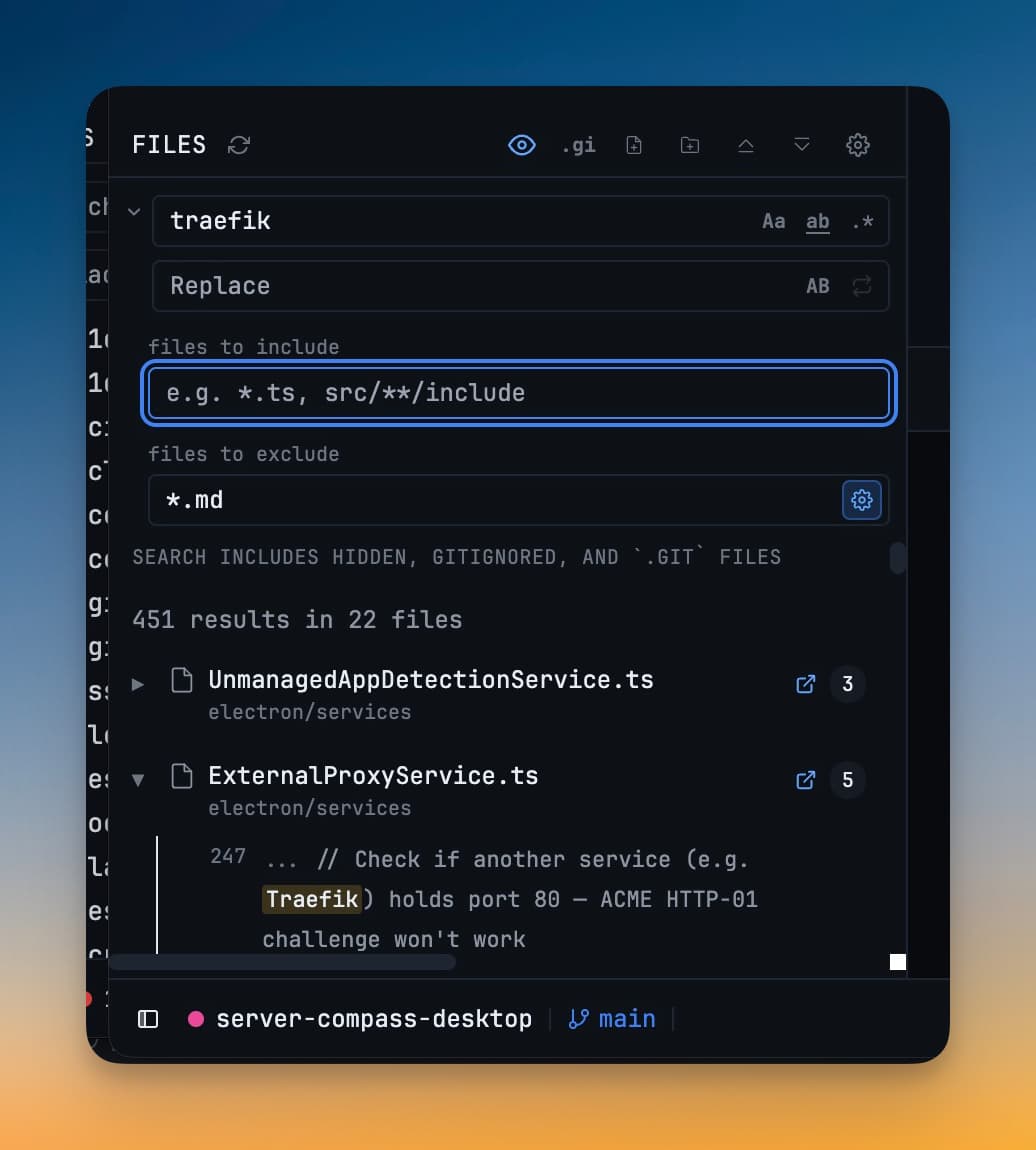
Finding a string in your codebase means remembering where you put things. When you cannot remember — when you know something exists somewhere but not the exact file — the file tree is no help. Filename search tells you nothing about what is inside those files. So you open another window, start another search tool, paste in the term, wait for indexing, then copy the path back into 1DevTool to do anything useful with it.
That context-switch compounds across a whole day: stack traces, error messages, grep results, build output — all of it contains file paths and class names you need to locate. Flipping between tools to act on them is friction that accumulates.
You no longer need a separate search tool
The file explorer now includes full-text search that works the way you would expect from VS Code or JetBrains. Type a term, see every match across your project — not just filenames — and click any result to open the file at exactly the line where the match lives.
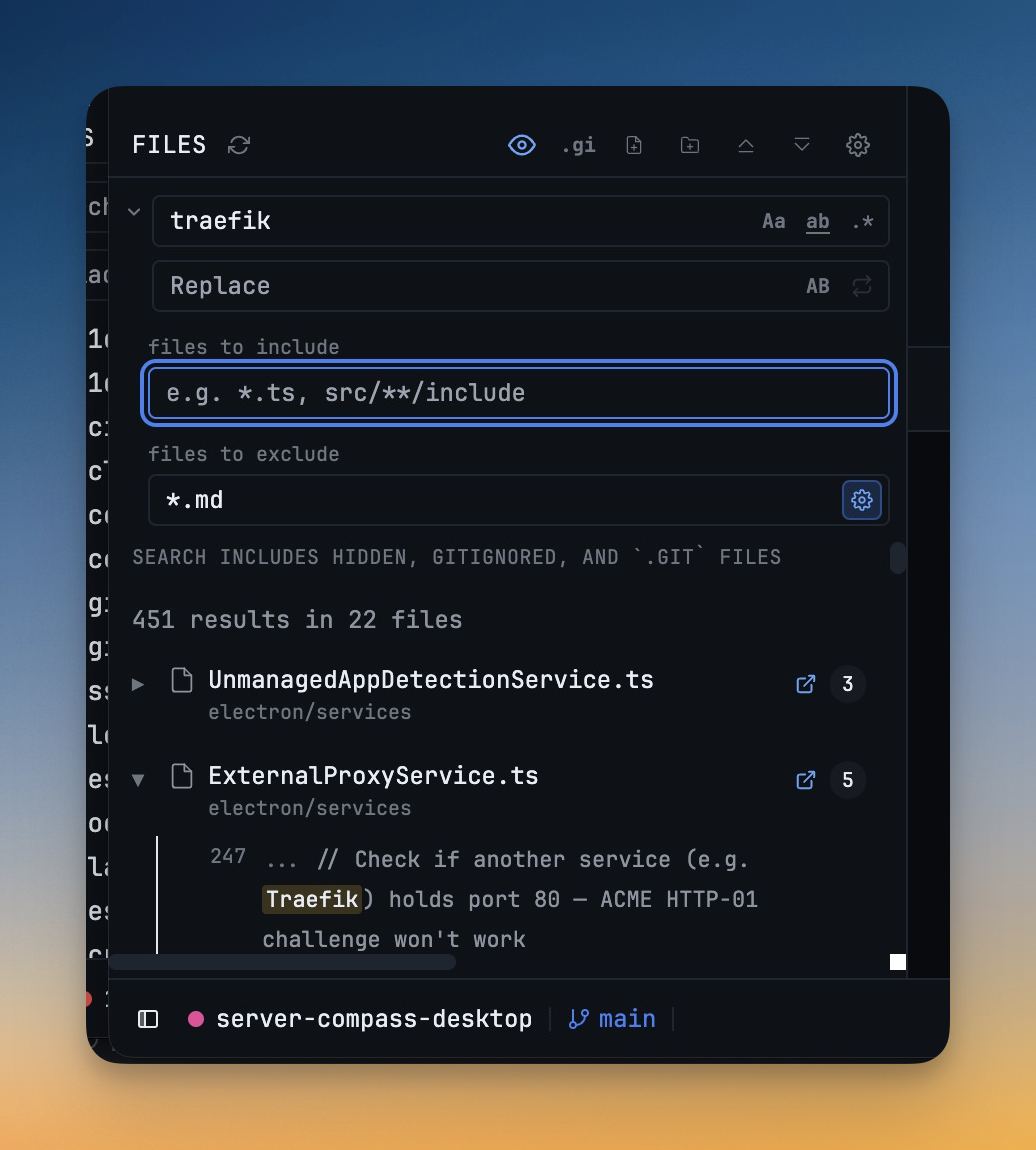
How it works in practice
Tighten your search without leaving the search bar
Three compact toggle buttons sit directly inside the search bar:
- Aa — case-sensitive matching.
Componentno longer matchescomponent. - ab — whole-word matching.
useno longer matchesreuse. - .* — regex. Full regular expression syntax to match patterns instead of literals.
You can combine all three. A whole-word, case-sensitive regex search is two clicks from a plain text match — no separate settings panel to open.
Scope results with glob patterns
Two fields appear below the search bar: Include and Exclude.
Type *.ts, src/** in Include to search only TypeScript files under src/. Type **/*.log, dist, coverage in Exclude to skip those paths. The default exclude list — node_modules, .git, dist, build, .next, .cache — is pre-filled and togglable with a single click. When you need to search inside one of those folders, turn the default off.
Results update as you adjust the patterns, so you can narrow scope interactively without restarting the search.
Jump to the exact matching line
Clicking a filename in the results opens the file at the top. Clicking a specific result row — the line with the code snippet — opens the file and scrolls the editor directly to the match. You land on the line, not somewhere near it.
A panel that stays out of the way
The search panel auto-expands when you focus the field and collapses back to a single-line bar when you clear the query and move focus. It does not compete with the file tree for vertical space when you are not searching.
Reveal any file path in your filesystem from the terminal
When a file path appears in terminal output — a stack trace, a build error, a log line — right-clicking it now shows Reveal in Finder (macOS), Show in Explorer (Windows), or Show in Files (Linux).
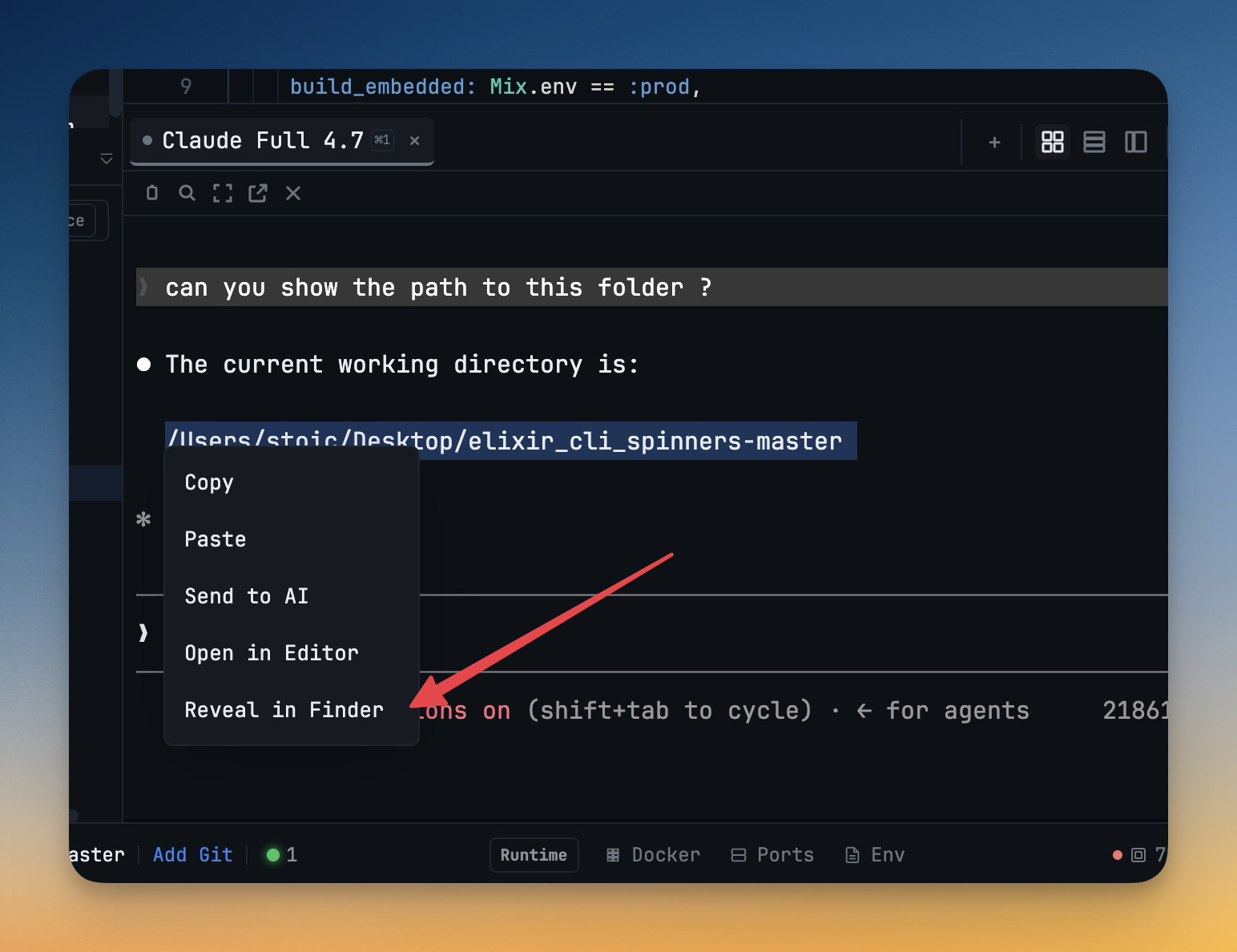
The option appears both in the text-selection context menu and in the link-hover menu for paths that are automatically linked. You do not need to copy the path or navigate Finder manually — the containing folder opens directly from where you spotted the reference.
This turns every file path in terminal output into a navigation shortcut. When a build error names a config file, a log line names a module, or a test failure names a fixture — one right-click gets you to the folder.
Elixir projects now look the way they should
.ex and .exs files get a dedicated purple EX badge in the file tree and full Monaco syntax highlighting in the editor — keywords, strings, module names, and sigils are coloured correctly without any setup.
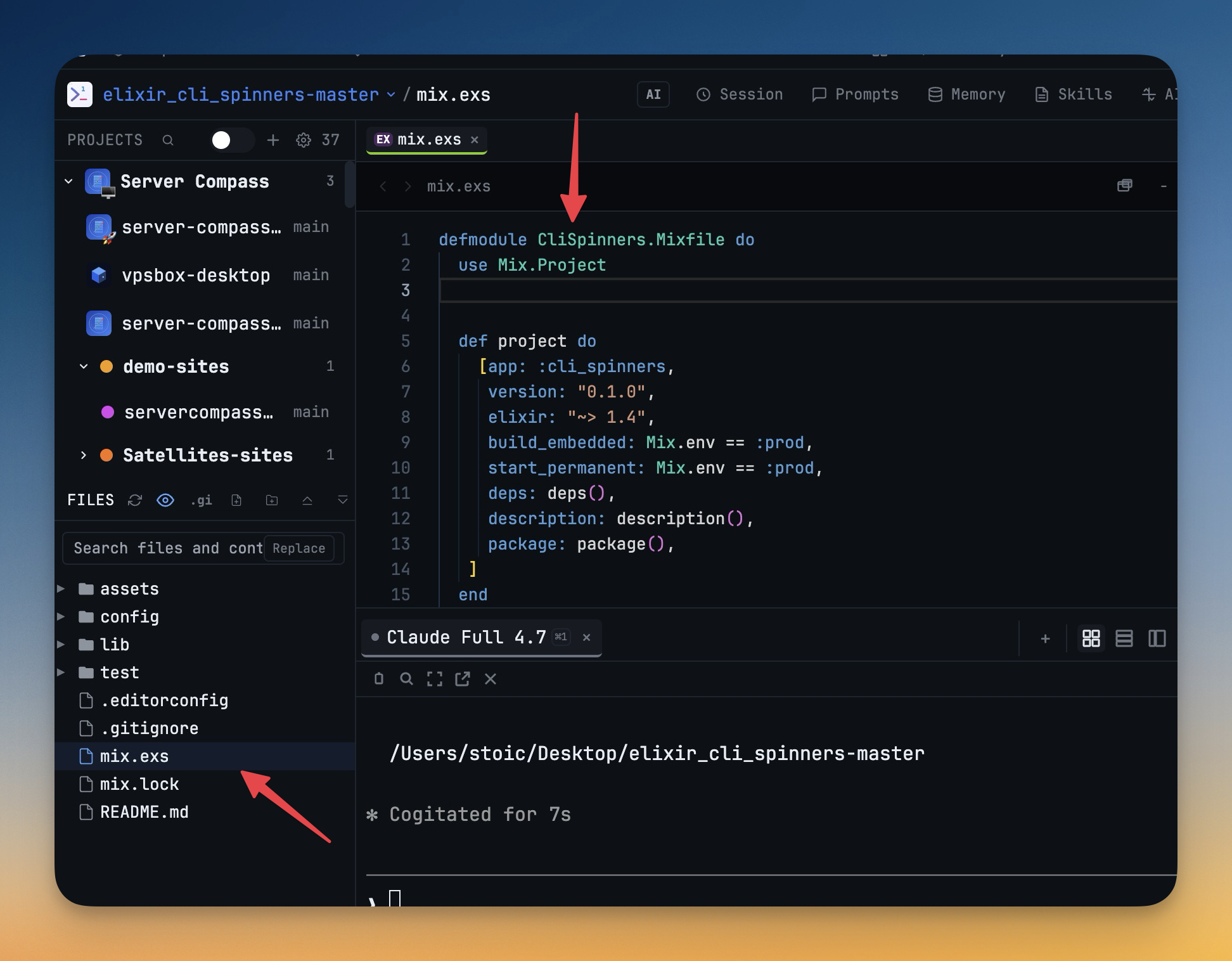
Phoenix and mix projects now read the same way a JavaScript or Python project does in 1DevTool: files are instantly identifiable by icon, and code is readable the moment you open it.
Before vs After
| Task | Before v1.23.4 | After v1.23.4 |
|---|---|---|
| Find a class name across the project | Switch to a separate search tool | Search directly in the file explorer |
| Filter out noise from search results | No built-in exclude | Default exclude list, togglable per search |
| Navigate to a match | Open file, scroll manually | Click the result row — land on the line |
| Open a folder from a path in terminal output | Copy path, open Finder, navigate | Right-click the path → Reveal in Finder |
| Work in an Elixir project | Plain text, no file icons | Syntax highlighting, EX badge |
Who benefits most
Backend developers who trace errors through stack traces and log output — every file path in your terminal is now a navigation shortcut, and every class name reference is a searchable term that lands you exactly where the bug lives.
Polyglot projects mixing TypeScript, Python, and config files — glob-based include/exclude lets you scope a search to the language or directory tier you are working in, so results stay relevant instead of noisy.
Elixir developers who have been opening Phoenix projects in 1DevTool but working around the lack of syntax support — that gap is closed.
Try it
Update to v1.23.4 from the update banner or download from 1devtool.com. The search panel lives in the file explorer — click the magnifying glass or use your configured search shortcut to open it.