See Every Terminal on Your Machine
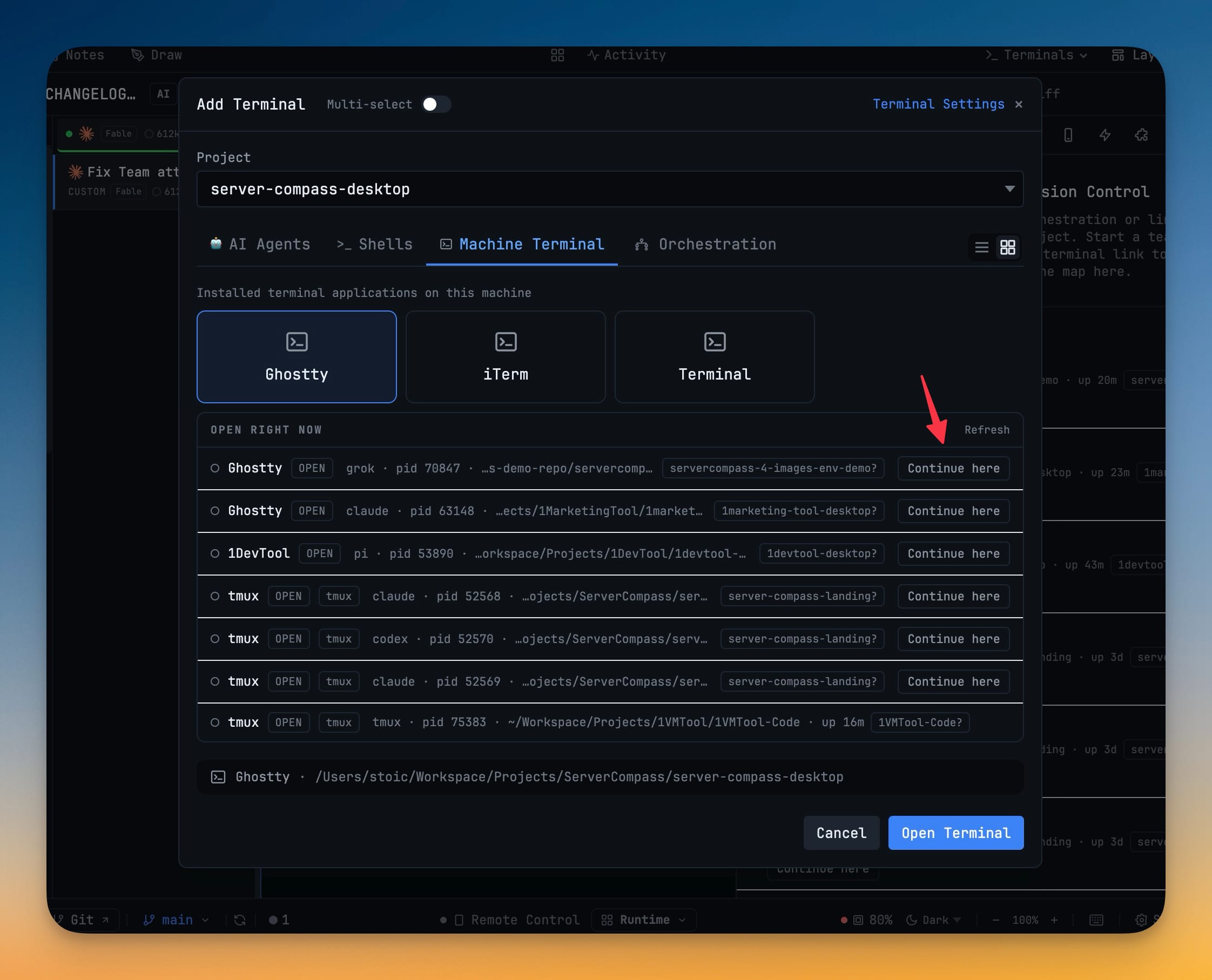
See the terminals 1DevTool did not start — Ghostty, iTerm, WezTerm, kitty, tmux panes — with the AI agent running inside each one, its working folder and the project it probably belongs to. When a row has a session on disk, Continue here adopts it into a real 1DevTool tab and resumes the conversation.
More Screenshots
Click any image to zoom in
Why You Need This
How this feature boosts your daily productivity
Agents end up scattered. One Claude session started in Ghostty “just to check something”, a codex run in a tmux pane on another desktop, and the real work in 1DevTool. Finding the one that is waiting on you means alt-tabbing through every window and squinting. The Machine list — in Add Terminal's Machine Terminal tab and in a collapsible Mission Control section — names every one of those windows in a single place: the owning app, the agent inside, the pid, the working folder, how long it has been up, and a project guess drawn from the directory. The guess is marked as a guess, and when two open projects could both claim a folder it shows none rather than picking wrong. Scanning runs only while the list is on screen, so a collapsed section costs nothing.
How It Works
Get started in 4 simple steps
Open the Machine list
Add Terminal → Machine Terminal has an "Open right now" section under the installed apps, and Mission Control has a collapsible Machine section headed with a live count.
Read what each window is doing
A row names the owning app, the agent inside — grok, claude, codex, pi — or "shell", plus its pid, shortened working folder and how long it has been up.
Check the project guess
A badge suggests the project the folder belongs to, with a question mark because it is inferred. Two open projects that could both claim the folder produce no badge instead of a wrong one.
Continue here
When a matching session exists on disk, the row offers Continue here — one click adopts it into a real 1DevTool tab and resumes the conversation.
Refresh when you want a fresh read
Scanning runs only while the list is visible, so nothing walks your process table on a timer. Refresh re-reads on demand.
Without 1DevTool
The manual way vs. the 1DevTool way
The Hard Way
The 1DevTool Way
Key Capabilities
Everything included with See Every Terminal on Your Machine
Why It Matters
The productivity impact of having terminal & ai agents built into your workspace
The Alt-Tab Hunt Ends
Every terminal open on the machine is one list with the agent, the folder and the uptime on the row — so finding the session that is waiting on you stops being a window-by-window search.
A Guess That Admits It Is One
The project badge carries a question mark, and genuine ambiguity between a monorepo root and a package inside it produces no badge at all rather than a confident wrong answer.
Work Started Elsewhere Comes Home
Continue here adopts an outside agent’s session into a real tab with its transcript, instead of leaving it stranded in the window it happened to start in.
Nothing Runs Behind Your Back
The scan happens only while the list is on screen. A collapsed Mission Control section and a closed dialog both cost exactly nothing.
More in Terminal & AI Agents
Other features in this category you might find useful
Multi-Agent Terminals
Run Claude Code, Codex, Gemini CLI, Amp, OpenCode, Qwen, and custom AI commands in dedicated terminal tabs with recognizable agent logos, custom colors, and status indicators.
Flexible Terminal Layouts
View terminals in 2×2 grid, side-by-side columns, or single fullscreen mode with resizable panes.
Terminal Dashboard
Kanban-style board view of all terminal statuses — Idle, Running, and Review — with real-time polling.
Session Persistence
Terminal sessions persist across app restarts with full scrollback history via tmux integration.
Ready to boost your workflow?
Download 1DevTool for free and experience See Every Terminal on Your Machine along with 321 other features — all in one app.