Conversation Mode
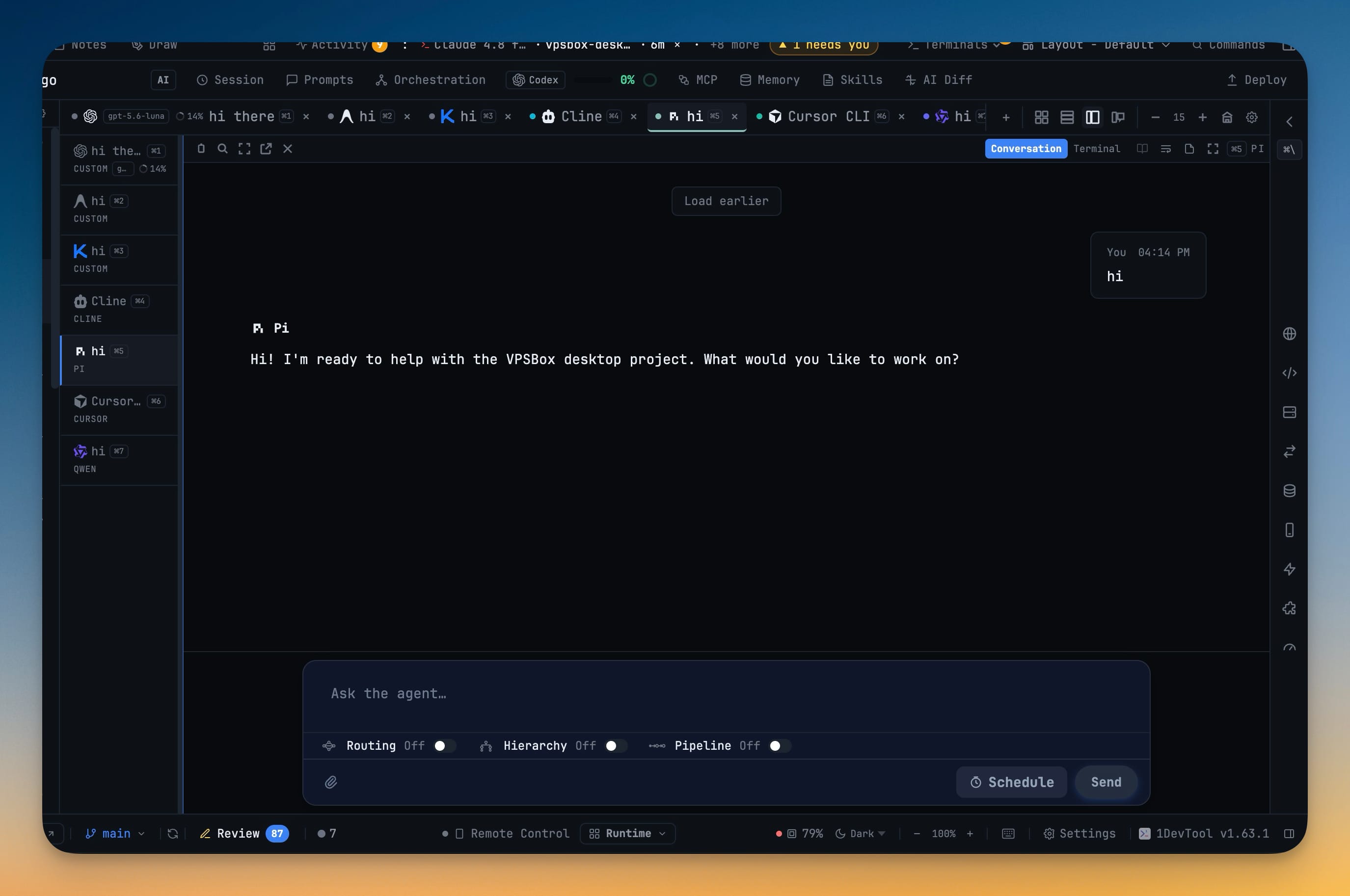
Read any running AI agent as a clean chat transcript instead of the raw terminal, then flip back to the live TUI with a single toggle. You get "You" bubbles, markdown replies and collapsed tool rows across every coding CLI you run — Claude, Codex, Gemini, Kimi, Cursor, Grok and more.
More Screenshots
Click any image to zoom in
Why You Need This
How this feature boosts your daily productivity
A working AI agent fills its terminal with a redrawing TUI: text wraps mid-sentence, tool output floods the screen, and the one line where the agent said what it decided scrolls off before you can read it. The information is all there, but the format is built for a machine to print, not for you to read an hour of work back at a glance. Conversation renders the exact session you are already running as a chat — your prompts as "You" bubbles, the agent's replies as rendered markdown, and tool calls as tidy rows you expand only when you care. Because the toggle lives on the pane itself and nothing restarts, you keep the raw terminal one click away for the moments you actually want it. And it reads the coding CLIs you already have open the same way, so supervising six agents at once stops meaning six different walls of output.
How It Works
Get started in 4 simple steps
Flip a pane to Conversation
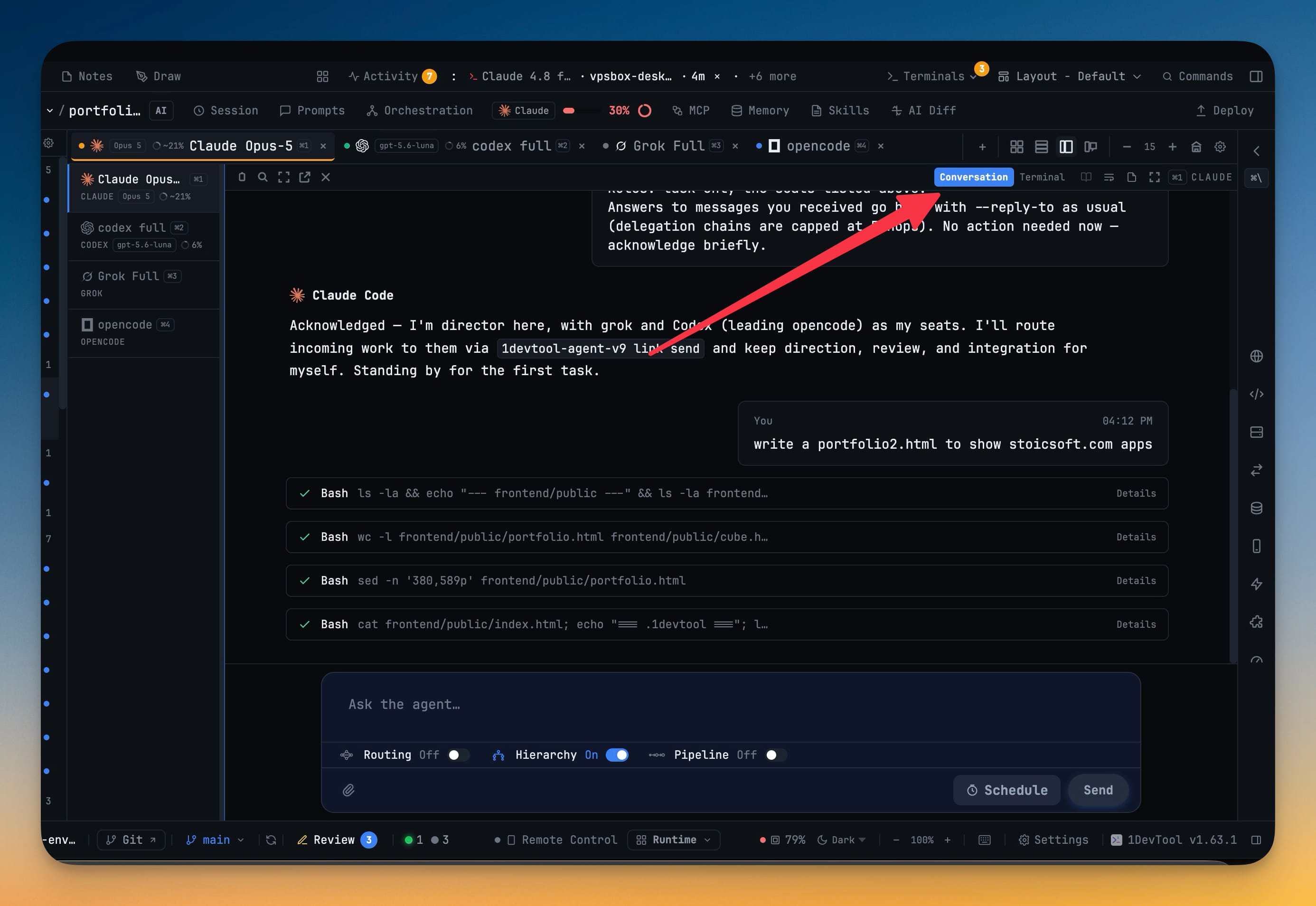
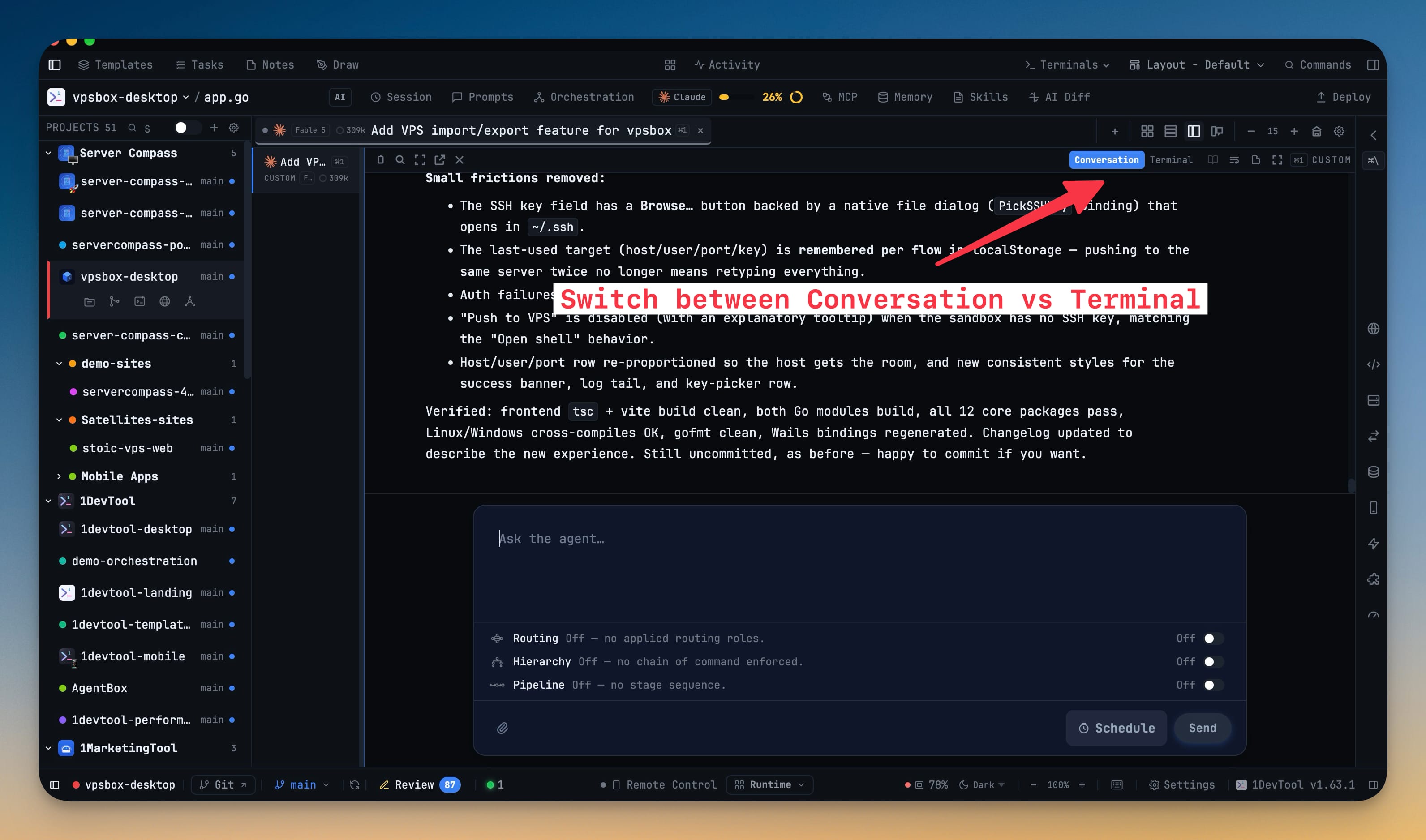
A control at the top of any AI pane toggles between Terminal and Conversation. Choosing Conversation shows the same live agent as a chat; the raw TUI stays one click away.
Read the run as a chat
Your prompts appear as "You" bubbles, the agent replies in rendered markdown, tool calls collapse into rows you expand for detail, and recorded thinking blocks show inline.
Move through the history
Load earlier pages older turns when you scroll up; Jump to latest returns you to the live end. If a transcript cannot be read, a banner offers Terminal instead of a blank chat.
Prompt from the compact composer
A one-line composer that grows as you type sits under the transcript, with Routing, Hierarchy and Pipeline on a single row so the chat keeps the screen.
Keep it, or turn it off
Conversation follows an in-terminal /resume to the session you pick. Prefer the live TUI only? Turn Conversation off in Settings → Terminal.
Without 1DevTool
The manual way vs. the 1DevTool way
The Hard Way
The 1DevTool Way
Key Capabilities
Everything included with Conversation Mode
Why It Matters
The productivity impact of having terminal & ai agents built into your workspace
Output Built For You To Read
A redrawing TUI that wraps mid-sentence becomes a chat with real headings, "You" bubbles and rendered markdown — so an hour of agent work is something you skim, not decode.
The Same Session, Not A Second One
The toggle lives on the pane and nothing restarts. You are reading the exact agent you were running, with the raw terminal one click away.
Tool Noise On Demand
Tool calls collapse into tidy rows you expand only when you care, instead of a firehose of shell output burying the reply you were looking for.
Every CLI Reads The Same
Claude, Codex, Gemini, Grok and ten more share one chat format, so supervising six agents at once stops meaning six different walls of output.
More in Terminal & AI Agents
Other features in this category you might find useful
Multi-Agent Terminals
Run Claude Code, Codex, Gemini CLI, Amp, OpenCode, Qwen, and custom AI commands in dedicated terminal tabs with recognizable agent logos, custom colors, and status indicators.
Flexible Terminal Layouts
View terminals in 2×2 grid, side-by-side columns, or single fullscreen mode with resizable panes.
Terminal Dashboard
Kanban-style board view of all terminal statuses — Idle, Running, and Review — with real-time polling.
Session Persistence
Terminal sessions persist across app restarts with full scrollback history via tmux integration.
Ready to boost your workflow?
Download 1DevTool for free and experience Conversation Mode along with 322 other features — all in one app.