Sticky Notes in Reader Mode
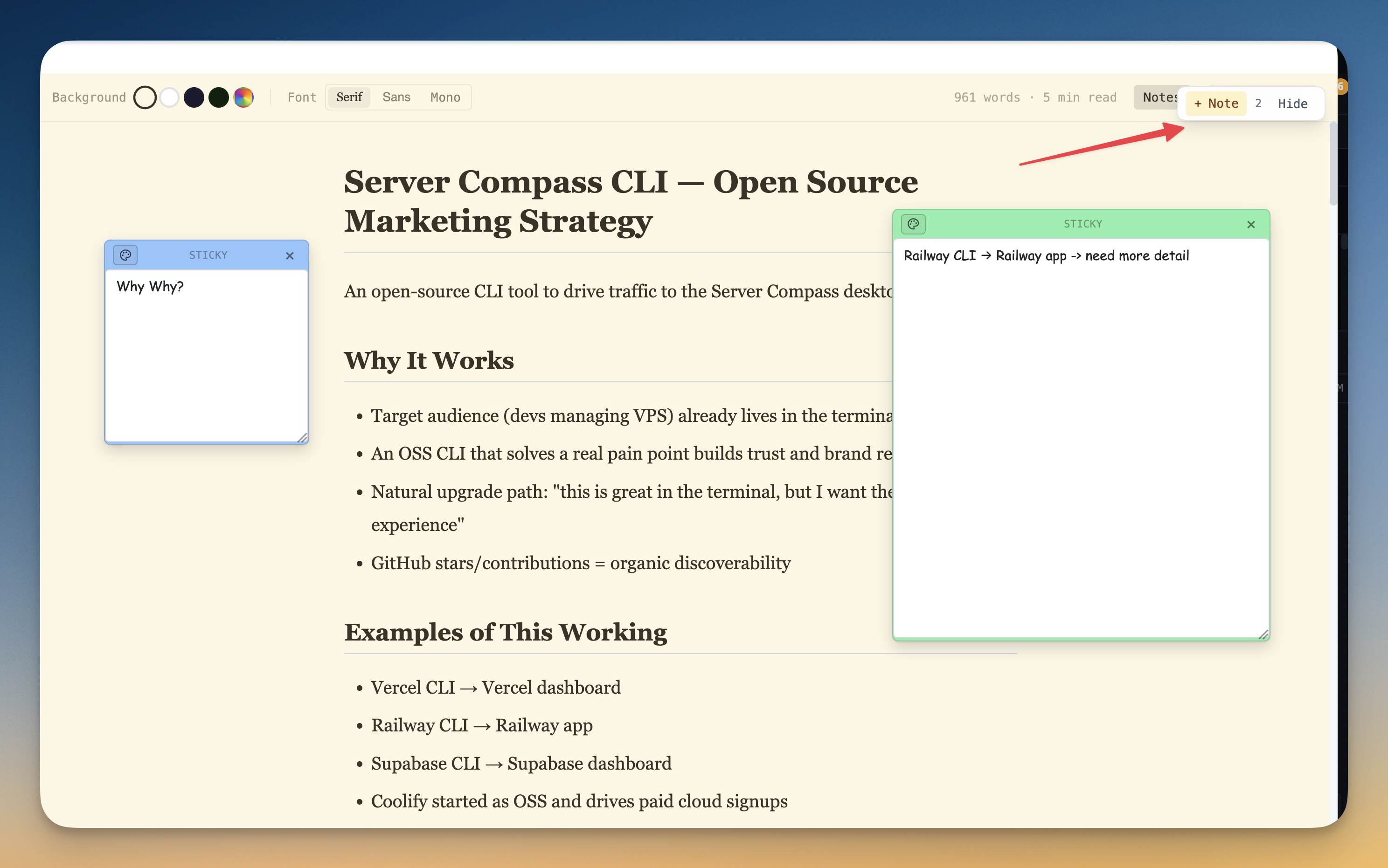
Pin movable, resizable, color-coded sticky notes alongside terminal reader output — auto-saved per session and searchable across every project from a dedicated Notes panel.
Why You Need This
How this feature boosts your daily productivity
When you're reading through a long AI agent session in reader mode, the important bits — a TODO, a follow-up question, a snippet you want to keep, a decision you don't want to forget — usually end up in a separate scratch file or, worse, in your head. Switch context once and they're gone. Sticky Notes in Reader Mode lets you drop a note directly on top of the reading view the moment you spot something worth keeping. Drag it anywhere on the page, resize it to fit your content, and pick a color to categorize it — yellow for TODOs, blue for questions, green for "done", whatever system works for you. Every note auto-saves, so you can close the terminal, switch projects, come back tomorrow, and your notes are still pinned exactly where you left them. And because they live next to the AI output that inspired them, you never lose the context of *why* you wrote each note. The new Notes tab in Prompt History rolls up every sticky note across every project into one searchable, copyable list — so the reminders and snippets you collect while reading become a long-term knowledge base, not throwaway scratch.
How It Works
Get started in 4 simple steps
Open a Terminal
Click "+" to create a new terminal tab. Choose from Claude Code, Codex, Gemini CLI, Amp, bash, zsh, or custom shells.
Arrange Your Layout
Switch between grid, columns, or fullscreen with one click. Drag dividers to resize panes to your preference.
Run Your Agents
Start your AI agents with pre-configured prompts or type freely. Watch them work in real-time with status indicators.
Monitor & Manage
Use the Terminal Dashboard for a bird's-eye view. Sessions persist across restarts so you never lose context.
Without 1DevTool
The manual way vs. the 1DevTool way
The Hard Way
The 1DevTool Way
Key Capabilities
Everything included with Sticky Notes in Reader Mode
Why It Matters
The productivity impact of having terminal & ai agents built into your workspace
Zero Context Switching
All your AI agents and terminals live in one window. No more alt-tabbing between 5 different terminal apps.
Visual Status Tracking
Color-coded tabs and the Kanban dashboard tell you which agents are done, running, or need attention — at a glance.
Persistent Sessions
Tmux-backed persistence means your terminal state survives crashes and restarts. Never lose scrollback history again.
Flexible Arrangements
One-click layouts adapt to your task: grid for monitoring, columns for comparing, fullscreen for deep focus.
More in Terminal & AI Agents
Other features in this category you might find useful
Multi-Agent Terminals
Run Claude Code, Codex, Gemini CLI, Amp, OpenCode, Qwen, and custom AI commands in dedicated terminal tabs with recognizable agent logos, custom colors, and status indicators.
Flexible Terminal Layouts
View terminals in 2×2 grid, side-by-side columns, or single fullscreen mode with resizable panes.
Terminal Dashboard
Kanban-style board view of all terminal statuses — Idle, Running, and Review — with real-time polling.
Session Persistence
Terminal sessions persist across app restarts with full scrollback history via tmux integration.
Ready to boost your workflow?
Download 1DevTool for free and experience Sticky Notes in Reader Mode along with 322 other features — all in one app.