Terminal Reader Mode
Read an AI terminal's session as a real document: pick a Dark, Black, Sepia, Paper or Forest canvas or your own colors, Serif, Sans or Mono type, a Snug, Comfort or Wide measure, and Document or Chat layout. A Prompts rail, ⌥↑/⌥↓ prompt hopping, Find in transcript and a reply composer make it a place to keep working.
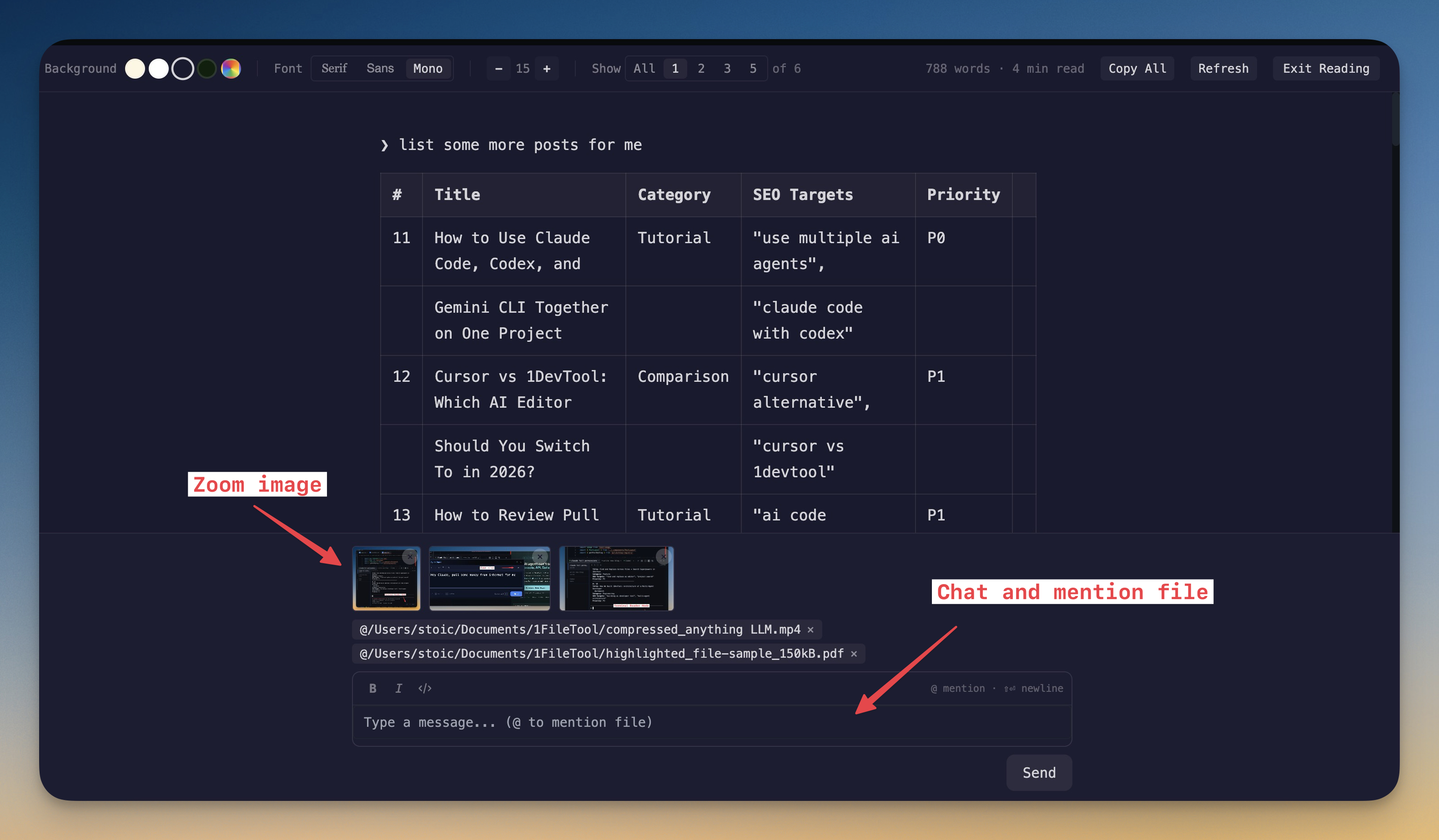
More Screenshots
Click any image to zoom in
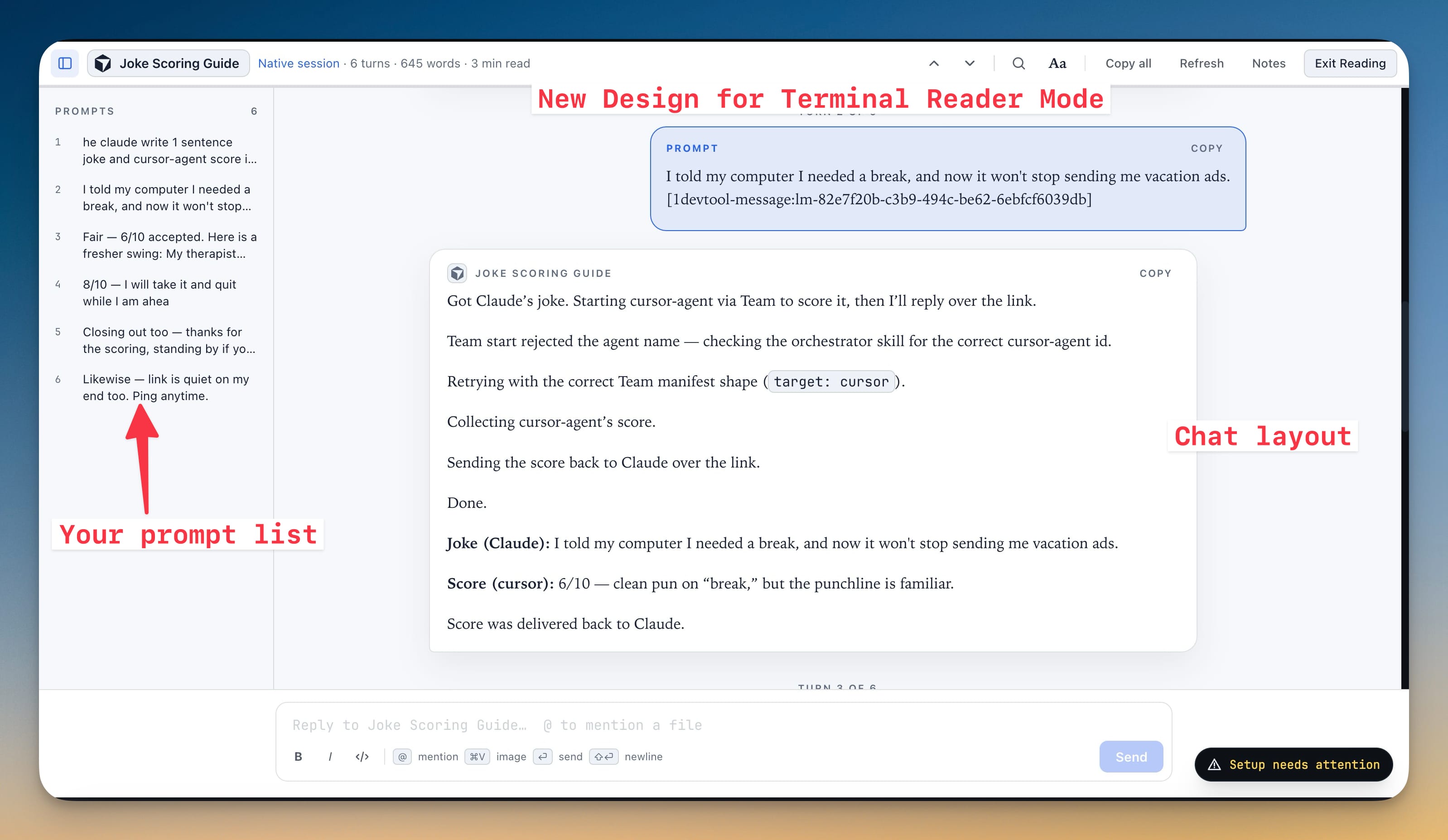
Why You Need This
How this feature boosts your daily productivity
AI agent output is packed with information — structured data, code blocks, tables, long explanations — but reading it inside a terminal is painful. Text wraps awkwardly, markdown syntax clutters the content, and you can't search or skim effectively. Terminal Reader Mode renders all that output as clean, formatted text with proper markdown support. Choose a Dark, Black, Sepia, Paper or Forest canvas or your own colors, switch between Serif, Sans, and Mono fonts, set a Snug, Comfort or Wide measure, and adjust the font size for comfortable reading. A Prompts rail lets you hop between your own prompts with ⌥↑ and ⌥↓. A built-in search highlights matches so you can jump to any section instantly, and word count with estimated reading time tells you how much output you're dealing with. Best of all, you can chat with your AI agent directly from reader mode — send follow-up prompts, @mention files with fuzzy search, and drag-and-drop attachments without ever leaving the reading view.
How It Works
Get started in 4 simple steps
Open Reader Mode
Press ⌘⇧E in a terminal or click Open in Reader Mode in its header. Supported agents read as turns from their native session; shells fall back to screen text.
Set up the page
Aa opens Reading: pick the canvas (Dark, Black, Sepia, Paper, Forest or custom colors), typeface, size, measure, Document or Chat layout and how many turns to show.
Move through the session
Jump between your prompts from the Prompts rail or with ⌥↑ and ⌥↓, search with Find in transcript (⌘F), and copy one turn or Copy all shown turns.
Reply without leaving
Type in the composer at the bottom — @ mentions a file and pasted images attach — pin Notes beside the transcript, and press Esc to exit.
Without 1DevTool
The manual way vs. the 1DevTool way
The Hard Way
The 1DevTool Way
Key Capabilities
Everything included with Terminal Reader Mode
Why It Matters
The productivity impact of having terminal & ai agents built into your workspace
Long Answers You Can Actually Read
Rendered markdown on a comfortable measure beats wrapped terminal text for plans, reviews and long explanations.
Find Your Place Fast
The Prompts rail and ⌥↑/⌥↓ take you straight to the turn you want instead of scrolling back through the terminal.
Read It Your Way
Canvas, typeface, measure and layout fit the page to the light you're in and the length of the session.
Keep Working From the Page
Reply, attach images and pin notes without switching back to the raw terminal.
More in Terminal & AI Agents
Other features in this category you might find useful
Multi-Agent Terminals
Run Claude Code, Codex, Gemini CLI, Amp, OpenCode, Qwen, and custom AI commands in dedicated terminal tabs with recognizable agent logos, custom colors, and status indicators.
Flexible Terminal Layouts
View terminals in 2×2 grid, side-by-side columns, or single fullscreen mode with resizable panes.
Terminal Dashboard
Kanban-style board view of all terminal statuses — Idle, Running, and Review — with real-time polling.
Session Persistence
Terminal sessions persist across app restarts with full scrollback history via tmux integration.
Ready to boost your workflow?
Download 1DevTool for free and experience Terminal Reader Mode along with 321 other features — all in one app.