Mar 14, 2026
Agent Input Overlay & Tmux Integration: The Proper Way to Prompt AI Agents
Press Cmd+I to open a rich prompt editor with @file mentions, image drag-and-drop, markdown preview, and formatting — all without leaving the terminal. Plus tmux-backed persistent terminals.
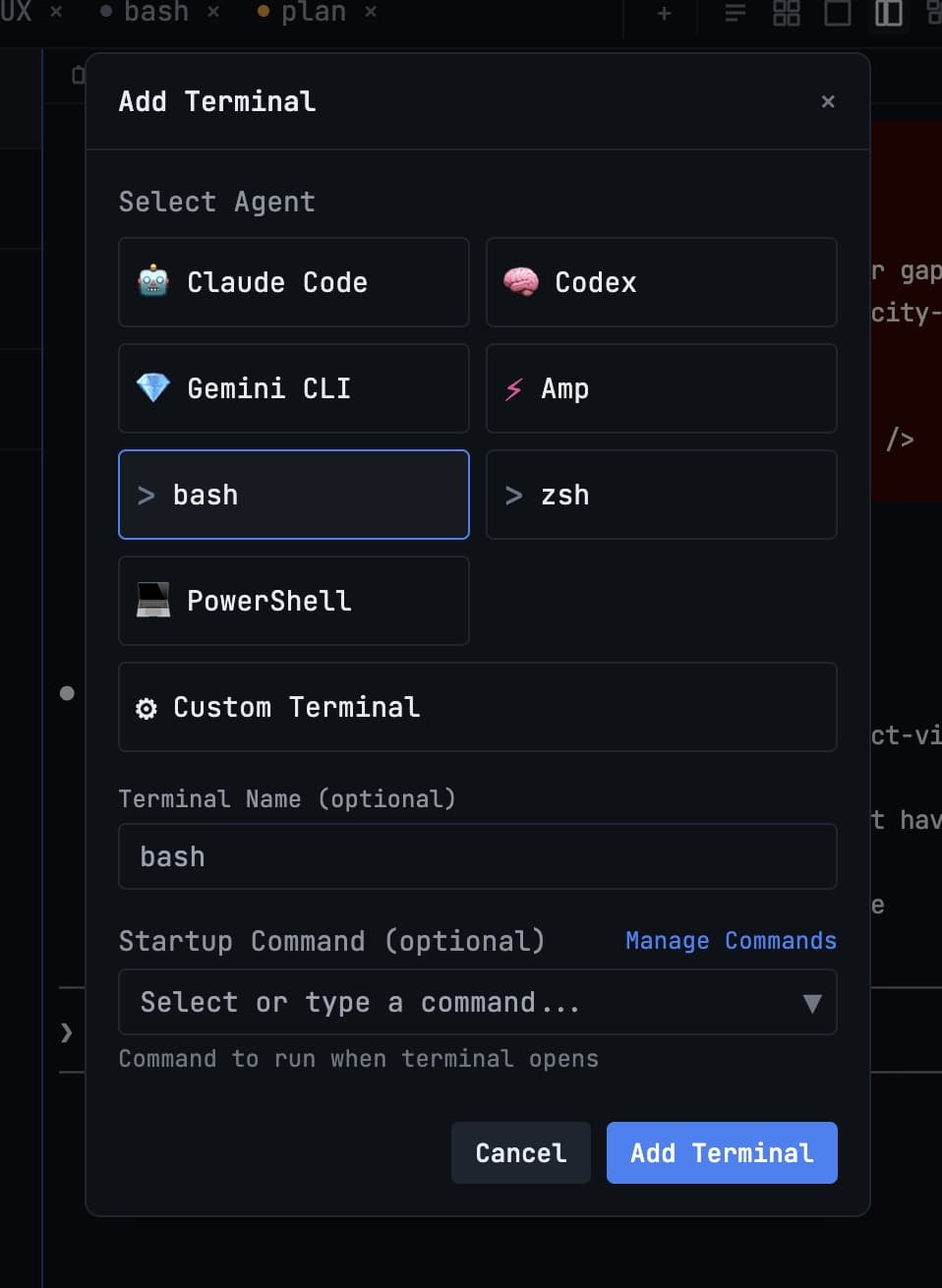
Typing prompts directly into an AI terminal feels wrong. You're sending multi-line prompts with file references, code snippets, and images — but the terminal input is a single-line box designed for shell commands. You need a proper input surface. v1.1.2 introduces the Agent Input Overlay — press Cmd+I to open a full-featured prompt editor without leaving the terminal.
Agent Input Overlay (Cmd+I)
Press Cmd+I on any AI terminal and an overlay appears with a rich text area. Write multi-line prompts with formatting (bold, italic, code blocks), @mention files with fuzzy search, drag and drop files and images, and preview your prompt in live markdown before sending.
The overlay doesn't replace the terminal — it floats above it. You can still see the terminal output underneath, reference it in your prompt, and dismiss the overlay when you're done.
@Mention Files with Fuzzy Search
Type @ in the overlay and a fuzzy file search appears. Select any file in your project and its path is included as context for the AI agent. This is how you tell Claude Code "look at this specific file" without manually copying the file path.
Drag, Drop, and Paste Images
Drag images from Finder, paste screenshots from the clipboard, or drop files directly into the overlay. Images appear as thumbnails you can verify before sending. This is essential for visual feedback — screenshot a UI bug, paste it into the overlay, describe the fix, send.
Tmux Integration: Persistent Terminals
Terminals in 1DevTool are backed by tmux, which means they survive app crashes and restarts. v1.1.2 adds one-click tmux installation with a live progress indicator. If tmux isn't installed, 1DevTool prompts you to install it and handles the setup automatically.
React Component Inspector
The embedded browser now includes a React component inspector. Click any element on the page to see its component name, props, and position in the component tree. Useful when an AI agent generates React code and you want to verify the component structure.
Try It Today
The Agent Input Overlay is available in 1DevTool v1.1.2. Press Cmd+I, write your prompt with @mentions and images, preview it, and send — all without leaving your terminal.
Cmd+I. Write. @Mention. Send. Stay in the flow.