Jul 22, 2026
Let an AI Agent Drive the Browser You're Already Using
Agent browser automation usually means a second, empty browser that hits your login wall on step one. In 1DevTool v1.51.0, an agent connected through MCP drives the Browser panel already docked in your workspace — your tabs, your session, watched live.
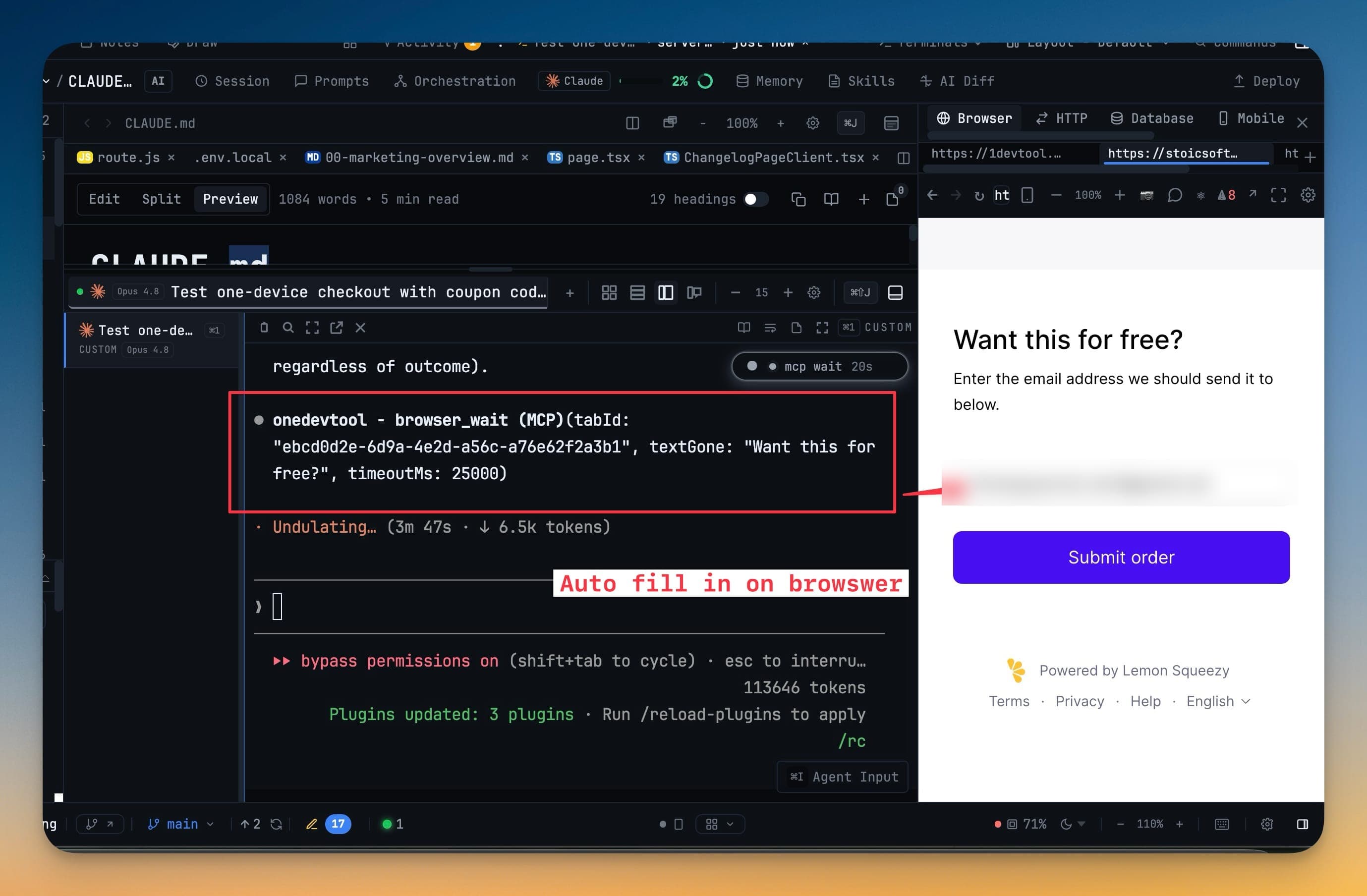
You ask the agent to check the checkout flow. It spins up a browser — a fresh, empty one — and hits the login wall on step one. No cookies, no session, none of the state you've had loaded all morning. So you do the thing everyone does: paste a test account into the prompt, or give up and click through the flow yourself while the agent waits.
The problem was never that agents can't drive a browser. It's that they drive a different browser — one you can't see, that knows nothing about your session, and whose actions you find out about only when it reports back.
What changed
An agent connected through 1DevTool MCP can now operate the Browser panel that's already docked in your workspace. Same tabs. Same navigation history. Same signed-in sessions. You watch the page move while the agent works, because it's the browser sitting right there in front of you.
How it works in practice
Point the agent at the browser you can see
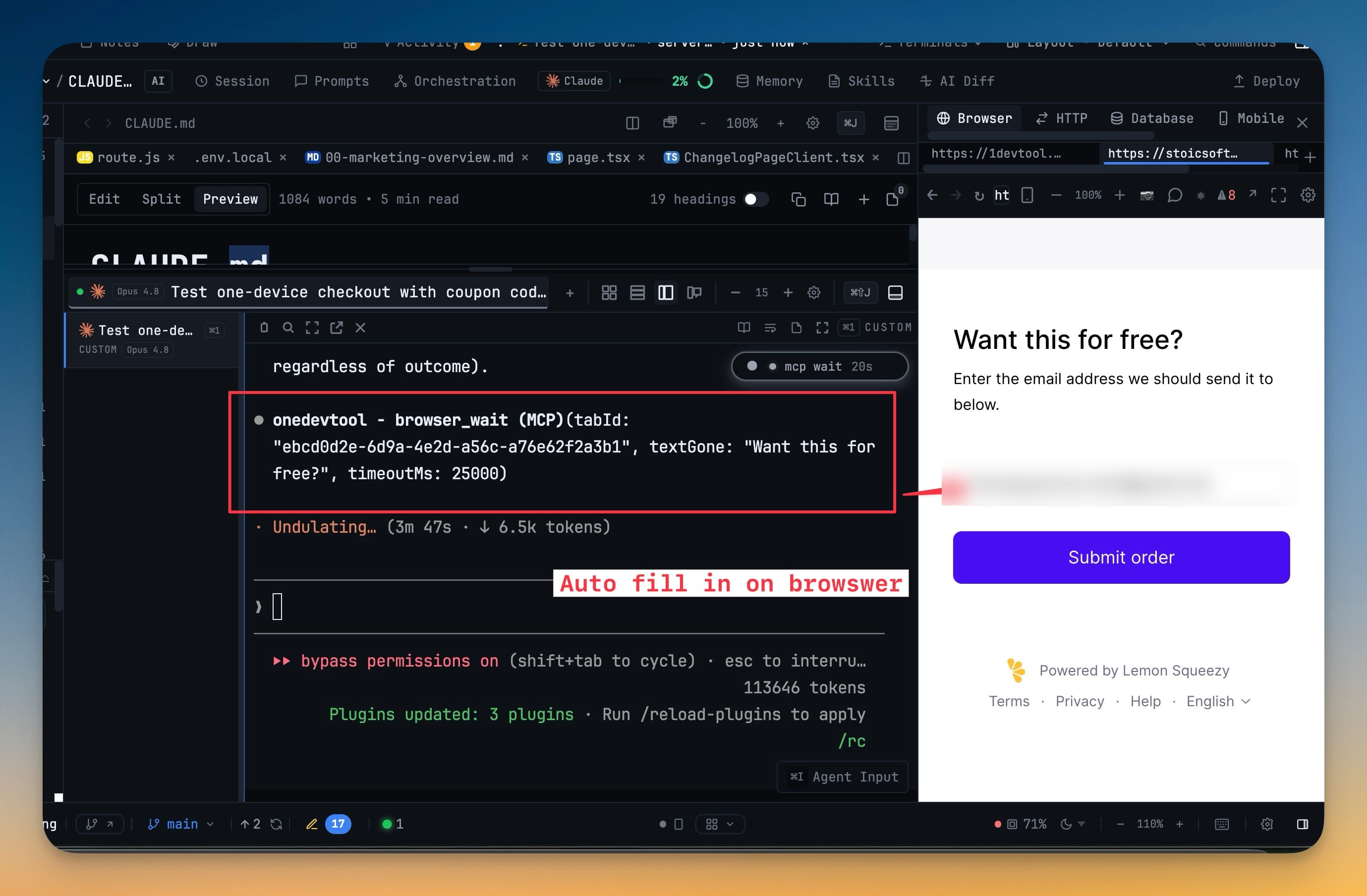
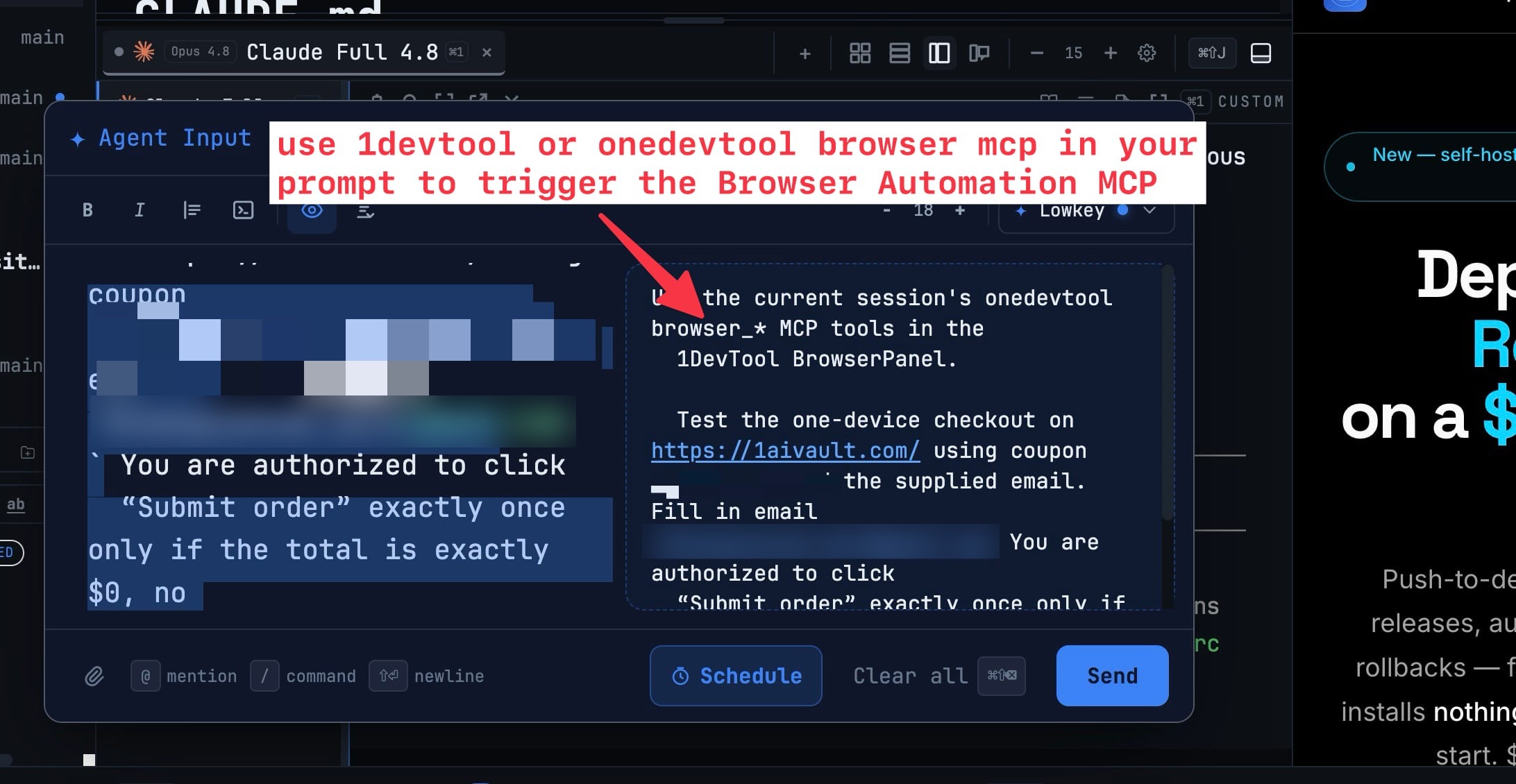
Mention 1devtool or onedevtool browser MCP in your prompt and the request routes to the Browser panel instead of an external Chrome session. Describe the task the way you'd describe it to a person — which page, what to fill in, what to click, what counts as done.
Under that one sentence sit sixteen tools. The agent can browser_open_tab, browser_list_tabs, and browser_select_tab; move with browser_navigate, browser_go_back, browser_go_forward, and browser_reload; act with browser_click, browser_type, browser_select_option, and browser_press_key; and read with browser_snapshot, browser_get_console_logs, and browser_take_screenshot. When a page needs a moment, browser_wait blocks on a condition — text appearing, text disappearing, a load state — instead of on a guessed sleep.
Let it read the page, not guess at it
browser_snapshot returns the page's accessibility structure with a reference for each interactive element, so the agent clicks the button it actually identified rather than coordinates it hoped were right. After navigation, page references refresh, so a stale handle from the previous page can't silently target the wrong control.
When structure isn't enough — a rendering bug, a layout question, a chart — browser_take_screenshot captures the current tab exactly as you see it, and browser_get_console_logs pulls the errors the page logged while the agent worked.
Keep it scoped, and keep passwords out
Every call is scoped to an explicit project and tab, so an agent working on one project can't wander into another project's tab. Typing into password fields is blocked by policy, file inputs are protected, and sensitive values in a page snapshot come back as «redacted» rather than plaintext.
Read back what it did
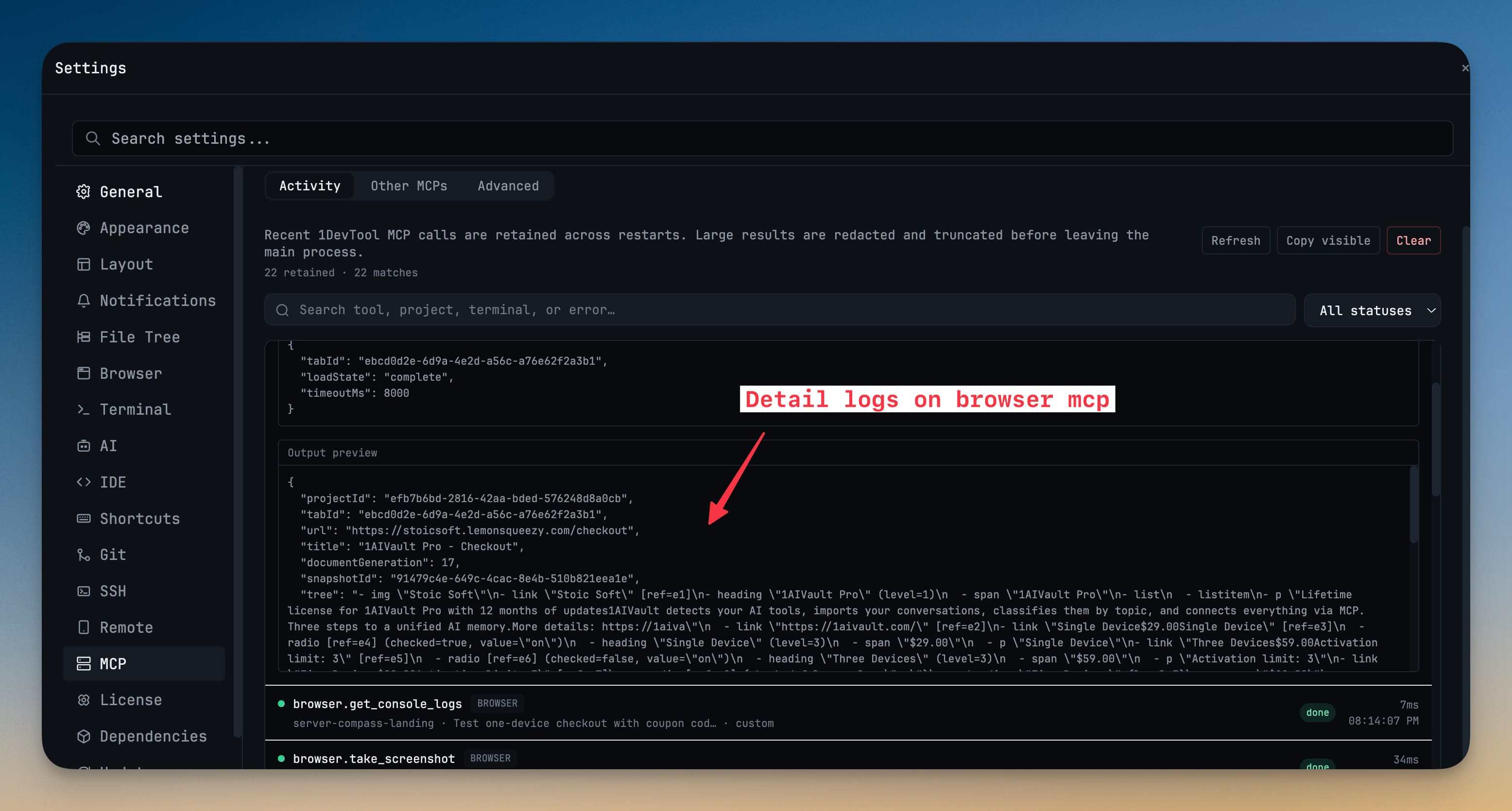
Terminal badges show the last few calls and then clear. For everything else, Settings → MCP → Activity keeps a searchable history of recent calls — tool name, status, duration, project, terminal, error — and it survives app restarts.
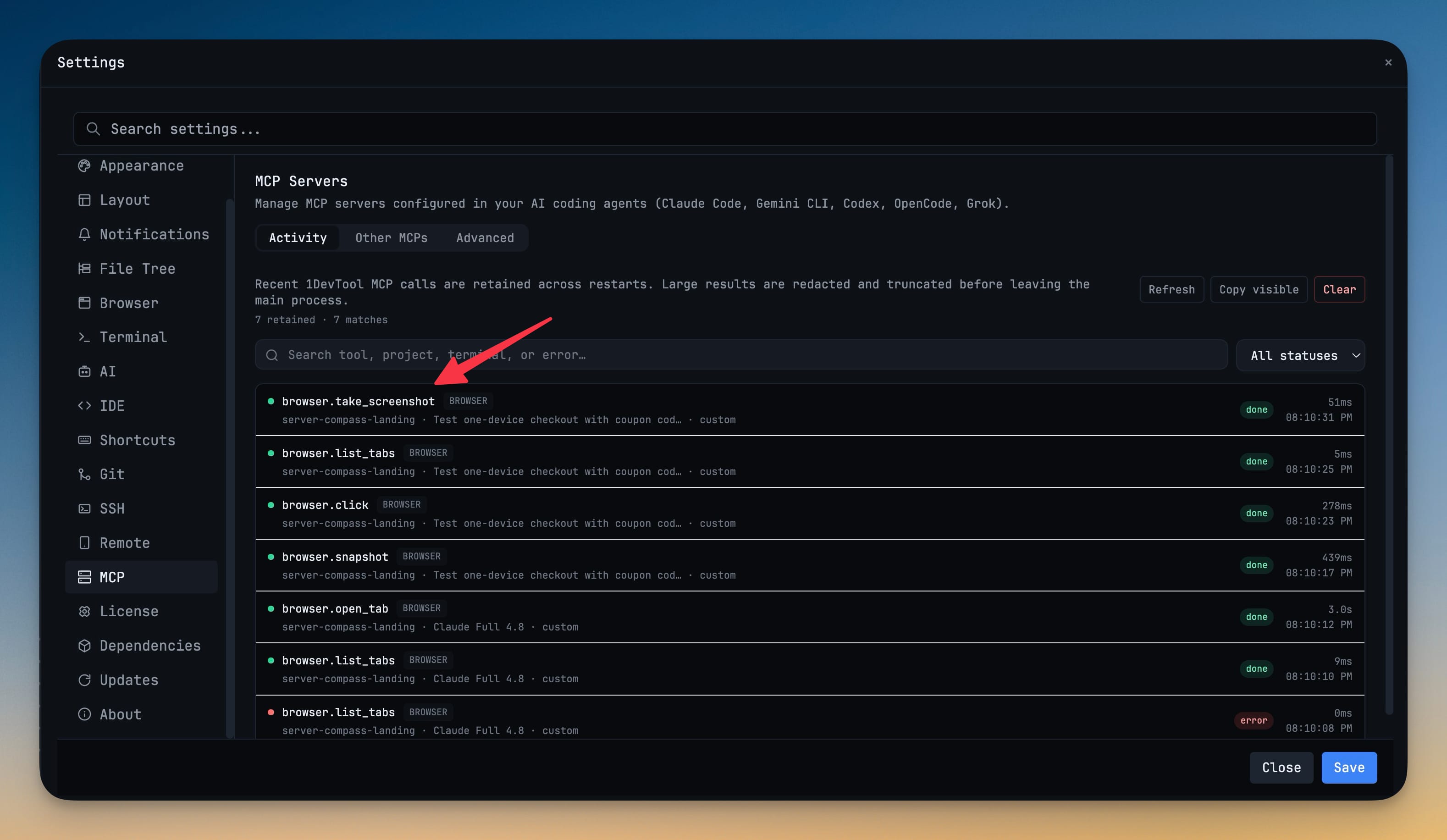
Filter to just the errors when something failed, or expand a call to read its input and a truncated preview of what came back. Large results are shortened and sensitive values redacted before they reach the interface, so the log stays readable — the agent still receives the complete result.
Before vs after
| Before v1.51.0 | With v1.51.0 | |
|---|---|---|
| Which browser the agent uses | A separate headless or external Chrome session | The Browser panel already open in your workspace |
| Logged-in state | Fresh profile — log in again, or hand over credentials | Your existing session, already signed in |
| Watching it work | Read the transcript afterwards | Watch the page move in real time |
| Finding an element | Coordinates or selector guessing | Accessibility snapshot with a reference per element |
| Waiting for a page | Fixed sleeps | browser_wait on text appearing, disappearing, or a load state |
| Reviewing a run later | Badges that disappear | Searchable activity history that survives restarts |
Who benefits most
Anyone testing a flow behind a login. Checkout, dashboard, admin panel — the agent inherits the session you already have, so there's nothing to re-authenticate.
Frontend developers debugging in place. The agent reads console output and takes a real screenshot of your dev server, in the browser panel that's been next to your editor the whole time.
People who don't fully trust agent automation yet. Watching it click, with a per-call log you can read afterwards, is a much easier way to build that trust than reading a summary of what it claims it did.
Also in this release
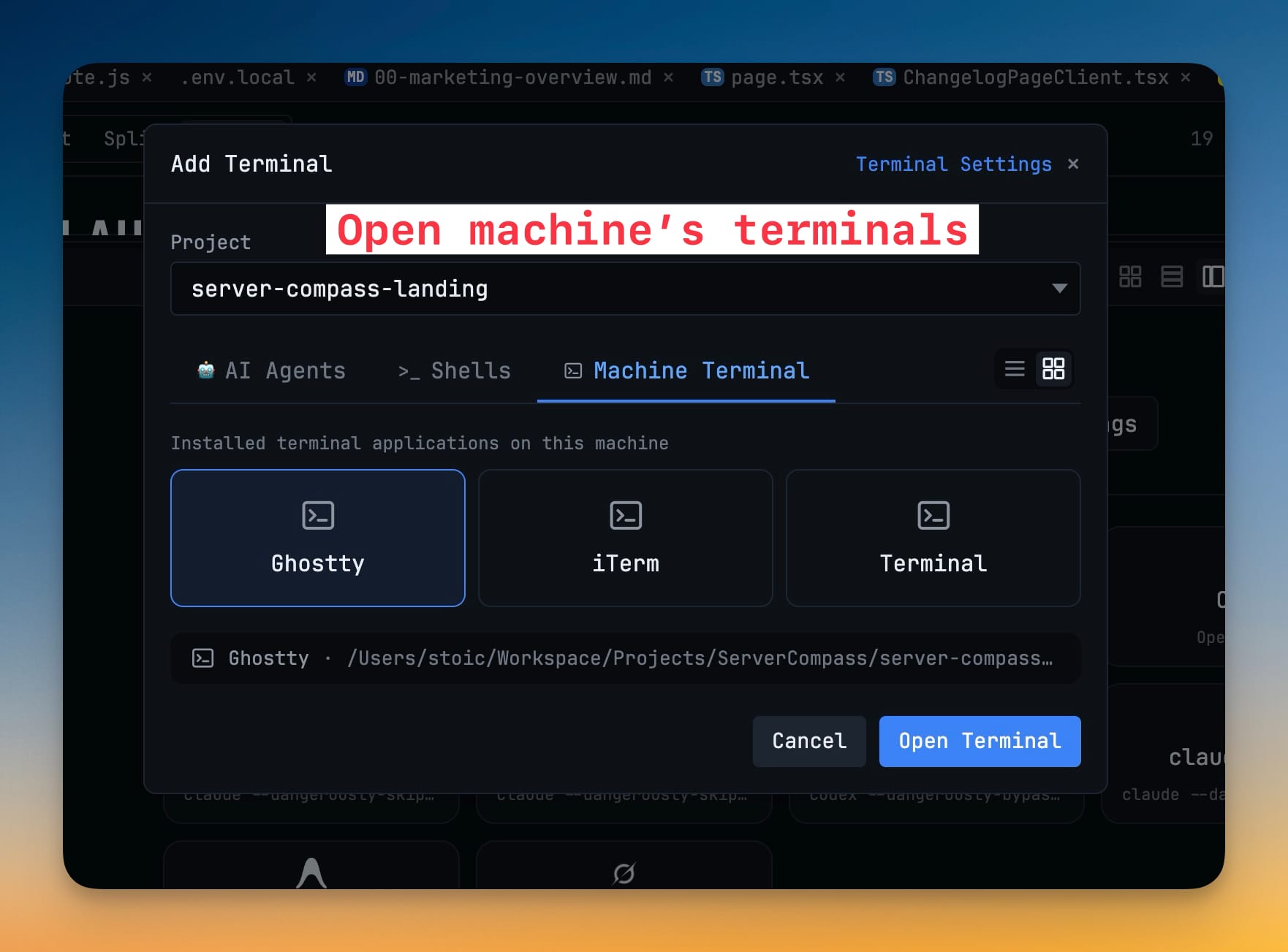
Machine Terminals. The Add Terminal dialog now has a Machine Terminal tab listing the terminal apps installed on your machine — Ghostty, iTerm, Terminal — and opens your pick already in the selected project's folder.
Antigravity session resume. Antigravity conversations now appear in Resume AI Sessions with their workspace, title, recent messages, and activity time, and continue in a new Antigravity terminal.
Renamed conversations stick. Renaming a terminal tab updates the coding agent's own session title, so the name follows the conversation when you reopen or resume it.
Try it
Update to v1.51.0, open the Browser panel on the page you care about, and ask an agent to work in it — just say 1devtool browser mcp in the prompt. Then open Settings → MCP → Activity and watch the calls land. The browser the agent drives is the one you're already looking at.