Jul 28, 2026
Your agents can read each other's work
Linked agents can now pull a peer's transcript, terminal screen or published file and use the answer in the same turn — behind four separate grants that stay off until you give them. Plus a rebuilt Tasks board, a planner you choose, and terminals that fit the phone reading them.
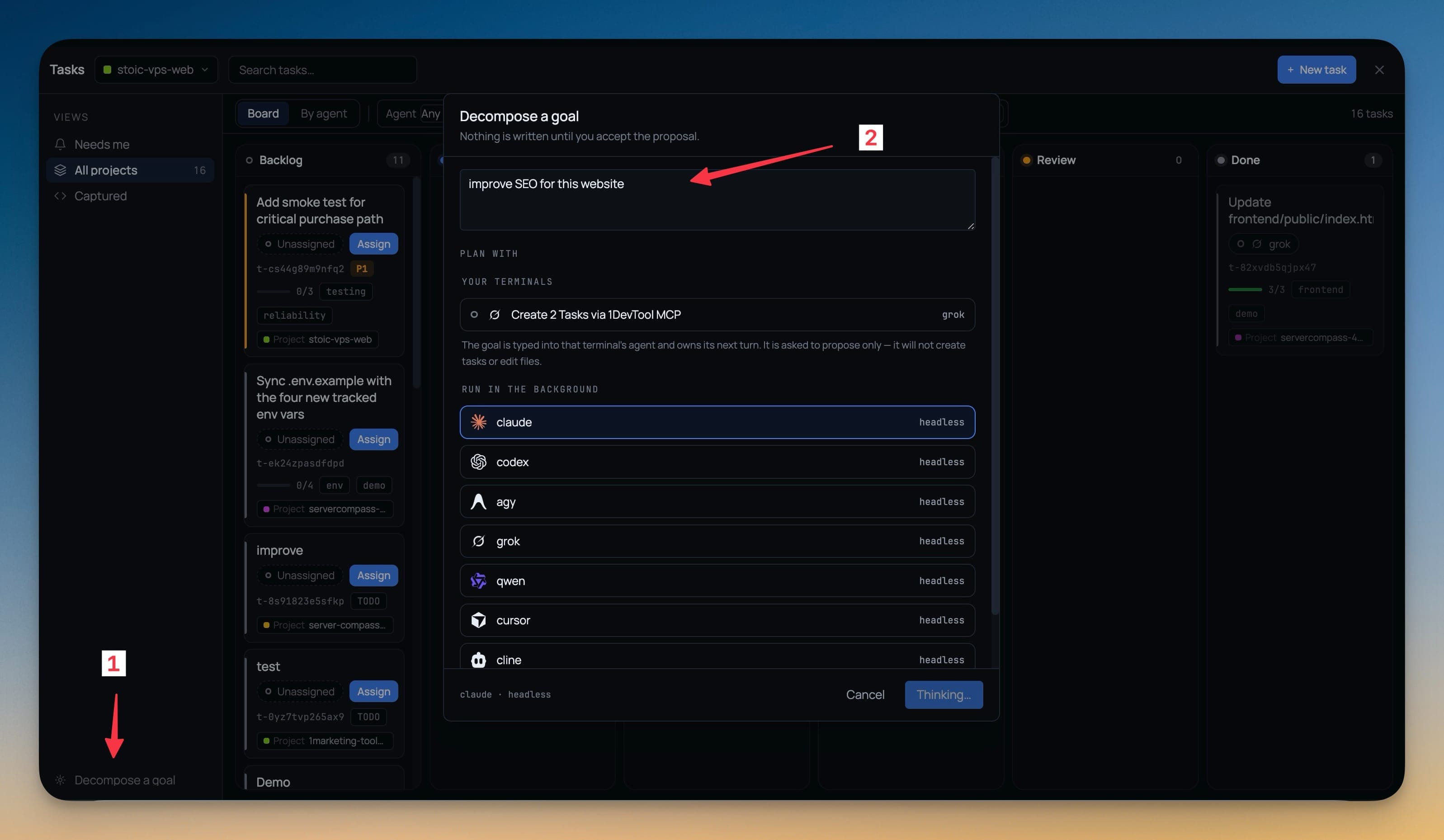
Two agents are working the same project. One spent the last forty minutes tracing a failure through the build, found the cause, and moved on. The other is about to start on the fix and needs to know what the first one actually learned — not the summary it wrote three turns ago, what it knows now.
So you become the wire. You scroll back through one terminal, copy the part that matters, switch panes, paste it in. Or you send the first agent a message and wait for it to finish whatever it is doing before it answers, which is the same as waiting for a person who has headphones on.
The agents were already linked. They could send to each other and ask each other. What they could not do was look.
What changed
A linked agent can now pull its peer's work directly — a bounded slice of its transcript, the whole transcript, the terminal screen as rendered, or a file the peer published for it — and use the answer in the same turn. No handoff, no waiting for the other agent to reach a stopping point.
And nothing is readable until you say so. Read access is off by default, granted per link, and split into separate permissions rather than one switch.
How it works in practice
An agent looks instead of asking
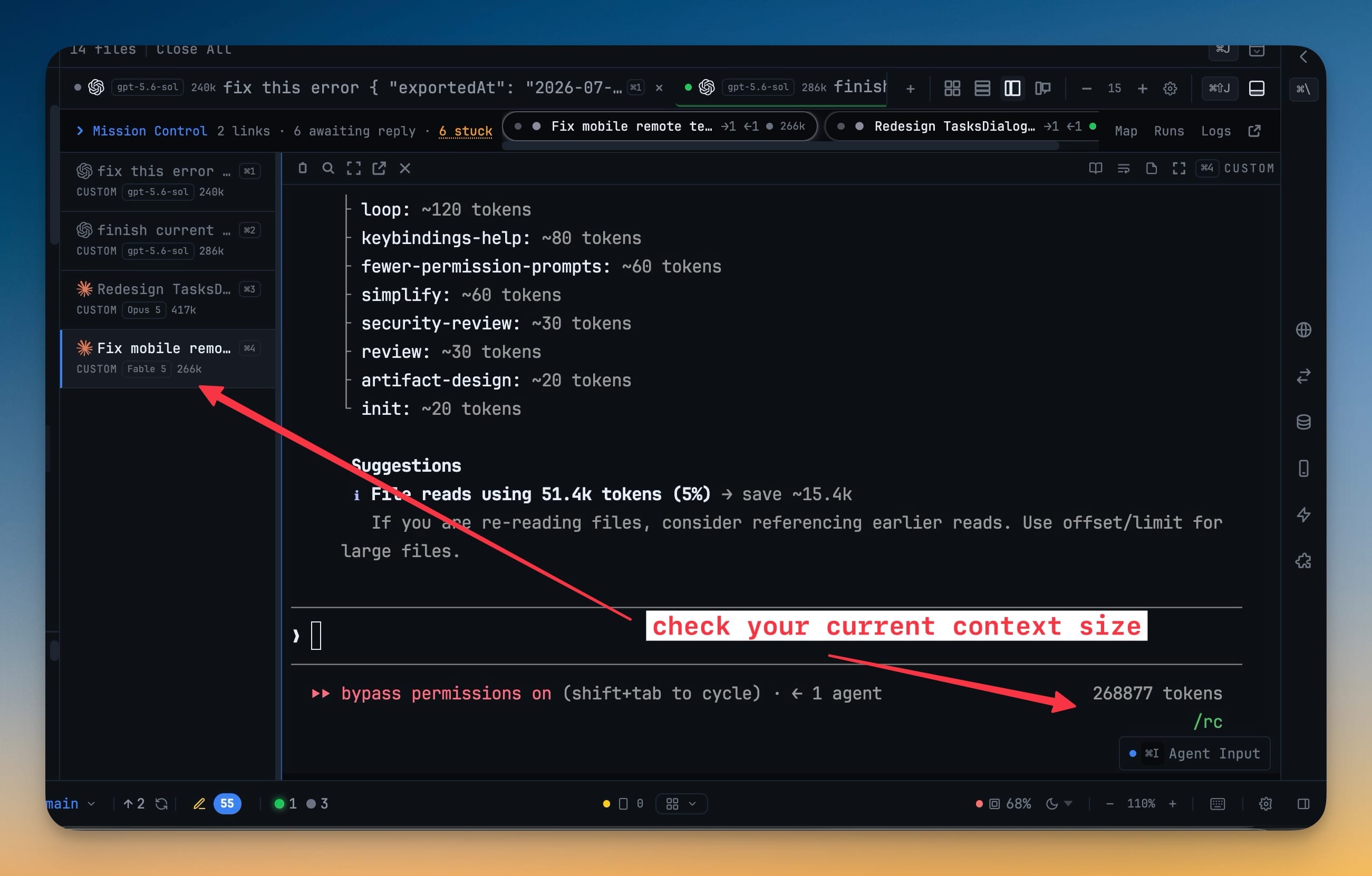
A read is a request the peer never has to handle. The requesting agent asks for a bounded transcript when it needs recent context, the full transcript when it needs the whole thread, the terminal screen when it needs to see what is on it right now, or an artifact the peer published for exactly this purpose. It can also just ask whether anything has changed since it last looked, which is the cheap version of the same question.
The distinction that matters: the peer keeps working. Nothing interrupts it, nothing queues behind its current turn, and the answer comes back inside the requesting agent's turn instead of two minutes later.
Nothing is readable until you grant it
The four grants — read-transcript, read-transcript-full, read-screen and read-artifact — are
independent. Turning on the full transcript adds to the bounded grant, it never replaces it, so
widening access is always a visible step rather than a side effect.
When you approve one, the dialog names every agent whose content could be reached through that link, not just the one in front of you. It also says two things out loud that permission prompts usually leave for you to work out:
- The screen grant strips terminal control codes and nothing else. Credentials, API keys, environment
output and
.envcontents come back verbatim. That is why it is off by default and asks a second time. - Whatever an agent reads becomes part of that vendor's conversation and follows that vendor's retention policy. Revoking stops the next read; it cannot recall what was already copied.
On macOS a read has to prove who is asking. The request is verified against the operating system, so only the live process running inside the terminal that owns the link can read through it — an agent next door that merely knows the right identifiers gets nothing. Linux and Windows refuse these reads for now rather than accept a weaker proof; sending and asking work there exactly as before.
Every link your agents have, in one list
AI settings now has Live orchestration links: the links that are active, the ones that broke when a terminal restarted, and the ones an agent has requested and not been given. From there you approve or deny a request, edit what an existing link may do, review whose content a read grant would actually expose, reconnect a link whose terminal came back, or remove it.
Two behaviours moved out of hiding while that list was built. Each link is either Auto delivery or Confirm each, so you can decide per link whether messages land or wait for you. And auto-arranging terminals while agents collaborate is now a real setting — Auto-arrange live orchestration (2×2 grid) — that restores your layout once the project goes quiet, unless you changed it yourself in the meantime.
A delivery that needs your approval no longer means hunting through a list either. It shows up on the receiving agent's card in Mission Control and on the Team Map with Submit and Reject on it.
The Tasks board, rebuilt around who owns what
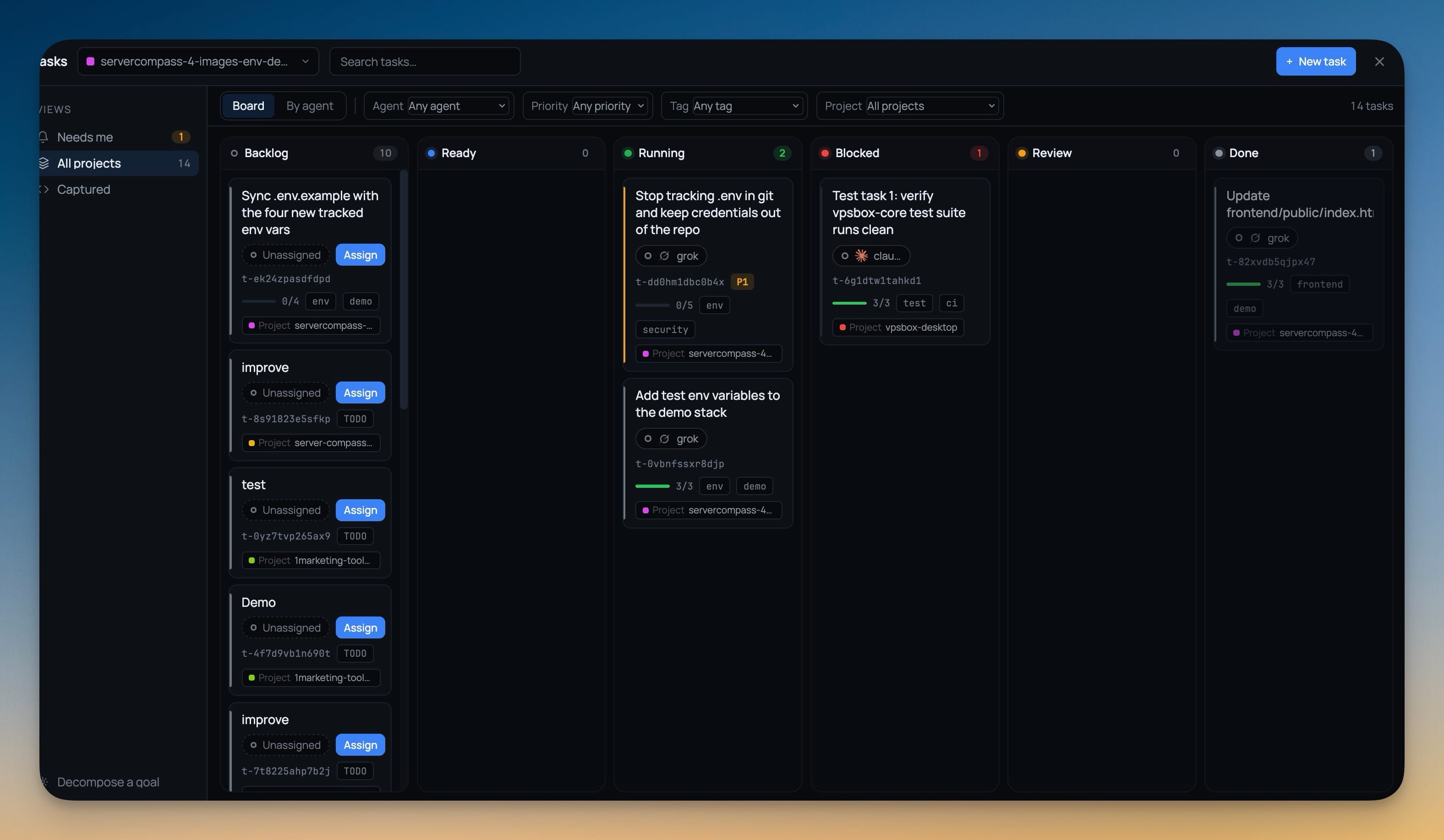
The board is now two views behind a segmented control. Board is a plain kanban — Backlog, Ready, Running, Blocked, Review, Done — where every card names its owner, and a column separates unassigned from assigned work only when it holds both. By agent is a roster instead: one line per agent with its state written out — Working, Waiting for approval, Idle, Offline — and its own counts. Agents mid-flight or waiting on you open themselves; idle ones stay collapsed.
Filters sit above the columns for agent, priority, tag and project, each option carrying a count, and one click clears them. Blocked is a real column now, appearing when there is blocked work and disappearing when there isn't — so a "Needs me" count can no longer point at tasks the board never drew.
Dragging a card is treated as a request, not a silent write:
- Drop into a column an agent is waiting on and the approval opens instead of being stepped over, so the move is recorded with your verdict rather than behind it.
- A move that would skip a pending plan or spec review is refused and names what is holding it. Pulling a task back or cancelling it always works.
- Accepting a status an agent already wrote, or starting work with an open blocker, asks first.
- Dragging never assigns work. Assign is still the only way an agent is given a task.
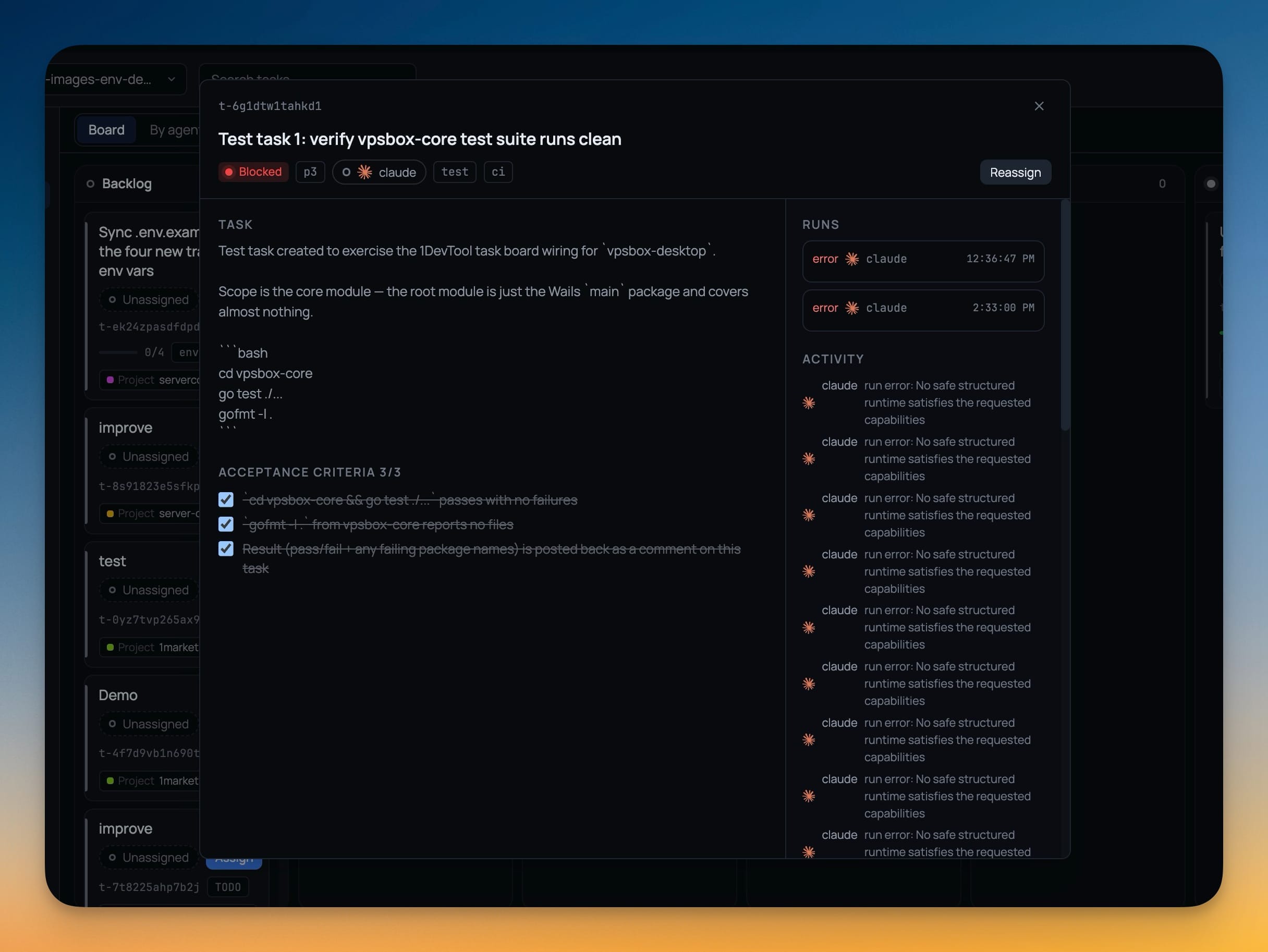
Open a card and the detail pane carries the same honesty: acceptance criteria on the left, every run on the right, and the activity stream underneath it. A blocked task tells you which run failed and what it said, rather than leaving you to go find the terminal it happened in.
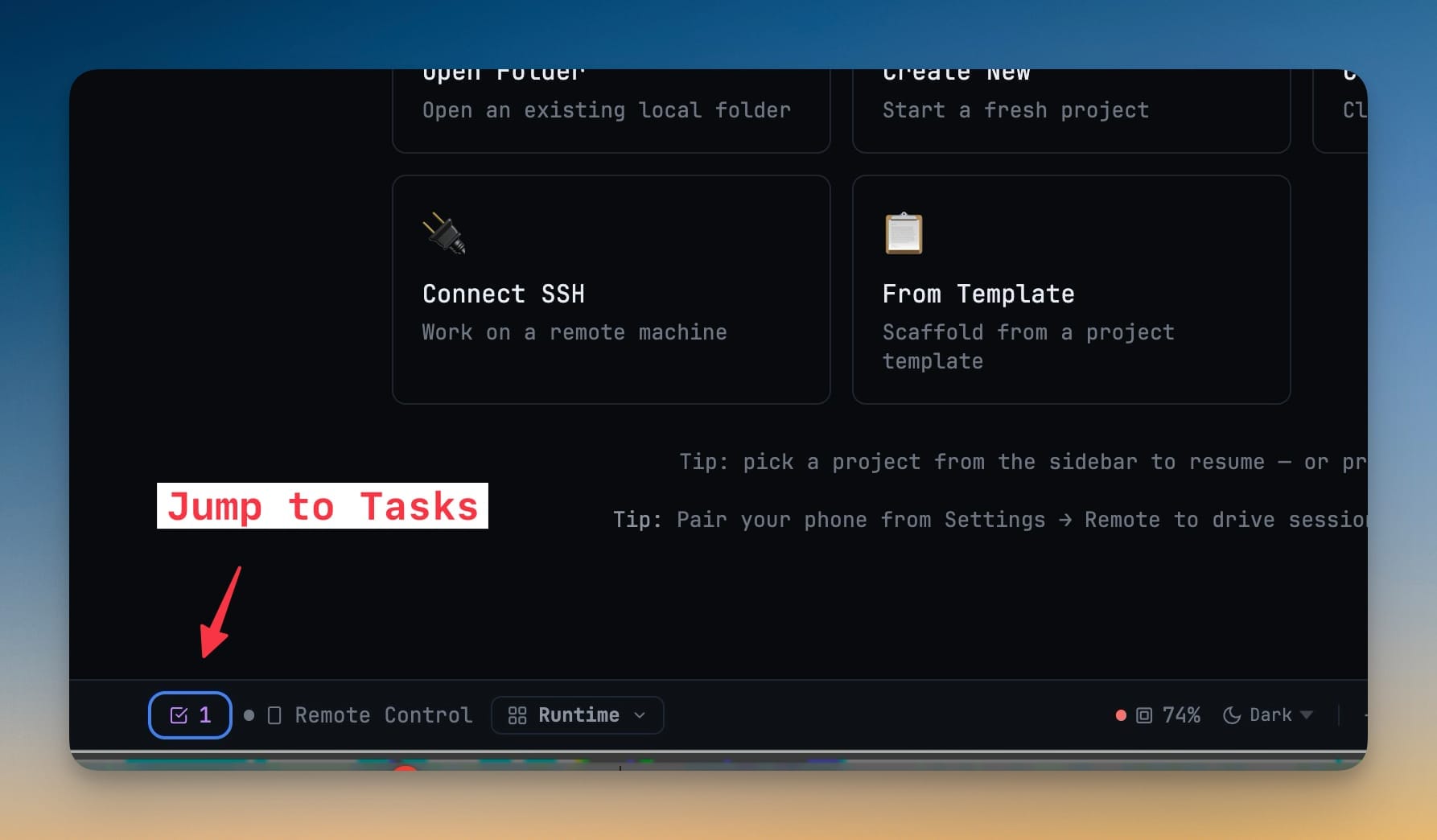
And the status bar carries a badge with the count of things waiting on you, from any project, with the board one click away.
Decompose a goal — you pick who plans
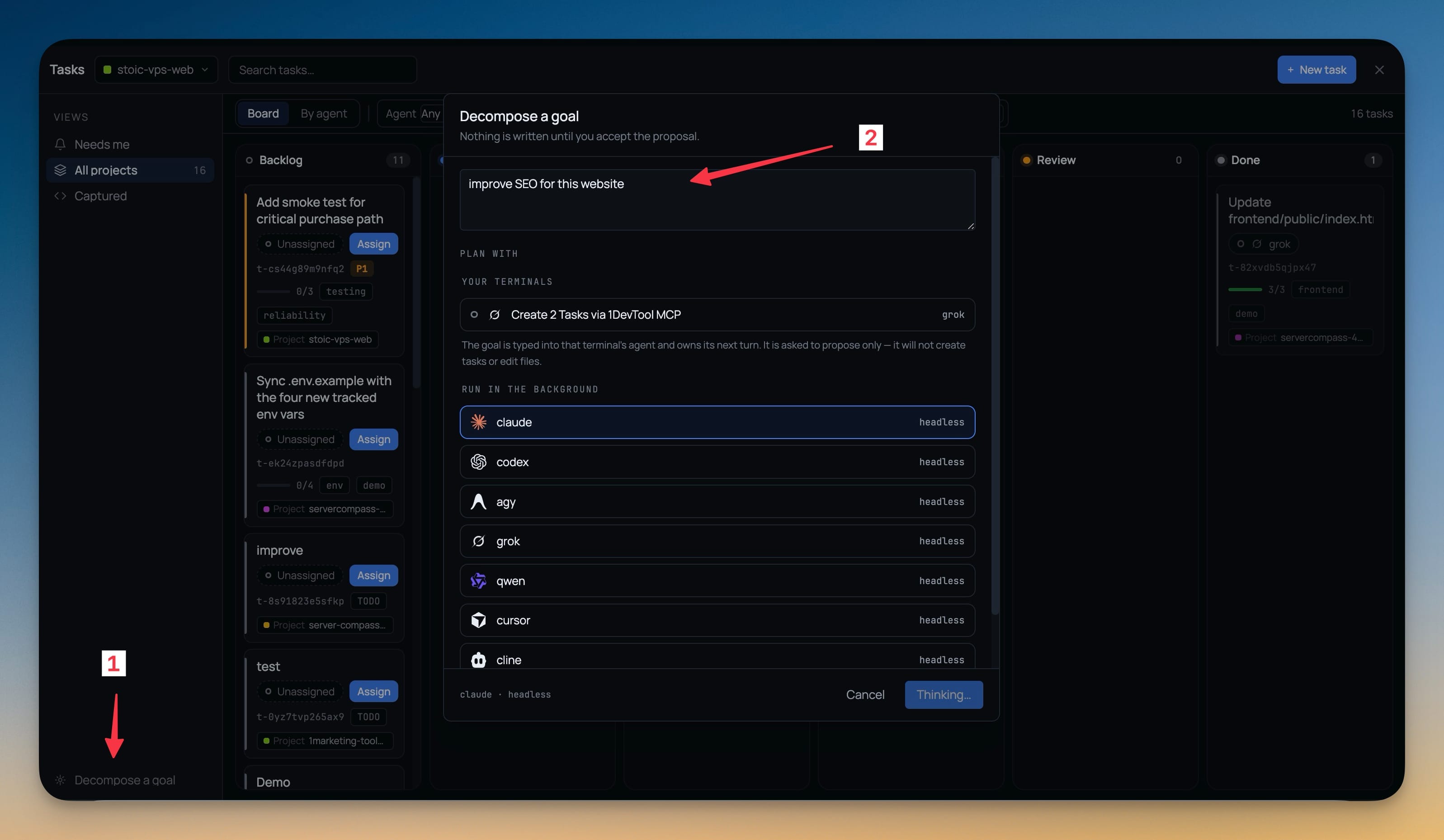
Describing an outcome and letting an agent propose the task set is not new. Choosing which agent does that thinking is. The Plan with picker lists your live AI terminals and every installed agent that can run headless — claude, codex, agy, grok, qwen, cursor, cline — so you can run the planning quietly in the background or hand the goal to the agent already sitting in front of you.
While it runs you get a live log with an elapsed-seconds counter that names the binary it started and where it started it, and says out loud when an agent prints nothing until it finishes. If the proposal comes back in a shape that can't be parsed, you see what the agent actually replied instead of a dead end. A terminal you borrowed for planning is always given back — never closed, never left claimed, even when the run times out.
The line under the title still holds: nothing is written until you accept the proposal.
A terminal that fits the phone reading it
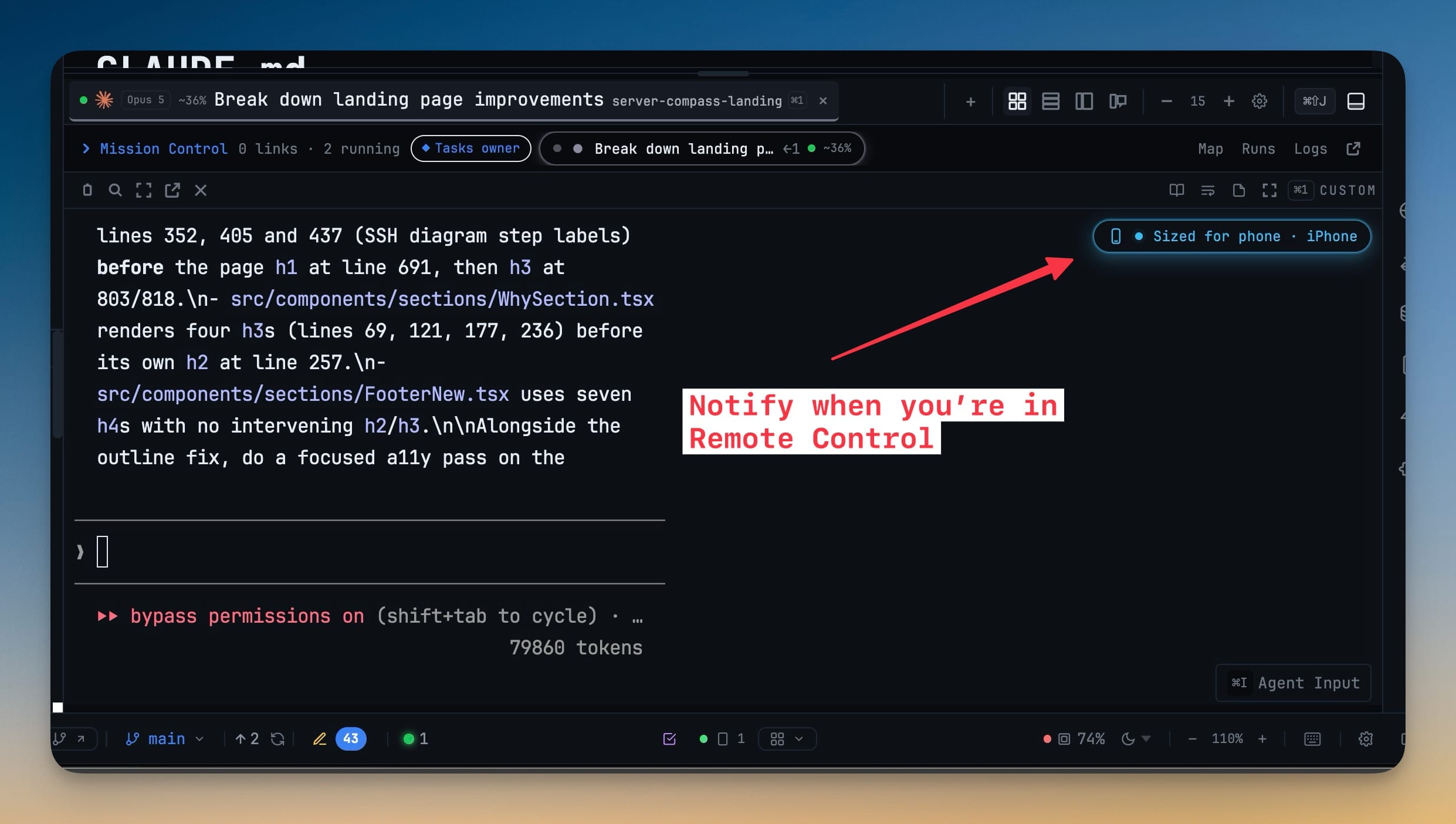
Open a terminal on your phone and it reflows to your screen. The phone actively viewing a session owns its width, so lines wrap instead of forcing you to pan across a desktop-width grid to read a sentence — and the newest output and the agent's input box sit where you can reach them. Two phones watching at once settle on the size that works for both.
The desktop is not left guessing. While a phone is attached, the pane says Sized for phone and offers a shortcut into Reader Mode, which re-renders the transcript at any width. Close the terminal on your phone and the desktop pane gets its own size back. Read-only viewers keep the mirrored view they had.
There is a Teams tab in the phone UI now too — which agents are linked, what has been delivered, what is queued, what is waiting on a reply, and which links are broken. Read-only by design: the phone shows you the picture, the desktop makes the changes.
Before vs after
| Getting one agent what another one knows | Before | Now |
|---|---|---|
| Recent context from a peer | Scroll its terminal, copy, paste | Peer's bounded transcript, read in the same turn |
| "Has anything changed?" | Message it and wait for its turn to end | Answered without interrupting it |
| What is on its screen right now | Switch panes and look yourself | read-screen, if you granted it |
| Who can read what | Not a question you could ask | Four grants per link, off by default, listed in settings |
| Moving a task an agent is waiting on | Overwrite its state and hope | The approval opens; your verdict is recorded with the move |
| Deciding who plans a goal | Whatever ran the decomposition | Any live terminal or headless agent you pick |
| Reading a terminal on your phone | Pan sideways through desktop-width output | Reflowed to your screen, desktop restored on close |
Who benefits most
If you run more than two agents at once, the read grants remove the job you did not sign up for — being the copy-paste layer between them — and the settings list finally answers what each link is allowed to do.
If you hand work to agents and check back later, the rebuilt board is the difference between a grid of cards and a roster that says Working, Waiting for approval, Idle or Offline in words, plus a Blocked column that only exists when something is actually blocked.
If you leave your desk mid-run, the phone now gets a terminal sized for it and a Teams tab that shows what is queued and what is waiting on a reply — enough to know whether anything needs you before you get back.
Try it
Update to 1.55.0, link two terminals, and grant one of them a bounded transcript read on the other. Then give both of them work from the board and watch what stops happening: the questions that used to sit unanswered for four minutes, and the copying you were doing between panes to keep two agents on the same page.
Download 1DevTool — free, and every permission here starts off.
From across the StoicSoft network
Hand-curated reads on the same topic from sister sites in the StoicSoft family.